> ## Documentation Index
> Fetch the complete documentation index at: https://chatbotx.io/docs/llms.txt
> Use this file to discover all available pages before exploring further.
# Execute JavaScript Code
> Run JavaScript in a ChatbotX Flow to calculate, validate, normalize, and save data to a Custom Field.
**Execute JavaScript Code** lets you process data directly in a Flow with JavaScript. Use it to perform calculations, validate data, classify customers, or read a value from JSON without sending data to another system.
## How it works
In your JavaScript code, reference customer data with the `{{field_name}}` syntax. Replace `field_name` with the [Custom Field](/docs/automation/custom-fields) or [System Field](/docs/automation/system-fields) you want to use.
```javascript theme={null}
let age = {{user_age}};
let firstName = "{{first_name}}";
```
* For numbers, you can assign the value directly, such as `let age = {{user_age}};`.
* For text, place the value inside quotation marks, such as `let name = "{{first_name}}";`.
* Your code must include `return` to send a result back to the Flow.
* Select an **Output Custom Field** when you want to save the result for another step.
This Action runs pure JavaScript only. Network access, files, APIs, and external libraries are unavailable. To call an API, use [External API Request](/docs/automation/external-api-request).
## Add the Action to a Flow
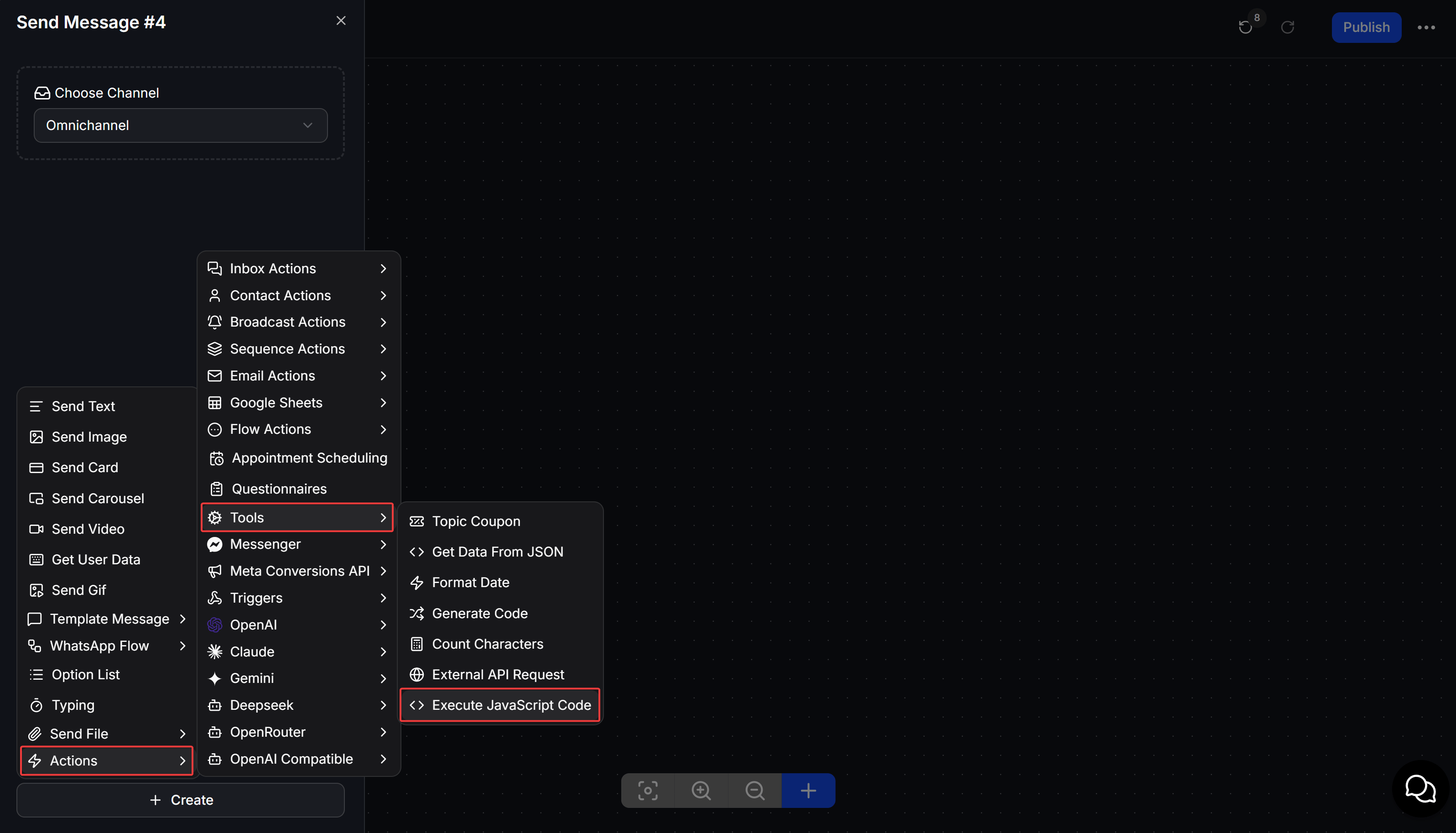
Go to **Flows**, open the Flow you want to edit, then create or select a **Perform Action** node.
In the Action menu, select **Tools**, then select **Execute JavaScript Code**.
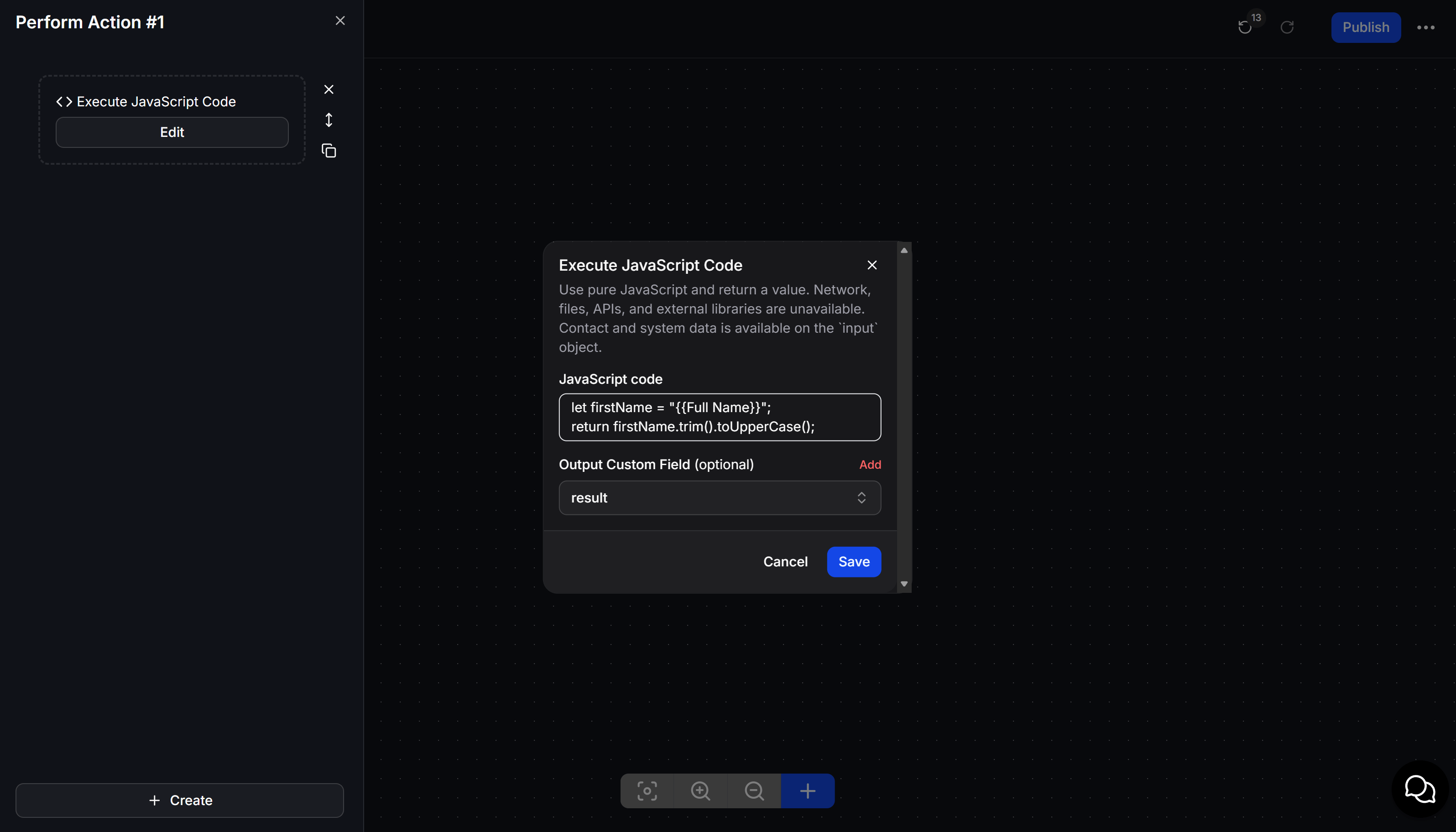
 Enter your code in **JavaScript code**. Make sure the code ends with `return`.
Under **Output Custom Field**, select the field that will receive the result, then click **Save**.
Enter your code in **JavaScript code**. Make sure the code ends with `return`.
Under **Output Custom Field**, select the field that will receive the result, then click **Save**.
 ## Practical examples
### Calculate the final amount after a discount
This example uses the order amount from `order_total` and the discount percentage from `discount_percent`:
```javascript theme={null}
let total = {{order_total}};
let discount = {{discount_percent}};
return Math.round(total - total * discount / 100);
```
Save the result to a Number Custom Field such as `final_total`. You can use `{{final_total}}` in an order confirmation message.
### Calculate a delivery fee by area
This example provides free delivery for orders of at least 500,000, charges 30,000 for Hanoi or Ho Chi Minh City, and charges 45,000 for other areas:
```javascript theme={null}
let province = "{{province}}".trim().toLowerCase();
let total = {{order_total}};
if (total >= 500000) return 0;
let innerCity = ["hà nội", "ha noi", "hồ chí minh", "ho chi minh"];
return innerCity.includes(province) ? 30000 : 45000;
```
Save the result to `shipping_fee`, then add it to the order amount or show the delivery fee to the customer.
### Classify a customer
This example assigns customers with a total purchase value of at least 1,000,000 to the `vip` group:
```javascript theme={null}
let totalSpent = {{total_spent}};
return totalSpent >= 1000000 ? "vip" : "standard";
```
Save the result to `customer_level`, then use a **Condition** node to send VIP customers to a dedicated offer or follow-up path.
### Validate an email address
```javascript theme={null}
let email = "{{email}}".trim();
let isValid = /^[^\s@]+@[^\s@]+\.[^\s@]+$/.test(email);
return isValid ? "valid" : "invalid";
```
Save the result to `email_status`. If the value is `invalid`, use a **Condition** node to ask the customer to enter the email address again.
### Read an order amount from JSON
Suppose the `order_json` Custom Field contains `{"total":750000,"status":"paid"}`:
```javascript theme={null}
let jsonText = `{{order_json}}`;
try {
let order = JSON.parse(jsonText);
return Number(order.total || 0);
} catch (error) {
return 0;
}
```
Save the result to `order_total`. The fallback value `0` lets the Flow continue if the JSON is invalid or does not contain a `total` property.
## Use the result in a Flow
After the Action runs, its returned value is saved to the selected **Output Custom Field**. You can:
* Insert the field in a message, such as `Your total is {{final_total}}`.
* Use a **Condition** node to create branches based on the result.
* Pass the result to another Action for further calculations or data updates.
## Tips for writing code
* Check that every field name inside `{{...}}` is correct.
* Put text values inside quotation marks, but leave numbers unquoted when you need to calculate with them directly.
* Always include a `return` statement.
* For JSON or potentially invalid data, use `try...catch` and return a fallback value.
* Test the Flow with a test contact before using it with customers.
## Practical examples
### Calculate the final amount after a discount
This example uses the order amount from `order_total` and the discount percentage from `discount_percent`:
```javascript theme={null}
let total = {{order_total}};
let discount = {{discount_percent}};
return Math.round(total - total * discount / 100);
```
Save the result to a Number Custom Field such as `final_total`. You can use `{{final_total}}` in an order confirmation message.
### Calculate a delivery fee by area
This example provides free delivery for orders of at least 500,000, charges 30,000 for Hanoi or Ho Chi Minh City, and charges 45,000 for other areas:
```javascript theme={null}
let province = "{{province}}".trim().toLowerCase();
let total = {{order_total}};
if (total >= 500000) return 0;
let innerCity = ["hà nội", "ha noi", "hồ chí minh", "ho chi minh"];
return innerCity.includes(province) ? 30000 : 45000;
```
Save the result to `shipping_fee`, then add it to the order amount or show the delivery fee to the customer.
### Classify a customer
This example assigns customers with a total purchase value of at least 1,000,000 to the `vip` group:
```javascript theme={null}
let totalSpent = {{total_spent}};
return totalSpent >= 1000000 ? "vip" : "standard";
```
Save the result to `customer_level`, then use a **Condition** node to send VIP customers to a dedicated offer or follow-up path.
### Validate an email address
```javascript theme={null}
let email = "{{email}}".trim();
let isValid = /^[^\s@]+@[^\s@]+\.[^\s@]+$/.test(email);
return isValid ? "valid" : "invalid";
```
Save the result to `email_status`. If the value is `invalid`, use a **Condition** node to ask the customer to enter the email address again.
### Read an order amount from JSON
Suppose the `order_json` Custom Field contains `{"total":750000,"status":"paid"}`:
```javascript theme={null}
let jsonText = `{{order_json}}`;
try {
let order = JSON.parse(jsonText);
return Number(order.total || 0);
} catch (error) {
return 0;
}
```
Save the result to `order_total`. The fallback value `0` lets the Flow continue if the JSON is invalid or does not contain a `total` property.
## Use the result in a Flow
After the Action runs, its returned value is saved to the selected **Output Custom Field**. You can:
* Insert the field in a message, such as `Your total is {{final_total}}`.
* Use a **Condition** node to create branches based on the result.
* Pass the result to another Action for further calculations or data updates.
## Tips for writing code
* Check that every field name inside `{{...}}` is correct.
* Put text values inside quotation marks, but leave numbers unquoted when you need to calculate with them directly.
* Always include a `return` statement.
* For JSON or potentially invalid data, use `try...catch` and return a fallback value.
* Test the Flow with a test contact before using it with customers.