> ## Documentation Index
> Fetch the complete documentation index at: https://chatbotx.io/docs/llms.txt
> Use this file to discover all available pages before exploring further.
# Flow Management and Design
> Learn how to build automated Flows in ChatbotX, design conversation journeys, create branches, and automate customer care.
**Flows** are the control center of ChatbotX. This is where you design and customize automated conversation journeys for your customers. Instead of writing complex code, you can use the visual **Flow Builder** drag-and-drop interface to organize your logic as easily as mapping ideas on a mind map.
## 1. Flow Management Interface
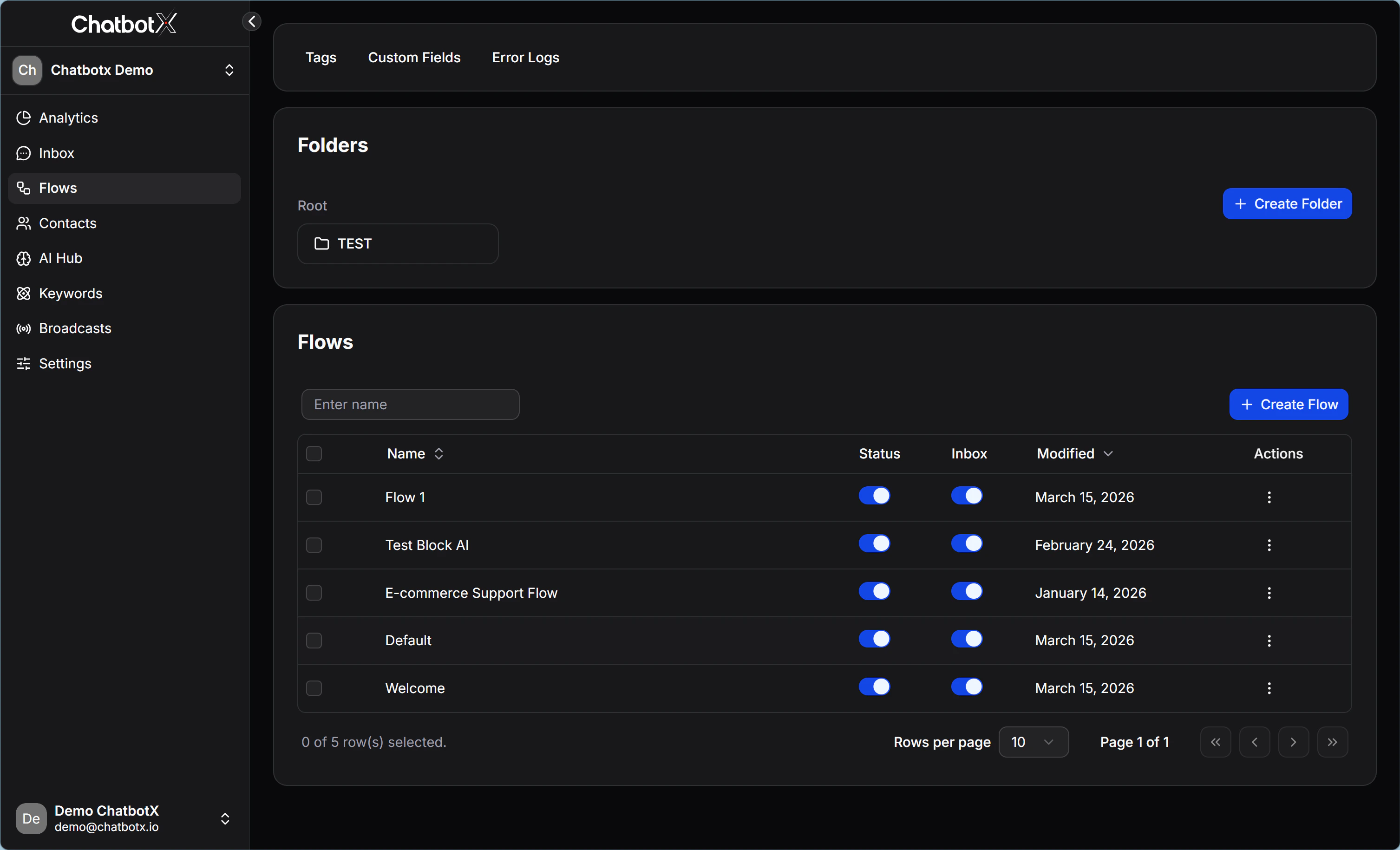
When you open **Flows** from the left menu, you will work inside the management dashboard. The interface is designed with a clear hierarchy, so you can manage a large number of Flows in a structured and readable way:
* **Folders:** A tree-style storage structure. Use **+ Create Folder** to group related Flows into one category, such as `Tet Campaign`, `New Customers`, or `Post-purchase Care`.
* **Flows List:** The area that shows every Flow inside the selected folder, along with a search bar and the blue **+ Create Flow** button in the top-right corner.
* **Status and customization columns:**
* **Status:** A simple toggle that lets you disable a Flow immediately without deleting it.
* **Inbox:** A status mode that controls whether the Flow appears inside the conversation Inbox for your team.
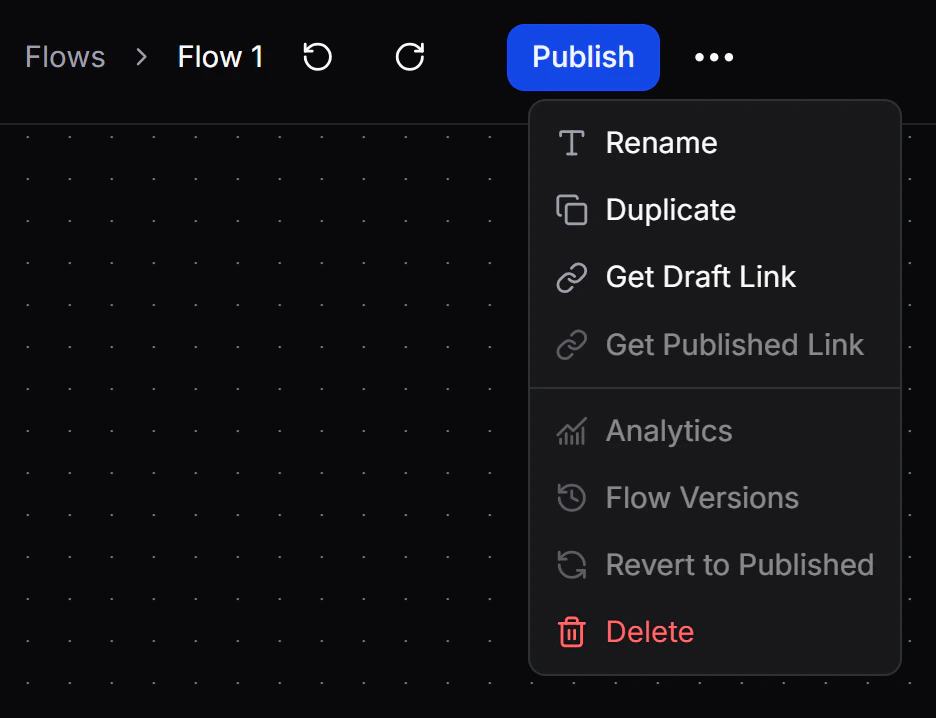
* **Modified & Actions:** Shows the last time you edited the Flow, along with an action menu where you can Rename, Duplicate, or Delete it.
 ## 2. Flow Builder Interface
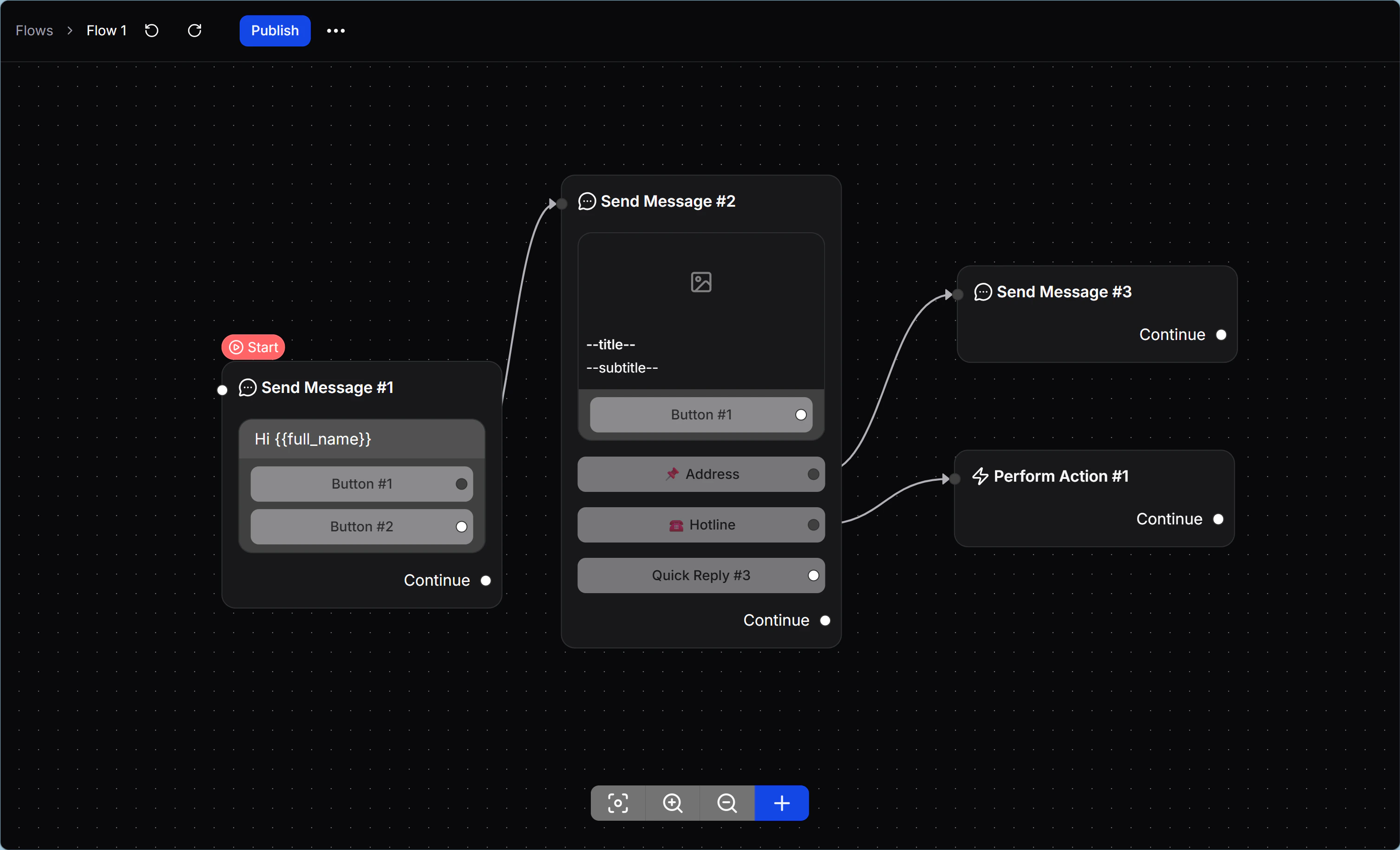
**Flow Builder** is an open canvas workspace. Here, every message, data-processing action, or logic condition is packaged as a Node.
Instead of forcing you to follow a dry list view, Flow Builder gives you a visual network-style layout with modern drag-and-connect behavior:
* Zoom in and out to see the full Flow clearly.
* Visualize the relationship between messages, actions, and decision points.
* Follow the customer journey and touchpoints more easily throughout the funnel.
## 2. Flow Builder Interface
**Flow Builder** is an open canvas workspace. Here, every message, data-processing action, or logic condition is packaged as a Node.
Instead of forcing you to follow a dry list view, Flow Builder gives you a visual network-style layout with modern drag-and-connect behavior:
* Zoom in and out to see the full Flow clearly.
* Visualize the relationship between messages, actions, and decision points.
* Follow the customer journey and touchpoints more easily throughout the funnel.
 ## 3. Starting Step
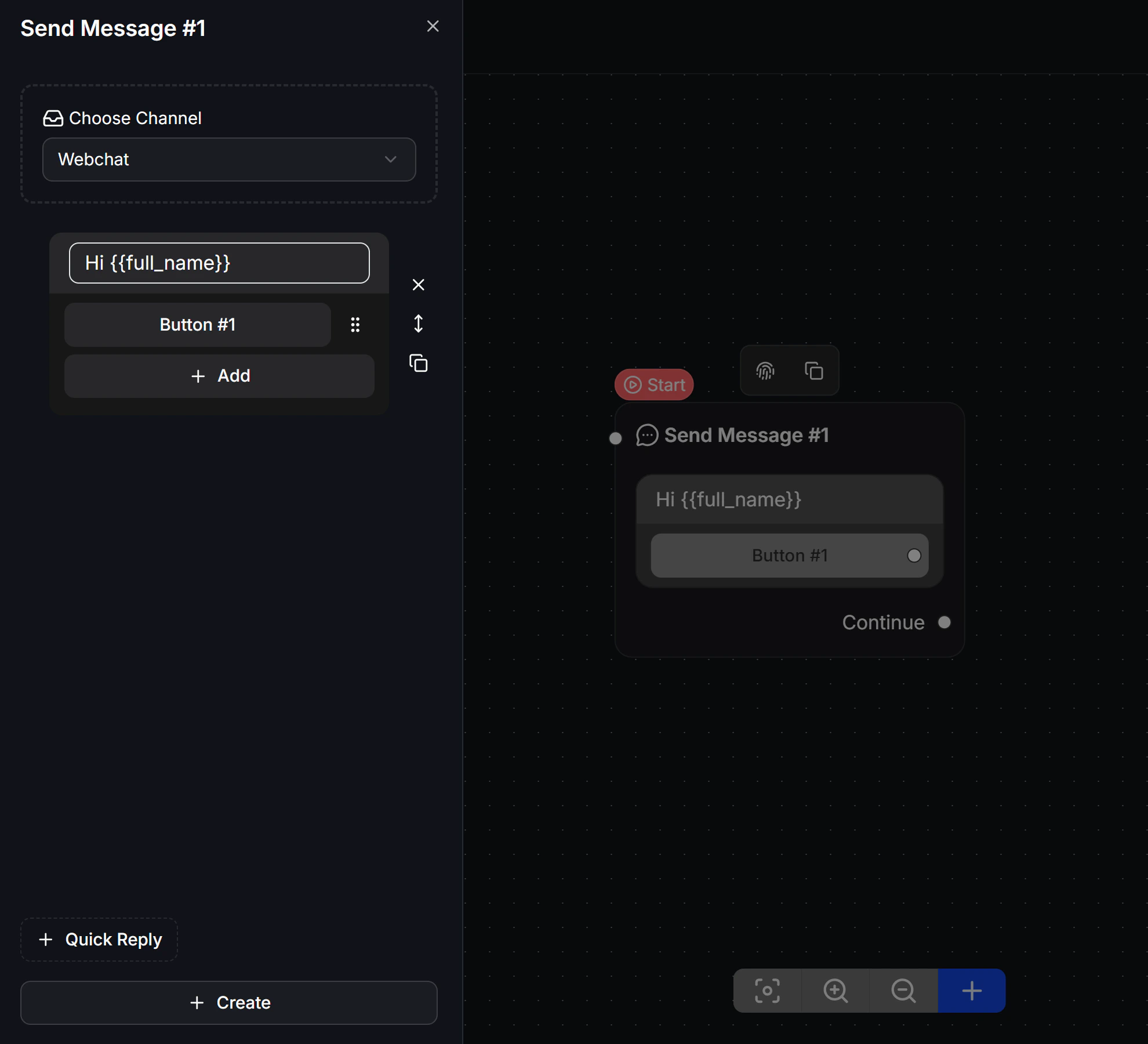
Every Flow must include a **Starting Step**, the green starting block that defines how the Flow begins.
ChatbotX Flow Builder is optimized for omnichannel sales. Inside the Starting Step, you can set up the Flow in 2 ways:
1. **Omnichannel:** Build one Flow once, and the platform will automatically adapt the content structure for each supported channel, such as Messenger, WhatsApp, or Instagram.
2. **Channel-specific:** Choose one platform when the Flow depends on a feature that only exists on that channel, such as a WhatsApp List Menu.
## 3. Starting Step
Every Flow must include a **Starting Step**, the green starting block that defines how the Flow begins.
ChatbotX Flow Builder is optimized for omnichannel sales. Inside the Starting Step, you can set up the Flow in 2 ways:
1. **Omnichannel:** Build one Flow once, and the platform will automatically adapt the content structure for each supported channel, such as Messenger, WhatsApp, or Instagram.
2. **Channel-specific:** Choose one platform when the Flow depends on a feature that only exists on that channel, such as a WhatsApp List Menu.
 ## 4. Components that make up a Flow
To build a complete Flow, you connect Nodes and Steps around 3 main groups of blocks:
1. **Send Message & Content Blocks:** Blocks that display content directly on the customer's device, such as text, images, Carousel cards, and attached files. Configuration details are covered in [Content Blocks](/docs/automation/content-blocks).
2. **Interaction Elements:** Buttons and Quick Replies that help customers interact, make choices, and move to the next step in the journey.
3. **Logic & System Nodes:** Background system blocks that handle logic, such as conditions, Smart Wait delays, A/B traffic splits, and Actions that update CRM data.
## 5. Version management
ChatbotX includes a built-in protection layer with automatic draft saving before publishing:
* **Automatic draft:** Every text edit, block update, and connection change is saved automatically as a Draft. At this stage, your edits do not affect the live customer experience.
* **Publish:** After you finish testing the Flow, click the green **Publish** button in the top-right corner to apply the latest version to future real-time conversations.
* **Revert to Published:** If your draft introduces a mistake, you can restore the last published version. This action discards all current draft changes and brings Flow Builder back to the latest live version.
## 4. Components that make up a Flow
To build a complete Flow, you connect Nodes and Steps around 3 main groups of blocks:
1. **Send Message & Content Blocks:** Blocks that display content directly on the customer's device, such as text, images, Carousel cards, and attached files. Configuration details are covered in [Content Blocks](/docs/automation/content-blocks).
2. **Interaction Elements:** Buttons and Quick Replies that help customers interact, make choices, and move to the next step in the journey.
3. **Logic & System Nodes:** Background system blocks that handle logic, such as conditions, Smart Wait delays, A/B traffic splits, and Actions that update CRM data.
## 5. Version management
ChatbotX includes a built-in protection layer with automatic draft saving before publishing:
* **Automatic draft:** Every text edit, block update, and connection change is saved automatically as a Draft. At this stage, your edits do not affect the live customer experience.
* **Publish:** After you finish testing the Flow, click the green **Publish** button in the top-right corner to apply the latest version to future real-time conversations.
* **Revert to Published:** If your draft introduces a mistake, you can restore the last published version. This action discards all current draft changes and brings Flow Builder back to the latest live version.