> ## Documentation Index
> Fetch the complete documentation index at: https://chatbotx.io/docs/llms.txt
> Use this file to discover all available pages before exploring further.
# Follow Up
> Learn how to use the Follow Up node in ChatbotX Flows to automatically re-engage customers who stop responding.
The **Follow Up** node sends a message or performs an action when a customer does not respond within a specified time. If the customer replies before the timer expires, ChatbotX cancels the Follow Up and does not run the connected nodes.
Use Follow Up to remind customers to complete a registration, check whether they still need help, or request feedback after a conversation pauses.
## How Follow Up works
When a contact reaches a Follow Up node, ChatbotX starts the timer:
* If the customer **replies before the timer expires**, ChatbotX cancels the Follow Up.
* If the customer **does not reply**, the Flow continues through the **Continue** output and runs the next node.
For example, place a one-hour Follow Up before a **Send Message** node. If the customer stays silent for one hour, the Bot sends the reminder. If the customer replies after 20 minutes, the reminder is canceled.
## Follow Up compared with Wait
Follow Up and Wait both pause a Flow, but they handle customer replies differently.
| Node | When the customer does not reply | When the customer replies during the delay |
| ------------- | -------------------------------------------- | -------------------------------------------------- |
| **Follow Up** | The Flow continues after the specified time. | ChatbotX cancels the Follow Up. |
| **Wait** | The Flow continues after the specified time. | The Flow still continues after the specified time. |
Use **Follow Up** when the next action should run only if the customer stays silent. Use **Wait** when the Flow must continue regardless of whether the customer replies.
## When to use Follow Up
Ask a question such as “Are you still interested in this product?” when a customer leaves a conversation unfinished.
Send a survey or review request after the customer has not interacted for a specified time.
Unsubscribe, Tag, or remove contacts who do not respond within the specified time.
## Add Follow Up to a Flow
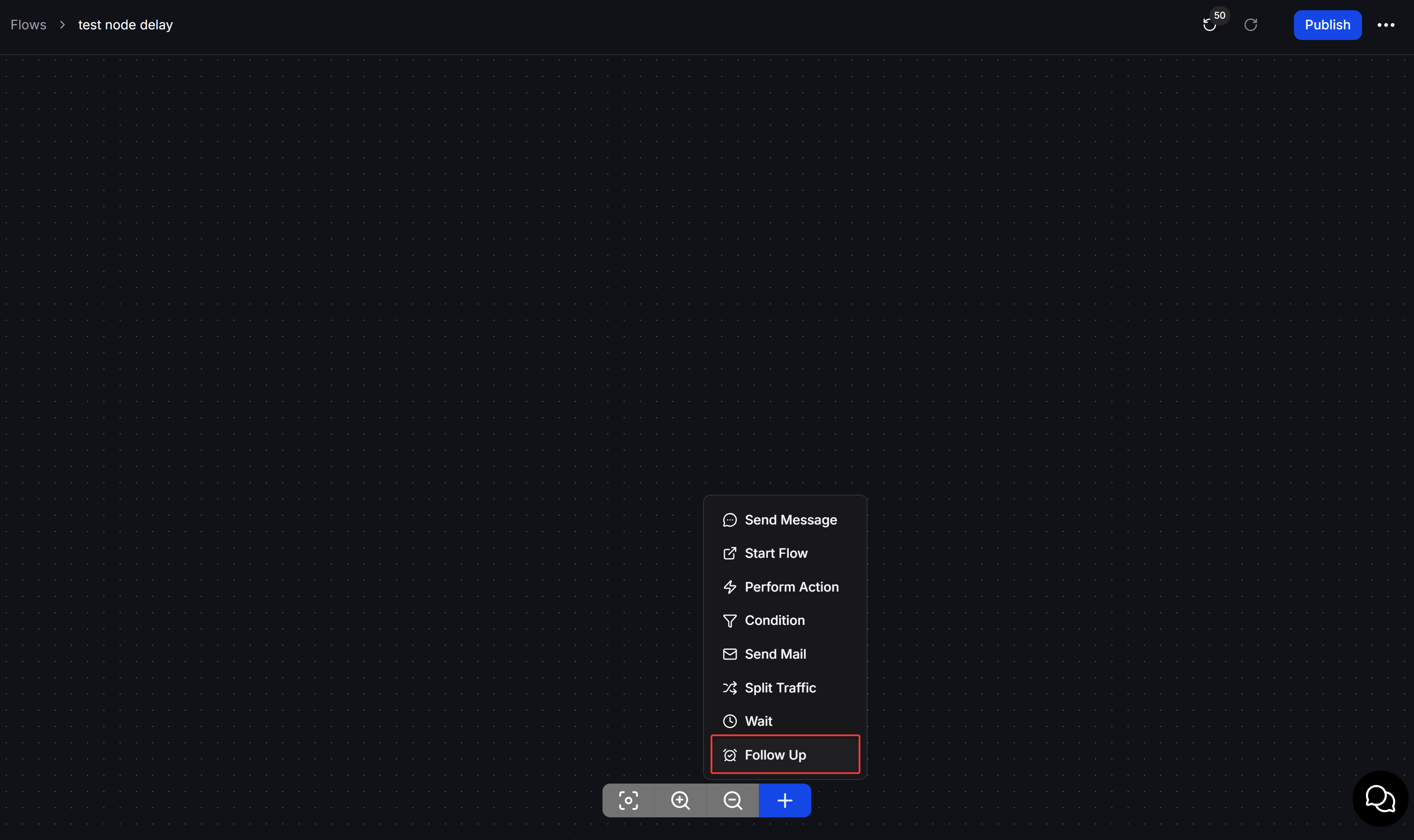
Click the **+** button in the toolbar below the canvas, or drag from the output of the previous node.
Select **Follow Up** from the node menu. The new node appears on the canvas.
 Click the Follow Up node, enter a duration, and select **Seconds**, **Minutes**, **Hours**, or **Days**.
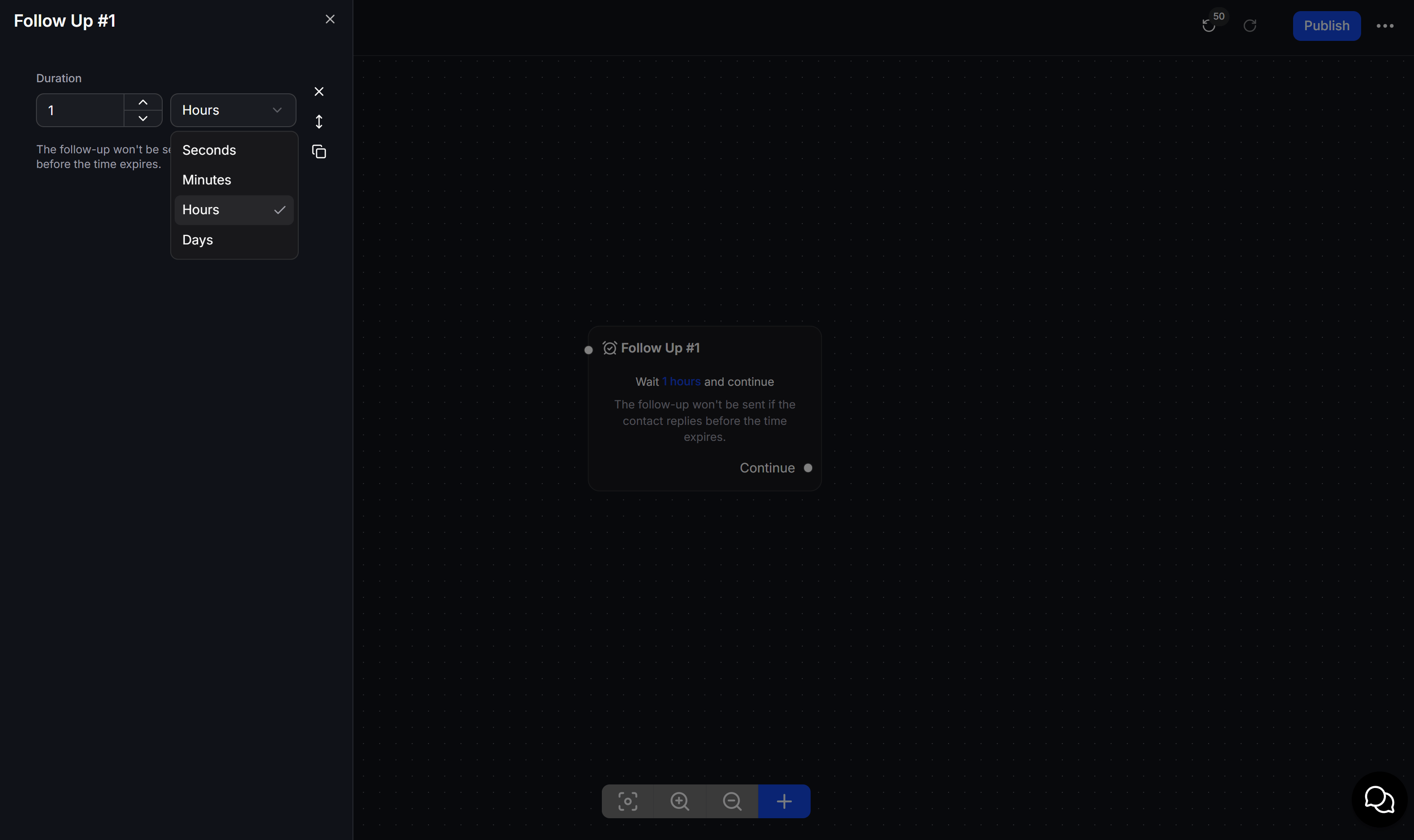 Connect the **Continue** output to a **Send Message**, **Perform Action**, or another node that should run when the customer does not reply.
## Use multiple Follow Up nodes
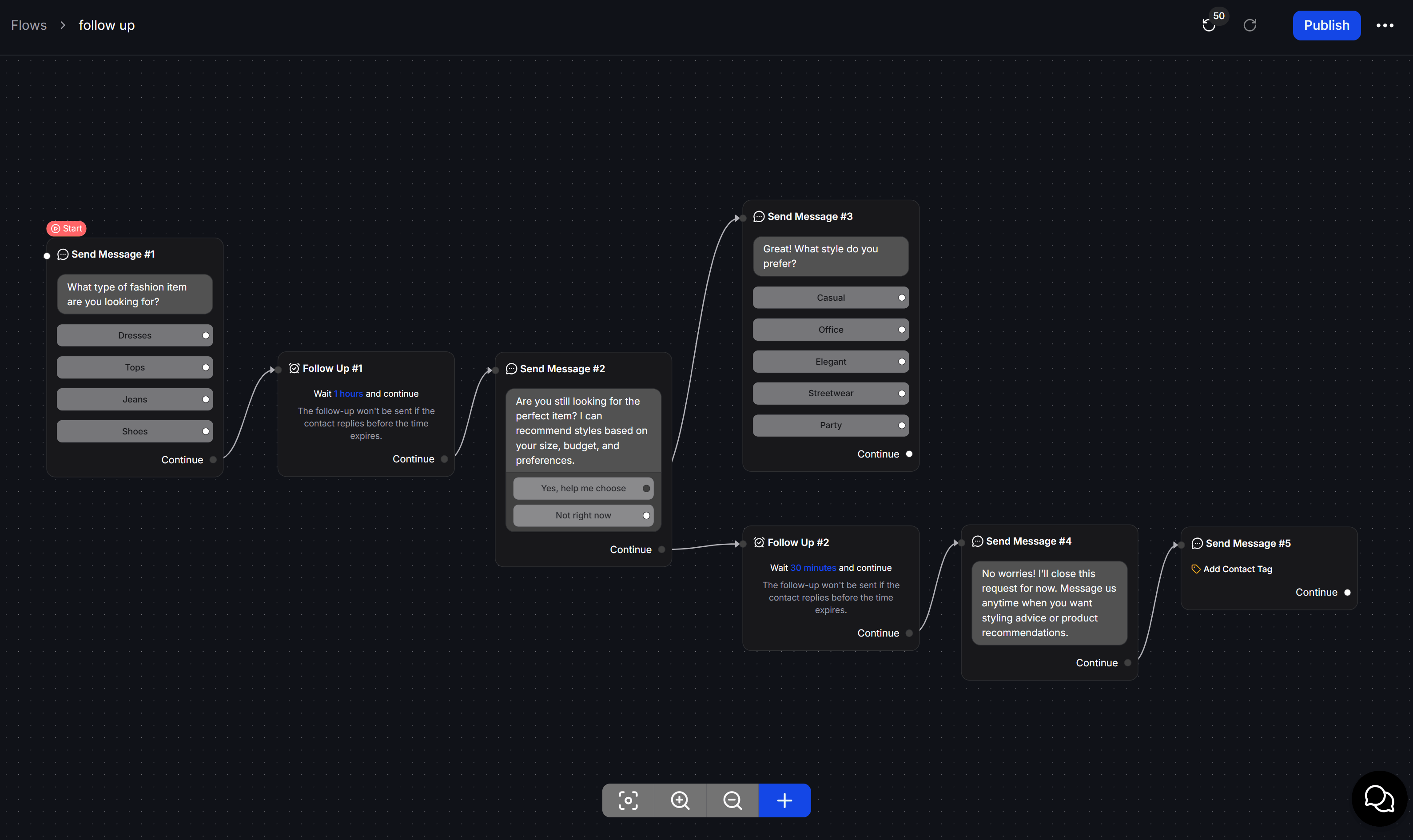
This example uses two Follow Up nodes to re-engage customers who are browsing fashion products but have not completed their selection.
Add a Send Message node with `What type of fashion item are you looking for?` and the options `Dresses`, `Tops`, `Jeans`, and `Shoes`.
Connect the message's Continue output to a Follow Up node and set the delay to `1 hour`.
After the Follow Up, send `Are you still looking for the perfect item? I can recommend styles based on your size, budget, and preferences.` Add the options `Yes, help me choose` and `Not right now`.
Connect `Yes, help me choose` to a Send Message node containing `Great! What style do you prefer?`. Add `Casual`, `Office`, `Elegant`, `Streetwear`, and `Party` as options.
Connect the reminder message's Continue output to a second Follow Up node and set the delay to `30 minutes`. Then send `No worries! I’ll close this request for now. Message us anytime when you want styling advice or product recommendations.` Use Add Contact Tag to mark the contact.
If the customer replies before a Follow Up timer expires, ChatbotX cancels that reminder and continues through the customer's selected option.
Connect the **Continue** output to a **Send Message**, **Perform Action**, or another node that should run when the customer does not reply.
## Use multiple Follow Up nodes
This example uses two Follow Up nodes to re-engage customers who are browsing fashion products but have not completed their selection.
Add a Send Message node with `What type of fashion item are you looking for?` and the options `Dresses`, `Tops`, `Jeans`, and `Shoes`.
Connect the message's Continue output to a Follow Up node and set the delay to `1 hour`.
After the Follow Up, send `Are you still looking for the perfect item? I can recommend styles based on your size, budget, and preferences.` Add the options `Yes, help me choose` and `Not right now`.
Connect `Yes, help me choose` to a Send Message node containing `Great! What style do you prefer?`. Add `Casual`, `Office`, `Elegant`, `Streetwear`, and `Party` as options.
Connect the reminder message's Continue output to a second Follow Up node and set the delay to `30 minutes`. Then send `No worries! I’ll close this request for now. Message us anytime when you want styling advice or product recommendations.` Use Add Contact Tag to mark the contact.
If the customer replies before a Follow Up timer expires, ChatbotX cancels that reminder and continues through the customer's selected option.
 You can place up to three Follow Up nodes in sequence. For longer re-engagement campaigns, use a Sequence to manage messages over several days.
## Combine Follow Up with an AI Agent
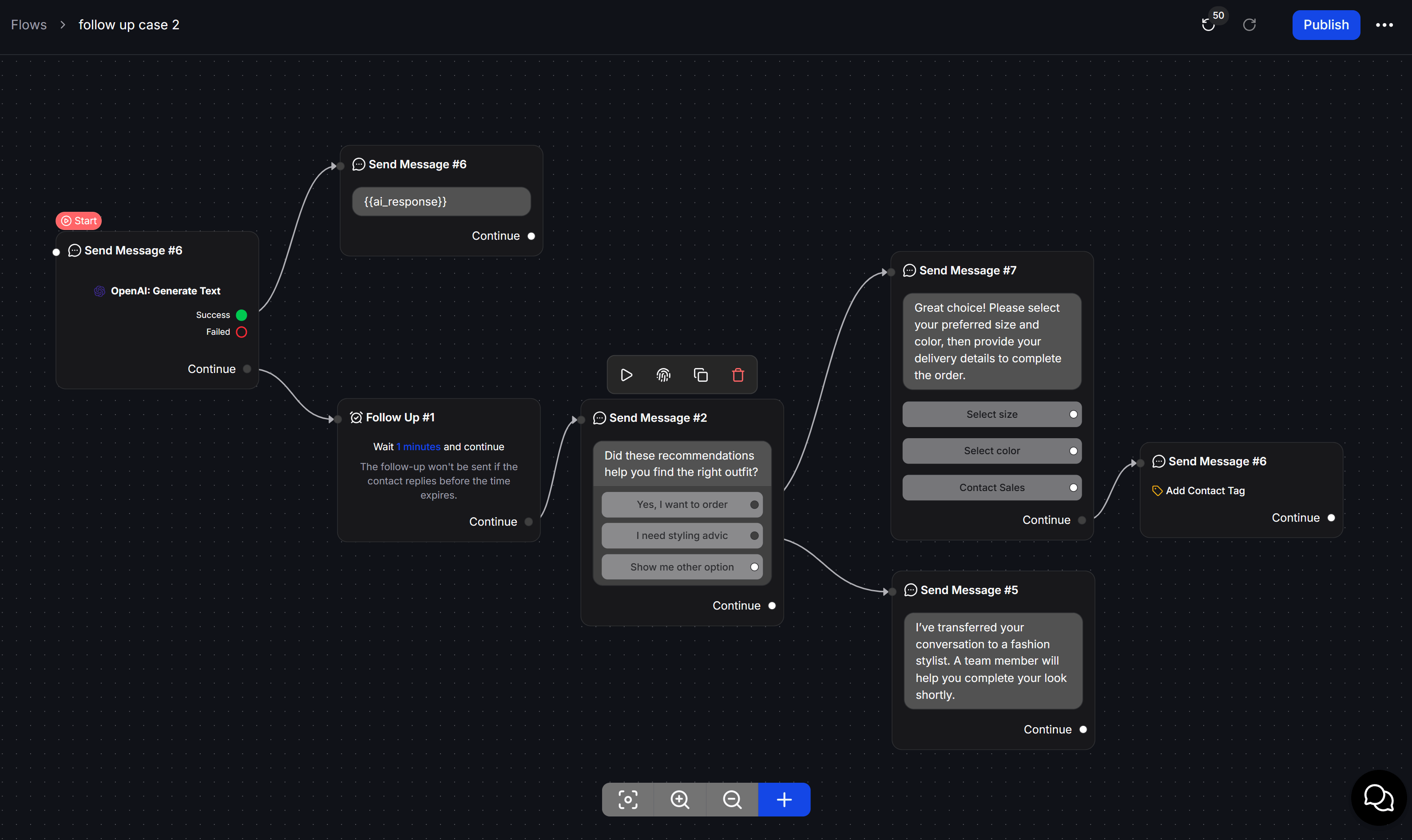
This example uses AI to recommend outfits, then uses Follow Up to check whether the customer wants to order or needs more help.
Add an OpenAI: Generate Text action and configure it to recommend outfits based on the customer's needs. Save the result to `{{ai_response}}`.
Connect the Success output to a Send Message node and insert `{{ai_response}}` to display the AI-generated recommendations.
Connect the AI action's Continue output to a Follow Up node and set the delay to `1 minute`. ChatbotX cancels the next reminder if the customer replies before the timer expires.
After the Follow Up, send `Did these recommendations help you find the right outfit?` with `Yes, I want to order`, `I need styling advice`, and `Show me other option`.
For `Yes, I want to order`, send `Great choice! Please select your preferred size and color, then provide your delivery details to complete the order.` Add `Select size`, `Select color`, and `Contact Sales`, then use Add Contact Tag to mark the contact.
For `I need styling advice`, send `I’ve transferred your conversation to a fashion stylist. A team member will help you complete your look shortly.`
Connect `Show me other option` to another product recommendation branch that fits your sales process.
You can place up to three Follow Up nodes in sequence. For longer re-engagement campaigns, use a Sequence to manage messages over several days.
## Combine Follow Up with an AI Agent
This example uses AI to recommend outfits, then uses Follow Up to check whether the customer wants to order or needs more help.
Add an OpenAI: Generate Text action and configure it to recommend outfits based on the customer's needs. Save the result to `{{ai_response}}`.
Connect the Success output to a Send Message node and insert `{{ai_response}}` to display the AI-generated recommendations.
Connect the AI action's Continue output to a Follow Up node and set the delay to `1 minute`. ChatbotX cancels the next reminder if the customer replies before the timer expires.
After the Follow Up, send `Did these recommendations help you find the right outfit?` with `Yes, I want to order`, `I need styling advice`, and `Show me other option`.
For `Yes, I want to order`, send `Great choice! Please select your preferred size and color, then provide your delivery details to complete the order.` Add `Select size`, `Select color`, and `Contact Sales`, then use Add Contact Tag to mark the contact.
For `I need styling advice`, send `I’ve transferred your conversation to a fashion stylist. A team member will help you complete your look shortly.`
Connect `Show me other option` to another product recommendation branch that fits your sales process.
 ## Follow Up best practices
* Do not place Follow Up directly after a **Get User Data** node. Enable **Auto Skip** in Get User Data when you need to handle missing customer input.
* Do not place more than three Follow Up nodes in sequence.
* Keep the Follow Up delay within 30 days of the customer's last interaction.
* Keep reminder messages short and directly related to the previous question.
* Check each channel's messaging policy before using long Follow Up delays.
## Follow Up best practices
* Do not place Follow Up directly after a **Get User Data** node. Enable **Auto Skip** in Get User Data when you need to handle missing customer input.
* Do not place more than three Follow Up nodes in sequence.
* Keep the Follow Up delay within 30 days of the customer's last interaction.
* Keep reminder messages short and directly related to the previous question.
* Check each channel's messaging policy before using long Follow Up delays.