> ## Documentation Index
> Fetch the complete documentation index at: https://chatbotx.io/docs/llms.txt
> Use this file to discover all available pages before exploring further.
# Format Date
> Format dates and times in a ChatbotX Flow with date-fns patterns before showing them to customers or using them in automation.
**Format Date** changes a date or time value into the format your Flow needs. Use it when the system stores a date in one format but customers, staff, or another step in the Flow need a different display.
For example, you can change `2026-08-11T14:30:00` into `11/08/2026`, `11 Aug 2026`, or `14:30`.
## Add Format Date to a Flow
Open the Flow that contains the date or time value you want to format.
Add a **Perform Action** node before the message or condition that will use the formatted value.
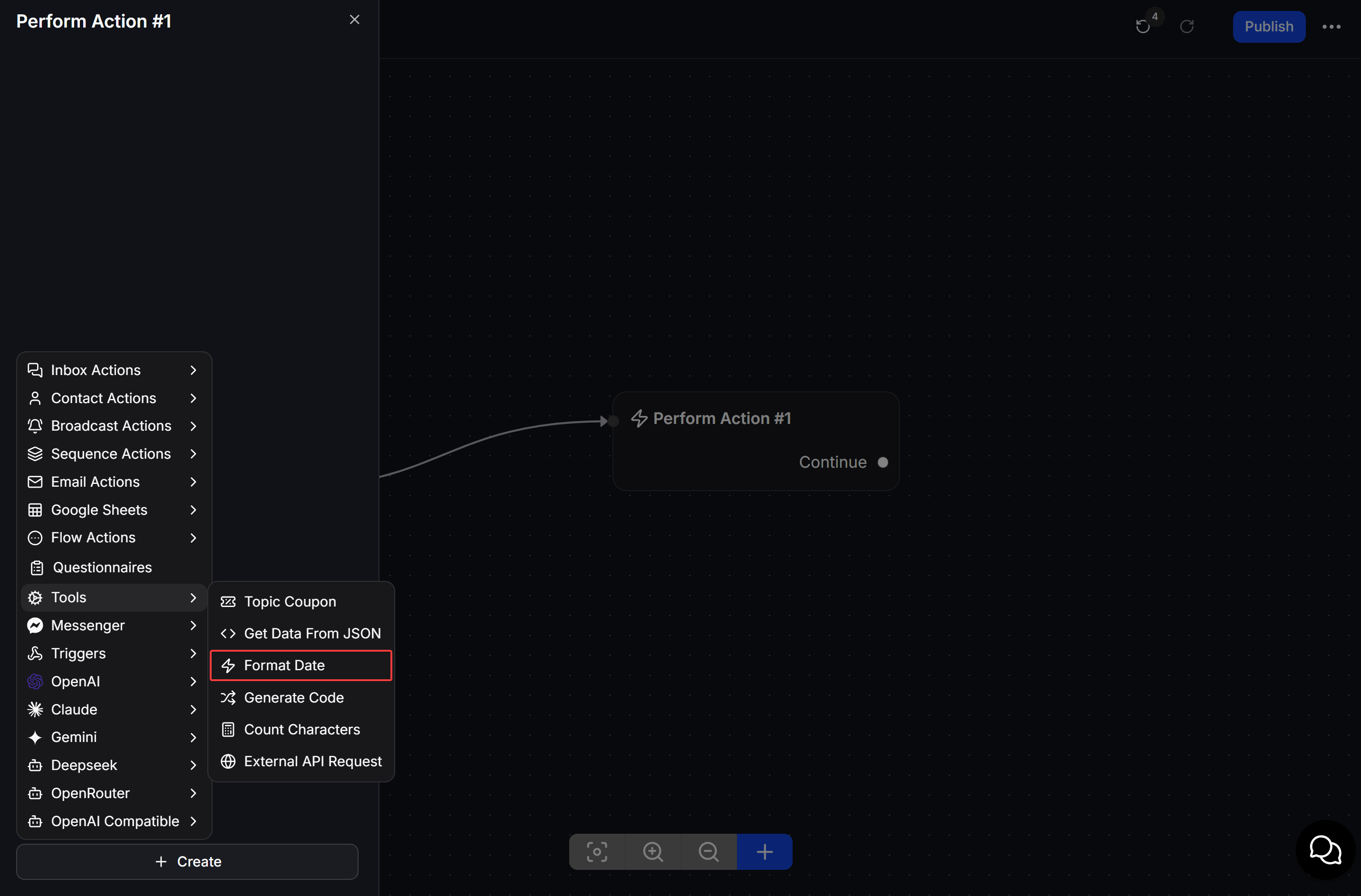
Open the node, click **Create**, then select **Tools > Format Date**.
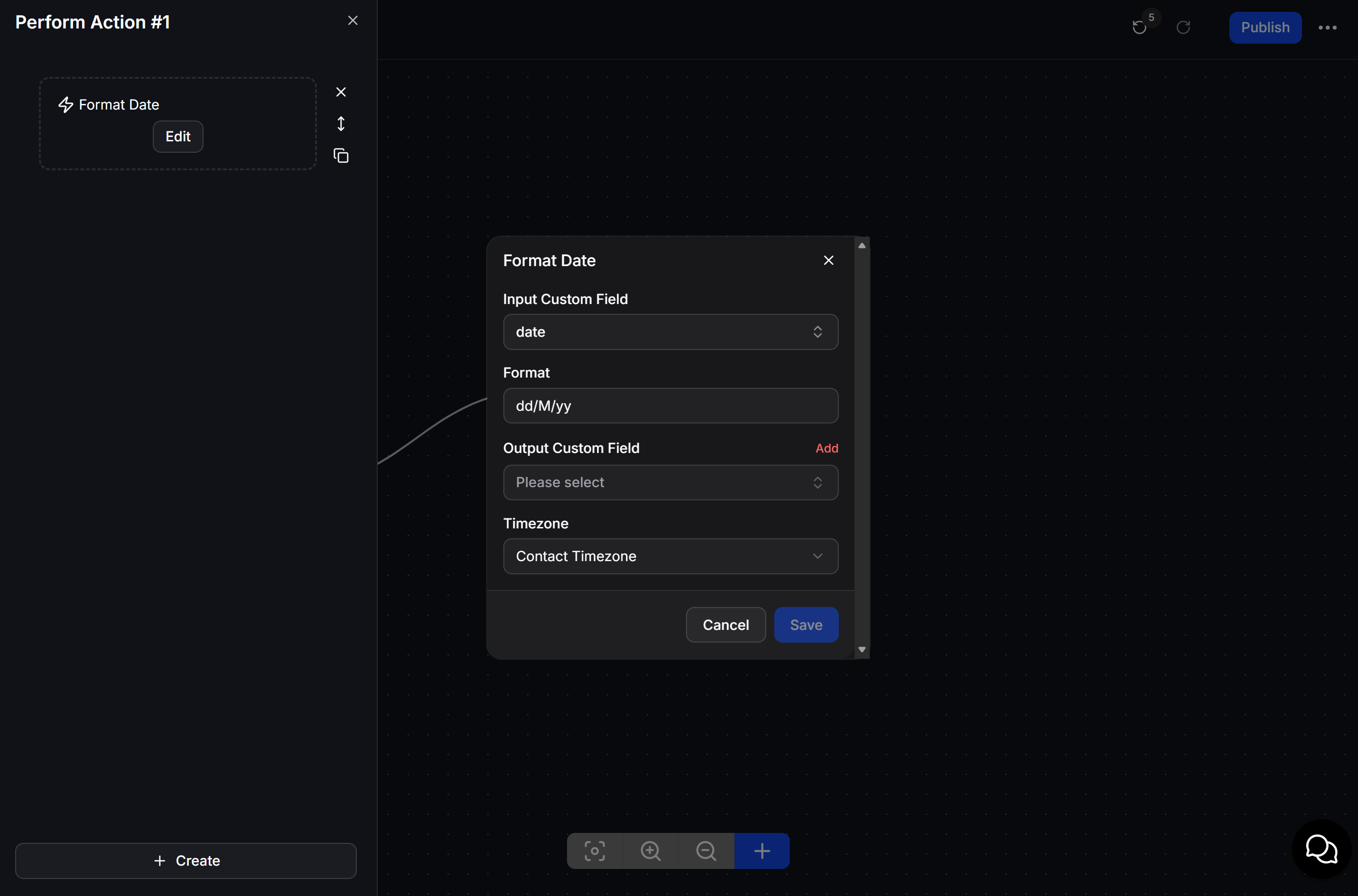
 Select the **Input Custom Field**, enter a date-fns pattern in **Format**, choose the **Output Custom Field**, then select the **Timezone** and click **Save**.
 ## Use date-fns format patterns
ChatbotX uses the date-fns formatting style. Use the [date-fns interactive formatter](https://date-fns-interactive.netlify.app/) to test patterns before adding them to your Flow.
| Pattern | Output example | Meaning |
| -------------------- | ------------------------- | --------------------------------------- |
| `yyyy-MM-dd` | `2026-08-11` | Four-digit year, month, and day |
| `dd/MM/yyyy` | `11/08/2026` | Day, month, and four-digit year |
| `dd MMM yyyy` | `11 Aug 2026` | Day, abbreviated month, and year |
| `EEEE, dd MMMM yyyy` | `Tuesday, 11 August 2026` | Full weekday, day, full month, and year |
| `HH:mm` | `14:30` | 24-hour time and minutes |
| `HH:mm:ss` | `14:30:00` | 24-hour time, minutes, and seconds |
Use uppercase `MM` for months and lowercase `mm` for minutes. Use `yyyy` for a four-digit calendar year.
## Choose the source, output, and timezone
* **Input Custom Field:** The field that stores the original date or time.
* **Format:** The date-fns pattern that controls the result.
* **Output Custom Field:** The field where ChatbotX saves the formatted value. Use **Add** when you need a new Custom Field.
* **Timezone:** The timezone used to format the value. Select **Contact Timezone** when the date should follow the contact's timezone.
## Example: show a delivery date
Your Flow stores a delivery date in a Custom Field. Add **Format Date** before the confirmation message, then use `dd/MM/yyyy` so the customer sees a familiar date format.
Test the pattern with a real date value before publishing the Flow. This helps you confirm the day, month, and time appear in the expected order.
## Use date-fns format patterns
ChatbotX uses the date-fns formatting style. Use the [date-fns interactive formatter](https://date-fns-interactive.netlify.app/) to test patterns before adding them to your Flow.
| Pattern | Output example | Meaning |
| -------------------- | ------------------------- | --------------------------------------- |
| `yyyy-MM-dd` | `2026-08-11` | Four-digit year, month, and day |
| `dd/MM/yyyy` | `11/08/2026` | Day, month, and four-digit year |
| `dd MMM yyyy` | `11 Aug 2026` | Day, abbreviated month, and year |
| `EEEE, dd MMMM yyyy` | `Tuesday, 11 August 2026` | Full weekday, day, full month, and year |
| `HH:mm` | `14:30` | 24-hour time and minutes |
| `HH:mm:ss` | `14:30:00` | 24-hour time, minutes, and seconds |
Use uppercase `MM` for months and lowercase `mm` for minutes. Use `yyyy` for a four-digit calendar year.
## Choose the source, output, and timezone
* **Input Custom Field:** The field that stores the original date or time.
* **Format:** The date-fns pattern that controls the result.
* **Output Custom Field:** The field where ChatbotX saves the formatted value. Use **Add** when you need a new Custom Field.
* **Timezone:** The timezone used to format the value. Select **Contact Timezone** when the date should follow the contact's timezone.
## Example: show a delivery date
Your Flow stores a delivery date in a Custom Field. Add **Format Date** before the confirmation message, then use `dd/MM/yyyy` so the customer sees a familiar date format.
Test the pattern with a real date value before publishing the Flow. This helps you confirm the day, month, and time appear in the expected order.