> ## Documentation Index
> Fetch the complete documentation index at: https://chatbotx.io/docs/llms.txt
> Use this file to discover all available pages before exploring further.
# Export and Import Flows
> Export a ChatbotX Flow as a file, import it into a workspace, and track the result in Import history.
**Export** and **Import Flow** let you back up a Flow, move it to another workspace, or reuse an existing automation without rebuilding it from scratch.
Download the current Flow as a `.chatbotx-flow.json` file.
Add a Flow file to the workspace's Flows list.
Track the status and result of each import.
## Export a Flow
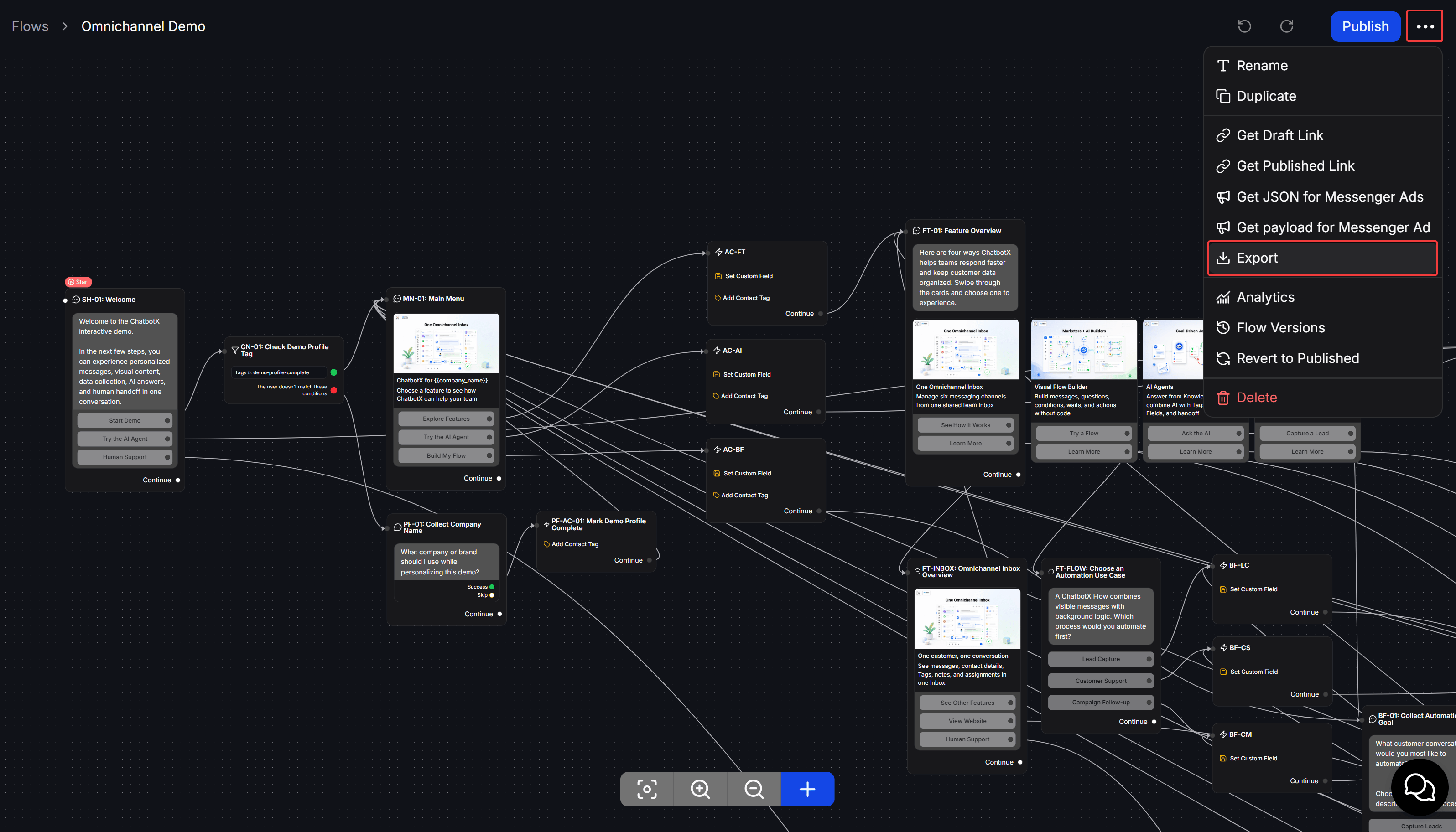
Go to **Flows**, then open the Flow you want to back up or move to another workspace.
In the Flow Builder, click the **three-dot** icon in the upper-right corner.
Select **Export** to download the Flow. The exported filename ends with `.chatbotx-flow.json`.
 ## Import a Flow
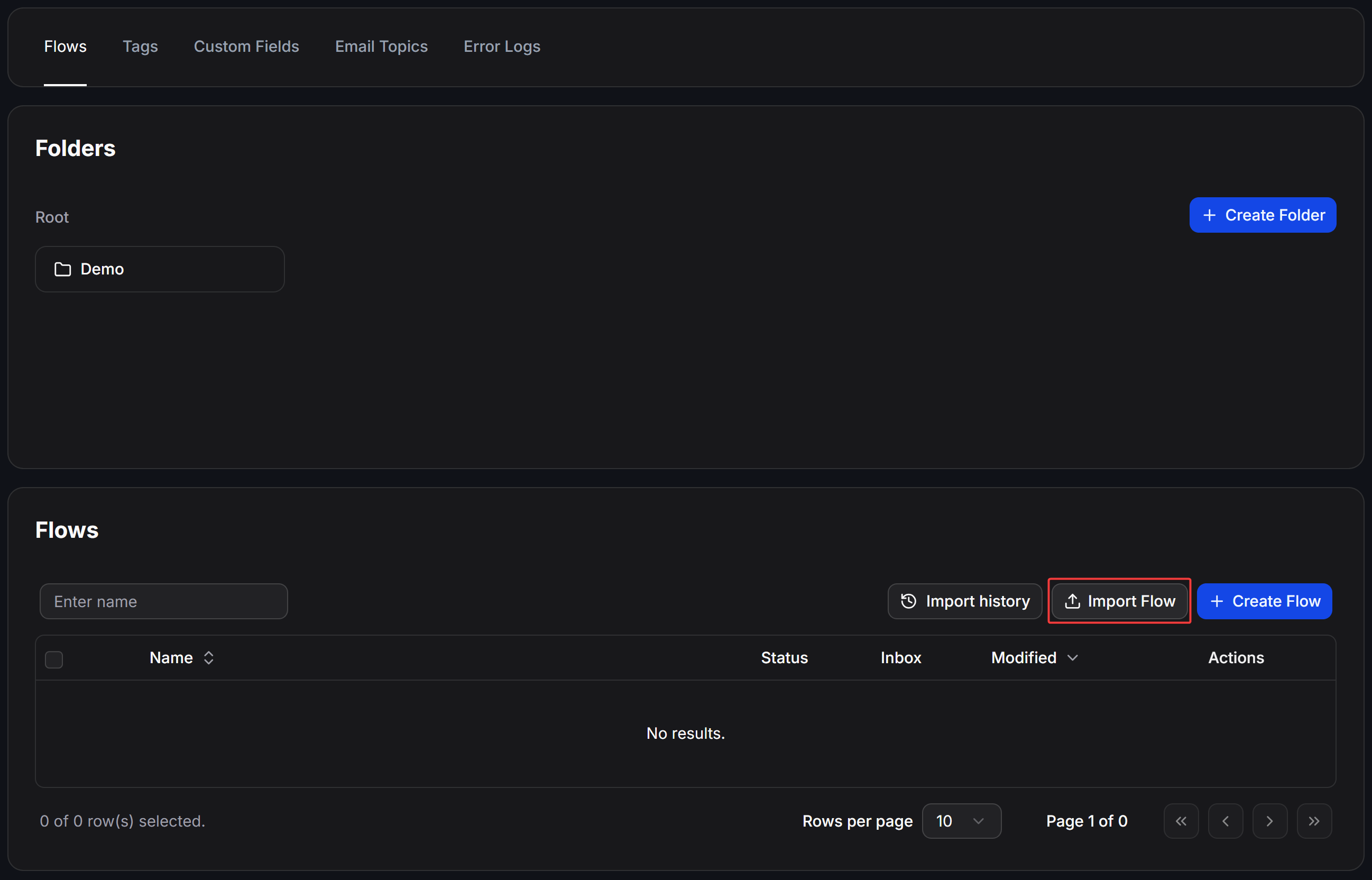
Go to **Flows** in the workspace that will receive the Flow.
Click **Import Flow**, then select a `.chatbotx-flow.json` file exported from ChatbotX.
ChatbotX processes the file and adds the Flow to the workspace. Click **Import history** to review the result.
Open the new Flow, review its content and block connections, then click **Publish** when it is ready to use.
## Import a Flow
Go to **Flows** in the workspace that will receive the Flow.
Click **Import Flow**, then select a `.chatbotx-flow.json` file exported from ChatbotX.
ChatbotX processes the file and adds the Flow to the workspace. Click **Import history** to review the result.
Open the new Flow, review its content and block connections, then click **Publish** when it is ready to use.
 ## Review Import history
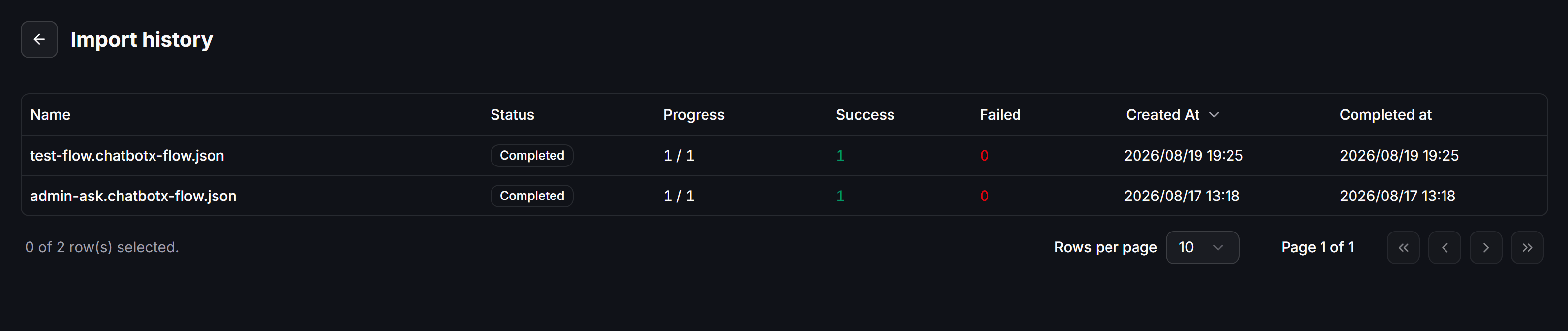
The **Import history** page shows the result of each imported file:
* **Name**: The Flow filename.
* **Status**: The current processing status.
* **Progress**: The number of processed Flows compared with the total in the import.
* **Success**: The number of successfully imported Flows.
* **Failed**: The number of Flows that could not be imported.
* **Created At**: When the import started.
* **Completed at**: When processing finished.
For example, **Completed** with **Success** set to `1` and **Failed** set to `0` means that one Flow was imported successfully.
## Review Import history
The **Import history** page shows the result of each imported file:
* **Name**: The Flow filename.
* **Status**: The current processing status.
* **Progress**: The number of processed Flows compared with the total in the import.
* **Success**: The number of successfully imported Flows.
* **Failed**: The number of Flows that could not be imported.
* **Created At**: When the import started.
* **Completed at**: When processing finished.
For example, **Completed** with **Success** set to `1` and **Failed** set to `0` means that one Flow was imported successfully.
 ## Example workflow
Suppose you created a customer data collection Flow in your main workspace and want to reuse it in a new workspace:
1. Open the original Flow and select **Export**.
2. Switch to the new workspace, open **Flows**, and select **Import Flow**.
3. Open **Import history** to confirm that processing completed successfully.
4. Open the imported Flow, adjust its content for the new workspace, and click **Publish**.
Keep the `.chatbotx-flow.json` file if you want to use it as a backup or import the Flow into another workspace later.
## Example workflow
Suppose you created a customer data collection Flow in your main workspace and want to reuse it in a new workspace:
1. Open the original Flow and select **Export**.
2. Switch to the new workspace, open **Flows**, and select **Import Flow**.
3. Open **Import history** to confirm that processing completed successfully.
4. Open the imported Flow, adjust its content for the new workspace, and click **Publish**.
Keep the `.chatbotx-flow.json` file if you want to use it as a backup or import the Flow into another workspace later.