> ## Documentation Index
> Fetch the complete documentation index at: https://chatbotx.io/docs/llms.txt
> Use this file to discover all available pages before exploring further.
# Email
> Configure Email integration for ChatbotX.
The Email feature allows you to turn any email address into a ChatbotX inbox. Incoming emails will be displayed as conversations, and your team can reply directly from ChatbotX using an SMTP connection to send notifications, order confirmations, documents, or automated email sequences.
**Important note on Email Deliverability:**\
To ensure your emails are not marked as Spam and achieve the highest delivery rate, make sure you have configured domain authentication (**SPF**, **DKIM**, and **DMARC**) in your sending domain's DNS manager before using it in a production environment.
If you do not have a dedicated SMTP provider yet, see the [Emails configuration guide](/configuration/emails) for recommended providers and connection string examples.
Below is a guide from basic to advanced for setting up and using the Email sending feature in ChatbotX.
## Step 1: Get SMTP credentials from your provider
Depending on the Email service provider you are using, you will need the following basic information to connect with ChatbotX:
* **SMTP Host/Server**
* **SMTP Port** (Usually `465` for SSL or `587` for TLS)
* **SMTP Username** (Usually your email address)
* **SMTP Password** (App Password or API Key, **not your main account login password**)
 Please expand (click) on your corresponding Email provider below to see how to get an App Password or SMTP Key.
Log in to your Google account, go to the **Security** section, and make sure you have turned on **2-Step Verification**.
Still in the **Security** section, find the **App passwords** section.
Enter an app name (e.g., `ChatbotX SMTP`) and click **Create**. Google will provide you with a 16-letter string. This is your **SMTP Password**.
* **Host:** `smtp.gmail.com`
* **Port:** `465` (SSL) or `587` (TLS)
* **Username:** Your Gmail address.
See the official documentation for more details: [Sign in with App Passwords - Google Account Help](https://support.google.com/accounts/answer/185833)
Log in to your Microsoft account, go to **Security > Advanced Security Options**.
Ensure **Two-step verification** is turned on. Then scroll down to the **App passwords** section and click **Create a new app password**.
Save the newly created password. This is your **SMTP Password**.
* **Host:** `smtp-mail.outlook.com` (or `smtp.office365.com` for business accounts)
* **Port:** `587` (TLS)
* **Username:** Your Outlook/Office 365 email address.
See the official documentation for more details: [Manage app passwords - Microsoft Support](https://support.microsoft.com/account-billing/how-to-get-and-use-app-passwords-5896ed9b-4263-e681-128a-a6f2979a7944)
Log in to SendGrid, go to **Settings > API Keys**, and click **Create API Key**.
Select **Restricted Access**, grant **Mail Send > Full Access**, and proceed to create.
Copy the API Key string starting with `SG.`. This will be your **SMTP Password**.
* **Host:** `smtp.sendgrid.net`
* **Port:** `465` (SSL) or `587` (TLS)
* **Username:** `apikey` (Write exactly "apikey", not your email).
See the official documentation for more details: [Sending Email with SMTP - Twilio SendGrid Docs](https://docs.sendgrid.com/for-developers/sending-email/getting-started-smtp)
In the AWS console, open the **Amazon SES** service, and navigate to **SMTP Settings**.
Click **Create My SMTP Credentials**. The system will create a new IAM user with permissions to send emails.
Download or immediately copy the provided **SMTP Username** and **SMTP Password** on the final screen.
* **Host:** (Depends on your Region, e.g., `email-smtp.us-east-1.amazonaws.com`)
* **Port:** `465` or `587`
* **Username:** The newly created SMTP Username string.
* **Password:** The newly created SMTP Password string.
See the official documentation for more details: [Obtaining SMTP credentials - Amazon SES Developer Guide](https://docs.aws.amazon.com/ses/latest/dg/send-email-smtp.html)
Log in to Brevo, click on your account name in the top right corner > **SMTP & API**.
Switch to the **SMTP** tab, and click **Generate a new SMTP key**.
Name the key and copy the newly generated key string.
* **Host:** `smtp-relay.brevo.com`
* **Port:** `587`
* **Username:** Your Brevo login email.
* **Password:** The newly created SMTP key string.
See the official documentation for more details: [Set up Brevo SMTP - Brevo Help Center](https://help.brevo.com/hc/en-us/articles/209432609-Set-up-Brevo-SMTP)
## Step 2: Create an Email Channel
In ChatbotX, go to **Settings → Channels →** click **Add SMTP**.
Please expand (click) on your corresponding Email provider below to see how to get an App Password or SMTP Key.
Log in to your Google account, go to the **Security** section, and make sure you have turned on **2-Step Verification**.
Still in the **Security** section, find the **App passwords** section.
Enter an app name (e.g., `ChatbotX SMTP`) and click **Create**. Google will provide you with a 16-letter string. This is your **SMTP Password**.
* **Host:** `smtp.gmail.com`
* **Port:** `465` (SSL) or `587` (TLS)
* **Username:** Your Gmail address.
See the official documentation for more details: [Sign in with App Passwords - Google Account Help](https://support.google.com/accounts/answer/185833)
Log in to your Microsoft account, go to **Security > Advanced Security Options**.
Ensure **Two-step verification** is turned on. Then scroll down to the **App passwords** section and click **Create a new app password**.
Save the newly created password. This is your **SMTP Password**.
* **Host:** `smtp-mail.outlook.com` (or `smtp.office365.com` for business accounts)
* **Port:** `587` (TLS)
* **Username:** Your Outlook/Office 365 email address.
See the official documentation for more details: [Manage app passwords - Microsoft Support](https://support.microsoft.com/account-billing/how-to-get-and-use-app-passwords-5896ed9b-4263-e681-128a-a6f2979a7944)
Log in to SendGrid, go to **Settings > API Keys**, and click **Create API Key**.
Select **Restricted Access**, grant **Mail Send > Full Access**, and proceed to create.
Copy the API Key string starting with `SG.`. This will be your **SMTP Password**.
* **Host:** `smtp.sendgrid.net`
* **Port:** `465` (SSL) or `587` (TLS)
* **Username:** `apikey` (Write exactly "apikey", not your email).
See the official documentation for more details: [Sending Email with SMTP - Twilio SendGrid Docs](https://docs.sendgrid.com/for-developers/sending-email/getting-started-smtp)
In the AWS console, open the **Amazon SES** service, and navigate to **SMTP Settings**.
Click **Create My SMTP Credentials**. The system will create a new IAM user with permissions to send emails.
Download or immediately copy the provided **SMTP Username** and **SMTP Password** on the final screen.
* **Host:** (Depends on your Region, e.g., `email-smtp.us-east-1.amazonaws.com`)
* **Port:** `465` or `587`
* **Username:** The newly created SMTP Username string.
* **Password:** The newly created SMTP Password string.
See the official documentation for more details: [Obtaining SMTP credentials - Amazon SES Developer Guide](https://docs.aws.amazon.com/ses/latest/dg/send-email-smtp.html)
Log in to Brevo, click on your account name in the top right corner > **SMTP & API**.
Switch to the **SMTP** tab, and click **Generate a new SMTP key**.
Name the key and copy the newly generated key string.
* **Host:** `smtp-relay.brevo.com`
* **Port:** `587`
* **Username:** Your Brevo login email.
* **Password:** The newly created SMTP key string.
See the official documentation for more details: [Set up Brevo SMTP - Brevo Help Center](https://help.brevo.com/hc/en-us/articles/209432609-Set-up-Brevo-SMTP)
## Step 2: Create an Email Channel
In ChatbotX, go to **Settings → Channels →** click **Add SMTP**.
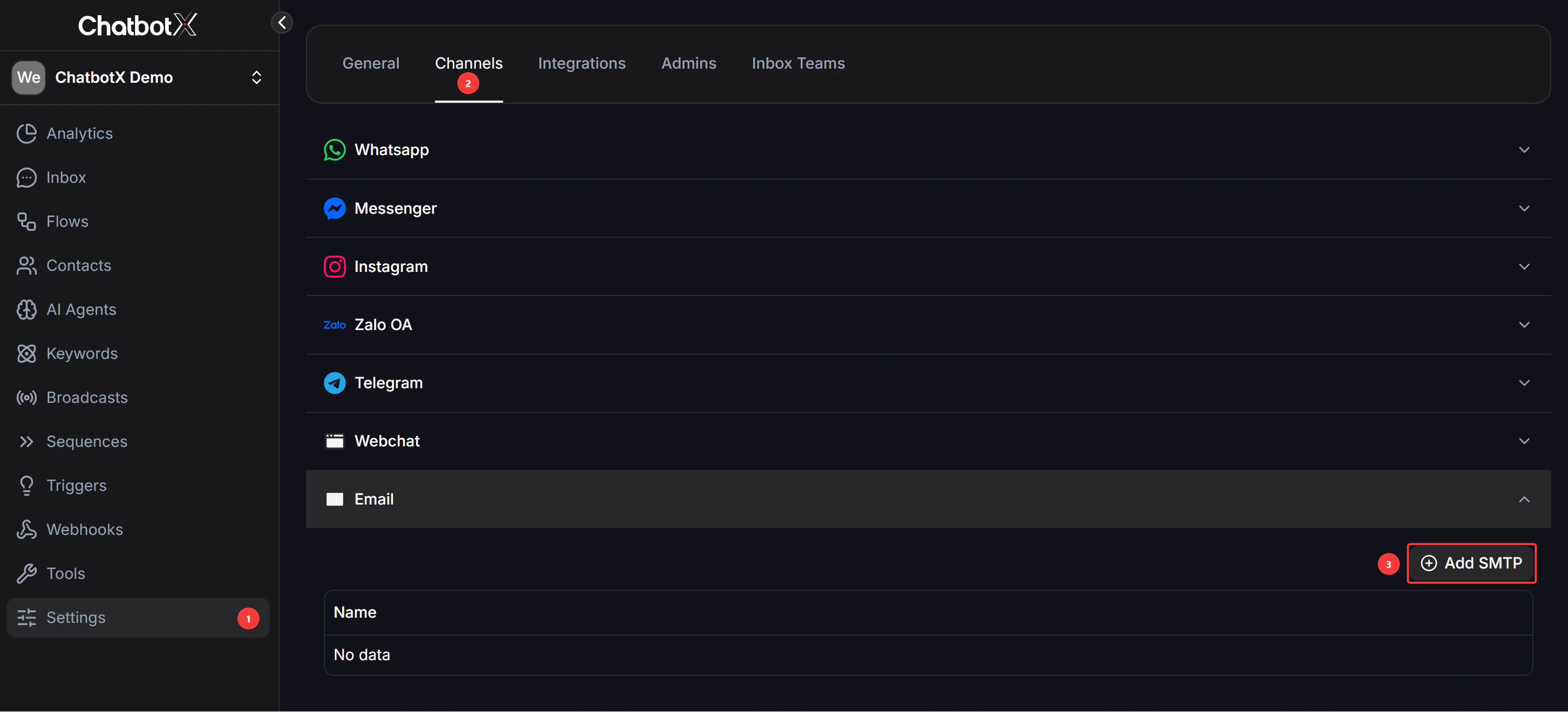 Find and select your Email service provider from the dropdown list (e.g., Google (Gmail), Outlook, SendGrid, Amazon SES,...).
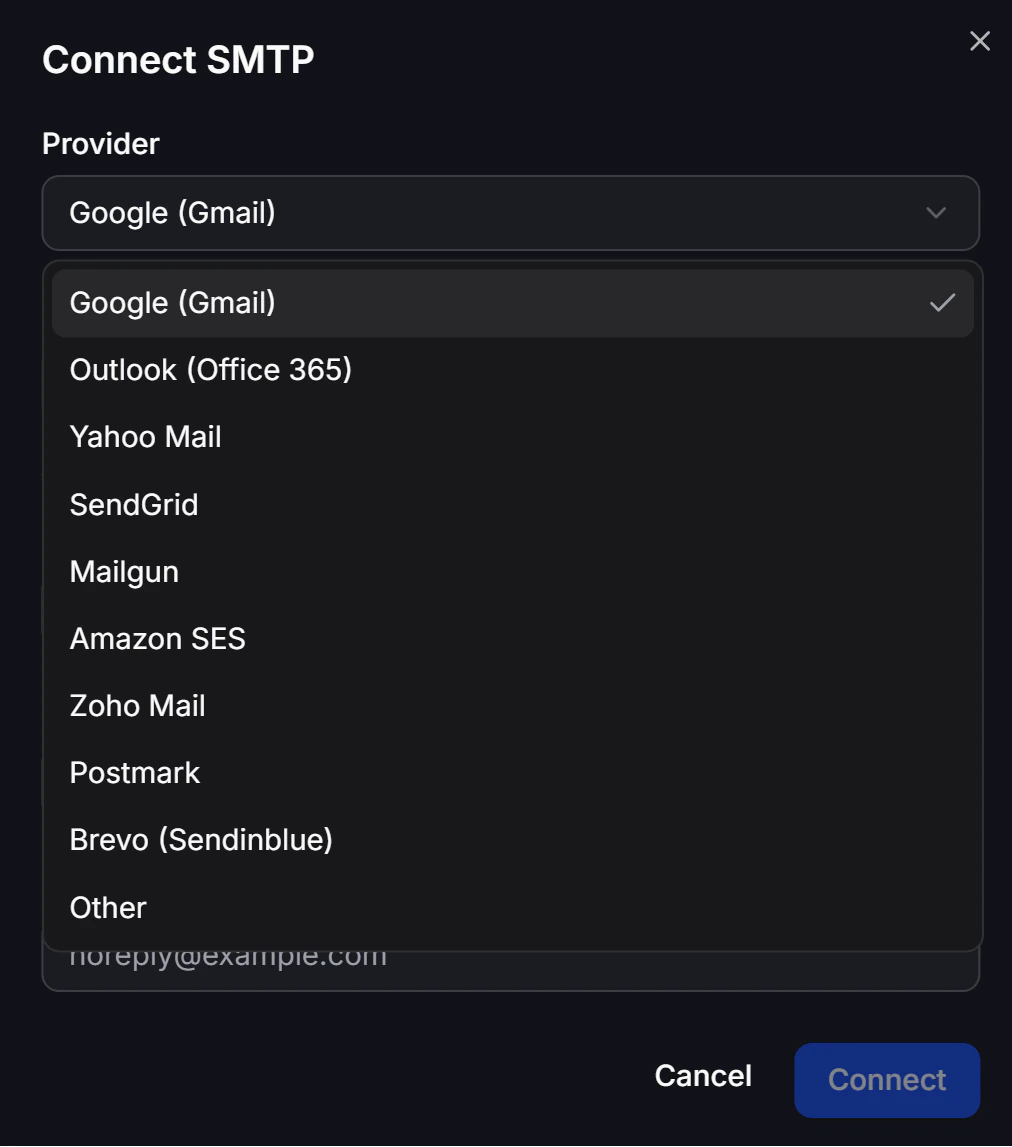 Fill in the SMTP credentials obtained in Step 1. The fields include:
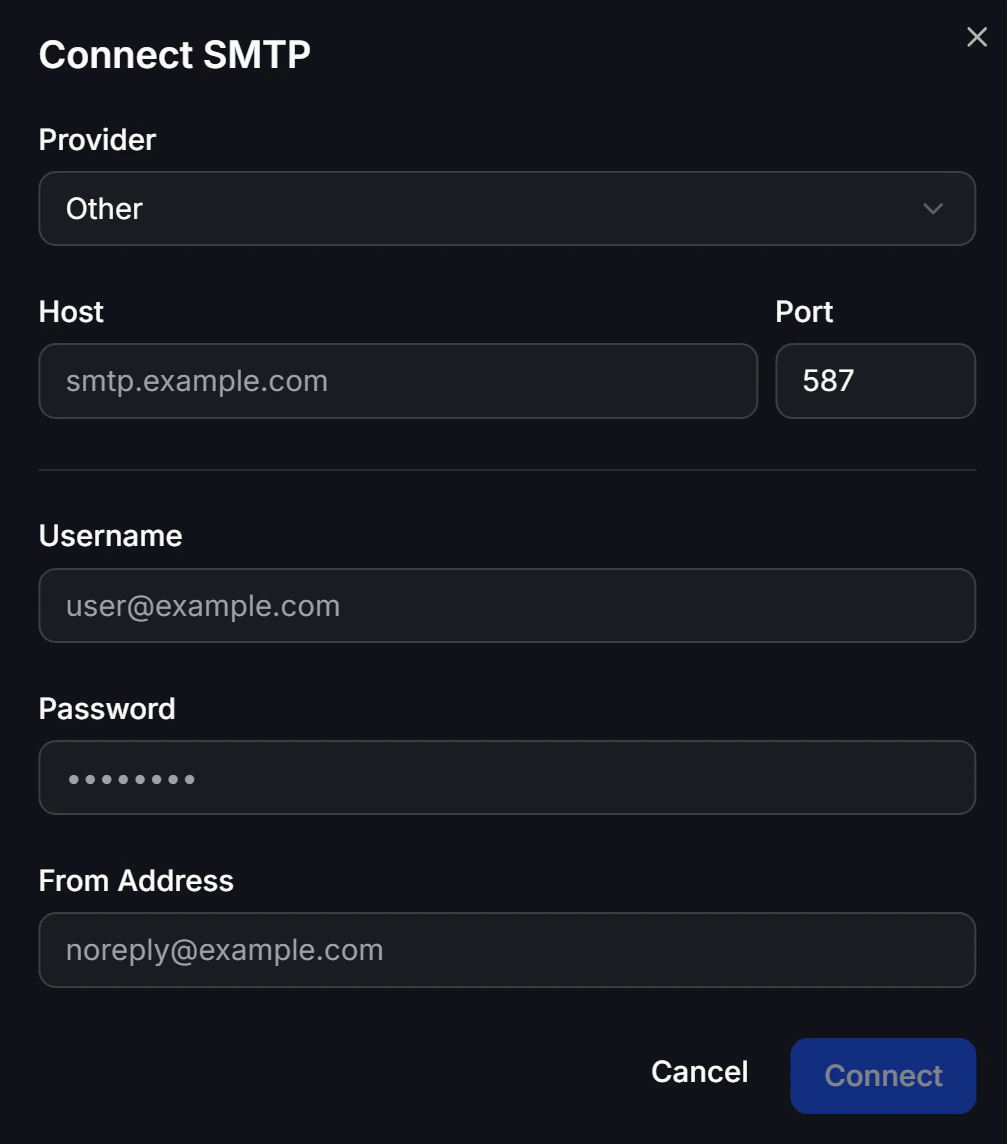 | Field | Description |
| :--------------- | :----------------------------------------------------------------------------------------------------------------- |
| **Host** | The provider's SMTP server (e.g., `smtp.gmail.com`) |
| **Port** | The SMTP connection port (usually `587` or `465`) |
| **Username** | SMTP login name (usually the email address) |
| **Password** | App Password or SMTP Key (not the main login password) |
| **From Address** | The email address that will appear as the sender when customers receive the email (e.g., `noreply@yourdomain.com`) |
Click **Connect** to finish the SMTP configuration setup.
## Step 3: Request permission (Opt-In) and Collect Customer Email
Before you can send Emails to customers via ChatbotX Flow, you **must** have two elements: Storing their Email address and the Customer has agreed to receive emails (Email Opt-In).
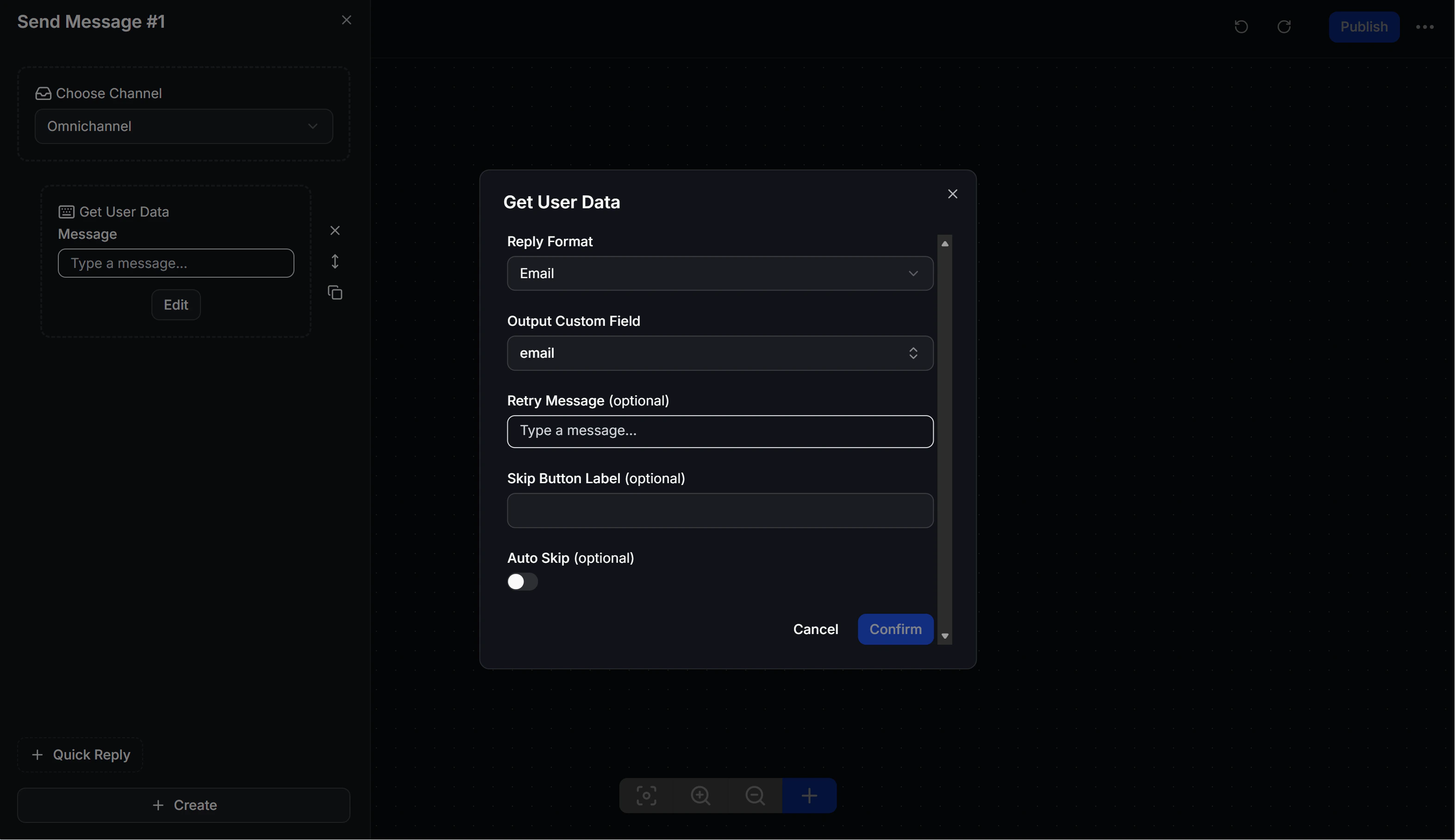
Use the **Get User Data** block in the flow to ask for the customer's email address. In the Reply Format section, select the **Email** format and save the result to an **Output Custom Field** (e.g., `email` field).
| Field | Description |
| :--------------- | :----------------------------------------------------------------------------------------------------------------- |
| **Host** | The provider's SMTP server (e.g., `smtp.gmail.com`) |
| **Port** | The SMTP connection port (usually `587` or `465`) |
| **Username** | SMTP login name (usually the email address) |
| **Password** | App Password or SMTP Key (not the main login password) |
| **From Address** | The email address that will appear as the sender when customers receive the email (e.g., `noreply@yourdomain.com`) |
Click **Connect** to finish the SMTP configuration setup.
## Step 3: Request permission (Opt-In) and Collect Customer Email
Before you can send Emails to customers via ChatbotX Flow, you **must** have two elements: Storing their Email address and the Customer has agreed to receive emails (Email Opt-In).
Use the **Get User Data** block in the flow to ask for the customer's email address. In the Reply Format section, select the **Email** format and save the result to an **Output Custom Field** (e.g., `email` field).
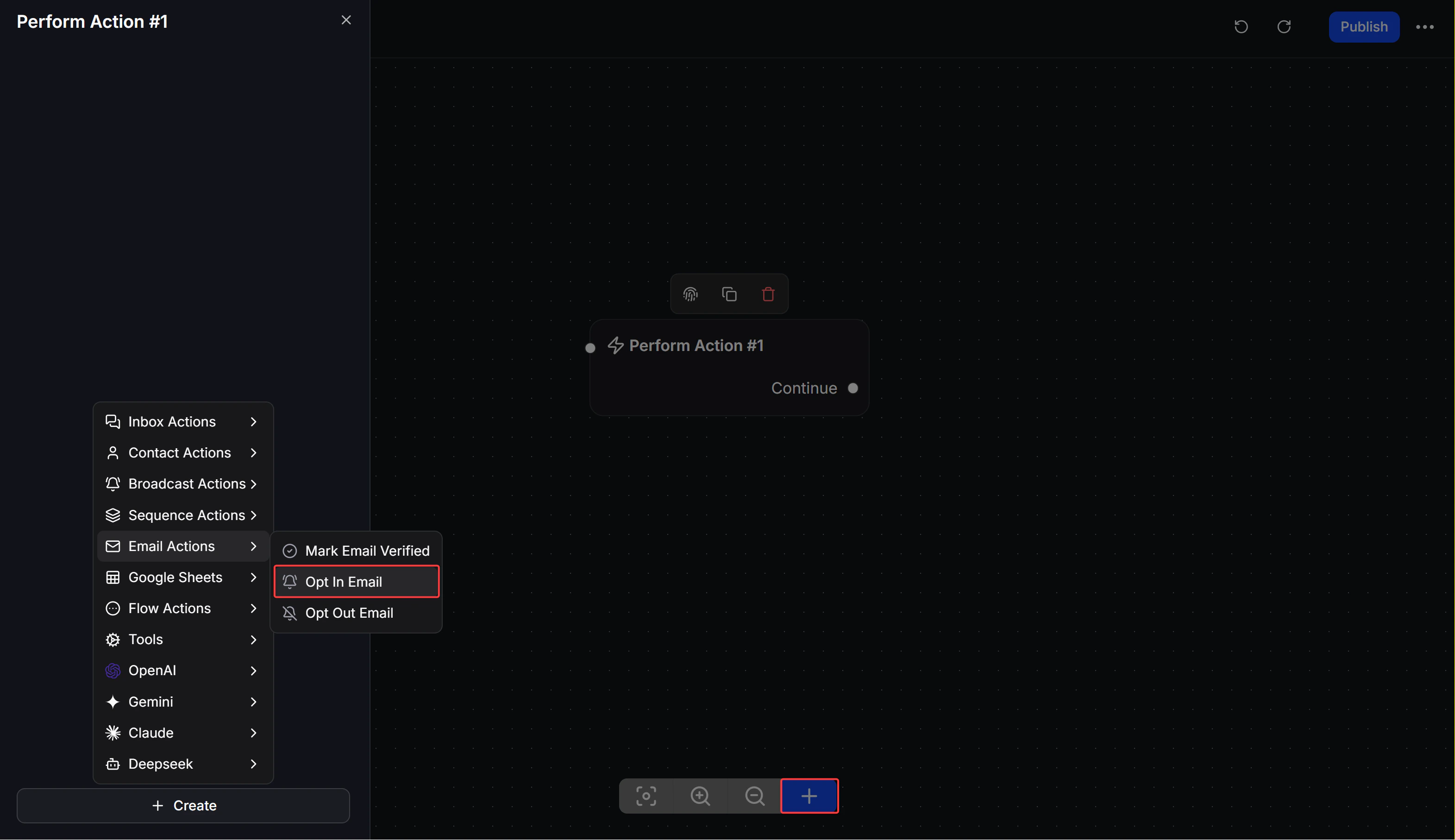
 After the customer provides their email, you need to create an Action block.
* Click the **+** sign and select **Perform Action**.
* Click the newly created Action block, select **Email Actions**.
* Select **Opt In Email**. This status is mandatory for the system to allow sending emails later.
After the customer provides their email, you need to create an Action block.
* Click the **+** sign and select **Perform Action**.
* Click the newly created Action block, select **Email Actions**.
* Select **Opt In Email**. This status is mandatory for the system to allow sending emails later.
 ## Step 4: Set up automated Email sending in Flow
Once customers have agreed to receive emails, you can automatically send emails anywhere in the Flow.
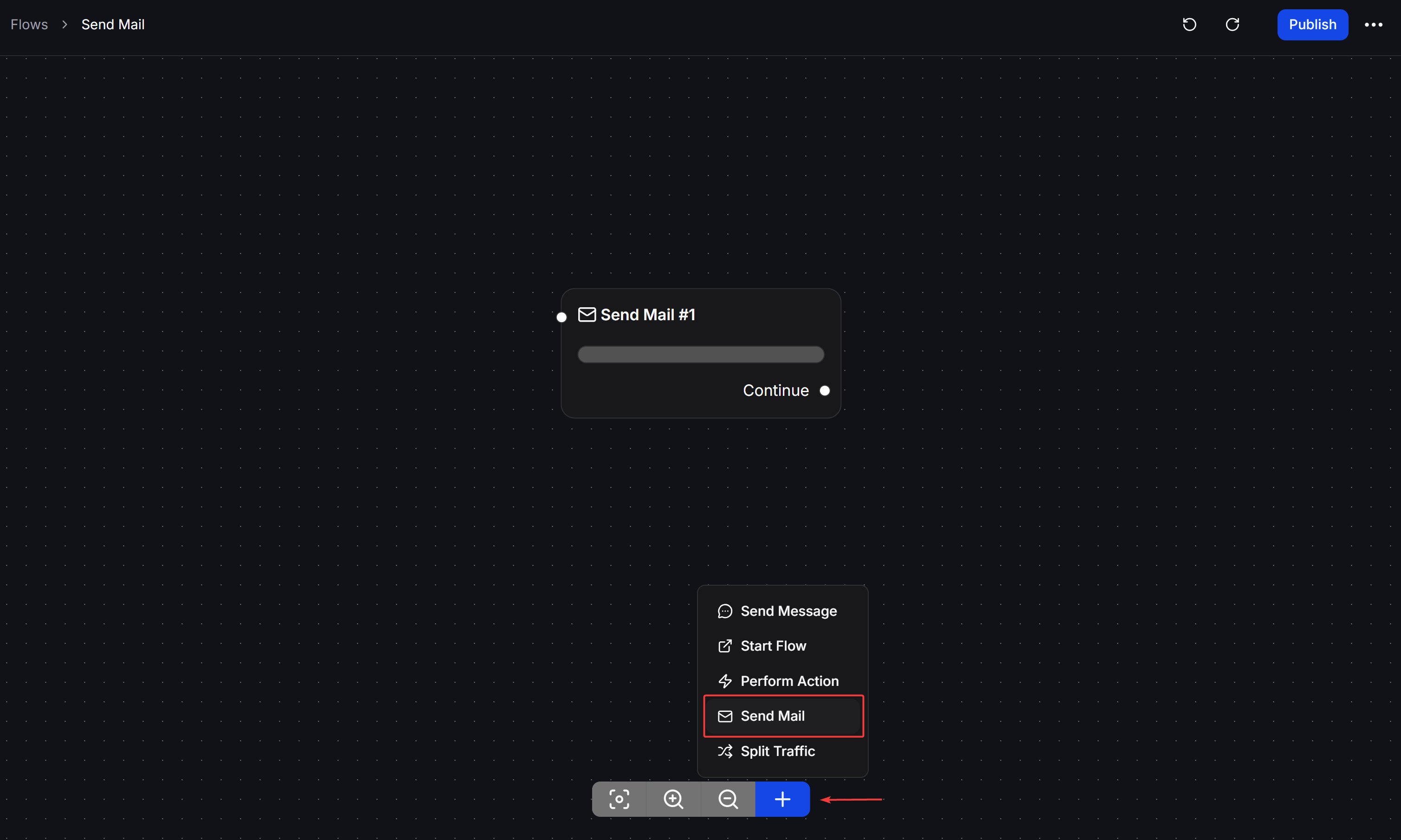
In the Flow workspace, click the **+** button to open the node menu. Select **Send Mail** from the list.
## Step 4: Set up automated Email sending in Flow
Once customers have agreed to receive emails, you can automatically send emails anywhere in the Flow.
In the Flow workspace, click the **+** button to open the node menu. Select **Send Mail** from the list.
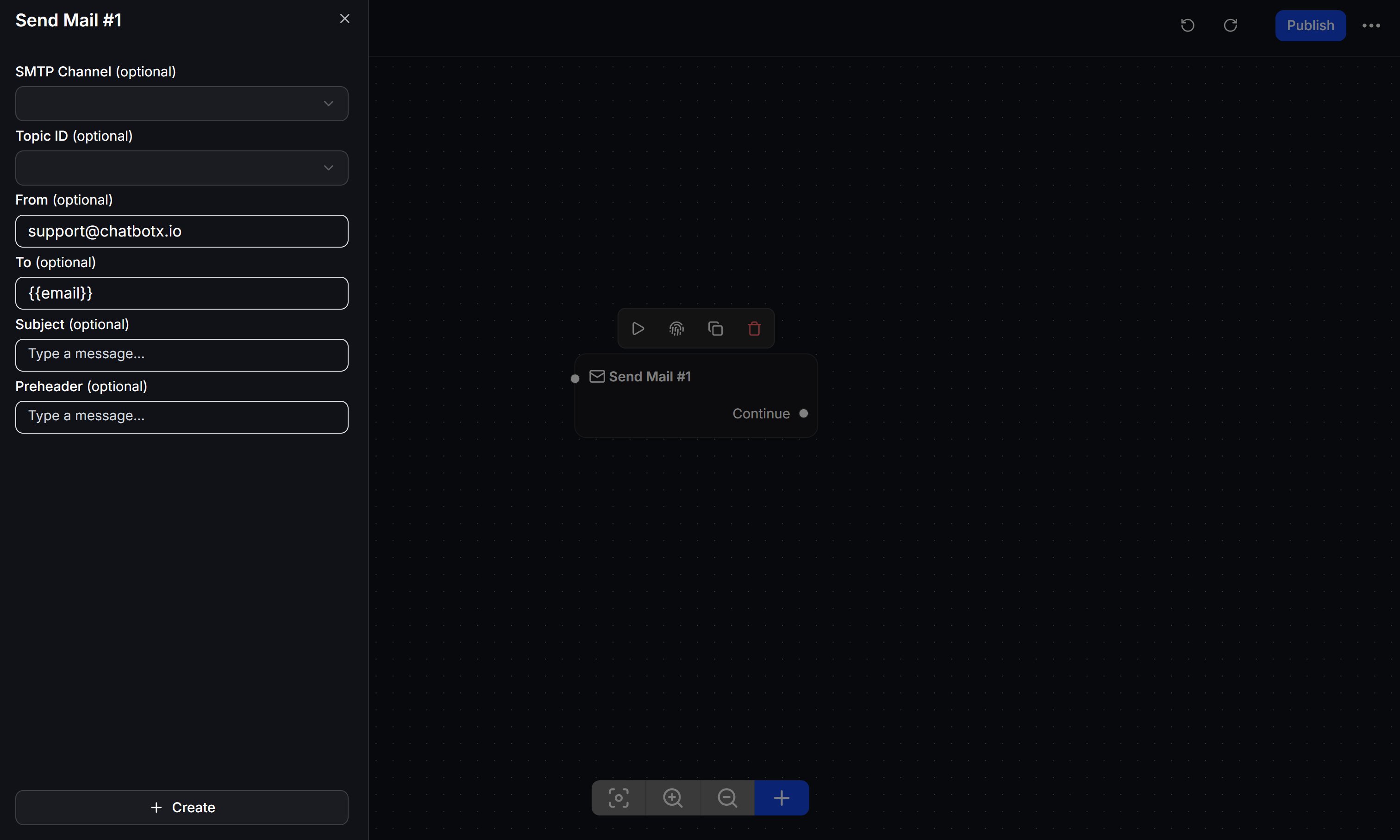
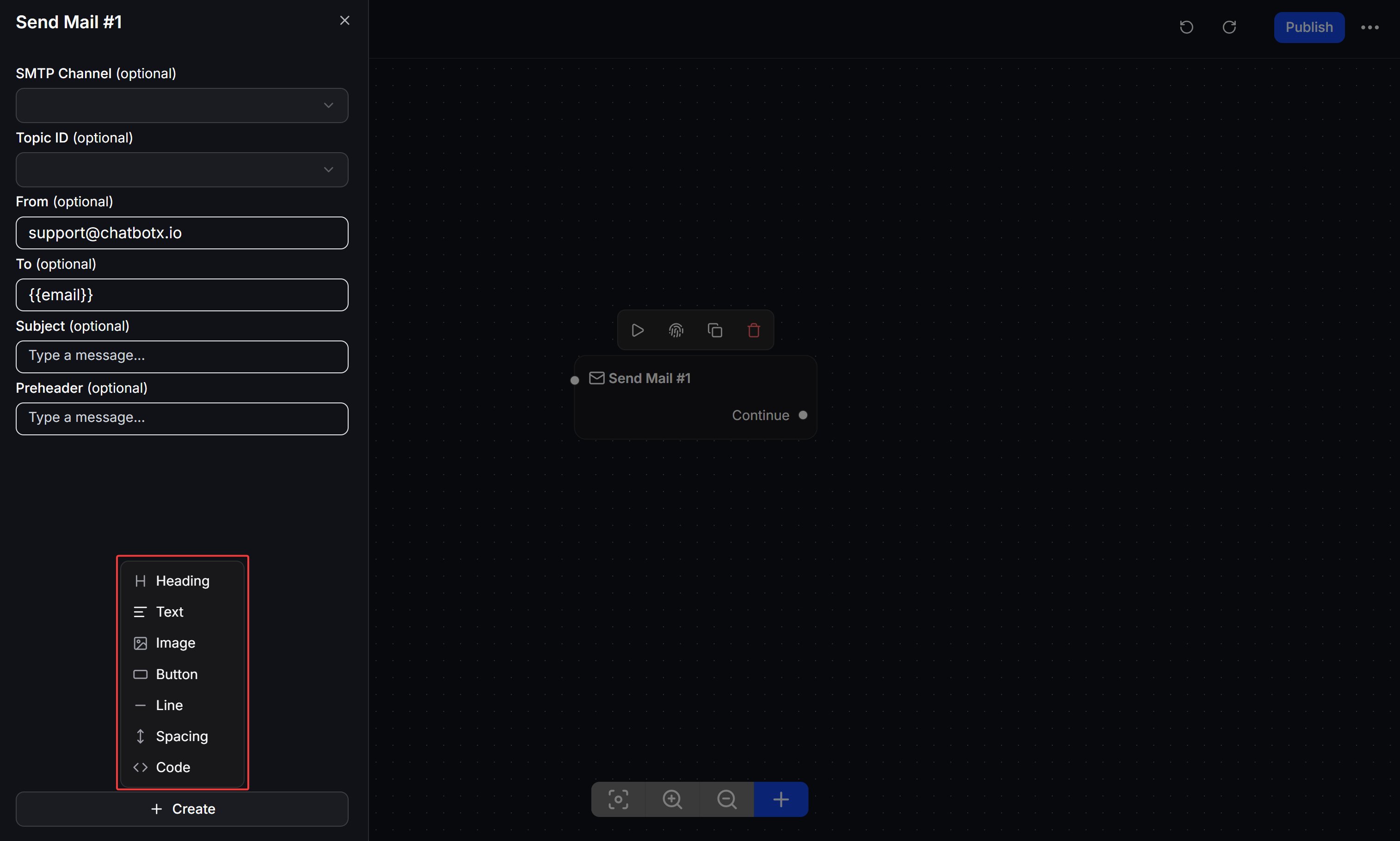
 In the **Send Mail** configuration panel, choose the **SMTP Channel** that should send this email. If you have connected more than one SMTP channel, select the sender that matches this Flow.
You can also choose a **Topic ID**. An Email Topic helps you track email performance and run actions based on how contacts interact with your emails.
Complete the main fields in the **Send Mail** panel:
* **From:** The sender email address. You can use a fixed address or a variable such as `{{email}}` if your Flow needs a dynamic sender.
* **To:** By default, the system will send to the current user's email (if provided). You can also set it to send internal notification emails to your team.
* **Subject:** The subject of the email. You can use variables (e.g., `{{first_name}}`) to personalize the subject.
* **Preheader:** The short preview text that appears in many inboxes under the subject line.
In the **Send Mail** configuration panel, choose the **SMTP Channel** that should send this email. If you have connected more than one SMTP channel, select the sender that matches this Flow.
You can also choose a **Topic ID**. An Email Topic helps you track email performance and run actions based on how contacts interact with your emails.
Complete the main fields in the **Send Mail** panel:
* **From:** The sender email address. You can use a fixed address or a variable such as `{{email}}` if your Flow needs a dynamic sender.
* **To:** By default, the system will send to the current user's email (if provided). You can also set it to send internal notification emails to your team.
* **Subject:** The subject of the email. You can use variables (e.g., `{{first_name}}`) to personalize the subject.
* **Preheader:** The short preview text that appears in many inboxes under the subject line.
 Build the email body with the editor inside the **Send Mail** panel. You can add **Heading**, **Text**, **Image**, **Button**, **Line**, **Spacing**, and **Code** blocks.
Use variables from the contact profile or Custom Fields to personalize the message, such as order details, customer name, or support ticket information.
Build the email body with the editor inside the **Send Mail** panel. You can add **Heading**, **Text**, **Image**, **Button**, **Line**, **Spacing**, and **Code** blocks.
Use variables from the contact profile or Custom Fields to personalize the message, such as order details, customer name, or support ticket information.
 Click your Flow's Publish button. Try interacting with the bot to verify whether the system has successfully sent the email to your inbox.
## Manage Email Topics in Flows
**Email Topics** help you group emails sent from Flows and track how contacts interact with them. Use topics when you want to compare email performance across campaigns, order updates, onboarding messages, or internal notifications.
You can manage Email Topics from the **Flows** menu.
Click your Flow's Publish button. Try interacting with the bot to verify whether the system has successfully sent the email to your inbox.
## Manage Email Topics in Flows
**Email Topics** help you group emails sent from Flows and track how contacts interact with them. Use topics when you want to compare email performance across campaigns, order updates, onboarding messages, or internal notifications.
You can manage Email Topics from the **Flows** menu.
 In the left sidebar, click **Flows**.
In the Flows page, select the **Email Topics** tab.
Click **Add** to create a new Email Topic.
Enter a clear topic name, such as `Order confirmation`, `Welcome email`, or `Monthly promotion`.
Click the create button to save the topic. The topic is then available in the **Topic ID** field inside the **Send Mail** node.
### Email Topic statistics
The Email Topics page includes a statistics table for each topic.
In the left sidebar, click **Flows**.
In the Flows page, select the **Email Topics** tab.
Click **Add** to create a new Email Topic.
Enter a clear topic name, such as `Order confirmation`, `Welcome email`, or `Monthly promotion`.
Click the create button to save the topic. The topic is then available in the **Topic ID** field inside the **Send Mail** node.
### Email Topic statistics
The Email Topics page includes a statistics table for each topic.
 | Column | Description |
| :------------ | :------------------------------------------------------------------- |
| **Name** | The Email Topic name |
| **Sent** | The number of emails sent with this topic |
| **Delivered** | The percentage of emails delivered successfully |
| **Seen** | The percentage of emails opened or seen by contacts |
| **Clicked** | The percentage of contacts who clicked a link or button in the email |
### Create a topic from Send Mail
When you configure a **Send Mail** node, you can select an existing topic in **Topic ID**. If the topic does not exist yet, click **Add New** next to the field to create it quickly without leaving the Flow editor.
| Column | Description |
| :------------ | :------------------------------------------------------------------- |
| **Name** | The Email Topic name |
| **Sent** | The number of emails sent with this topic |
| **Delivered** | The percentage of emails delivered successfully |
| **Seen** | The percentage of emails opened or seen by contacts |
| **Clicked** | The percentage of contacts who clicked a link or button in the email |
### Create a topic from Send Mail
When you configure a **Send Mail** node, you can select an existing topic in **Topic ID**. If the topic does not exist yet, click **Add New** next to the field to create it quickly without leaving the Flow editor.
 ## Troubleshooting
If the system cannot send the email successfully, please check some of the following common cases:
* **Cause:** Incorrect SMTP Username or Password.
* **Solution:** Do not use your main login password. Ensure you have created and used a separate **App Password** or **API Key/SMTP Key** as instructed in Step 1.
* **Cause:** Incorrect SMTP Port or blocked by a firewall.
* **Solution:** Make sure the Port matches the correct encryption standard. For example, Port `465` must use SSL, Port `587` must use TLS. If using Google Workspace, ensure IMAP/SMTP access is not disabled by the administrator.
* **Cause:** The customer has not been granted permission (Email Opt-in) in the system.
* **Solution:** Check the Audience data to see if the user has an Email and the **Opted-in** status. Ensure your Flow has a step passing through the `Set Email Opt-In` Action before reaching `Send Mail`.
* **Solution:** As recommended at the beginning, configure DNS records (`SPF`, `DKIM`) for the domain displayed on the sending email (From Email). Avoid sending emails that contain too many images without text, or using "spammy" words.
## Troubleshooting
If the system cannot send the email successfully, please check some of the following common cases:
* **Cause:** Incorrect SMTP Username or Password.
* **Solution:** Do not use your main login password. Ensure you have created and used a separate **App Password** or **API Key/SMTP Key** as instructed in Step 1.
* **Cause:** Incorrect SMTP Port or blocked by a firewall.
* **Solution:** Make sure the Port matches the correct encryption standard. For example, Port `465` must use SSL, Port `587` must use TLS. If using Google Workspace, ensure IMAP/SMTP access is not disabled by the administrator.
* **Cause:** The customer has not been granted permission (Email Opt-in) in the system.
* **Solution:** Check the Audience data to see if the user has an Email and the **Opted-in** status. Ensure your Flow has a step passing through the `Set Email Opt-In` Action before reaching `Send Mail`.
* **Solution:** As recommended at the beginning, configure DNS records (`SPF`, `DKIM`) for the domain displayed on the sending email (From Email). Avoid sending emails that contain too many images without text, or using "spammy" words.