> ## Documentation Index
> Fetch the complete documentation index at: https://chatbotx.io/docs/llms.txt
> Use this file to discover all available pages before exploring further.
# Facebook Messenger
> Connect Facebook Messenger to ChatbotX so your chatbot can send and receive messages on your Facebook Page.
## Prerequisites
Before you begin, make sure you have:
* A valid Facebook account
* A Facebook Page you own or administer
* A ChatbotX installation with a publicly accessible URL (required for both the webhook callback and the OAuth callback when connecting your Page)
If you are developing locally, you will need a tunneling tool such as [ngrok](/channels/local-development-with-tunnels) to expose your local server to the internet.
## Step 1: Create a Facebook App
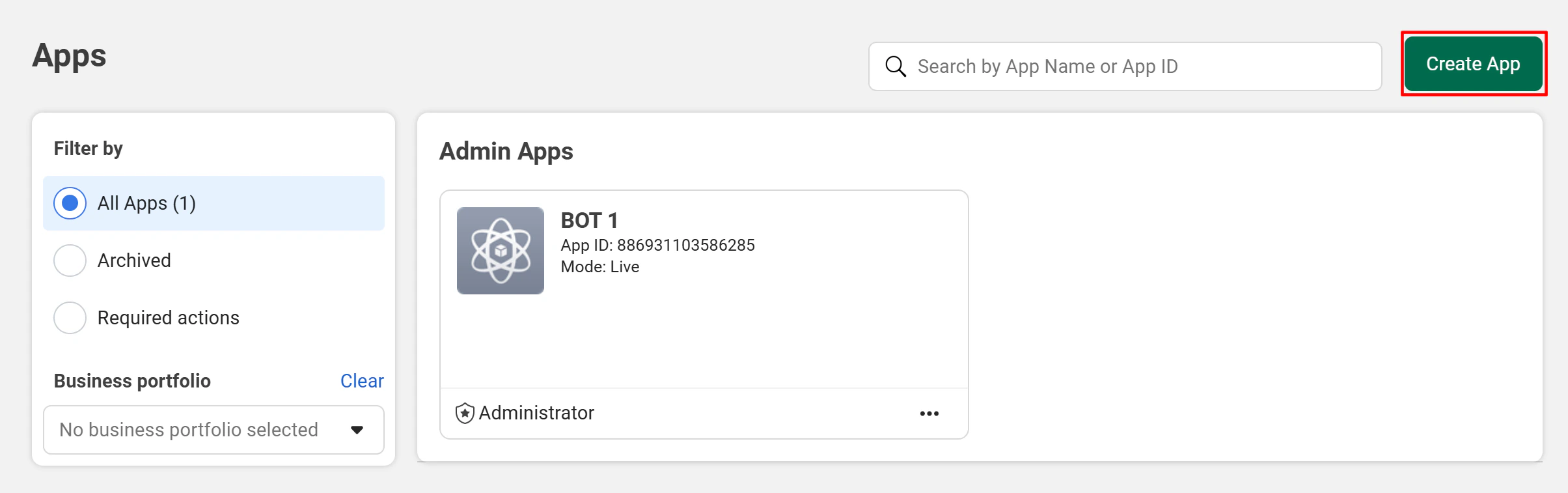
Go to the [Facebook Developer Portal](https://developers.facebook.com/apps/) and click **Create App**.
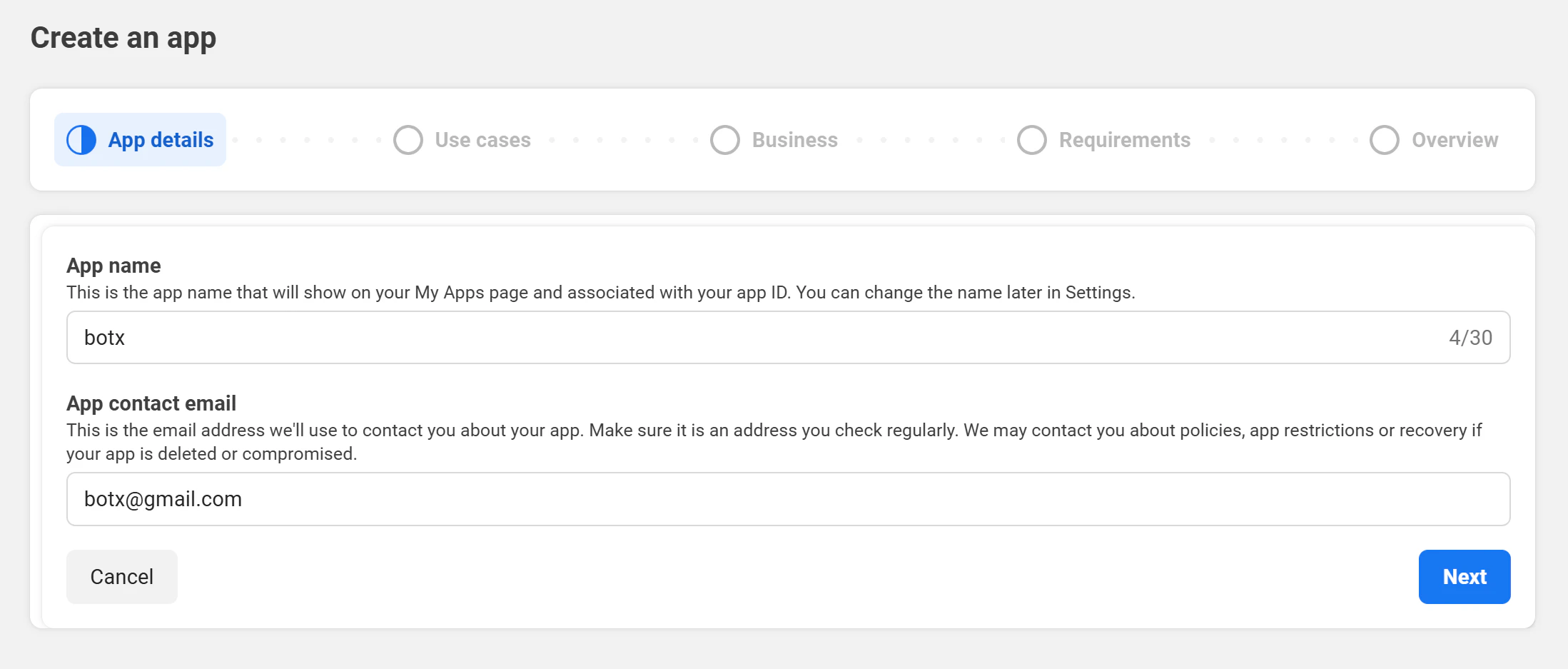
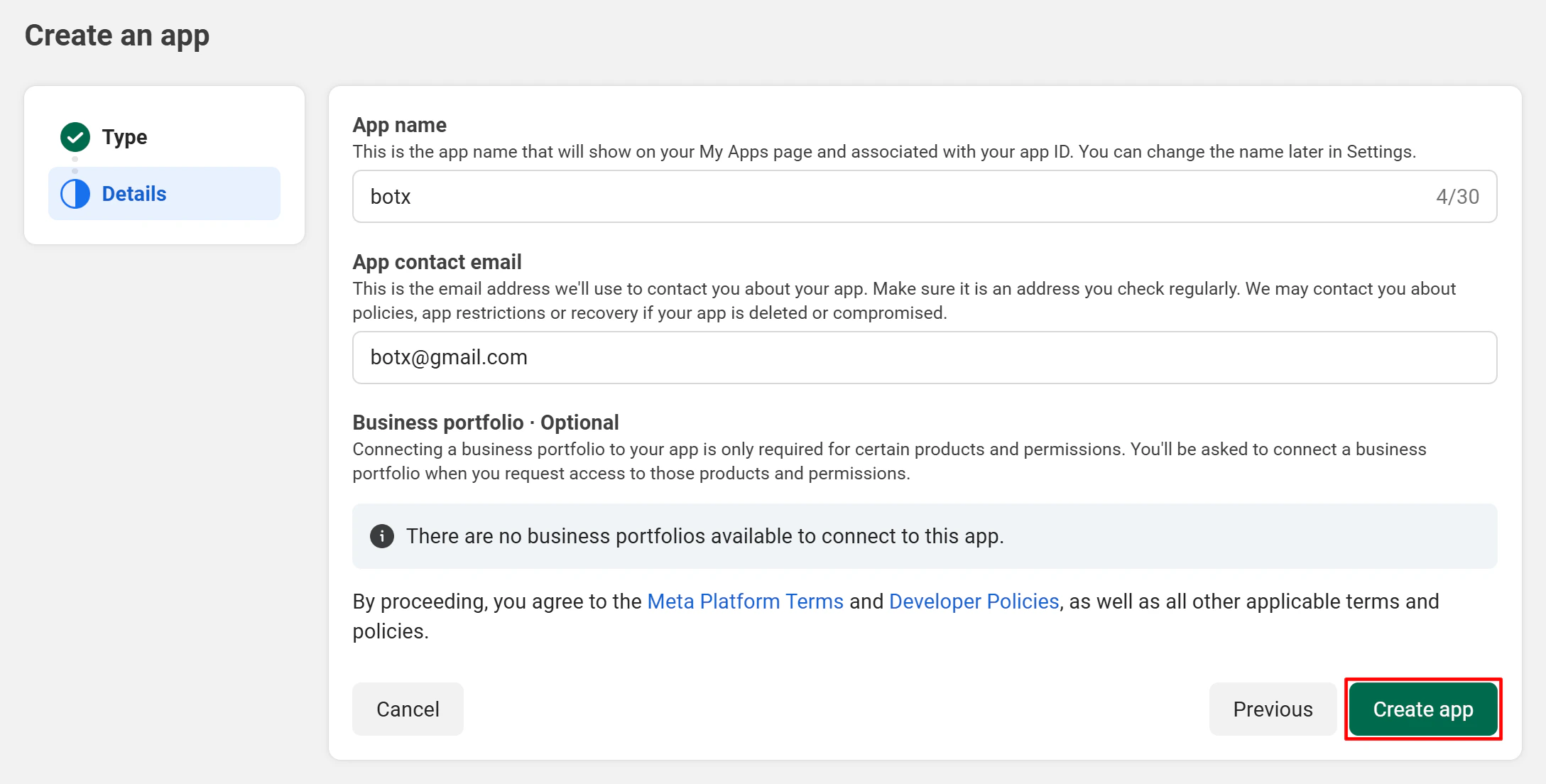
 Enter your **App name** and **contact email**, then click **Next**.
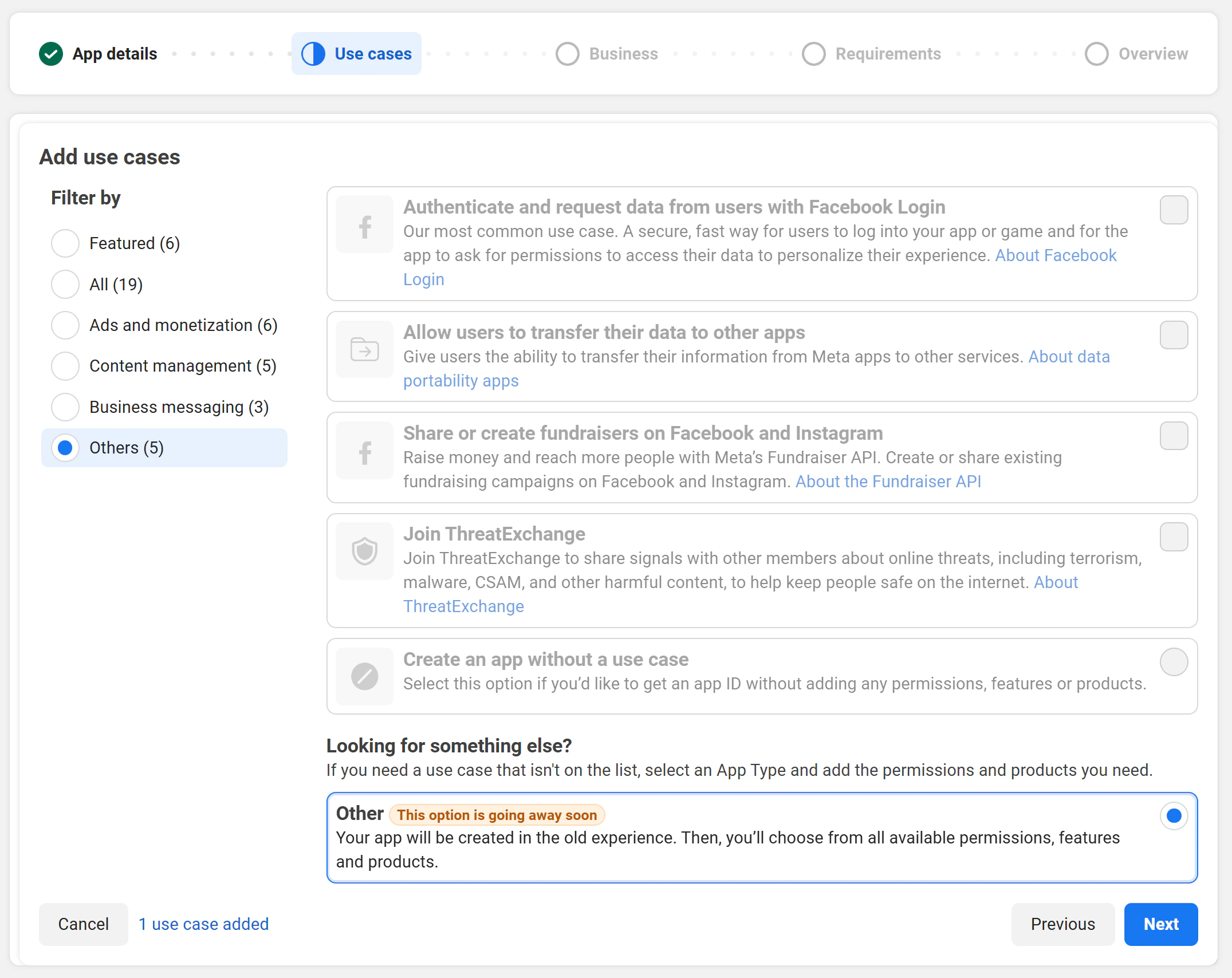
 When asked for a use case, select **Other**.
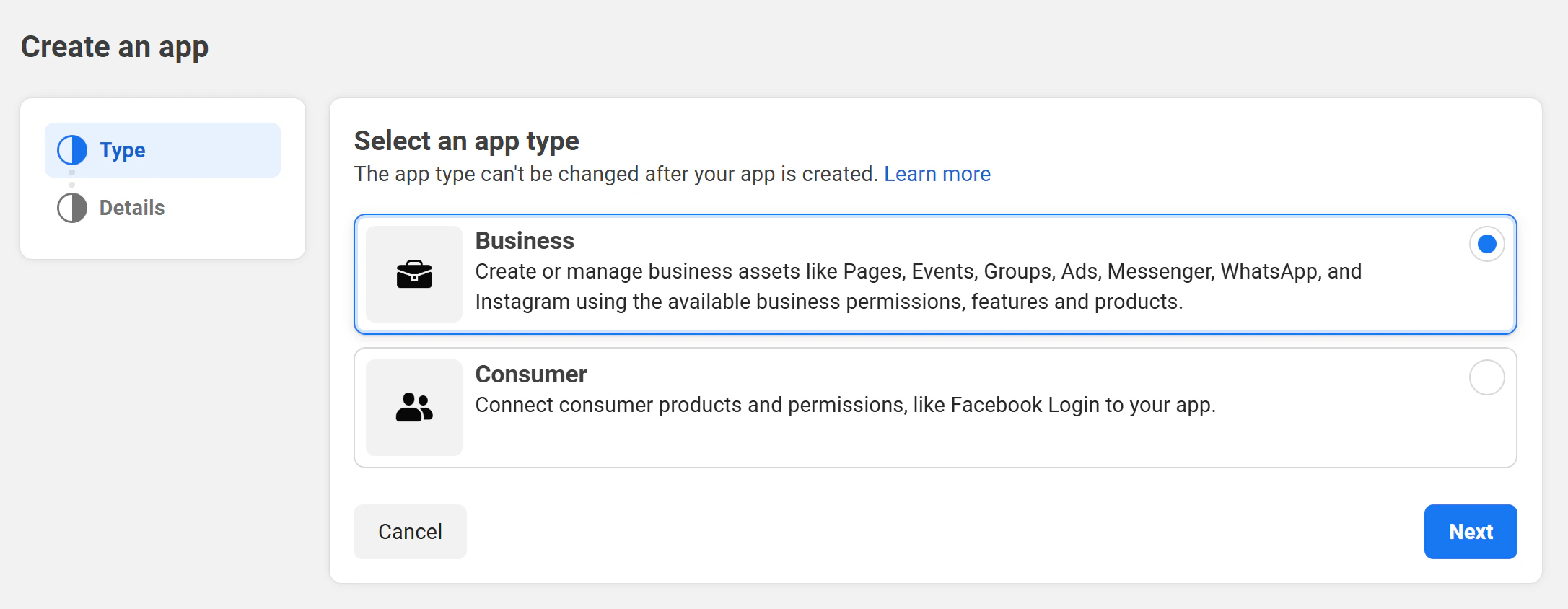
 For the app type, choose **Business**.
 Review your details and click **Create App** to finish.
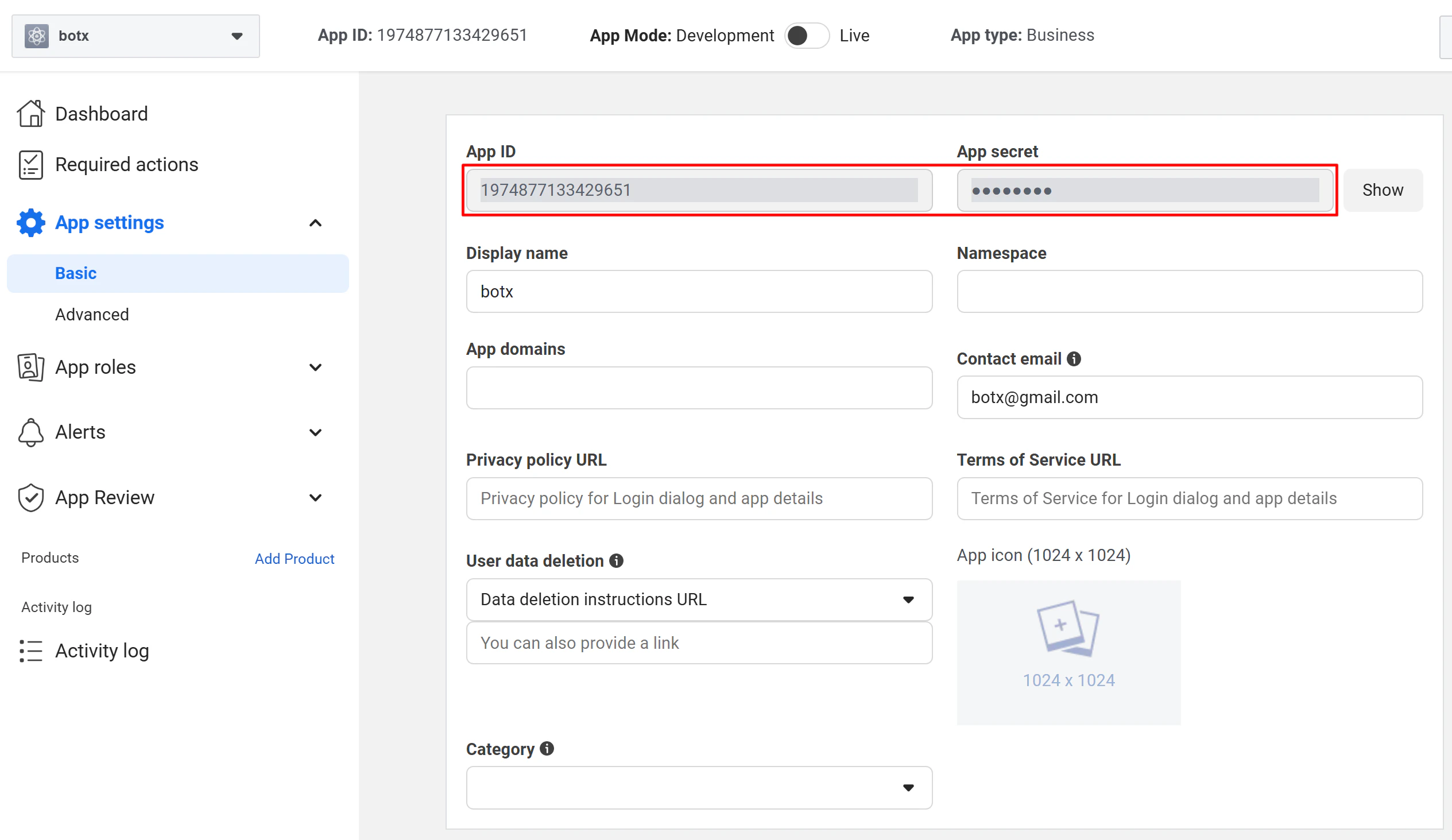
 After creating your app, go to **Settings → Basic** to find your **App ID** and **App Secret**. You will need both values in the next step.
 ## Step 2: Configure Credentials in ChatbotX
A Super Admin must enter the Facebook App credentials in ChatbotX before the integration can work. Complete this step immediately after obtaining your App ID and App Secret.
In your ChatbotX installation, navigate to:
```text theme={null}
https://app.yourdomain.com/manage/integrations
```
Then select **Messenger**.
## Step 2: Configure Credentials in ChatbotX
A Super Admin must enter the Facebook App credentials in ChatbotX before the integration can work. Complete this step immediately after obtaining your App ID and App Secret.
In your ChatbotX installation, navigate to:
```text theme={null}
https://app.yourdomain.com/manage/integrations
```
Then select **Messenger**.
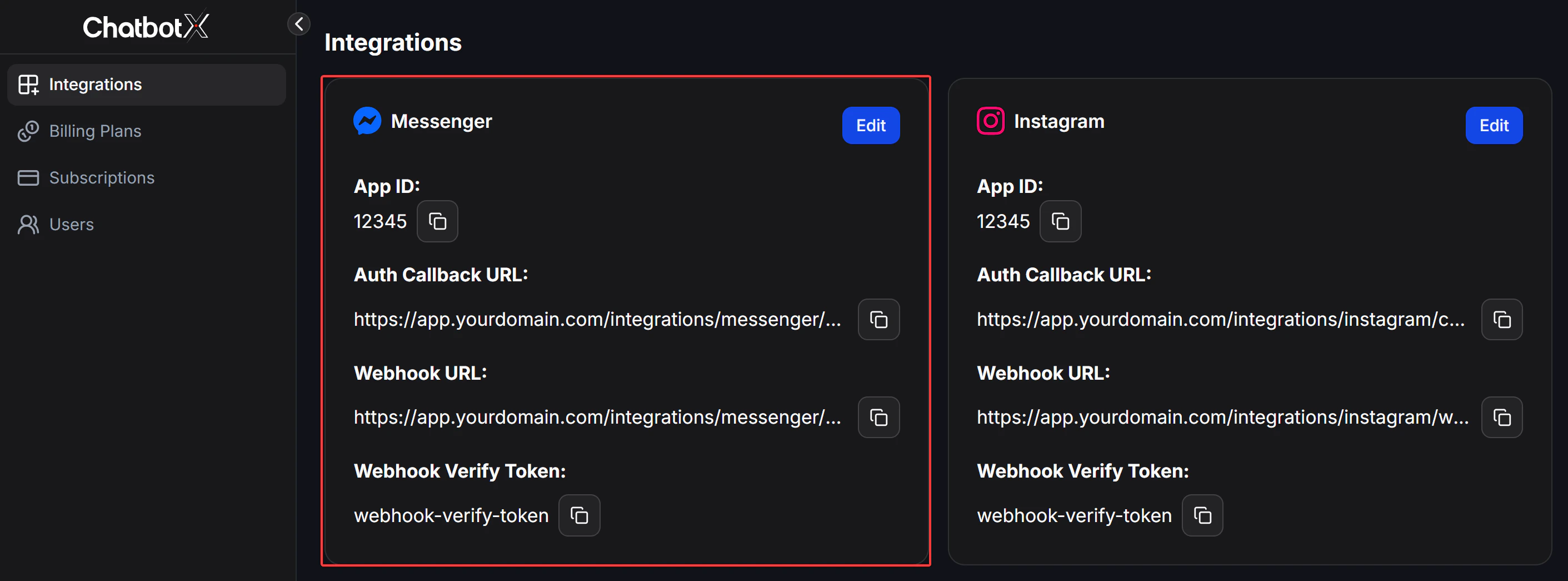
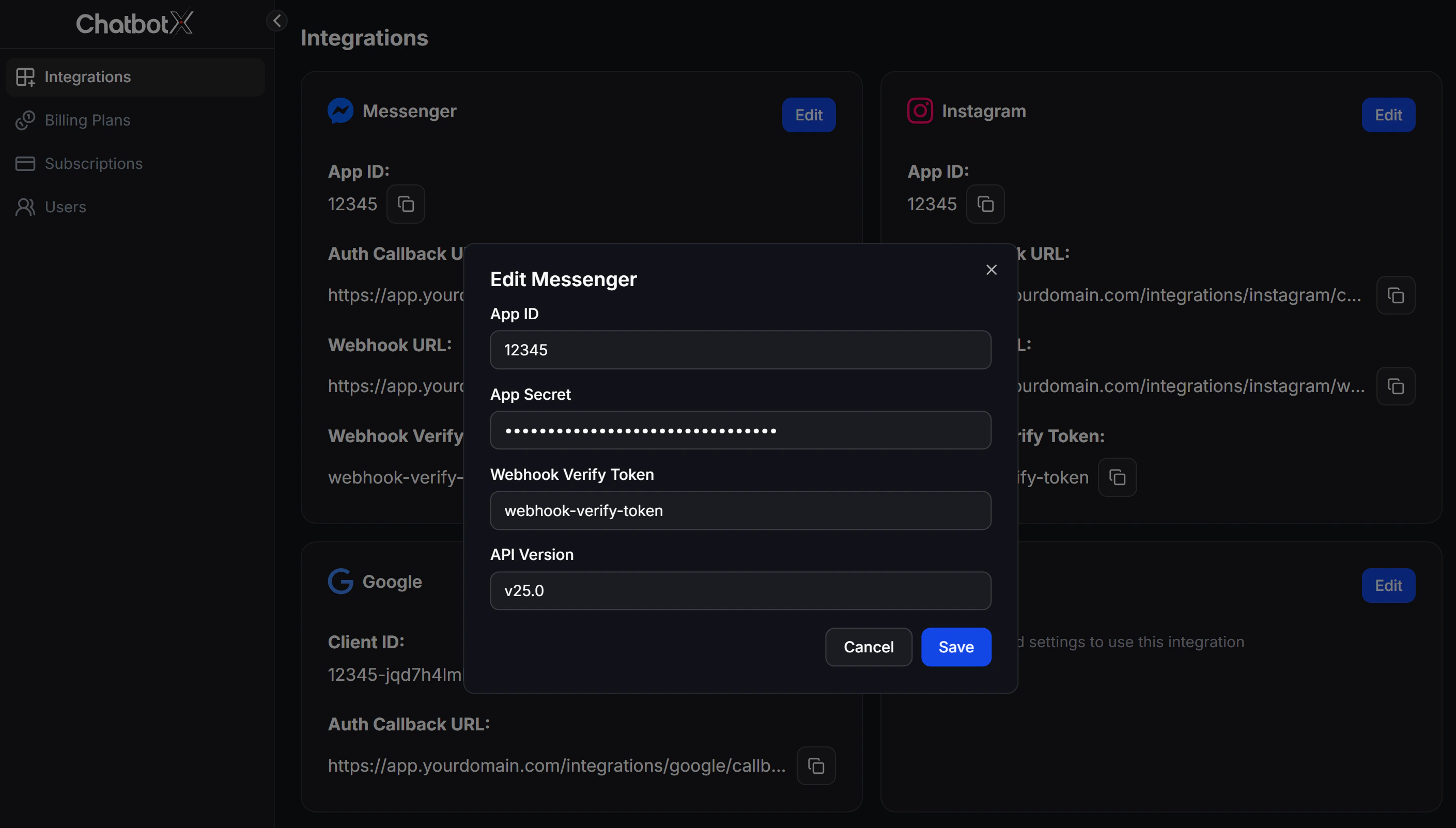 Fill in the following fields using the values from the Meta Developer Portal:
| Field | Description | Where to find it |
| :--------------------- | :------------------------------------- | :------------------------------------ |
| `App ID` | Your Facebook **App ID** | **Settings → Basic** |
| `App Secret` | Your Facebook **App Secret** | **Settings → Basic** → click **Show** |
| `Webhook Verify Token` | Random string for webhook verification | Self-generated |
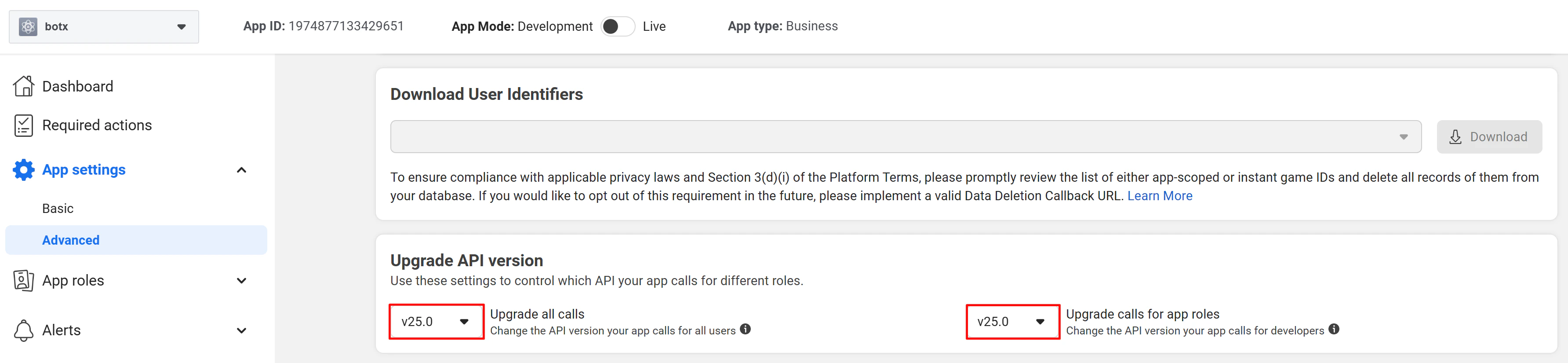
| `API Version` | Facebook API version (use `v25.0`) | **Settings → Advanced** |
Click **Save**. Facebook Messenger will now be available as a channel when creating chatbots.
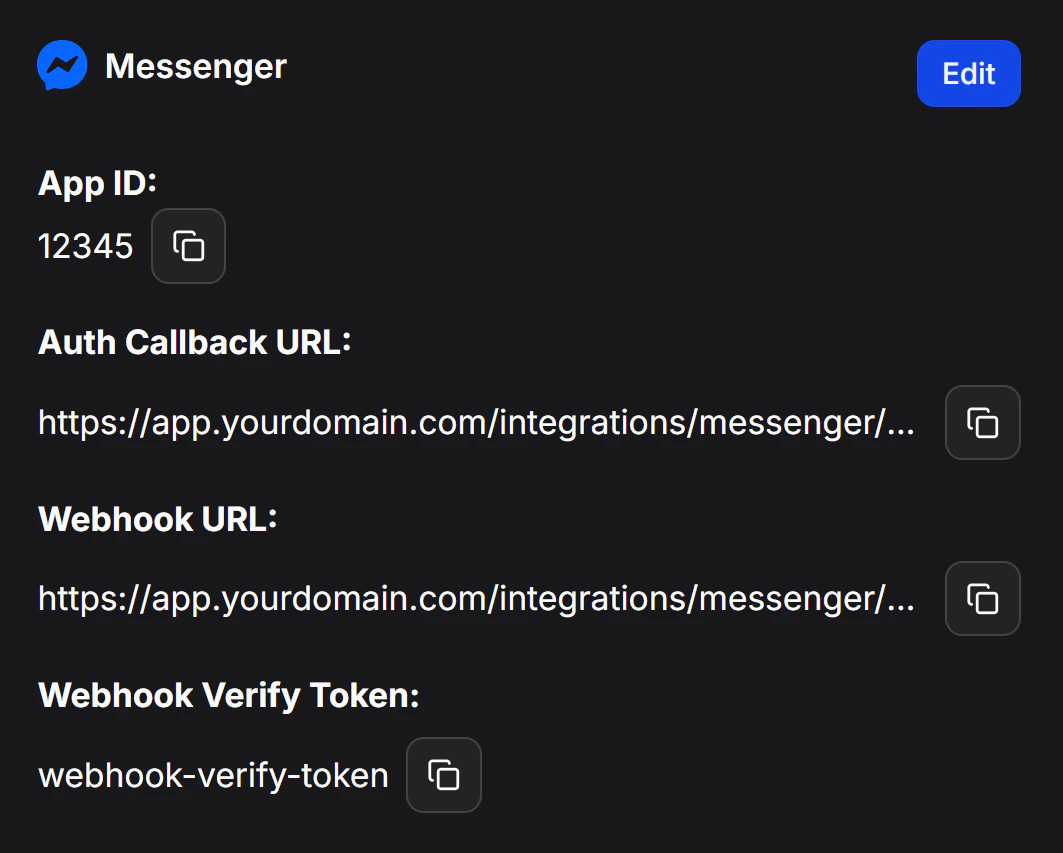
After saving, ChatbotX will display a **Webhook URL**. Copy and keep this URL, you will need it when configuring the webhook in Step 4.
Fill in the following fields using the values from the Meta Developer Portal:
| Field | Description | Where to find it |
| :--------------------- | :------------------------------------- | :------------------------------------ |
| `App ID` | Your Facebook **App ID** | **Settings → Basic** |
| `App Secret` | Your Facebook **App Secret** | **Settings → Basic** → click **Show** |
| `Webhook Verify Token` | Random string for webhook verification | Self-generated |
| `API Version` | Facebook API version (use `v25.0`) | **Settings → Advanced** |
Click **Save**. Facebook Messenger will now be available as a channel when creating chatbots.
After saving, ChatbotX will display a **Webhook URL**. Copy and keep this URL, you will need it when configuring the webhook in Step 4.
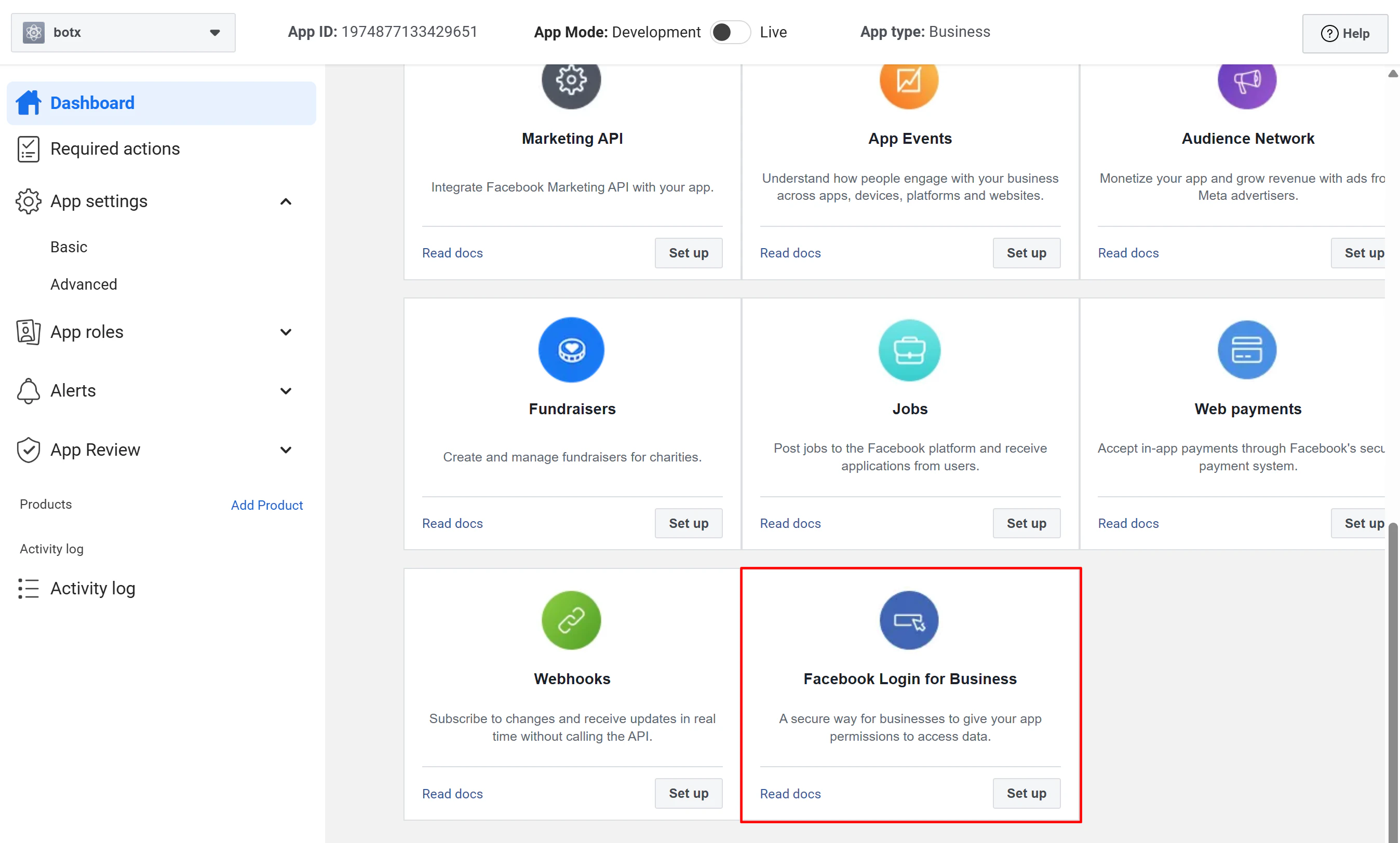
 ## Step 3: Configure Facebook Login
From your app dashboard, add the **Facebook Login** product.
## Step 3: Configure Facebook Login
From your app dashboard, add the **Facebook Login** product.
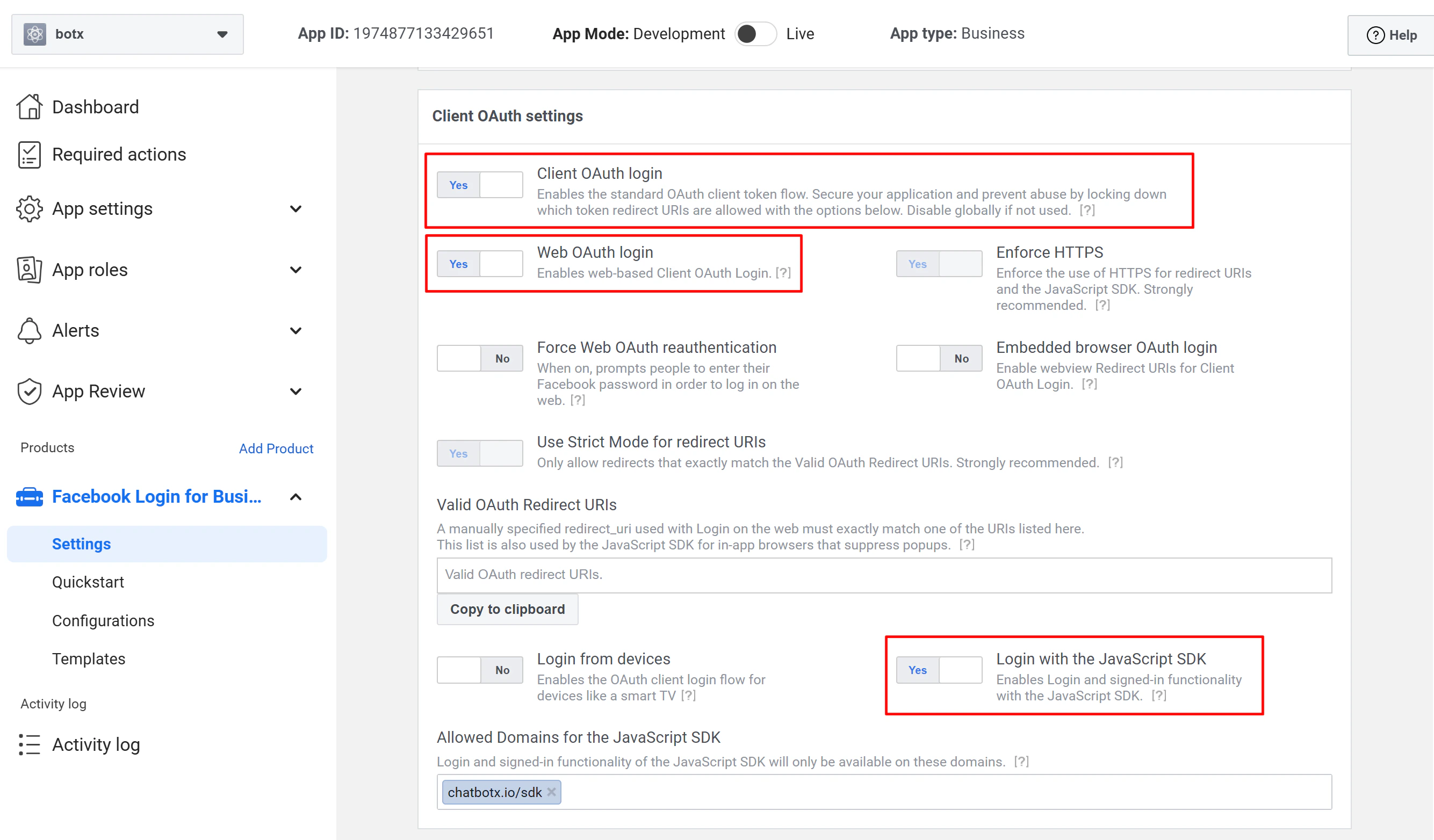
 In the Facebook Login settings:
* Enable **Web OAuth Login**
* Enable **Login with JavaScript SDK**
* Add your self-hosted domain to **Allowed Domains for the JavaScript SDK**
In the Facebook Login settings:
* Enable **Web OAuth Login**
* Enable **Login with JavaScript SDK**
* Add your self-hosted domain to **Allowed Domains for the JavaScript SDK**
 ***
## Step 4: Configure the Facebook App
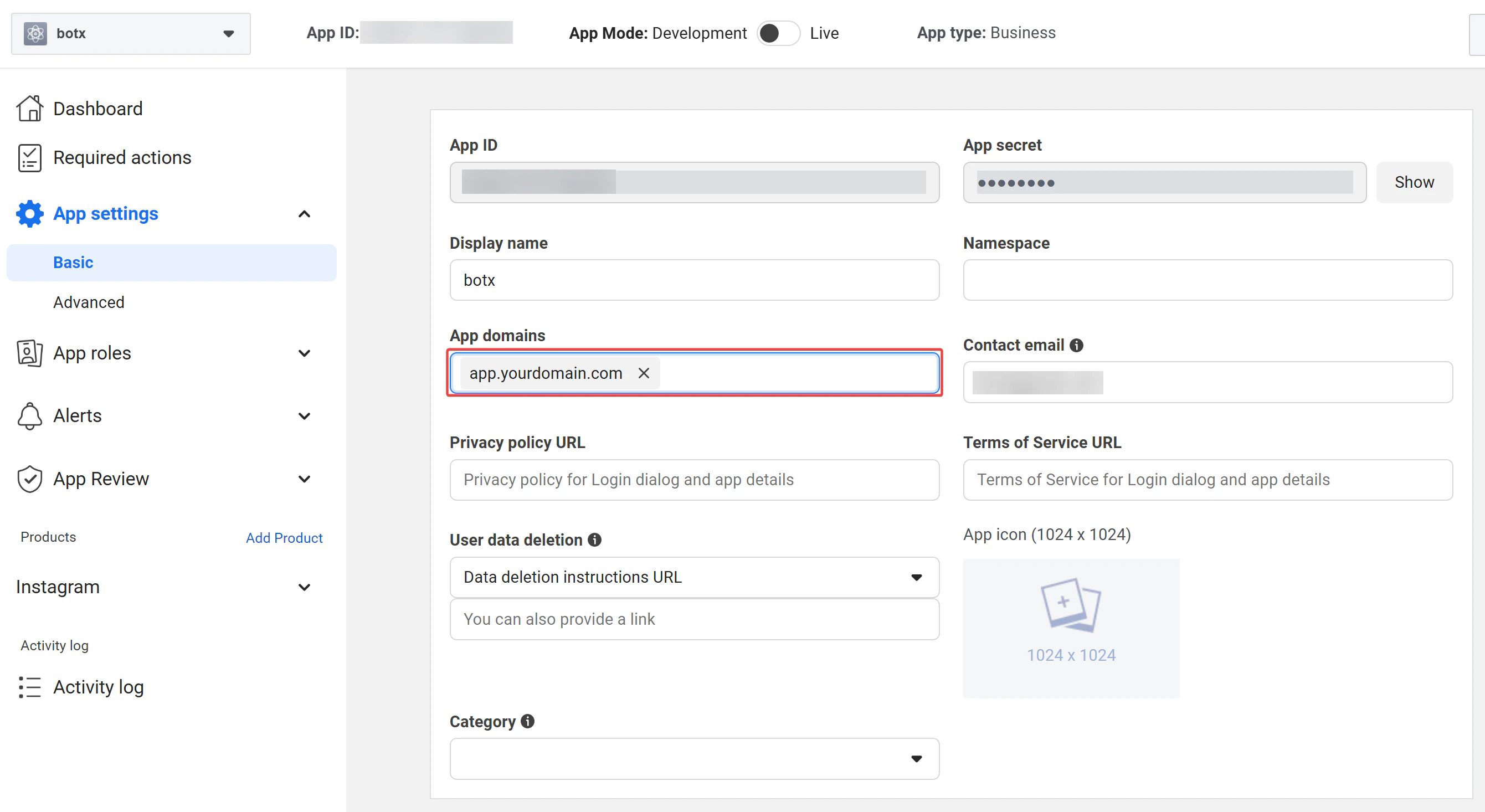
Under **Settings → Basic**, add your **ChatbotX installation domain** as an app domain.
***
## Step 4: Configure the Facebook App
Under **Settings → Basic**, add your **ChatbotX installation domain** as an app domain.
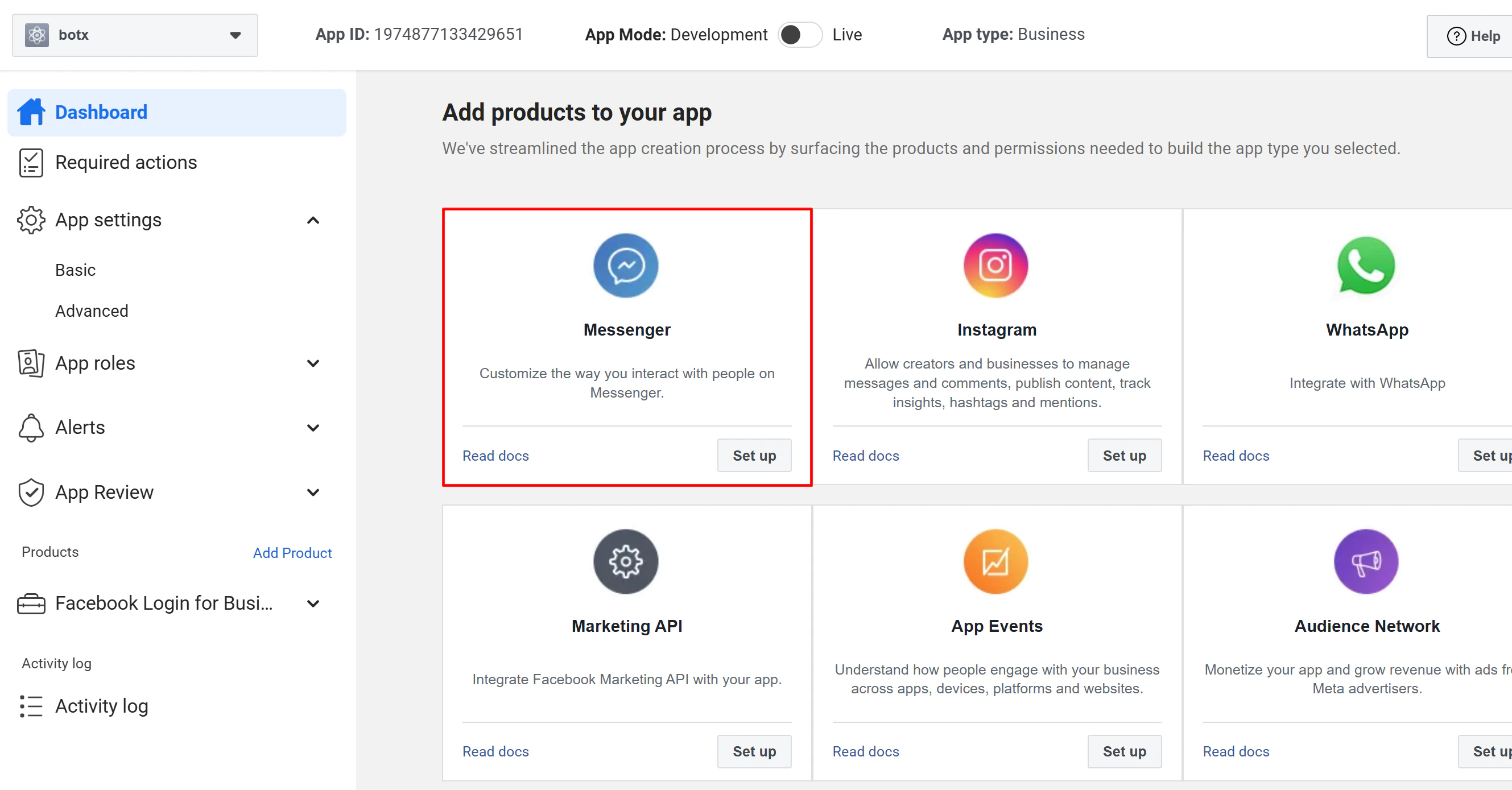
 From the **Products** section, add **Messenger** to your app.
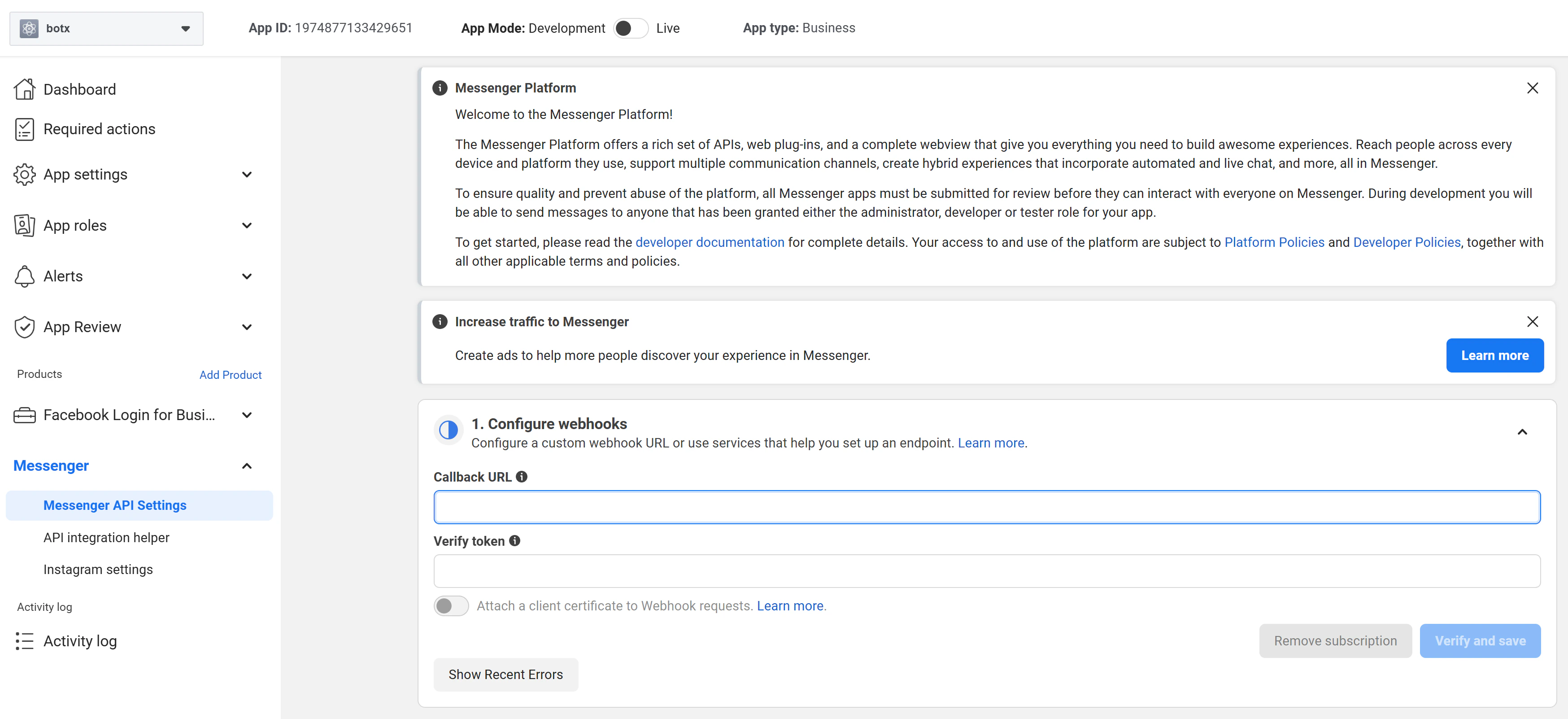
 In the **Messenger settings**, configure the webhook:
* **Callback URL**: Use the **Webhook URL** generated by ChatbotX in Step 2 (for example, `https://app.yourdomain.com/integrations/messenger/callback`)
* **Verify Token**: Enter the **Webhook Verify Token** value you configured in the ChatbotX Integrations settings (Step 2)
In the **Messenger settings**, configure the webhook:
* **Callback URL**: Use the **Webhook URL** generated by ChatbotX in Step 2 (for example, `https://app.yourdomain.com/integrations/messenger/callback`)
* **Verify Token**: Enter the **Webhook Verify Token** value you configured in the ChatbotX Integrations settings (Step 2)
 In ChatbotX, create a Messenger chatbot and select the Facebook Page you want to connect. See [Connect Facebook Messenger](/channels/messenger/connect-facebook-messenger) for step-by-step instructions.
## Step 5: Test before Going to Production
Facebook does not forward page messages to your webhook until your app is approved for production. Use the steps below to test your integration first.
In the Messenger settings, click **Connect** next to the page you selected for your ChatbotX chatbot.
In ChatbotX, create a Messenger chatbot and select the Facebook Page you want to connect. See [Connect Facebook Messenger](/channels/messenger/connect-facebook-messenger) for step-by-step instructions.
## Step 5: Test before Going to Production
Facebook does not forward page messages to your webhook until your app is approved for production. Use the steps below to test your integration first.
In the Messenger settings, click **Connect** next to the page you selected for your ChatbotX chatbot.
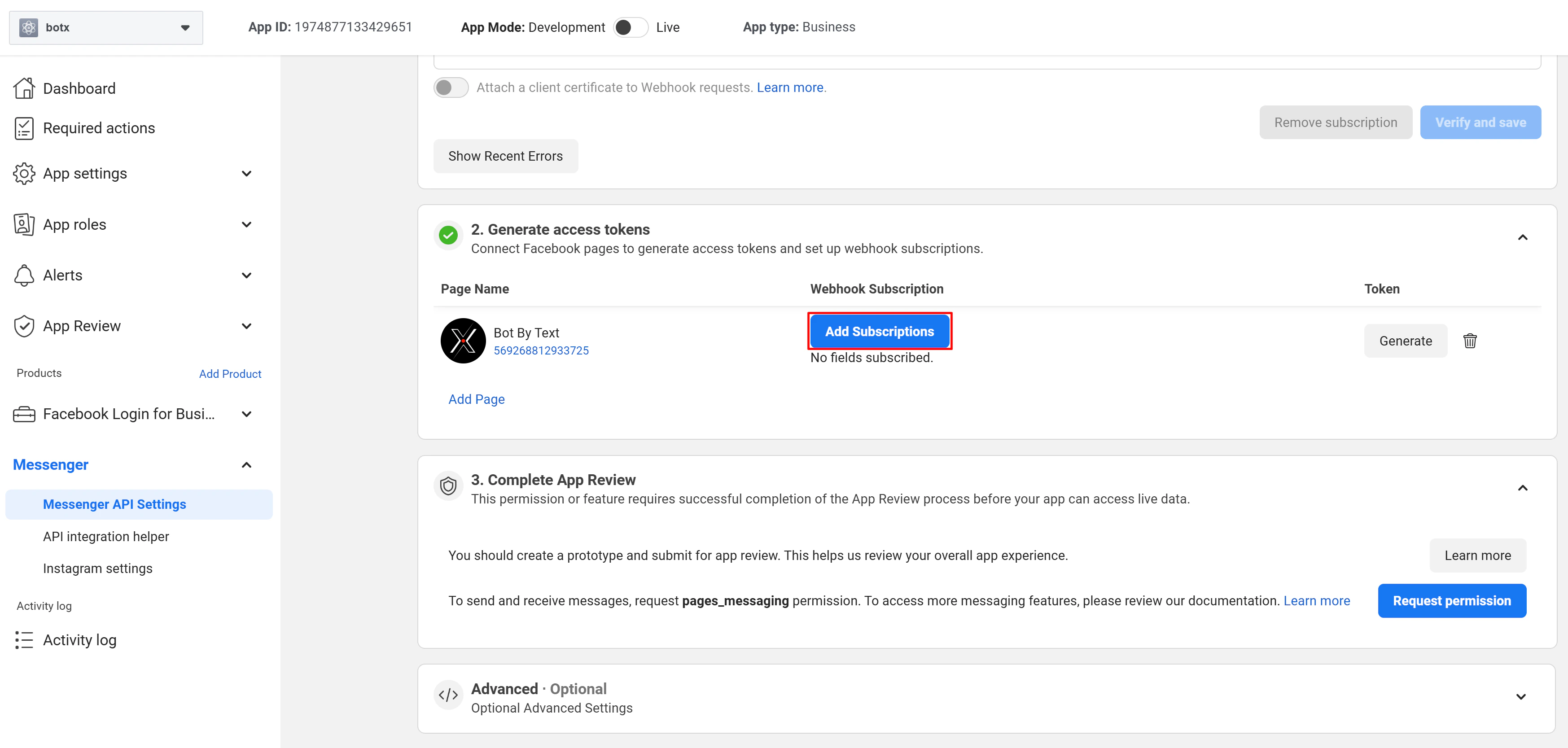
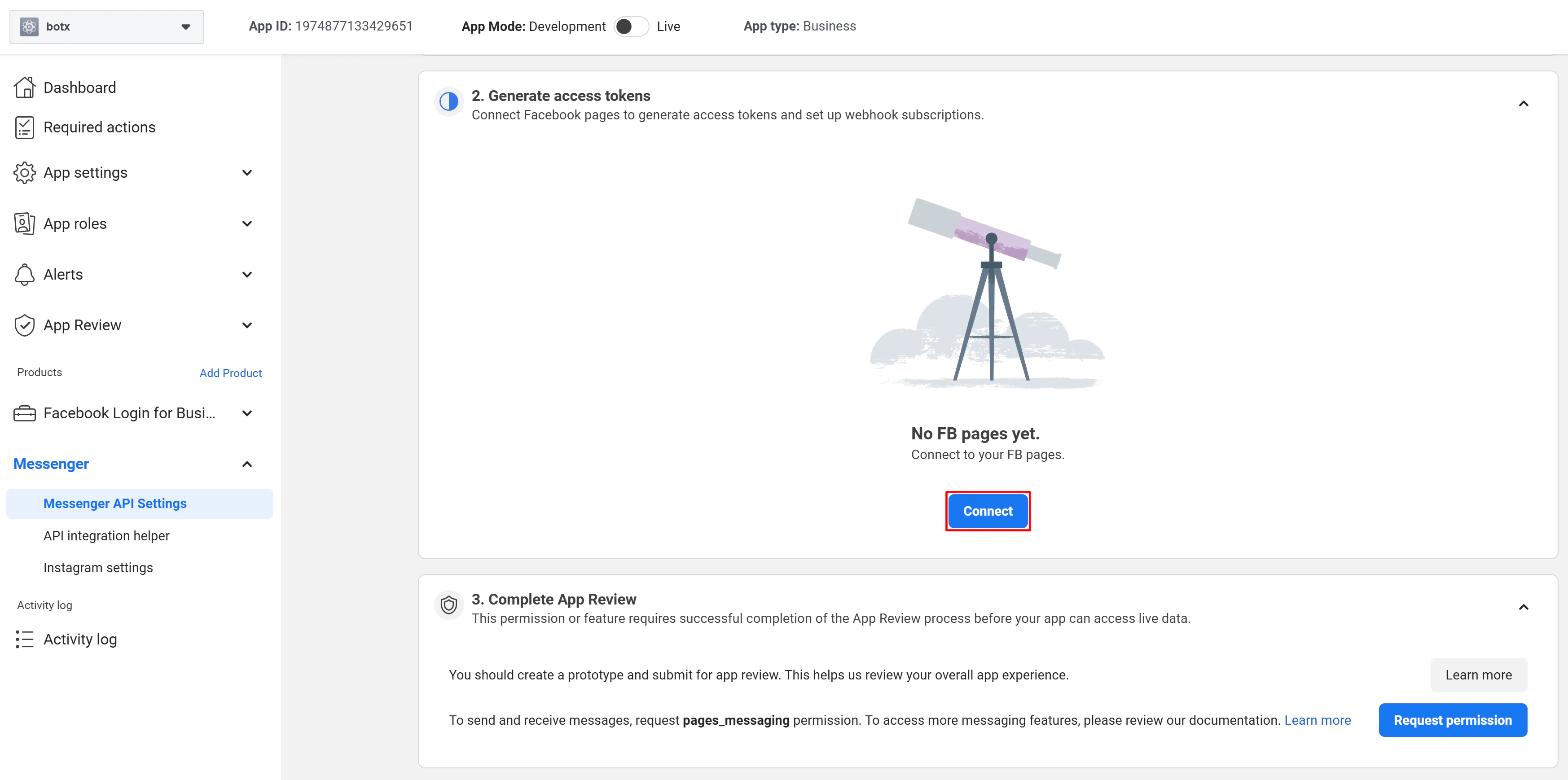 On the connected page, click **Add subscriptions**.
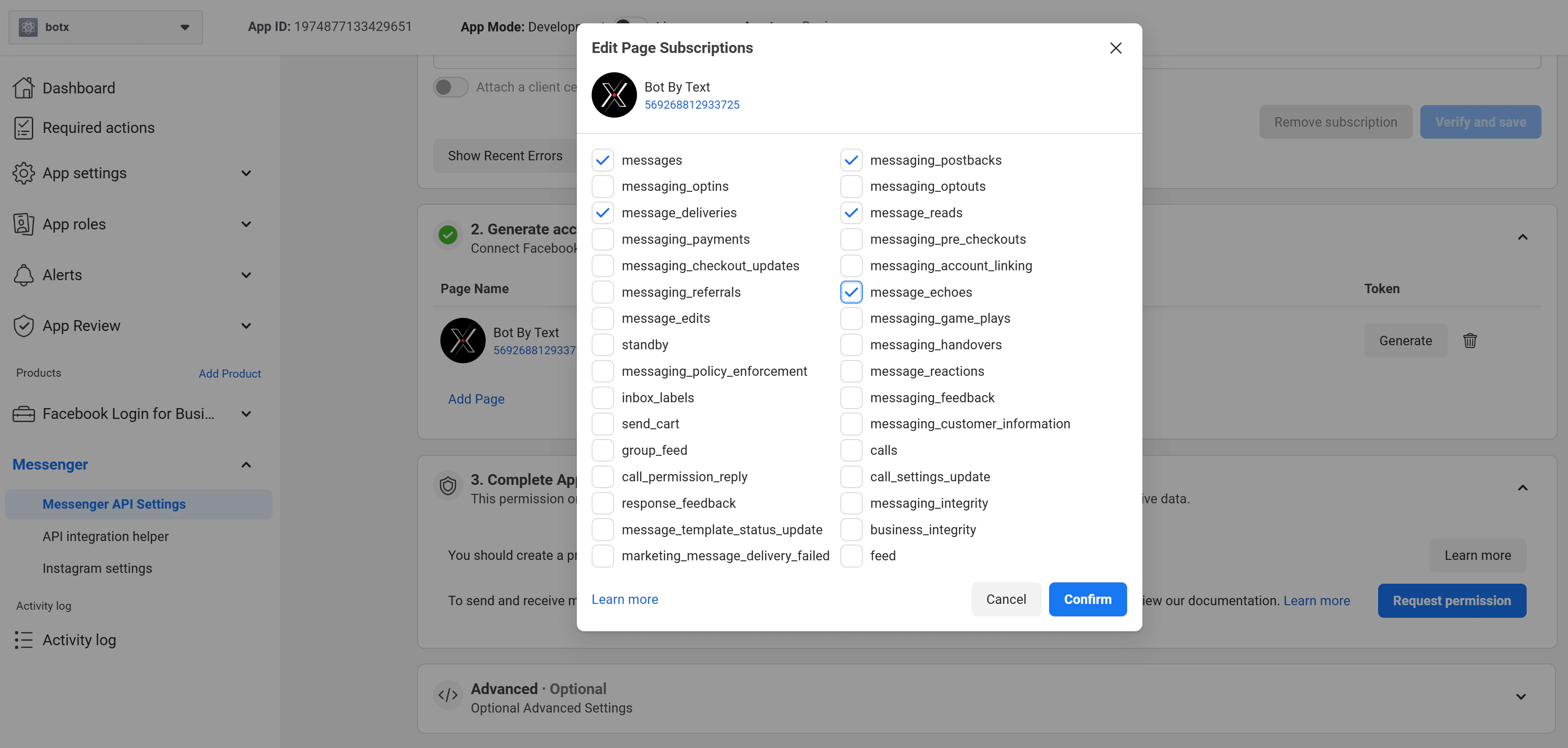
 Subscribe to the following fields and save:
```text theme={null}
messages
messaging_postbacks
message_reads
message_echoes
messaging_optins
messaging_feedback
messaging_referrals
```
Subscribe to the following fields and save:
```text theme={null}
messages
messaging_postbacks
message_reads
message_echoes
messaging_optins
messaging_feedback
messaging_referrals
```
 Send a test message to your page from your personal Facebook account. It should appear in ChatbotX shortly after.
If you are running locally, confirm that requests are arriving at the `/bot` endpoint in your ngrok terminal.
## Going to Production
Before your app can receive messages from real users, Facebook must review and approve it.
Follow the [Facebook App Review](https://developers.facebook.com/docs/apps/review/) process to get your app verified.
Request **advanced access** to the permissions below:
**Required permissions**
| Permission | Purpose |
| :---------------------- | :------------------------------------------ |
| `pages_messaging` | Send messages on behalf of your Page |
| `pages_show_list` | List Pages available to connect in ChatbotX |
| `pages_manage_metadata` | Subscribe webhooks on behalf of the Page |
**Optional permissions**
| Permission | Purpose |
| :------------------------ | :--------------------------------------------------- |
| `pages_user_gender` | Access a user's gender via the connected Page |
| `pages_user_locale` | Access a user's locale via the connected Page |
| `pages_user_timezone` | Access a user's timezone via the connected Page |
| `pages_utility_messaging` | Send utility messages and manage messaging templates |
## API Version
ChatbotX supports **Facebook API v25.0**. Make sure your app is configured to use this version.
* Update the API version under **Settings → Advanced** in your Facebook app.
* Verify that your webhook subscription version is also set to **v25.0** under the app's Webhooks settings.
Send a test message to your page from your personal Facebook account. It should appear in ChatbotX shortly after.
If you are running locally, confirm that requests are arriving at the `/bot` endpoint in your ngrok terminal.
## Going to Production
Before your app can receive messages from real users, Facebook must review and approve it.
Follow the [Facebook App Review](https://developers.facebook.com/docs/apps/review/) process to get your app verified.
Request **advanced access** to the permissions below:
**Required permissions**
| Permission | Purpose |
| :---------------------- | :------------------------------------------ |
| `pages_messaging` | Send messages on behalf of your Page |
| `pages_show_list` | List Pages available to connect in ChatbotX |
| `pages_manage_metadata` | Subscribe webhooks on behalf of the Page |
**Optional permissions**
| Permission | Purpose |
| :------------------------ | :--------------------------------------------------- |
| `pages_user_gender` | Access a user's gender via the connected Page |
| `pages_user_locale` | Access a user's locale via the connected Page |
| `pages_user_timezone` | Access a user's timezone via the connected Page |
| `pages_utility_messaging` | Send utility messages and manage messaging templates |
## API Version
ChatbotX supports **Facebook API v25.0**. Make sure your app is configured to use this version.
* Update the API version under **Settings → Advanced** in your Facebook app.
* Verify that your webhook subscription version is also set to **v25.0** under the app's Webhooks settings.