> ## Documentation Index
> Fetch the complete documentation index at: https://chatbotx.io/docs/llms.txt
> Use this file to discover all available pages before exploring further.
# Instagram via Instagram Business Login
> Connect your Instagram Professional account to ChatbotX using the recommended Instagram Business Login method to automate conversations.
Connecting your Instagram account to ChatbotX allows you to automate responses, handle customer queries instantly, and manage all your direct messages from a single dashboard. This guide explains how to connect Instagram to ChatbotX using the recommended **Instagram Business Login** method, which provides a direct and reliable connection.
## Prerequisites
Before starting the setup, ensure you have:
* A valid Facebook account.
* A valid Instagram Professional account (either Business or Creator type).
* A publicly accessible ChatbotX installation with an HTTPS URL.
If you are running your instance locally, you need a tunneling tool like [ngrok](/docs/channels/local-development-with-tunnels) to expose your local port to the internet. This allows Meta's servers to reach your webhook callback URL.
## Step 1: Create a Meta Developer App
To connect your Instagram account, you first need to create a developer application on Meta's platform. This app acts as a secure bridge that allows ChatbotX and Instagram to share message data safely.
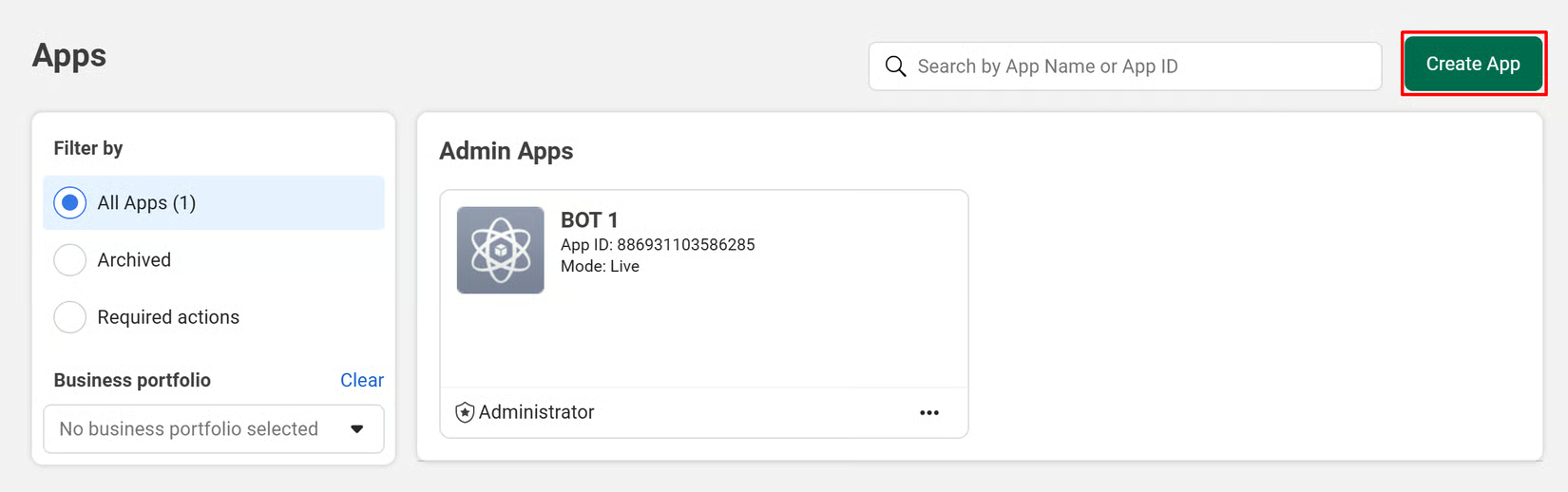
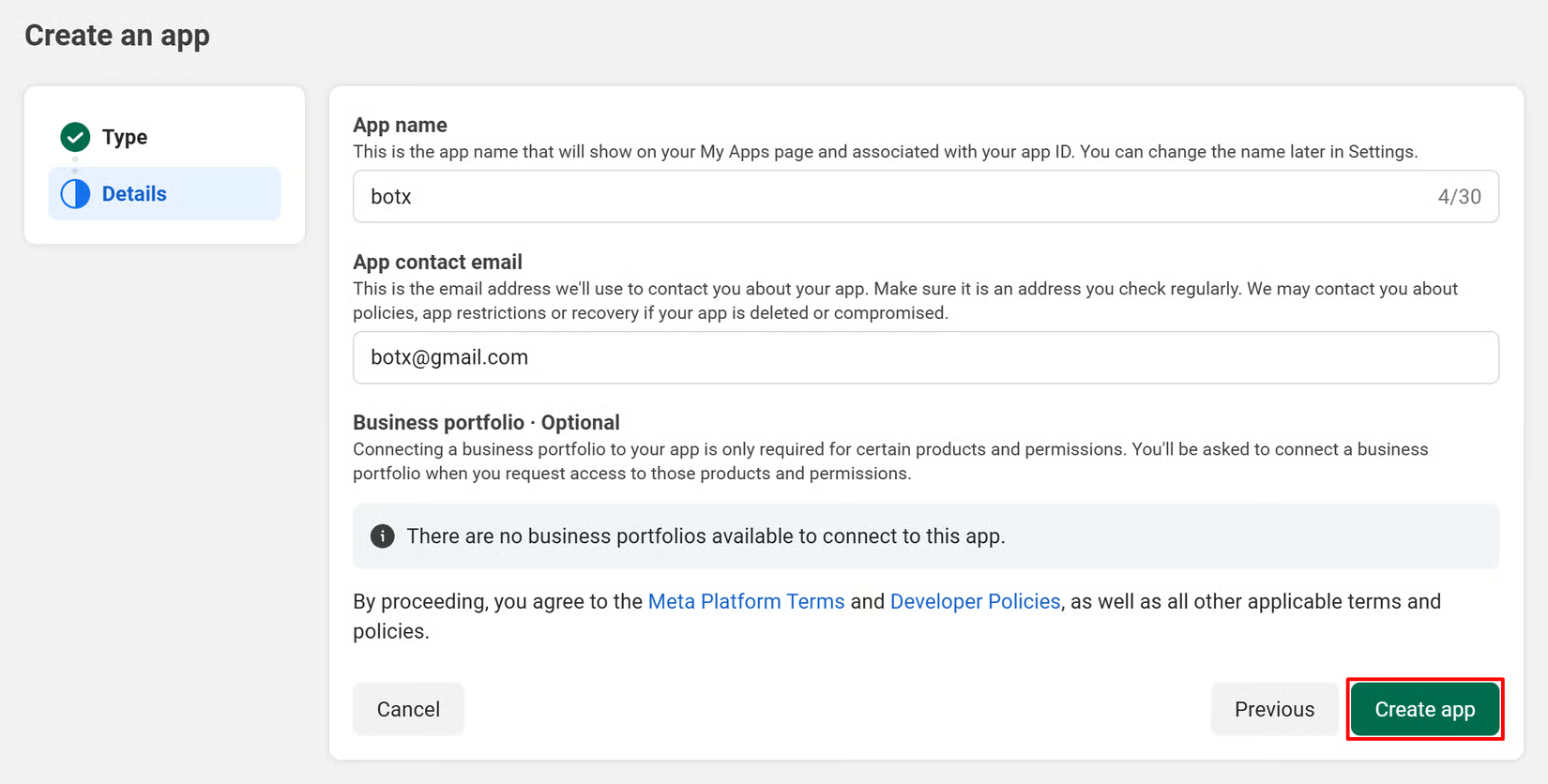
Go to the [Facebook Developer Portal](https://developers.facebook.com/apps/) and click **Create App**.
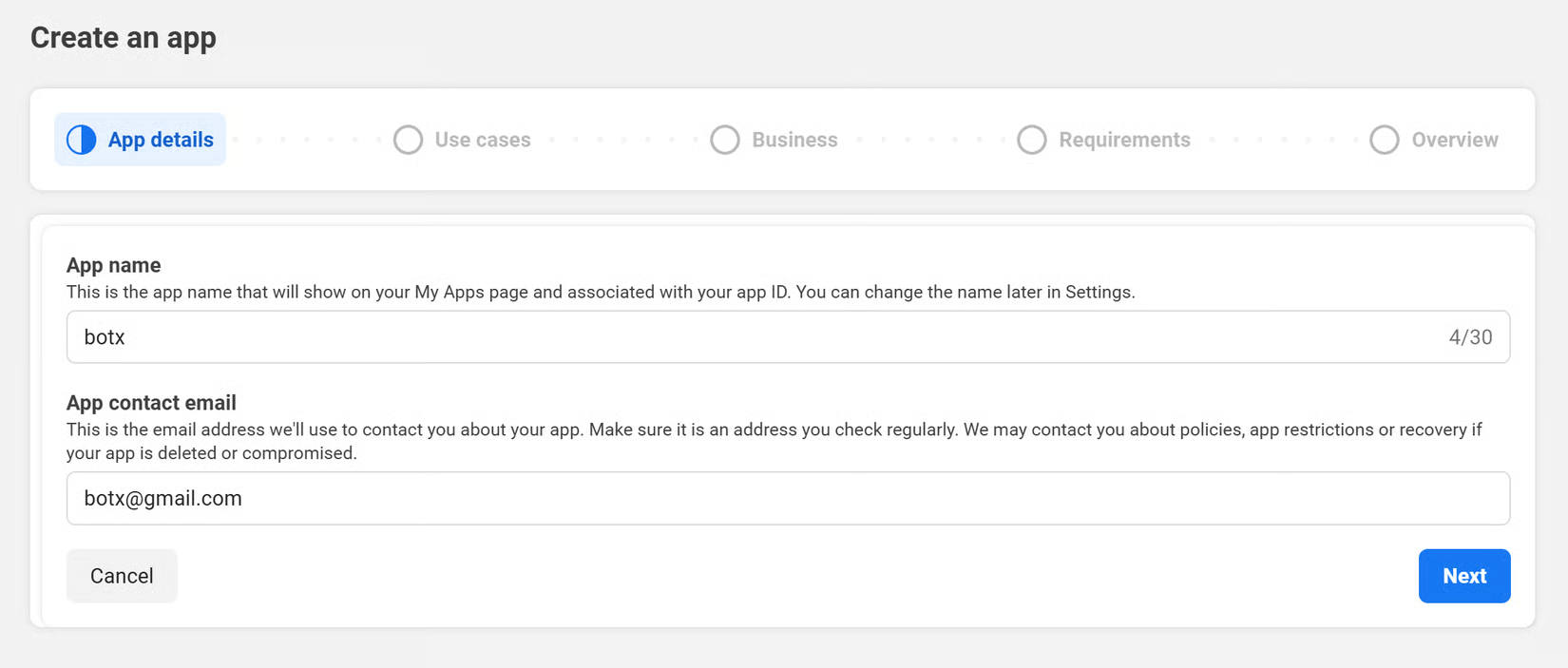
 Enter your **App name** and **contact email**, then click **Next**.
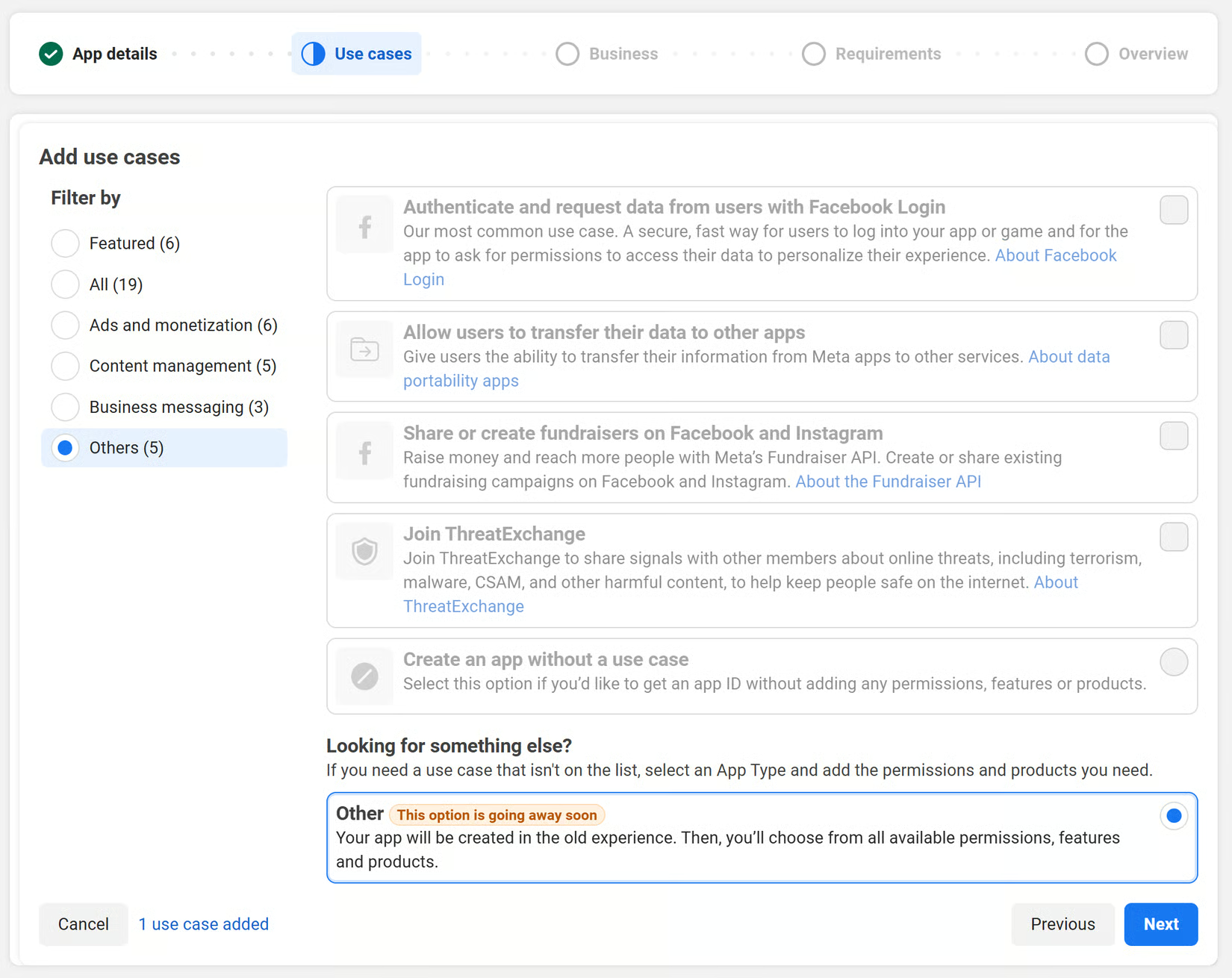
 When asked for a use case, select **Other**.
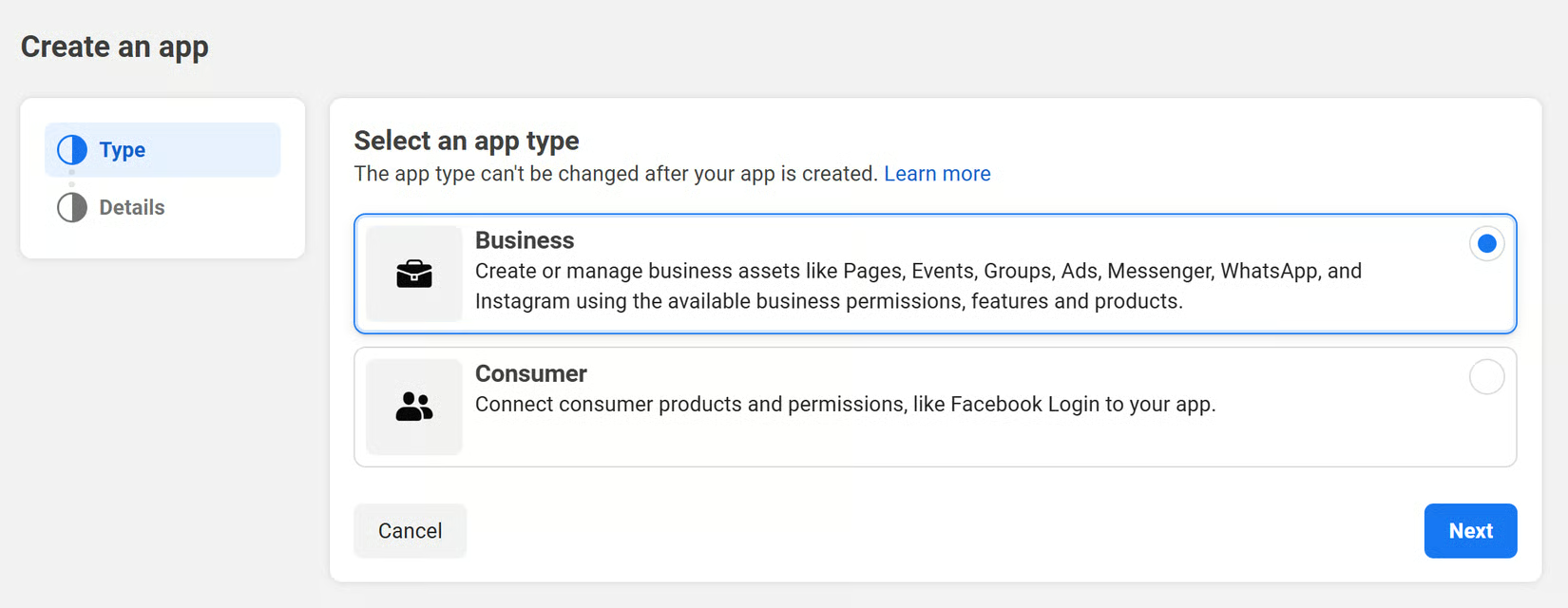
 For the app type, choose **Business**.
 Review your details and click **Create App** to finish.
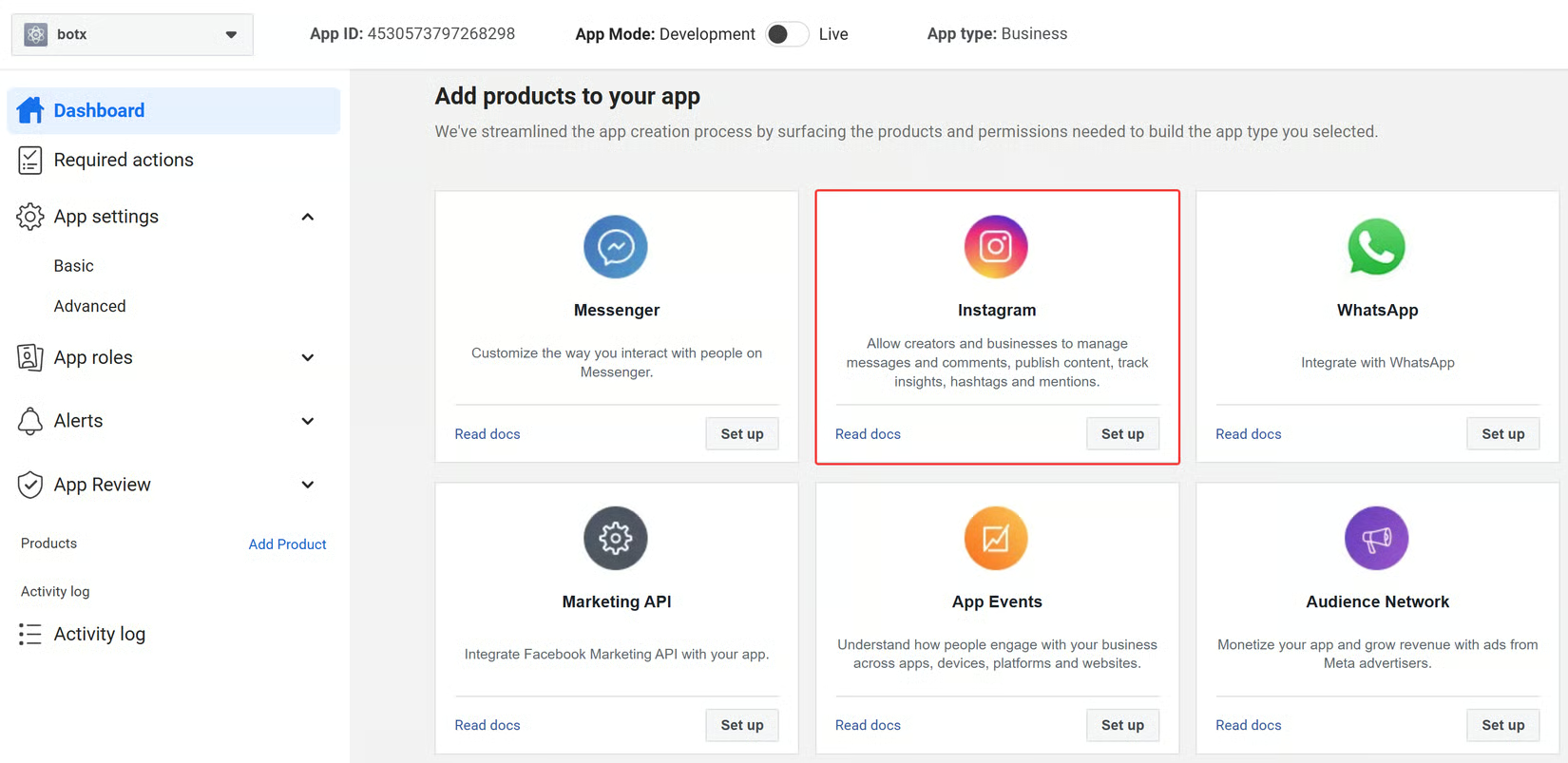
 From your Meta Developer App dashboard, locate the **Instagram** card and click **Set up**.
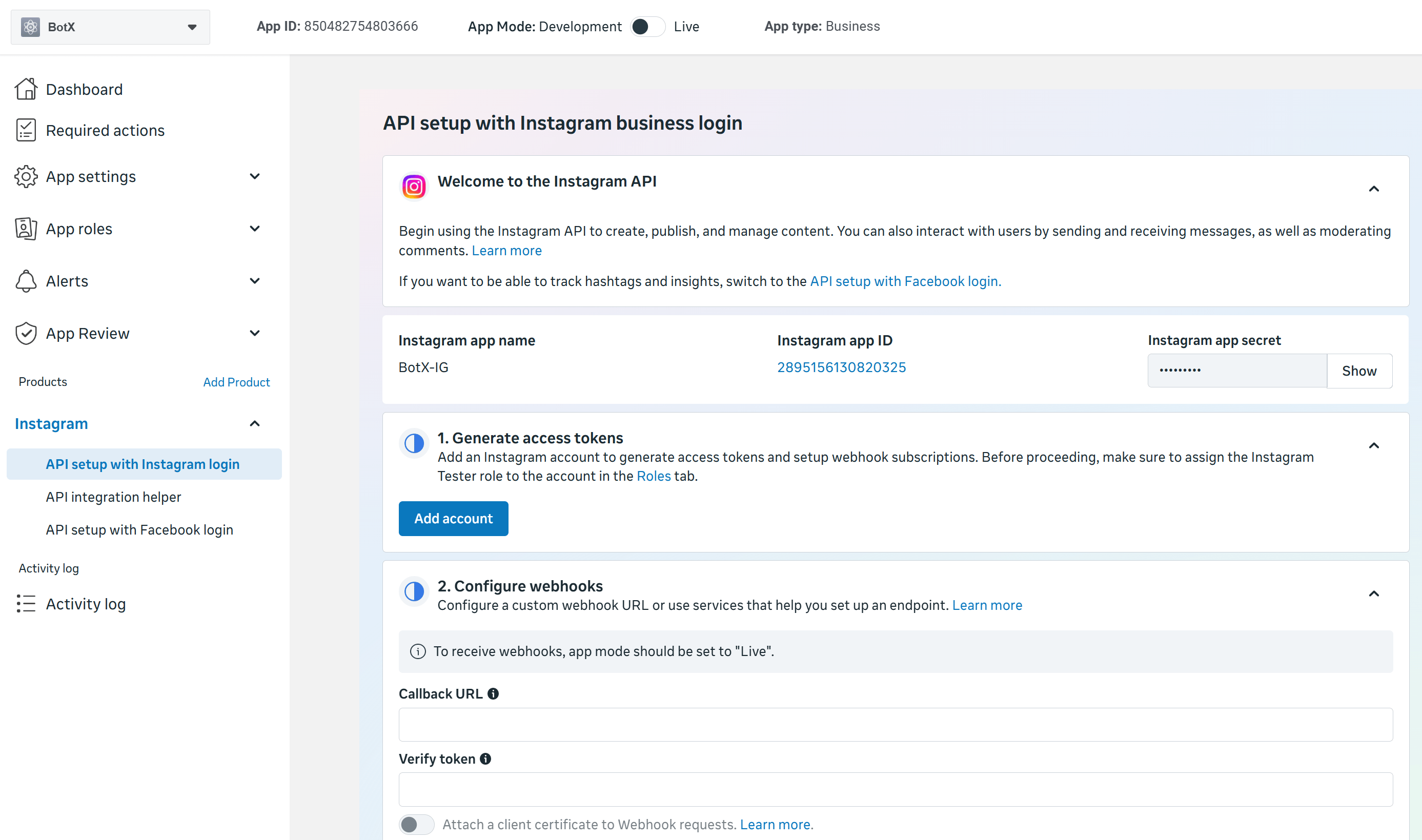
 After creating your app, go to Instagram and select **API setup with Instagram business login**. Copy the **Instagram App ID** and **Instagram App Secret** shown on this screen.
 ## Step 2: Configure Credentials in ChatbotX
With your Instagram credentials generated and Webhooks configured in Meta, save these settings in ChatbotX to link the integration.
In your ChatbotX installation, navigate to:
```text theme={null}
https://app.yourdomain.com/admin/platform-credentials
```
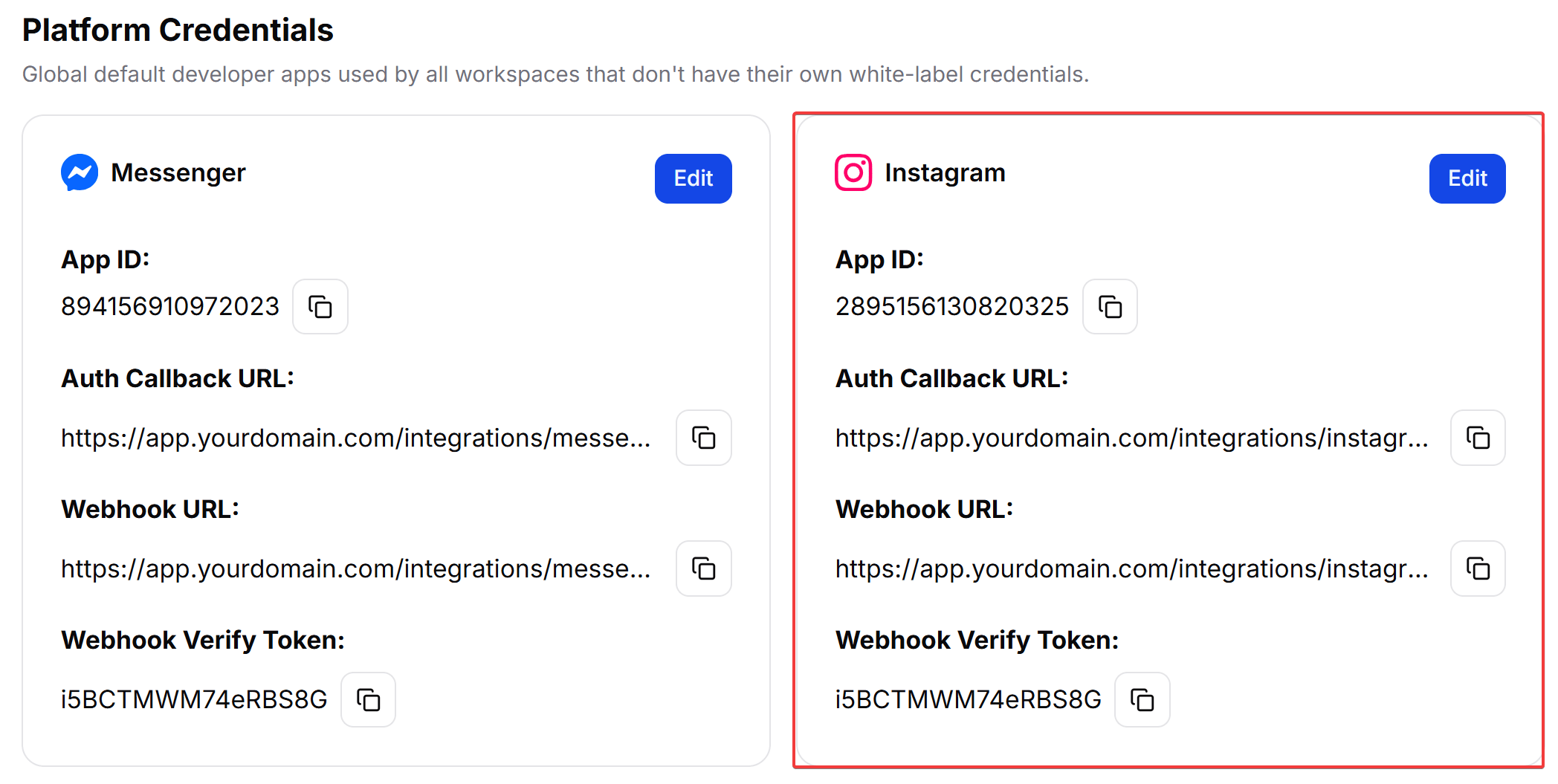
Click the **Edit** button on the Instagram card to open the configuration modal.
## Step 2: Configure Credentials in ChatbotX
With your Instagram credentials generated and Webhooks configured in Meta, save these settings in ChatbotX to link the integration.
In your ChatbotX installation, navigate to:
```text theme={null}
https://app.yourdomain.com/admin/platform-credentials
```
Click the **Edit** button on the Instagram card to open the configuration modal.
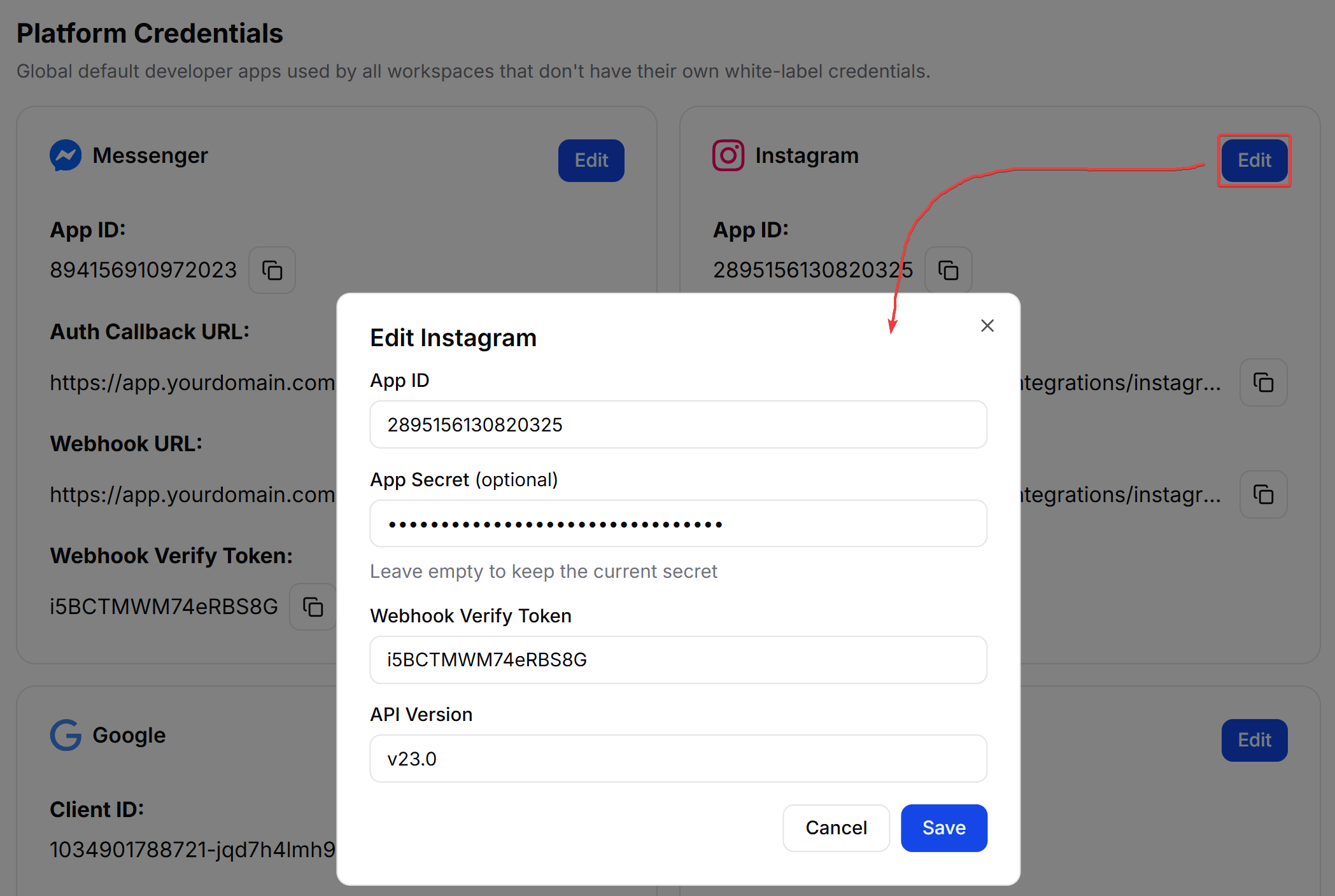 Provide the details from your Meta Developer Portal configuration:
* **Client ID**: Paste your **Instagram App ID** (copied in Step 1-7).
* **Client Secret**: Paste your **Instagram App Secret** (copied in Step 1-7).
* **API Version**: Select v23.0 or higher.
* **Webhook Verify Token**: A secret string used to validate incoming webhook requests, choose your own value, for example, a random string
After saving, ChatbotX will display a **Auth Callback URL & Webhook URL**. Copy and keep this URL, you will need it when configuring in Step 3.
Provide the details from your Meta Developer Portal configuration:
* **Client ID**: Paste your **Instagram App ID** (copied in Step 1-7).
* **Client Secret**: Paste your **Instagram App Secret** (copied in Step 1-7).
* **API Version**: Select v23.0 or higher.
* **Webhook Verify Token**: A secret string used to validate incoming webhook requests, choose your own value, for example, a random string
After saving, ChatbotX will display a **Auth Callback URL & Webhook URL**. Copy and keep this URL, you will need it when configuring in Step 3.
 ## Step 3: Configure Instagram Business Login Settings in Meta
Before saving settings in ChatbotX, you must set up the Instagram product in the Meta Developer Portal to retrieve your Instagram credentials and establish the webhook connection.
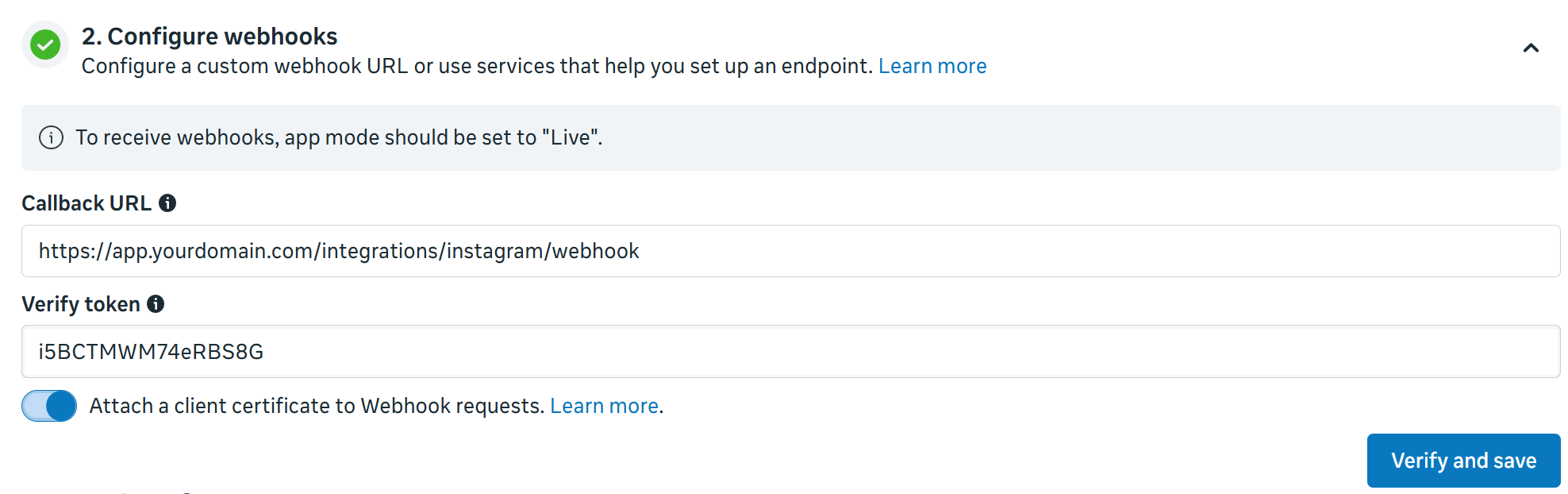
Under **Instagram: Webhooks** in the Meta portal:
* **Callback URL**: Paste `https://app.yourdomain.com/integrations/instagram/webhook`.
* **Verify Token**: Enter a secure random string of your choice (e.g. `INSTAGRAM_VERIFY_TOKEN`).
Click **Verify and save**.
## Step 3: Configure Instagram Business Login Settings in Meta
Before saving settings in ChatbotX, you must set up the Instagram product in the Meta Developer Portal to retrieve your Instagram credentials and establish the webhook connection.
Under **Instagram: Webhooks** in the Meta portal:
* **Callback URL**: Paste `https://app.yourdomain.com/integrations/instagram/webhook`.
* **Verify Token**: Enter a secure random string of your choice (e.g. `INSTAGRAM_VERIFY_TOKEN`).
Click **Verify and save**.
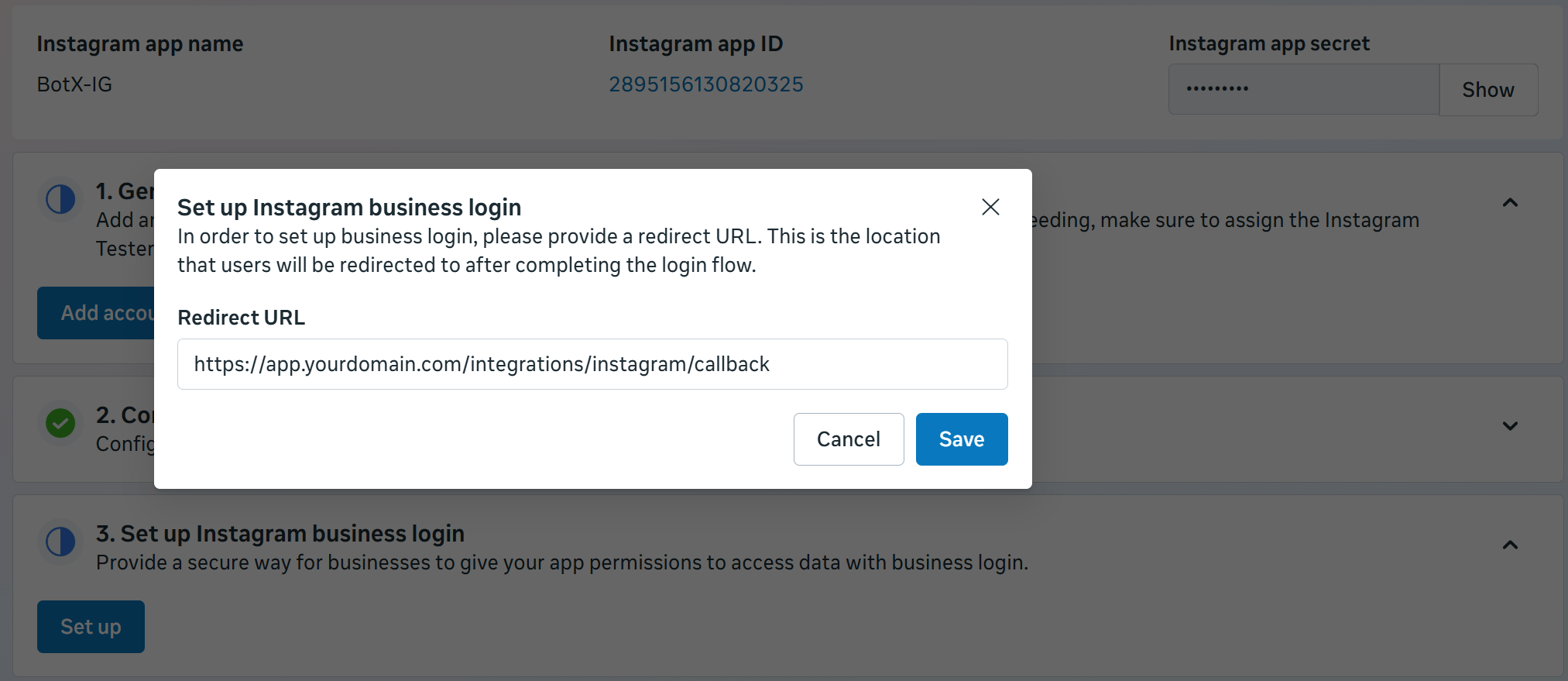
 In the Client OAuth settings on the same page, enter your Redirect URL:
* **Valid OAuth Redirect URIs**: Paste `https://app.yourdomain.com/integrations/instagram/callback`.
Save your changes.
In the Client OAuth settings on the same page, enter your Redirect URL:
* **Valid OAuth Redirect URIs**: Paste `https://app.yourdomain.com/integrations/instagram/callback`.
Save your changes.
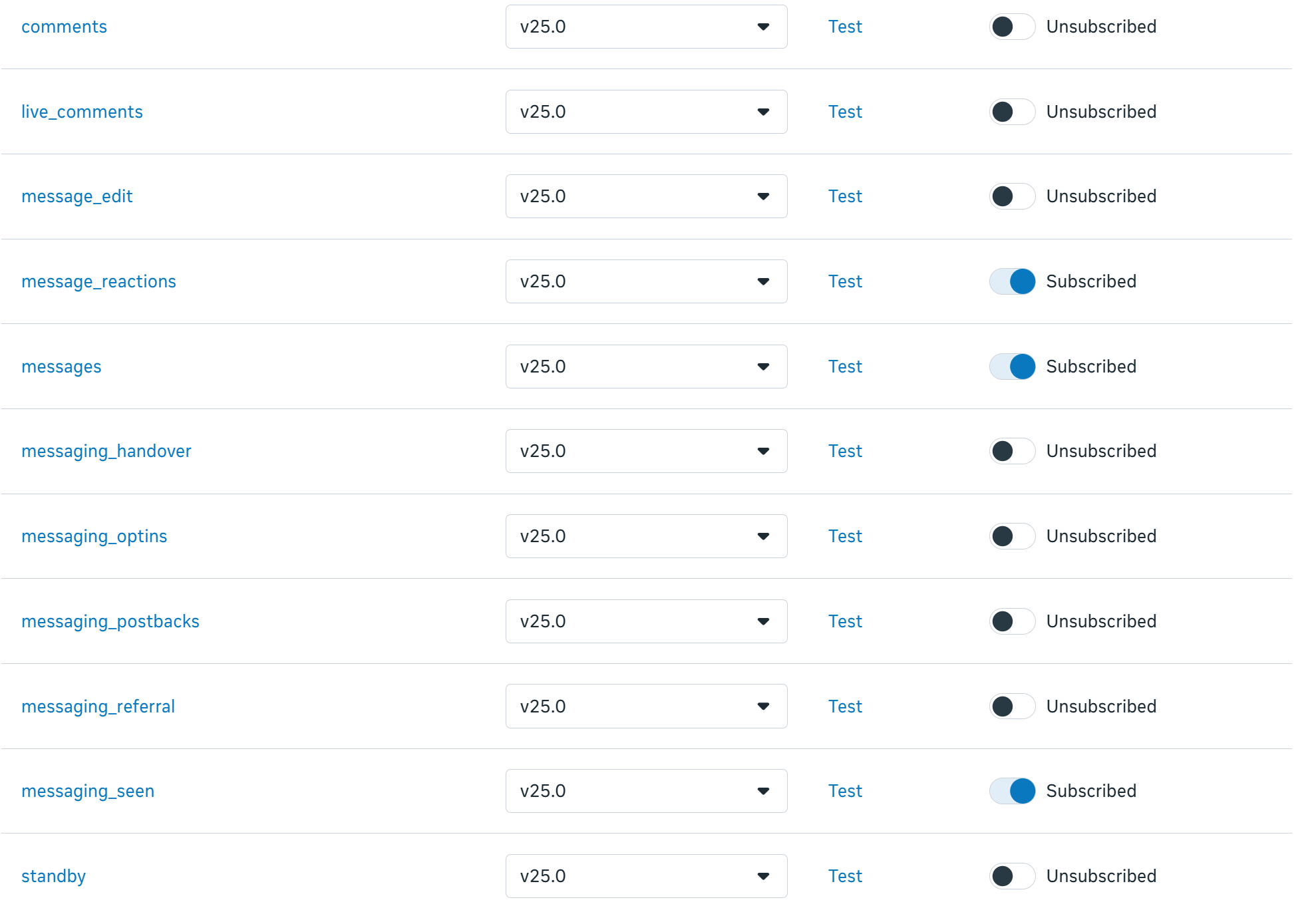
 Once verified, subscribe to the following fields:
* `messages`
* `messaging_seen`
* `message_reactions`
Once verified, subscribe to the following fields:
* `messages`
* `messaging_seen`
* `message_reactions`
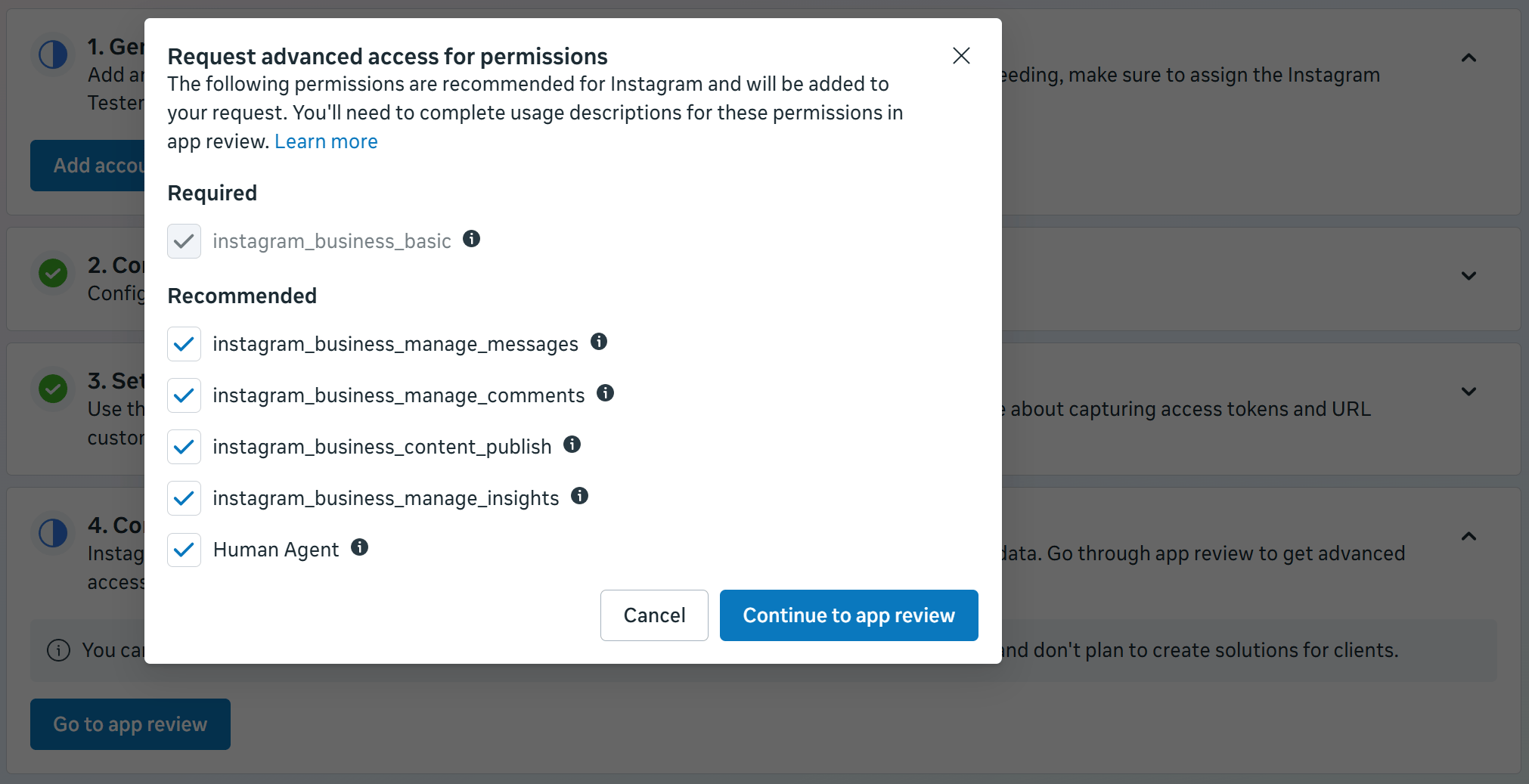
 To receive messages from the general public, Meta requires your app to go through an App Review process. During this review, you must request specific permissions that allow the bot to read and reply to messages.
Request Advanced Access for the following scopes:
| Permission | Description |
| :----------------------------------- | :----------------------------------------------------------------------------------------- |
| `instagram_business_basic` | Retrieve connected Instagram Business account metadata: username, ID, and profile picture. |
| `instagram_business_manage_messages` | Receive and respond to Instagram Direct Messages. |
| `human_agent` | Enable human agents to respond to messages outside the standard 24-hour window. |
To receive messages from the general public, Meta requires your app to go through an App Review process. During this review, you must request specific permissions that allow the bot to read and reply to messages.
Request Advanced Access for the following scopes:
| Permission | Description |
| :----------------------------------- | :----------------------------------------------------------------------------------------- |
| `instagram_business_basic` | Retrieve connected Instagram Business account metadata: username, ID, and profile picture. |
| `instagram_business_manage_messages` | Receive and respond to Instagram Direct Messages. |
| `human_agent` | Enable human agents to respond to messages outside the standard 24-hour window. |
 ## Step 4: Test Your Connection
Before you open your chatbot to the public, it is best to test the connection using a test account. This ensures everything is set up correctly without affecting real customers.
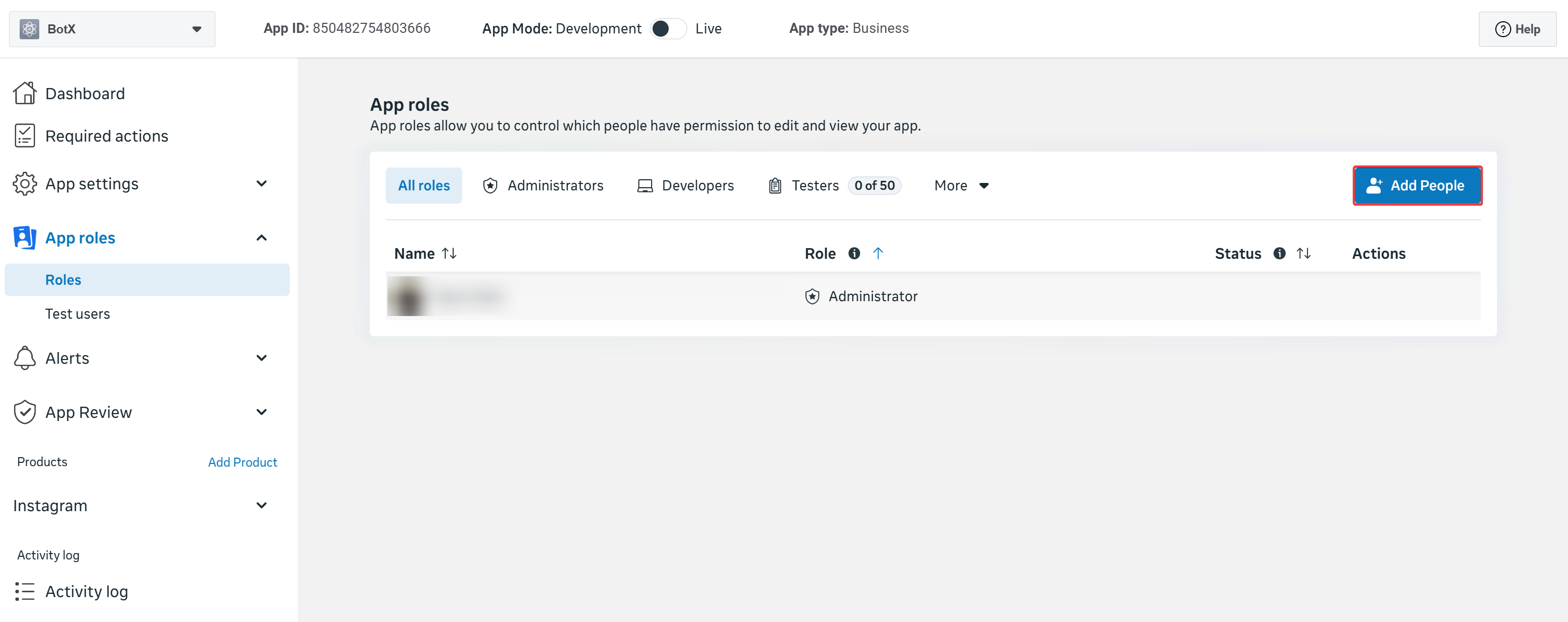
In the Meta Developer Portal, go to **App Roles: Roles** and click **Add Users**.
## Step 4: Test Your Connection
Before you open your chatbot to the public, it is best to test the connection using a test account. This ensures everything is set up correctly without affecting real customers.
In the Meta Developer Portal, go to **App Roles: Roles** and click **Add Users**.
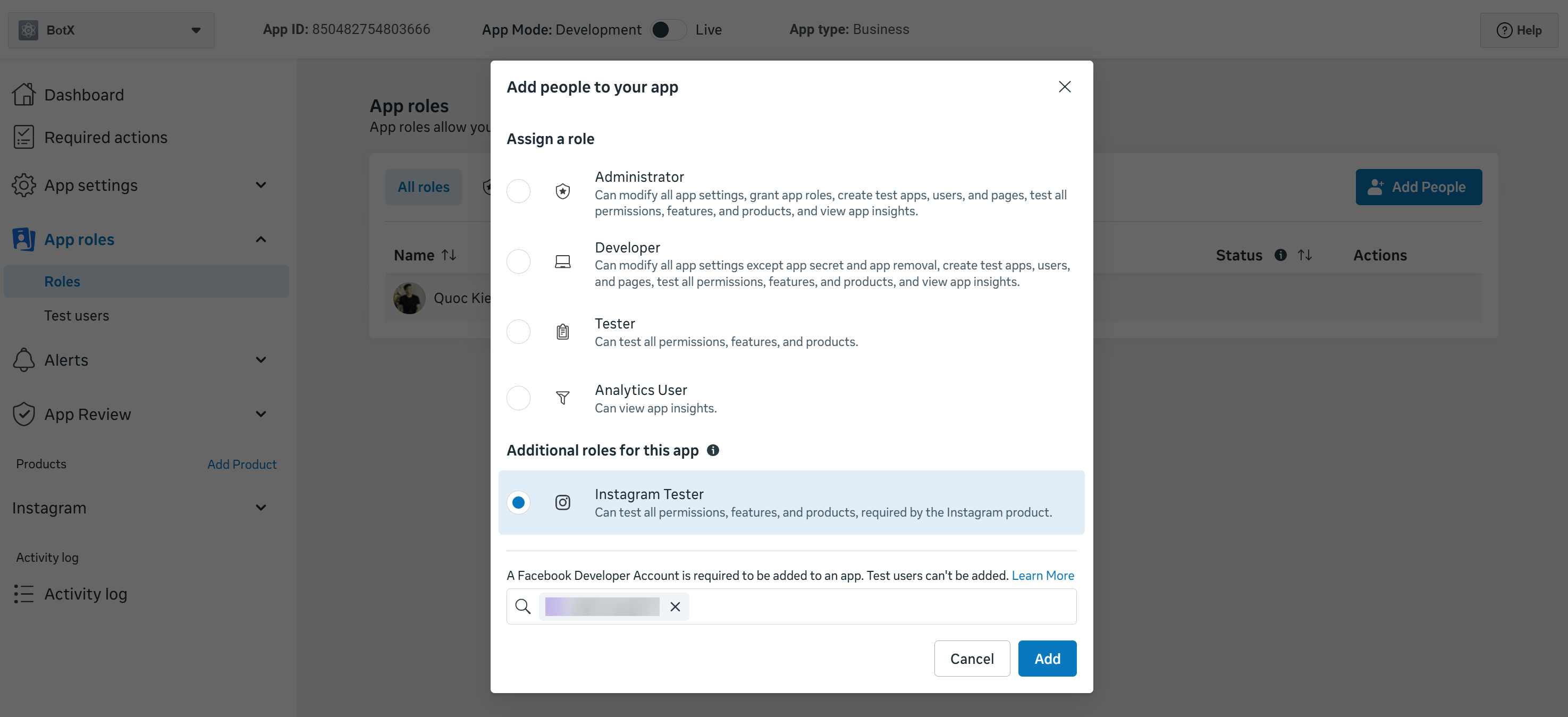
 Choose the **Instagram Tester** role, enter the Instagram username of your test account, and click **Submit**.
 Log in to the test Instagram account, go to **Settings: Apps and Websites: Tester Invites**, and accept the pending invitation from your app.
Go to **Settings: Channels** in your ChatbotX dashboard. Click **Add Instagram**, select **Connect**, and follow the on-screen Meta authorization prompt. Select the test Instagram account to finalize the link.
Ensure the test account has **Allow Access to Messages** enabled in the Instagram mobile app:
```text theme={null}
Settings and privacy: Messages and story replies: Message controls: Allow Access to Messages (ON)
```
Send a DM to your business profile. It should appear in the ChatbotX dashboard immediately.
## Troubleshooting
Ensure the Instagram test user has accepted the **Instagram Tester** role invitation under **Settings: Apps and Websites: Tester Invites** on their Instagram account.
Verify that your Meta app has a valid and reachable **Privacy Policy URL** configured in **Settings: Basic**.
Check that the **Valid OAuth Redirect URI** in the Instagram Business Login settings matches your ChatbotX installation URL callback format exactly.
Verify that the Meta App is in **Live** mode and all permissions have been correctly approved or the test user is properly linked to the app.
Log in to the test Instagram account, go to **Settings: Apps and Websites: Tester Invites**, and accept the pending invitation from your app.
Go to **Settings: Channels** in your ChatbotX dashboard. Click **Add Instagram**, select **Connect**, and follow the on-screen Meta authorization prompt. Select the test Instagram account to finalize the link.
Ensure the test account has **Allow Access to Messages** enabled in the Instagram mobile app:
```text theme={null}
Settings and privacy: Messages and story replies: Message controls: Allow Access to Messages (ON)
```
Send a DM to your business profile. It should appear in the ChatbotX dashboard immediately.
## Troubleshooting
Ensure the Instagram test user has accepted the **Instagram Tester** role invitation under **Settings: Apps and Websites: Tester Invites** on their Instagram account.
Verify that your Meta app has a valid and reachable **Privacy Policy URL** configured in **Settings: Basic**.
Check that the **Valid OAuth Redirect URI** in the Instagram Business Login settings matches your ChatbotX installation URL callback format exactly.
Verify that the Meta App is in **Live** mode and all permissions have been correctly approved or the test user is properly linked to the app.