> ## Documentation Index
> Fetch the complete documentation index at: https://chatbotx.io/docs/llms.txt
> Use this file to discover all available pages before exploring further.
# How to Connect Instagram to ChatbotX
> Step-by-step guide to connect your Instagram Professional account to ChatbotX to automate DMs, Story Mentions, and Comment-to-DM.
By connecting your Instagram Professional account to **ChatbotX**, you can leverage **AI Agents** to automate Direct Messages (DMs), respond to Story Mentions, and convert post comments into leads through "Comment-to-DM" automation.
## Prerequisites
Before getting started, make sure you have met the following requirements:
1. **Instagram Professional account:** Your Instagram account must be set as a **Business** or **Creator** profile. If you are using a personal account, follow [this official guide](https://help.instagram.com/502981923235522) to switch.
2. **Linked Facebook Page:** Your Instagram account must be linked to a Facebook Page where you have **Admin** access.
3. **Admin access:** You need **"Full Control"** or **Admin** permissions on the linked Facebook Page.
4. **Personal Facebook account:** You must be logged in on your browser with the Facebook account that manages that Page.
## Link Your Facebook Page with Instagram Account
Before connecting to ChatbotX, you need to ensure your Facebook Page is linked to your Instagram Professional account.
Go to the [Facebook Pages Manager](https://www.facebook.com/pages/?category=your_pages), select the Page you want to link, and open **Settings**.
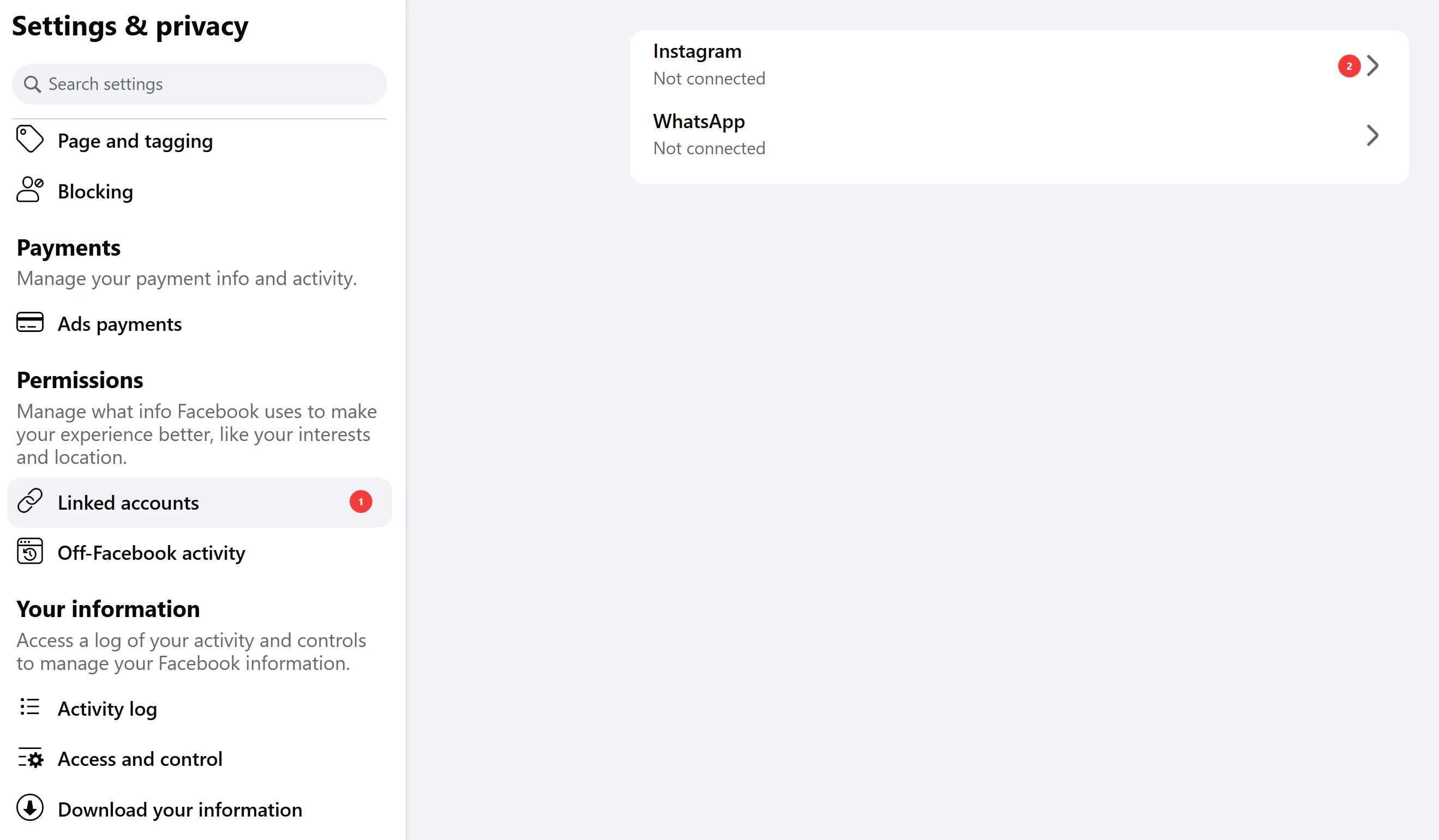
Go to **Linked Accounts** and connect your Instagram Professional account.
1. Select **Instagram**
 2. Click **"Connect account"** and follow the Instagram login prompts
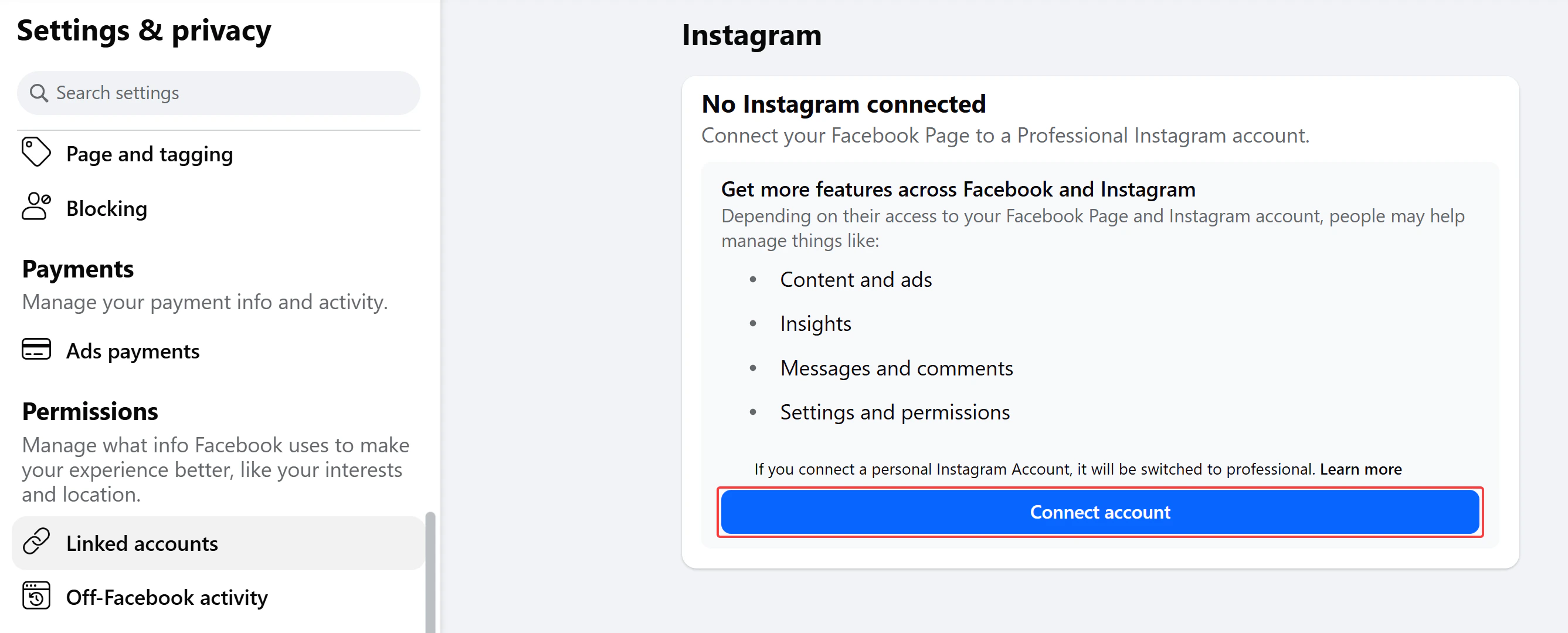 If everything is successful, you will see the message **"Instagram connected."** on the settings page.
## Step 1: Open the Channel Configuration
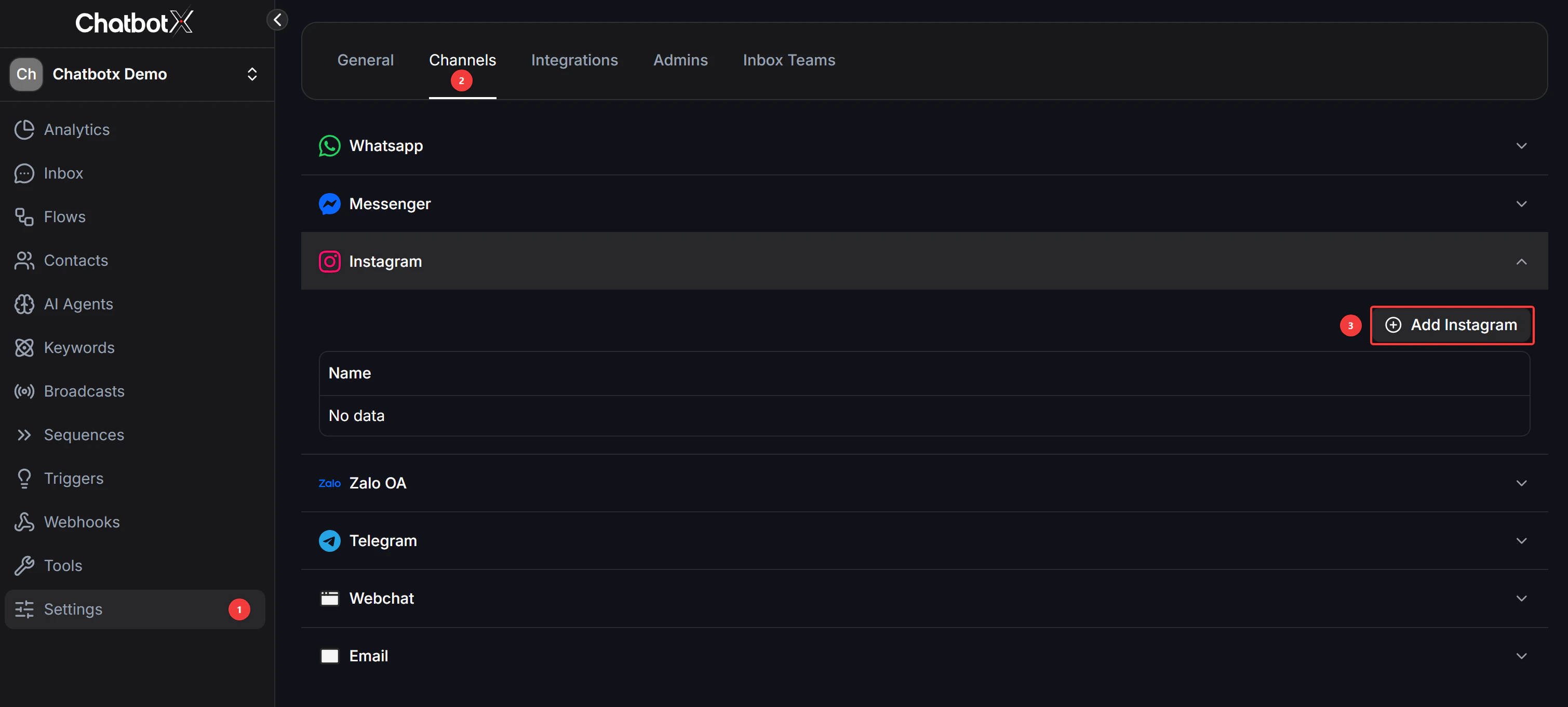
1. Log in to your **ChatbotX** dashboard.
2. Go to **Settings** → **Channels**.
3. Find the Instagram icon and click the **"Add Instagram"** button.
If everything is successful, you will see the message **"Instagram connected."** on the settings page.
## Step 1: Open the Channel Configuration
1. Log in to your **ChatbotX** dashboard.
2. Go to **Settings** → **Channels**.
3. Find the Instagram icon and click the **"Add Instagram"** button.
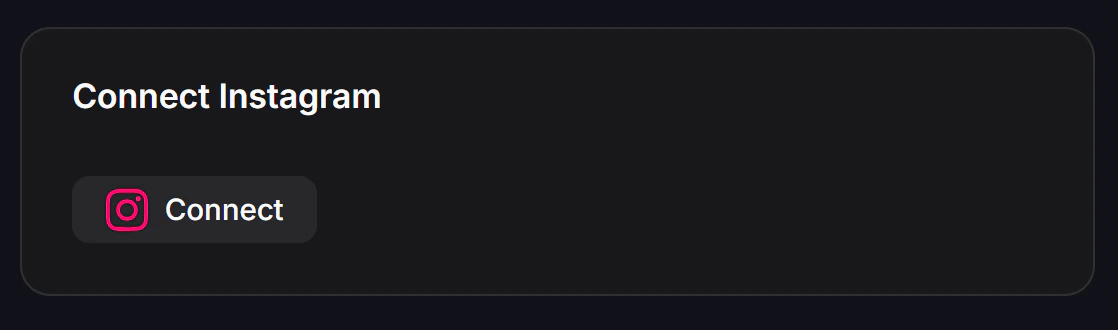
 4. Click **Connect**
 ## Step 2: Grant Access Permissions
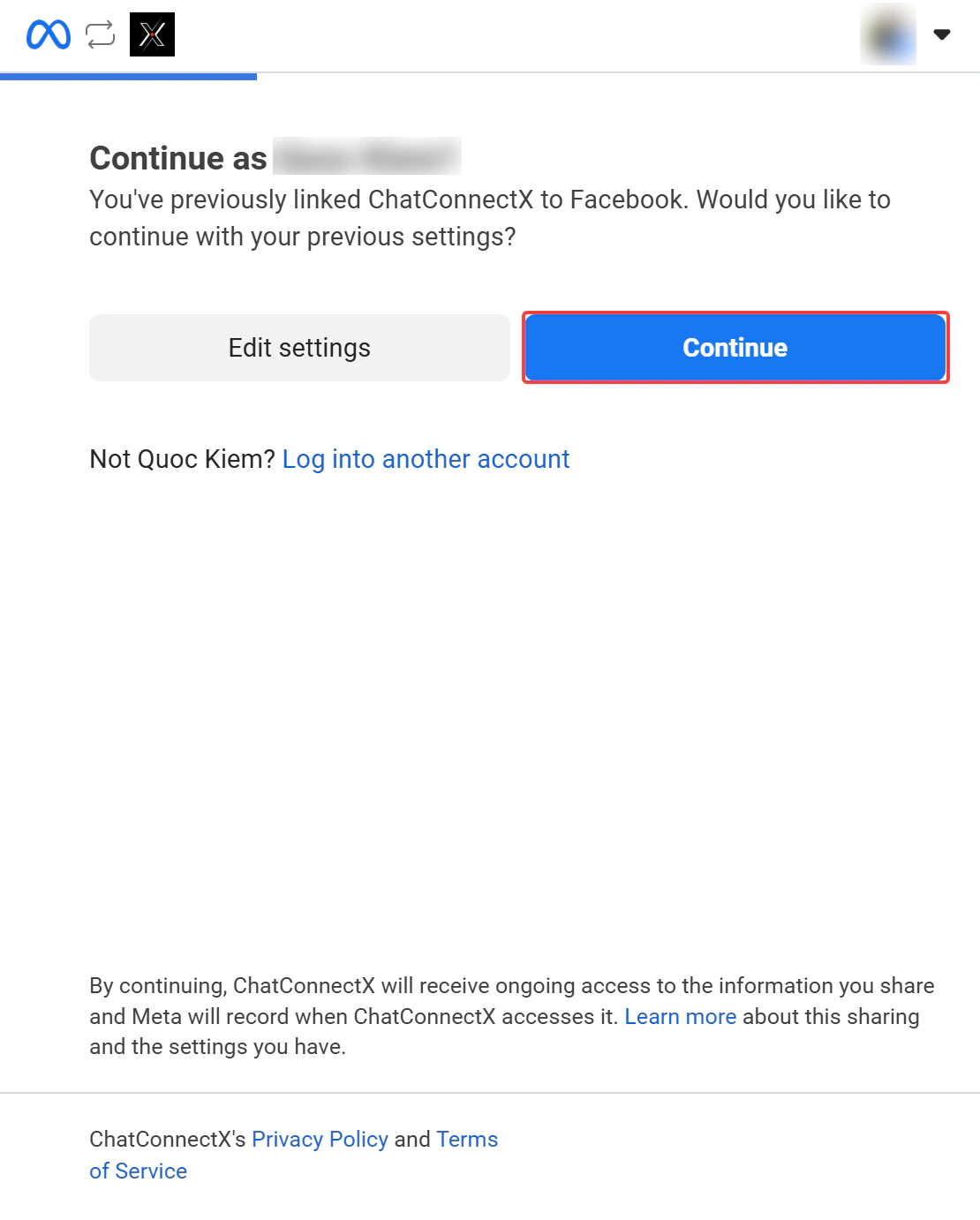
The system will redirect you to the Facebook (Meta) permission granting interface.
1. Click the **"Continue as \[Your Name]"** button to grant permissions.
> **Important:** If you have previously connected other pages, click **Edit Settings** to ensure the new Instagram account is included in the current permission session.
## Step 2: Grant Access Permissions
The system will redirect you to the Facebook (Meta) permission granting interface.
1. Click the **"Continue as \[Your Name]"** button to grant permissions.
> **Important:** If you have previously connected other pages, click **Edit Settings** to ensure the new Instagram account is included in the current permission session.
 ## Step 3: Select Linked Facebook Pages
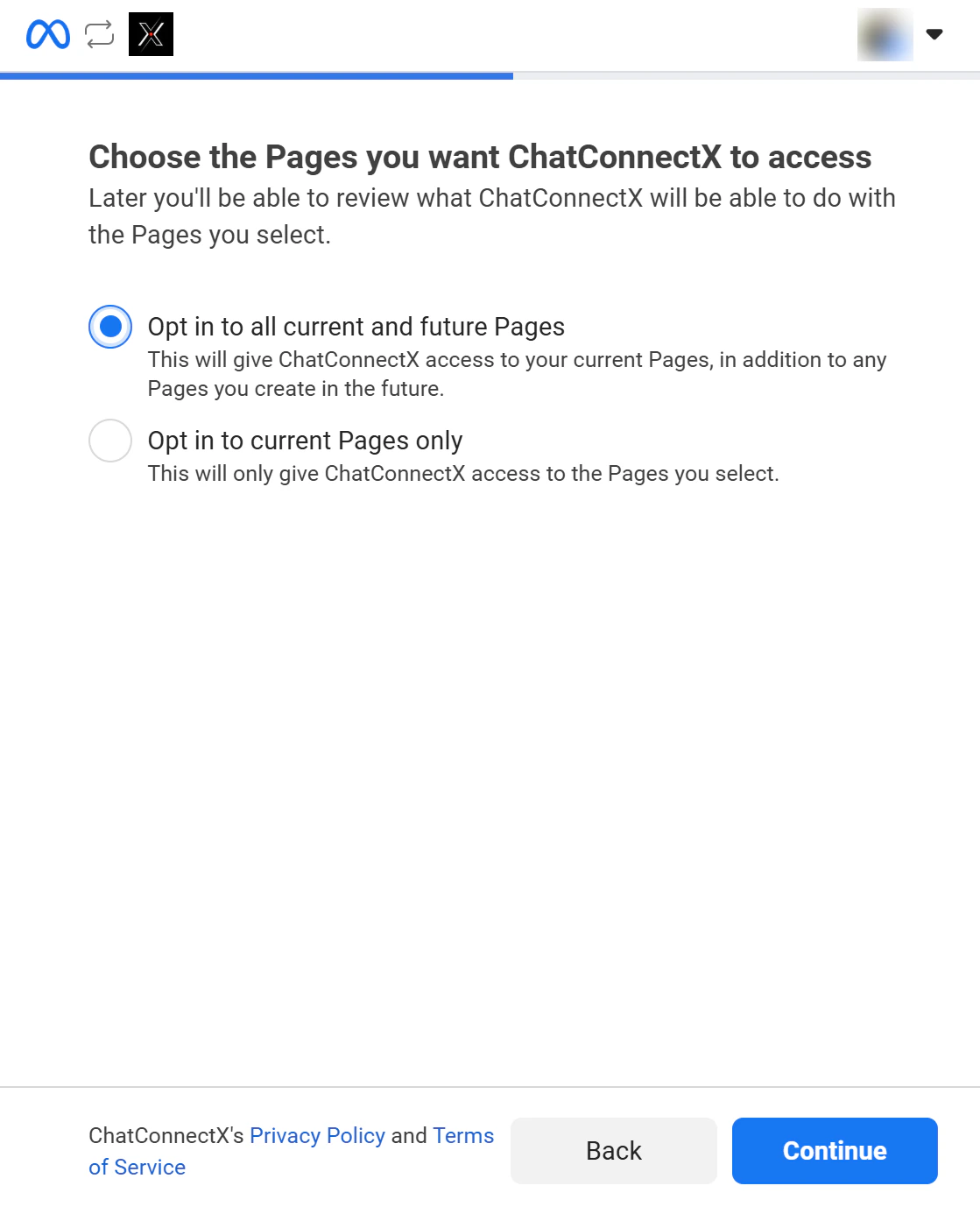
Check the box for the **linked Facebook Page**, or select **All**.
## Step 3: Select Linked Facebook Pages
Check the box for the **linked Facebook Page**, or select **All**.
 ## Step 4: Select Instagram Accounts
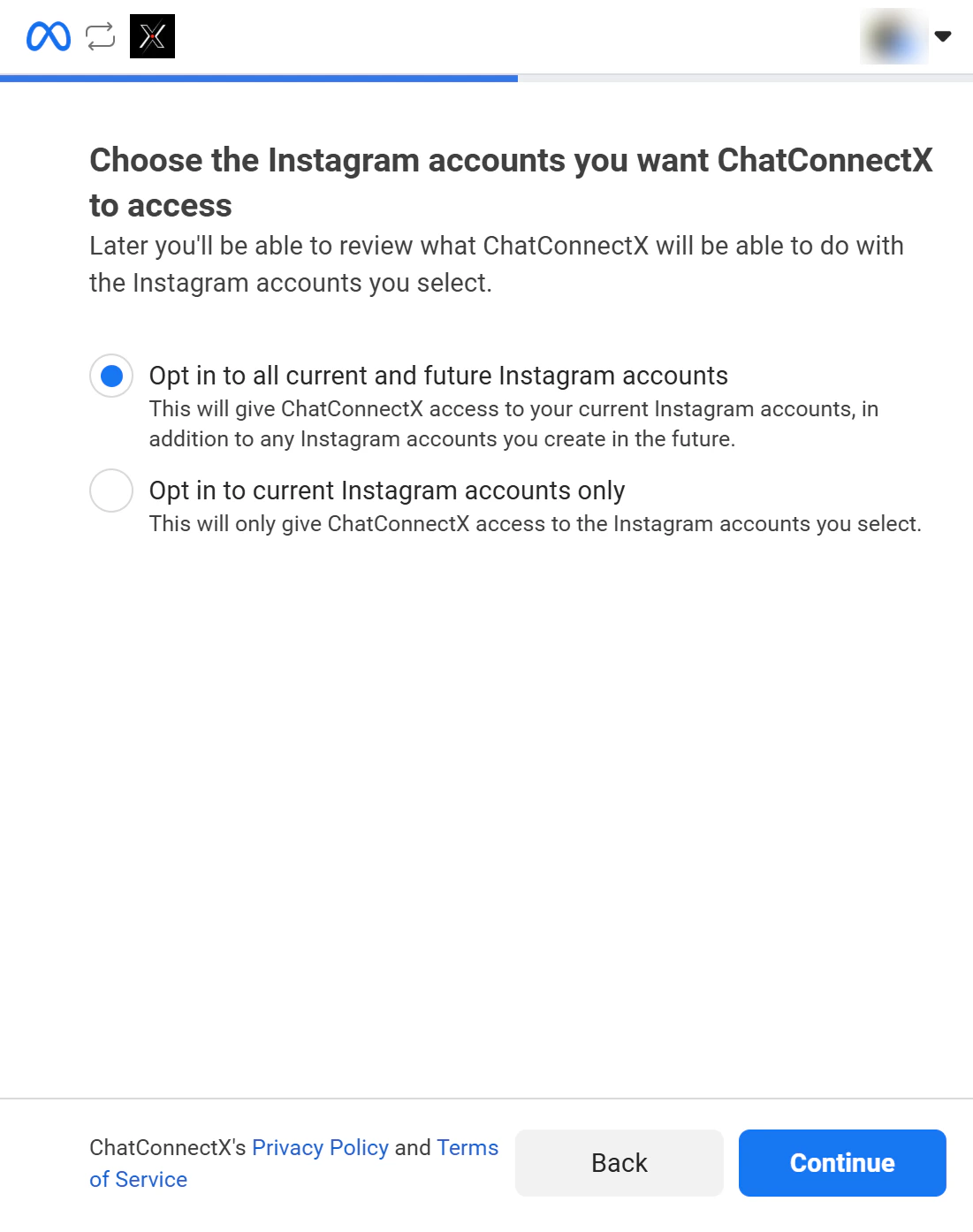
Confirm the exact Instagram account you want to link to the platform, or select all.
## Step 4: Select Instagram Accounts
Confirm the exact Instagram account you want to link to the platform, or select all.
 ## Step 5: Review Permissions
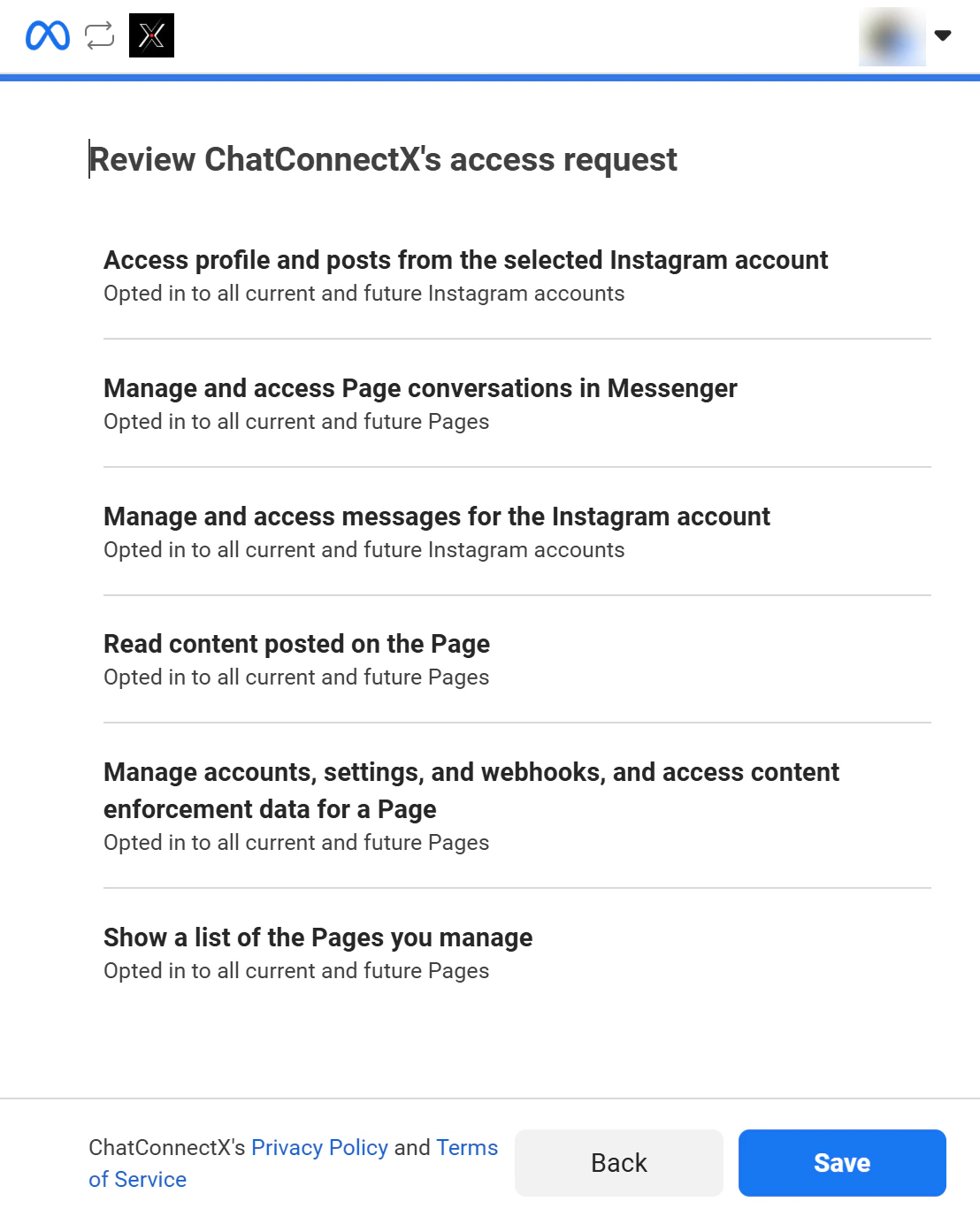
This is the final step.
1. Review the permissions the application is allowed to access.
2. Once verified, click the **Save** button in the bottom right corner.
## Step 5: Review Permissions
This is the final step.
1. Review the permissions the application is allowed to access.
2. Once verified, click the **Save** button in the bottom right corner.
 ## Step 6: Test Automation
Your Instagram account is now connected. You can test it using one of the following methods:
* **Option 1: Create a Flow**
* Go to the **Flows** section in the sidebar.
* Create a simple welcome message or an interactive menu.
* Send a DM to the Instagram account to verify the response.
* **Option 2: Set up an AI Agent**
* Go to the **AI Agent** tab to configure your agent's personality.
* After saving, send a DM to the Instagram account from another account to test the AI response.
**Enable "Allow Access to Messages":** In the Instagram mobile app, go to **Settings and privacy → Messages and story replies → Message controls**, and make sure **"Allow Access to Messages"** is turned **ON**. This is required for third-party tools to receive your Direct Messages.
## FAQ
This is the most common issue during setup. It is usually because your account doesn't meet Meta's requirements.
**Check account type:** Make sure your Instagram account is set as **Business** or **Creator**. Personal accounts are not supported by the Meta API for third-party integrations.
**Admin permissions:** You must have **Admin** access on the Facebook Page linked to that Instagram account. If it's linked but still not showing, go to **Facebook Page Settings → Linked Accounts**, disconnect and then reconnect the Instagram account to refresh the access token.
**How to fix:** Go to your personal Facebook profile → **Settings & Privacy** → **Settings** → **Business Integrations**. Find **ChatbotX**, click **Remove**, then go back to Step 1 to start over.
If the status shows "Connected" but messages aren't appearing, check the following:
**Enable 'Allow Access to Messages'**
1. Open the Instagram app on your phone.
2. Go to **Settings and privacy** → **Messages and story replies** → **Message controls**.
3. Scroll down to the **Connected tools** section and toggle **'Allow Access to Messages'** to **ON**.
**Check AI Agent** Make sure you have assigned an **AI Agent** to this Instagram channel in the **AI Agent Settings**.
**Absolutely.** ChatbotX fully supports interactive features to boost customer engagement.
**Story & Mentions responses:** Your AI Agent can be configured to automatically send thank-you messages or provide information when someone replies to your Story or mentions your account.
**24-Hour Rule:** Like Messenger, AI can only respond within a **24-hour** window from the user's last interaction.
**Yes, this is a powerful feature for converting followers.**
**Auto-reply to comments:** You can set up your AI Agent to automatically reply to comments on your posts and simultaneously send a DM to that user (e.g., sending a discount code when a user comments "Interested"). This increases conversion rates without manual effort.
According to Meta's policy, bots are only allowed to respond to customers **within 24 hours of the customer's most recent message**.
After 24 hours, you must use:
* **Message Tags**, or
* **Marketing Messages**
to continue the conversation.
You don't need to disconnect the existing connection.
Simply repeat the **Add Instagram** process. When the Meta window appears, click **Edit Settings** and check the new Instagram account.
The system will automatically update the list without affecting previously connected channels.
## Step 6: Test Automation
Your Instagram account is now connected. You can test it using one of the following methods:
* **Option 1: Create a Flow**
* Go to the **Flows** section in the sidebar.
* Create a simple welcome message or an interactive menu.
* Send a DM to the Instagram account to verify the response.
* **Option 2: Set up an AI Agent**
* Go to the **AI Agent** tab to configure your agent's personality.
* After saving, send a DM to the Instagram account from another account to test the AI response.
**Enable "Allow Access to Messages":** In the Instagram mobile app, go to **Settings and privacy → Messages and story replies → Message controls**, and make sure **"Allow Access to Messages"** is turned **ON**. This is required for third-party tools to receive your Direct Messages.
## FAQ
This is the most common issue during setup. It is usually because your account doesn't meet Meta's requirements.
**Check account type:** Make sure your Instagram account is set as **Business** or **Creator**. Personal accounts are not supported by the Meta API for third-party integrations.
**Admin permissions:** You must have **Admin** access on the Facebook Page linked to that Instagram account. If it's linked but still not showing, go to **Facebook Page Settings → Linked Accounts**, disconnect and then reconnect the Instagram account to refresh the access token.
**How to fix:** Go to your personal Facebook profile → **Settings & Privacy** → **Settings** → **Business Integrations**. Find **ChatbotX**, click **Remove**, then go back to Step 1 to start over.
If the status shows "Connected" but messages aren't appearing, check the following:
**Enable 'Allow Access to Messages'**
1. Open the Instagram app on your phone.
2. Go to **Settings and privacy** → **Messages and story replies** → **Message controls**.
3. Scroll down to the **Connected tools** section and toggle **'Allow Access to Messages'** to **ON**.
**Check AI Agent** Make sure you have assigned an **AI Agent** to this Instagram channel in the **AI Agent Settings**.
**Absolutely.** ChatbotX fully supports interactive features to boost customer engagement.
**Story & Mentions responses:** Your AI Agent can be configured to automatically send thank-you messages or provide information when someone replies to your Story or mentions your account.
**24-Hour Rule:** Like Messenger, AI can only respond within a **24-hour** window from the user's last interaction.
**Yes, this is a powerful feature for converting followers.**
**Auto-reply to comments:** You can set up your AI Agent to automatically reply to comments on your posts and simultaneously send a DM to that user (e.g., sending a discount code when a user comments "Interested"). This increases conversion rates without manual effort.
According to Meta's policy, bots are only allowed to respond to customers **within 24 hours of the customer's most recent message**.
After 24 hours, you must use:
* **Message Tags**, or
* **Marketing Messages**
to continue the conversation.
You don't need to disconnect the existing connection.
Simply repeat the **Add Instagram** process. When the Meta window appears, click **Edit Settings** and check the new Instagram account.
The system will automatically update the list without affecting previously connected channels.