> ## Documentation Index
> Fetch the complete documentation index at: https://chatbotx.io/docs/llms.txt
> Use this file to discover all available pages before exploring further.
# How to Connect Facebook Messenger to ChatbotX
> Step-by-step guide to connect your Facebook Page with ChatbotX to automate Messenger conversations and post comments.
Facebook Messenger is one of the most important customer engagement channels today. By connecting your Fanpage to **ChatbotX**, you can use AI Agents to automate customer support, respond 24/7, and manage all conversations in a single unified hub.
## Prerequisites
Before getting started, make sure you have met the following requirements:
1. **Admin access:** You need **"Full Control"** or **Admin** permissions on the Fanpage you want to connect.
2. **Personal Facebook account:** You must use the personal Facebook account that manages the Fanpage, and it must be logged in on your browser.
3. **Meta Business Suite access:** If the page belongs to a Business Manager (BM), your account must also have sufficient permissions within that BM.
## Step 1: Open the Channel Configuration
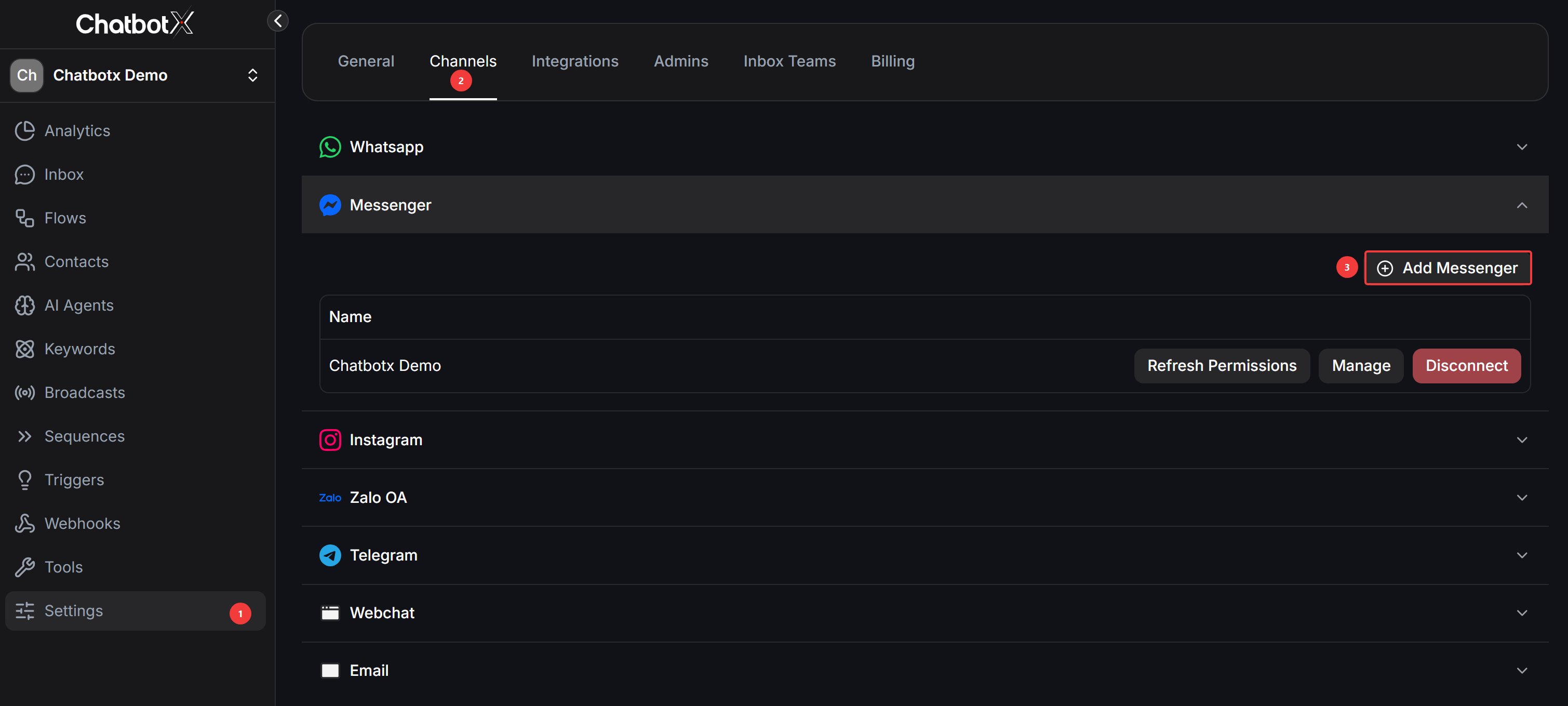
1. Go to **Settings** → **Channels**.
2. Find the Messenger icon and click the **"Add Messenger"** button.
 ## Step 2: Grant Access Permissions
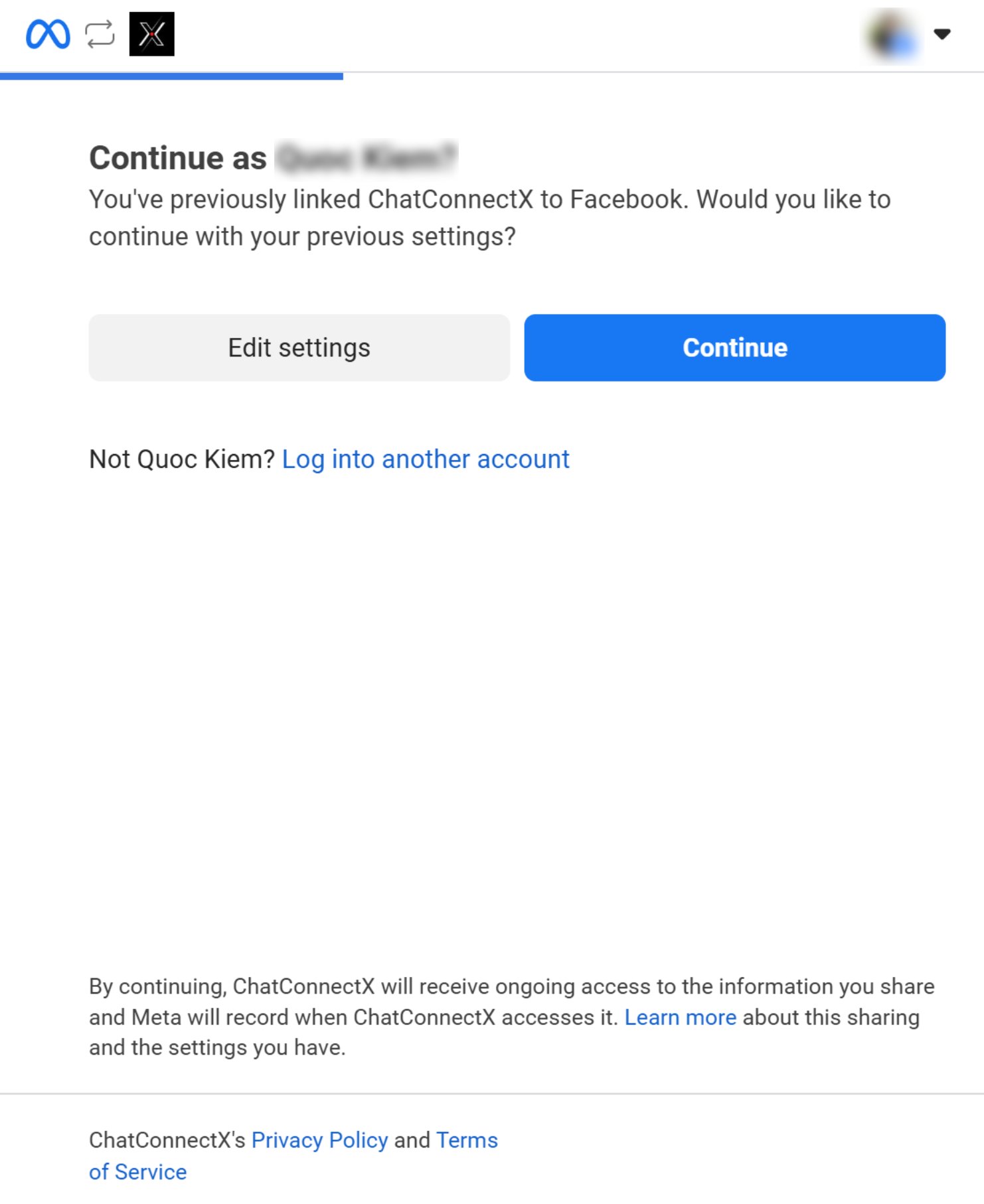
The system will redirect you to the Facebook (Meta) authentication interface.
1. Click the **"Continue as \[Your Name]"** button to grant permissions.
> **Important:** If you have previously connected other pages, click **Edit Settings** to ensure all new or previously unselected pages are visible.
## Step 2: Grant Access Permissions
The system will redirect you to the Facebook (Meta) authentication interface.
1. Click the **"Continue as \[Your Name]"** button to grant permissions.
> **Important:** If you have previously connected other pages, click **Edit Settings** to ensure all new or previously unselected pages are visible.
 ## Step 3: Select Facebook Fanpages
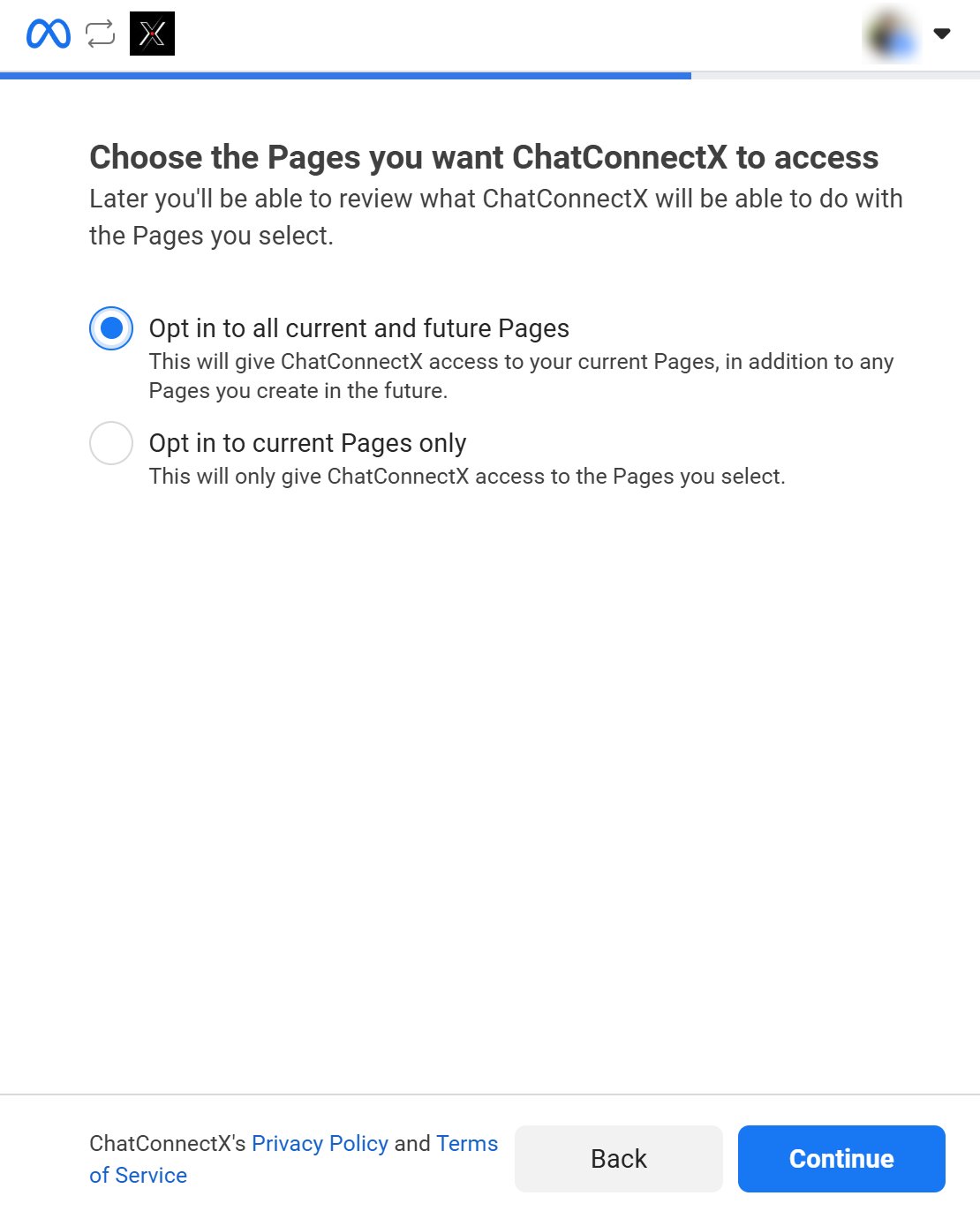
A list of all Fanpages you manage will appear.
1. Check the Fanpages you want to connect to **ChatbotX**, or select **All**.
2. Click **Continue** to proceed to the permission settings.
## Step 3: Select Facebook Fanpages
A list of all Fanpages you manage will appear.
1. Check the Fanpages you want to connect to **ChatbotX**, or select **All**.
2. Click **Continue** to proceed to the permission settings.
 ## Step 4: Review Permissions
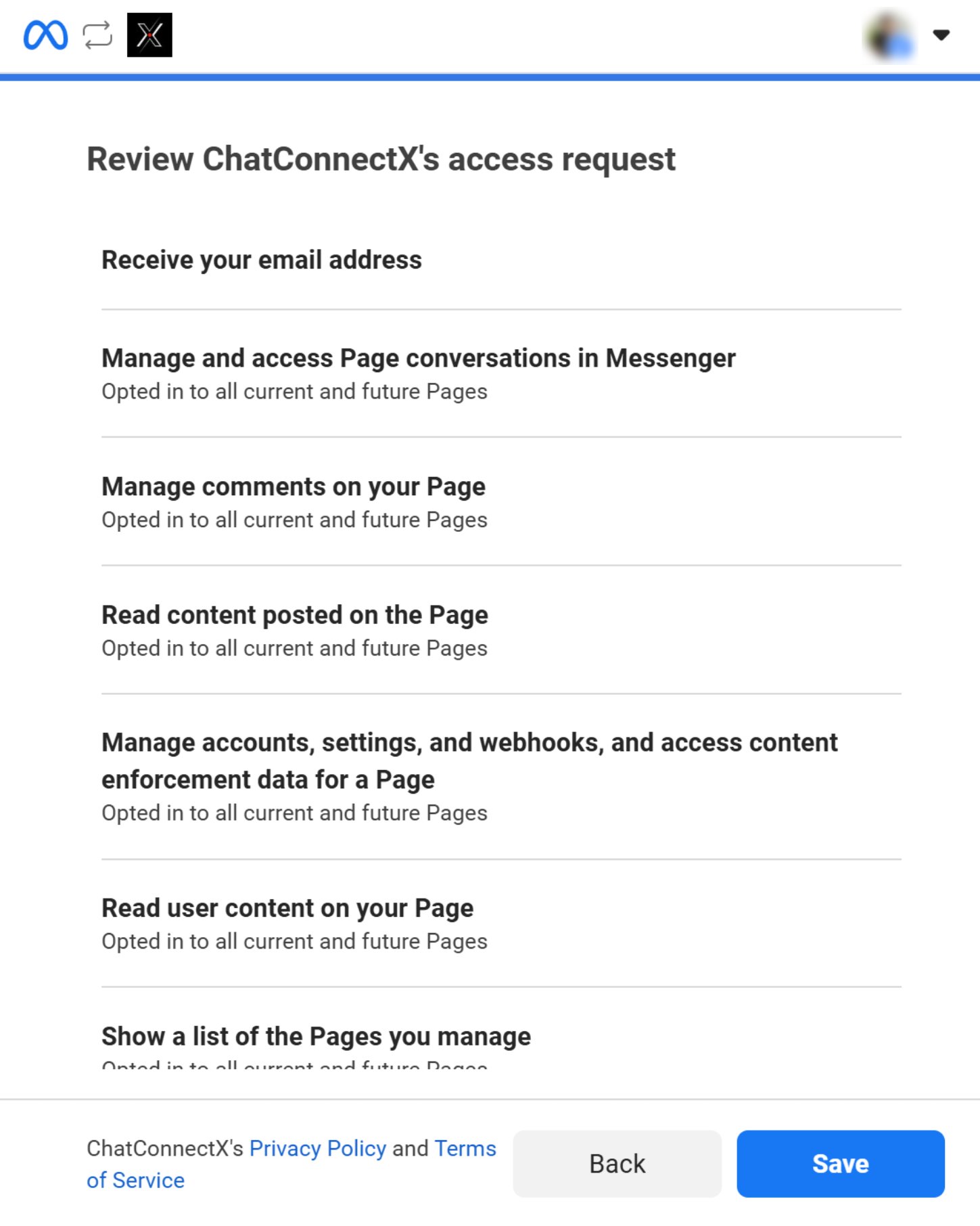
This is the final step.
1. Review the permissions the application is allowed to access.
2. Once verified, click the **Save** button in the bottom right corner.
## Step 4: Review Permissions
This is the final step.
1. Review the permissions the application is allowed to access.
2. Once verified, click the **Save** button in the bottom right corner.
 ## Step 5: Select a Facebook Page
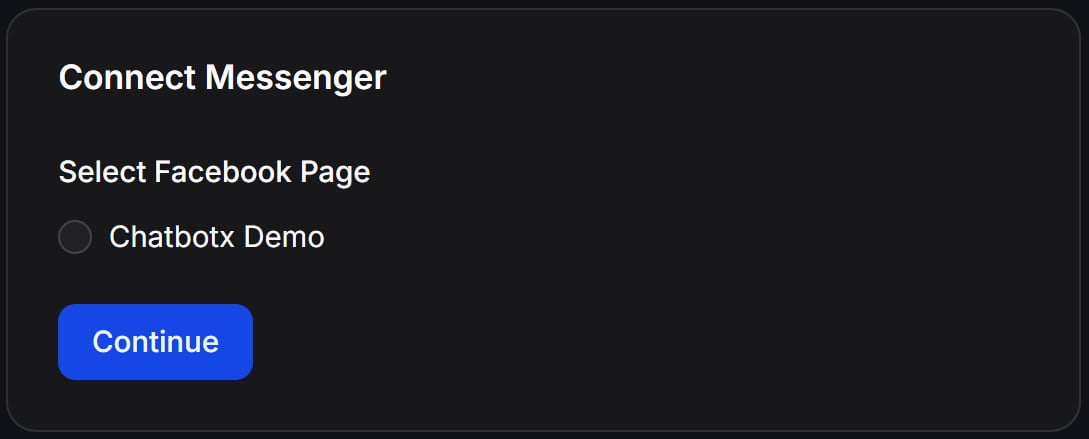
Confirm the exact Fanpage you want to link to the platform.
* Select the radio button next to the Facebook Page you want to use, e.g., **ChatbotX Demo**.
* Click the **Continue** button to complete the connection.
## Step 5: Select a Facebook Page
Confirm the exact Fanpage you want to link to the platform.
* Select the radio button next to the Facebook Page you want to use, e.g., **ChatbotX Demo**.
* Click the **Continue** button to complete the connection.
 ## Step 6: Sync Contacts and Chat History (Optional)
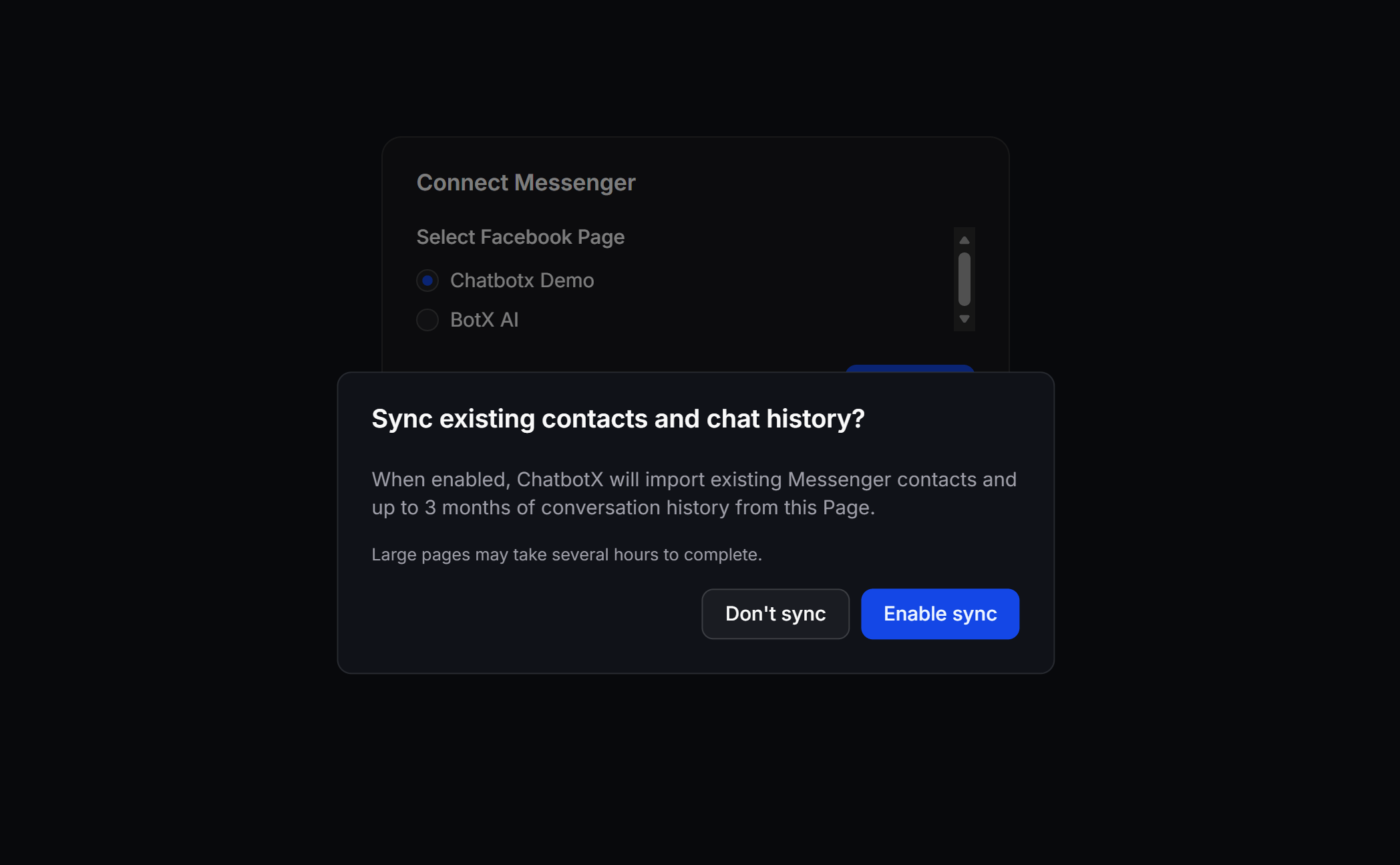
After clicking continue from the page selection, a dialog will appear asking if you want to sync existing contacts and chat history.
* **Enable sync:** Allow ChatbotX to import existing Messenger contacts and up to 3 months of conversation history from this Page.
* *Note:* This sync process for large Fanpages may take several hours to complete.
* **Don't sync:** Skip importing old data and start fresh with new customer interactions.
## Step 6: Sync Contacts and Chat History (Optional)
After clicking continue from the page selection, a dialog will appear asking if you want to sync existing contacts and chat history.
* **Enable sync:** Allow ChatbotX to import existing Messenger contacts and up to 3 months of conversation history from this Page.
* *Note:* This sync process for large Fanpages may take several hours to complete.
* **Don't sync:** Skip importing old data and start fresh with new customer interactions.
 ## Step 7: Finalize and Verify
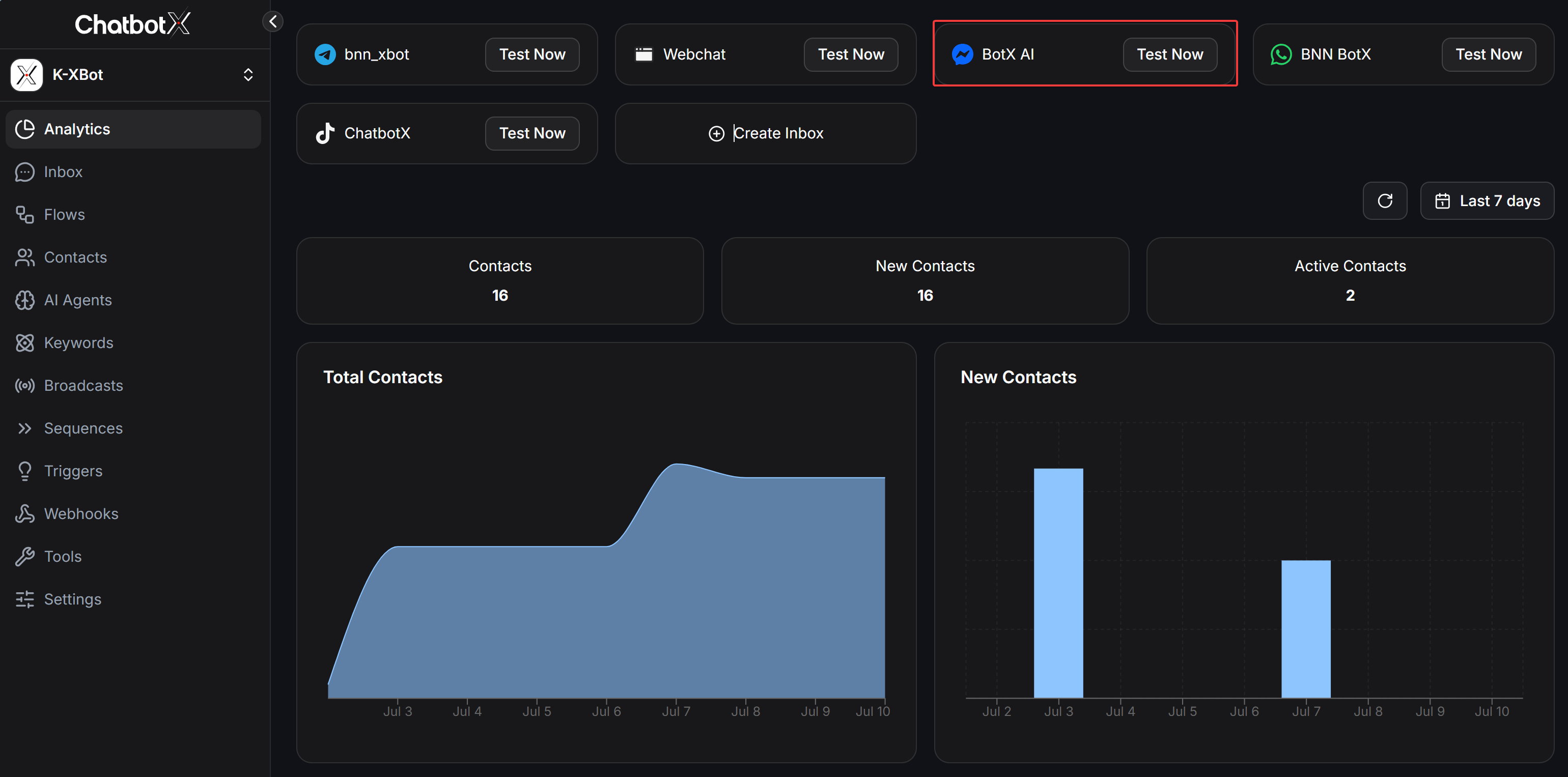
After being redirected back to the system, your Facebook Page will appear on the **ChatbotX** dashboard.
* **Confirm connection:** Ensure the correct Fanpage is displayed with the Messenger icon.
* **Test integration:** Click **Test Now** to send a test message and confirm your AI Agent is working.
## Step 7: Finalize and Verify
After being redirected back to the system, your Facebook Page will appear on the **ChatbotX** dashboard.
* **Confirm connection:** Ensure the correct Fanpage is displayed with the Messenger icon.
* **Test integration:** Click **Test Now** to send a test message and confirm your AI Agent is working.
 ## Step 8: Test Automation
Your page is now connected. You can test it using one of the following methods:
* **Option 1: Create a Flow**
* Go to the **Flows** section in the sidebar.
* Create a simple welcome message or an interactive menu.
* Trigger it from Fanpage Messenger to verify the response.
* **Option 2: Set up an AI Agent**
* Go to the **AI Agent** tab to configure your agent's personality.
* After saving, use the **Test Now** button on the dashboard to chat directly with the AI.
## FAQ
There are two common causes:
**Access permissions**\
You may only have an *Editor* or *Moderator* role. Meta requires **Admin** permissions to set up the API.
**Missing app permissions**\
You may have previously connected ChatbotX but did not select this specific page during that permission grant.
**How to fix**\
Go to your personal Facebook profile → **Settings & Privacy** → **Settings** → **Business Integrations**.\
Find **ChatbotX**, click **Remove**, then go back to Step 1 to start over.
Check the following:
**AI Agent configuration**\
Make sure you have assigned an **AI Agent** to this Messenger channel in the **AI Agent Settings**.
**Facebook Auto-Replies**\
Check if the Fanpage has Facebook's default **Instant Replies** enabled, as this feature can conflict with ChatbotX.
Yes. ChatbotX is designed as an **Omnichannel** platform.
You can connect multiple Fanpages, depending on your plan, and manage all incoming messages in a **Unified Inbox**.
According to Meta's policy, bots are only allowed to respond to customers **within 24 hours of the customer's most recent message**.
After 24 hours, you must use:
* **Message Tags**, or
* **Marketing Messages on Messenger**
to continue the conversation.
You don't need to disconnect the existing connection.
Simply repeat the **Add Facebook Page** process.\
When the Meta window appears, click **Edit Settings** and check the new Fanpage.
The system will automatically update the list without affecting previously connected pages.
## Step 8: Test Automation
Your page is now connected. You can test it using one of the following methods:
* **Option 1: Create a Flow**
* Go to the **Flows** section in the sidebar.
* Create a simple welcome message or an interactive menu.
* Trigger it from Fanpage Messenger to verify the response.
* **Option 2: Set up an AI Agent**
* Go to the **AI Agent** tab to configure your agent's personality.
* After saving, use the **Test Now** button on the dashboard to chat directly with the AI.
## FAQ
There are two common causes:
**Access permissions**\
You may only have an *Editor* or *Moderator* role. Meta requires **Admin** permissions to set up the API.
**Missing app permissions**\
You may have previously connected ChatbotX but did not select this specific page during that permission grant.
**How to fix**\
Go to your personal Facebook profile → **Settings & Privacy** → **Settings** → **Business Integrations**.\
Find **ChatbotX**, click **Remove**, then go back to Step 1 to start over.
Check the following:
**AI Agent configuration**\
Make sure you have assigned an **AI Agent** to this Messenger channel in the **AI Agent Settings**.
**Facebook Auto-Replies**\
Check if the Fanpage has Facebook's default **Instant Replies** enabled, as this feature can conflict with ChatbotX.
Yes. ChatbotX is designed as an **Omnichannel** platform.
You can connect multiple Fanpages, depending on your plan, and manage all incoming messages in a **Unified Inbox**.
According to Meta's policy, bots are only allowed to respond to customers **within 24 hours of the customer's most recent message**.
After 24 hours, you must use:
* **Message Tags**, or
* **Marketing Messages on Messenger**
to continue the conversation.
You don't need to disconnect the existing connection.
Simply repeat the **Add Facebook Page** process.\
When the Meta window appears, click **Edit Settings** and check the new Fanpage.
The system will automatically update the list without affecting previously connected pages.