> ## Documentation Index
> Fetch the complete documentation index at: https://chatbotx.io/docs/llms.txt
> Use this file to discover all available pages before exploring further.
# How to connect TikTok to ChatbotX
> Learn how to connect your TikTok Business account to ChatbotX to automate messages and manage customer conversations.
Connecting your TikTok Business account to ChatbotX allows your support team to manage customer chats, automate replies, and handle conversations directly from your workspace.
## Prerequisites
Before connecting TikTok, make sure these requirements are met:
1. **TikTok Business Account:** You must have a TikTok Business Account (personal TikTok accounts are not supported).
2. **Message permissions:** Enable **Everyone** under the direct messaging settings in your TikTok app to receive messages.
3. **Region availability:** The TikTok Business Messaging API is currently restricted in the UK, EEA, and Switzerland.
## Connect TikTok
You can start the connection in either of these ways:
### Method 1: From the Create Inbox flow
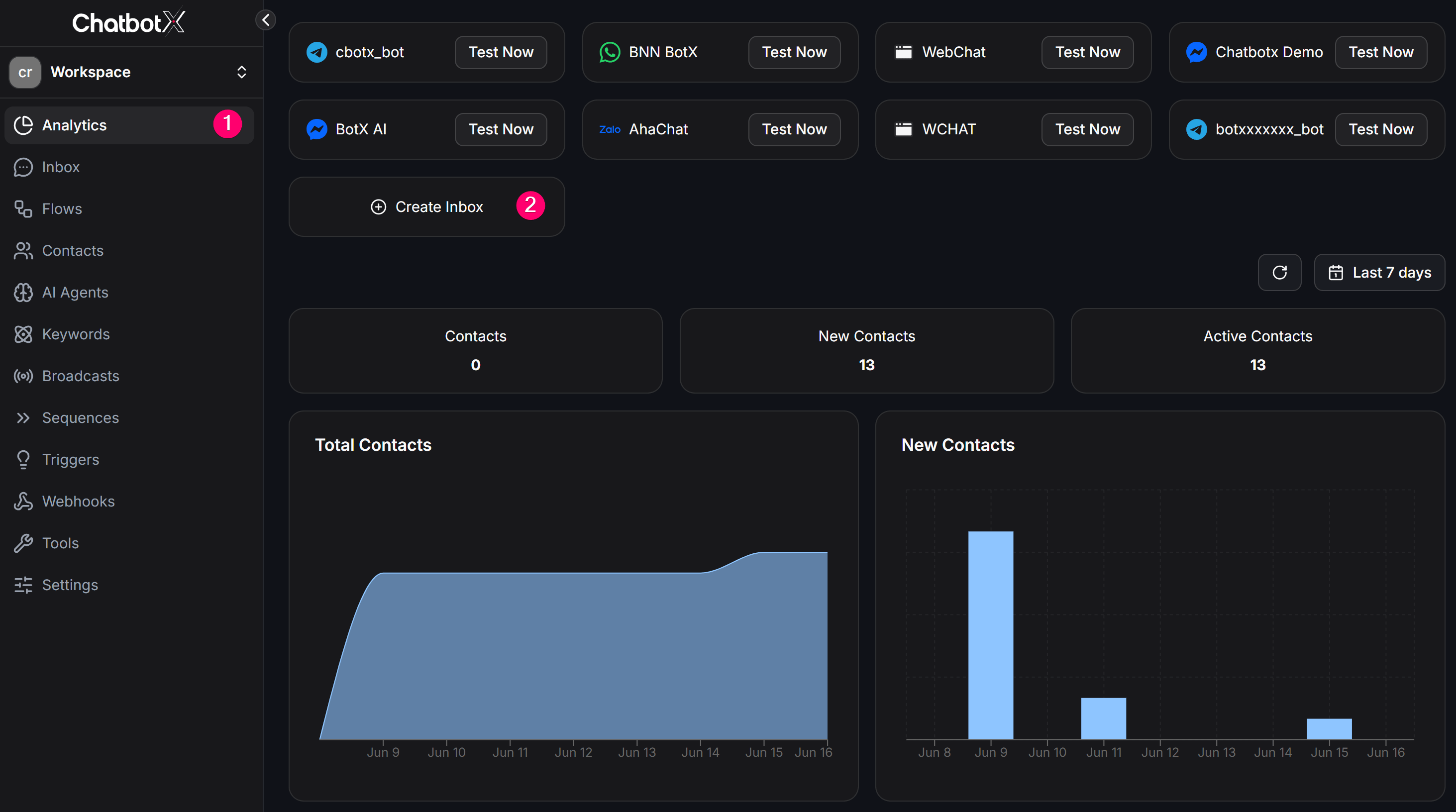
In your ChatbotX workspace, choose **Analytics** from the left menu, then click the **+ Create Inbox** button.
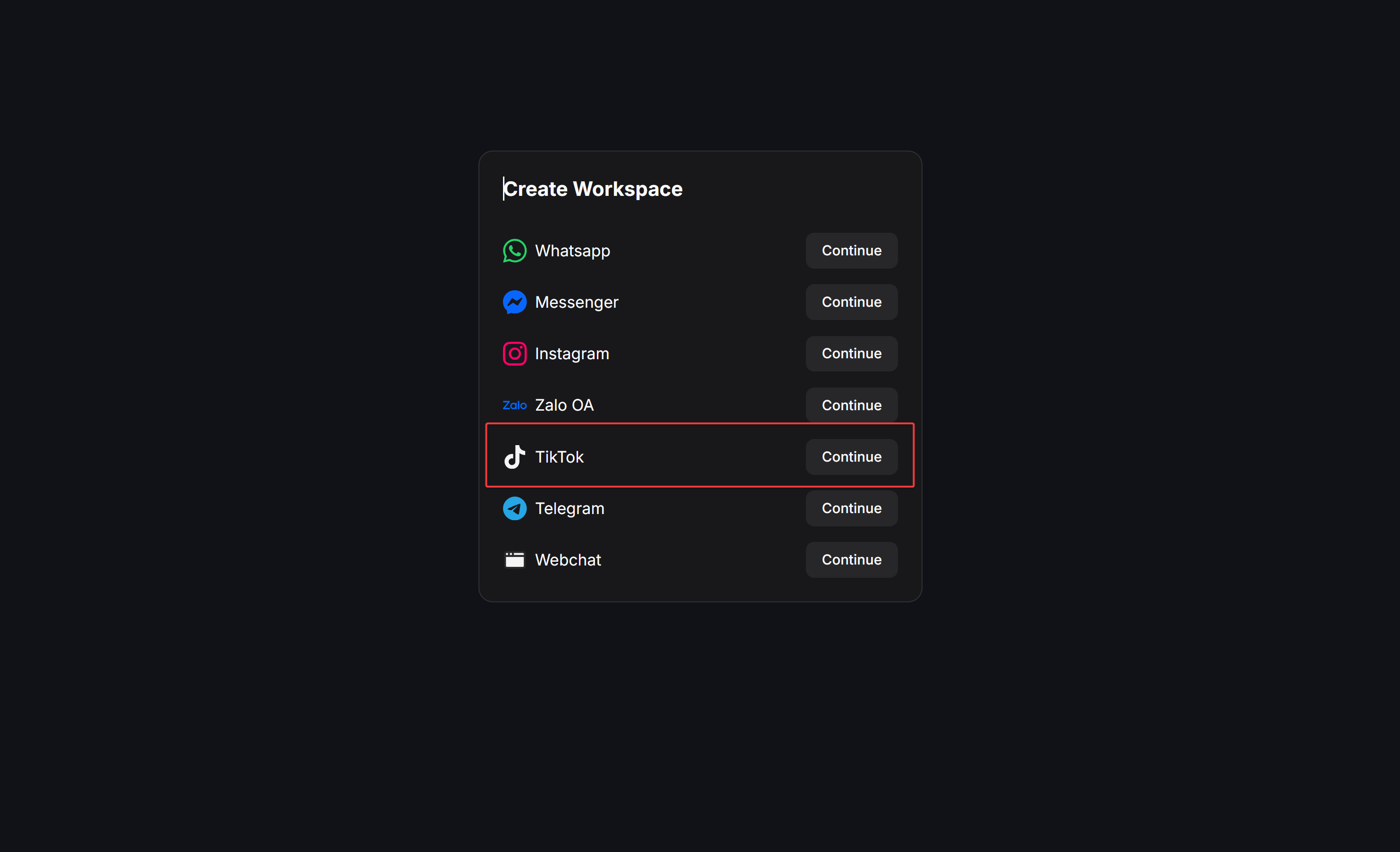
 Select **TikTok** from the channel list in the modal, then click **Continue** to proceed to the authorization page.
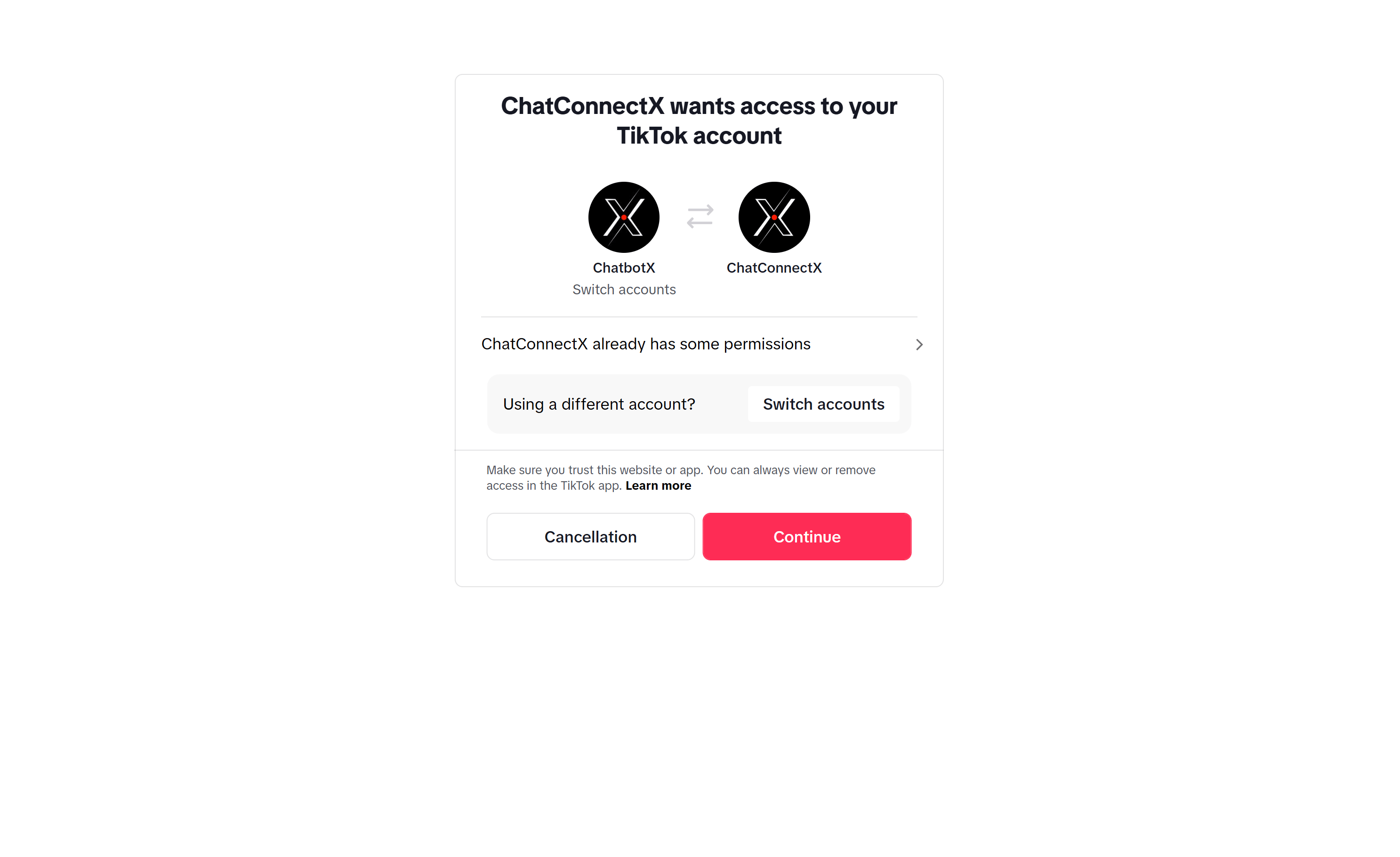
 The system will redirect you to the TikTok authorization screen. Click **Continue** to grant ChatConnectX access to your TikTok account.
 ### Method 2: From Channels management
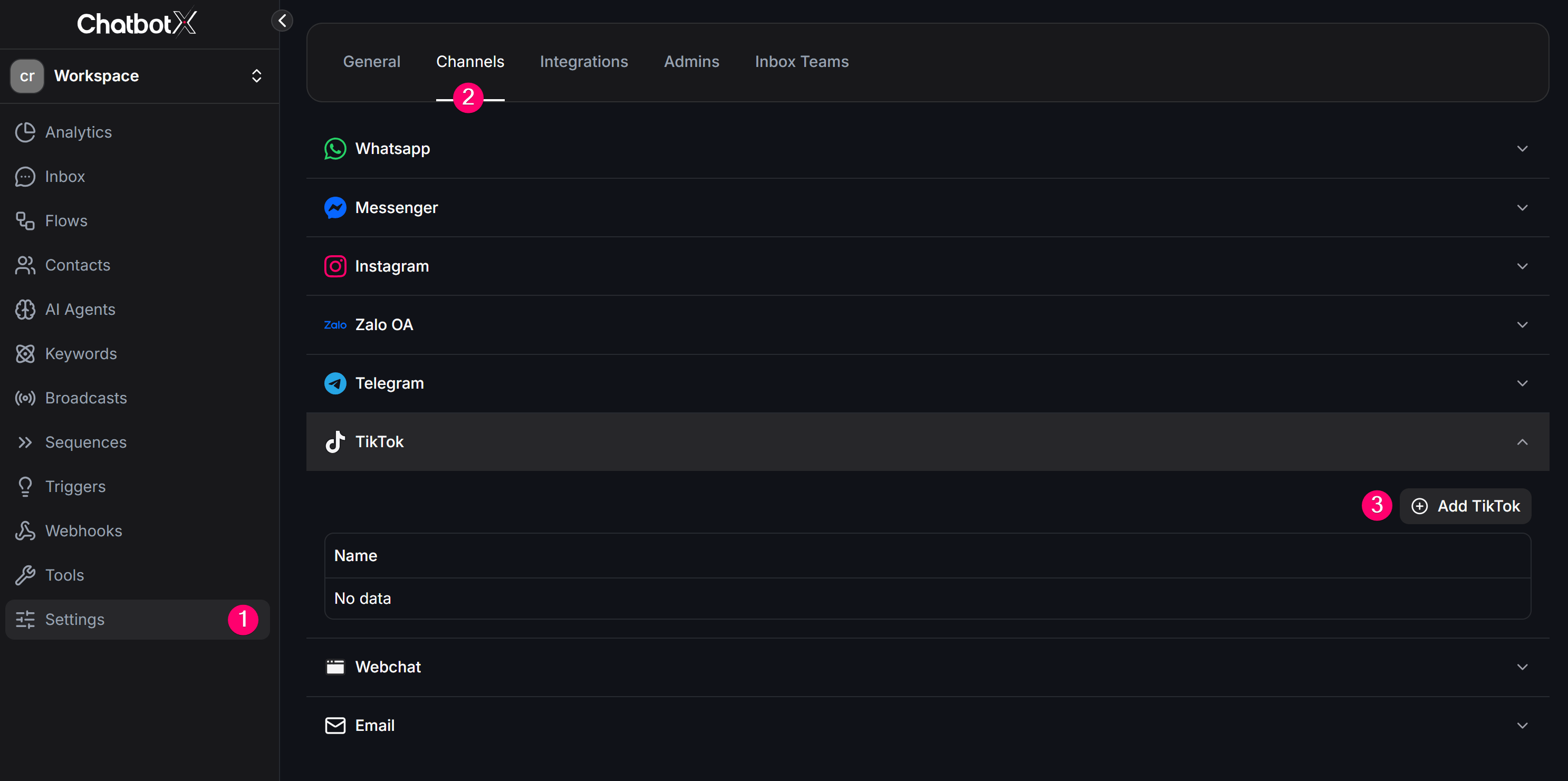
Go to **Settings** -> **Channels** from the left sidebar.
Find **TikTok** in the channel list and click **Add TikTok**.
### Method 2: From Channels management
Go to **Settings** -> **Channels** from the left sidebar.
Find **TikTok** in the channel list and click **Add TikTok**.
 The system will redirect you to the TikTok authorization screen. Review the requested permissions and click **Continue** to grant ChatConnectX access to your TikTok account.
## Return to ChatbotX
After authentication succeeds, TikTok will redirect you back to ChatbotX.
Check that the TikTok channel now appears on the dashboard page as active and connected.
The system will redirect you to the TikTok authorization screen. Review the requested permissions and click **Continue** to grant ChatConnectX access to your TikTok account.
## Return to ChatbotX
After authentication succeeds, TikTok will redirect you back to ChatbotX.
Check that the TikTok channel now appears on the dashboard page as active and connected.
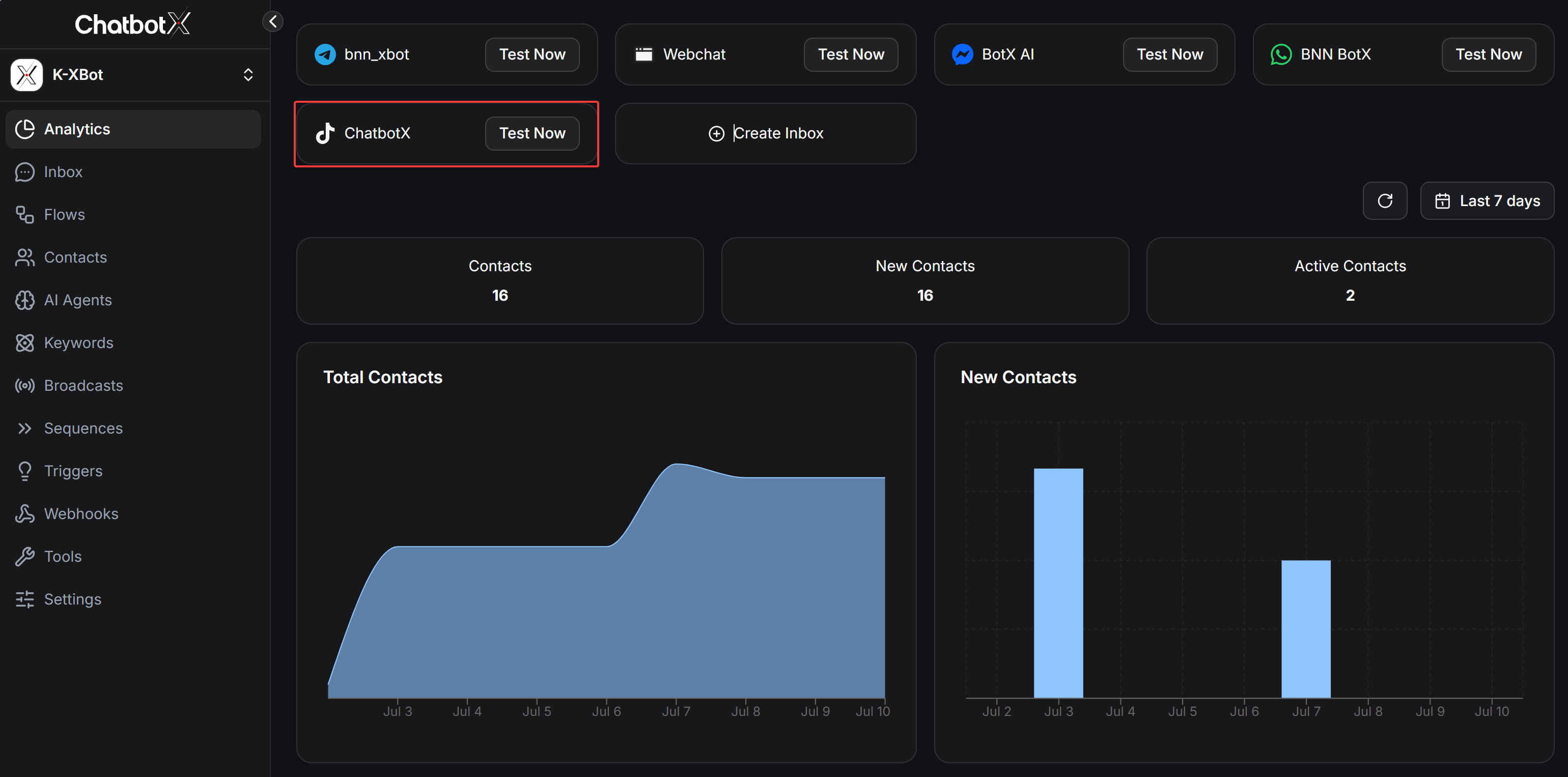 ## Finalize and check
When the setup is complete, go to **Channels** or **Inbox** to confirm that TikTok is connected. Send a test direct message from a personal TikTok account to your TikTok Business account to check whether the conversation arrives in your ChatbotX workspace.
## Test your automation
Now that TikTok is connected, you can start automating conversations.
* **Option 1: Create a Flow**
* Open **Flows** from the sidebar.
* Build a simple welcome message.
* Send a message to your TikTok account from a personal TikTok account and check the reply.
* **Option 2: Set up an AI Agent**
* Open **AI Agent** and configure the tone and knowledge base for the assistant.
* Assign that AI Agent to your TikTok channel so it can answer incoming questions automatically.
## Finalize and check
When the setup is complete, go to **Channels** or **Inbox** to confirm that TikTok is connected. Send a test direct message from a personal TikTok account to your TikTok Business account to check whether the conversation arrives in your ChatbotX workspace.
## Test your automation
Now that TikTok is connected, you can start automating conversations.
* **Option 1: Create a Flow**
* Open **Flows** from the sidebar.
* Build a simple welcome message.
* Send a message to your TikTok account from a personal TikTok account and check the reply.
* **Option 2: Set up an AI Agent**
* Open **AI Agent** and configure the tone and knowledge base for the assistant.
* Assign that AI Agent to your TikTok channel so it can answer incoming questions automatically.