> ## Documentation Index
> Fetch the complete documentation index at: https://chatbotx.io/docs/llms.txt
> Use this file to discover all available pages before exploring further.
# WhatsApp Manual Setup
> Set up WhatsApp Cloud API manually in ChatbotX using Meta Developer, a permanent token, WhatsApp Business Account ID, and webhooks.
**WhatsApp Manual Setup** lets you connect a Meta WhatsApp Cloud API number to ChatbotX without using Embedded Signup. Use this flow when you already manage your WhatsApp assets in Meta Business Manager and want to enter the business account ID, permanent token, and webhook settings yourself.
## Prerequisites
Before you begin, make sure you have:
* A Meta Developer account
* A Meta Business Portfolio
* A valid phone number that can receive SMS or voice verification
* Admin access to the Meta Business Portfolio that owns the WhatsApp Business Account
* Admin access to your ChatbotX installation
* A publicly accessible ChatbotX URL for webhook delivery
If you are developing locally, use a tunneling tool such as [ngrok](/channels/local-development-with-tunnels) so Meta can reach your ChatbotX webhook URL.
## Step 1: Set up your Business Profile
Create or choose the Meta Business Portfolio that will own your WhatsApp Business Account. This portfolio stores your business details, WhatsApp assets, phone numbers, and system users.
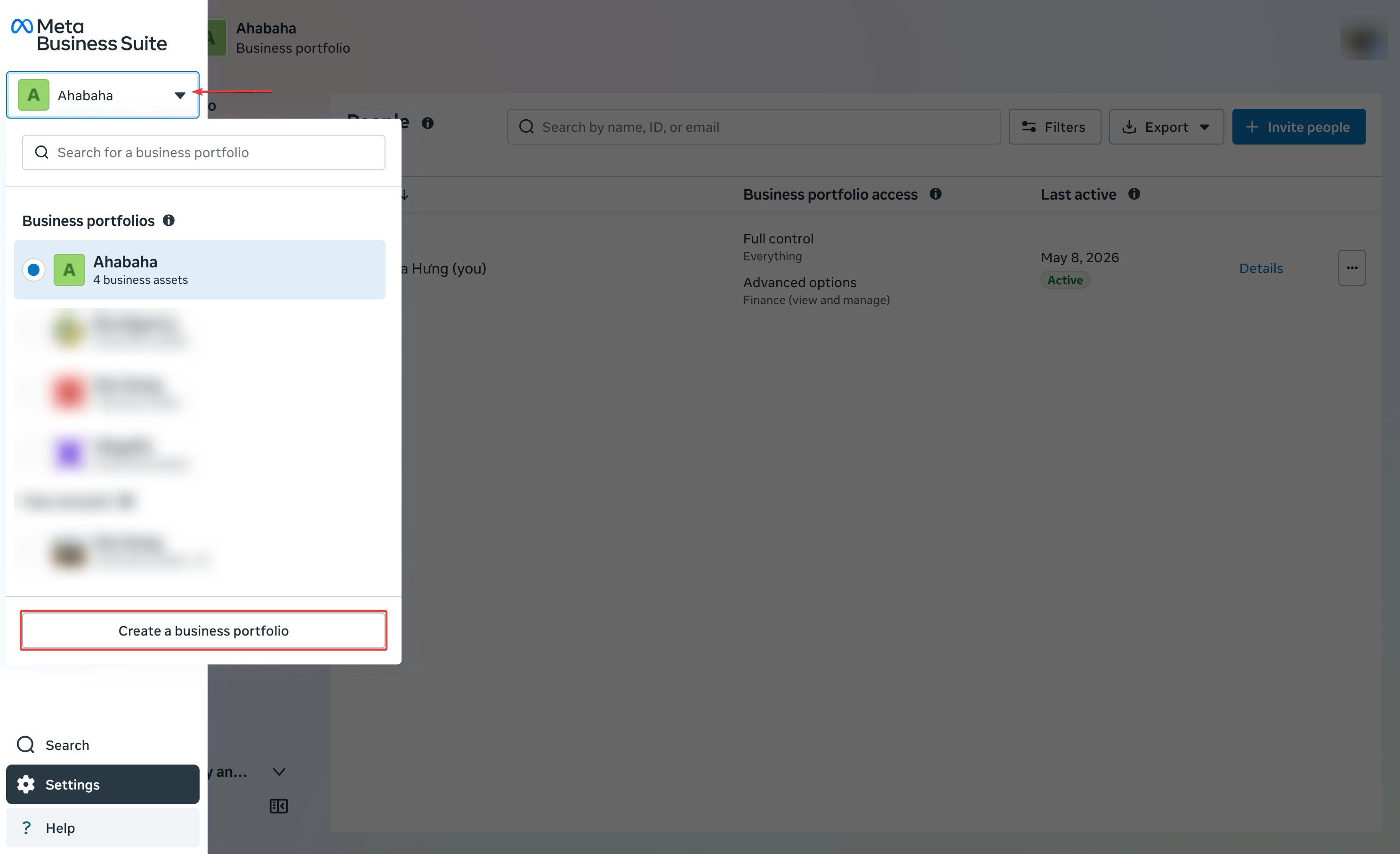
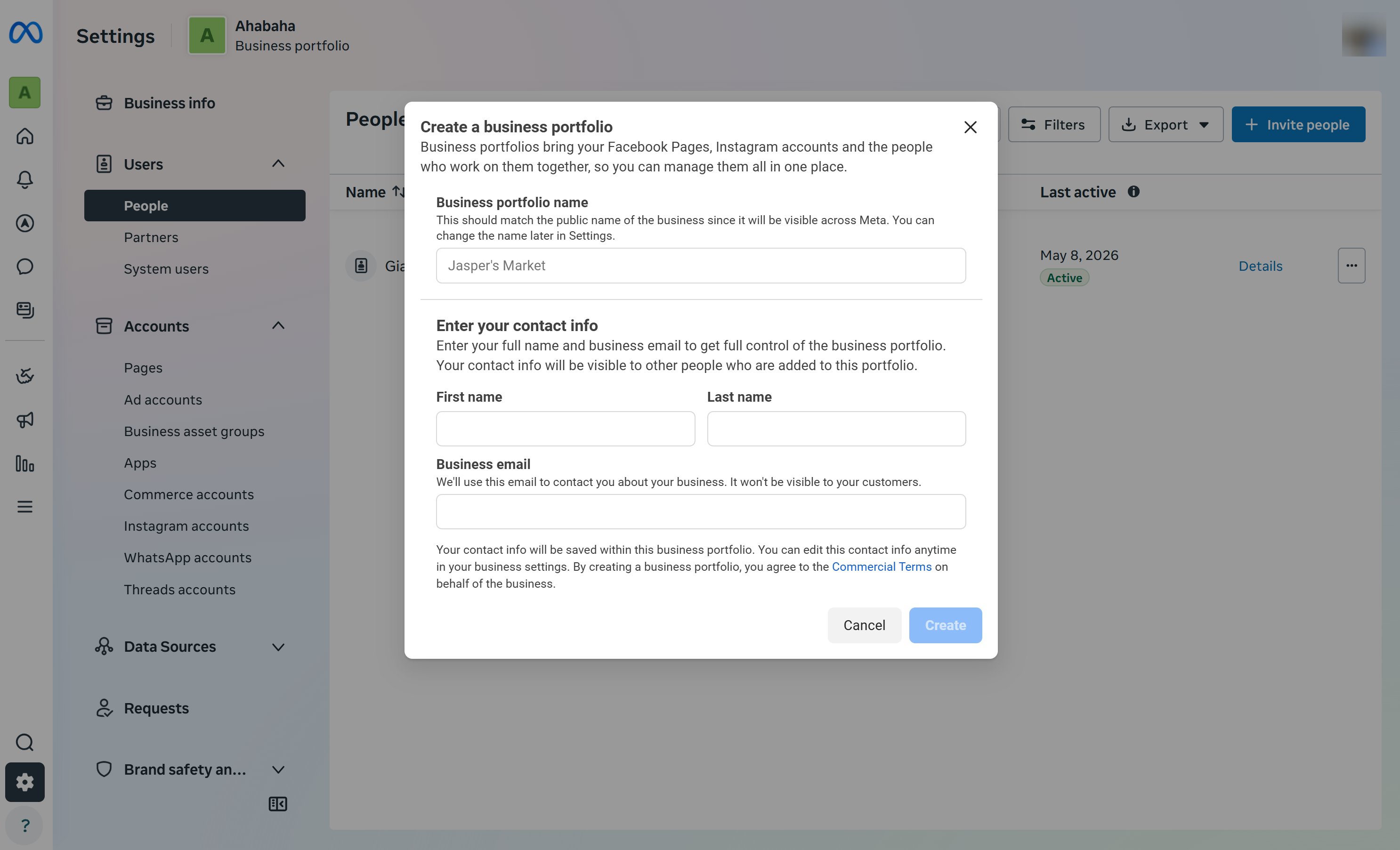
Go to [Meta Business](https://business.facebook.com/) and log in with the Facebook account that will manage the WhatsApp setup. If you do not have a portfolio yet, click **Create a business portfolio** and enter your business name, your name, and your business email. If you already have one, select it from the account dropdown.
 Fill in the required business information. Meta uses these details for account ownership, billing, and business verification.
 For production use, verify your business in Meta Business Manager before sending live WhatsApp messages at scale.
## Step 2: Setup your Facebook App
If you already have a Facebook App (for example, from your [Messenger channel setup](/channels/facebook-messenger)), you can reuse it and skip directly to [Step 3](#step-3-add-whatsapp-to-your-app).
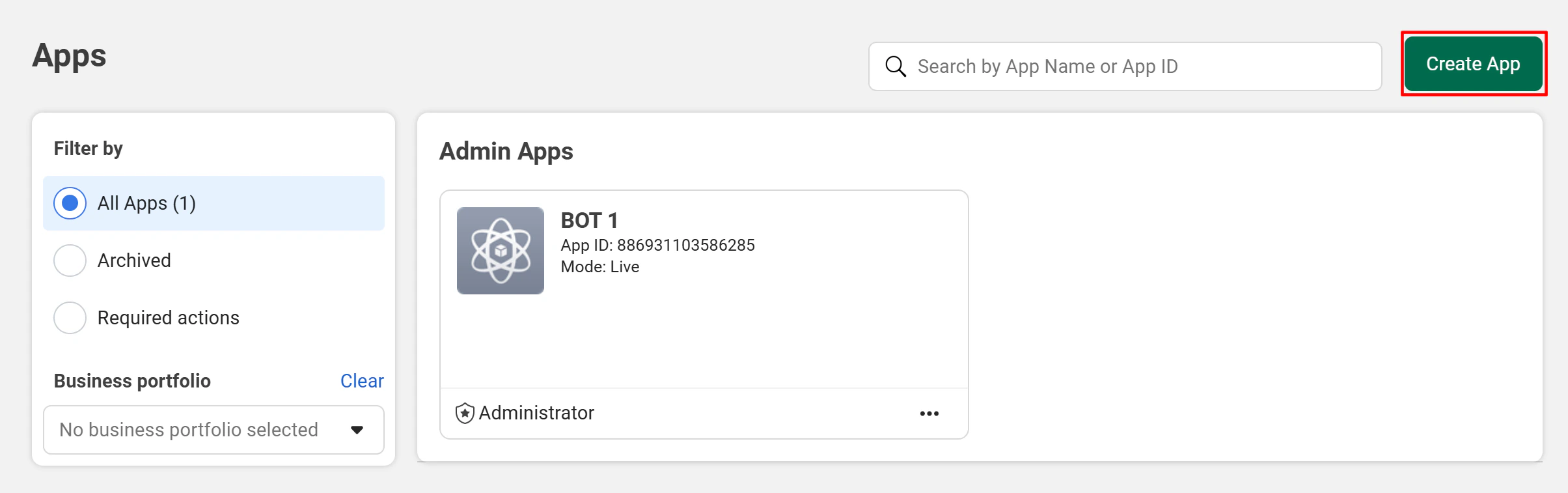
Go to the [Facebook Developer Portal](https://developers.facebook.com/apps/) and click **Create App**.
For production use, verify your business in Meta Business Manager before sending live WhatsApp messages at scale.
## Step 2: Setup your Facebook App
If you already have a Facebook App (for example, from your [Messenger channel setup](/channels/facebook-messenger)), you can reuse it and skip directly to [Step 3](#step-3-add-whatsapp-to-your-app).
Go to the [Facebook Developer Portal](https://developers.facebook.com/apps/) and click **Create App**.
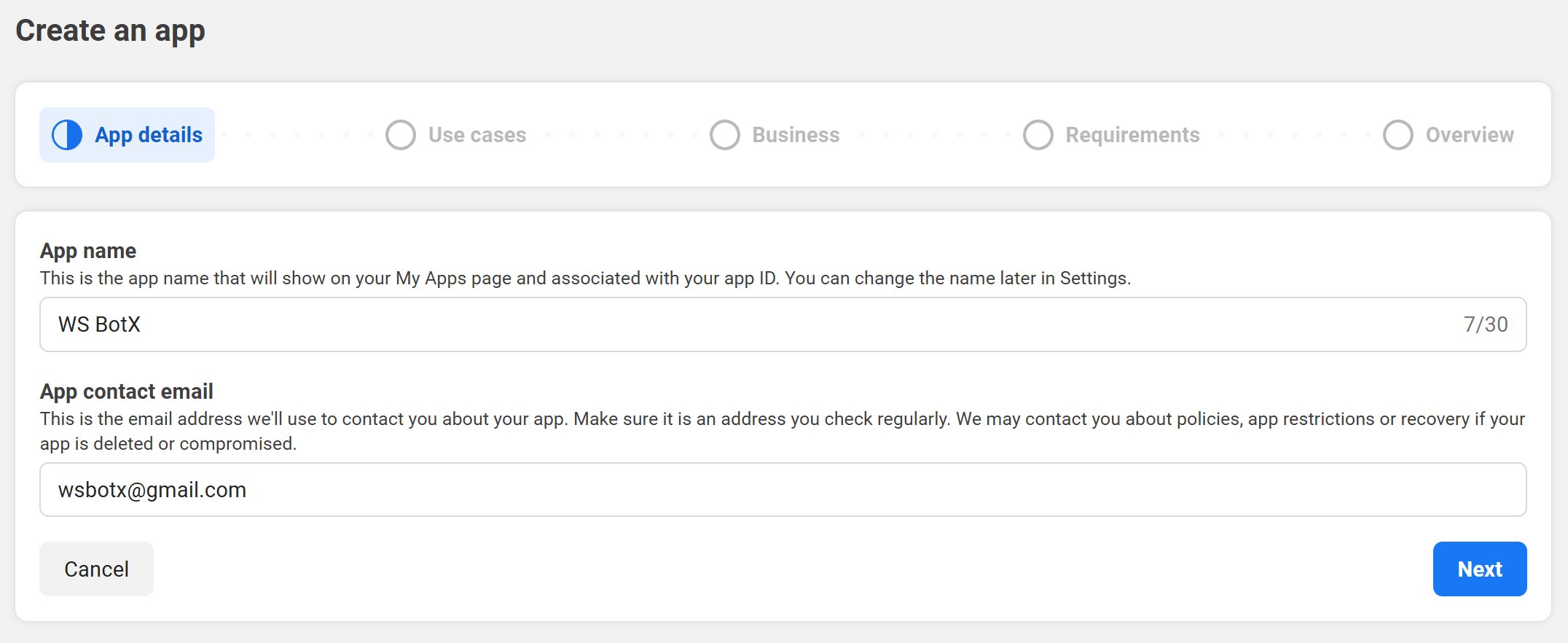
 Enter your **App name** and **contact email**, then click **Next**.
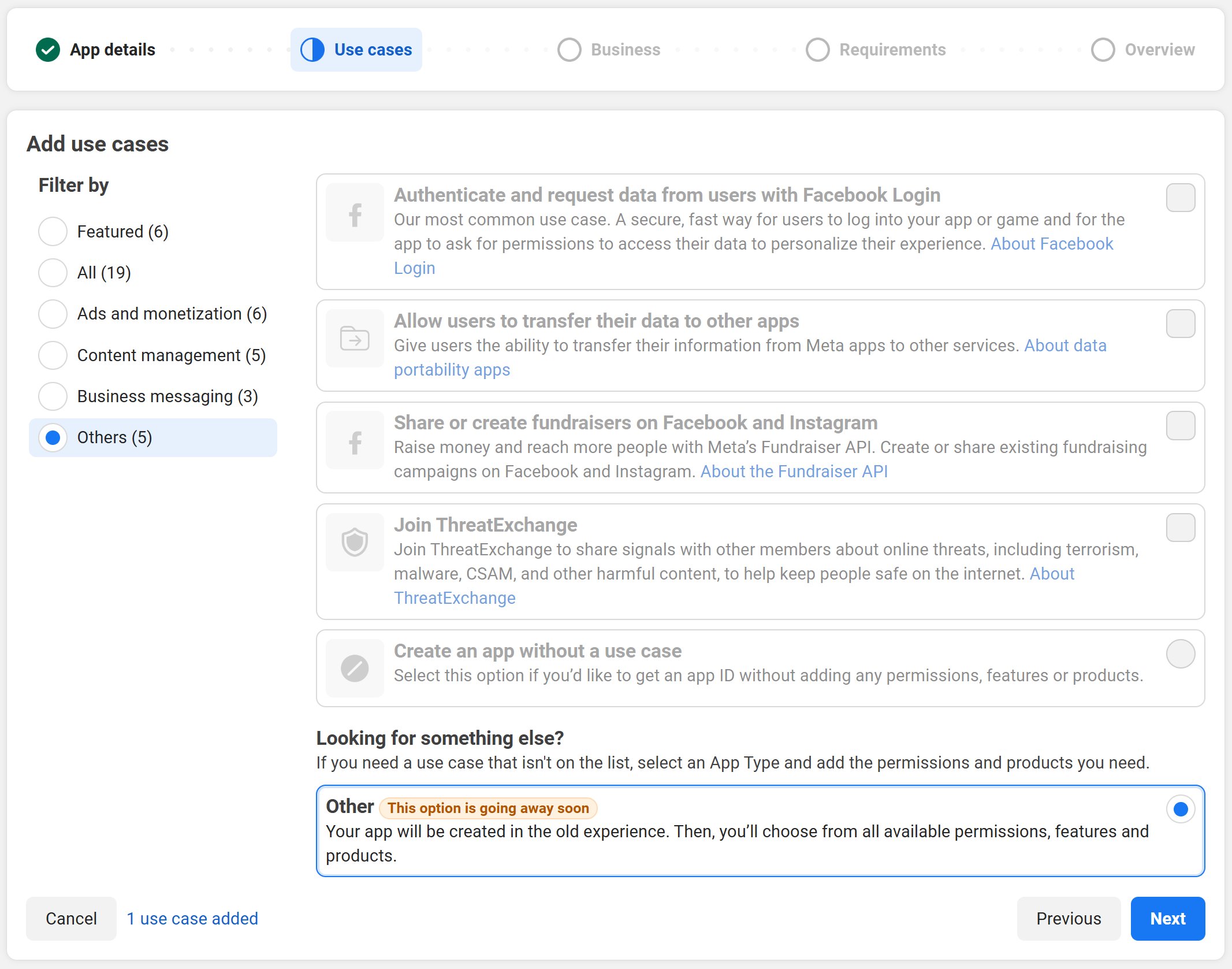
 When asked for a use case, select **Other**.
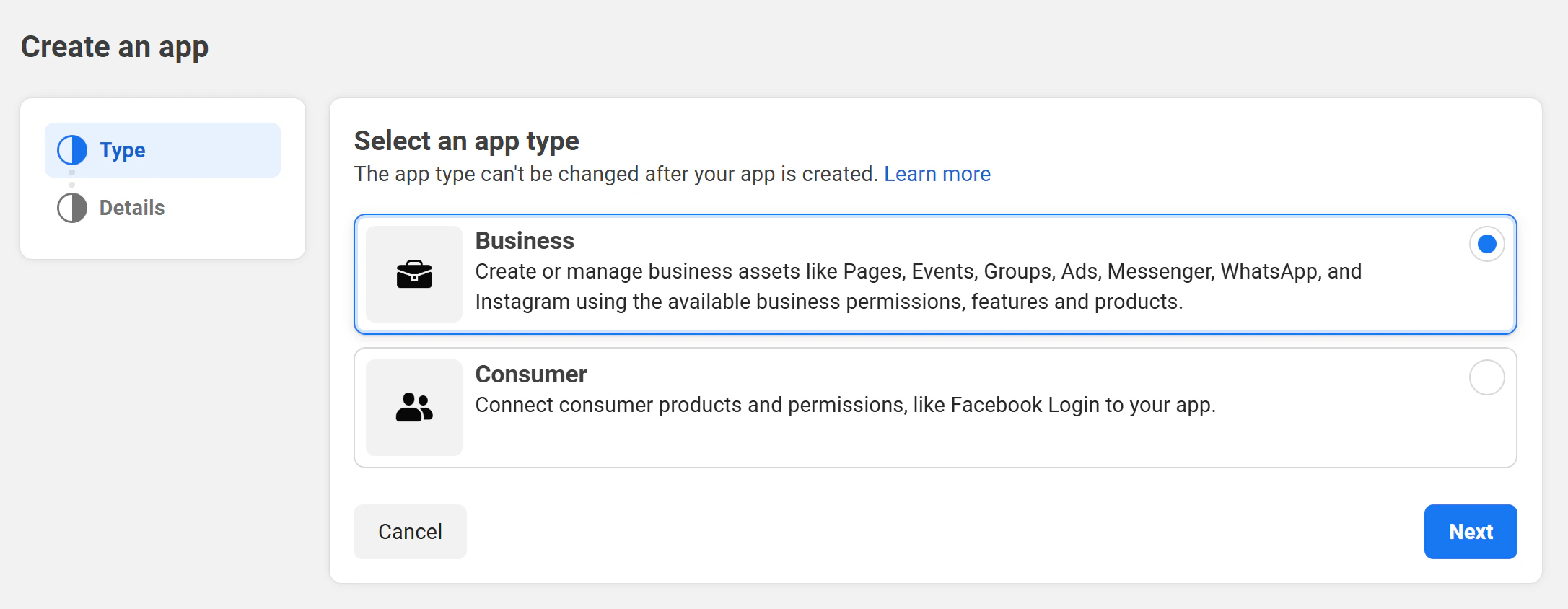
 For the app type, choose **Business**.
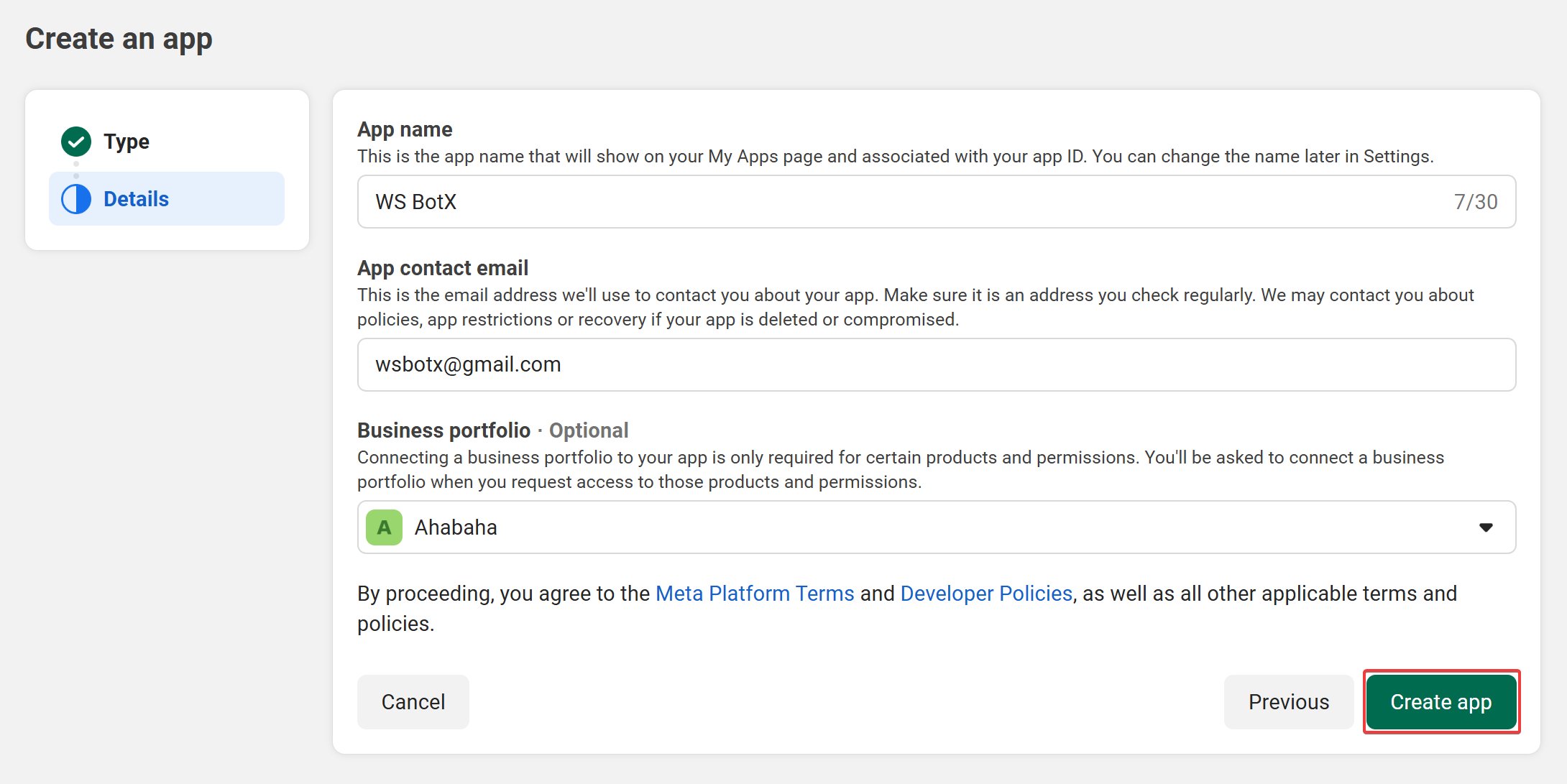
 Enter your contact email address and choose your business portfolio from the dropdown menu and click **Create App** to finish.
 ## Step 3: Add WhatsApp to your app
Add the WhatsApp product to your Facebook App so Meta can create or connect a WhatsApp Business Account and phone number.
In the [Meta Developer Portal](https://developers.facebook.com/apps/), open the Facebook App you created or reused in the previous step.
Click **Add Product** in the left sidebar, find **WhatsApp**, and click **Set Up**.
## Step 3: Add WhatsApp to your app
Add the WhatsApp product to your Facebook App so Meta can create or connect a WhatsApp Business Account and phone number.
In the [Meta Developer Portal](https://developers.facebook.com/apps/), open the Facebook App you created or reused in the previous step.
Click **Add Product** in the left sidebar, find **WhatsApp**, and click **Set Up**.
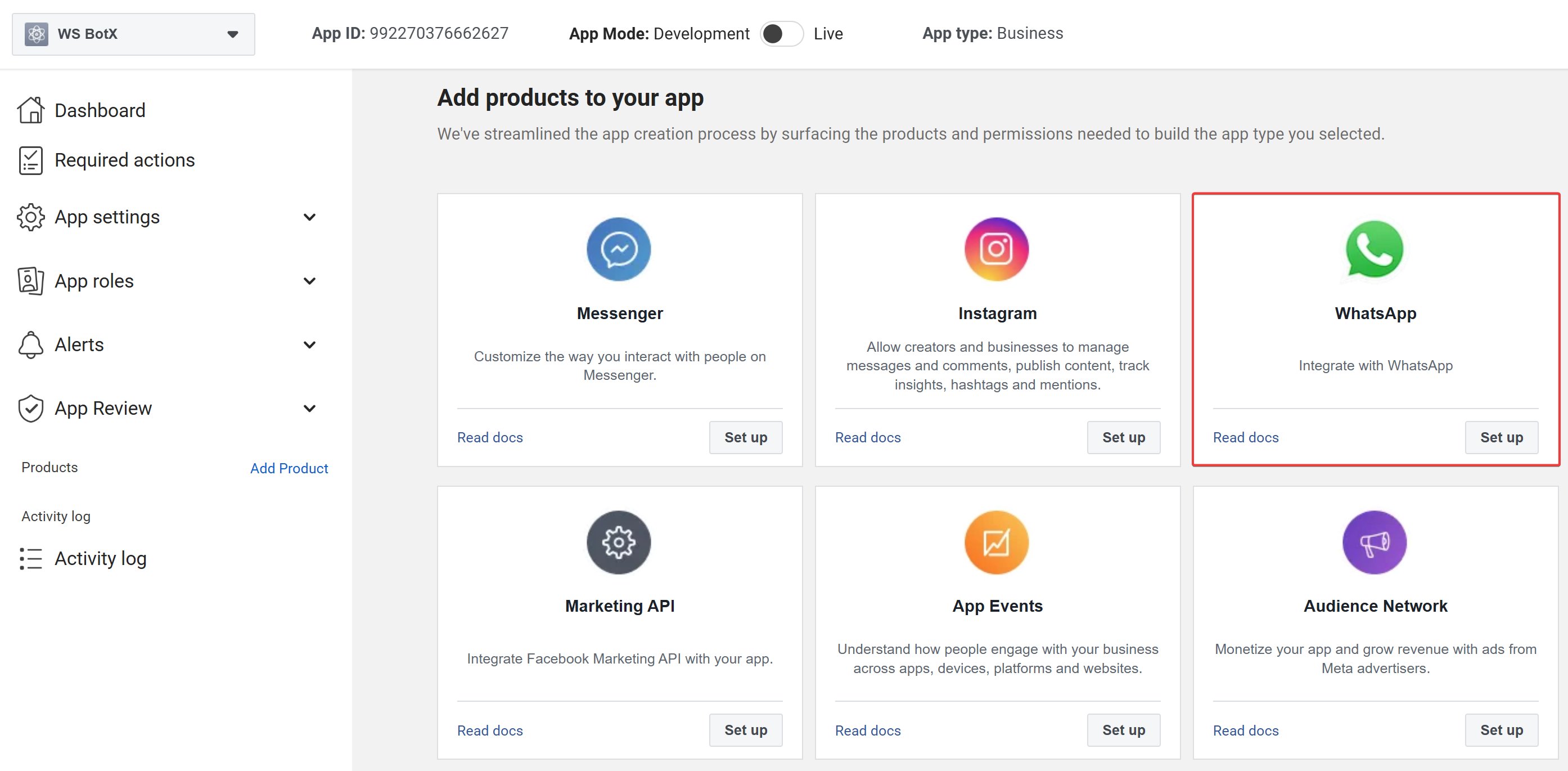 After setup, Meta redirects you to the WhatsApp product dashboard. Keep this page open because you will return to it for the WhatsApp Business Account ID and webhook configuration.
Do not use temporary test values for production. Before going live, add a verified payment method and complete Meta business verification if Meta requests it.
## Step 4: Set up a permanent WhatsApp Cloud API access token
ChatbotX needs a permanent token so it can send and receive WhatsApp messages without reconnecting every few hours. Create the token from a Meta System User with access to your app and WhatsApp assets.
Go to [Meta Business Settings](https://business.facebook.com/settings/system-users), then open **Users -> System Users**.
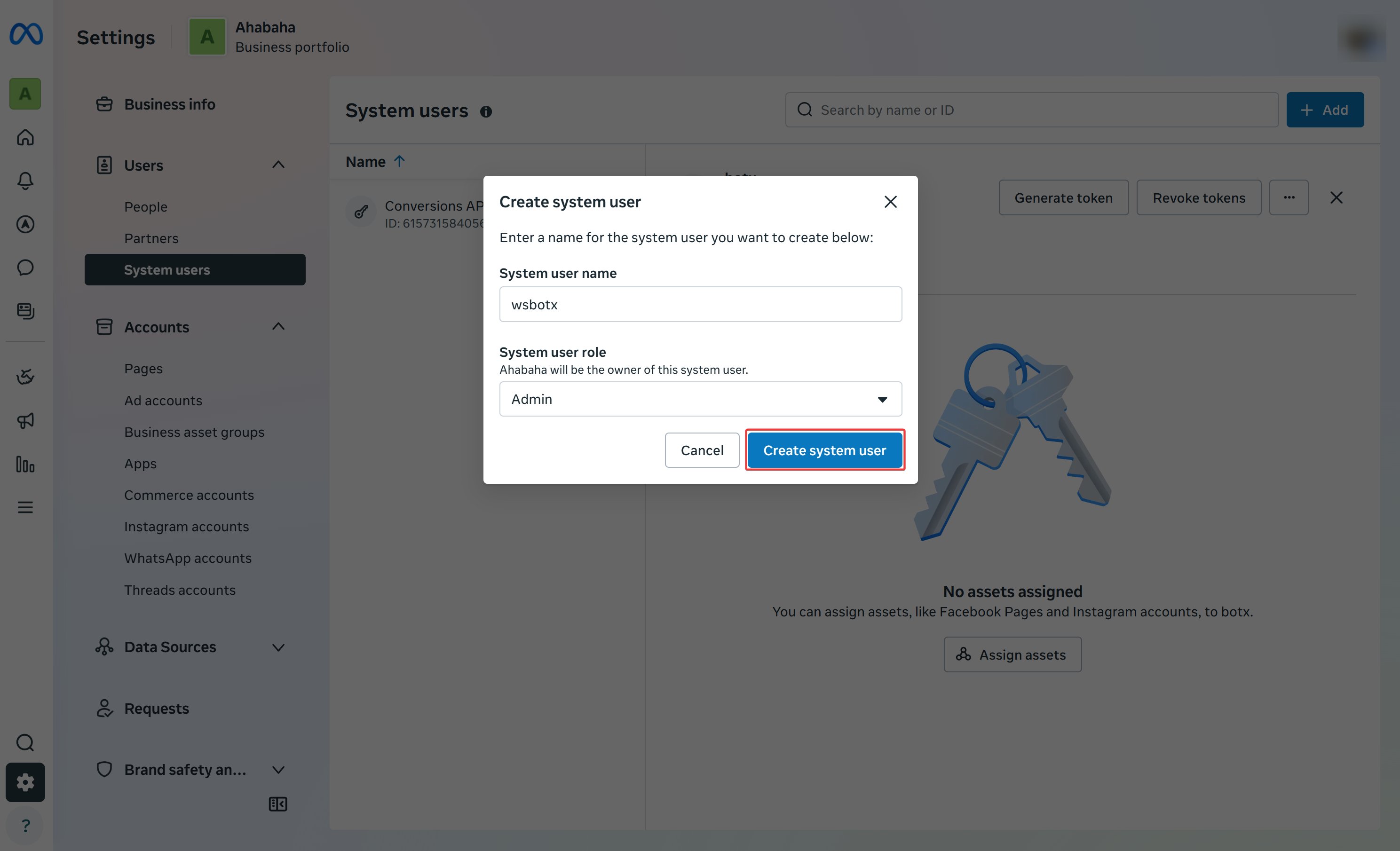
If you do not already have a system user, click **Add**, enter a name, and choose **Admin** as the role.
After setup, Meta redirects you to the WhatsApp product dashboard. Keep this page open because you will return to it for the WhatsApp Business Account ID and webhook configuration.
Do not use temporary test values for production. Before going live, add a verified payment method and complete Meta business verification if Meta requests it.
## Step 4: Set up a permanent WhatsApp Cloud API access token
ChatbotX needs a permanent token so it can send and receive WhatsApp messages without reconnecting every few hours. Create the token from a Meta System User with access to your app and WhatsApp assets.
Go to [Meta Business Settings](https://business.facebook.com/settings/system-users), then open **Users -> System Users**.
If you do not already have a system user, click **Add**, enter a name, and choose **Admin** as the role.
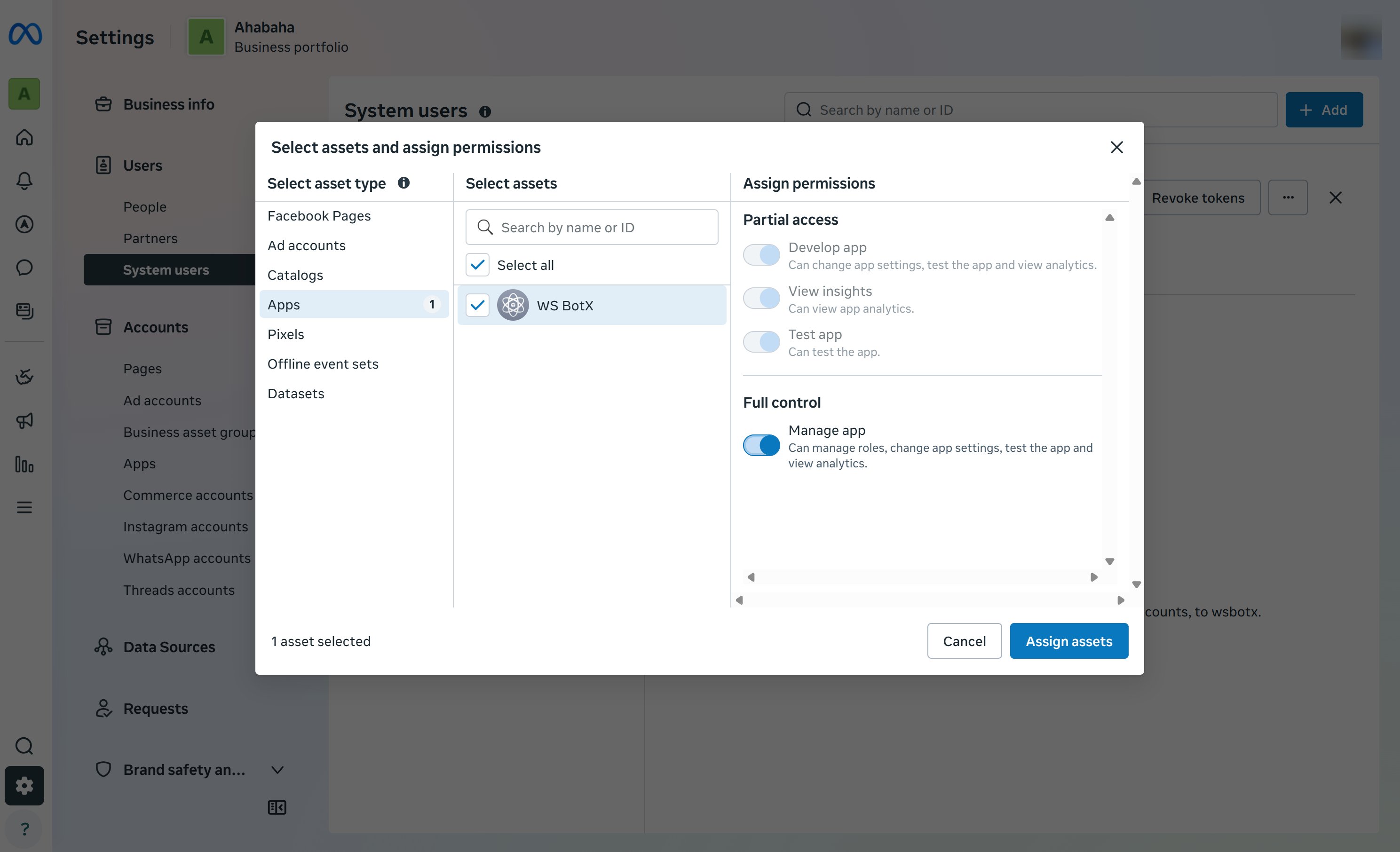
 Select the system user, click **Add Assets**, choose your Facebook App and WhatsApp Business Account, grant **Full Control**, and click **Assign assets**.
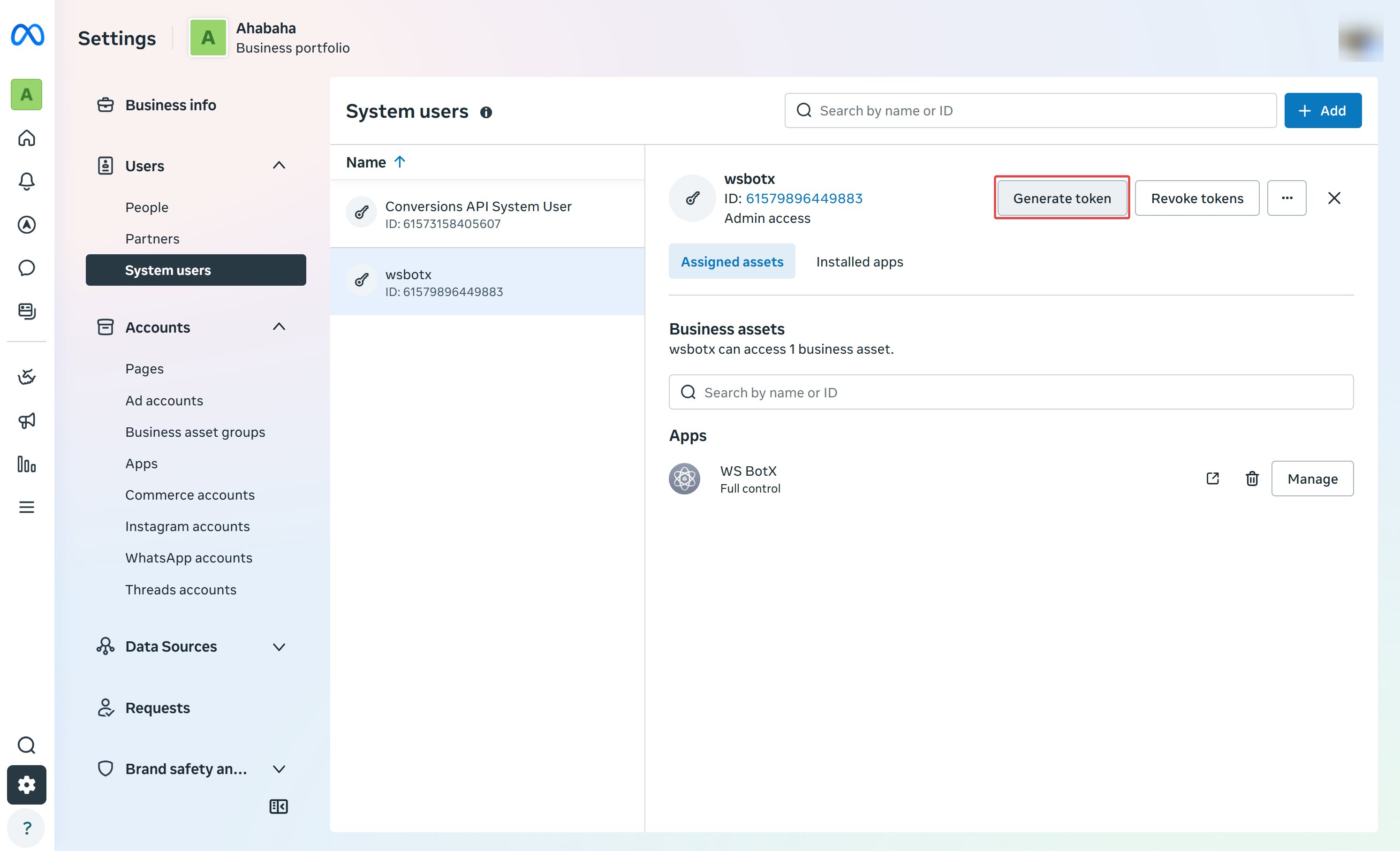
 Return to the system user details and click **Generate new token**. Select your Facebook App from the dropdown.
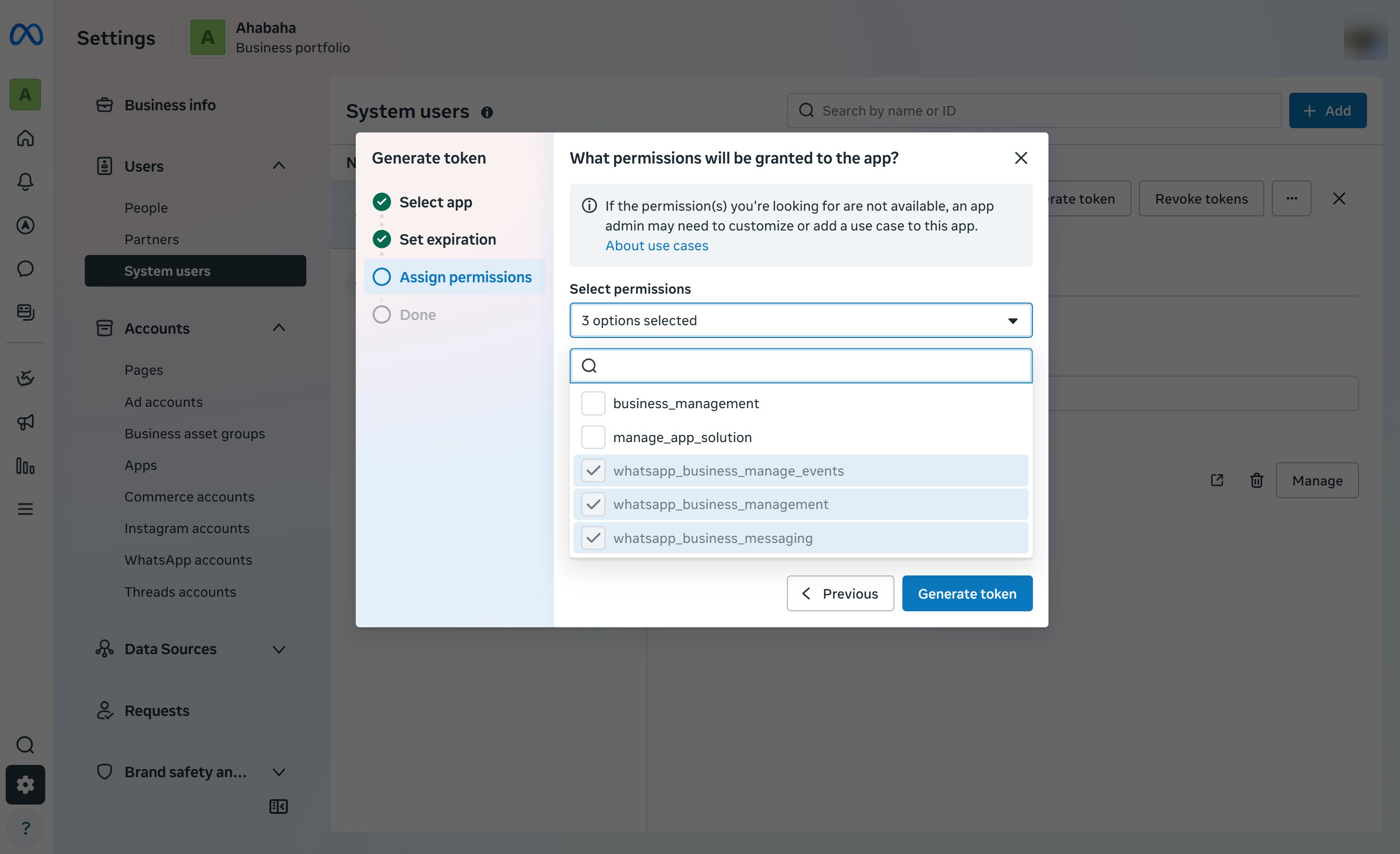
 Select these permissions at minimum:
| Permission | Purpose |
| --------------------------------- | ---------------------------------------- |
| `whatsapp_business_manage_events` | Receive WhatsApp event updates |
| `whatsapp_business_management` | Read and manage WhatsApp Business assets |
| `whatsapp_business_messaging` | Send and receive WhatsApp messages |
Select these permissions at minimum:
| Permission | Purpose |
| --------------------------------- | ---------------------------------------- |
| `whatsapp_business_manage_events` | Receive WhatsApp event updates |
| `whatsapp_business_management` | Read and manage WhatsApp Business assets |
| `whatsapp_business_messaging` | Send and receive WhatsApp messages |
 Click **Generate Token** and copy the token immediately. You will paste this token into ChatbotX when creating the WhatsApp channel.
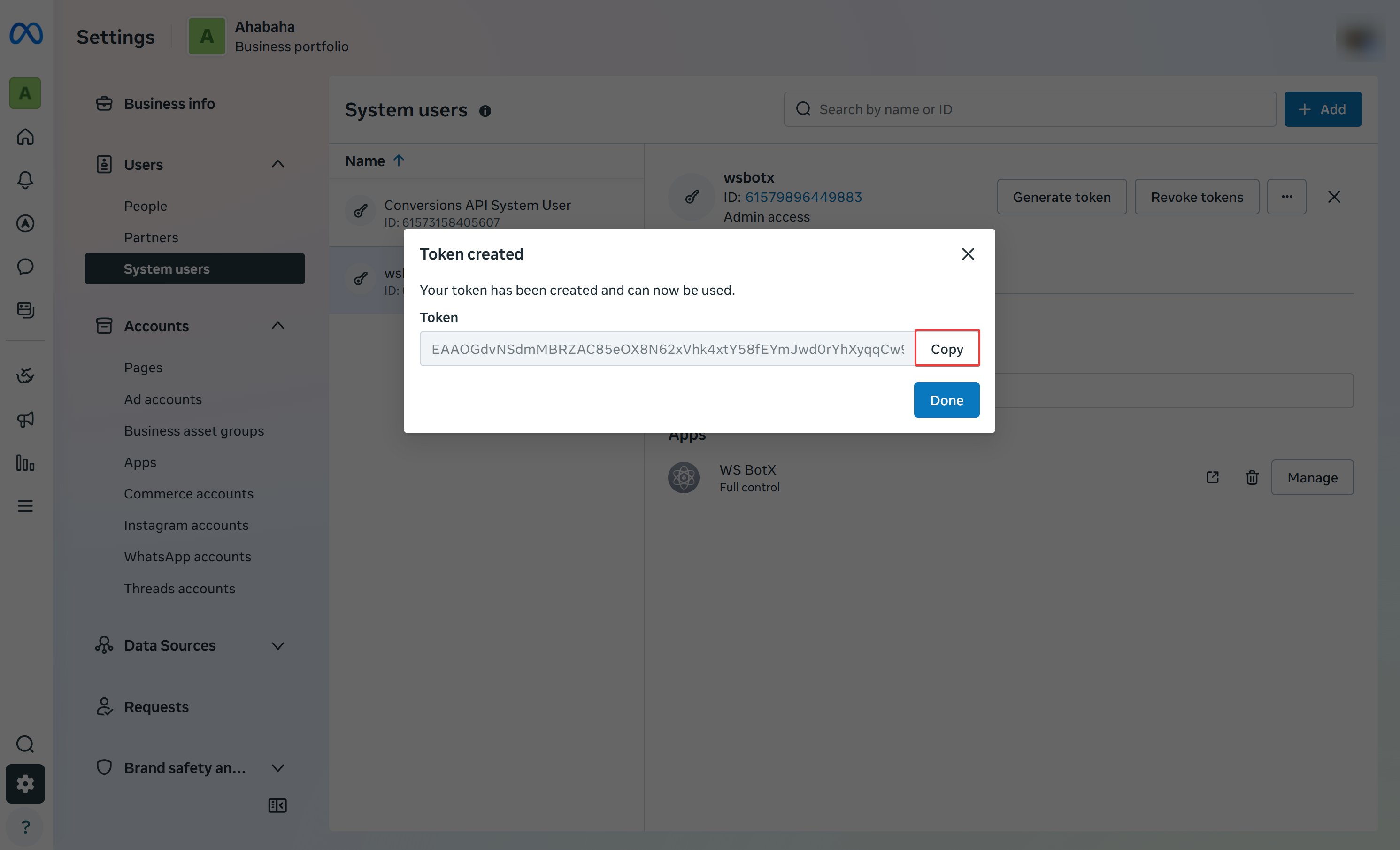 Save the token in a secure password manager. Meta shows it only once. If you lose it, generate a new token and update ChatbotX.
## Step 5: Set up WhatsApp Cloud API
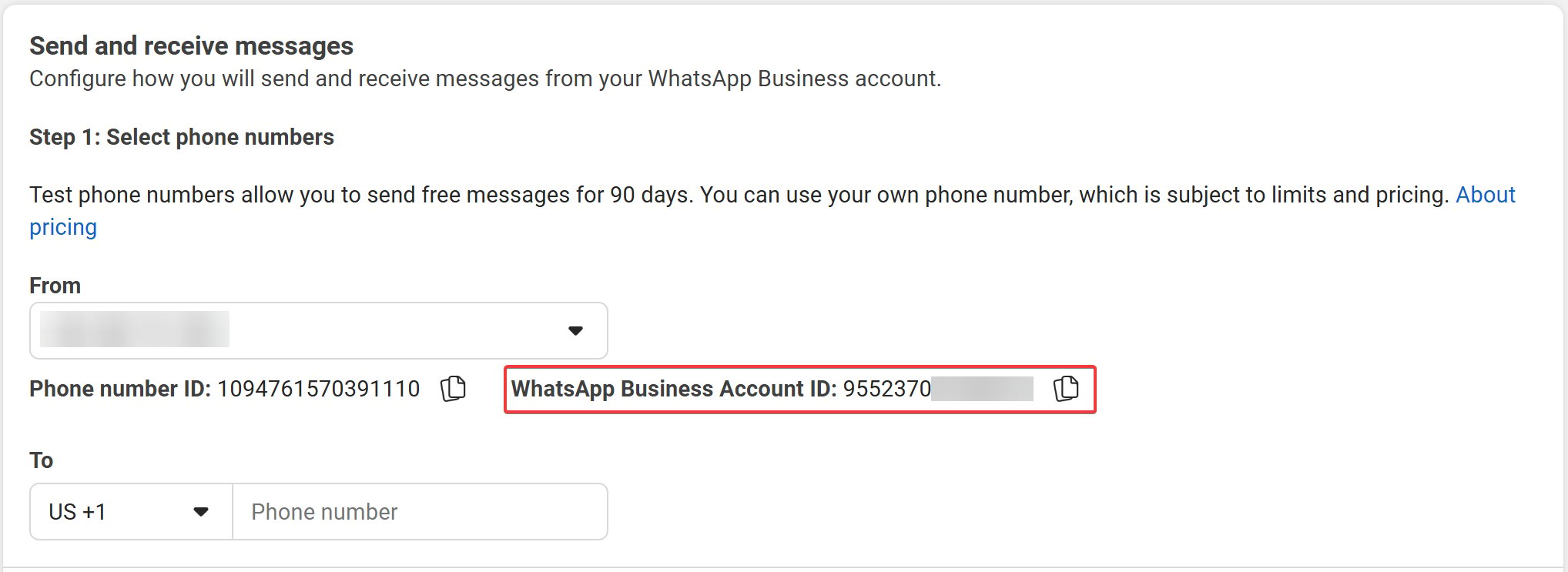
Set up the WhatsApp Business Account and production phone number in Meta. You will need the **WhatsApp Business Account ID** for ChatbotX.
In your Facebook App, open **WhatsApp -> API Setup**. Add the phone number you want customers to message. Complete verification with SMS or voice call.
Save the token in a secure password manager. Meta shows it only once. If you lose it, generate a new token and update ChatbotX.
## Step 5: Set up WhatsApp Cloud API
Set up the WhatsApp Business Account and production phone number in Meta. You will need the **WhatsApp Business Account ID** for ChatbotX.
In your Facebook App, open **WhatsApp -> API Setup**. Add the phone number you want customers to message. Complete verification with SMS or voice call.
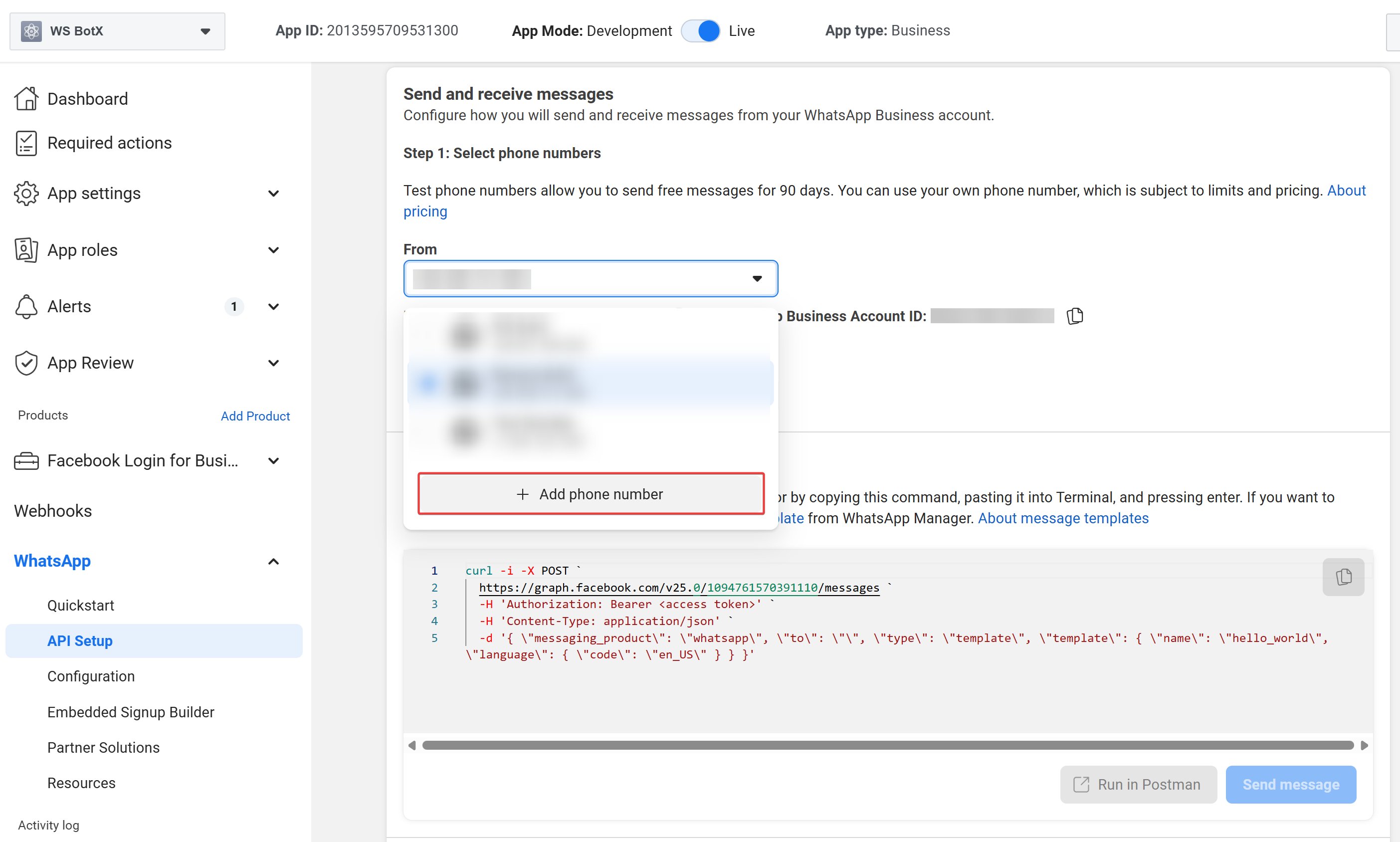 Copy the **WhatsApp Business Account ID** from the API setup page. Keep this value with your permanent token.
 ## Step 6: Connect your ChatbotX account
Create the WhatsApp channel in ChatbotX and enter the values you collected from Meta.
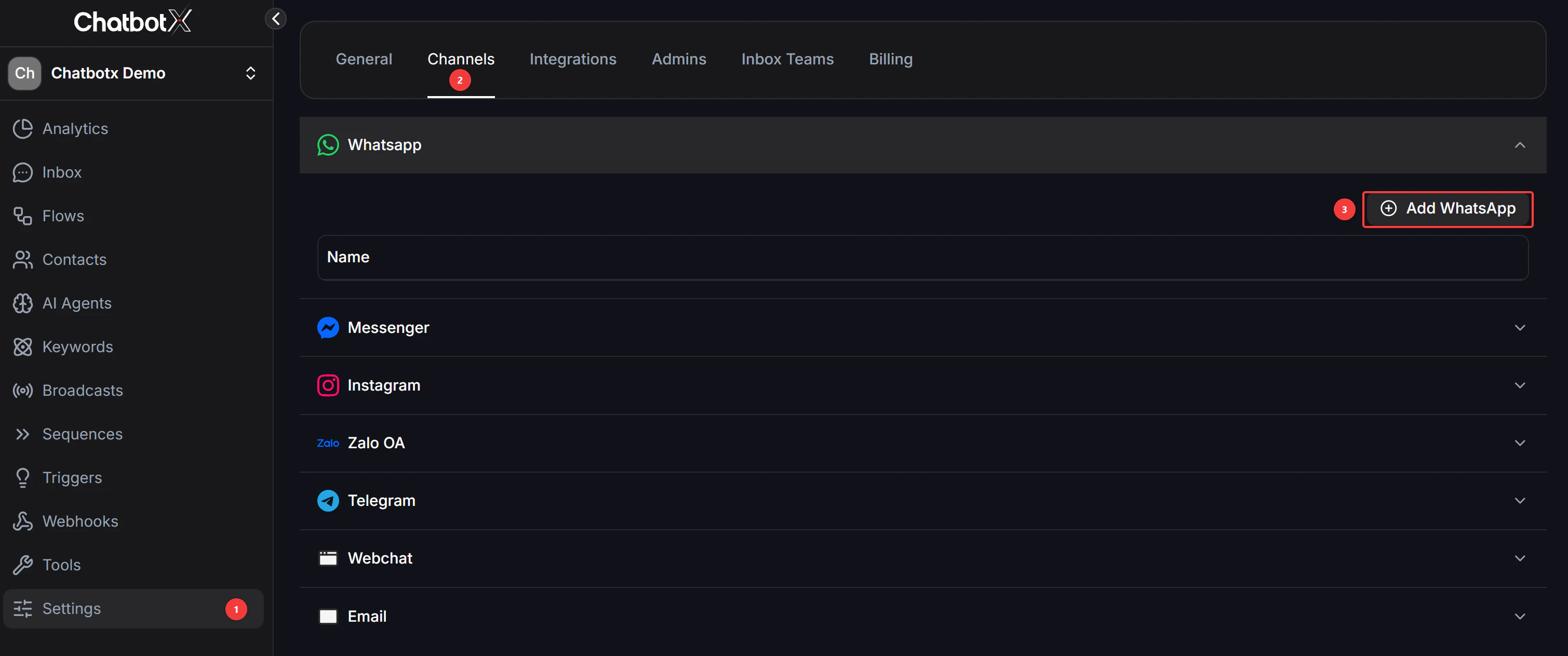
In ChatbotX, go to **Settings -> Channels** and click **Add WhatsApp**.
## Step 6: Connect your ChatbotX account
Create the WhatsApp channel in ChatbotX and enter the values you collected from Meta.
In ChatbotX, go to **Settings -> Channels** and click **Add WhatsApp**.
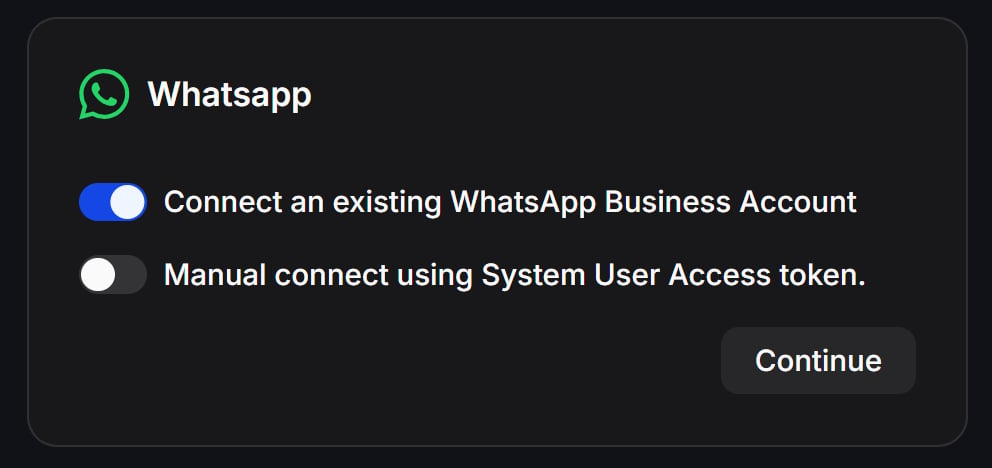
 Select the manual WhatsApp Cloud API setup option. To proceed, you need to enable the connection settings as follows:
* **Switch on "Connect an existing WhatsApp Business Account"**: Once this is enabled, the option for manual connection will appear below it.
* Then, the **"Manual connect using System User Access token"** option will become visible.
Select the manual WhatsApp Cloud API setup option. To proceed, you need to enable the connection settings as follows:
* **Switch on "Connect an existing WhatsApp Business Account"**: Once this is enabled, the option for manual connection will appear below it.
* Then, the **"Manual connect using System User Access token"** option will become visible.
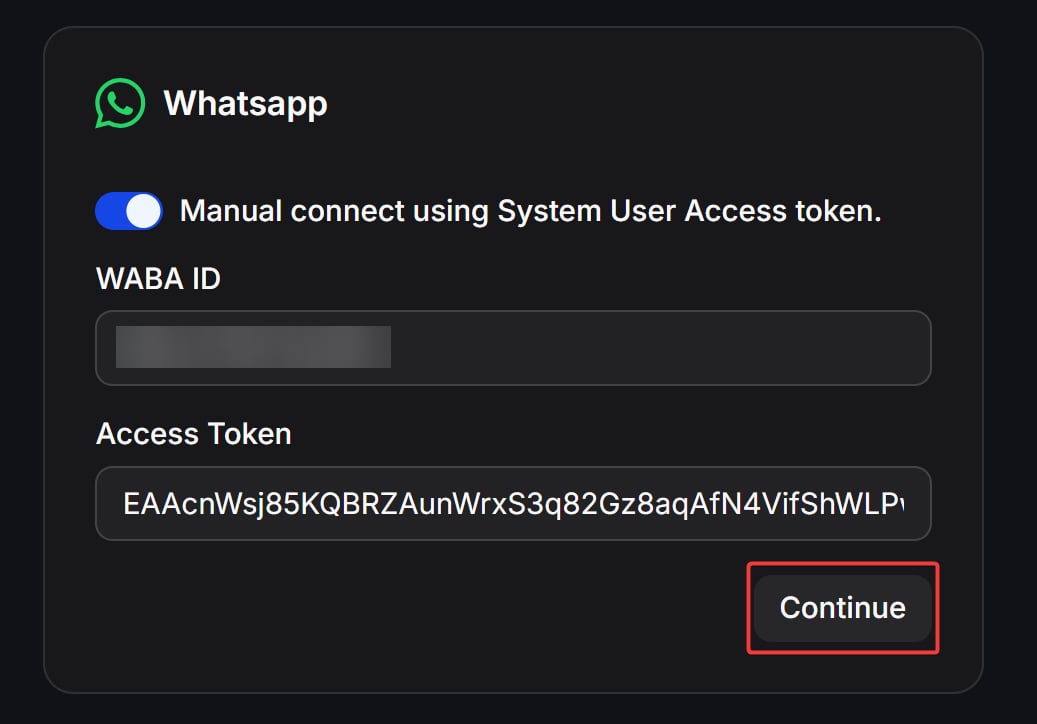
 In this step, you will provide the necessary technical details from Meta:
* **Enable "Manual connect using System User Access token"**: Switching this on will reveal the input fields for your specific account data.
* **WABA ID**: Paste your WhatsApp Business Account ID into this field.
* **Access Token**: Paste your permanent System User Access Token here.
Ensure all values are copied correctly from your Meta Developer portal to establish the connection.
In this step, you will provide the necessary technical details from Meta:
* **Enable "Manual connect using System User Access token"**: Switching this on will reveal the input fields for your specific account data.
* **WABA ID**: Paste your WhatsApp Business Account ID into this field.
* **Access Token**: Paste your permanent System User Access Token here.
Ensure all values are copied correctly from your Meta Developer portal to establish the connection.
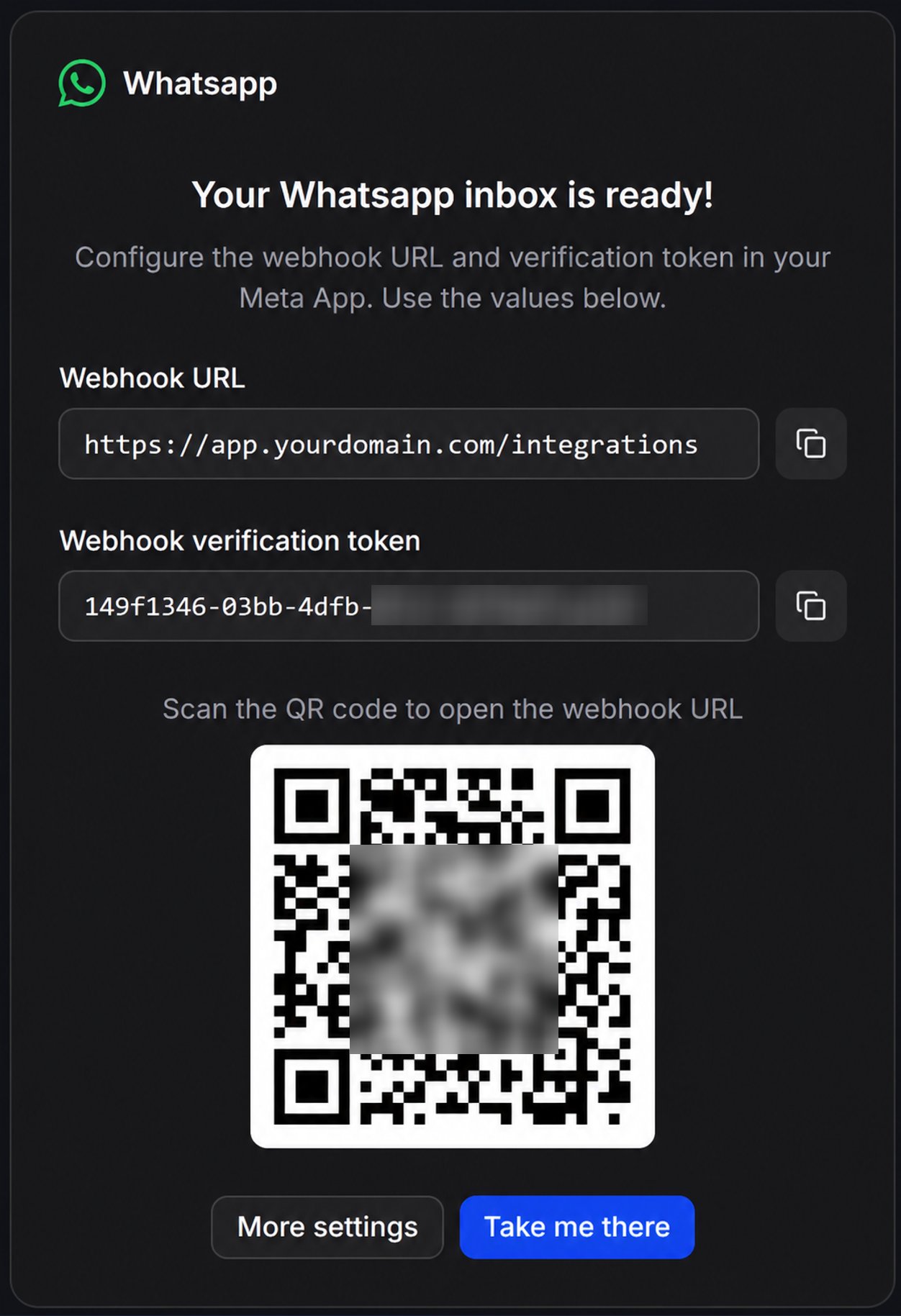
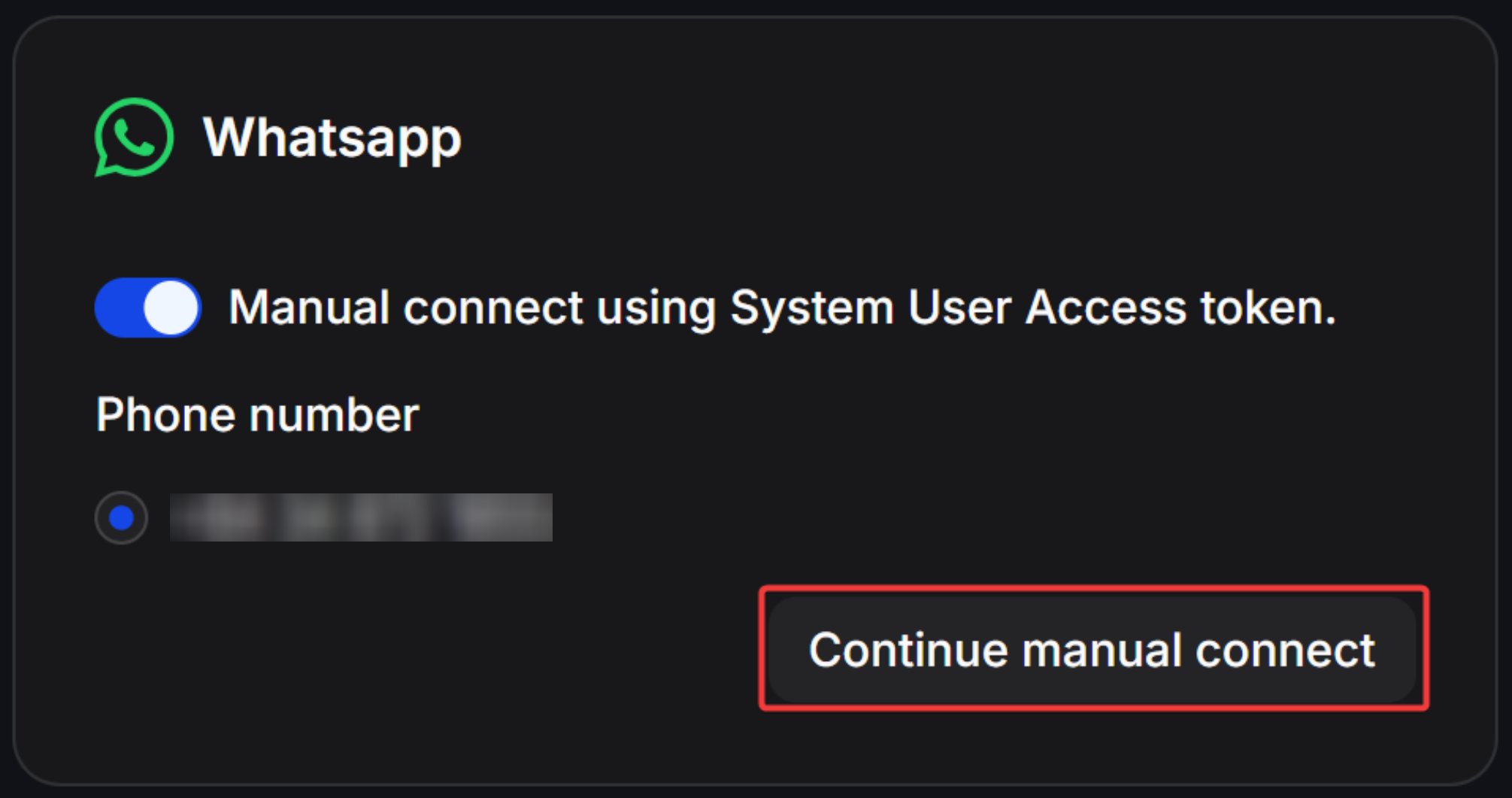 After **Continue manual connect**, copy the **Webhook URL** and **Webhook Verify Token** shown by ChatbotX. You will paste both values into Meta in the next step.
 ## Step 7: Set up your webhook
The webhook lets Meta send inbound WhatsApp messages and delivery events to ChatbotX.
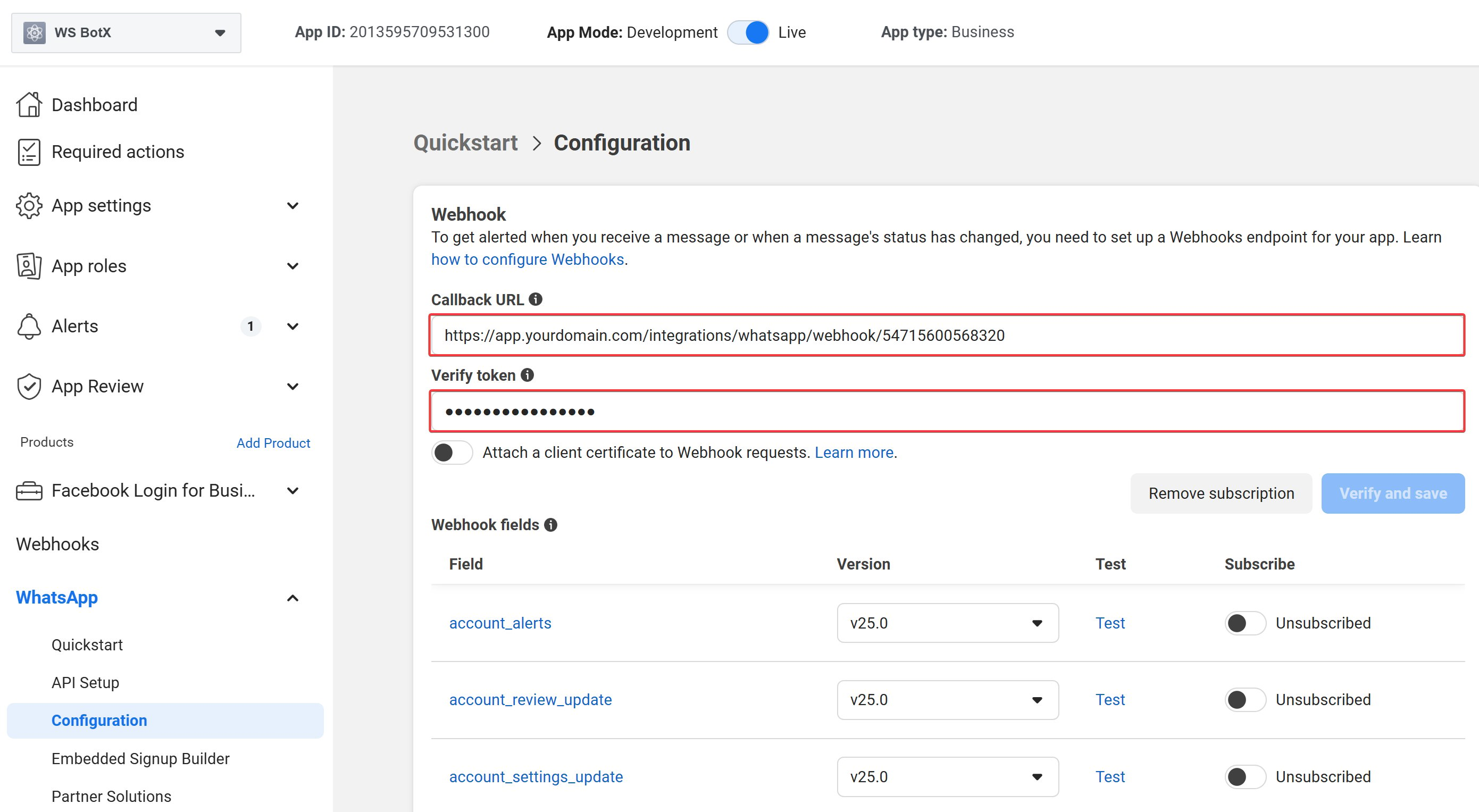
In your Facebook App, go to **WhatsApp -> Configuration**.
In the **Webhooks** section, paste the **Webhook URL** and **Webhook Verify Token** from ChatbotX, then click **Verify and Save**.
## Step 7: Set up your webhook
The webhook lets Meta send inbound WhatsApp messages and delivery events to ChatbotX.
In your Facebook App, go to **WhatsApp -> Configuration**.
In the **Webhooks** section, paste the **Webhook URL** and **Webhook Verify Token** from ChatbotX, then click **Verify and Save**.
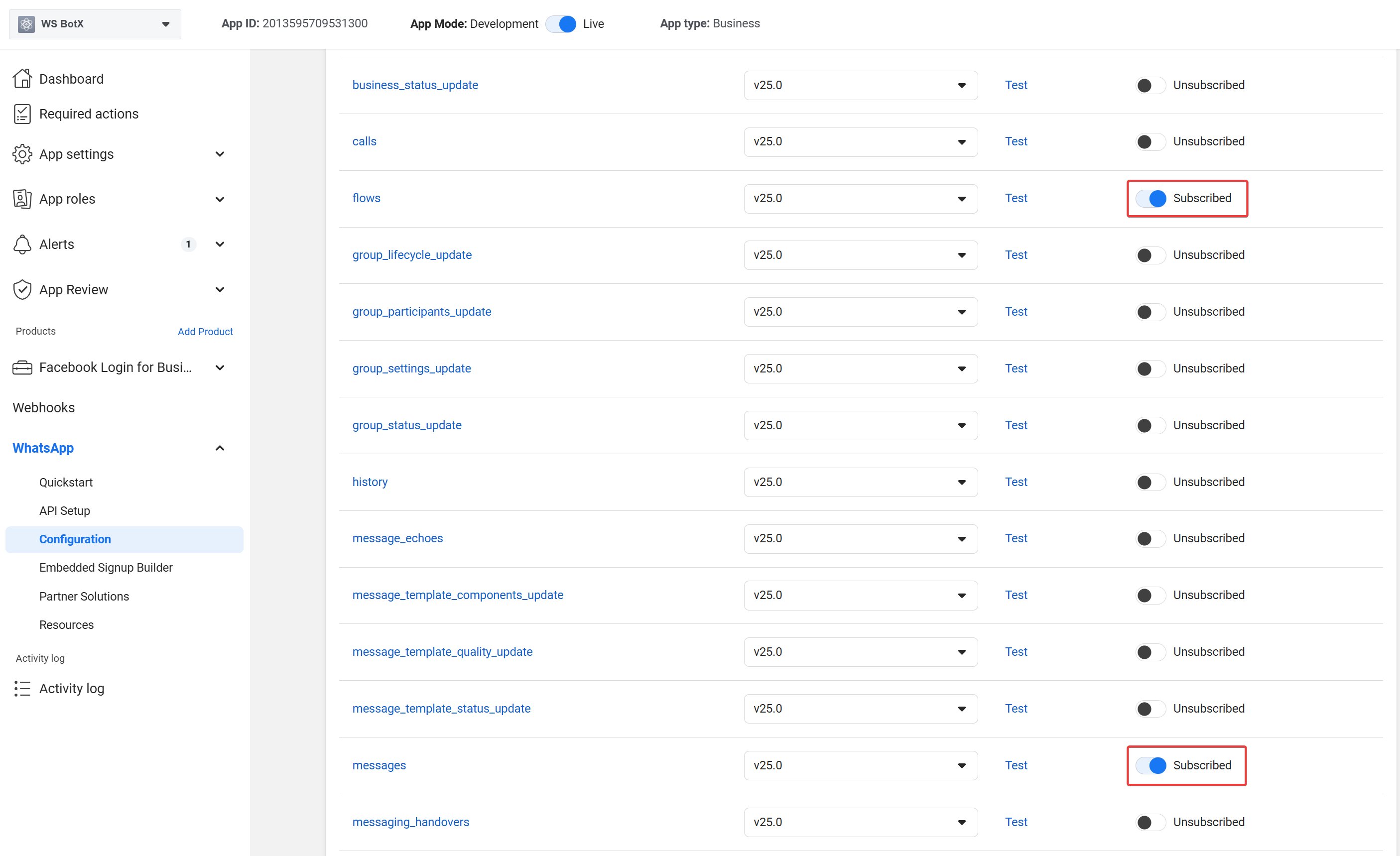
 Under webhook fields, subscribe to "**flows"** and "\*\*messages" \*\*for your WhatsApp Business Account.
 Send a WhatsApp message to the connected phone number. The conversation should appear in the ChatbotX Inbox.
If the verification fails, confirm that your ChatbotX URL is public, the webhook token matches exactly, and your server can receive HTTPS requests from Meta.
## FAQ and troubleshooting
Meta allows a Facebook App to use one webhook callback configuration for the WhatsApp product. In ChatbotX, create the WhatsApp channels you need, then configure the Meta webhook with the callback URL from the channel that should receive webhook verification. Messages for subscribed phone numbers can still be routed through the connected WhatsApp Business Account when the IDs and tokens are correct.
Check that the **messages** webhook field is subscribed in Meta, the ChatbotX webhook URL is reachable over HTTPS, and the WhatsApp Business Account ID in ChatbotX matches the account that owns the tested phone number.
Confirm the permanent token includes `whatsapp_business_messaging`, the system user has access to the WhatsApp Business Account, and the phone number has completed Meta verification.
Copy the **Webhook Verify Token** from ChatbotX again and paste it into Meta without extra spaces. Also confirm your ChatbotX app URL is publicly accessible.
Generate a new System User token with the same permissions, then update the WhatsApp channel credentials in ChatbotX.
## Reference Documentation
For more technical details, see the official Meta documentation: [WhatsApp Cloud API - Meta for Developers](https://developers.facebook.com/docs/whatsapp/cloud-api/).
Send a WhatsApp message to the connected phone number. The conversation should appear in the ChatbotX Inbox.
If the verification fails, confirm that your ChatbotX URL is public, the webhook token matches exactly, and your server can receive HTTPS requests from Meta.
## FAQ and troubleshooting
Meta allows a Facebook App to use one webhook callback configuration for the WhatsApp product. In ChatbotX, create the WhatsApp channels you need, then configure the Meta webhook with the callback URL from the channel that should receive webhook verification. Messages for subscribed phone numbers can still be routed through the connected WhatsApp Business Account when the IDs and tokens are correct.
Check that the **messages** webhook field is subscribed in Meta, the ChatbotX webhook URL is reachable over HTTPS, and the WhatsApp Business Account ID in ChatbotX matches the account that owns the tested phone number.
Confirm the permanent token includes `whatsapp_business_messaging`, the system user has access to the WhatsApp Business Account, and the phone number has completed Meta verification.
Copy the **Webhook Verify Token** from ChatbotX again and paste it into Meta without extra spaces. Also confirm your ChatbotX app URL is publicly accessible.
Generate a new System User token with the same permissions, then update the WhatsApp channel credentials in ChatbotX.
## Reference Documentation
For more technical details, see the official Meta documentation: [WhatsApp Cloud API - Meta for Developers](https://developers.facebook.com/docs/whatsapp/cloud-api/).