> ## Documentation Index
> Fetch the complete documentation index at: https://chatbotx.io/docs/llms.txt
> Use this file to discover all available pages before exploring further.
# WhatsApp Automatic Events
> Learn how to enable and manage WhatsApp Automatic Events in ChatbotX to stream lead and purchase conversion events to Meta.
**WhatsApp Automatic Events** is a native integration between ChatbotX and Meta that allows Meta to automatically detect and capture important conversion events happening inside your WhatsApp conversations. When contacts submit inquiries, provide contact details, or place orders, Meta automatically records these milestones to optimize ad delivery for your Click-to-WhatsApp (CTWA) campaigns.
This feature operates automatically using Meta's conversation intelligence, enabling you to track downstream conversions accurately without writing custom code or manually triggering event blocks across your flows.
## Key Benefits of Automatic Events
Meta analyzes conversations in real time to recognize high-intent milestones such as lead generation and completed purchases.
Provides actual conversation conversion signals to Meta ad algorithms, optimizing delivery toward audiences most likely to convert.
Measures genuine return on investment (ROI) and conversion rates for Click-to-WhatsApp ad campaigns directly in Meta Ads Manager.
Grant permission once during WhatsApp onboarding without needing custom API endpoints or external webhook listeners.
## Checking Feature Status in ChatbotX
To check the active status of WhatsApp Automatic Events on your connected number:
From the left sidebar of ChatbotX, click **Settings**.
In the top horizontal navigation bar, select the **Channels** tab.
Under the **Whatsapp** channel list, locate your phone number and click **Manage**.
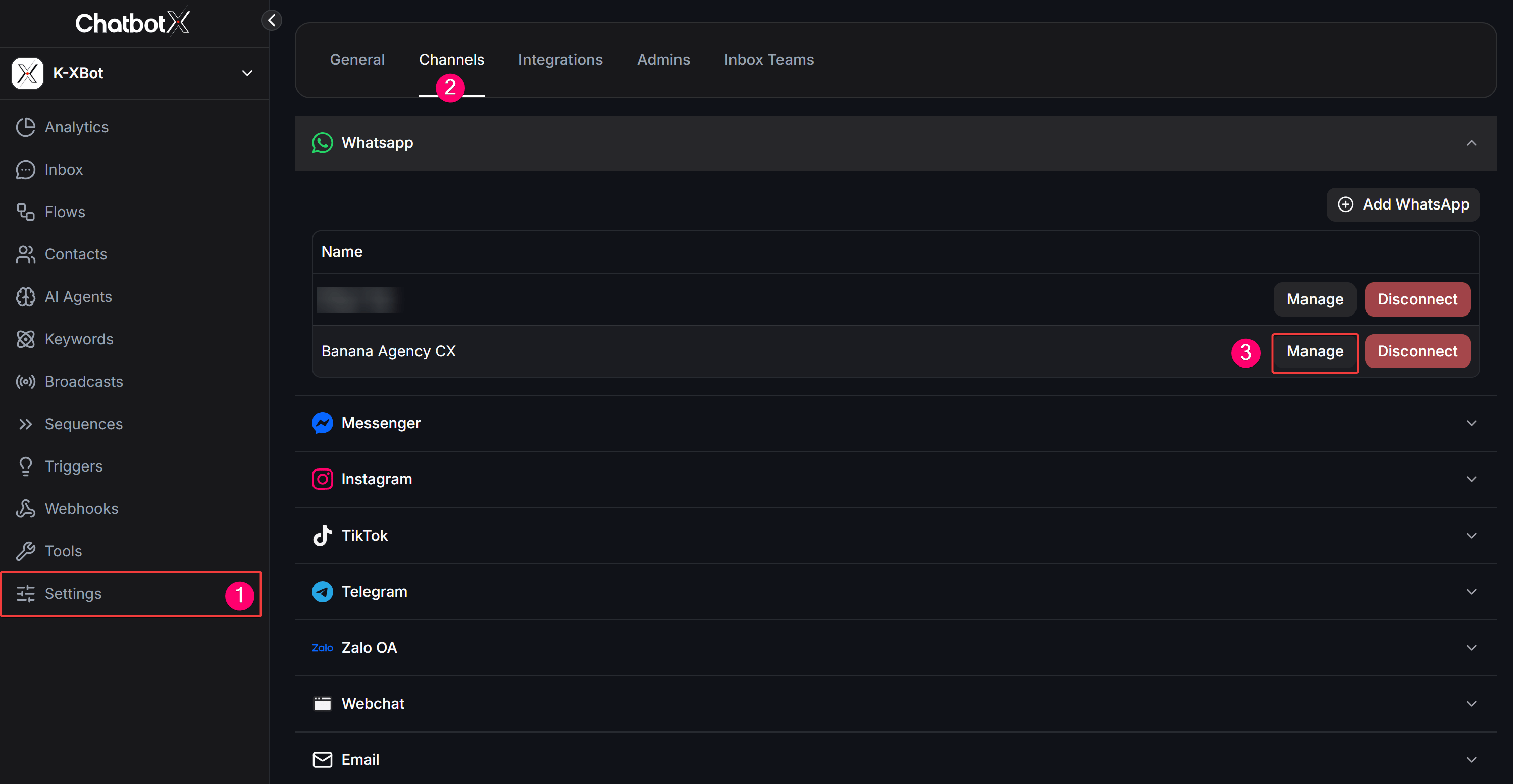 After clicking **Manage**, navigate to the **Ads Optimization** tab to view your conversions and event tracking configurations.
### Understanding Automatic Events Statuses
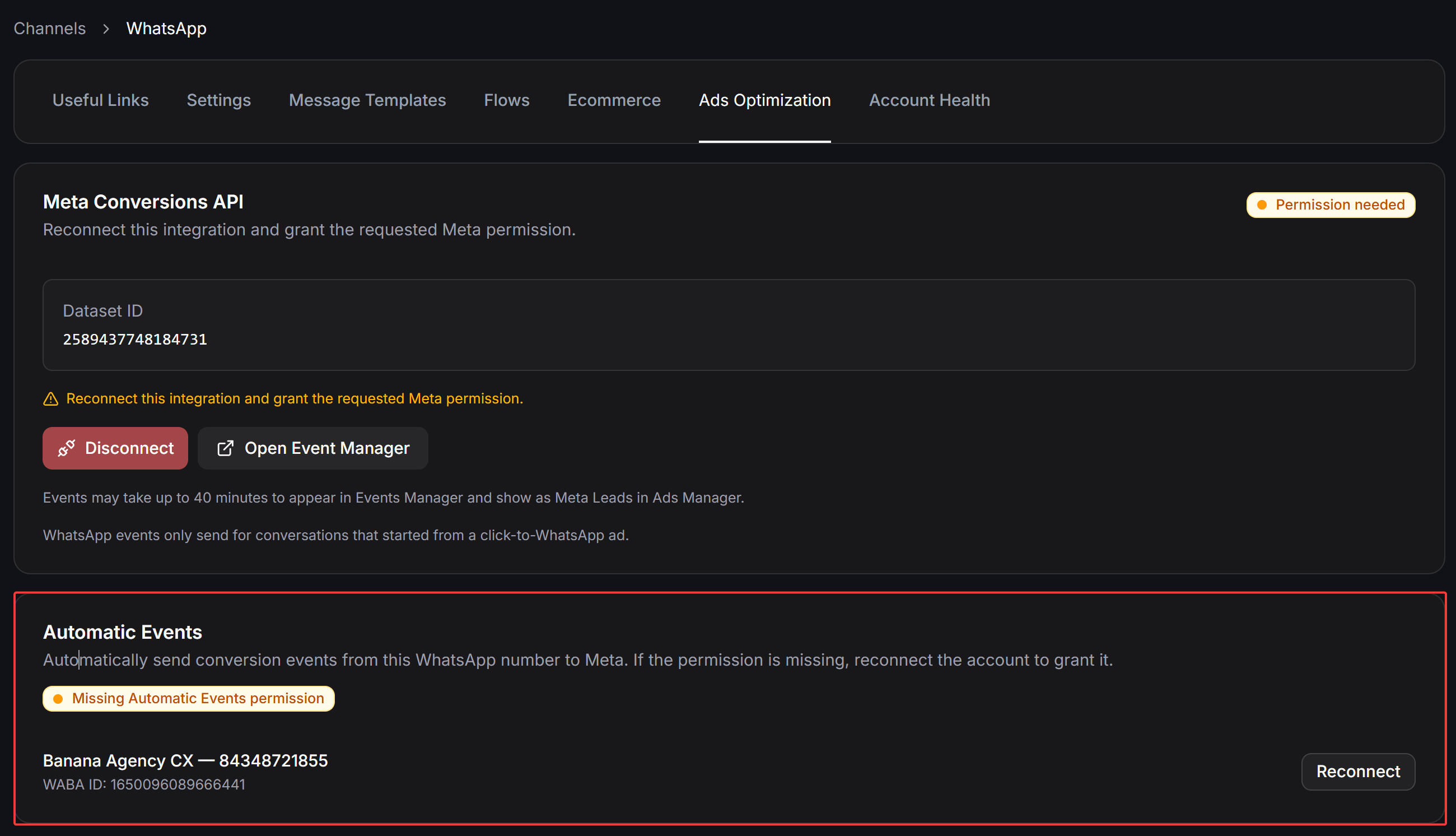
The **Automatic Events** card displays your connected WhatsApp Business Account (WABA ID), phone number, and current permission status:
* **Missing Automatic Events permission (Orange Badge):** Your WhatsApp account has not been granted the required permission for automatic event recognition. This occurs if the checkbox was omitted during onboarding or if permissions were revoked. Click the **Reconnect** button next to your account to grant access.
* **Automatic events ready (Green Badge):** The account has all necessary permissions configured and is ready to stream conversion signals to Meta.
After clicking **Manage**, navigate to the **Ads Optimization** tab to view your conversions and event tracking configurations.
### Understanding Automatic Events Statuses
The **Automatic Events** card displays your connected WhatsApp Business Account (WABA ID), phone number, and current permission status:
* **Missing Automatic Events permission (Orange Badge):** Your WhatsApp account has not been granted the required permission for automatic event recognition. This occurs if the checkbox was omitted during onboarding or if permissions were revoked. Click the **Reconnect** button next to your account to grant access.
* **Automatic events ready (Green Badge):** The account has all necessary permissions configured and is ready to stream conversion signals to Meta.
 ## How to Enable and Grant Permissions
You can activate this feature using either of the following methods:
### Method 1: Reconnect from ChatbotX (Recommended)
If the Automatic Events card displays **Missing Automatic Events permission**, you can quickly grant the missing permission by reconnecting your account:
In the **Automatic Events** card under **Ads Optimization**, click **Reconnect** next to your WhatsApp account.
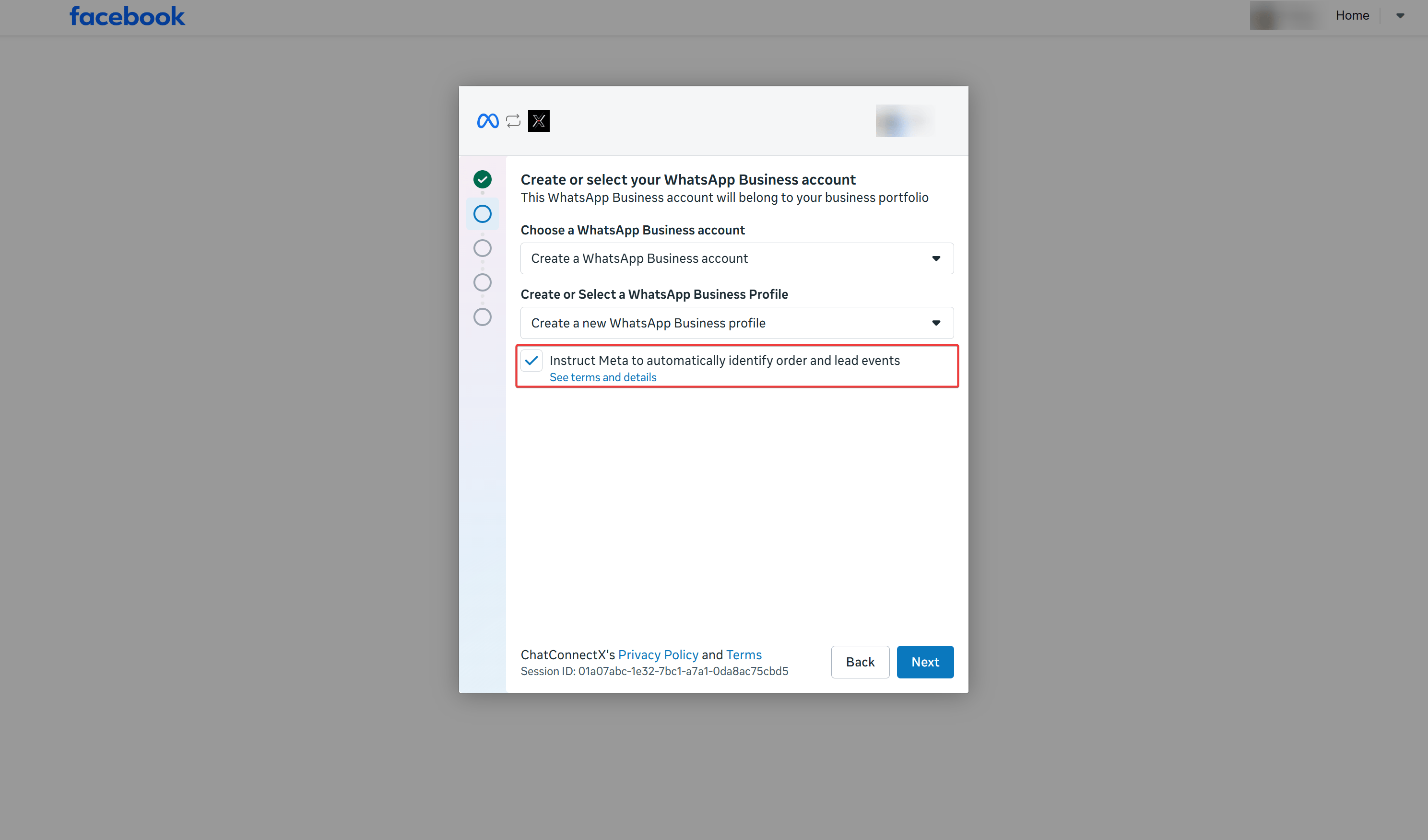
The Meta Facebook Embedded Signup popup appears. Log in with the Facebook profile that has Admin access to your WhatsApp Business Account.
Under the **Create or select your WhatsApp Business account** step, ensure you check the box:
**Instruct Meta to automatically identify order and lead events**
This authorizes Meta to automatically recognize lead and order milestones within your chats.
Click **Next** and complete the remaining on-screen prompts. When you return to ChatbotX, the status badge will update to green **Automatic events ready**.
## How to Enable and Grant Permissions
You can activate this feature using either of the following methods:
### Method 1: Reconnect from ChatbotX (Recommended)
If the Automatic Events card displays **Missing Automatic Events permission**, you can quickly grant the missing permission by reconnecting your account:
In the **Automatic Events** card under **Ads Optimization**, click **Reconnect** next to your WhatsApp account.
The Meta Facebook Embedded Signup popup appears. Log in with the Facebook profile that has Admin access to your WhatsApp Business Account.
Under the **Create or select your WhatsApp Business account** step, ensure you check the box:
**Instruct Meta to automatically identify order and lead events**
This authorizes Meta to automatically recognize lead and order milestones within your chats.
Click **Next** and complete the remaining on-screen prompts. When you return to ChatbotX, the status badge will update to green **Automatic events ready**.
 ### Method 2: Enable from Meta WhatsApp Manager
You can also toggle this feature directly from WhatsApp Manager inside Meta Business Suite:
Log in to Meta Business Suite and open **WhatsApp Manager** for your business portfolio.
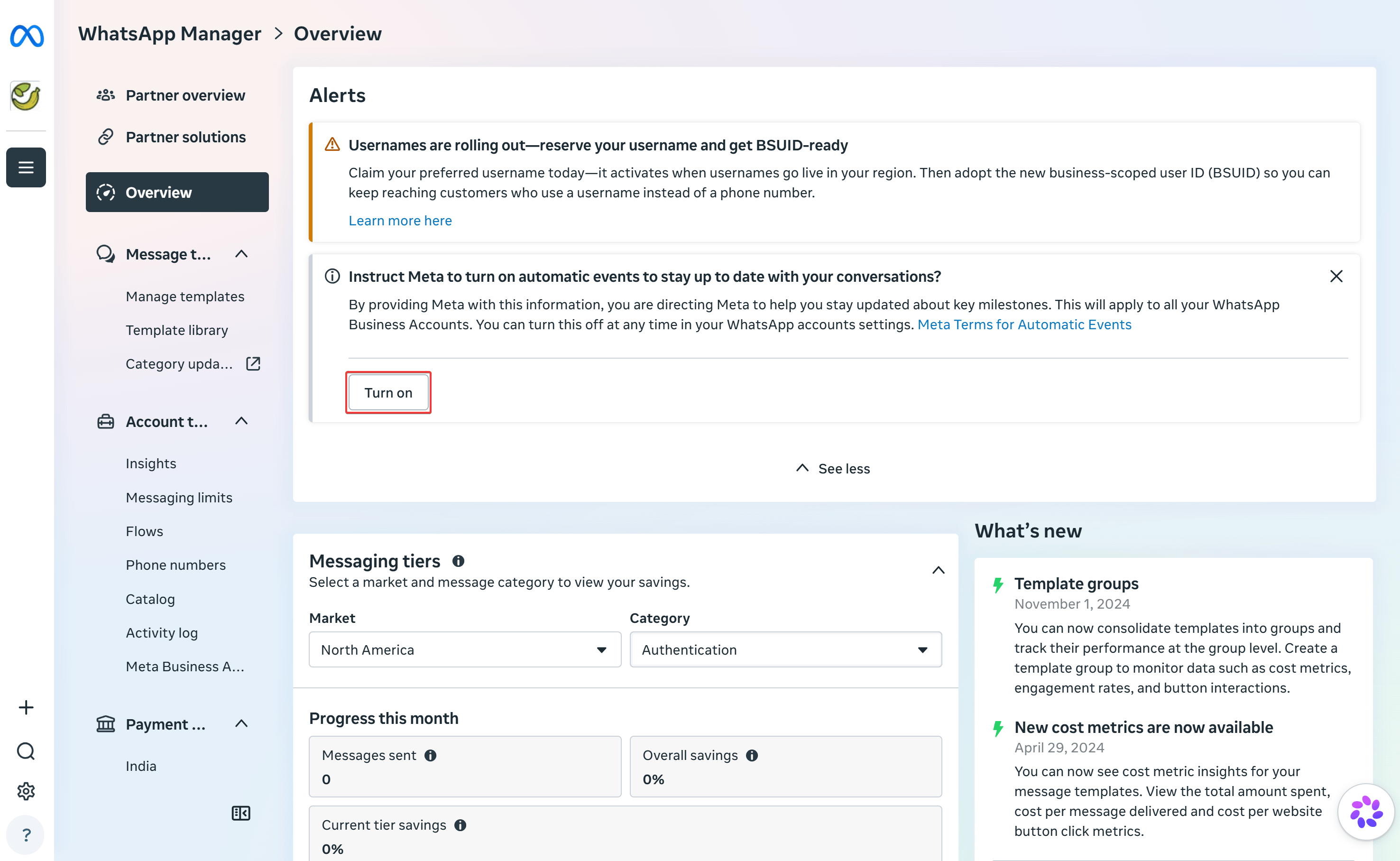
In the **Overview** section, look for the alert banner under **Alerts** stating:
*Instruct Meta to turn on automatic events to stay up to date with your conversations?*
Click **Turn on** to accept the Meta terms and enable automatic event tracking across your WhatsApp Business accounts.
### Method 2: Enable from Meta WhatsApp Manager
You can also toggle this feature directly from WhatsApp Manager inside Meta Business Suite:
Log in to Meta Business Suite and open **WhatsApp Manager** for your business portfolio.
In the **Overview** section, look for the alert banner under **Alerts** stating:
*Instruct Meta to turn on automatic events to stay up to date with your conversations?*
Click **Turn on** to accept the Meta terms and enable automatic event tracking across your WhatsApp Business accounts.
 The alert banner in WhatsApp Manager only appears if the feature has never been toggled. If you dismissed the alert or if ChatbotX displays a **Missing Automatic Events permission** error, use **Method 1 (Reconnect via ChatbotX)** to grant the OAuth permissions directly through the Meta authorization popup.
## Automatic Events vs. Meta Conversions API (CAPI)
Both tools transmit conversion signals to Meta, but they serve distinct use cases and operate differently:
| Criteria | WhatsApp Automatic Events | Meta Conversions API (CAPI Action Block) |
| ----------------------- | ------------------------------------------------------------------- | --------------------------------------------------------------------------- |
| **Detection Mechanism** | Meta automatically detects events using conversational NLP | Manually placed **Meta CAPI Event** action blocks inside Flows |
| **Technical Setup** | One-time checkbox permission during connection | Requires Dataset ID, Access Token, and configured payload parameters |
| **Traffic Source** | Only applies to chats originating from Click-to-WhatsApp (CTWA) ads | Applies to all contacts interacting through automated flows across channels |
| **Customization** | Standardized Meta event models (Leads, Purchases) | Fully customizable event names, purchase values, and currency codes |
For comprehensive conversion tracking and optimal ad performance, enable **Automatic Events** on your WhatsApp channel while also adding **Meta CAPI Event** action blocks at critical transaction checkpoints in your flows.
## Important Considerations
WhatsApp Automatic Events only stream conversion data for conversations that started from a **Click-to-WhatsApp (CTWA)** ad. Organic conversations started by customers searching for your phone number do not trigger these ad conversion events.
* **Data Latency:** Conversions may take up to **40 minutes** to appear in Meta Events Manager and reflect as Meta Leads / Purchases in Meta Ads Manager.
* **Regional Restrictions:** Due to data privacy regulations, Meta does not support Automatic Events for businesses registered in the European Union (EU), the United Kingdom (UK), or Japan.
* **Account Permissions:** You must have full Administrator permissions on the Meta Business Suite portfolio managing the WhatsApp account to grant and update these permissions.
The alert banner in WhatsApp Manager only appears if the feature has never been toggled. If you dismissed the alert or if ChatbotX displays a **Missing Automatic Events permission** error, use **Method 1 (Reconnect via ChatbotX)** to grant the OAuth permissions directly through the Meta authorization popup.
## Automatic Events vs. Meta Conversions API (CAPI)
Both tools transmit conversion signals to Meta, but they serve distinct use cases and operate differently:
| Criteria | WhatsApp Automatic Events | Meta Conversions API (CAPI Action Block) |
| ----------------------- | ------------------------------------------------------------------- | --------------------------------------------------------------------------- |
| **Detection Mechanism** | Meta automatically detects events using conversational NLP | Manually placed **Meta CAPI Event** action blocks inside Flows |
| **Technical Setup** | One-time checkbox permission during connection | Requires Dataset ID, Access Token, and configured payload parameters |
| **Traffic Source** | Only applies to chats originating from Click-to-WhatsApp (CTWA) ads | Applies to all contacts interacting through automated flows across channels |
| **Customization** | Standardized Meta event models (Leads, Purchases) | Fully customizable event names, purchase values, and currency codes |
For comprehensive conversion tracking and optimal ad performance, enable **Automatic Events** on your WhatsApp channel while also adding **Meta CAPI Event** action blocks at critical transaction checkpoints in your flows.
## Important Considerations
WhatsApp Automatic Events only stream conversion data for conversations that started from a **Click-to-WhatsApp (CTWA)** ad. Organic conversations started by customers searching for your phone number do not trigger these ad conversion events.
* **Data Latency:** Conversions may take up to **40 minutes** to appear in Meta Events Manager and reflect as Meta Leads / Purchases in Meta Ads Manager.
* **Regional Restrictions:** Due to data privacy regulations, Meta does not support Automatic Events for businesses registered in the European Union (EU), the United Kingdom (UK), or Japan.
* **Account Permissions:** You must have full Administrator permissions on the Meta Business Suite portfolio managing the WhatsApp account to grant and update these permissions.