> ## Documentation Index
> Fetch the complete documentation index at: https://chatbotx.io/docs/llms.txt
> Use this file to discover all available pages before exploring further.
# WhatsApp Coexistence
> Learn how to connect WhatsApp Coexistence in ChatbotX to retain your existing WhatsApp Business number, sync contacts, and continue customer support.
**WhatsApp Coexistence** allows you to retain your existing WhatsApp Business number when connecting to ChatbotX. This setup supports using the WhatsApp Business mobile app and the WhatsApp Business API simultaneously on the same phone number. It also syncs your contacts and chat history, allowing you to manage customer conversations without interruption.
## Overview of WhatsApp Coexistence
With this integration, you can:
* Use the WhatsApp Business mobile app and ChatbotX's WhatsApp API simultaneously.
* Sync contacts and chat history from the mobile app to ChatbotX.
* Respond manually from your phone when needed.
* Unlock advanced WhatsApp API features in ChatbotX, such as template messages, automations, and centralized inbox management.
> **Note:** This feature may not be available in all countries and territories. Support depends on your phone number's country code and Meta's current policies at the time of setup.
### Automation
The WhatsApp Business mobile app includes basic automation features like greeting messages and away messages. If you are using these automations on your mobile app, ensure you turn them off before getting started with ChatbotX.
### Message Pricing
After setting up your business account on the Cloud API:
* Messages sent directly from your WhatsApp Business mobile app remain free.
* Messages sent through ChatbotX follow Meta's Cloud API pricing.
## Before you begin
Prepare the following details before starting:
* Your active WhatsApp Business phone number.
* A Meta Business Account (Business Portfolio) with management permissions for the number.
* Your business display name.
* Your website URL, business category, and timezone.
If you need instructions for a standard WhatsApp Business Account (WABA) registration, refer to the [Connect WhatsApp](/channels/whatsapp/whatsapp-connect) article.
## Step 1: Open the Channel Selection page
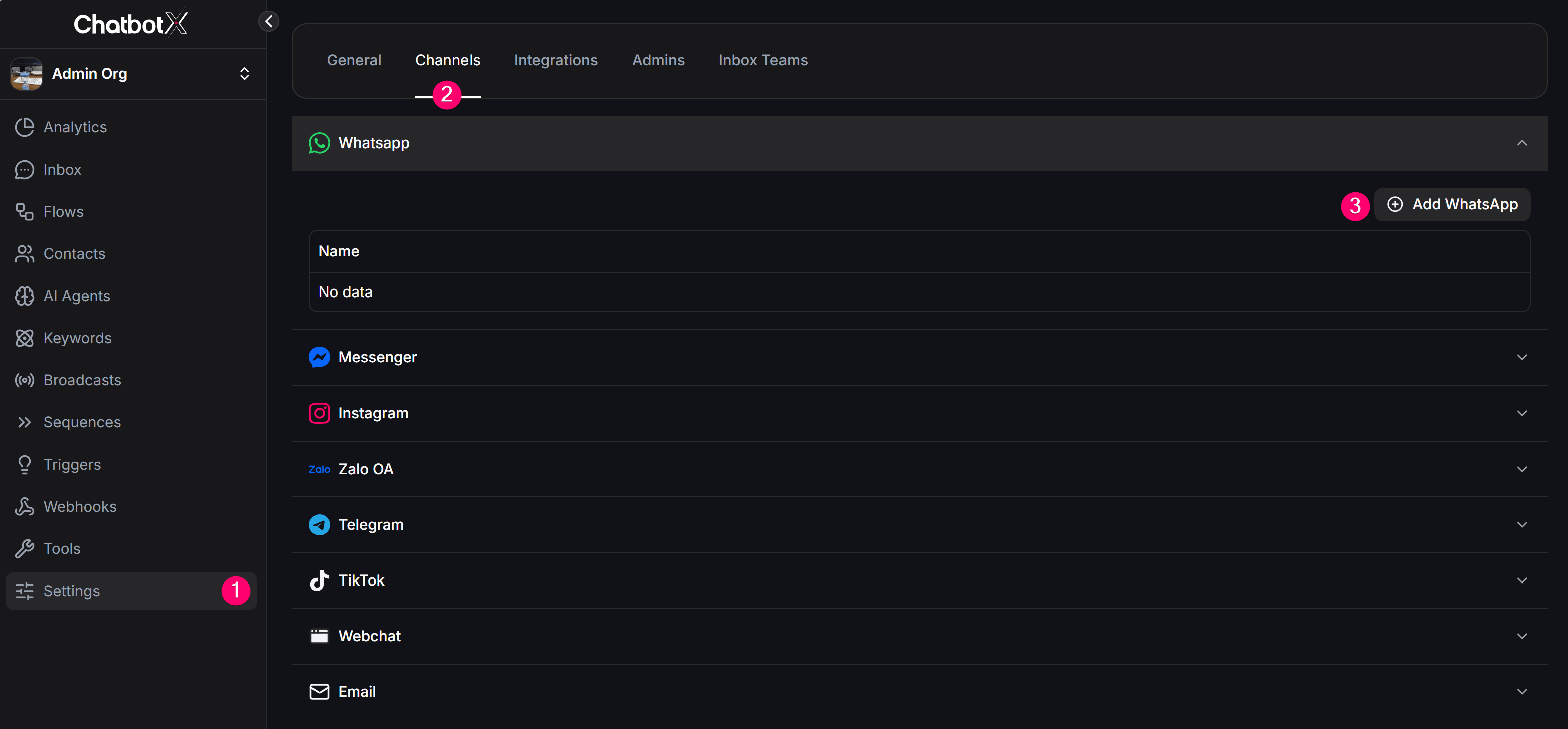
1. Go to **Settings** → **Channel**.
2. Click **Add WhatsApp**.
 ## Step 2: Select WhatsApp in the Create Workspace menu
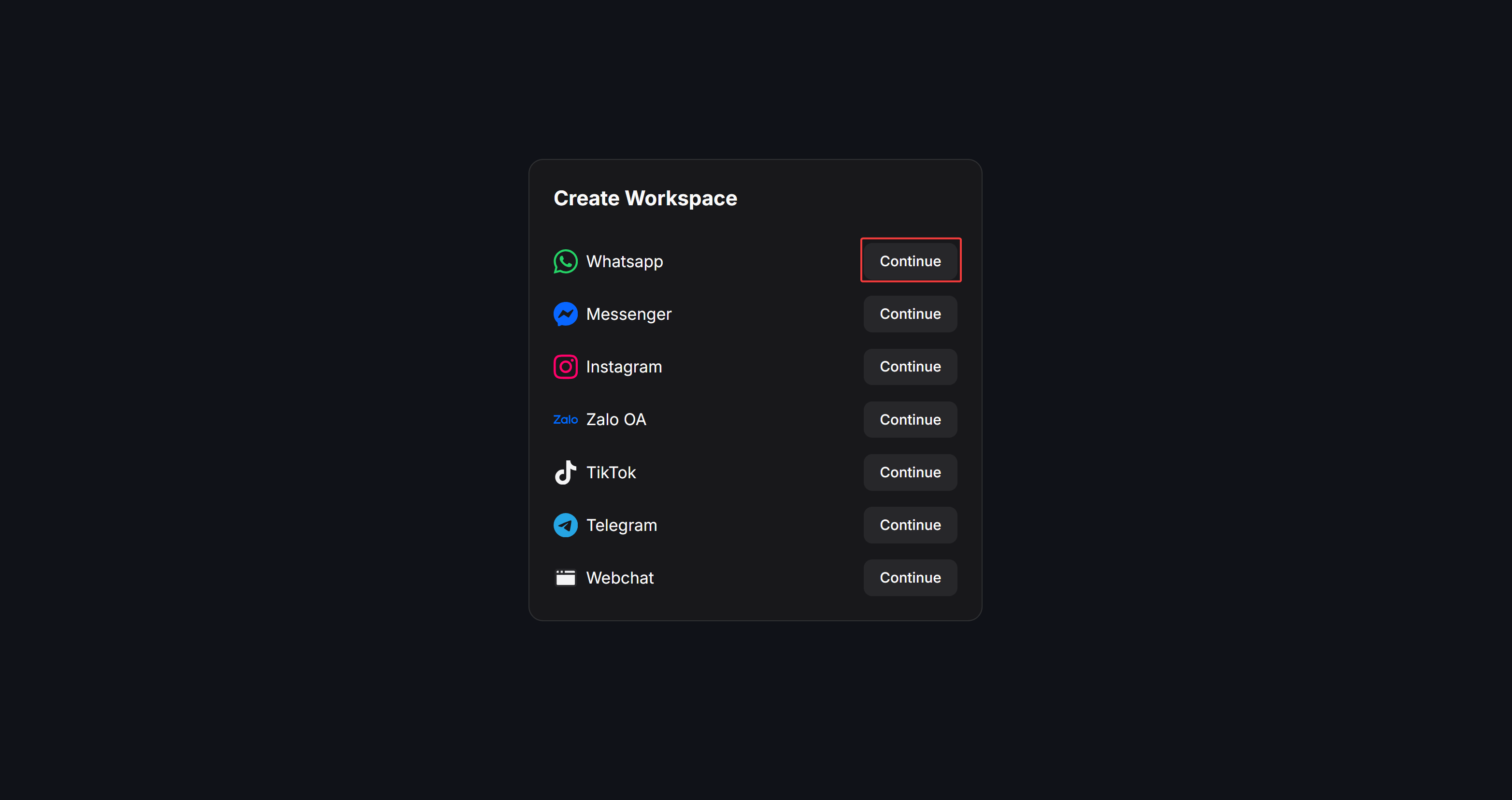
On the **Create Workspace** menu, click **Continue** next to the **Whatsapp** option.
## Step 2: Select WhatsApp in the Create Workspace menu
On the **Create Workspace** menu, click **Continue** next to the **Whatsapp** option.
 ## Step 3: Choose the WhatsApp connection type
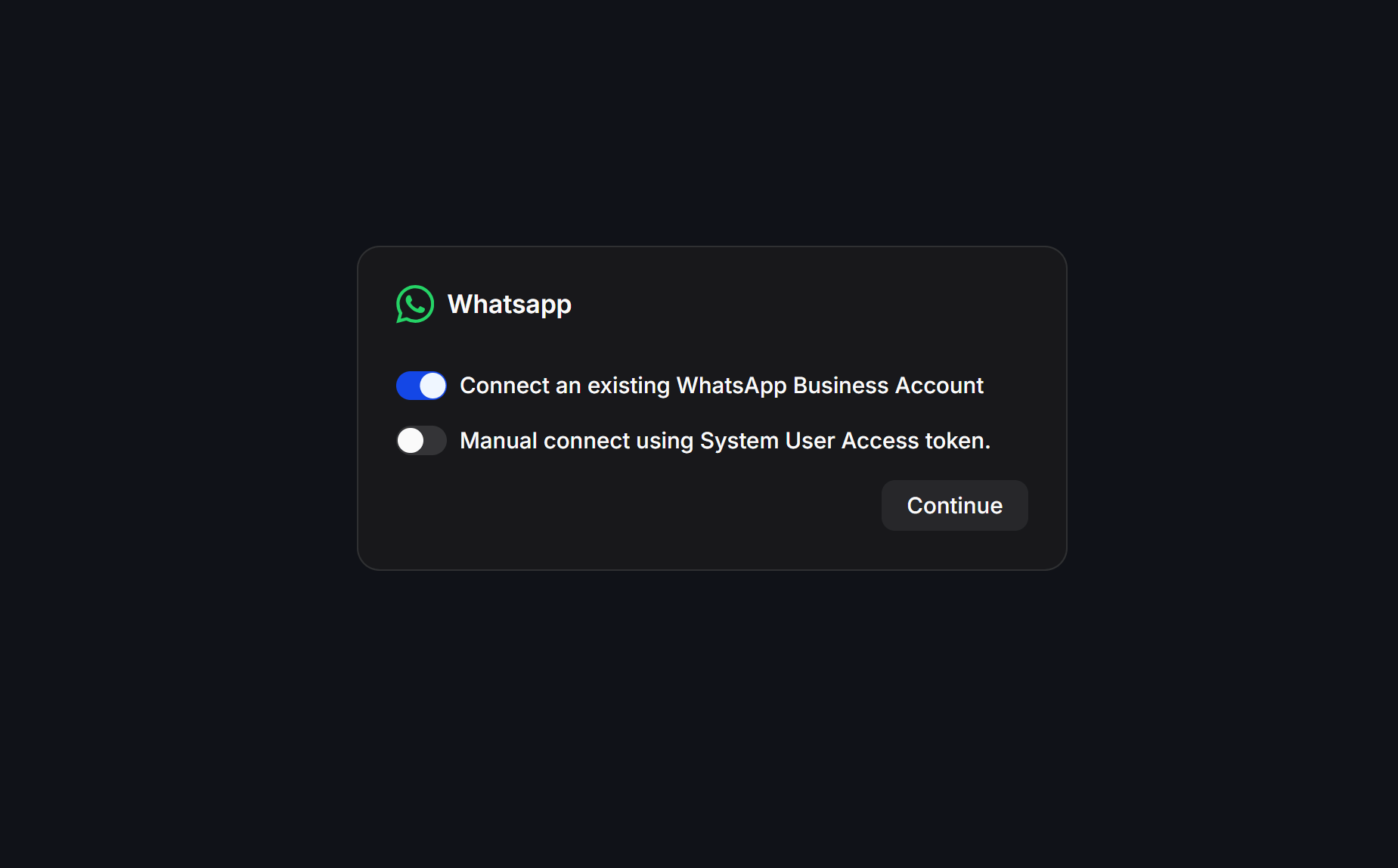
1. Turn on **Connect an existing WhatsApp Business Account**.
2. Click **Continue**.
## Step 3: Choose the WhatsApp connection type
1. Turn on **Connect an existing WhatsApp Business Account**.
2. Click **Continue**.
 ## Step 4: Log in and confirm your Facebook account
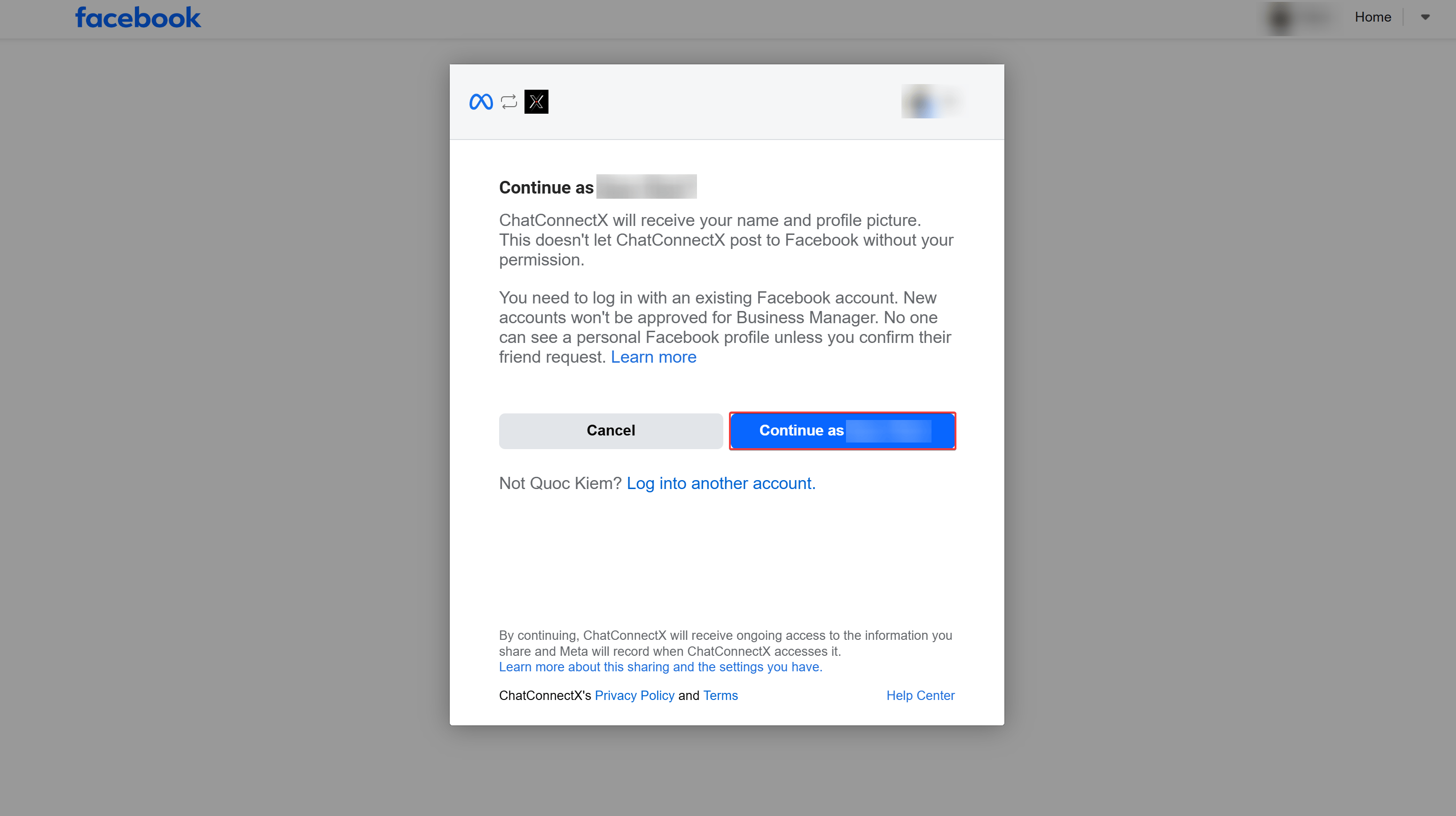
Log in to the personal Facebook account that manages your Meta Business assets, then click **Continue as \[Your Name]**.
## Step 4: Log in and confirm your Facebook account
Log in to the personal Facebook account that manages your Meta Business assets, then click **Continue as \[Your Name]**.
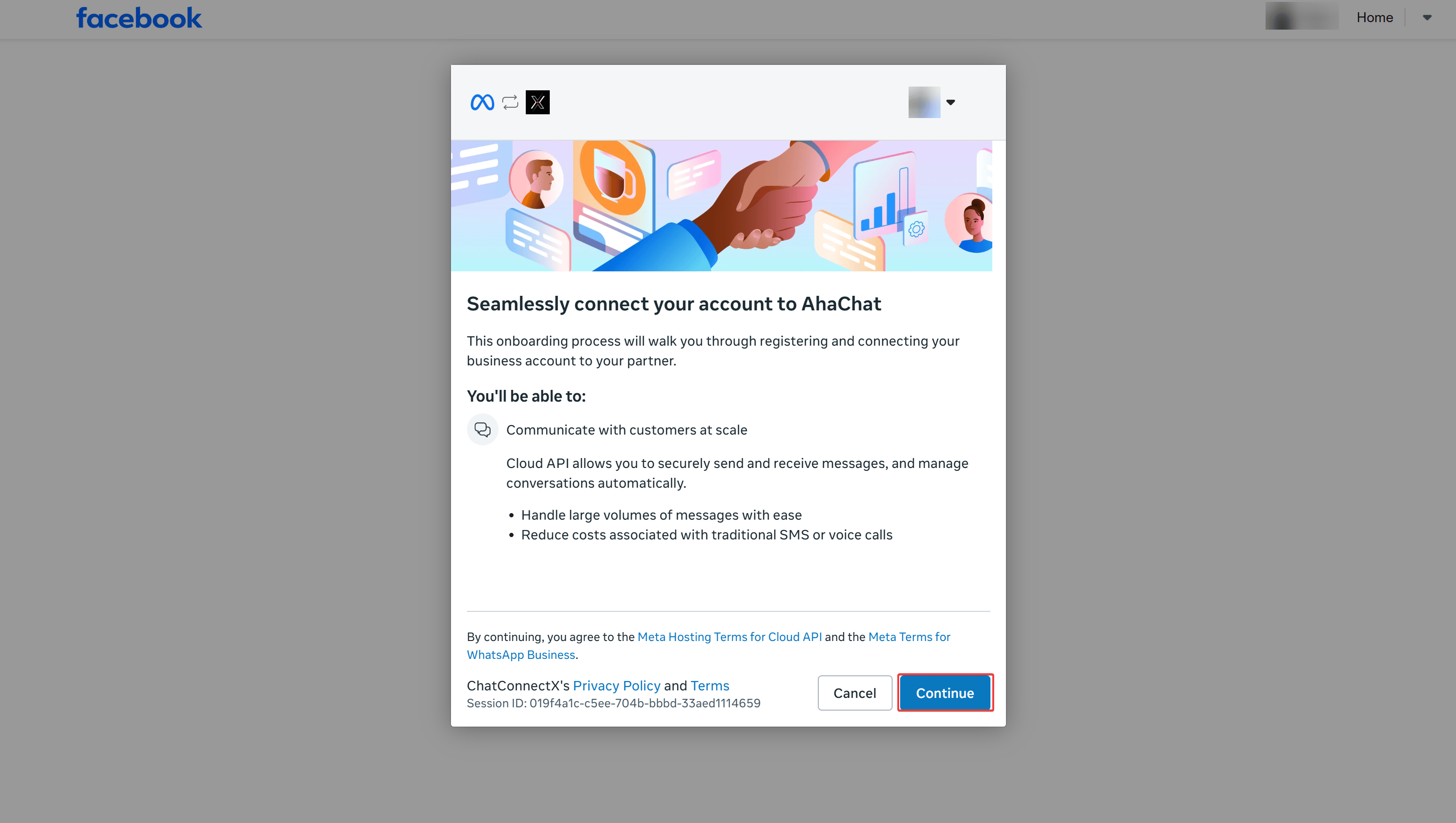
 ## Step 5: Confirm access permissions
Review the permissions page showing *"Seamlessly connect your account to..."*, then click **Continue**.
## Step 5: Confirm access permissions
Review the permissions page showing *"Seamlessly connect your account to..."*, then click **Continue**.
 ## Step 6: Select Business Assets
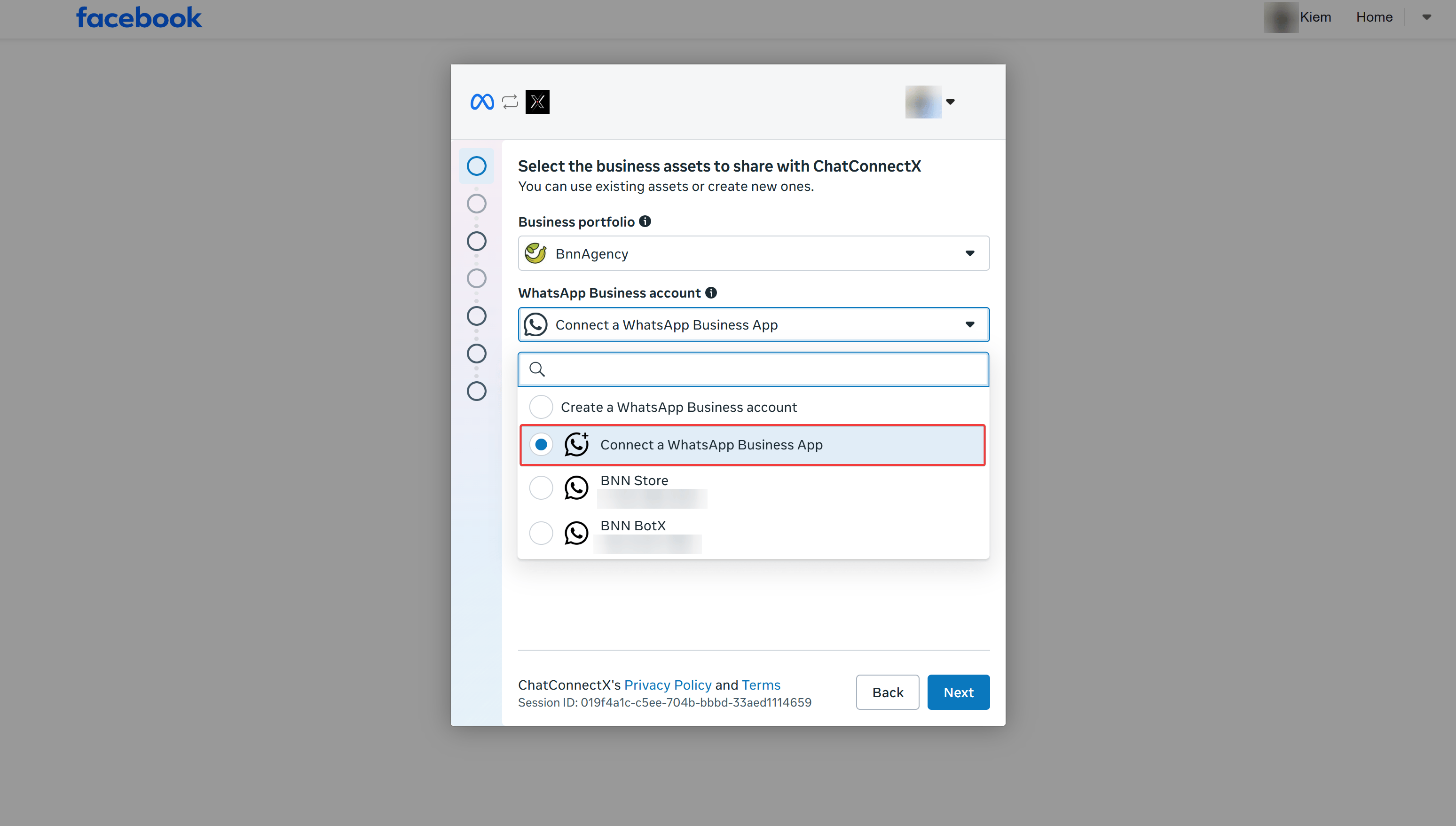
1. Under **Business portfolio**: Select the Meta Business Account that owns your assets.
2. Under **WhatsApp Business account**: Click the dropdown and select **Connect a WhatsApp Business App**.
3. Click **Next** to proceed.
## Step 6: Select Business Assets
1. Under **Business portfolio**: Select the Meta Business Account that owns your assets.
2. Under **WhatsApp Business account**: Click the dropdown and select **Connect a WhatsApp Business App**.
3. Click **Next** to proceed.
 ## Step 7: Enter your WhatsApp Business phone number
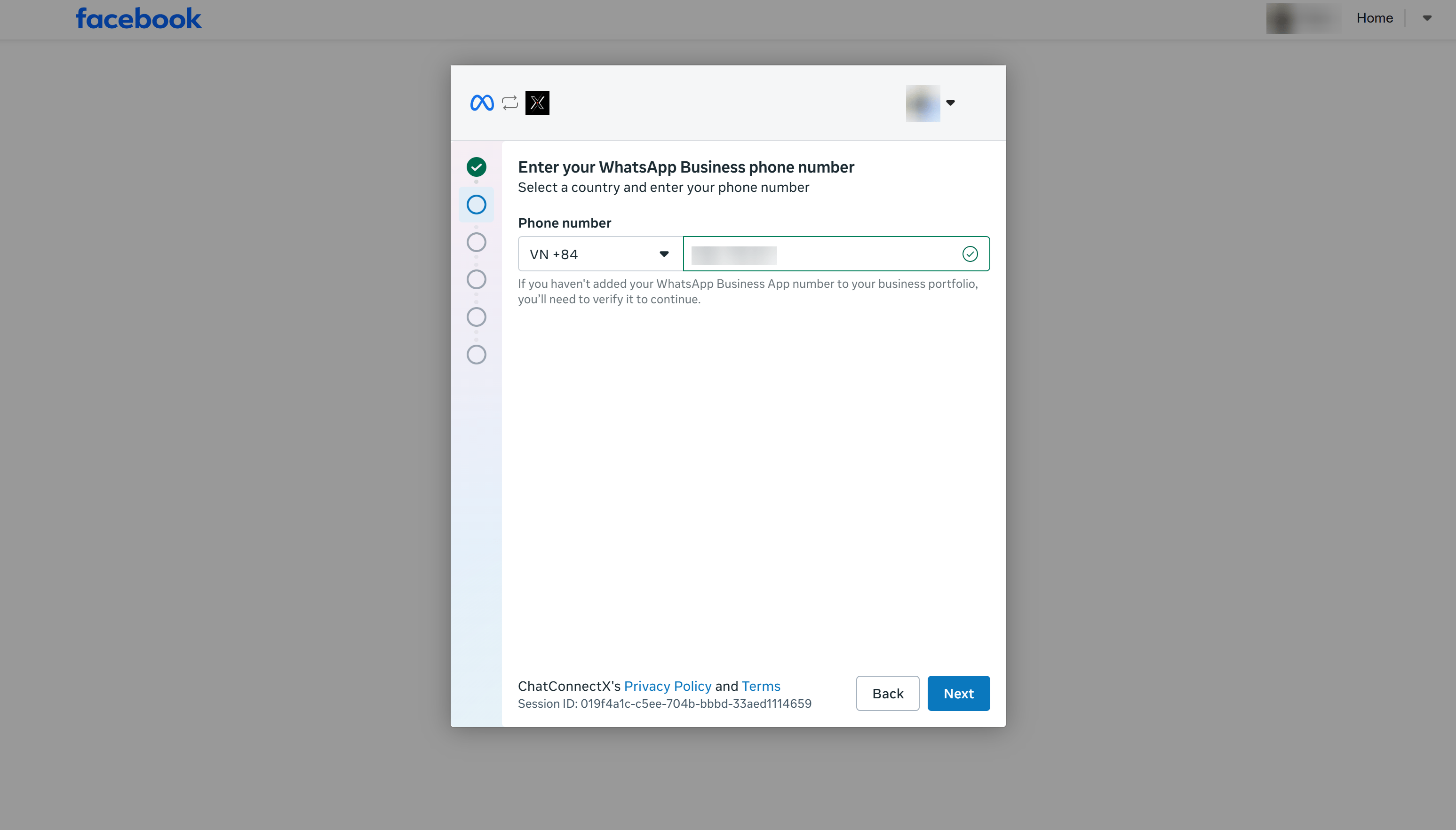
1. Select your country code (e.g., `VN +84` for Vietnam).
2. Enter the WhatsApp Business phone number currently active on your mobile app.
3. Click **Next**.
## Step 7: Enter your WhatsApp Business phone number
1. Select your country code (e.g., `VN +84` for Vietnam).
2. Enter the WhatsApp Business phone number currently active on your mobile app.
3. Click **Next**.
 ## Step 8: Read the existing app connection details
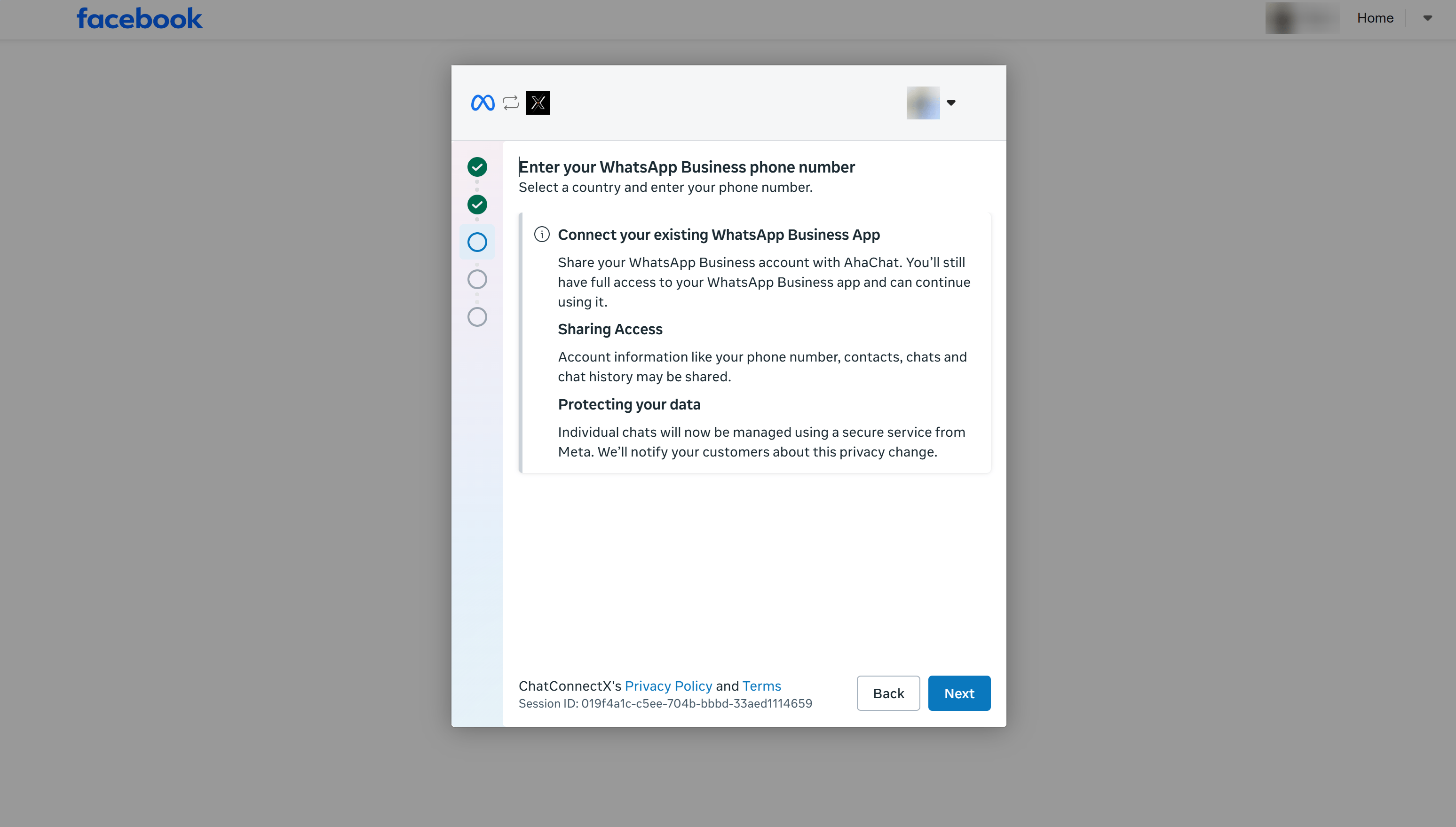
Review the information regarding Sharing Access and Protecting your data, then click **Next** to proceed to the QR code synchronization step.
## Step 8: Read the existing app connection details
Review the information regarding Sharing Access and Protecting your data, then click **Next** to proceed to the QR code synchronization step.
 ## Step 9: Get the sync QR code on your computer
Your computer screen will display a QR code along with connection instructions. Keep this screen open; you will scan this QR code from your mobile phone in the next step.
## Step 9: Get the sync QR code on your computer
Your computer screen will display a QR code along with connection instructions. Keep this screen open; you will scan this QR code from your mobile phone in the next step.
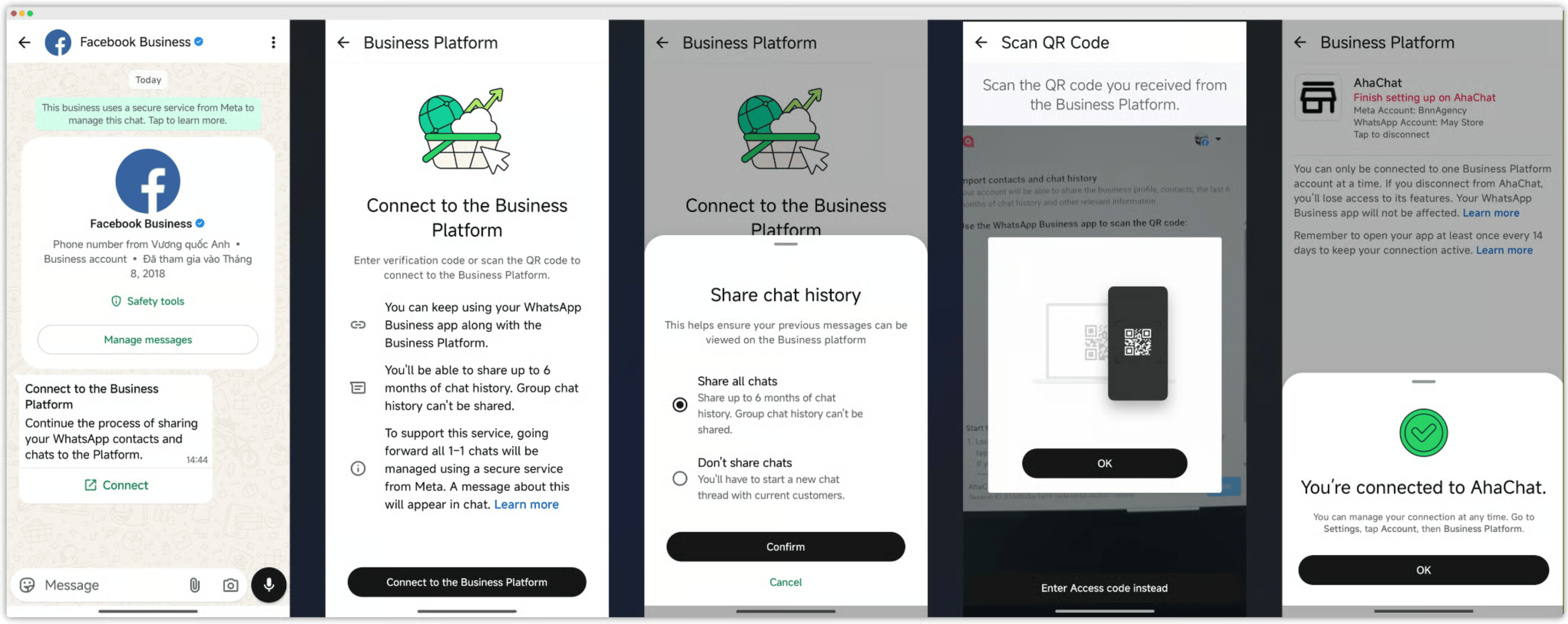
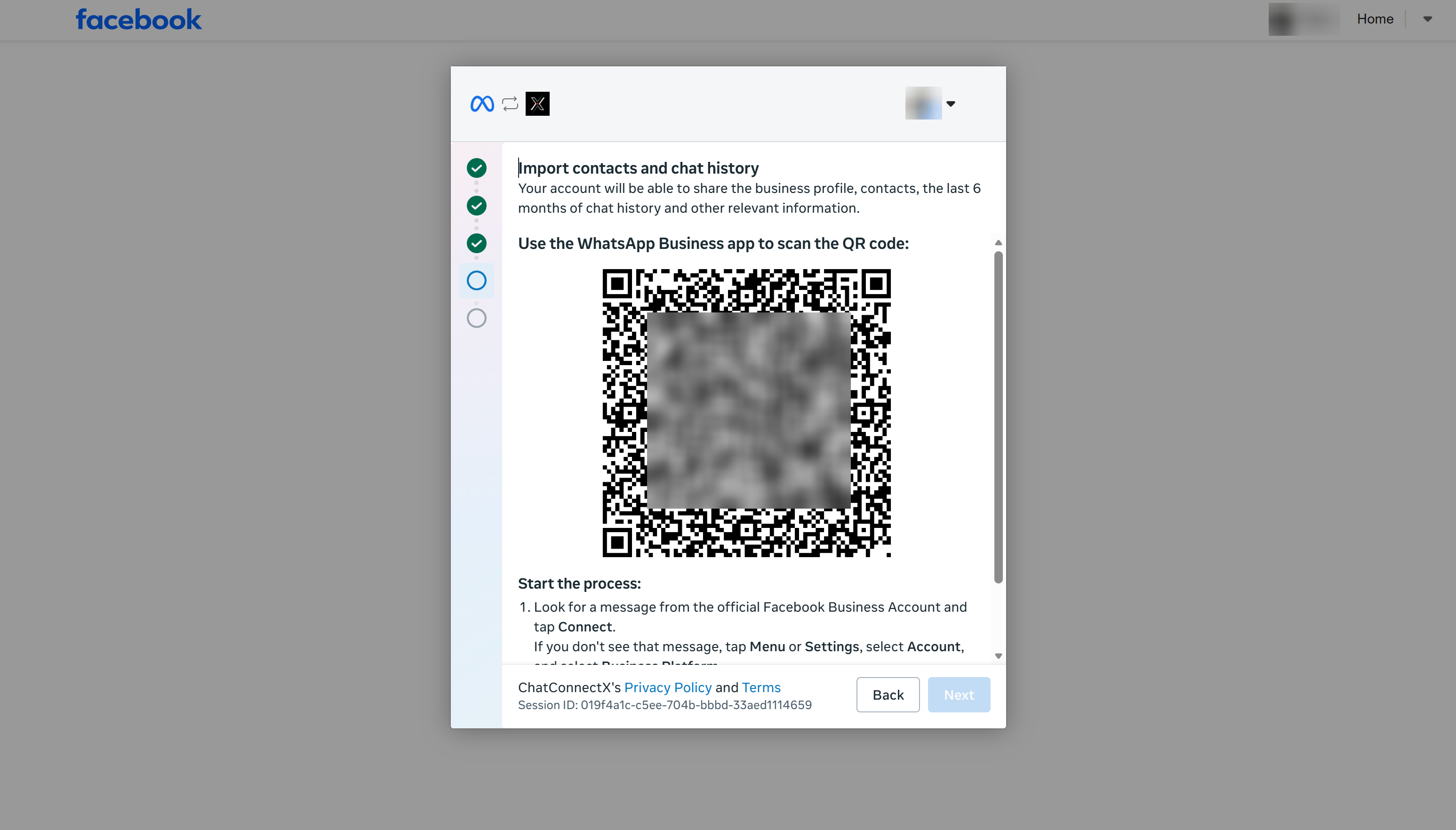 ## Step 10: Link the account on your mobile app
Open your phone and complete the following steps:
Find the official chat from the **Facebook Business** account on WhatsApp, then tap **Connect**.
On the *"Connect to the Business Platform"* screen, tap **Connect to the Business Platform**.
Under the *"Share chat history"* dialog, select **Share all chats** (to sync up to 6 months of 1:1 conversation history) or *Don't share chats*, then tap **Confirm**.
Point your phone's camera to scan the QR code displayed in Step 9 on your computer screen, then tap **OK**.
Wait a few seconds for the synchronization to finish. Once the success message *"You're connected to AhaChat"* appears on your phone, tap **OK**.
## Step 10: Link the account on your mobile app
Open your phone and complete the following steps:
Find the official chat from the **Facebook Business** account on WhatsApp, then tap **Connect**.
On the *"Connect to the Business Platform"* screen, tap **Connect to the Business Platform**.
Under the *"Share chat history"* dialog, select **Share all chats** (to sync up to 6 months of 1:1 conversation history) or *Don't share chats*, then tap **Confirm**.
Point your phone's camera to scan the QR code displayed in Step 9 on your computer screen, then tap **OK**.
Wait a few seconds for the synchronization to finish. Once the success message *"You're connected to AhaChat"* appears on your phone, tap **OK**.
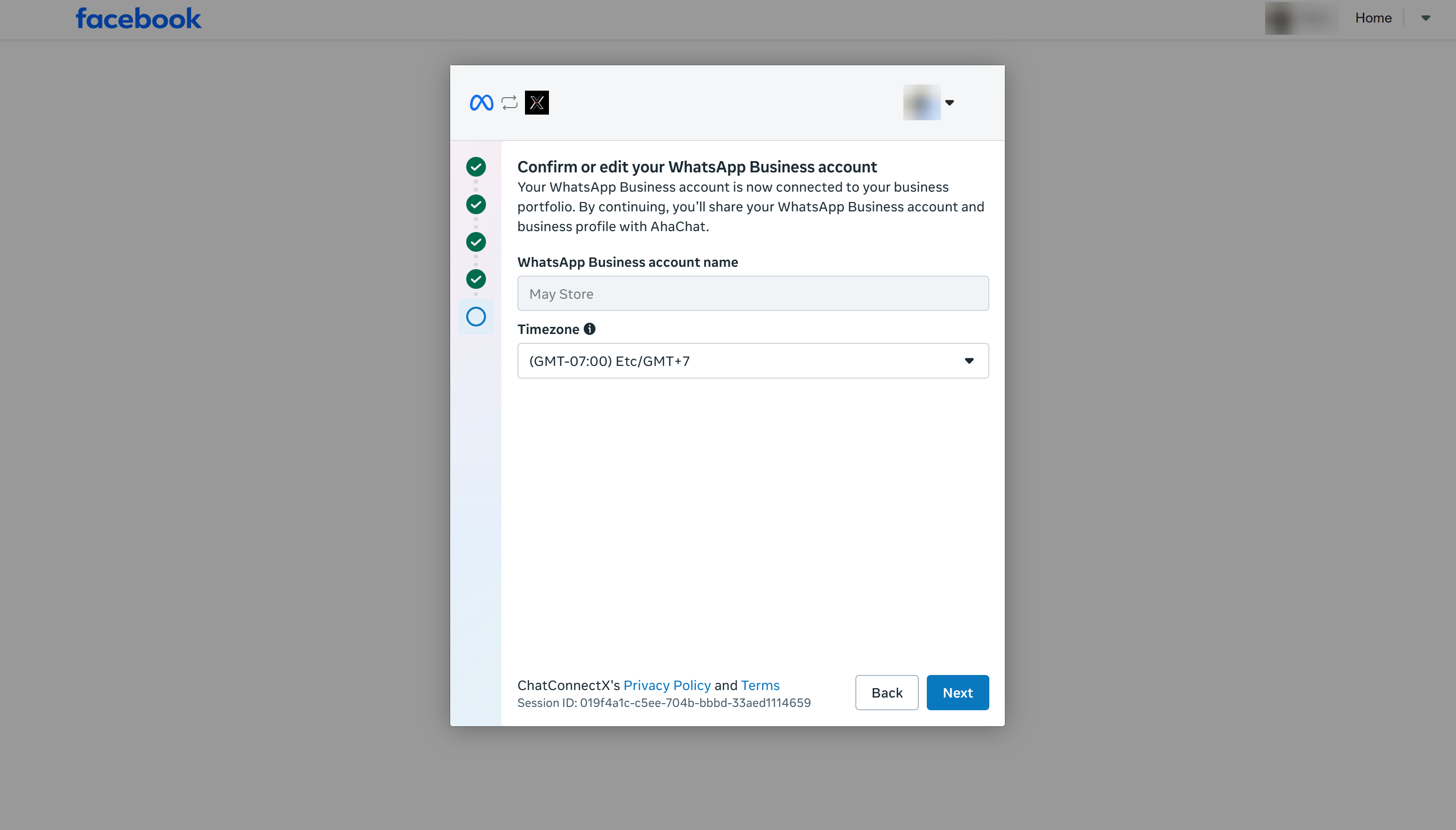
 ## Step 11: Confirm or edit your WhatsApp Business Account details
Go back to your computer screen:
1. Confirm your display name under **WhatsApp Business account name**.
2. Select your timezone under **Timezone** (e.g., `(GMT-07:00) Etc/GMT+7` or your local timezone).
3. Click **Next**.
## Step 11: Confirm or edit your WhatsApp Business Account details
Go back to your computer screen:
1. Confirm your display name under **WhatsApp Business account name**.
2. Select your timezone under **Timezone** (e.g., `(GMT-07:00) Etc/GMT+7` or your local timezone).
3. Click **Next**.
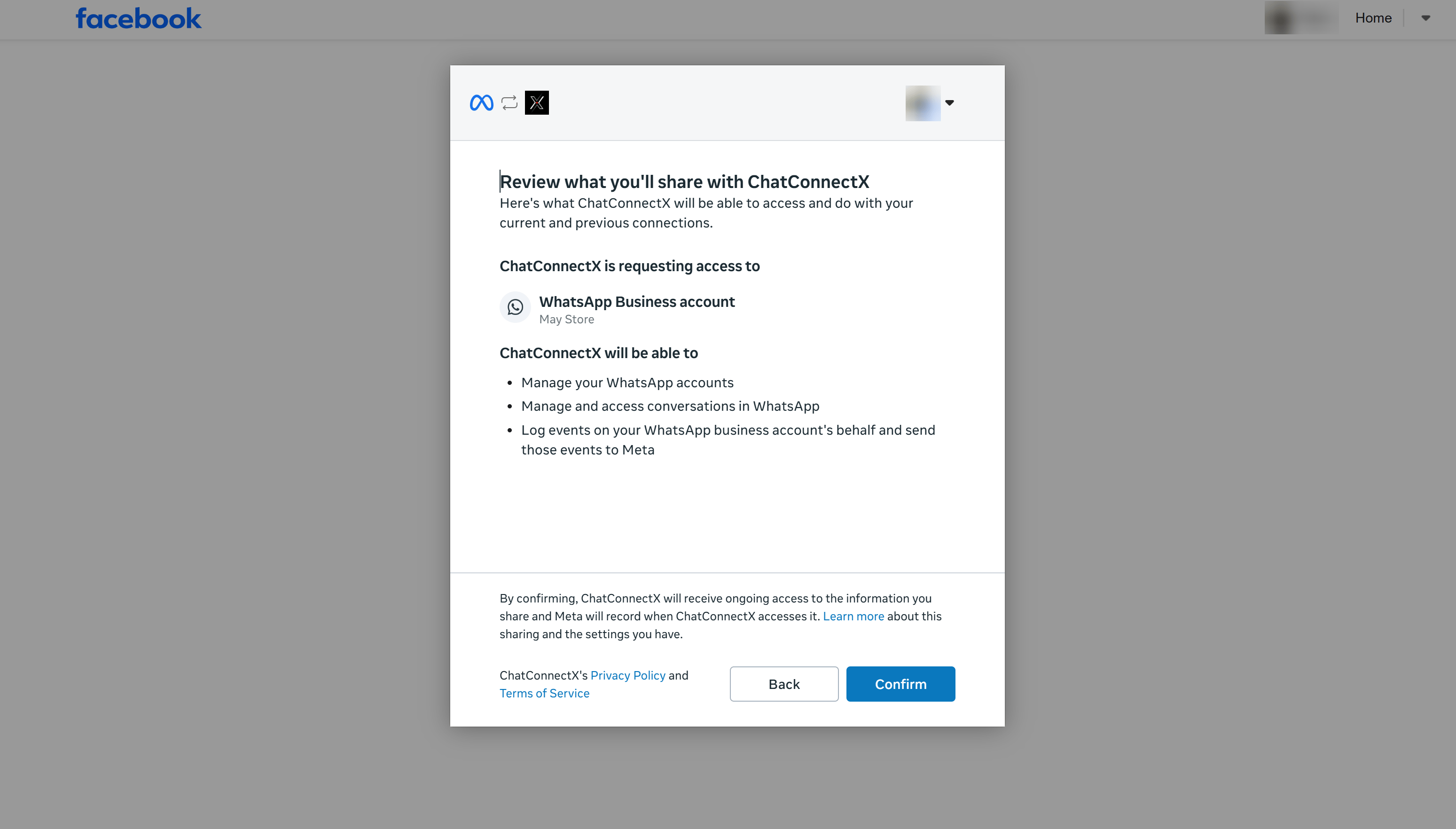
 ## Step 12: Review details shared with ChatConnectX
Check the list of requested permissions for account management and message delivery, then click **Confirm**.
## Step 12: Review details shared with ChatConnectX
Check the list of requested permissions for account management and message delivery, then click **Confirm**.
 ## Step 13: Complete the Meta connection flow
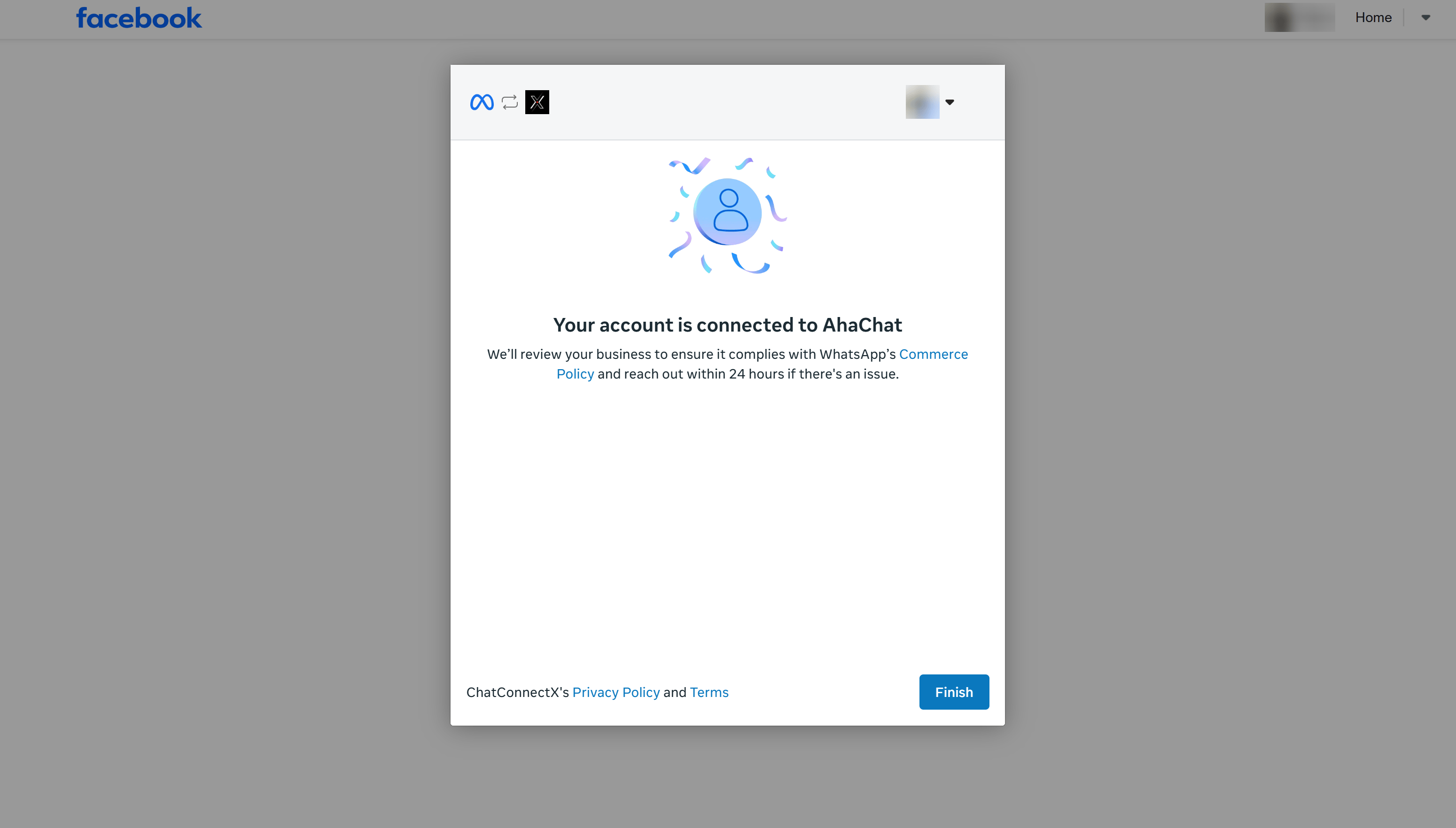
Meta will show a message confirming that your account is linked (*"Your account is connected to..."*). Click **Finish** to close the setup window and return to ChatbotX.
## Step 13: Complete the Meta connection flow
Meta will show a message confirming that your account is linked (*"Your account is connected to..."*). Click **Finish** to close the setup window and return to ChatbotX.
 ## Step 14: Enable contact and history synchronization
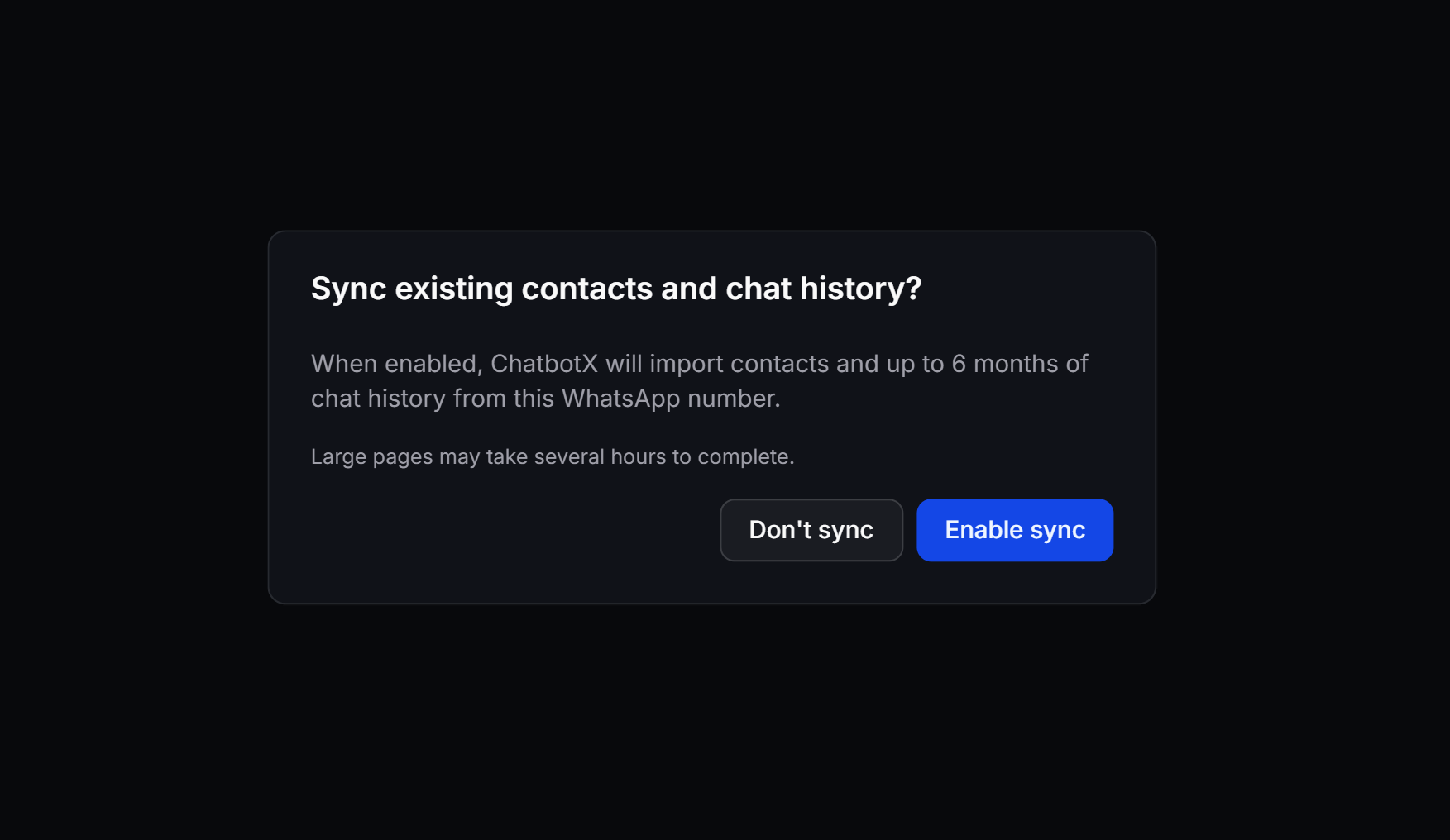
1. Once you return to ChatbotX, a sync prompt will appear.
2. Click **Enable sync** to import your contacts and up to 6 months of chat history from the mobile app to ChatbotX.
## Step 14: Enable contact and history synchronization
1. Once you return to ChatbotX, a sync prompt will appear.
2. Click **Enable sync** to import your contacts and up to 6 months of chat history from the mobile app to ChatbotX.
 ## Step 15: Verify on the Dashboard
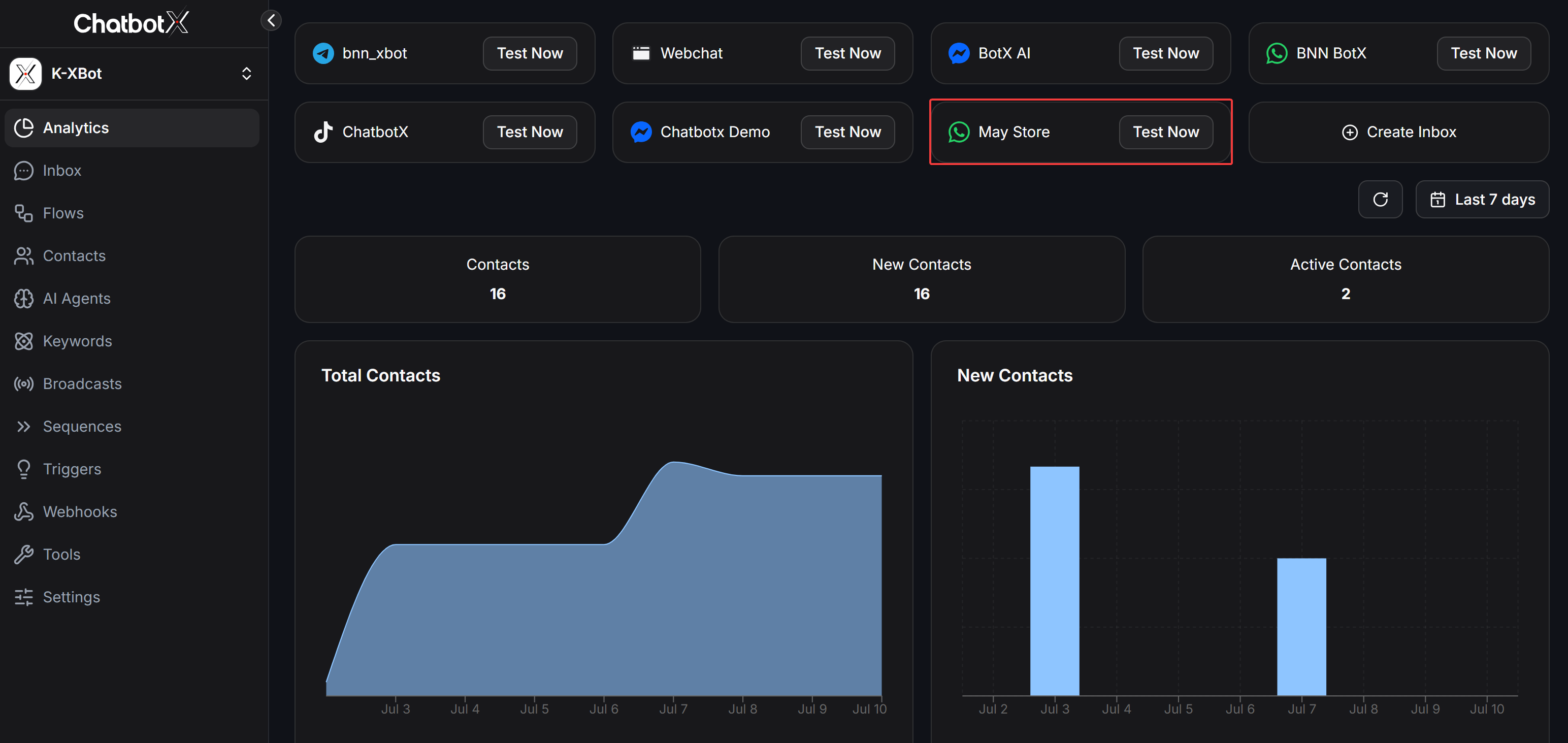
After synchronization completes, your new WhatsApp channel (e.g., `May Store`) will appear on the dashboard with a **Test Now** button to send a test message.
## Step 15: Verify on the Dashboard
After synchronization completes, your new WhatsApp channel (e.g., `May Store`) will appear on the dashboard with a **Test Now** button to send a test message.
 ## FAQ
Yes. WhatsApp Coexistence allows you to use your active WhatsApp Business mobile number when connecting to ChatbotX.
Yes, ChatbotX supports synchronizing contacts and chat history during the setup process.
This is usually a temporary limitation while Meta reviews your account display name.
## FAQ
Yes. WhatsApp Coexistence allows you to use your active WhatsApp Business mobile number when connecting to ChatbotX.
Yes, ChatbotX supports synchronizing contacts and chat history during the setup process.
This is usually a temporary limitation while Meta reviews your account display name.