> ## Documentation Index
> Fetch the complete documentation index at: https://chatbotx.io/docs/llms.txt
> Use this file to discover all available pages before exploring further.
# WhatsApp List Messages & Reply Buttons
> Learn how to use WhatsApp List Messages and Reply Buttons on ChatbotX to optimize responses and increase conversion rates.
When communicating via WhatsApp, customers often expect quick responses without having to type extensively. **Interactive Messages** solve this by allowing customers to tap options instead of entering text.
ChatbotX supports the two most common types of WhatsApp interactive messages:
* **List Messages:** Display a menu of up to 10 options for customers to select.
* **Reply Buttons:** Display up to 3 quick response buttons directly below the chat bubble.
Interactive messages are supported on iOS, Android, and WhatsApp Web. They do not require template approval if sent within the **24-hour customer service window** (also known as a **session**). Outside this window, you must register them as a Message Template and wait for Meta's approval.
## List Messages
List Messages send a single button to the customer. When tapped, it opens a scrollable menu (Bottom Sheet) showing the options. Once a customer selects an option, the response is sent back to the chatbot automatically.
 ### Structure and Limits
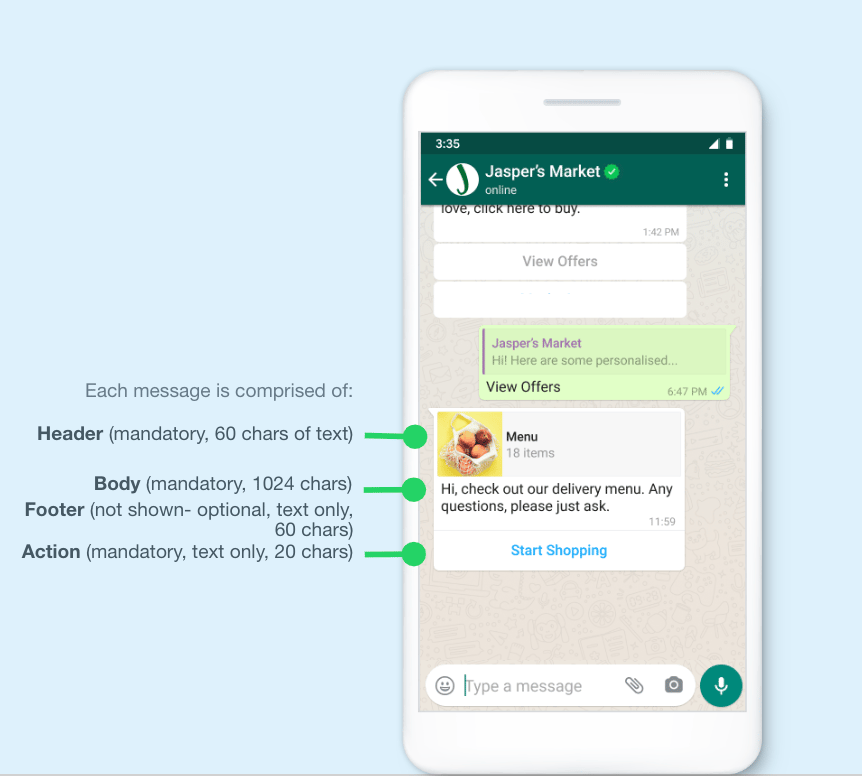
A List Message consists of the following components:
| Component | Required | Limit | Description |
| :-------------- | :------- | :------------------ | :--------------------------------------------------------------------------------------------------- |
| **Header** | No | Max 60 characters | A short title shown at the top. Only text is supported; media files (images/videos) are not allowed. |
| **Body** | Yes | Max 1024 characters | The main message explaining the purpose or instructing the user on what to select. |
| **Footer** | No | Max 60 characters | A small note at the bottom (e.g., "Reply anytime"). |
| **List Button** | Yes | Max 20 characters | The label displayed on the main button (e.g., "Select Option"). |
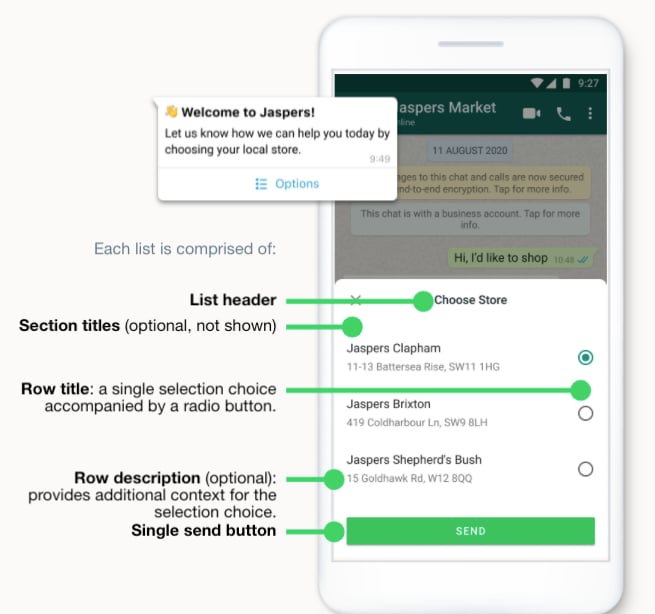
When the customer clicks the button, the list opens with the following options:
* Up to **10 rows (Rows)**, which can be grouped into up to **10 sections (Sections)**.
* Each row includes: **Row Title** (required, max 24 characters), **Description** (optional, max 72 characters), and a hidden **Key/ID** value used for bot logic or mapping to a Custom Field.
* Customers can only select 1 row at a time (though they can reopen the old message to choose another option).
### Structure and Limits
A List Message consists of the following components:
| Component | Required | Limit | Description |
| :-------------- | :------- | :------------------ | :--------------------------------------------------------------------------------------------------- |
| **Header** | No | Max 60 characters | A short title shown at the top. Only text is supported; media files (images/videos) are not allowed. |
| **Body** | Yes | Max 1024 characters | The main message explaining the purpose or instructing the user on what to select. |
| **Footer** | No | Max 60 characters | A small note at the bottom (e.g., "Reply anytime"). |
| **List Button** | Yes | Max 20 characters | The label displayed on the main button (e.g., "Select Option"). |
When the customer clicks the button, the list opens with the following options:
* Up to **10 rows (Rows)**, which can be grouped into up to **10 sections (Sections)**.
* Each row includes: **Row Title** (required, max 24 characters), **Description** (optional, max 72 characters), and a hidden **Key/ID** value used for bot logic or mapping to a Custom Field.
* Customers can only select 1 row at a time (though they can reopen the old message to choose another option).
 ### When to Use?
Use List Messages when you need customers to choose from multiple options (4 or more):
* Frequently Asked Questions (FAQ) menus or customer service options.
* Product catalogs, food/drink menus.
* Store locator list or nearest branches.
* Booking/appointment available time slots.
* Recent order lists or saved delivery addresses.
## Reply Buttons (Quick Replies)
Unlike List Messages, Reply Buttons display **up to 3 buttons directly below the chat bubble** without requiring any extra taps. A key benefit is that the Header can attach an image, video, or PDF document to make the message more engaging.
### When to Use?
Use List Messages when you need customers to choose from multiple options (4 or more):
* Frequently Asked Questions (FAQ) menus or customer service options.
* Product catalogs, food/drink menus.
* Store locator list or nearest branches.
* Booking/appointment available time slots.
* Recent order lists or saved delivery addresses.
## Reply Buttons (Quick Replies)
Unlike List Messages, Reply Buttons display **up to 3 buttons directly below the chat bubble** without requiring any extra taps. A key benefit is that the Header can attach an image, video, or PDF document to make the message more engaging.
 ### Structure and Limits
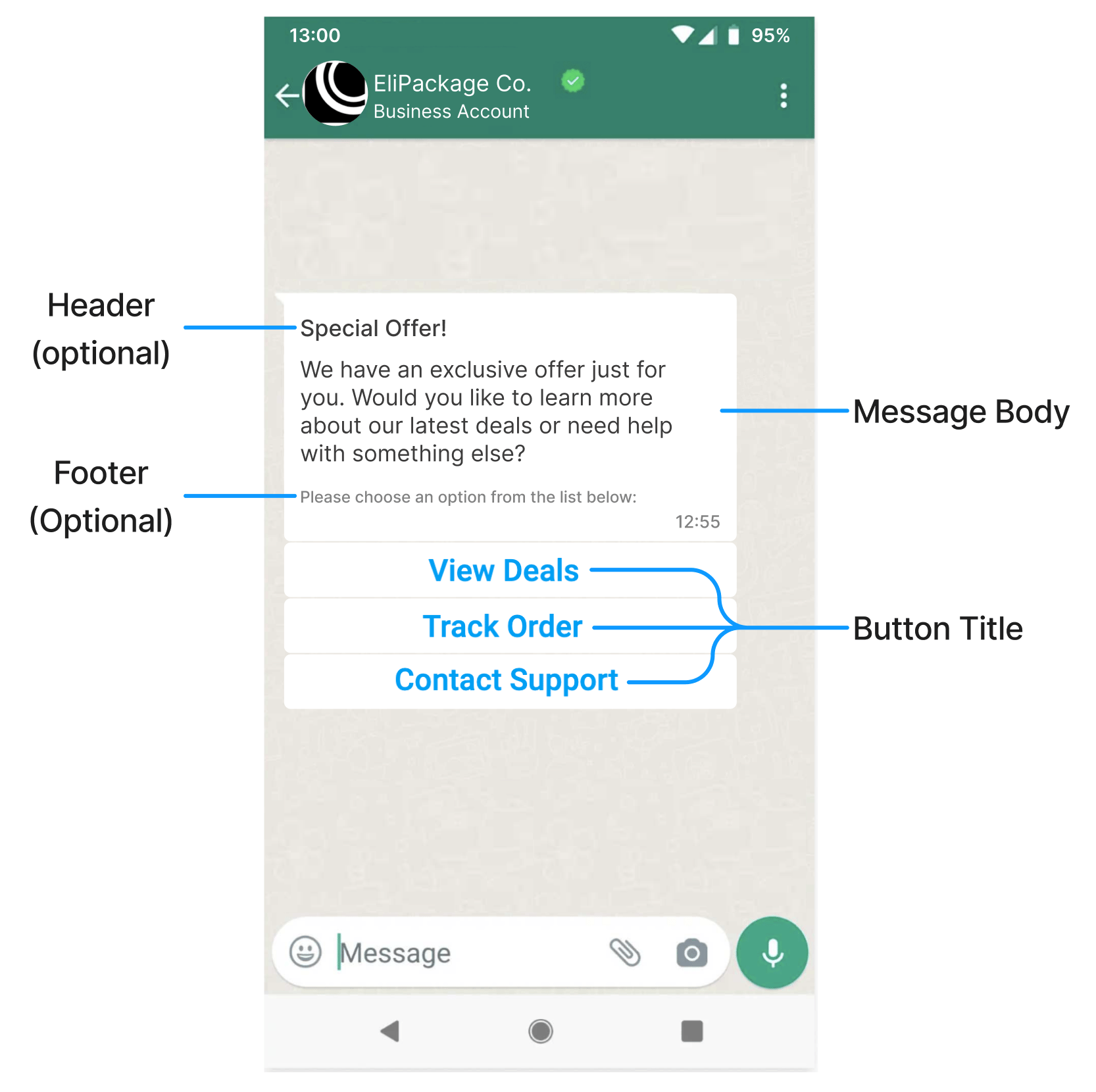
| Component | Required | Limit | Description |
| :---------- | :------- | :--------------------------------------- | :------------------------------------------------------------------------------------------------- |
| **Header** | No | Max 60 characters (text) or 1 media file | Supports **Image, Video, or PDF Document** attachments instead of text. |
| **Body** | Yes | Max 1024 characters | Main text instructing the user to click a button. |
| **Footer** | No | Max 60 characters | Additional note at the bottom. |
| **Buttons** | Yes | Max 3 buttons, max 20 characters each | Text only; emojis are not supported. Buttons are disabled/hidden after the user makes a selection. |
### When to Use?
Use Reply Buttons for quick, binary, or low-choice decisions (2 or 3 options):
* Appointment confirmation (Confirm / Cancel / Reschedule).
* Newsletter/promotion subscription (Opt-in / Opt-out).
* Quick feedback survey (Good / Average / Poor).
* Account authentication (Yes, it was me / No, it wasn't me).
## Which One to Choose?
| Criterion | List Messages | Reply Buttons |
| :----------------------------- | :------------------------------------- | :------------------------------------------- |
| **Number of options** | Max 10 | Max 3 |
| **Image/Video attachment** | Not supported | Supported (in Header) |
| **UI Presentation** | 1 button that opens a scrollable sheet | Buttons displayed directly under the message |
| **Sub-description per option** | Supported (max 72 characters) | Not supported |
| **Best Fit** | Catalogs, FAQs, complex categories | Confirmation, quick surveys, Yes/No options |
**Rule of thumb:** If you have **4 or more options** or need detailed descriptions for each item, use **List Messages**. If you have **2 or 3 simple choices**, use **Reply Buttons**.
## Setup on ChatbotX
Once you understand the difference, you can set them up inside your ChatbotX flow builder:
### Step 1: Select interactive message type
In Flow Builder, open the message block you want to configure. Click **Create** (or the `+` icon), then select **List Message** or notes belonging to [Content Blocks](/automation/content-blocks) based on your requirement.
### Step 2a: Configure List Messages
When the List Message configuration panel appears on the left sidebar:
* Select your channel under **Choose Channel** (e.g., Omnichannel).
* Enter your message text in the textbox (Body).
* Name your **List Button** by clicking the pencil icon next to the default button label (e.g., "Main Menu").
* Click **+ Add New** to add option rows. The **Edit Option** window will pop up where you can set:
* **Title:** The display name of the option (e.g., "Check Order Status").
* **Description (optional):** A short supporting description displayed below the title.
* Click **Continue** to save the option.
### Structure and Limits
| Component | Required | Limit | Description |
| :---------- | :------- | :--------------------------------------- | :------------------------------------------------------------------------------------------------- |
| **Header** | No | Max 60 characters (text) or 1 media file | Supports **Image, Video, or PDF Document** attachments instead of text. |
| **Body** | Yes | Max 1024 characters | Main text instructing the user to click a button. |
| **Footer** | No | Max 60 characters | Additional note at the bottom. |
| **Buttons** | Yes | Max 3 buttons, max 20 characters each | Text only; emojis are not supported. Buttons are disabled/hidden after the user makes a selection. |
### When to Use?
Use Reply Buttons for quick, binary, or low-choice decisions (2 or 3 options):
* Appointment confirmation (Confirm / Cancel / Reschedule).
* Newsletter/promotion subscription (Opt-in / Opt-out).
* Quick feedback survey (Good / Average / Poor).
* Account authentication (Yes, it was me / No, it wasn't me).
## Which One to Choose?
| Criterion | List Messages | Reply Buttons |
| :----------------------------- | :------------------------------------- | :------------------------------------------- |
| **Number of options** | Max 10 | Max 3 |
| **Image/Video attachment** | Not supported | Supported (in Header) |
| **UI Presentation** | 1 button that opens a scrollable sheet | Buttons displayed directly under the message |
| **Sub-description per option** | Supported (max 72 characters) | Not supported |
| **Best Fit** | Catalogs, FAQs, complex categories | Confirmation, quick surveys, Yes/No options |
**Rule of thumb:** If you have **4 or more options** or need detailed descriptions for each item, use **List Messages**. If you have **2 or 3 simple choices**, use **Reply Buttons**.
## Setup on ChatbotX
Once you understand the difference, you can set them up inside your ChatbotX flow builder:
### Step 1: Select interactive message type
In Flow Builder, open the message block you want to configure. Click **Create** (or the `+` icon), then select **List Message** or notes belonging to [Content Blocks](/automation/content-blocks) based on your requirement.
### Step 2a: Configure List Messages
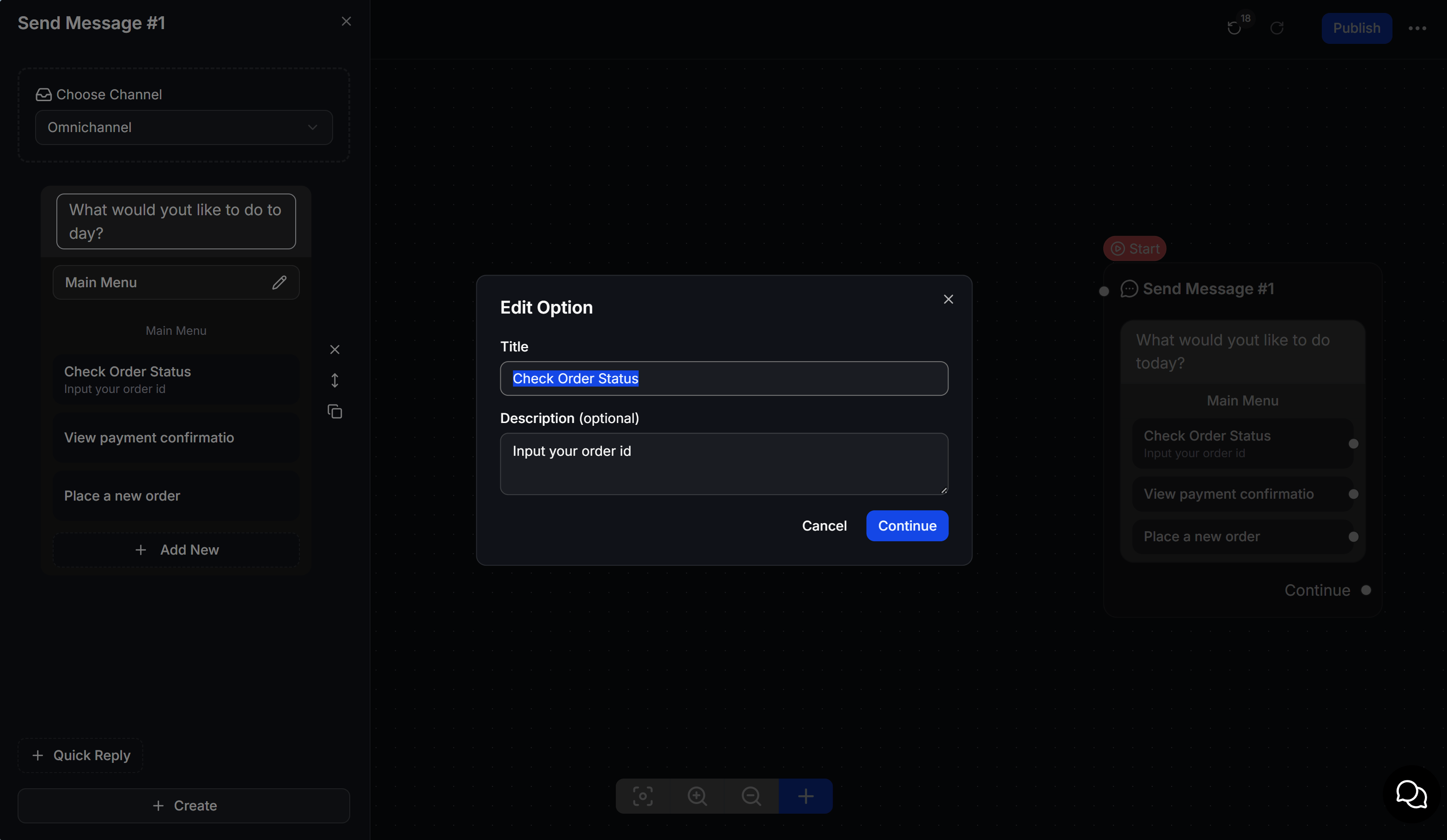
When the List Message configuration panel appears on the left sidebar:
* Select your channel under **Choose Channel** (e.g., Omnichannel).
* Enter your message text in the textbox (Body).
* Name your **List Button** by clicking the pencil icon next to the default button label (e.g., "Main Menu").
* Click **+ Add New** to add option rows. The **Edit Option** window will pop up where you can set:
* **Title:** The display name of the option (e.g., "Check Order Status").
* **Description (optional):** A short supporting description displayed below the title.
* Click **Continue** to save the option.
 ### Step 2b: Configure Reply Buttons
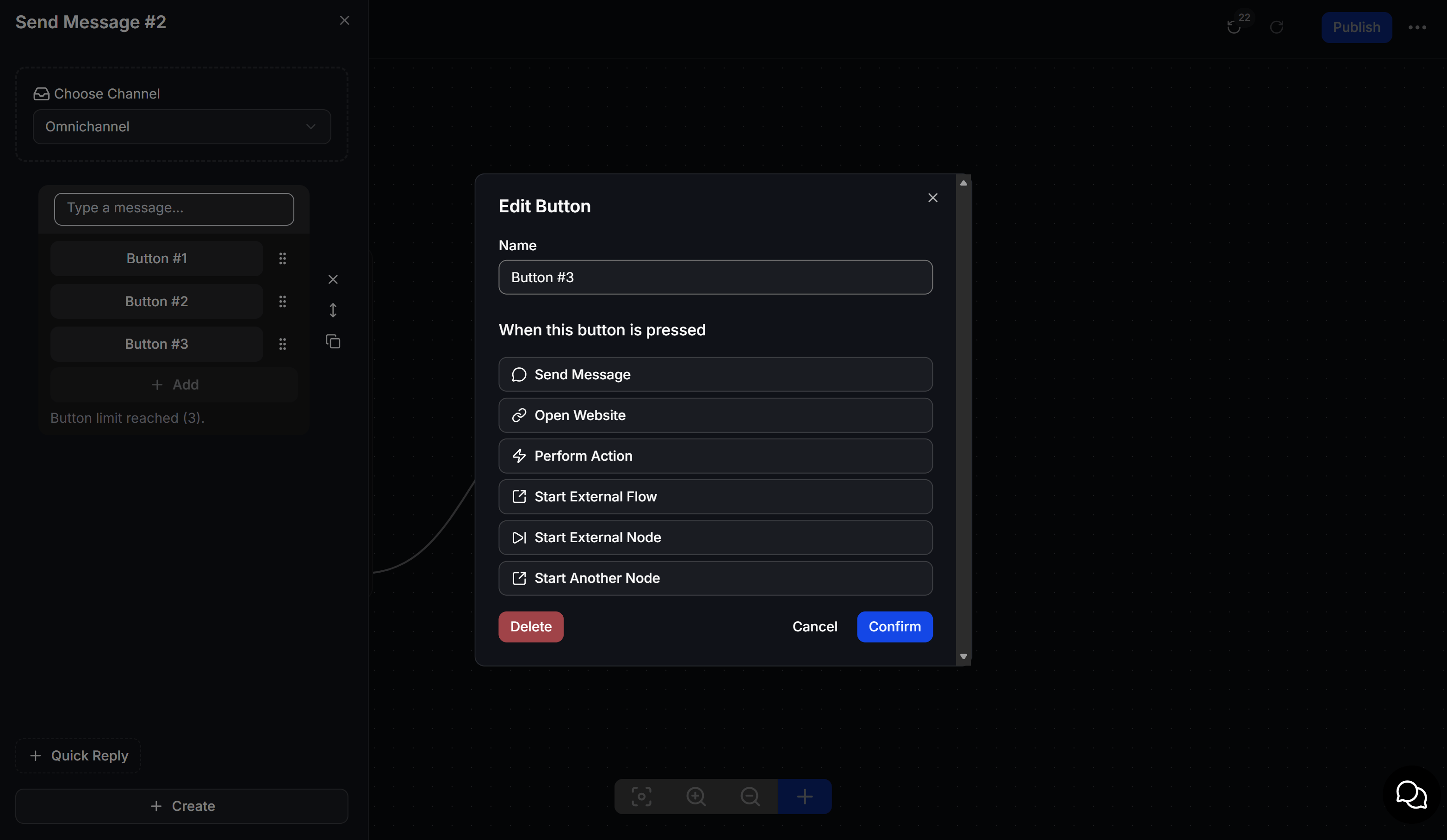
Before creating quick reply buttons, you must select or drag any block belonging to the **Content Block** group (e.g., "Send Text", "Send Image", etc.) onto the Flow Builder canvas, and then configure the buttons below it:
* Enter your main message in the **Type a message...** field (Body) of that block.
* Click **+ Add** to create buttons directly below the message (up to 3 buttons are supported).
* To configure actions for each button, click the 3-dots icon next to the button name to open the **Edit Button** window:
* **Name:** Set the button label.
* **When this button is pressed:** Choose a matching response action. For example, select **Send Message** to connect the button to a message block in the Content Block group (such as "Send Text", "Send Image", etc.) to continue the conversation flow. You can also select other actions like *Open Website*, *Perform Action*, or *Start External Flow*.
* Click **Confirm** to complete the button setup.
### Step 2b: Configure Reply Buttons
Before creating quick reply buttons, you must select or drag any block belonging to the **Content Block** group (e.g., "Send Text", "Send Image", etc.) onto the Flow Builder canvas, and then configure the buttons below it:
* Enter your main message in the **Type a message...** field (Body) of that block.
* Click **+ Add** to create buttons directly below the message (up to 3 buttons are supported).
* To configure actions for each button, click the 3-dots icon next to the button name to open the **Edit Button** window:
* **Name:** Set the button label.
* **When this button is pressed:** Choose a matching response action. For example, select **Send Message** to connect the button to a message block in the Content Block group (such as "Send Text", "Send Image", etc.) to continue the conversation flow. You can also select other actions like *Open Website*, *Perform Action*, or *Start External Flow*.
* Click **Confirm** to complete the button setup.
 ### Step 3: Save and Test
Click **Save** to apply. After saving, send a test message to a test phone number to preview the formatting and ensure the conversational logic flows correctly before rolling it out to customers.
## FAQ
Yes, but you must register them as an **Interactive Message Template** in Meta Business Manager and wait for approval. For detailed guidance, see [WhatsApp Message Template](/channels/whatsapp/whatsapp-message-template). Free-form interactive messages (which don't require approval) can only be sent within the 24-hour session window since the customer's last message.
No. Pricing follows Meta Cloud API's standard conversation-based pricing (Utility, Marketing, or Service). There is no extra charge for including lists or buttons.
No. Reply Buttons only send back text replies within the chat. To direct customers to a website link or trigger a phone call, you must use **Call-to-Action Buttons (CTA)** as part of a Message Template. Learn more at [WhatsApp Message Template](/channels/whatsapp/whatsapp-message-template).
No. Each interactive message allows selecting only 1 option. However, customers can go back to the previous message bubble to select a different option if they wish to change their choice.
### Step 3: Save and Test
Click **Save** to apply. After saving, send a test message to a test phone number to preview the formatting and ensure the conversational logic flows correctly before rolling it out to customers.
## FAQ
Yes, but you must register them as an **Interactive Message Template** in Meta Business Manager and wait for approval. For detailed guidance, see [WhatsApp Message Template](/channels/whatsapp/whatsapp-message-template). Free-form interactive messages (which don't require approval) can only be sent within the 24-hour session window since the customer's last message.
No. Pricing follows Meta Cloud API's standard conversation-based pricing (Utility, Marketing, or Service). There is no extra charge for including lists or buttons.
No. Reply Buttons only send back text replies within the chat. To direct customers to a website link or trigger a phone call, you must use **Call-to-Action Buttons (CTA)** as part of a Message Template. Learn more at [WhatsApp Message Template](/channels/whatsapp/whatsapp-message-template).
No. Each interactive message allows selecting only 1 option. However, customers can go back to the previous message bubble to select a different option if they wish to change their choice.