> ## Documentation Index
> Fetch the complete documentation index at: https://chatbotx.io/docs/llms.txt
> Use this file to discover all available pages before exploring further.
# Automatic Customer Scan
> Automatically scan and sync past customer conversations from Facebook Messenger and Instagram into ChatbotX Contacts by time range.
**Automatic Customer Scan** allows you to automatically gather and sync past contacts who have previously messaged your Facebook Page or Instagram account into ChatbotX Contacts. Instead of manually exporting and importing CSV files, the system connects directly to your channel, scans conversation history from your selected starting date, and populates your contacts list automatically.
## When to use Automatic Customer Scan
This feature is particularly valuable when:
* **Connecting a new Facebook Page or Instagram account:** Easily bring over past customers who interacted before connecting to ChatbotX.
* **Preparing Remarketing campaigns:** Re-engage past contacts with omnichannel broadcasts or automated follow-up sequences.
* **Saving time on manual data entry:** Eliminate tedious exports and imports by letting the system fetch conversations directly in the background.
## How to run an Automatic Customer Scan
Follow these steps to scan contacts from an inbox channel:
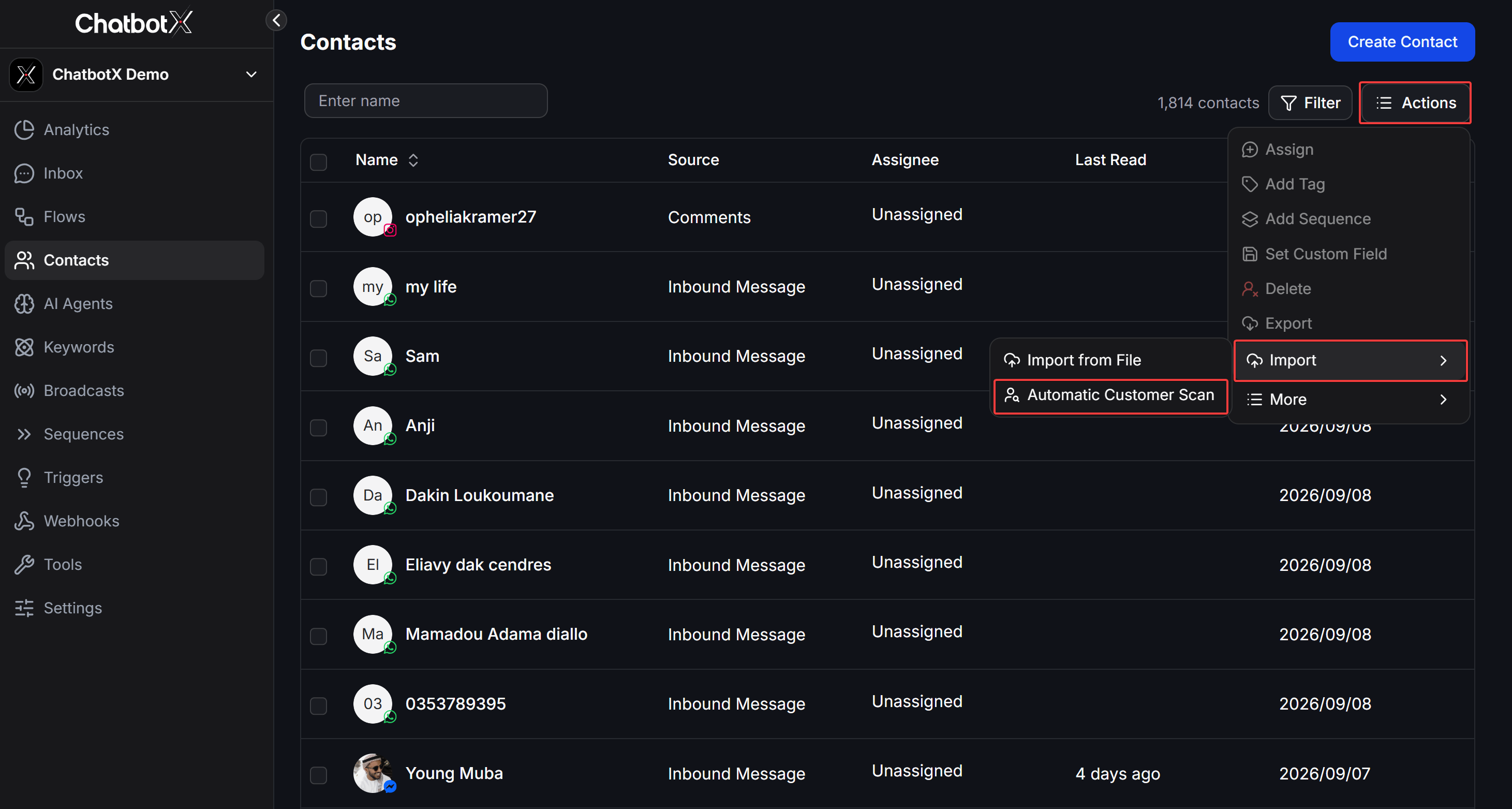
From the left sidebar navigation, select **Contacts** to access the contact management dashboard.
Click the **Actions** dropdown in the top-right corner, hover over **Import**, and select **Automatic Customer Scan**.
 In the configuration modal, choose your connected channel under **Inbox** and pick a start date and time under **Scan Inbox from Time**.
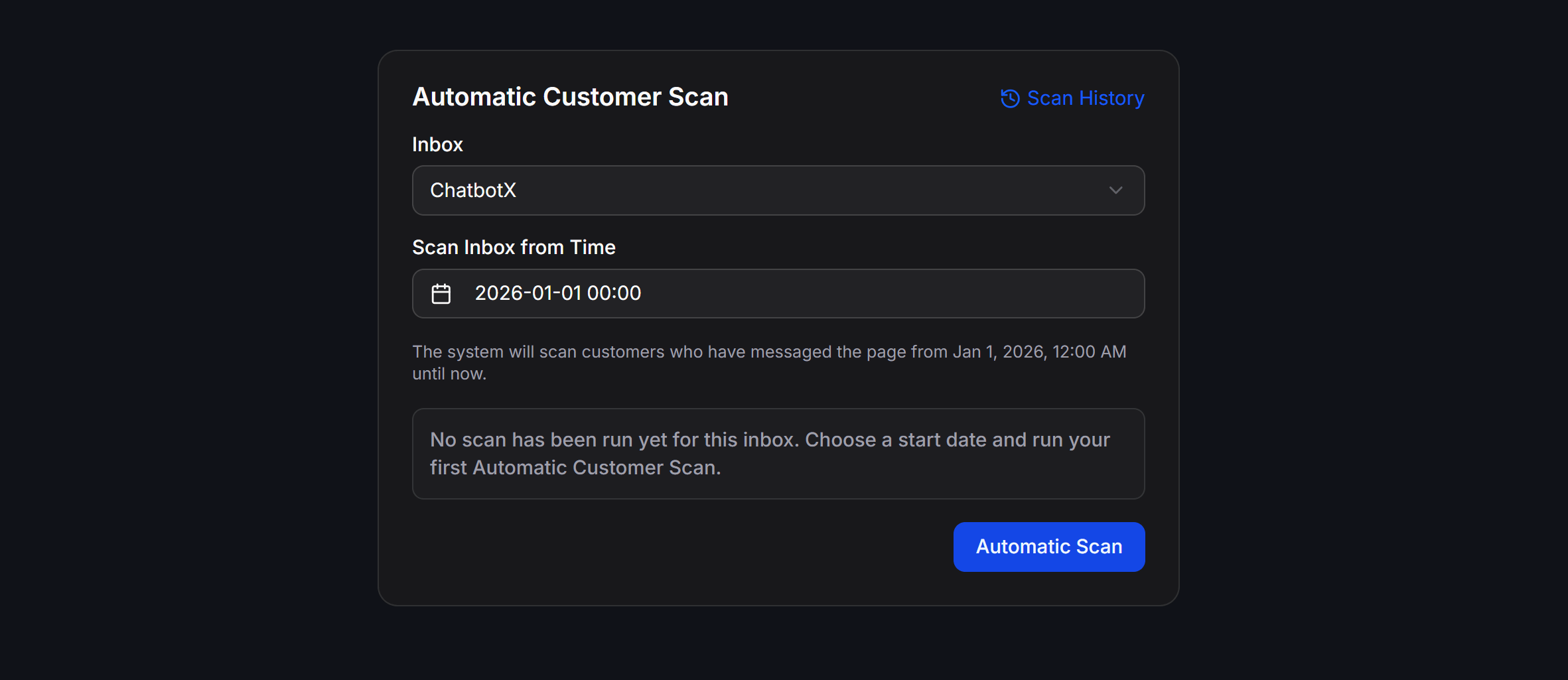 Click the **Automatic Scan** button to launch the scanning process.
## Scan Modal Fields
The **Automatic Customer Scan** modal includes the following settings:
| Setting | Description |
| ------------------------ | ---------------------------------------------------------------------------------------------------------------------------- |
| **Inbox** | Select the connected page or channel account you want to scan (e.g., Facebook Page or Instagram account). |
| **Scan Inbox from Time** | Set the starting date and time. The system scans all customers who have messaged the page from this point up to the present. |
| **Scan History** | Quick link in the top-right corner to view progress and past scan sessions. |
| **Automatic Scan** | Action button that triggers the automated scan job. |
Scanning channels with large message volumes over extensive date ranges may take anywhere from a few minutes to several dozen minutes. The task runs completely in the background.
## Track Progress in Scan History
After initiating a scan, you can monitor its status and results by clicking **Scan History** in the top-right corner of the scan modal.
Click the **Automatic Scan** button to launch the scanning process.
## Scan Modal Fields
The **Automatic Customer Scan** modal includes the following settings:
| Setting | Description |
| ------------------------ | ---------------------------------------------------------------------------------------------------------------------------- |
| **Inbox** | Select the connected page or channel account you want to scan (e.g., Facebook Page or Instagram account). |
| **Scan Inbox from Time** | Set the starting date and time. The system scans all customers who have messaged the page from this point up to the present. |
| **Scan History** | Quick link in the top-right corner to view progress and past scan sessions. |
| **Automatic Scan** | Action button that triggers the automated scan job. |
Scanning channels with large message volumes over extensive date ranges may take anywhere from a few minutes to several dozen minutes. The task runs completely in the background.
## Track Progress in Scan History
After initiating a scan, you can monitor its status and results by clicking **Scan History** in the top-right corner of the scan modal.
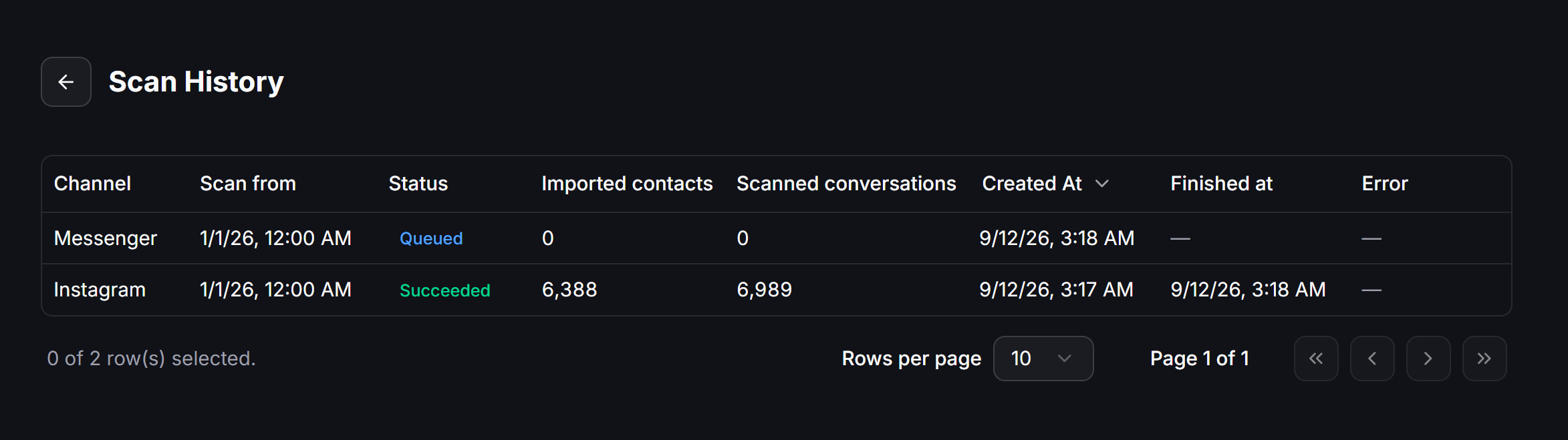 The **Scan History** table presents detailed records for each scan session:
| Column | Description |
| ------------------------- | --------------------------------------------------------------------------------- |
| **Channel** | Platform name of the scanned channel (e.g., Messenger, Instagram). |
| **Scan from** | The starting date and time specified for the scan. |
| **Status** | Current state of the scan session (`Queued`, `Succeeded`, or error state). |
| **Imported contacts** | Total number of new contacts successfully added to ChatbotX. |
| **Scanned conversations** | Total number of conversations inspected across the channel. |
| **Created At** | Timestamp when the scan job was submitted. |
| **Finished at** | Timestamp when the scan job completed. |
| **Error** | Detailed error message if the session encountered an issue or permission failure. |
### Scan Session Statuses
Scan jobs move through the following states:
* **Queued:** The job has been submitted and is waiting in line for processing.
* **Succeeded:** The scan finished completely. All imported contacts are now accessible in **Contacts**.
* **Failed:** The scan failed (such as expired channel permissions or API rate limits). Check the **Error** column for troubleshooting.
The **Scan History** table presents detailed records for each scan session:
| Column | Description |
| ------------------------- | --------------------------------------------------------------------------------- |
| **Channel** | Platform name of the scanned channel (e.g., Messenger, Instagram). |
| **Scan from** | The starting date and time specified for the scan. |
| **Status** | Current state of the scan session (`Queued`, `Succeeded`, or error state). |
| **Imported contacts** | Total number of new contacts successfully added to ChatbotX. |
| **Scanned conversations** | Total number of conversations inspected across the channel. |
| **Created At** | Timestamp when the scan job was submitted. |
| **Finished at** | Timestamp when the scan job completed. |
| **Error** | Detailed error message if the session encountered an issue or permission failure. |
### Scan Session Statuses
Scan jobs move through the following states:
* **Queued:** The job has been submitted and is waiting in line for processing.
* **Succeeded:** The scan finished completely. All imported contacts are now accessible in **Contacts**.
* **Failed:** The scan failed (such as expired channel permissions or API rate limits). Check the **Error** column for troubleshooting.