> ## Documentation Index
> Fetch the complete documentation index at: https://chatbotx.io/docs/llms.txt
> Use this file to discover all available pages before exploring further.
# How to delete a contact?
> Learn how to delete unwanted contacts from your ChatbotX account to clean up your audience database and optimize contact management.
The Delete feature allows you to easily remove unwanted contacts from your account. This helps clean up your database, optimize contact list organization, and focus on valuable prospects.
ChatbotX provides 3 flexible methods to delete contacts:
* Delete a contact directly from the Inbox.
* Automatically delete a contact using an Action block in Flow Builder.
* Delete single or multiple contacts in bulk from the Contacts section.
## Delete a contact from Inbox
This method is useful when you are chatting with a customer in the Inbox and want to delete the contact immediately.
Steps to perform:
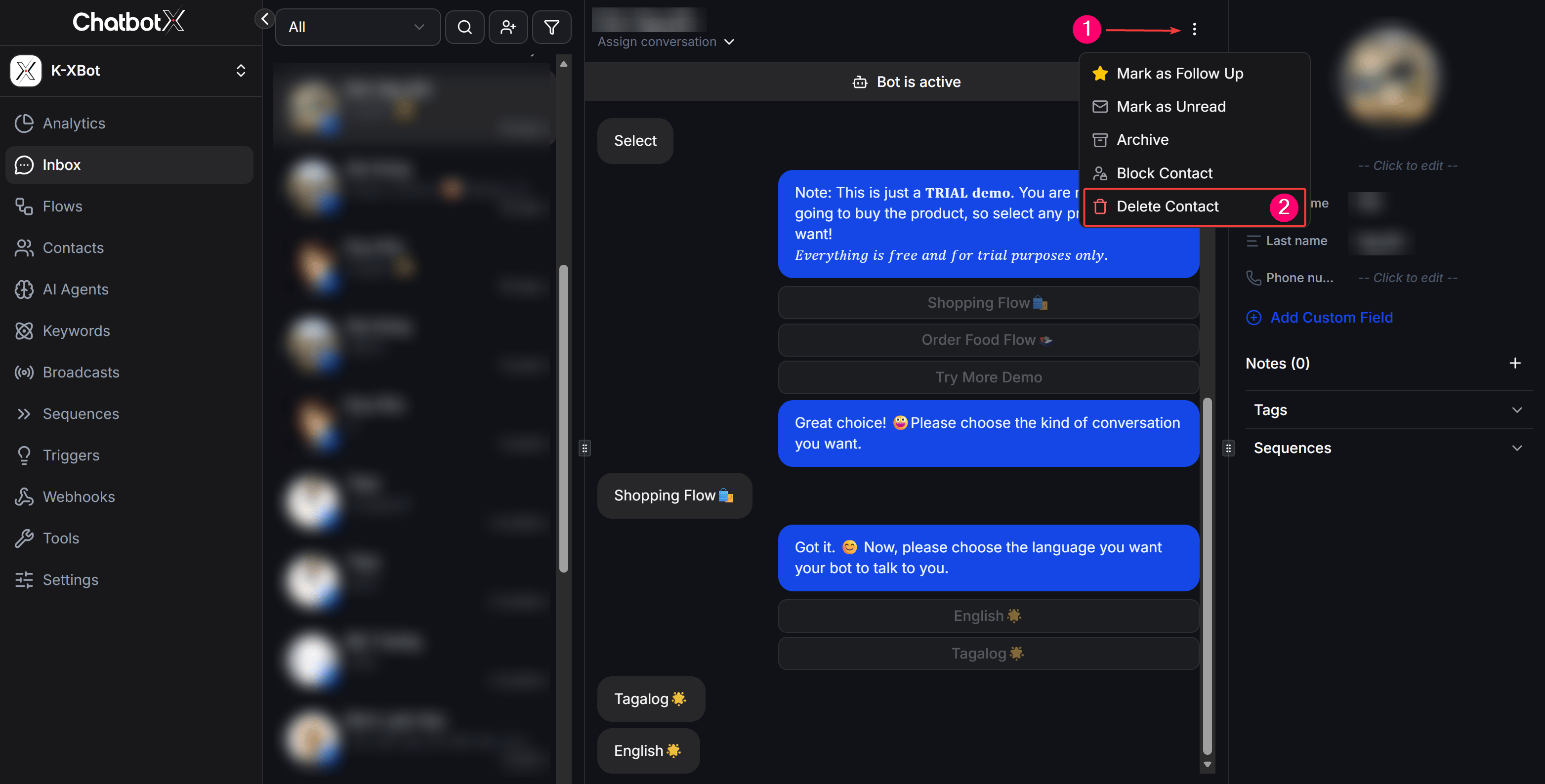
1. Navigate to the **Inbox** section from the left sidebar.
2. Select the conversation of the contact you wish to delete.
3. In the customer profile panel on the right side of the screen, click the menu icon (3 dots).
4. Select **Delete** from the dropdown menu.
 ## Delete a contact using the 'Delete' action in Flow Builder
You can automate contact deletion based on customer behavior in your chatbot scripts (e.g., when a user chooses to opt-out, or after completing a specific survey flow).
Steps to perform:
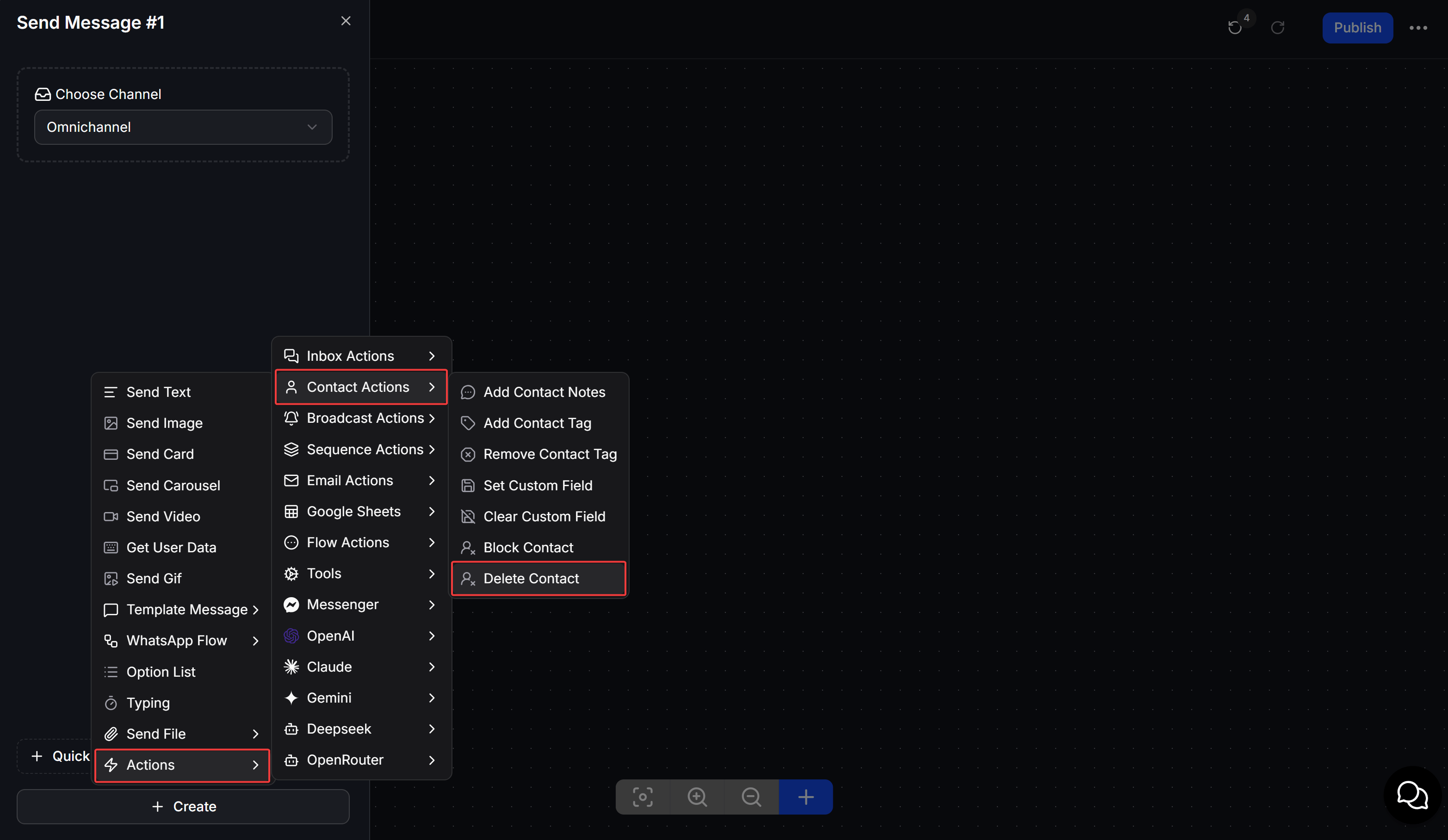
1. Inside the Flow Builder canvas, add a new **Action** block.
2. Click the Action block and select **Delete Contact** from the list of available actions.
3. Connect the block to the relevant flow branch to automatically delete contacts that reach this step.
## Delete a contact using the 'Delete' action in Flow Builder
You can automate contact deletion based on customer behavior in your chatbot scripts (e.g., when a user chooses to opt-out, or after completing a specific survey flow).
Steps to perform:
1. Inside the Flow Builder canvas, add a new **Action** block.
2. Click the Action block and select **Delete Contact** from the list of available actions.
3. Connect the block to the relevant flow branch to automatically delete contacts that reach this step.
 ## Delete a contact/contacts from the Contacts section
This method allows you to manage and perform bulk deletion after filtering contacts by specific criteria.
Steps to perform:
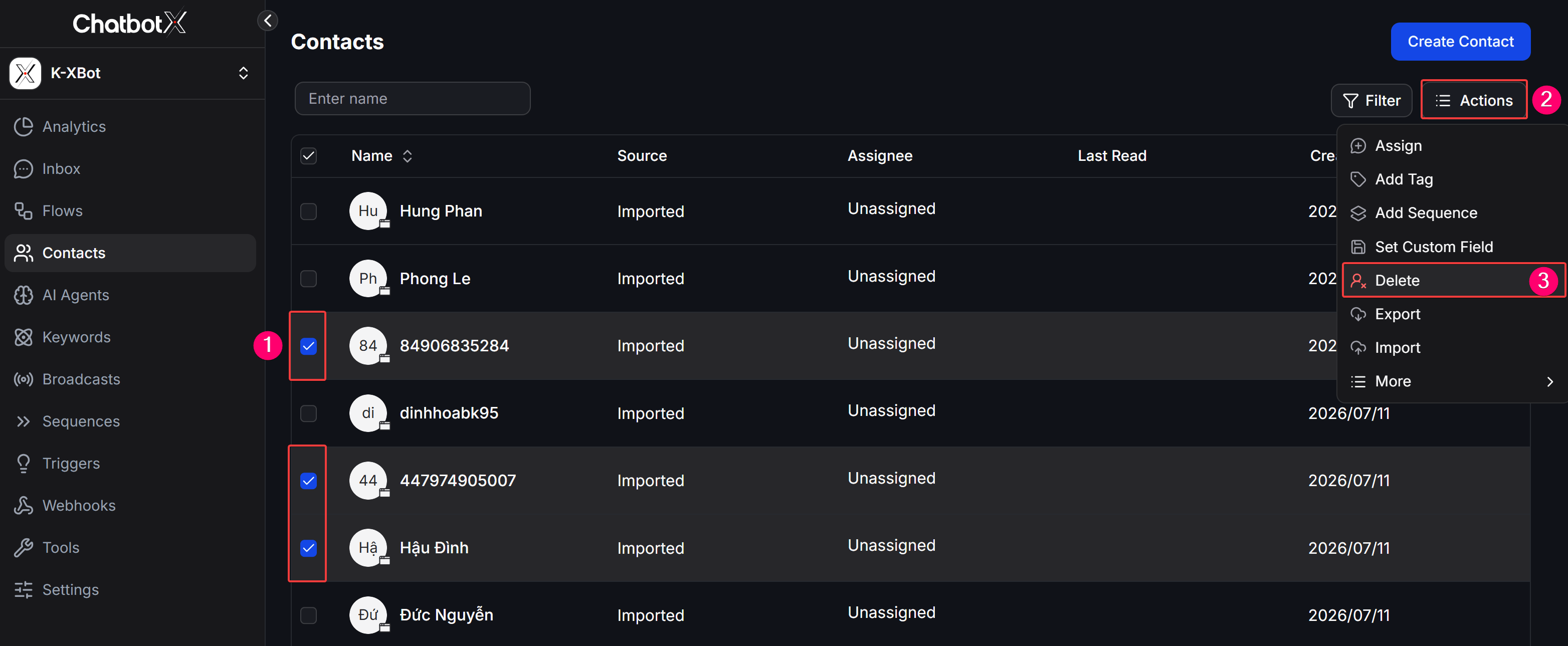
1. Go to the **Contacts** section from the left sidebar.
2. Search or use the filter options (Filter) to locate the contacts you want to delete.
3. Check the box next to the names of the contacts (you can select all by checking the box in the header row).
4. Click the **Actions** button at the top and select **Delete** from the dropdown menu.
## Delete a contact/contacts from the Contacts section
This method allows you to manage and perform bulk deletion after filtering contacts by specific criteria.
Steps to perform:
1. Go to the **Contacts** section from the left sidebar.
2. Search or use the filter options (Filter) to locate the contacts you want to delete.
3. Check the box next to the names of the contacts (you can select all by checking the box in the header row).
4. Click the **Actions** button at the top and select **Delete** from the dropdown menu.
 Deleting a contact is permanent and cannot be undone. All conversation history, custom fields, and tags associated with the deleted contact will be permanently removed from ChatbotX. Please consider carefully before taking this action.