> ## Documentation Index
> Fetch the complete documentation index at: https://chatbotx.io/docs/llms.txt
> Use this file to discover all available pages before exploring further.
# Filter Contacts
> Learn how to search contacts by name, sort the Contacts list, and apply advanced condition filters with logical operators in ChatbotX.
**Filter Contacts** is a powerful tool that helps you quickly categorize, search, and narrow down the customer list on the **Contacts** screen. You can perform quick searches by name, sort the display order by columns, or apply advanced filters combining multiple logical conditions (AND/OR).
## Basic Search and Sort Operations
### Search contacts by name
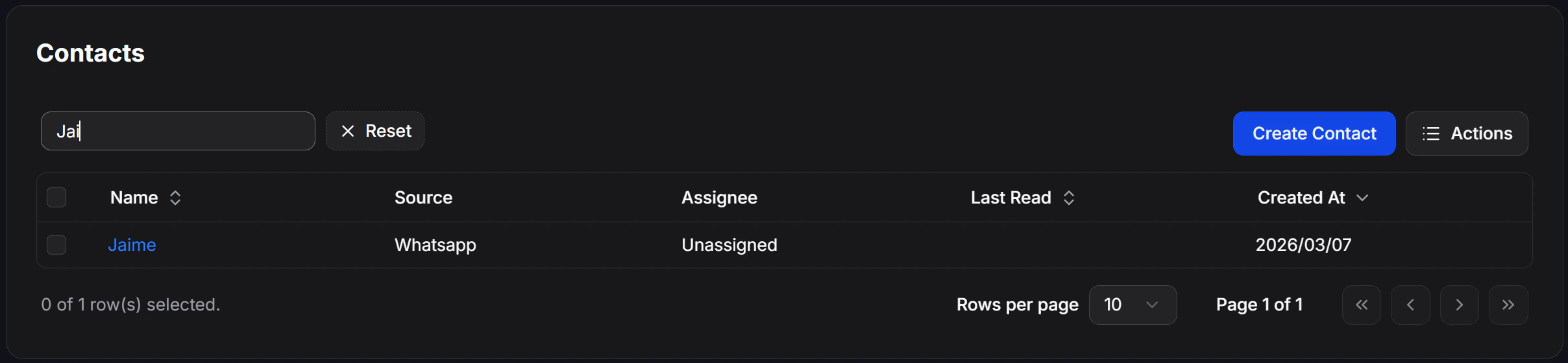
To quickly locate a specific contact when you already know their name:
1. Navigate to the **Contacts** page from the left menu.
2. Enter the contact's name into the **Enter name** search box located at the top-left corner.
3. The system will automatically filter the list and display matching results instantly.
 ### Sort the list by column
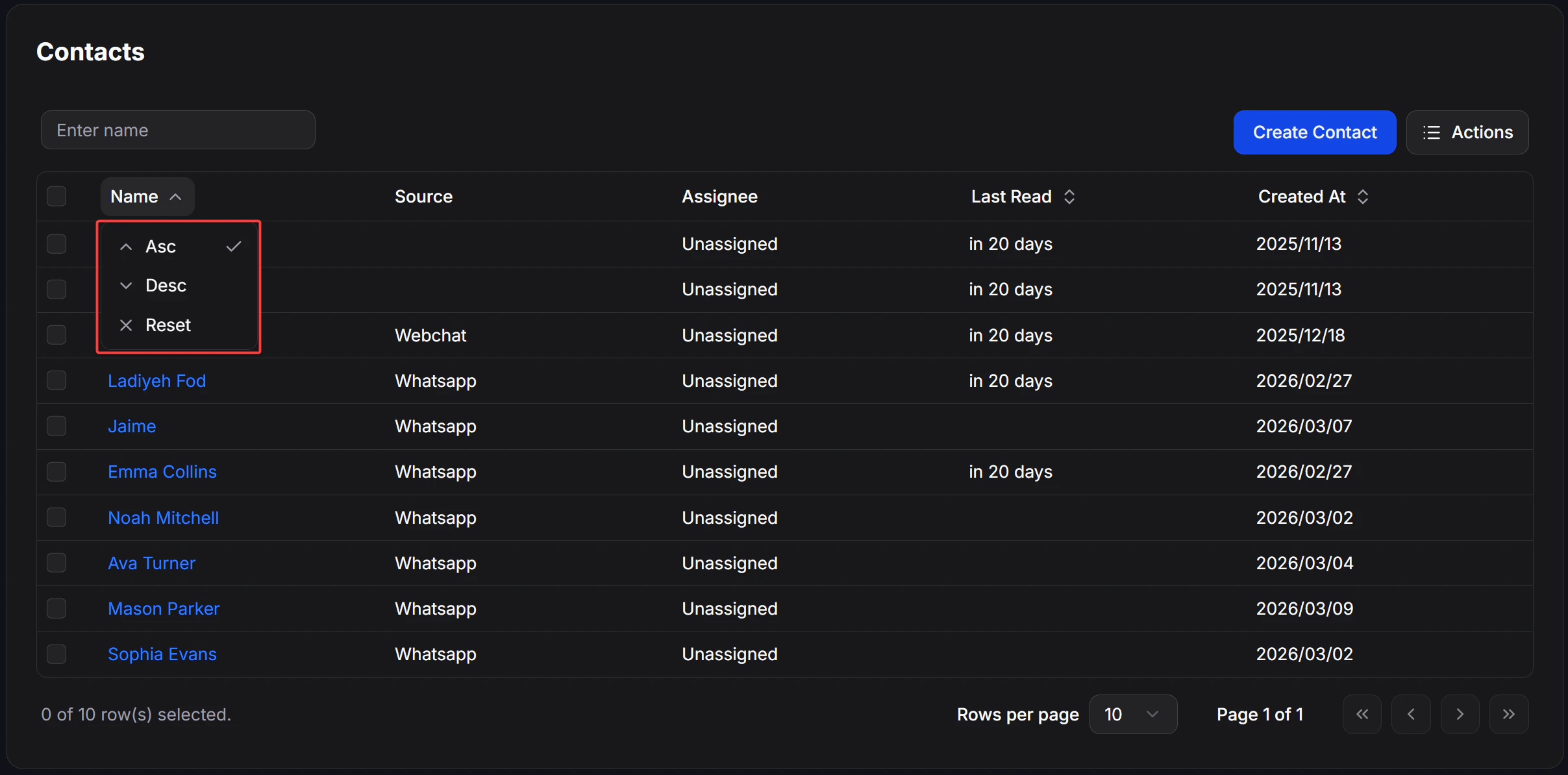
You can sort the display order of the contact list based on specific column headers in the table (such as *Name*, *Last Read*, or *Created At*):
1. Click directly on the column header you want to use as your sorting criteria in the Contacts table.
2. An arrow icon will appear next to the column header indicating the sort order:
* **Upward Arrow (Asc):** Sorts in ascending order or from A to Z.
* **Downward Arrow (Desc):** Sorts in descending order or from Z to A.
### Sort the list by column
You can sort the display order of the contact list based on specific column headers in the table (such as *Name*, *Last Read*, or *Created At*):
1. Click directly on the column header you want to use as your sorting criteria in the Contacts table.
2. An arrow icon will appear next to the column header indicating the sort order:
* **Upward Arrow (Asc):** Sorts in ascending order or from A to Z.
* **Downward Arrow (Desc):** Sorts in descending order or from Z to A.
 ### Select multiple contacts
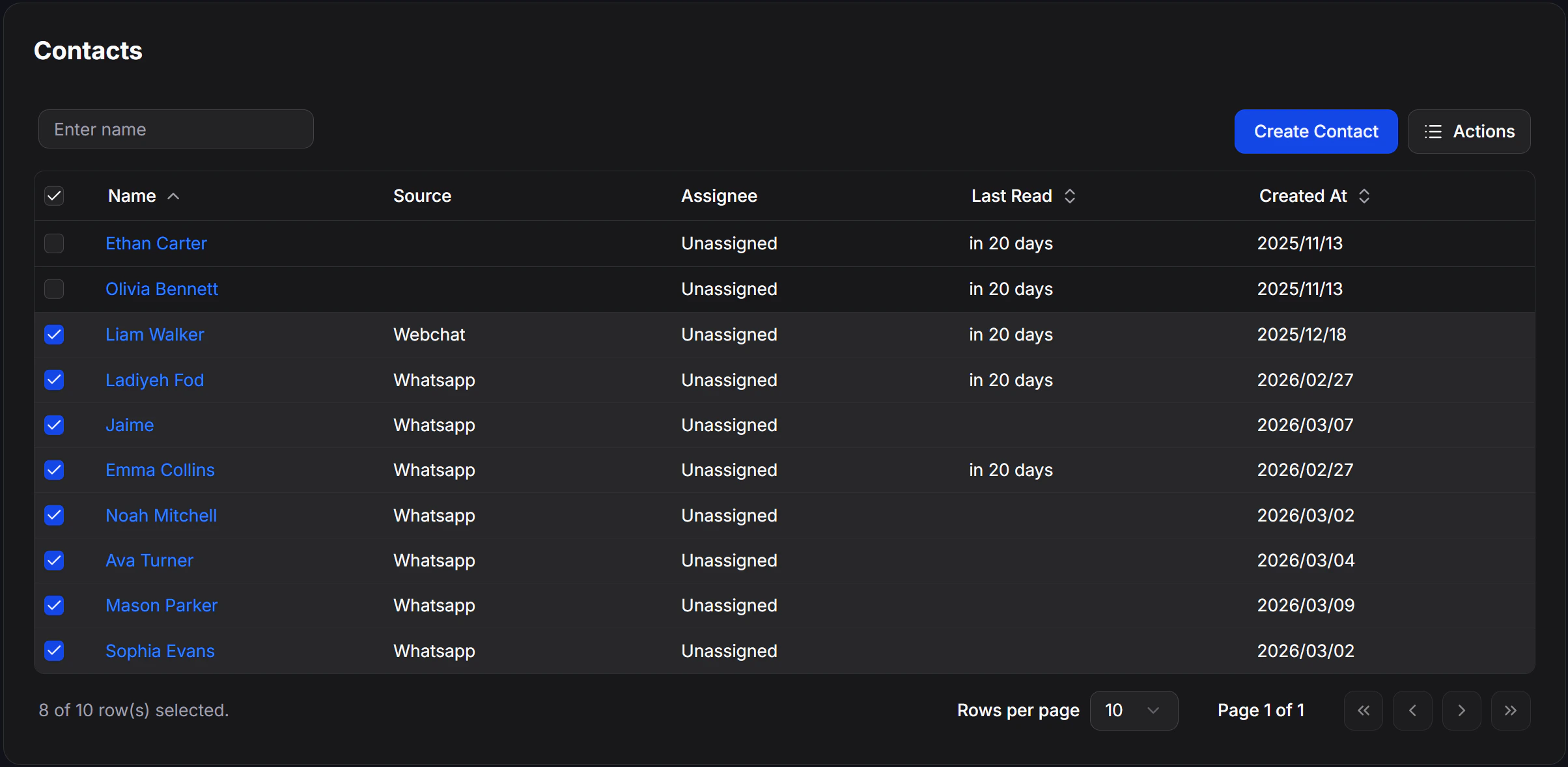
This feature allows you to select contacts in bulk to execute group actions (Bulk Actions) such as tagging, deleting, or exporting data:
1. Use the search bar or filter options to bring the targeted contacts to the top of the list.
2. Check the box at the start of each contact row you want to select. You can also tick the checkbox in the table header to quickly select all contacts currently displayed on the page.
3. Verify the number of selected contacts shown at the bottom-left corner of the table before proceeding with group actions.
### Select multiple contacts
This feature allows you to select contacts in bulk to execute group actions (Bulk Actions) such as tagging, deleting, or exporting data:
1. Use the search bar or filter options to bring the targeted contacts to the top of the list.
2. Check the box at the start of each contact row you want to select. You can also tick the checkbox in the table header to quickly select all contacts currently displayed on the page.
3. Verify the number of selected contacts shown at the bottom-left corner of the table before proceeding with group actions.
 ## Advanced Condition Filters (Advanced Filter)
Advanced filters allow you to maximize the value of your contact data by combining multiple detailed search criteria using logical operators.
### How to configure advanced filters
On the Contacts page, click the **Filter** button (funnel icon) in the upper-right corner.
## Advanced Condition Filters (Advanced Filter)
Advanced filters allow you to maximize the value of your contact data by combining multiple detailed search criteria using logical operators.
### How to configure advanced filters
On the Contacts page, click the **Filter** button (funnel icon) in the upper-right corner.
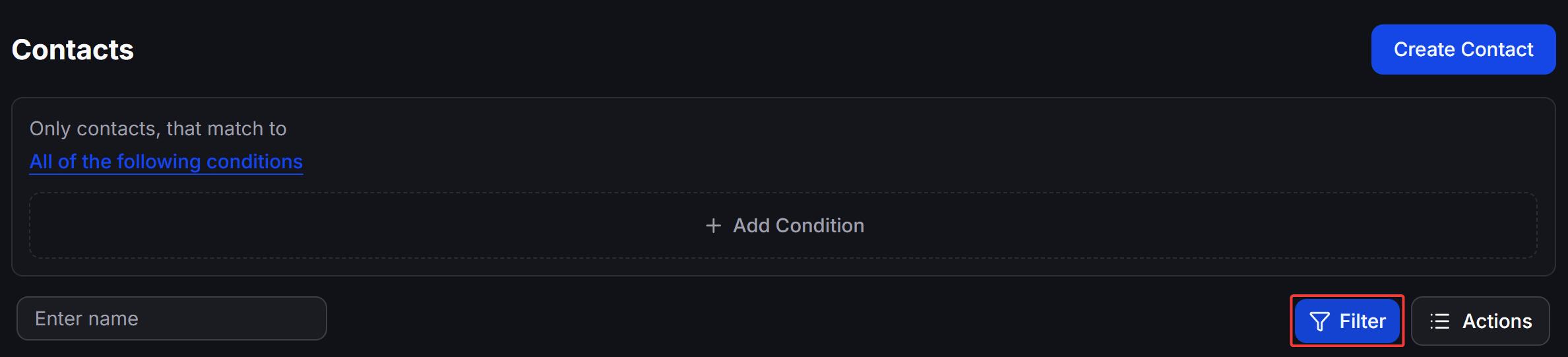 Before adding specific criteria, choose how the system combines your filter conditions by clicking the blue text link:
* **All of the following conditions (AND operator):** Only displays contacts that simultaneously satisfy all established conditions below.
Before adding specific criteria, choose how the system combines your filter conditions by clicking the blue text link:
* **All of the following conditions (AND operator):** Only displays contacts that simultaneously satisfy all established conditions below.
 * **Any of the below conditions (OR operator):** Displays contacts that satisfy at least one of the established conditions below.
 Click the **+ Add Condition** button to create a new filter rule. For each rule, configure 3 parameters on the popup:
 1. **Field:** Select the data field you want to filter (e.g., *Language*, *Tags*, *Email*...).
2. **Operator:** Select the comparison method (e.g., *Is*, *Contains*, *Has any value*...).
3. **Value:** Enter or select the corresponding value (e.g., *English*, *hot-lead*...).
*You can click **+ Add Condition** multiple times to add multiple filter rules.*
Click the confirm button to execute the filter query and view the updated, narrowed list of contacts.
### Configuration Example
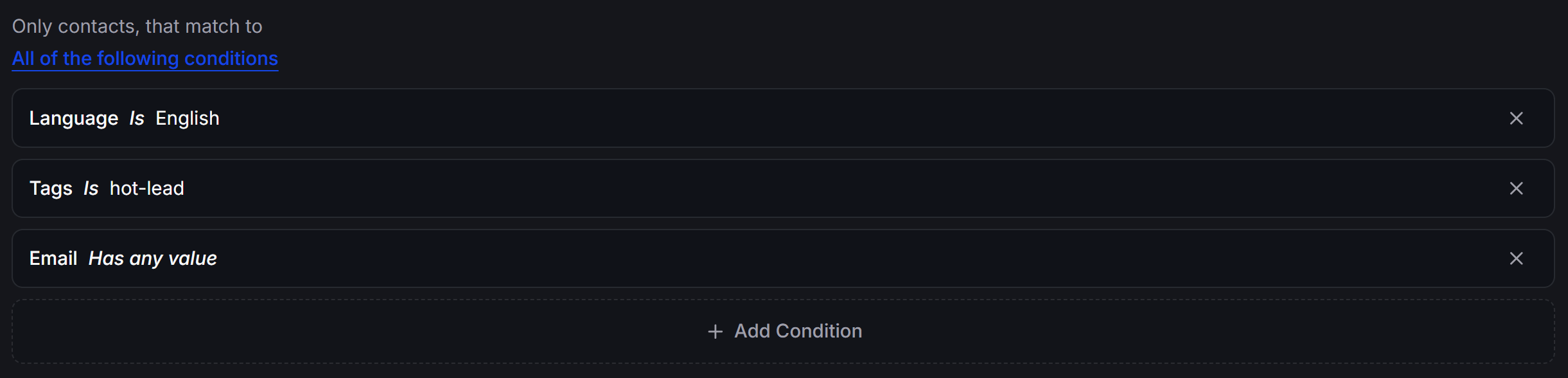
**Use Case:** You want to filter out English-speaking contacts who are qualified as prospective leads (`hot-lead`) and have provided their email addresses, in order to prepare for a targeted Email Marketing discount campaign.
To configure this, select the **All of the following conditions** logical operator and add the following 3 filter rules:
* **Language** *Is* *English* (Language used is English)
* **Tags** *Is* *hot-lead* (Assigned Tag is hot-lead)
* **Email** *Has any value* (Email address field is populated and not empty)
1. **Field:** Select the data field you want to filter (e.g., *Language*, *Tags*, *Email*...).
2. **Operator:** Select the comparison method (e.g., *Is*, *Contains*, *Has any value*...).
3. **Value:** Enter or select the corresponding value (e.g., *English*, *hot-lead*...).
*You can click **+ Add Condition** multiple times to add multiple filter rules.*
Click the confirm button to execute the filter query and view the updated, narrowed list of contacts.
### Configuration Example
**Use Case:** You want to filter out English-speaking contacts who are qualified as prospective leads (`hot-lead`) and have provided their email addresses, in order to prepare for a targeted Email Marketing discount campaign.
To configure this, select the **All of the following conditions** logical operator and add the following 3 filter rules:
* **Language** *Is* *English* (Language used is English)
* **Tags** *Is* *hot-lead* (Assigned Tag is hot-lead)
* **Email** *Has any value* (Email address field is populated and not empty)
 ### Supported Filter Fields
Below is a complete list of fields you can select to define filter conditions:
| Data Group | Filter Field | Description / Meaning |
| :------------------- | :---------------------------------- | :----------------------------------------------------------------------- |
| **Personal Info** | `Language` | The system language of the contact. |
| | `Full name` | The full name of the contact. |
| | `Country` | The country of the contact. |
| | `Gender` | The gender of the contact. |
| | `Time zone` | The time zone of the contact. |
| **Channel & Status** | `Channel` | The messaging channel (e.g., *Messenger, Telegram, Zalo OA*). |
| | `Source` | The contact creation source (e.g., *Inbound Message*). |
| | `Inbox` | The inbox assigned to the contact. |
| | `Subscribed to broadcast` | The subscription status for broadcast messages. |
| | `Conversation transferred to human` | The status indicating if the chat has been handed over to a human agent. |
| | `Interacted in last 24 hours` | Whether the contact interacted in the past 24 hours. |
| | `Follow up` | The follow-up flag status of the contact. |
| | `Archived` | Whether the contact is archived. |
| | `Blocked` | Whether the contact is blocked. |
| **Analytics** | `Contact created at` | The timestamp when the contact was created. |
| | `Last seen` | The last time the contact was active. |
| | `Last interaction` | The last time the contact interacted with the bot. |
| **Contact Info** | `Phone` | The contact's phone number. |
| | `Email` | The contact's email address. |
| | `Email was Verified` | Whether the email address has been verified. |
| | `Opted in for Email` | Whether the contact opted in to receive marketing emails. |
| **Tags & Custom** | `Tags` | The classification tags assigned to the contact. |
| | `Custom Fields` | Custom defined fields specific to your business. |
### Supported Operators
Depending on the data type of the selected field, you can apply the following operators:
| Operator | Action and Description |
| :------------------------- | :------------------------------------------------------------------ |
| `Is` | Matches the exact value specified. |
| `Is not` | Does not match the value specified. |
| `Has any value` | The field is populated with any value (not null/empty). |
| `Has no value` | The field is empty or null. |
| `Greater than` | Greater than a threshold value (for numbers or dates). |
| `Less than` | Less than a threshold value (for numbers or dates). |
| `Greater than or Equal to` | Greater than or equal to a threshold value. |
| `Less than or Equal to` | Less than or equal to a threshold value. |
| `Contains` | The field content contains the specified keyword substring. |
| `Doesn't contain` | The field content does not contain the specified keyword substring. |
| `Starts with` | The field content begins with the specified substring. |
| `Ends with` | The field content ends with the specified substring. |
## Related articles
* [Overview of Contacts Management](/docs/contacts/overview)
* [Import Contacts](/docs/contacts/import-contacts)
* [Bulk Actions](/docs/contacts/bulk-actions)
### Supported Filter Fields
Below is a complete list of fields you can select to define filter conditions:
| Data Group | Filter Field | Description / Meaning |
| :------------------- | :---------------------------------- | :----------------------------------------------------------------------- |
| **Personal Info** | `Language` | The system language of the contact. |
| | `Full name` | The full name of the contact. |
| | `Country` | The country of the contact. |
| | `Gender` | The gender of the contact. |
| | `Time zone` | The time zone of the contact. |
| **Channel & Status** | `Channel` | The messaging channel (e.g., *Messenger, Telegram, Zalo OA*). |
| | `Source` | The contact creation source (e.g., *Inbound Message*). |
| | `Inbox` | The inbox assigned to the contact. |
| | `Subscribed to broadcast` | The subscription status for broadcast messages. |
| | `Conversation transferred to human` | The status indicating if the chat has been handed over to a human agent. |
| | `Interacted in last 24 hours` | Whether the contact interacted in the past 24 hours. |
| | `Follow up` | The follow-up flag status of the contact. |
| | `Archived` | Whether the contact is archived. |
| | `Blocked` | Whether the contact is blocked. |
| **Analytics** | `Contact created at` | The timestamp when the contact was created. |
| | `Last seen` | The last time the contact was active. |
| | `Last interaction` | The last time the contact interacted with the bot. |
| **Contact Info** | `Phone` | The contact's phone number. |
| | `Email` | The contact's email address. |
| | `Email was Verified` | Whether the email address has been verified. |
| | `Opted in for Email` | Whether the contact opted in to receive marketing emails. |
| **Tags & Custom** | `Tags` | The classification tags assigned to the contact. |
| | `Custom Fields` | Custom defined fields specific to your business. |
### Supported Operators
Depending on the data type of the selected field, you can apply the following operators:
| Operator | Action and Description |
| :------------------------- | :------------------------------------------------------------------ |
| `Is` | Matches the exact value specified. |
| `Is not` | Does not match the value specified. |
| `Has any value` | The field is populated with any value (not null/empty). |
| `Has no value` | The field is empty or null. |
| `Greater than` | Greater than a threshold value (for numbers or dates). |
| `Less than` | Less than a threshold value (for numbers or dates). |
| `Greater than or Equal to` | Greater than or equal to a threshold value. |
| `Less than or Equal to` | Less than or equal to a threshold value. |
| `Contains` | The field content contains the specified keyword substring. |
| `Doesn't contain` | The field content does not contain the specified keyword substring. |
| `Starts with` | The field content begins with the specified substring. |
| `Ends with` | The field content ends with the specified substring. |
## Related articles
* [Overview of Contacts Management](/docs/contacts/overview)
* [Import Contacts](/docs/contacts/import-contacts)
* [Bulk Actions](/docs/contacts/bulk-actions)