> ## Documentation Index
> Fetch the complete documentation index at: https://chatbotx.io/docs/llms.txt
> Use this file to discover all available pages before exploring further.
# Contacts Overview
> Explore the Contacts page in ChatbotX to review your contact list, check lead sources and assignees, and open customer profiles quickly.
**Contacts** is where you can see every person who has interacted with your chatbot. This screen is useful when you want to review your customer list, find a specific person quickly, or prepare bulk tasks such as applying a Tag, updating a Custom Field, or exporting data.
Unlike [Inbox](/docs/inbox/conversations), this page focuses on the contact list and the high-level information for each person. When you need to review the full chat history, simply open the related contact and move into the conversation screen.
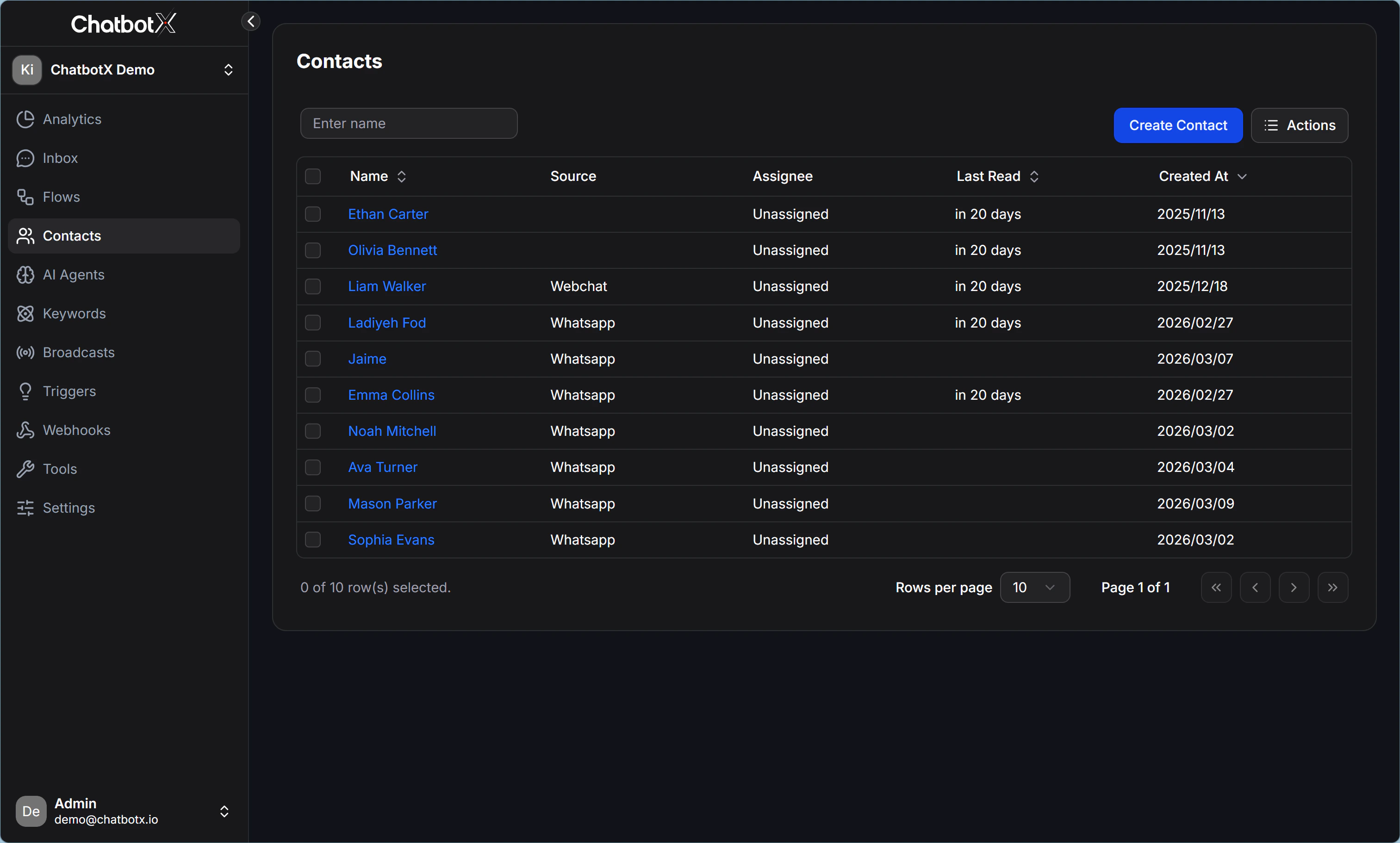 ## What you see on the Contacts page
The Contacts interface usually includes 4 main areas:
* **Search box:** Used to quickly find a contact by display name.
* **Contact table:** Shows each contact as a row so you can review and choose actions.
* **Create Contact button:** Lets you create a new contact manually.
* **Actions menu:** Opens the list of bulk actions such as import, export, apply Tag, or update data.
In the current interface, the confirmed columns include:
| Column | Meaning |
| ----------- | ----------------------------------------------------------------------------------------------- |
| `Name` | The contact name so you can identify the customer quickly |
| `Source` | The contact source, such as Ads, Facebook/IG comment, Direct, Imported, API, or Inbound Message |
| `Assignee` | The person currently responsible for that contact |
| `Last Read` | The last time the contact read a message |
| `Created` | The date the contact was created in the system |
## Basic workflow
When working with your contact list, the most common flow looks like this:
1. Use the search box to narrow down the list.
2. Review `Source`, `Assignee`, `Last Read`, and `Created` to understand each contact's status.
3. Click the contact name if you want to open the conversation details.
4. Select one or more contacts with the checkbox if you need to run a bulk action.
5. Open `Actions` to continue with the next step.
> **Note:** The Contacts page is best for list management. If you need to read the full chat history or reply manually, open that contact and switch to [Conversations](/docs/inbox/conversations).
## When to use Contacts
Start from Contacts in these situations:
* You need to find an older customer but do not remember which channel they used.
* You want to check which contacts already have an assignee and which are still `Unassigned`.
* You want to review contacts who returned recently based on the `Last Read` column.
* You want to select multiple contacts to apply a Tag, update a Custom Field, export data, or archive conversations.
## Learn more about the Contacts menu
For a more detailed view of the features in Contacts, see these articles:
* [Import Contacts](/docs/contacts/import-contacts): Import contact data in bulk.
* [Filter Contacts](/docs/contacts/filter-contacts): Narrow down the contact list quickly.
* [Bulk Actions](/docs/contacts/bulk-actions): Run bulk actions such as `Assign`, `Add Tag`, `Set Custom Field`, `Export`, and `Archive Conversation`.
## Quick tips
* Check `Source` before taking action so you know which channel the customer came from.
* Check `Assignee` before following up so two team members do not contact the same customer at the same time.
* Use `Last Read` to prioritize contacts who engaged recently.
* Select multiple contacts only when you are sure they all need the same action.
## What you see on the Contacts page
The Contacts interface usually includes 4 main areas:
* **Search box:** Used to quickly find a contact by display name.
* **Contact table:** Shows each contact as a row so you can review and choose actions.
* **Create Contact button:** Lets you create a new contact manually.
* **Actions menu:** Opens the list of bulk actions such as import, export, apply Tag, or update data.
In the current interface, the confirmed columns include:
| Column | Meaning |
| ----------- | ----------------------------------------------------------------------------------------------- |
| `Name` | The contact name so you can identify the customer quickly |
| `Source` | The contact source, such as Ads, Facebook/IG comment, Direct, Imported, API, or Inbound Message |
| `Assignee` | The person currently responsible for that contact |
| `Last Read` | The last time the contact read a message |
| `Created` | The date the contact was created in the system |
## Basic workflow
When working with your contact list, the most common flow looks like this:
1. Use the search box to narrow down the list.
2. Review `Source`, `Assignee`, `Last Read`, and `Created` to understand each contact's status.
3. Click the contact name if you want to open the conversation details.
4. Select one or more contacts with the checkbox if you need to run a bulk action.
5. Open `Actions` to continue with the next step.
> **Note:** The Contacts page is best for list management. If you need to read the full chat history or reply manually, open that contact and switch to [Conversations](/docs/inbox/conversations).
## When to use Contacts
Start from Contacts in these situations:
* You need to find an older customer but do not remember which channel they used.
* You want to check which contacts already have an assignee and which are still `Unassigned`.
* You want to review contacts who returned recently based on the `Last Read` column.
* You want to select multiple contacts to apply a Tag, update a Custom Field, export data, or archive conversations.
## Learn more about the Contacts menu
For a more detailed view of the features in Contacts, see these articles:
* [Import Contacts](/docs/contacts/import-contacts): Import contact data in bulk.
* [Filter Contacts](/docs/contacts/filter-contacts): Narrow down the contact list quickly.
* [Bulk Actions](/docs/contacts/bulk-actions): Run bulk actions such as `Assign`, `Add Tag`, `Set Custom Field`, `Export`, and `Archive Conversation`.
## Quick tips
* Check `Source` before taking action so you know which channel the customer came from.
* Check `Assignee` before following up so two team members do not contact the same customer at the same time.
* Use `Last Read` to prioritize contacts who engaged recently.
* Select multiple contacts only when you are sure they all need the same action.