> ## Documentation Index
> Fetch the complete documentation index at: https://chatbotx.io/docs/llms.txt
> Use this file to discover all available pages before exploring further.
# Error Logs
> Monitor error logs, diagnose issues, and resolve flow failures, omnichannel messaging errors, and integration problems in ChatbotX.
**Error Logs** is the real-time diagnostic center in ChatbotX. When an automated flow stops unexpectedly, a message fails to deliver, or a third-party API integration encounters an issue, Error Logs helps you pinpoint the root cause and apply the appropriate resolution.
## Access Error Logs
To open the error logs in your Workspace:
1. In the left navigation menu, select **Flows**.
2. On the top sub-navigation bar, select the **Error Logs** tab.
## Interface and Data Fields
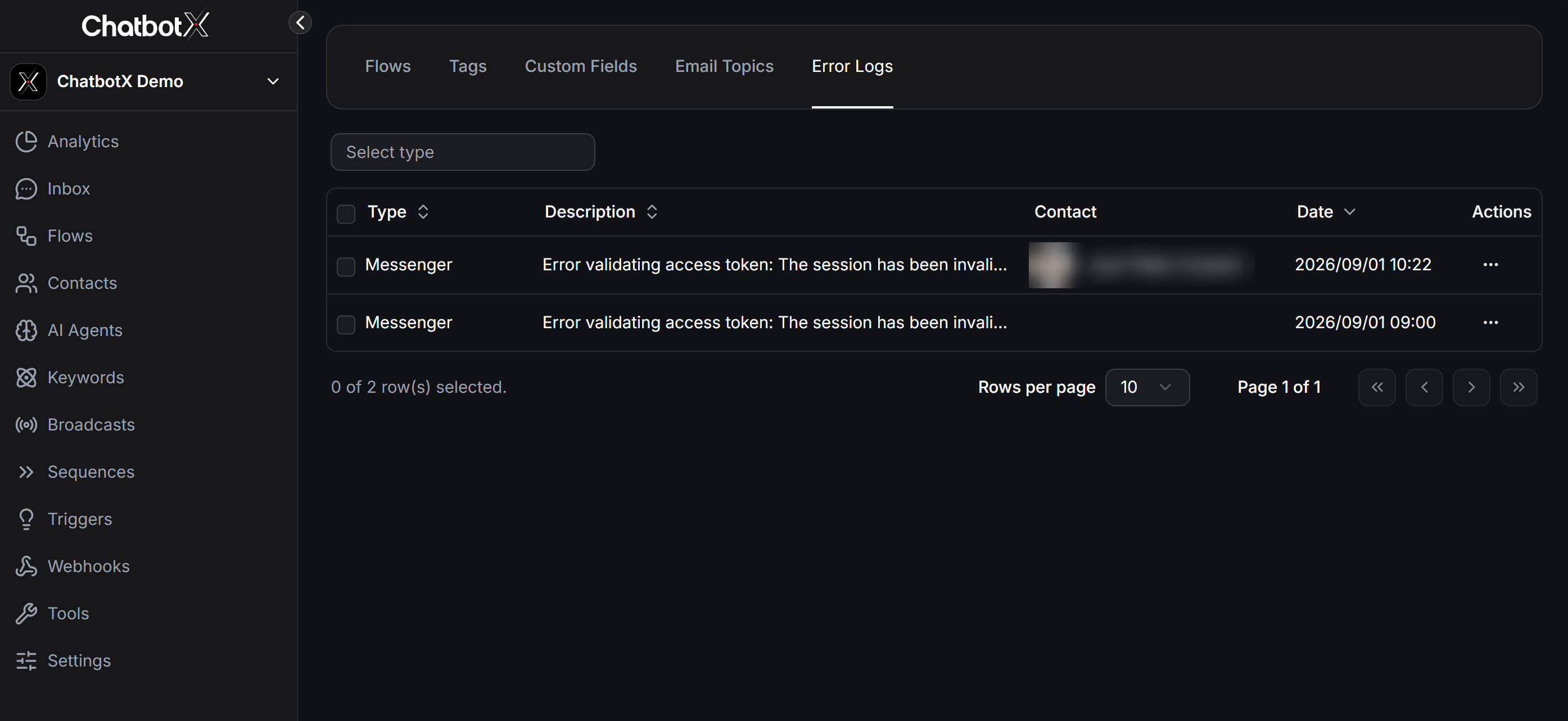
The Error Logs interface presents an actionable table designed for filtering and investigating issues across all channels.
 ### Filters and Table Controls
* **Select type**: A selector placed above the table that lets you filter logs by specific channel or feature category (such as WhatsApp, Messenger, Instagram, External Request, Send Email, etc.).
* **Row Checkboxes**: Check individual rows or the master header checkbox (e.g., `0 of 7 row(s) selected`) to select multiple error log entries in bulk and quickly delete them.
* **Pagination**: Controls how many records display per page via **Rows per page** (10, 20, 50 rows) along with page navigation buttons.
### Table Columns
Displays the messaging channel or execution feature. Click the Type column header to sort rows alphabetically in ascending (Asc) or descending (Desc) order.
Detailed description of the issue along with the specific error code returned by ChatbotX or downstream Meta platforms (Messenger Platform, WhatsApp Cloud API...).
The contact associated with the conversation session where the failure occurred.
Exact timestamp of the failure along with quick action controls (three-dots icon ...) to view payload details or delete the error record.
## 3-Step Troubleshooting Workflow
When bot responses stop working or contacts report issues, follow this systematic workflow:
Go to **Flows > Error Logs**. Use the **Select type** filter above the table to isolate records related to the affected channel or integration.
Check the **Description** column for specific error codes. Click the contact name in the **Contact** column to review the real conversation context in your Inbox.
Update the flow blocks, refresh channel permissions, or adjust API credentials according to the error reference guide below. Then trigger a test message to confirm resolution.
## Error Codes and Solutions Reference
Common errors typically stem from Meta platform messaging policies, flow variable mismatches, or third-party authentication timeouts:
### Common Errors on Messenger and Instagram
Refer to the full list of Meta error codes in the [Messenger Platform Error Codes Documentation](https://developers.facebook.com/documentation/business-messaging/messenger-platform/error-codes).
| Error Code and Description | Cause | Solution |
| -------------------------------------------------------------------------------------------------------------------------------------------------------------------------------------------------------- | ------------------------------------------------------------------------------------------------------------------------------ | ---------------------------------------------------------------------------------------------------------------------------------------------------------------- |
| `Error validating access token: The session has been invalidated...` ([Code 190](https://developers.facebook.com/documentation/business-messaging/messenger-platform/error-codes)) | Page access token expired because an admin changed their Facebook password, hit a security checkpoint, or modified Page roles. | Navigate to **Settings > Channels**, click **Reconnect**, or select **Refresh All Permissions** to renew the access token. |
| `(#10) This message is sent outside of the allowed window` ([Code 10](https://developers.facebook.com/documentation/business-messaging/messenger-platform/error-codes)) | An automated message was sent past the standard 24-hour messaging window. | Wait for the contact to message first to reopen the 24-hour window, or apply an approved **Message Tag** (such as Post-Purchase Update, Confirmed Event Update). |
| `(#10) Message failed to send because another app is controlling this thread now` ([Handover Protocol](https://developers.facebook.com/documentation/business-messaging/messenger-platform/error-codes)) | Another app on the Facebook Page is designated as the Primary Receiver in the Handover Protocol. | Go to Page Settings on Facebook > Advanced Messaging > Handover Protocol settings and set ChatbotX as the Primary Receiver. |
| `(#100) Message cannot be empty, must provide valid attachment or text` ([Code 100](https://developers.facebook.com/documentation/business-messaging/messenger-platform/error-codes)) | A text message block contains only a custom field variable `{{custom_field}}` that has no value for this contact. | Set default fallback values for variables or place a **Condition** block before the message to verify data exists. |
| `(#100) name_placeholder[buttons][0][url] should represent a valid URL` ([Code 100](https://developers.facebook.com/documentation/business-messaging/messenger-platform/error-codes)) | A URL button or image link is missing a valid scheme prefix. | Ensure all website links begin with `https://`. |
| `Error #551 This person isn't available right now` ([Code 551](https://developers.facebook.com/documentation/business-messaging/messenger-platform/error-codes)) | The contact has blocked messages from your Facebook Page, or their account is deactivated. | The bot cannot deliver messages. Wait for the customer to unblock the page or reach out via alternative channels. |
| `(#200) Permissions error` / `(#230) Requires pages_messaging permission` ([Code 200](https://developers.facebook.com/documentation/business-messaging/messenger-platform/error-codes)) | Page access token lacks necessary messaging permissions or permissions were revoked. | Navigate to **Settings > Channels**, reconnect the Page, or grant `pages_messaging` permissions in Meta Business Manager. |
| `(#613) Calls to this api have exceeded the rate limit` ([Code 613](https://developers.facebook.com/documentation/business-messaging/messenger-platform/error-codes)) | Sending too many messages or API calls exceeding Meta's rate limits for the Page. | Insert a **Wait** block in the flow to space out consecutive messages. |
| `(#10900) Activity already replied to` / `(#10903) This user cant reply...` ([Code 10900](https://developers.facebook.com/documentation/business-messaging/messenger-platform/error-codes)) | The post comment was already replied to via private message, or the comment is older than 7 days. | Prompt the user to comment on a new post or message the page directly. |
### Common Errors on WhatsApp Cloud API
Refer to the complete list of WhatsApp error codes in the [WhatsApp Business Platform Error Codes Documentation](https://developers.facebook.com/documentation/business-messaging/whatsapp/support/error-codes).
| Error Code and Description | Cause | Solution |
| ----------------------------------------------------------------------------------------------------------------------------------------------------------------------------------------------------------------------------- | --------------------------------------------------------------------------------------------------------------------------------------------------------------------------------------- | ------------------------------------------------------------------------------------------------------------------ |
| `Business account is restricted from messaging users in this country` / `Code 131031: Account has been locked` ([Code 131031](https://developers.facebook.com/documentation/business-messaging/whatsapp/support/error-codes)) | WhatsApp Business Account is restricted from sending messages to users in the target country, or account is suspended due to message quality policy violations. | Check account status in WhatsApp Account Health on Meta Business Manager and submit an appeal if eligible. |
| `Code 131026: Message undeliverable` ([Code 131026](https://developers.facebook.com/documentation/business-messaging/whatsapp/support/error-codes)) | Message cannot be delivered because recipient is not on WhatsApp, recipient blocked the business, user has not accepted new Terms of Service, or Meta applied marketing frequency caps. | Verify phone number format with correct country code and confirm active WhatsApp account status. |
| `Code 131047` / `Code 470: Re-engagement message` ([Code 131047](https://developers.facebook.com/documentation/business-messaging/whatsapp/support/error-codes)) | Attempted to send a standard free-form text message outside the customer service 24-hour window. | After 24 hours, WhatsApp requires sending pre-approved **WhatsApp Template Messages**. |
| `Code 130429` / `Code 80007: Rate limit hit` ([Code 130429](https://developers.facebook.com/documentation/business-messaging/whatsapp/support/error-codes)) | Phone number or business account reached its message sending throughput limit for the current tier. | Use a **Wait** block to space out message delivery and check your phone number messaging tier in WhatsApp Manager. |
| `Code 1008: Required parameter is missing` ([Code 1008](https://developers.facebook.com/documentation/business-messaging/whatsapp/support/error-codes)) | The template message requires dynamic body variables (e.g. `{{1}}`, `{{2}}`), but the flow sent an empty value. | Review the WhatsApp Template block in your flow and map all required parameters. |
| `Code 2012: Parameter format does not match format in the created template` ([Code 2012](https://developers.facebook.com/documentation/business-messaging/whatsapp/support/error-codes)) | Parameter type mismatch (e.g., Template expects an Image header, but the flow supplied text or document media). | Align header media types and parameter formats with the template definition in WhatsApp Manager. |
| `Code 131051: Unsupported message type` ([Code 131051](https://developers.facebook.com/documentation/business-messaging/whatsapp/support/error-codes)) | Message component or payload format is not supported by the current WhatsApp Cloud API version. | Check message block components and ensure payload conforms to WhatsApp standards. |
| `Code 131053: Unsupported Image mime type image/gif` / `Downloading media from weblink failed` ([Code 131053](https://developers.facebook.com/documentation/business-messaging/whatsapp/support/error-codes)) | WhatsApp Cloud API does not support `.gif` files, or media URL returned 404 / access denied. | Convert media assets to `.png` or `.jpeg`, and ensure URLs are publicly accessible. |
| `Code 1005` / `Invalid catalog Id` ([Code 1005](https://developers.facebook.com/documentation/business-messaging/whatsapp/support/error-codes)) | Product catalog is not connected to WhatsApp Business Manager or exceeds the 30-item limit per message. | Link your catalog inside Meta Commerce Manager and restrict single-message items to 30 or fewer. |
### External Requests, Email, and Integration Errors
| Integration | Error Output | Cause and Solution |
| ------------------------- | ---------------------------------------------------------------- | ------------------------------------------------------------------------------------------------------------------------------------------------------------------------------------------------------------ |
| **External Request** | `Fail to execute the request` | API request failed due to incorrect endpoint URL, missing `Authorization` header, invalid JSON syntax, or external server timeout (> 10 seconds). Test the endpoint in Postman before mapping into the flow. |
| **Google Sheets** | `{"error": "invalid_grant", "error_description": "Bad Request"}` | Google authorization token expired or was revoked. Go to **Settings > Integrations**, disconnect, and reconnect your Google account. |
| **SendMail (SMTP)** | `SMTP Error: Could not authenticate` | Incorrect SMTP username or password. When using Gmail SMTP, you must enable 2-factor authentication and generate a dedicated **Google App Password**. |
| **SendMail** | `No email address (TO)` | The `{{email}}` field for the contact is empty when reaching the SendMail step. Add a User Input block beforehand to capture a valid email. |
| **MailerLite / SendGrid** | `API-Key Unauthorized` / `No email or opted-in` | Invalid API key or contact has not opted in. Update API key in settings and ensure contact opt-in status is verified. |
## Best Practices to Prevent Errors
Incorporate these proactive practices into your chatbot setup:
Always provide fallback text when referencing dynamic variables like `{{first_name}}` so messages never deliver blank spaces.
Insert a **Condition** step (such as `Email is set` or `Phone is valid`) before calling external API webhooks or sending email messages.
Regularly inspect the **Error Logs** tab after creating or updating automated flows to catch and resolve message delivery issues promptly.
Use the **Preview** button to test flows on mobile devices and verify all interactive buttons open destination websites correctly.
If you encounter an error code not listed in this guide, copy the full text from the **Description** column and contact ChatbotX Support for assistance.
### Filters and Table Controls
* **Select type**: A selector placed above the table that lets you filter logs by specific channel or feature category (such as WhatsApp, Messenger, Instagram, External Request, Send Email, etc.).
* **Row Checkboxes**: Check individual rows or the master header checkbox (e.g., `0 of 7 row(s) selected`) to select multiple error log entries in bulk and quickly delete them.
* **Pagination**: Controls how many records display per page via **Rows per page** (10, 20, 50 rows) along with page navigation buttons.
### Table Columns
Displays the messaging channel or execution feature. Click the Type column header to sort rows alphabetically in ascending (Asc) or descending (Desc) order.
Detailed description of the issue along with the specific error code returned by ChatbotX or downstream Meta platforms (Messenger Platform, WhatsApp Cloud API...).
The contact associated with the conversation session where the failure occurred.
Exact timestamp of the failure along with quick action controls (three-dots icon ...) to view payload details or delete the error record.
## 3-Step Troubleshooting Workflow
When bot responses stop working or contacts report issues, follow this systematic workflow:
Go to **Flows > Error Logs**. Use the **Select type** filter above the table to isolate records related to the affected channel or integration.
Check the **Description** column for specific error codes. Click the contact name in the **Contact** column to review the real conversation context in your Inbox.
Update the flow blocks, refresh channel permissions, or adjust API credentials according to the error reference guide below. Then trigger a test message to confirm resolution.
## Error Codes and Solutions Reference
Common errors typically stem from Meta platform messaging policies, flow variable mismatches, or third-party authentication timeouts:
### Common Errors on Messenger and Instagram
Refer to the full list of Meta error codes in the [Messenger Platform Error Codes Documentation](https://developers.facebook.com/documentation/business-messaging/messenger-platform/error-codes).
| Error Code and Description | Cause | Solution |
| -------------------------------------------------------------------------------------------------------------------------------------------------------------------------------------------------------- | ------------------------------------------------------------------------------------------------------------------------------ | ---------------------------------------------------------------------------------------------------------------------------------------------------------------- |
| `Error validating access token: The session has been invalidated...` ([Code 190](https://developers.facebook.com/documentation/business-messaging/messenger-platform/error-codes)) | Page access token expired because an admin changed their Facebook password, hit a security checkpoint, or modified Page roles. | Navigate to **Settings > Channels**, click **Reconnect**, or select **Refresh All Permissions** to renew the access token. |
| `(#10) This message is sent outside of the allowed window` ([Code 10](https://developers.facebook.com/documentation/business-messaging/messenger-platform/error-codes)) | An automated message was sent past the standard 24-hour messaging window. | Wait for the contact to message first to reopen the 24-hour window, or apply an approved **Message Tag** (such as Post-Purchase Update, Confirmed Event Update). |
| `(#10) Message failed to send because another app is controlling this thread now` ([Handover Protocol](https://developers.facebook.com/documentation/business-messaging/messenger-platform/error-codes)) | Another app on the Facebook Page is designated as the Primary Receiver in the Handover Protocol. | Go to Page Settings on Facebook > Advanced Messaging > Handover Protocol settings and set ChatbotX as the Primary Receiver. |
| `(#100) Message cannot be empty, must provide valid attachment or text` ([Code 100](https://developers.facebook.com/documentation/business-messaging/messenger-platform/error-codes)) | A text message block contains only a custom field variable `{{custom_field}}` that has no value for this contact. | Set default fallback values for variables or place a **Condition** block before the message to verify data exists. |
| `(#100) name_placeholder[buttons][0][url] should represent a valid URL` ([Code 100](https://developers.facebook.com/documentation/business-messaging/messenger-platform/error-codes)) | A URL button or image link is missing a valid scheme prefix. | Ensure all website links begin with `https://`. |
| `Error #551 This person isn't available right now` ([Code 551](https://developers.facebook.com/documentation/business-messaging/messenger-platform/error-codes)) | The contact has blocked messages from your Facebook Page, or their account is deactivated. | The bot cannot deliver messages. Wait for the customer to unblock the page or reach out via alternative channels. |
| `(#200) Permissions error` / `(#230) Requires pages_messaging permission` ([Code 200](https://developers.facebook.com/documentation/business-messaging/messenger-platform/error-codes)) | Page access token lacks necessary messaging permissions or permissions were revoked. | Navigate to **Settings > Channels**, reconnect the Page, or grant `pages_messaging` permissions in Meta Business Manager. |
| `(#613) Calls to this api have exceeded the rate limit` ([Code 613](https://developers.facebook.com/documentation/business-messaging/messenger-platform/error-codes)) | Sending too many messages or API calls exceeding Meta's rate limits for the Page. | Insert a **Wait** block in the flow to space out consecutive messages. |
| `(#10900) Activity already replied to` / `(#10903) This user cant reply...` ([Code 10900](https://developers.facebook.com/documentation/business-messaging/messenger-platform/error-codes)) | The post comment was already replied to via private message, or the comment is older than 7 days. | Prompt the user to comment on a new post or message the page directly. |
### Common Errors on WhatsApp Cloud API
Refer to the complete list of WhatsApp error codes in the [WhatsApp Business Platform Error Codes Documentation](https://developers.facebook.com/documentation/business-messaging/whatsapp/support/error-codes).
| Error Code and Description | Cause | Solution |
| ----------------------------------------------------------------------------------------------------------------------------------------------------------------------------------------------------------------------------- | --------------------------------------------------------------------------------------------------------------------------------------------------------------------------------------- | ------------------------------------------------------------------------------------------------------------------ |
| `Business account is restricted from messaging users in this country` / `Code 131031: Account has been locked` ([Code 131031](https://developers.facebook.com/documentation/business-messaging/whatsapp/support/error-codes)) | WhatsApp Business Account is restricted from sending messages to users in the target country, or account is suspended due to message quality policy violations. | Check account status in WhatsApp Account Health on Meta Business Manager and submit an appeal if eligible. |
| `Code 131026: Message undeliverable` ([Code 131026](https://developers.facebook.com/documentation/business-messaging/whatsapp/support/error-codes)) | Message cannot be delivered because recipient is not on WhatsApp, recipient blocked the business, user has not accepted new Terms of Service, or Meta applied marketing frequency caps. | Verify phone number format with correct country code and confirm active WhatsApp account status. |
| `Code 131047` / `Code 470: Re-engagement message` ([Code 131047](https://developers.facebook.com/documentation/business-messaging/whatsapp/support/error-codes)) | Attempted to send a standard free-form text message outside the customer service 24-hour window. | After 24 hours, WhatsApp requires sending pre-approved **WhatsApp Template Messages**. |
| `Code 130429` / `Code 80007: Rate limit hit` ([Code 130429](https://developers.facebook.com/documentation/business-messaging/whatsapp/support/error-codes)) | Phone number or business account reached its message sending throughput limit for the current tier. | Use a **Wait** block to space out message delivery and check your phone number messaging tier in WhatsApp Manager. |
| `Code 1008: Required parameter is missing` ([Code 1008](https://developers.facebook.com/documentation/business-messaging/whatsapp/support/error-codes)) | The template message requires dynamic body variables (e.g. `{{1}}`, `{{2}}`), but the flow sent an empty value. | Review the WhatsApp Template block in your flow and map all required parameters. |
| `Code 2012: Parameter format does not match format in the created template` ([Code 2012](https://developers.facebook.com/documentation/business-messaging/whatsapp/support/error-codes)) | Parameter type mismatch (e.g., Template expects an Image header, but the flow supplied text or document media). | Align header media types and parameter formats with the template definition in WhatsApp Manager. |
| `Code 131051: Unsupported message type` ([Code 131051](https://developers.facebook.com/documentation/business-messaging/whatsapp/support/error-codes)) | Message component or payload format is not supported by the current WhatsApp Cloud API version. | Check message block components and ensure payload conforms to WhatsApp standards. |
| `Code 131053: Unsupported Image mime type image/gif` / `Downloading media from weblink failed` ([Code 131053](https://developers.facebook.com/documentation/business-messaging/whatsapp/support/error-codes)) | WhatsApp Cloud API does not support `.gif` files, or media URL returned 404 / access denied. | Convert media assets to `.png` or `.jpeg`, and ensure URLs are publicly accessible. |
| `Code 1005` / `Invalid catalog Id` ([Code 1005](https://developers.facebook.com/documentation/business-messaging/whatsapp/support/error-codes)) | Product catalog is not connected to WhatsApp Business Manager or exceeds the 30-item limit per message. | Link your catalog inside Meta Commerce Manager and restrict single-message items to 30 or fewer. |
### External Requests, Email, and Integration Errors
| Integration | Error Output | Cause and Solution |
| ------------------------- | ---------------------------------------------------------------- | ------------------------------------------------------------------------------------------------------------------------------------------------------------------------------------------------------------ |
| **External Request** | `Fail to execute the request` | API request failed due to incorrect endpoint URL, missing `Authorization` header, invalid JSON syntax, or external server timeout (> 10 seconds). Test the endpoint in Postman before mapping into the flow. |
| **Google Sheets** | `{"error": "invalid_grant", "error_description": "Bad Request"}` | Google authorization token expired or was revoked. Go to **Settings > Integrations**, disconnect, and reconnect your Google account. |
| **SendMail (SMTP)** | `SMTP Error: Could not authenticate` | Incorrect SMTP username or password. When using Gmail SMTP, you must enable 2-factor authentication and generate a dedicated **Google App Password**. |
| **SendMail** | `No email address (TO)` | The `{{email}}` field for the contact is empty when reaching the SendMail step. Add a User Input block beforehand to capture a valid email. |
| **MailerLite / SendGrid** | `API-Key Unauthorized` / `No email or opted-in` | Invalid API key or contact has not opted in. Update API key in settings and ensure contact opt-in status is verified. |
## Best Practices to Prevent Errors
Incorporate these proactive practices into your chatbot setup:
Always provide fallback text when referencing dynamic variables like `{{first_name}}` so messages never deliver blank spaces.
Insert a **Condition** step (such as `Email is set` or `Phone is valid`) before calling external API webhooks or sending email messages.
Regularly inspect the **Error Logs** tab after creating or updating automated flows to catch and resolve message delivery issues promptly.
Use the **Preview** button to test flows on mobile devices and verify all interactive buttons open destination websites correctly.
If you encounter an error code not listed in this guide, copy the full text from the **Description** column and contact ChatbotX Support for assistance.