> ## Documentation Index
> Fetch the complete documentation index at: https://chatbotx.io/docs/llms.txt
> Use this file to discover all available pages before exploring further.
# Permissions & Team Collaboration
> Learn how to assign conversations and collaborate inside Inbox, including manual assignment and automatic distribution across the team.
When multiple people are working in Inbox at the same time, you need a clear way to decide who handles which customer and who is currently working on what. **Assign Conversation** and **Auto Assign** help you do that without constant manual coordination.
## 1. Create an Inbox Team
Before assigning conversations, group your team members first.
**How to create one:**
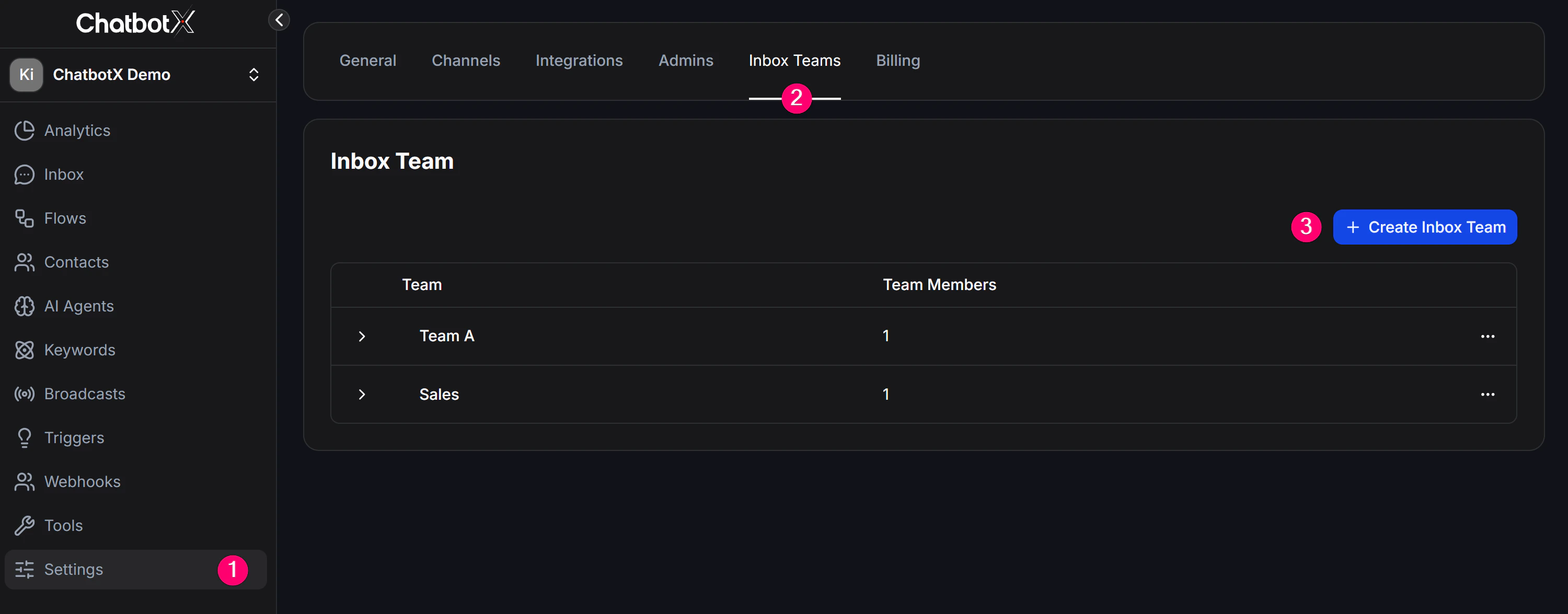
1. Go to **Settings -> Inbox Team**.
2. Click **Create Inbox Team**, then enter a team name such as "Sales Team" or "Support Team".
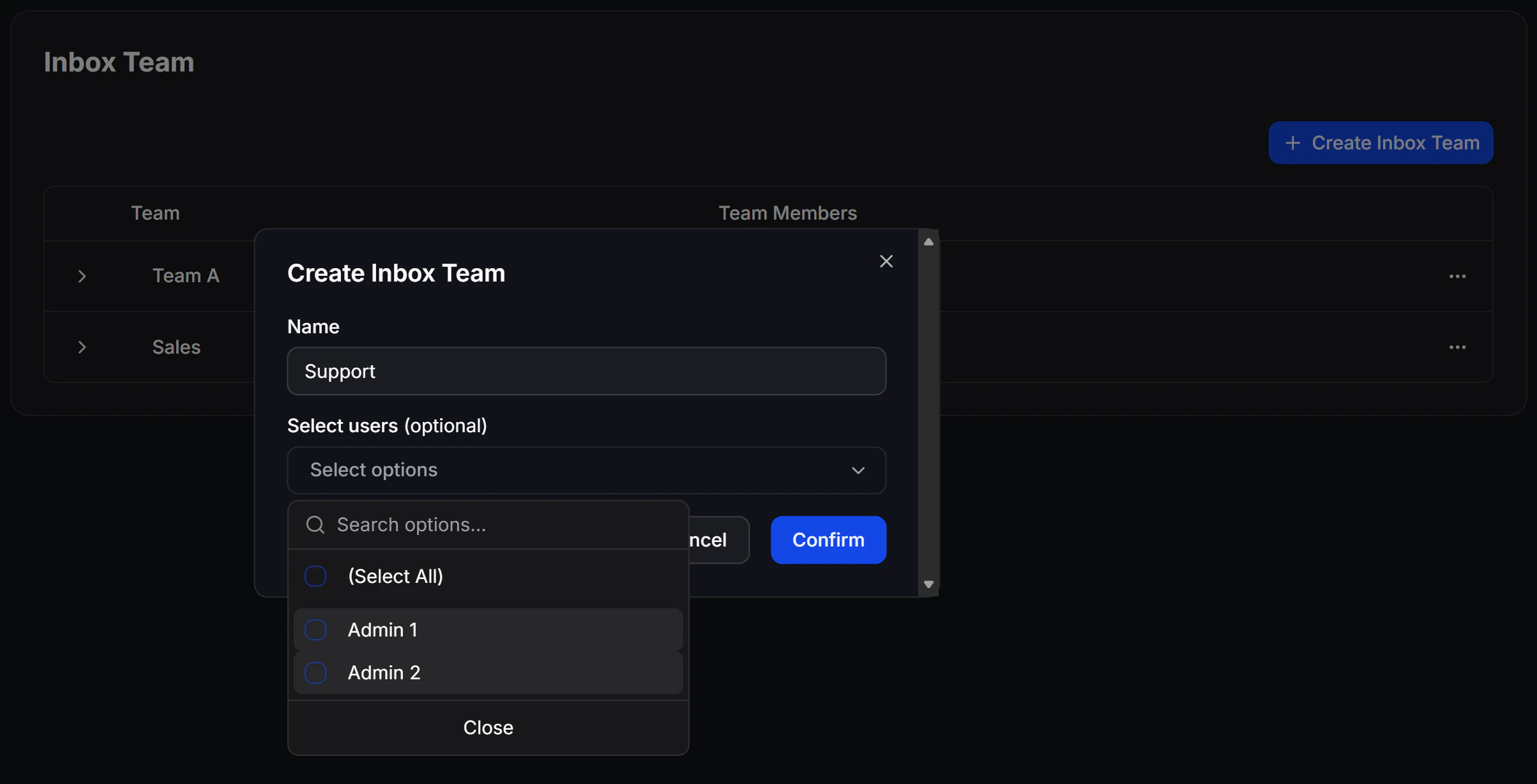
 3. Select the team members and save.
 ## 2. Assign a chat manually to a person or team
When you are viewing a conversation and want to assign it to a specific person:
1. Open the conversation in Inbox.
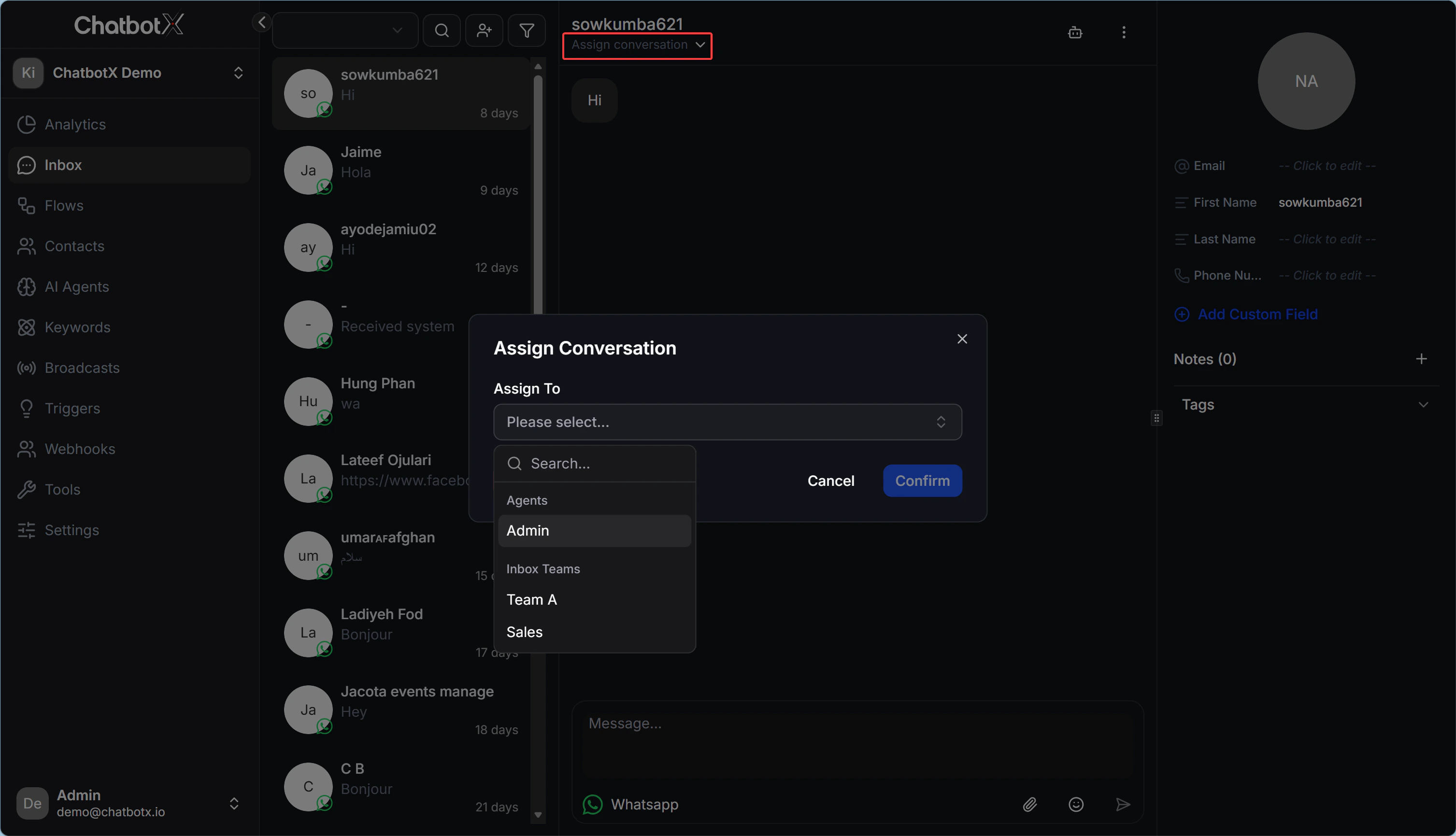
2. Look at the top area and find **Assign Conversation**.
3. Choose the team member or team that should take over.
The assigned person receives a notification and knows the conversation is now theirs to handle.
## 2. Assign a chat manually to a person or team
When you are viewing a conversation and want to assign it to a specific person:
1. Open the conversation in Inbox.
2. Look at the top area and find **Assign Conversation**.
3. Choose the team member or team that should take over.
The assigned person receives a notification and knows the conversation is now theirs to handle.
 ## 3. Configure automatic assignment in Flow Builder
If you do not want to assign chats manually one by one, set it up directly in the Flow so the system handles it automatically:
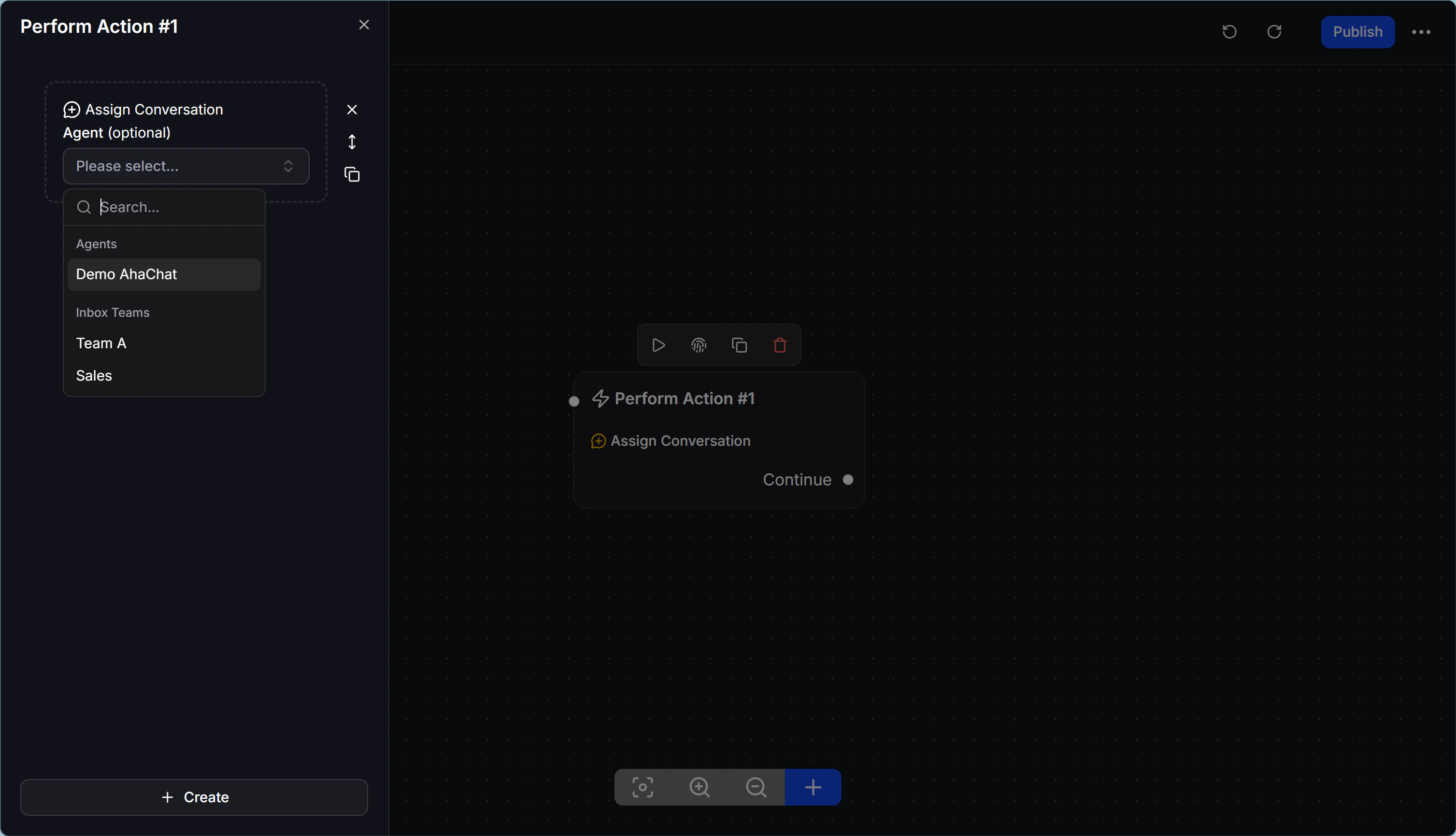
1. In **Flow Builder**, add an **Action** block.
2. Choose **Inbox Actions -> Assign Conversation**.
3. Select the target team member or team.
For example, when a customer chooses "I need pricing support", the Bot can automatically assign that conversation to the Sales team without any manual step.
## 3. Configure automatic assignment in Flow Builder
If you do not want to assign chats manually one by one, set it up directly in the Flow so the system handles it automatically:
1. In **Flow Builder**, add an **Action** block.
2. Choose **Inbox Actions -> Assign Conversation**.
3. Select the target team member or team.
For example, when a customer chooses "I need pricing support", the Bot can automatically assign that conversation to the Sales team without any manual step.
 ## 4. Distribute chats automatically across the team
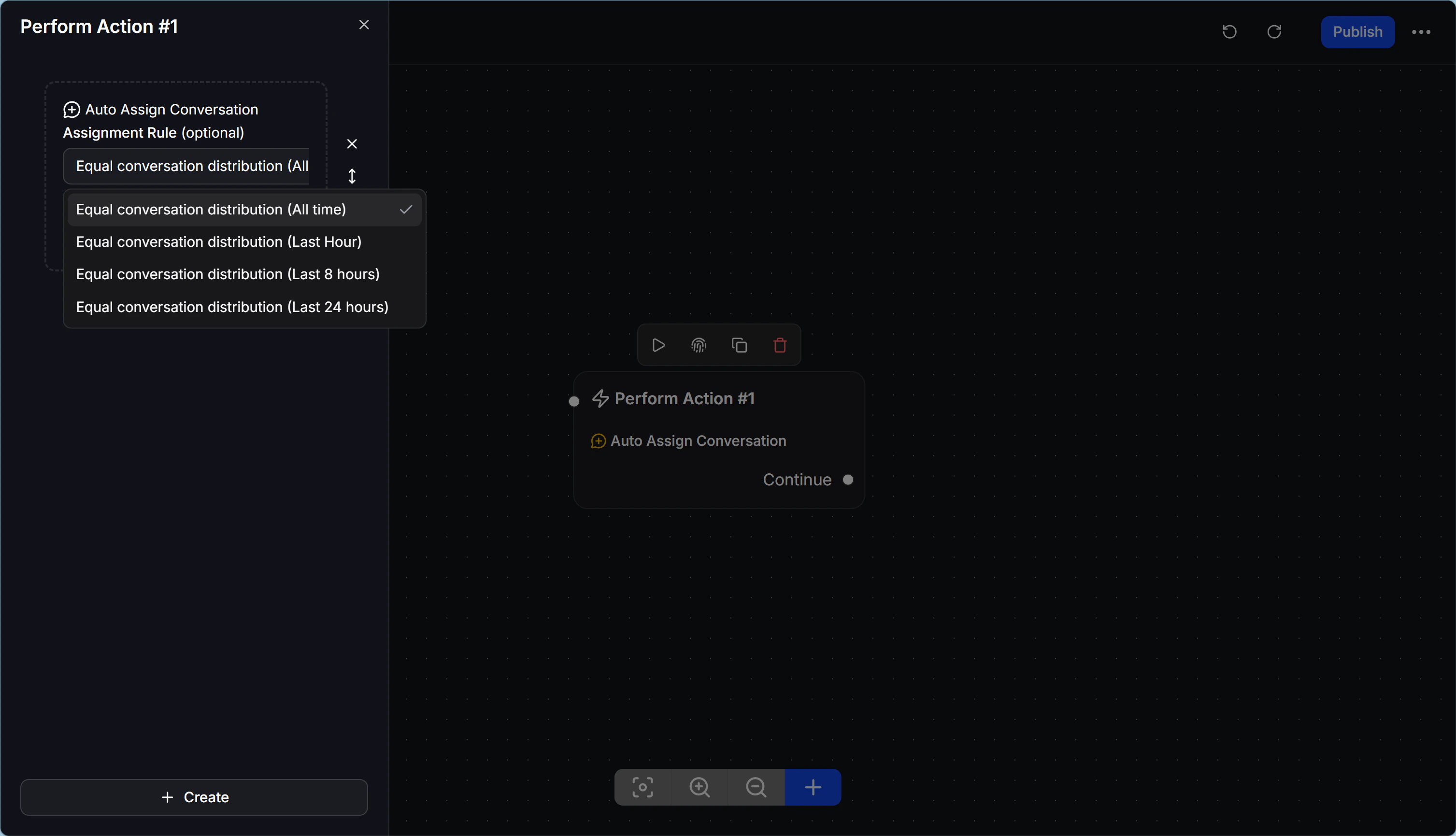
**Auto Assign Conversation** helps the system distribute chats fairly across available online team members so no one gets overloaded and no one stays idle.
**Available distribution modes:**
| Mode | What the system does |
| ----------------- | ------------------------------------------------------------------------- |
| **All Time** | Distributes based on each team member's total chat volume over time. |
| **Last 1 Hour** | Prioritizes the person who handled the fewest chats in the last hour. |
| **Last 8 Hours** | Prioritizes the person who handled the fewest chats in the last 8 hours. |
| **Last 24 Hours** | Prioritizes the person who handled the fewest chats in the last 24 hours. |
## 4. Distribute chats automatically across the team
**Auto Assign Conversation** helps the system distribute chats fairly across available online team members so no one gets overloaded and no one stays idle.
**Available distribution modes:**
| Mode | What the system does |
| ----------------- | ------------------------------------------------------------------------- |
| **All Time** | Distributes based on each team member's total chat volume over time. |
| **Last 1 Hour** | Prioritizes the person who handled the fewest chats in the last hour. |
| **Last 8 Hours** | Prioritizes the person who handled the fewest chats in the last 8 hours. |
| **Last 24 Hours** | Prioritizes the person who handled the fewest chats in the last 24 hours. |
 ## 5. Handle cases where no one is online
When you use Auto Assign in Flow Builder, you will see 2 result branches:
* **Success**: The system found an available team member and assigned the chat successfully. The Flow continues through this path.
* **Failure**: No team member is online or available, so the Flow moves into the fallback path.
**Practical tip:**\
On the **Failure** branch, add an automatic message such as *"Sorry, our support team is busy right now. We will get back to you as soon as possible."* This prevents customers from waiting with no reply at all.
## 5. Handle cases where no one is online
When you use Auto Assign in Flow Builder, you will see 2 result branches:
* **Success**: The system found an available team member and assigned the chat successfully. The Flow continues through this path.
* **Failure**: No team member is online or available, so the Flow moves into the fallback path.
**Practical tip:**\
On the **Failure** branch, add an automatic message such as *"Sorry, our support team is busy right now. We will get back to you as soon as possible."* This prevents customers from waiting with no reply at all.