> ## Documentation Index
> Fetch the complete documentation index at: https://chatbotx.io/docs/llms.txt
> Use this file to discover all available pages before exploring further.
# Instagram Broadcasts
> Create Instagram Broadcasts in ChatbotX to send a bulk campaign to a selected group of Instagram contacts.
**Instagram Broadcasts** help you prepare one campaign and send it to a selected group of contacts on Instagram Direct. Use this option when the message is relevant to customers who have connected with your Instagram business account.
## Before you begin
Connect the Instagram account you want to use in ChatbotX and prepare the content for the campaign. The available sending options depend on the channel configuration in your workspace.
## Create an Instagram Broadcast
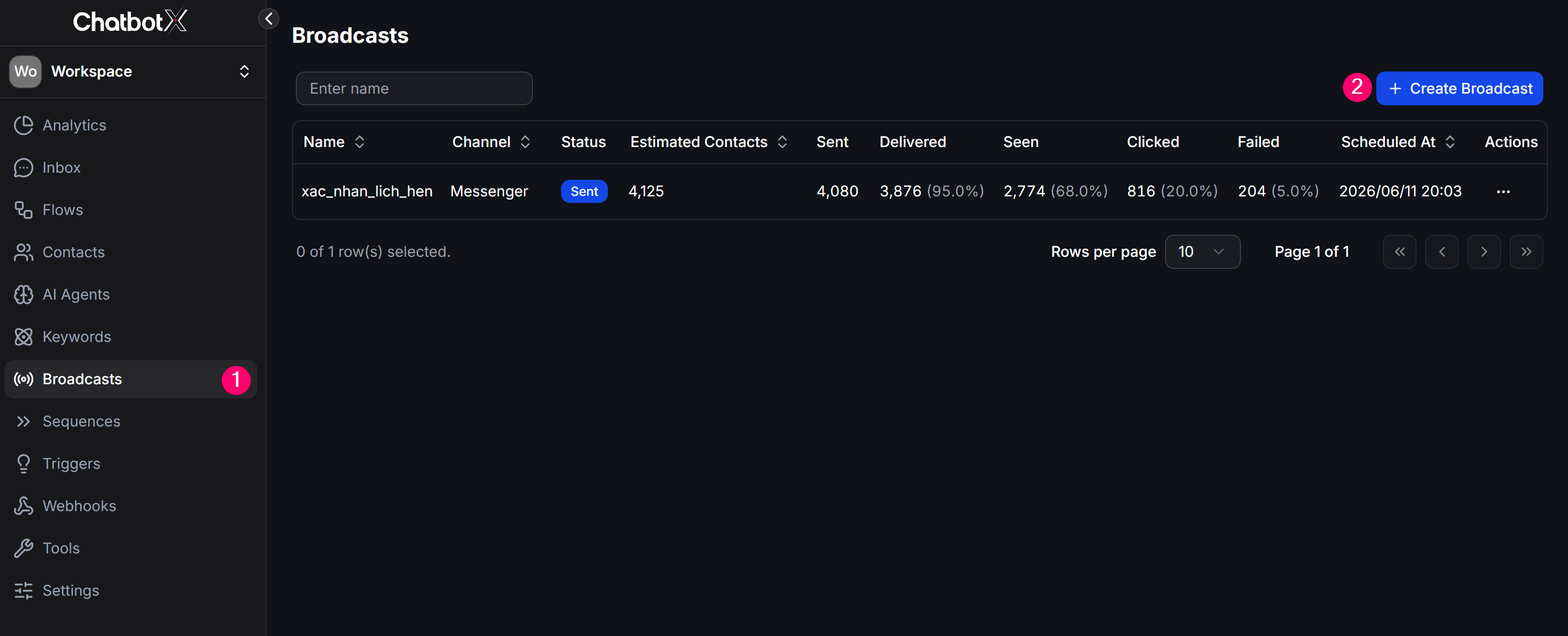
From the left menu, select **Broadcasts**, then click **+ Create Broadcast**.
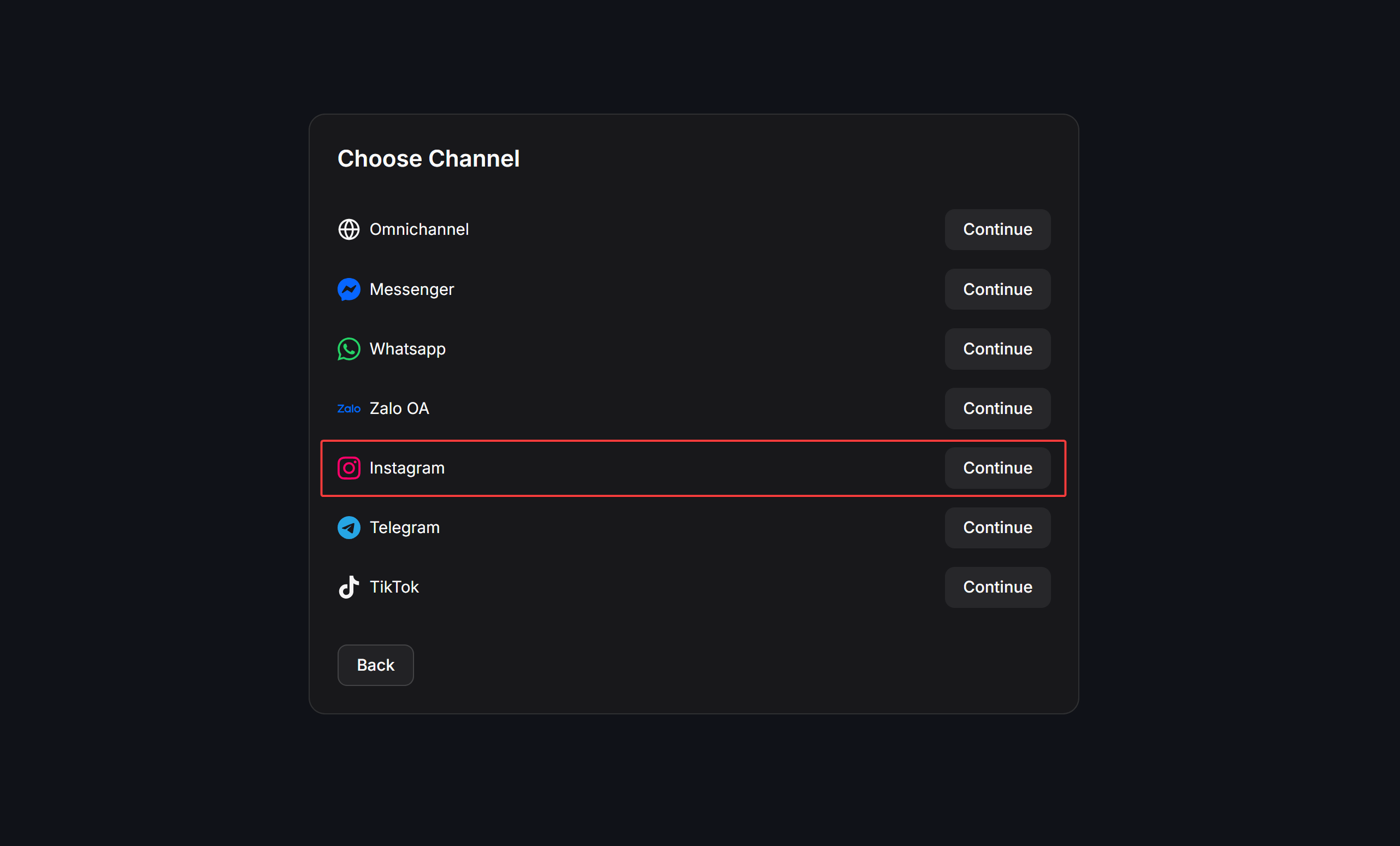
 On the **Choose Channel** screen, select **Instagram**, then click **Continue**.
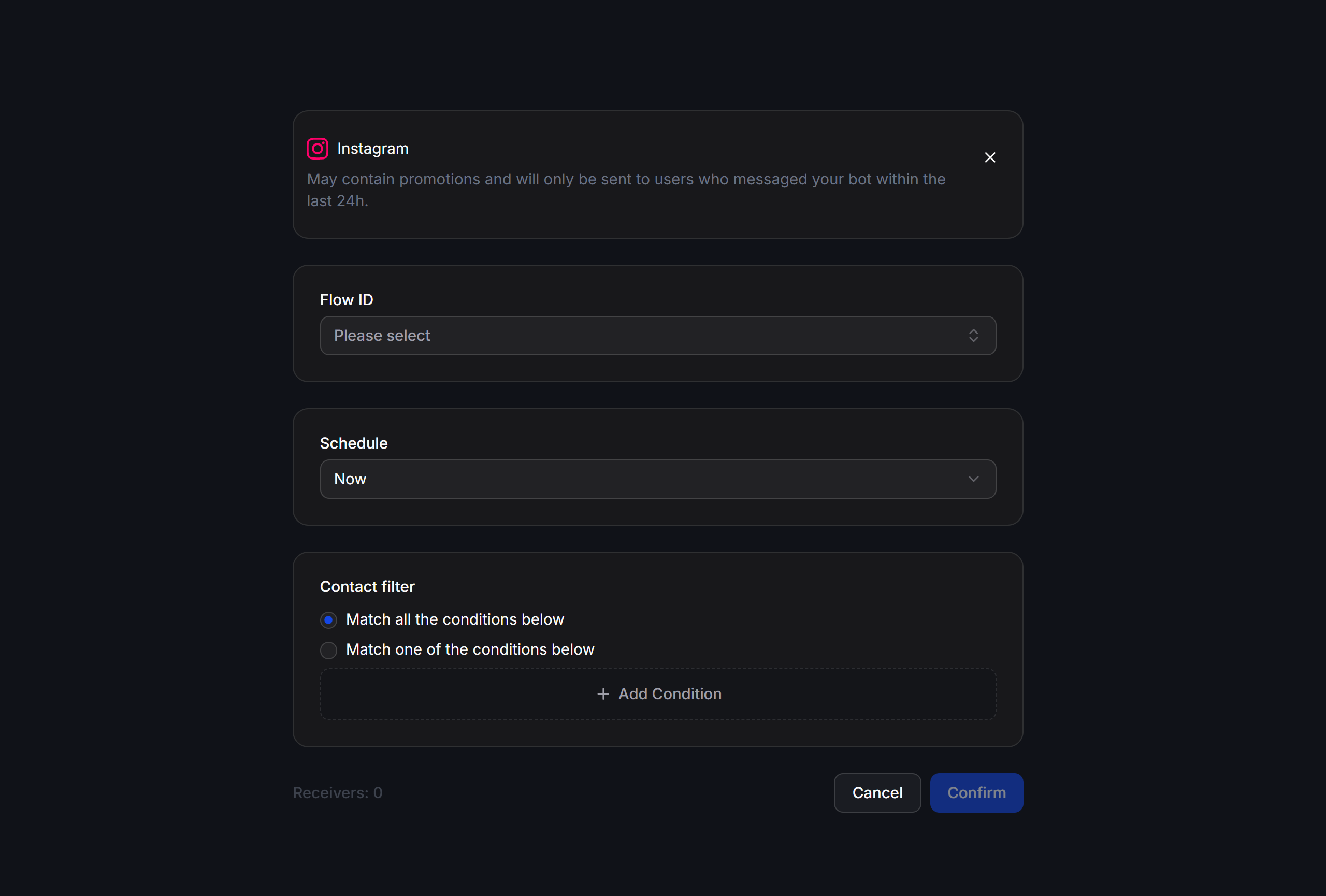
 Select the sending configuration shown for your connected Instagram account, enter the campaign details, then set **Schedule** and **Contact filter** before confirming the Broadcast.
 ## Set the schedule and audience
Use **Now** to send the campaign after you confirm it. Use **Schedule for later** when you need to select a date, time, and timezone.
Use **Contact filter** to target the right recipients. You can require contacts to match all conditions or at least one condition. Check the number in **Receivers** before confirming the campaign.
The campaign only reaches contacts that match the selected filter and are available for the Instagram sending configuration you chose.
## Example
A fashion brand can send an Instagram Broadcast to contacts tagged `New Collection`, schedule it before a new product launch, and check the recipient count before confirming.
## Check before sending
* Confirm the connected Instagram account and campaign content.
* Review the **Receivers** count and the sending time.
* Open the Broadcasts list after sending to review the available delivery metrics.
## Set the schedule and audience
Use **Now** to send the campaign after you confirm it. Use **Schedule for later** when you need to select a date, time, and timezone.
Use **Contact filter** to target the right recipients. You can require contacts to match all conditions or at least one condition. Check the number in **Receivers** before confirming the campaign.
The campaign only reaches contacts that match the selected filter and are available for the Instagram sending configuration you chose.
## Example
A fashion brand can send an Instagram Broadcast to contacts tagged `New Collection`, schedule it before a new product launch, and check the recipient count before confirming.
## Check before sending
* Confirm the connected Instagram account and campaign content.
* Review the **Receivers** count and the sending time.
* Open the Broadcasts list after sending to review the available delivery metrics.