> ## Documentation Index
> Fetch the complete documentation index at: https://chatbotx.io/docs/llms.txt
> Use this file to discover all available pages before exploring further.
# Messenger Broadcasts
> Learn how to create Messenger Broadcasts in ChatbotX to send bulk messages via Messenger using Utility Templates or directly to Active Contacts within 24 hours.
**Messenger Broadcasts** help you send the same content to multiple contacts on Facebook Messenger at the same time. This feature is ideal for reminding appointments, sending order updates, or remarketing to a pre-filtered group of customers on Messenger.
ChatbotX provides 2 sending types for Messenger Broadcasts: **Template Message** (using utility message templates approved by Meta to send outside the 24-hour window) and **Messenger Active Contacts** (sending a Flow script only to customers who interacted within the last 24 hours).
## Broadcasts List Interface
When accessing **Broadcasts** from the left menu, you will see a list table managing all your bulk messaging campaigns. This table helps you track key metrics such as the number of message receivers, open rate, button click rate, and sending status.
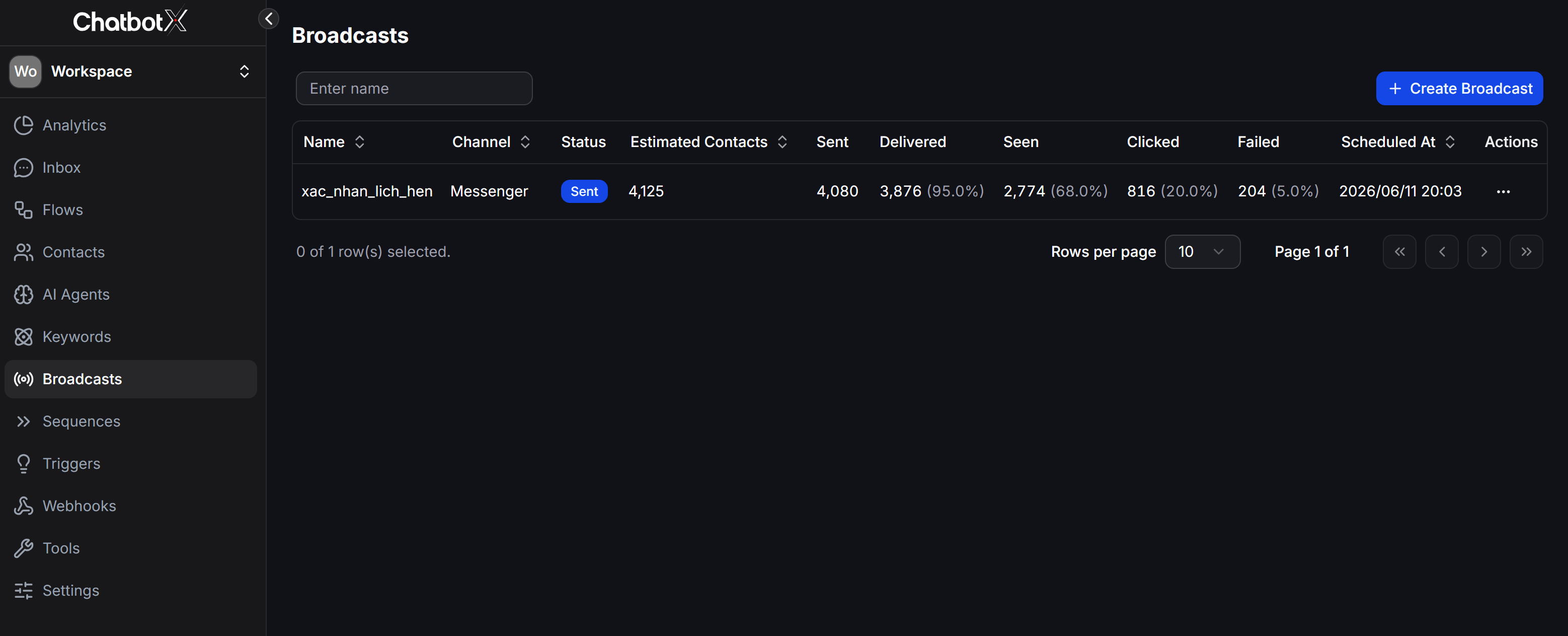 > **Tip:** You can view a detailed explanation of all 11 statistical metric columns in this list table in the **Omnichannel Broadcasts** article.
## How to Create a Messenger Broadcast
Basic steps to set up a bulk messaging campaign on Messenger:
From the left menu, select **Broadcasts** -> click the **+ Create Broadcast** button -> select **Messenger** -> click **Continue**.
> **Tip:** You can view a detailed explanation of all 11 statistical metric columns in this list table in the **Omnichannel Broadcasts** article.
## How to Create a Messenger Broadcast
Basic steps to set up a bulk messaging campaign on Messenger:
From the left menu, select **Broadcasts** -> click the **+ Create Broadcast** button -> select **Messenger** -> click **Continue**.
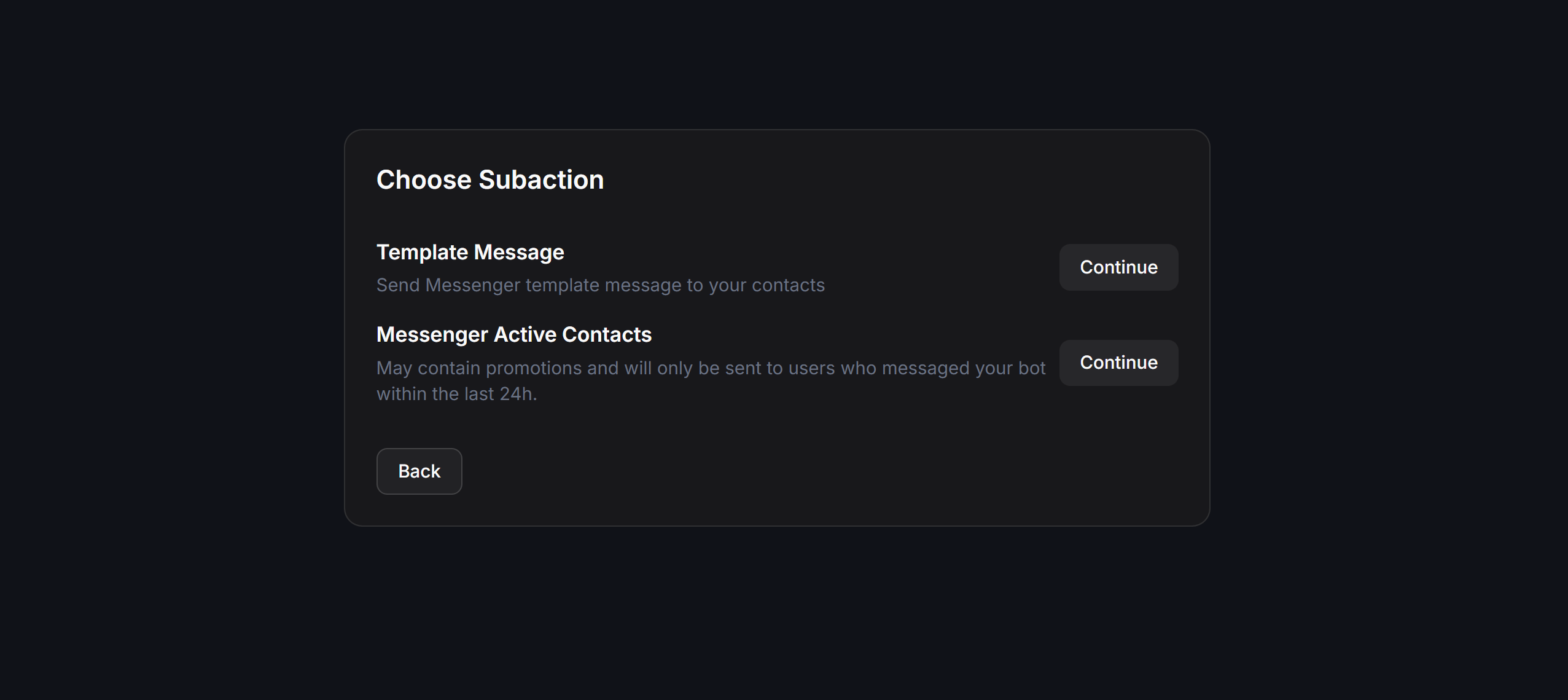
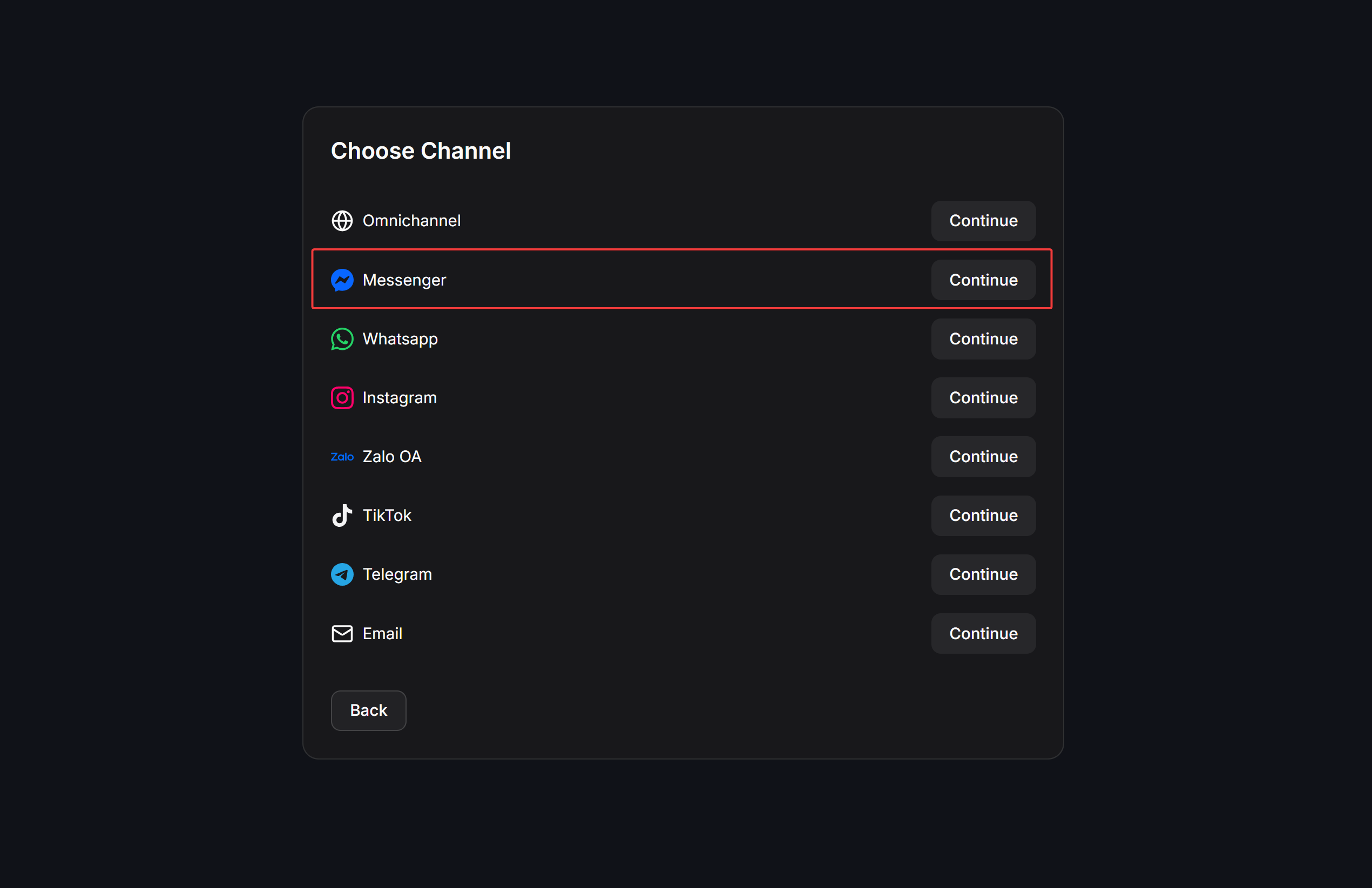 On the **Choose Subaction** screen, select one of the two sending types:
* **Template Message**: Send a Flow script or a Utility Template to customers. This option allows sending to any customer list, even if they are outside the 24-hour interaction window.
* **Messenger Active Contacts**: Send a Flow script to customers who have messaged your page within the last 24 hours.
On the **Choose Subaction** screen, select one of the two sending types:
* **Template Message**: Send a Flow script or a Utility Template to customers. This option allows sending to any customer list, even if they are outside the 24-hour interaction window.
* **Messenger Active Contacts**: Send a Flow script to customers who have messaged your page within the last 24 hours.
 ## Template Message
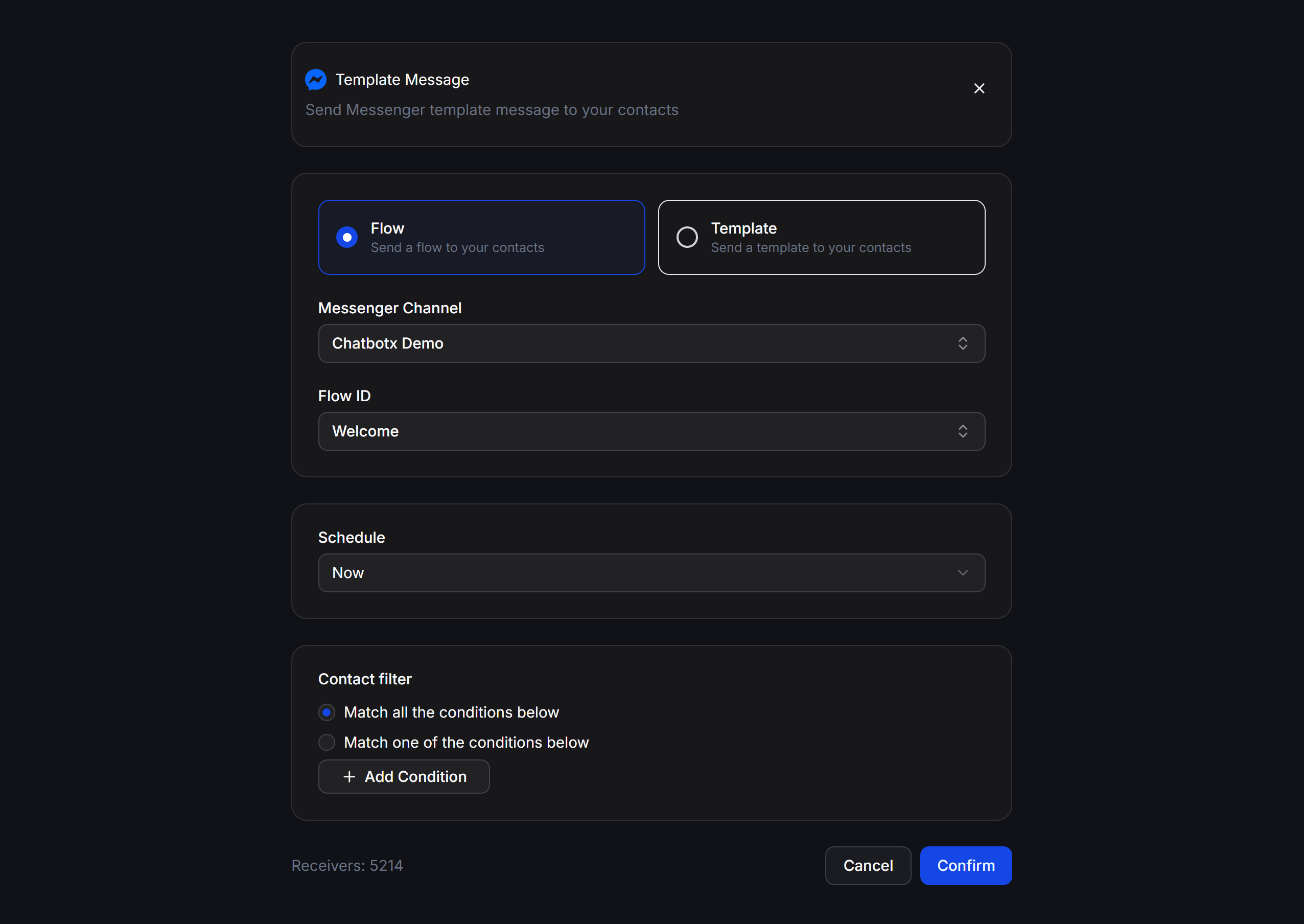
Select the **Template Message** sending type when you need to message old customers who have not interacted with your page for a long time (outside the 24-hour window). The configuration interface includes the following components:
| Component | Description |
| -------------------------------- | ---------------------------------------------------------------------------------------------------- |
| **Flow / Template** | Select **Flow** (send a standard chatbot script) or **Template** (send an approved utility template) |
| **Messenger Channel** | Select the Facebook Fanpage to send from |
| **Flow ID / Messenger Template** | Select a specific chatbot script or message template |
### Sending via Flow
If your contacts are still within the interaction window or you are sending a standard notification message using a Flow script:
1. Select **Flow** ("Send a flow to your contacts").
2. Select the Fanpage in **Messenger Channel** and the desired chatbot script in **Flow ID**.
3. Configure the general **Schedule** and **Contact filter**, then click **Confirm**.
## Template Message
Select the **Template Message** sending type when you need to message old customers who have not interacted with your page for a long time (outside the 24-hour window). The configuration interface includes the following components:
| Component | Description |
| -------------------------------- | ---------------------------------------------------------------------------------------------------- |
| **Flow / Template** | Select **Flow** (send a standard chatbot script) or **Template** (send an approved utility template) |
| **Messenger Channel** | Select the Facebook Fanpage to send from |
| **Flow ID / Messenger Template** | Select a specific chatbot script or message template |
### Sending via Flow
If your contacts are still within the interaction window or you are sending a standard notification message using a Flow script:
1. Select **Flow** ("Send a flow to your contacts").
2. Select the Fanpage in **Messenger Channel** and the desired chatbot script in **Flow ID**.
3. Configure the general **Schedule** and **Contact filter**, then click **Confirm**.
 ### Sending via Template (Utility Messages)
If you want to send an approved utility template (Utility Template) to your contacts outside the 24-hour interaction window:
For detailed instructions on how to set up, approve, and execute a bulk campaign with Utility Templates (Template Message), please see the documentation here: 👉 [**Tin nhắn Thông báo (Utility Messages)**](/docs/channels/messenger/utility-messages)
## Messenger Active Contacts
Select the **Messenger Active Contacts** sending type when you only want to send messages to customers who have interacted with your chatbot within the last 24 hours.
### Sending via Template (Utility Messages)
If you want to send an approved utility template (Utility Template) to your contacts outside the 24-hour interaction window:
For detailed instructions on how to set up, approve, and execute a bulk campaign with Utility Templates (Template Message), please see the documentation here: 👉 [**Tin nhắn Thông báo (Utility Messages)**](/docs/channels/messenger/utility-messages)
## Messenger Active Contacts
Select the **Messenger Active Contacts** sending type when you only want to send messages to customers who have interacted with your chatbot within the last 24 hours.
 ### Interface and Configuration
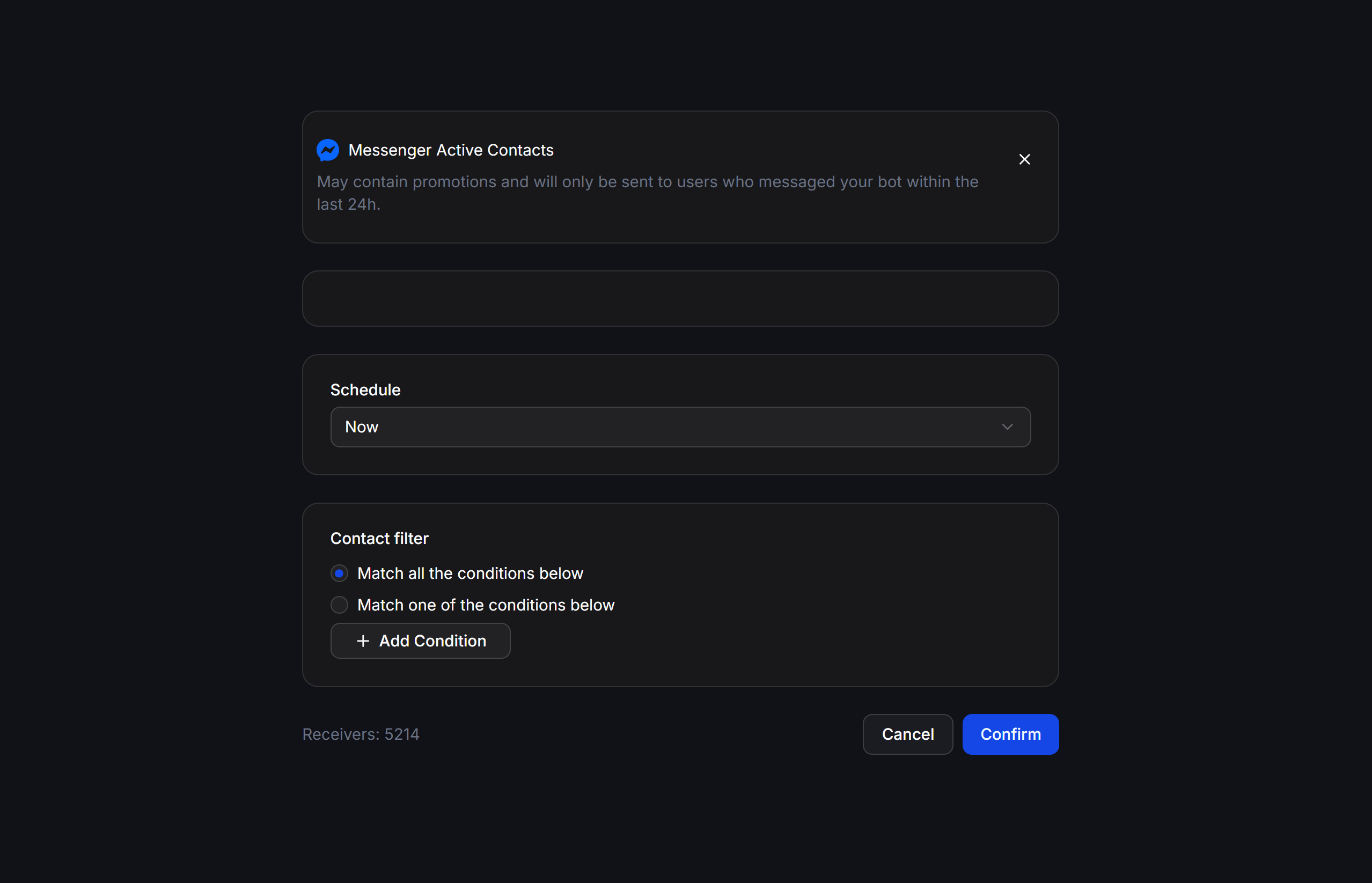
The Active Contacts configuration interface is simpler than Template Message and only supports sending chatbot scripts (does not support selecting templates):
* **Flow ID**: Select the chatbot script to send.
* **Schedule**: Set the sending time (send immediately or schedule for later).
* **Contact filter**: Filter contacts within the 24-hour customer window.
* **Receivers**: The number of active customers who match the conditions.
### Important Notes
* This is the best choice when you want to send promotional messages, discount codes, or run direct sales campaigns (marketing/advertising content) since Meta allows sending unrestricted content within the 24-hour window.
* If your contacts have been silent for more than 24 hours since their last message to the bot, the Broadcast will fail to send. In this case, you must use **Template Message** with a utility template.
## Meta Messaging Policy on Messenger
When operating a chatbot on Messenger, you must follow Meta rules to prevent your Fanpage from being blocked:
* **24-Hour Interaction Window**: When a customer actively messages your Fanpage, you have a 24-hour window to send unrestricted messages (including sales and promotional content).
* **Outside 24 Hours**: You can only send proactive messages using pre-approved **Utility Templates (Utility Messages)**. You must not include promotional content in utility templates.
Meta uses automated filtering systems and records user spam reports. Intentionally sending promotional messages outside the 24-hour window by bypassing rules or miscategorizing utility templates will result in Meta permanently blocking your Fanpage from sending messages.
## Practical Examples
### Reminding Customer Appointments (Template Message -> Template)
You need to send a reminder message to a group of customers who have a beauty appointment tomorrow:
* Select **Template Message** -> **Template**.
* Select the pre-approved appointment reminder utility template.
* Fill in actual values for variables (e.g., enter customer name for `{{1}}`, appointment time for `{{2}}`).
* `Contact filter`: Filter customers whose appointment field matches tomorrow.
* Set to send immediately.
### Sending Quick Flash Sale Codes (Messenger Active Contacts)
You are running a golden hour promotion and want to immediately notify customers who have chatted with you today:
* Select **Messenger Active Contacts**.
* Select the Flow containing the flash sale introduction and the purchase button.
* Set to send immediately so that contacts in the 24-hour window receive the promotional information instantly.
## Messenger Broadcast Operating Tips
* Name your Broadcasts in detail based on the campaign goal (e.g., `Messenger - Spa Appointment Reminder 1906` or `Messenger - Active Contacts - Flash Sale`).
* Always double-check the actual number of receivers in the **Receivers** section before sending. If the Receivers count is 0, check your filter or sending channel configuration.
* After the campaign is complete, go to the Broadcasts list table to check the metrics for `Sent`, `Delivered`, `Seen`, and `Clicked` to evaluate the campaign's reach and effectiveness.
### Interface and Configuration
The Active Contacts configuration interface is simpler than Template Message and only supports sending chatbot scripts (does not support selecting templates):
* **Flow ID**: Select the chatbot script to send.
* **Schedule**: Set the sending time (send immediately or schedule for later).
* **Contact filter**: Filter contacts within the 24-hour customer window.
* **Receivers**: The number of active customers who match the conditions.
### Important Notes
* This is the best choice when you want to send promotional messages, discount codes, or run direct sales campaigns (marketing/advertising content) since Meta allows sending unrestricted content within the 24-hour window.
* If your contacts have been silent for more than 24 hours since their last message to the bot, the Broadcast will fail to send. In this case, you must use **Template Message** with a utility template.
## Meta Messaging Policy on Messenger
When operating a chatbot on Messenger, you must follow Meta rules to prevent your Fanpage from being blocked:
* **24-Hour Interaction Window**: When a customer actively messages your Fanpage, you have a 24-hour window to send unrestricted messages (including sales and promotional content).
* **Outside 24 Hours**: You can only send proactive messages using pre-approved **Utility Templates (Utility Messages)**. You must not include promotional content in utility templates.
Meta uses automated filtering systems and records user spam reports. Intentionally sending promotional messages outside the 24-hour window by bypassing rules or miscategorizing utility templates will result in Meta permanently blocking your Fanpage from sending messages.
## Practical Examples
### Reminding Customer Appointments (Template Message -> Template)
You need to send a reminder message to a group of customers who have a beauty appointment tomorrow:
* Select **Template Message** -> **Template**.
* Select the pre-approved appointment reminder utility template.
* Fill in actual values for variables (e.g., enter customer name for `{{1}}`, appointment time for `{{2}}`).
* `Contact filter`: Filter customers whose appointment field matches tomorrow.
* Set to send immediately.
### Sending Quick Flash Sale Codes (Messenger Active Contacts)
You are running a golden hour promotion and want to immediately notify customers who have chatted with you today:
* Select **Messenger Active Contacts**.
* Select the Flow containing the flash sale introduction and the purchase button.
* Set to send immediately so that contacts in the 24-hour window receive the promotional information instantly.
## Messenger Broadcast Operating Tips
* Name your Broadcasts in detail based on the campaign goal (e.g., `Messenger - Spa Appointment Reminder 1906` or `Messenger - Active Contacts - Flash Sale`).
* Always double-check the actual number of receivers in the **Receivers** section before sending. If the Receivers count is 0, check your filter or sending channel configuration.
* After the campaign is complete, go to the Broadcasts list table to check the metrics for `Sent`, `Delivered`, `Seen`, and `Clicked` to evaluate the campaign's reach and effectiveness.