> ## Documentation Index
> Fetch the complete documentation index at: https://chatbotx.io/docs/llms.txt
> Use this file to discover all available pages before exploring further.
# Sequences - Drip Campaigns
> Learn how to build automated message sequences in ChatbotX, including free-form messages and approved template messages.
**Sequences** lets you schedule a series of messages that go out to customers in a fixed time order without sending each one manually. You can use Sequences to welcome new contacts, send appointment reminders, follow up after a purchase, or nurture customers over time.
For example, when someone signs up for consultation, they can receive a welcome message right away, a helpful guide after 1 day, a reminder or update after 3 days, and only later receive marketing content if the channel and timing rules allow it.
## Understand the 24-hour policy before building a Sequence
Before setting up a Sequence, you need to understand the messaging limits of each platform. These rules decide whether you can send a direct message or whether you need to switch to a specific message type or template category.
### Messenger
* Within **24 hours** of the customer's last interaction, you can send direct content.
* After 24 hours, split your use case into 2 cases:
* **Utility Message**: for non-promotional content such as order updates, appointment reminders, or account notifications
* **Marketing Messages on Messenger**: for marketing content outside the 24-hour window, sent through campaigns to contacts who opted in
### WhatsApp
* Within **24 hours**, WhatsApp allows you to send free-form messages without using a fixed template.
* After 24 hours, WhatsApp requires pre-approved **message templates**.
* The main template categories are:
* **Marketing**
* **Utility**
* **Authentication**
### Quick summary
| Channel | Within 24 hours | After 24 hours |
| ------------- | ------------------ | ----------------------------------------------------------------------------------- |
| **Messenger** | Free-form messages | Use `Utility Message` or `Marketing Messages on Messenger` depending on the purpose |
| **WhatsApp** | Free-form messages | Use approved `message templates`, usually `Utility` or `Marketing` |
## How to set up a Sequence
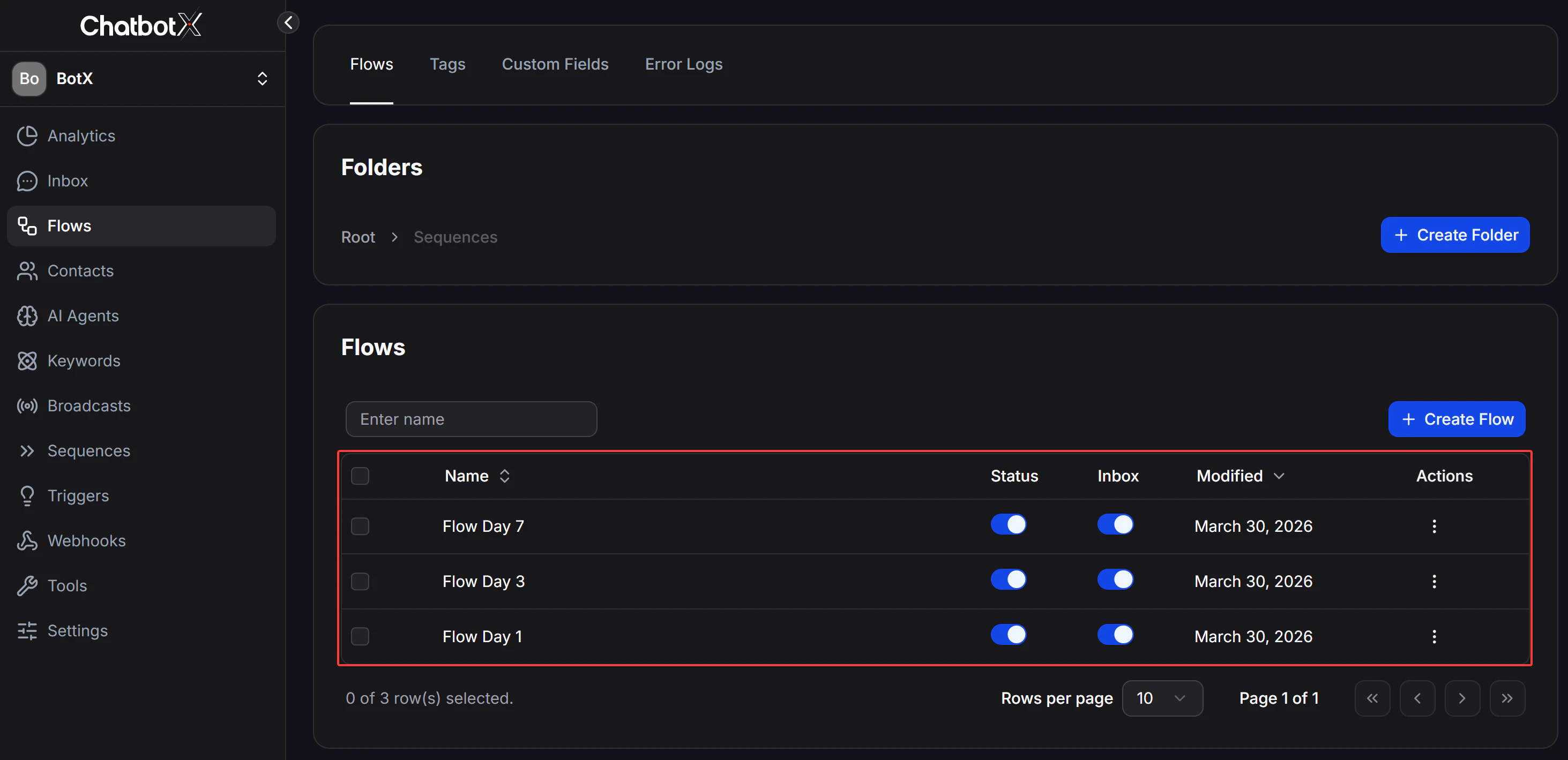
### Step 1: Create separate Flows first
Each message in the Sequence should be its own Flow. Prepare those Flows before you assemble the full Sequence.
Example of a 7-day WhatsApp sequence:
* **Day 1 Flow**: welcome message and first introduction while the customer is still inside the 24-hour window
* **Day 3 Flow**: appointment reminder or order update using `Utility` content
* **Day 7 Flow**: a return-purchase offer using a `Marketing` template
 ### Step 2: Open Sequences
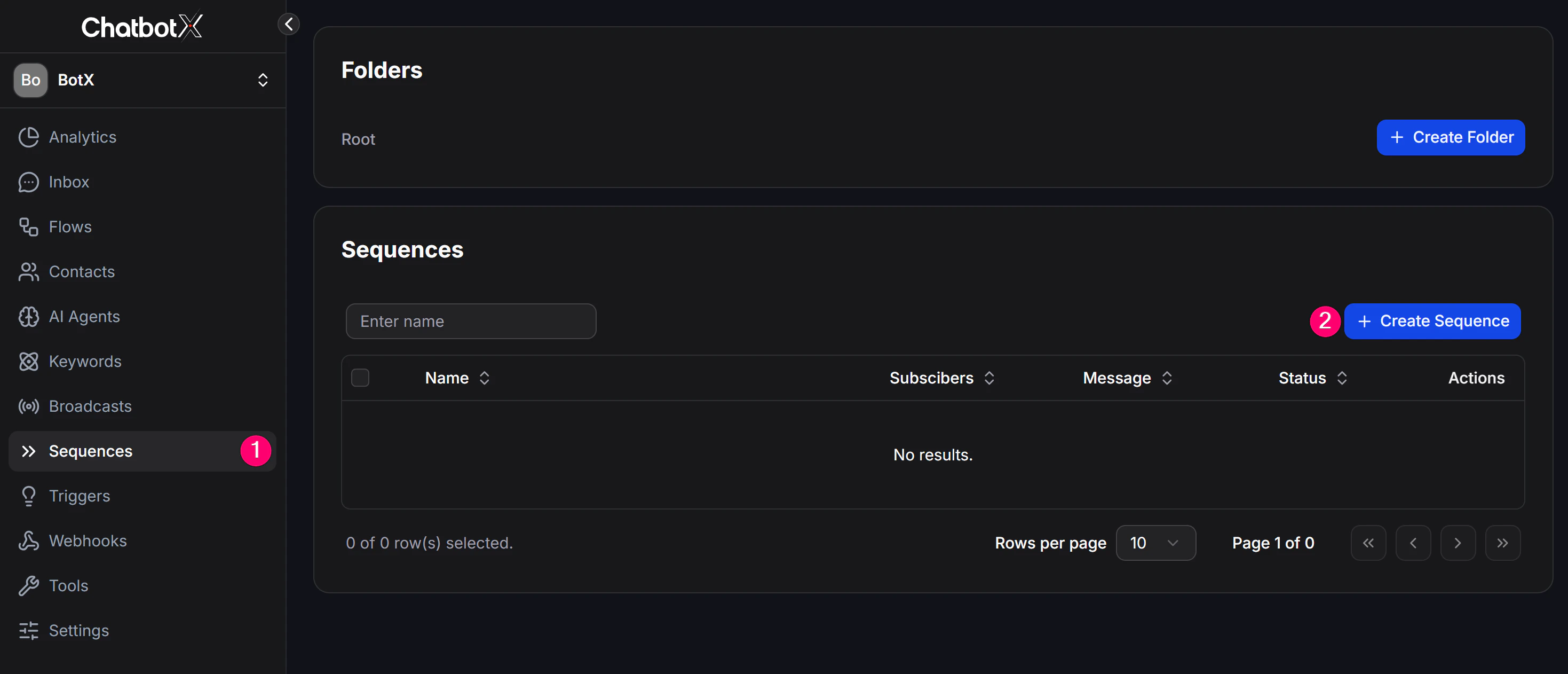
From the left menu, open **Sequences**.
### Step 3: Create a new Sequence
1. Click **+ Add** to create a new sequence.
2. Give it a clear name, such as `New Customer Care - WA` or `7-Day Nurture - Messenger`.
3. Click **Save** to continue.
### Step 2: Open Sequences
From the left menu, open **Sequences**.
### Step 3: Create a new Sequence
1. Click **+ Add** to create a new sequence.
2. Give it a clear name, such as `New Customer Care - WA` or `7-Day Nurture - Messenger`.
3. Click **Save** to continue.
 ### Step 4: Add messages and define the schedule
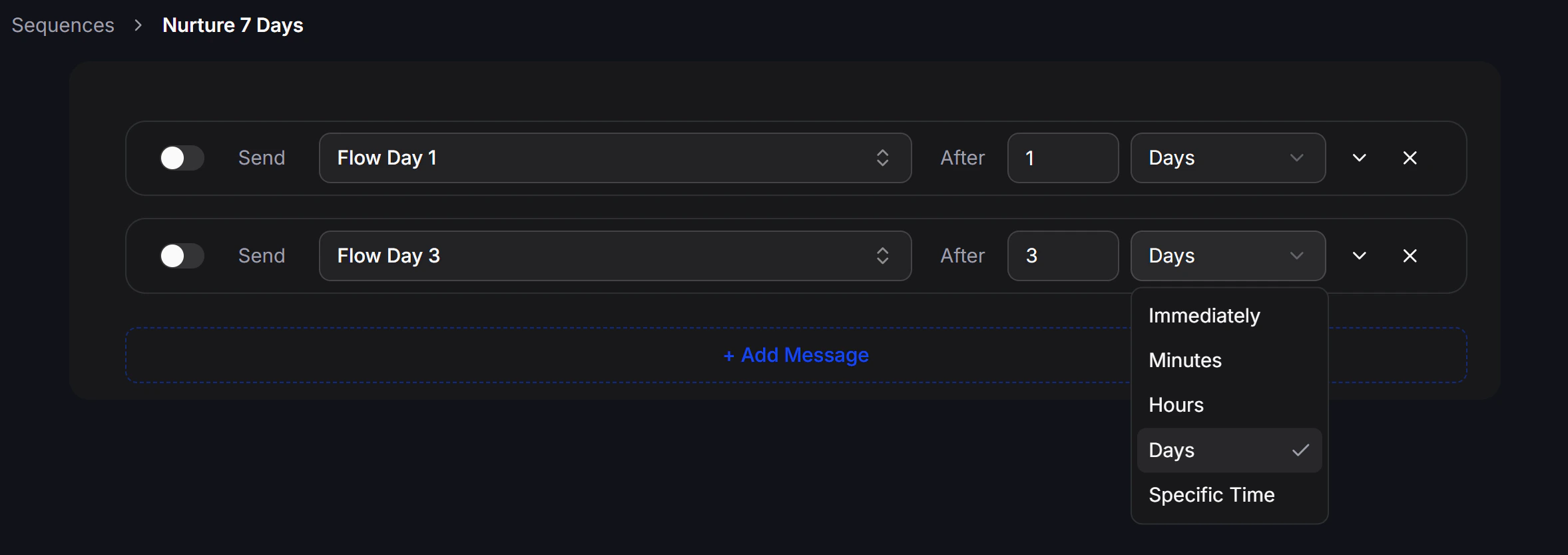
1. Click **+ Add Message** to add a step to the sequence.
2. Choose the matching **Flow** for that step.
3. Set the delay: immediately, after X hours, or after X days.
4. Turn on the toggle to activate that step.
### Step 4: Add messages and define the schedule
1. Click **+ Add Message** to add a step to the sequence.
2. Choose the matching **Flow** for that step.
3. Set the delay: immediately, after X hours, or after X days.
4. Turn on the toggle to activate that step.
 ### Step 5: Create the subscription point for the Sequence
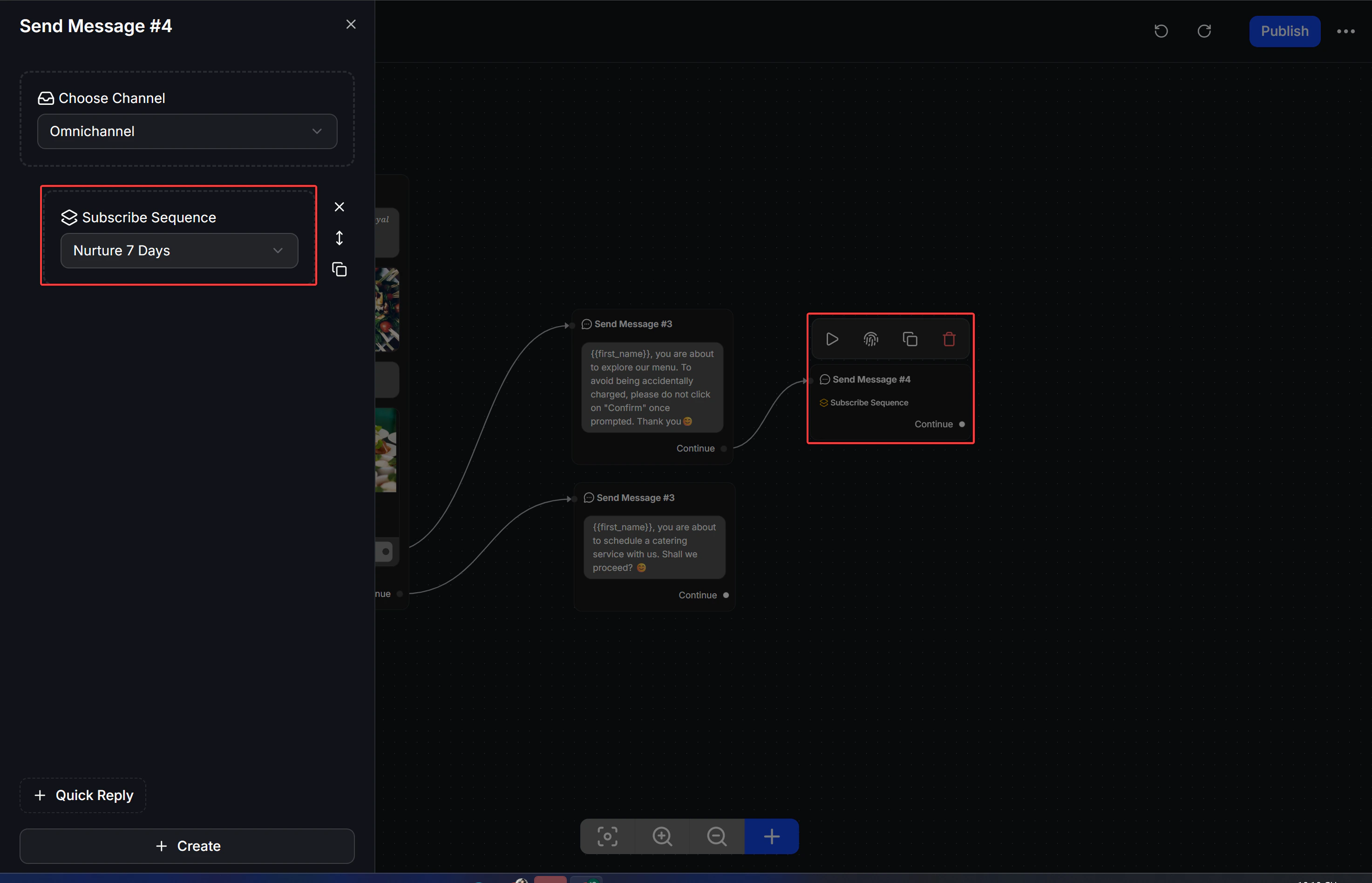
A Sequence does not run by itself. It needs a Flow to subscribe the customer into it.
1. In any Flow, add an **Action** block.
2. Choose **Subscribe to Sequence** and select the correct Sequence.
From the moment the customer passes through that Action, the system starts counting the schedule and sends each step in order.
### Step 5: Create the subscription point for the Sequence
A Sequence does not run by itself. It needs a Flow to subscribe the customer into it.
1. In any Flow, add an **Action** block.
2. Choose **Subscribe to Sequence** and select the correct Sequence.
From the moment the customer passes through that Action, the system starts counting the schedule and sends each step in order.
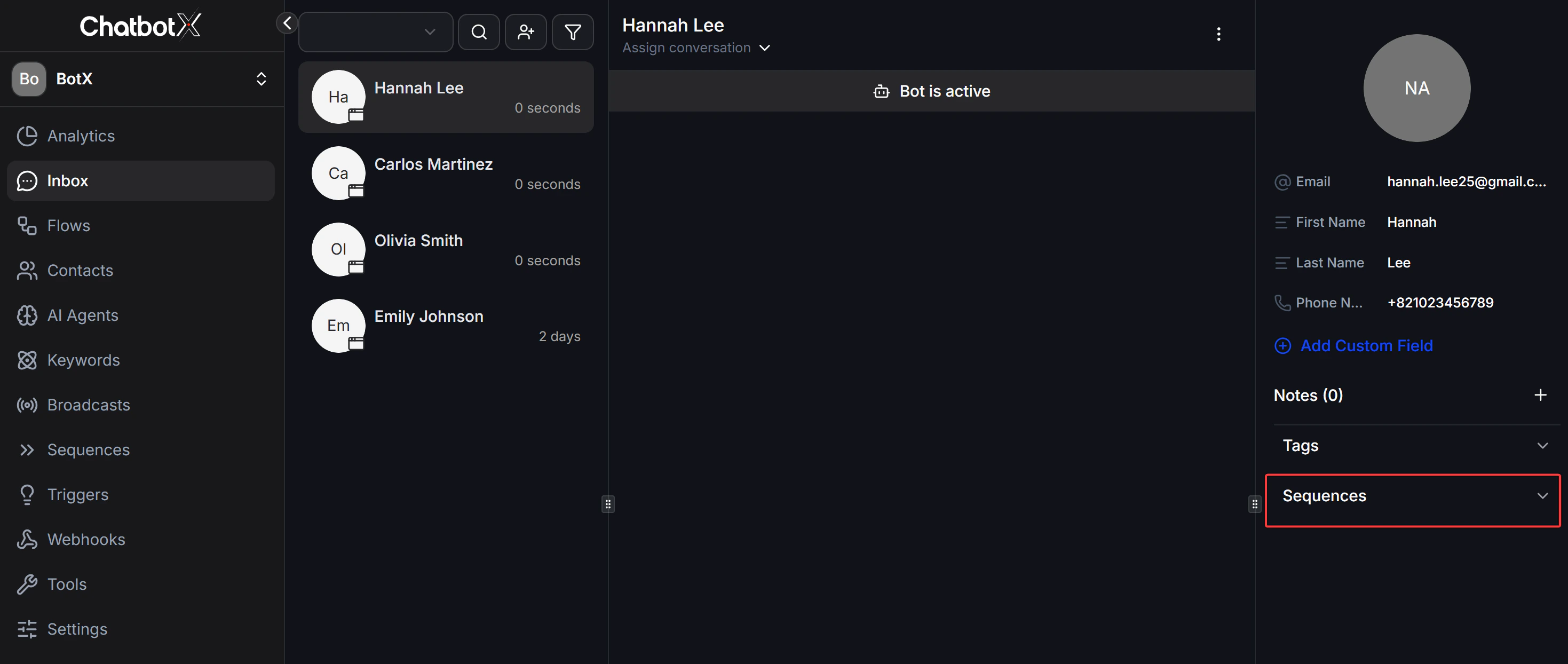
 You can also attach the Sequence directly from **Inbox** when an agent wants to subscribe a customer manually during a live conversation.
 ## Example Sequence setups
### Post-purchase care sequence on WhatsApp
* Right after the customer messages you: send instructions or a thank-you message as a `free-form message within 24h`
* A few days later: send a transactional update or reminder with `Utility`
* Later on: if you want to remarket, use the right `Marketing` template
### Win-back sequence for older Messenger contacts
* If the customer is still inside 24 hours: send the needed message directly
* If the customer is outside 24 hours and the content is essential: use `Utility Message`
* If the content is promotional or newsletter-style: use `Marketing Messages on Messenger`
## Safe operating strategy
* Classify the message before sending: `Utility` or `Marketing`.
* Do not place promotional content inside the `Utility` path.
* If you want to keep the 24-hour window open longer, end your message with a question that encourages the customer to reply.
* For longer nurture flows, choose the correct channel and message type from the start instead of using the same logic everywhere.
## Example Sequence setups
### Post-purchase care sequence on WhatsApp
* Right after the customer messages you: send instructions or a thank-you message as a `free-form message within 24h`
* A few days later: send a transactional update or reminder with `Utility`
* Later on: if you want to remarket, use the right `Marketing` template
### Win-back sequence for older Messenger contacts
* If the customer is still inside 24 hours: send the needed message directly
* If the customer is outside 24 hours and the content is essential: use `Utility Message`
* If the content is promotional or newsletter-style: use `Marketing Messages on Messenger`
## Safe operating strategy
* Classify the message before sending: `Utility` or `Marketing`.
* Do not place promotional content inside the `Utility` path.
* If you want to keep the 24-hour window open longer, end your message with a question that encourages the customer to reply.
* For longer nurture flows, choose the correct channel and message type from the start instead of using the same logic everywhere.