> ## Documentation Index
> Fetch the complete documentation index at: https://chatbotx.io/docs/llms.txt
> Use this file to discover all available pages before exploring further.
# WhatsApp Broadcasts
> Learn how to create WhatsApp Broadcasts in ChatbotX to send bulk messages using Template Messages or free-form messages within the 24-hour chat session.
**WhatsApp Broadcasts** help you send the same Flow script or message template to multiple contacts on WhatsApp at the same time. This feature is ideal for reminding appointments, sending transaction notifications, offering promotions, or re-engaging a pre-filtered customer segment on WhatsApp.
The system splits into 2 main sending branches: **Template Message (Outside 24 hour)** (send messages outside the 24-hour interaction window using message templates pre-approved by Meta) and **Active contacts within 24 hours** (send free-form Flow scripts within the active 24-hour chat session).
## Broadcasts List Interface
When accessing **Broadcasts** from the left menu, you will see a list table managing all your bulk messaging campaigns. This table helps you track key metrics such as the number of message receivers, open rate, button click rate, and sending status.
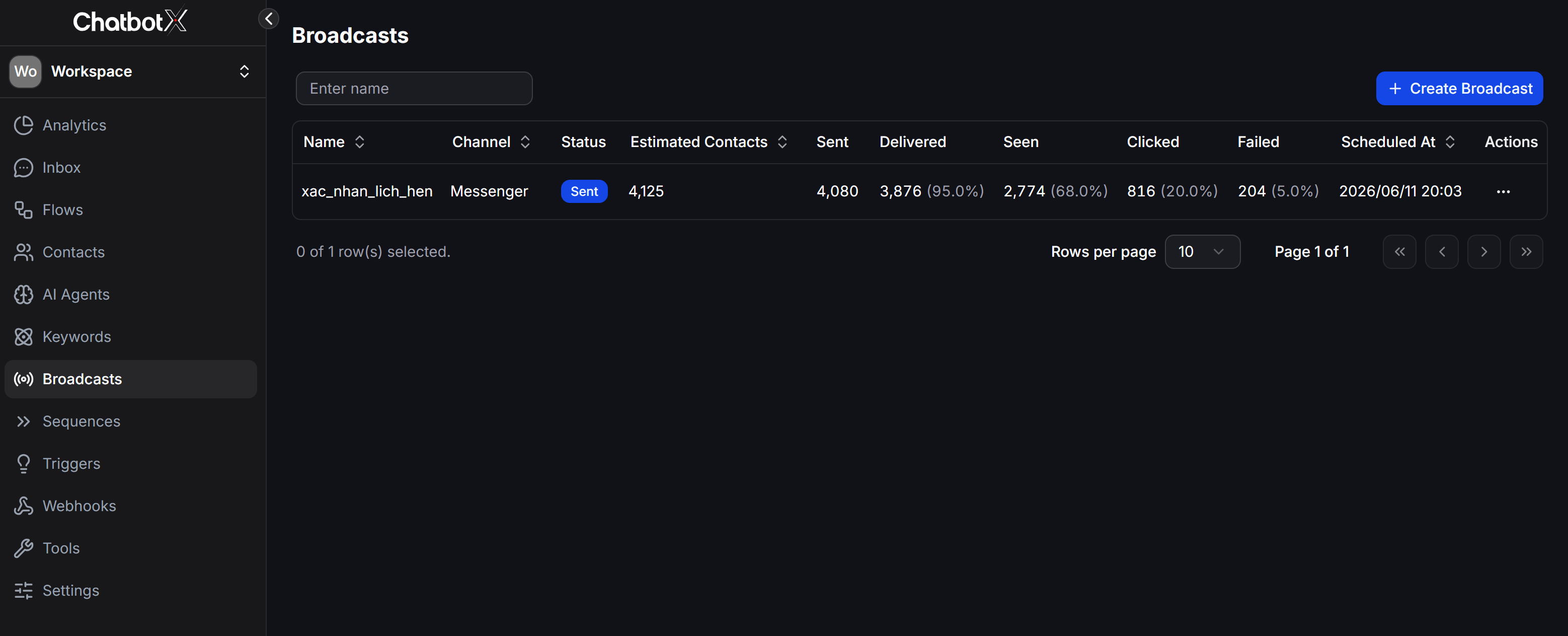 > **Tip:** You can view a detailed explanation of all 11 statistical metric columns in this list table in the **Omnichannel Broadcasts** article.
## How to Create a WhatsApp Broadcast
The process of setting up a bulk messaging campaign on WhatsApp involves these steps:
From the left menu, select **Broadcasts** -> click the **+ Create Broadcast** button -> select **WhatsApp** -> click **Continue**.
> **Tip:** You can view a detailed explanation of all 11 statistical metric columns in this list table in the **Omnichannel Broadcasts** article.
## How to Create a WhatsApp Broadcast
The process of setting up a bulk messaging campaign on WhatsApp involves these steps:
From the left menu, select **Broadcasts** -> click the **+ Create Broadcast** button -> select **WhatsApp** -> click **Continue**.
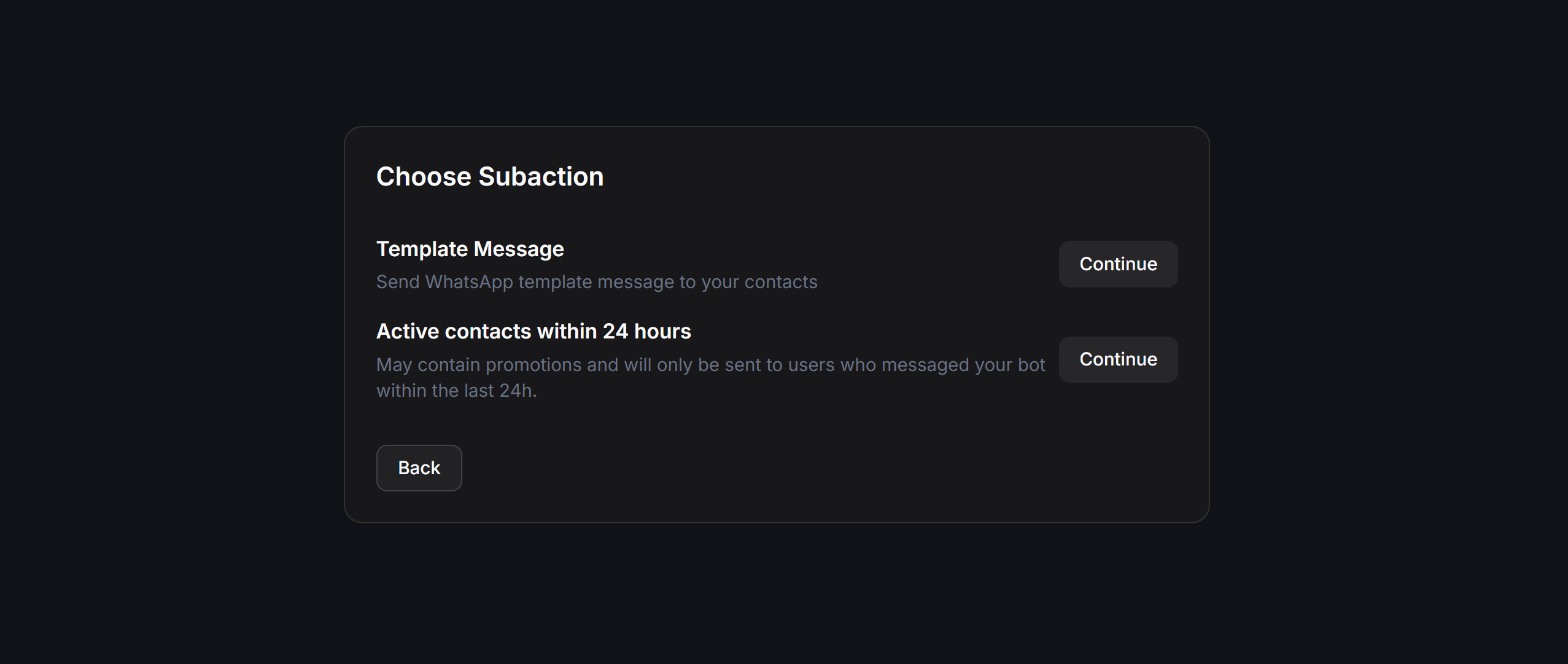
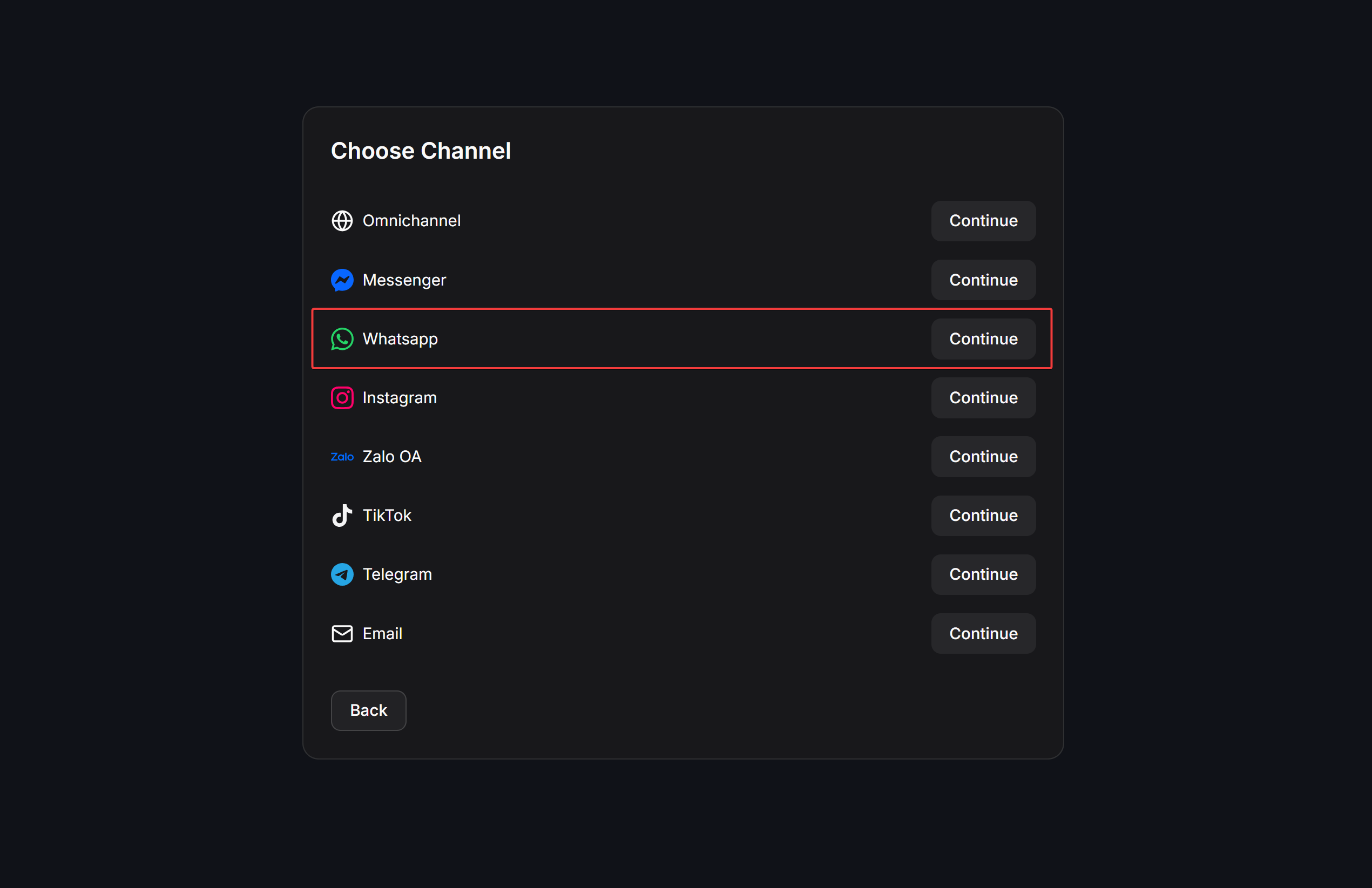 On the **Choose Subaction** screen, select the sending type that matches your customer segment:
* **Template Message (Outside 24 hour)**: Use an approved message template to send messages to customers outside the 24-hour window.
* **Active contacts within 24 hours**: Send free-form Flow scripts to customers who have an active chat session within the last 24 hours.
On the **Choose Subaction** screen, select the sending type that matches your customer segment:
* **Template Message (Outside 24 hour)**: Use an approved message template to send messages to customers outside the 24-hour window.
* **Active contacts within 24 hours**: Send free-form Flow scripts to customers who have an active chat session within the last 24 hours.
 ## Template Message (Outside 24 hour)
Use this subaction to message customers outside the 24-hour interaction window using an approved template. The configuration interface includes:
## Template Message (Outside 24 hour)
Use this subaction to message customers outside the 24-hour interaction window using an approved template. The configuration interface includes:
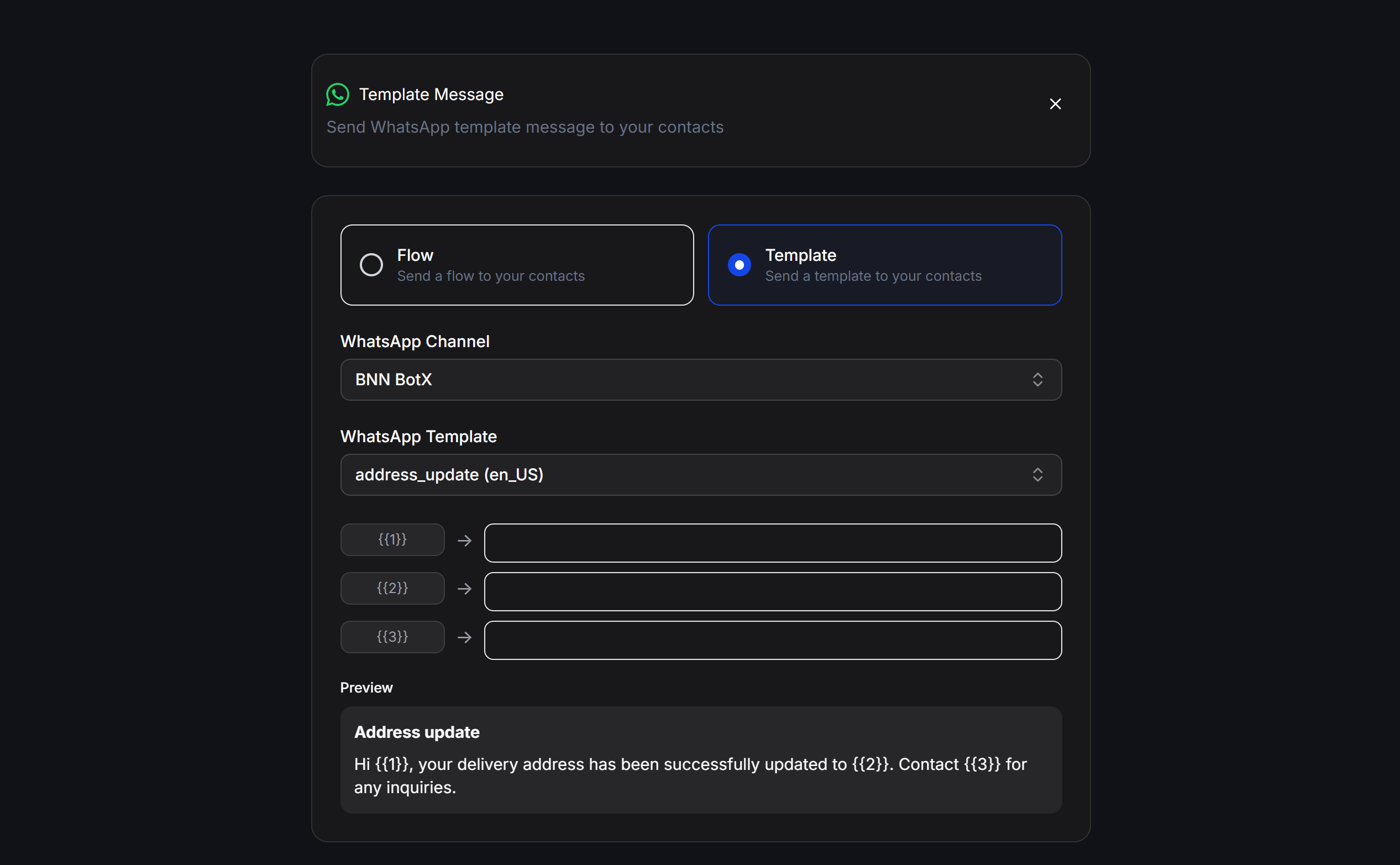 * **Flow / Template**: Select **Flow** (send a chatbot script bundled with a template) or **Template** (send a Meta-approved message template).
* **WhatsApp Channel**: Select the WhatsApp phone number to send from.
* **WhatsApp Template**: Select the synced message template from the dropdown.
* **Variable mapping**: Fill in sample values or link to custom contact data fields for variables `{{1}}`, `{{2}}`...
* **Preview**: Preview the actual message layout (including buttons) before confirming.
## Active contacts within 24 hours
Use this subaction to send bulk messages to contacts who have an active chat session within the last 24 hours.
### 24-Hour Chat Session Logic (Free-form messages)
When a customer actively messages your WhatsApp number, the system opens a chat session lasting 24 hours.
* Within this chat session, you can send **free-form messages** (Flow scripts) without being required to use Meta-approved templates.
* You can freely send product consultations, answer questions, send promotions, or customer care scripts.
* Only **Flow** scripts are supported (Template is not supported).
### Sending Configuration
* **Flow ID**: Select the chatbot script to send.
* **Schedule**: Select whether to send immediately or schedule for later.
* **Contact filter**: Use filters to target specific contacts within the active 24-hour audience.
* **Receivers**: The number of active customers who match the filters.
* **Flow / Template**: Select **Flow** (send a chatbot script bundled with a template) or **Template** (send a Meta-approved message template).
* **WhatsApp Channel**: Select the WhatsApp phone number to send from.
* **WhatsApp Template**: Select the synced message template from the dropdown.
* **Variable mapping**: Fill in sample values or link to custom contact data fields for variables `{{1}}`, `{{2}}`...
* **Preview**: Preview the actual message layout (including buttons) before confirming.
## Active contacts within 24 hours
Use this subaction to send bulk messages to contacts who have an active chat session within the last 24 hours.
### 24-Hour Chat Session Logic (Free-form messages)
When a customer actively messages your WhatsApp number, the system opens a chat session lasting 24 hours.
* Within this chat session, you can send **free-form messages** (Flow scripts) without being required to use Meta-approved templates.
* You can freely send product consultations, answer questions, send promotions, or customer care scripts.
* Only **Flow** scripts are supported (Template is not supported).
### Sending Configuration
* **Flow ID**: Select the chatbot script to send.
* **Schedule**: Select whether to send immediately or schedule for later.
* **Contact filter**: Use filters to target specific contacts within the active 24-hour audience.
* **Receivers**: The number of active customers who match the filters.
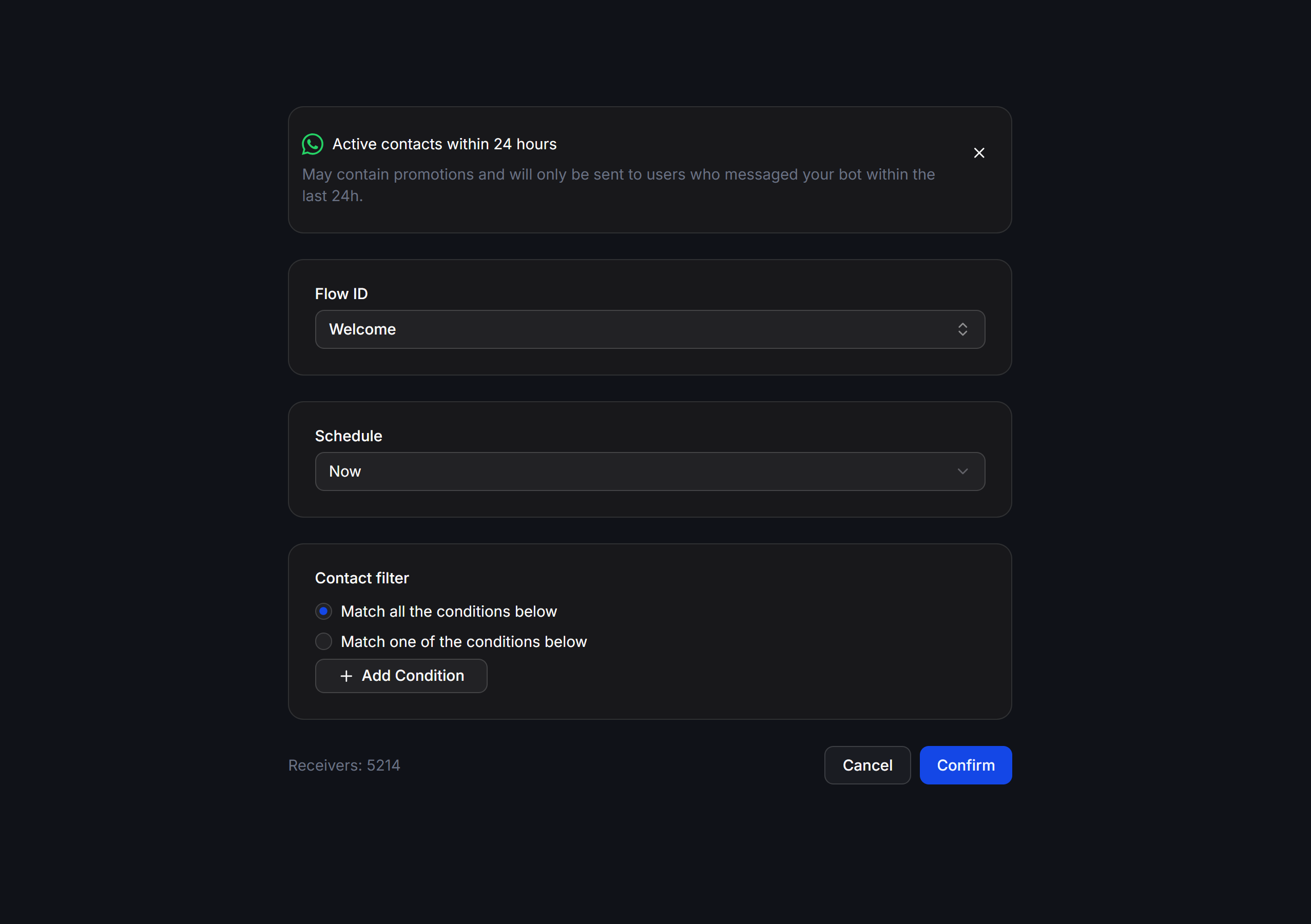 Active contacts within 24 hours only delivers successfully to contacts with an open chat session (interacted within 24 hours). For customers who have been silent for more than 24 hours, messages will fail to send.
## Practical Examples
### Sending Order Confirmation Notifications (Utility Template)
When a customer has just placed an order and you want to send a status update notification outside the 24-hour window:
* Select **Template Message (Outside 24 hour)** -> select **Template**.
* Select the pre-approved order confirmation utility template.
* Fill in values for variables (e.g., `{{1}}` for Customer name, `{{2}}` for Order ID, `{{3}}` for Delivery status).
* Schedule for later or send immediately.
### Re-engaging Old Customers with Offers (Marketing Template)
You want to run a remarketing campaign to send a discount voucher to your old customer segment:
* Select **Template Message (Outside 24 hour)** -> select **Template**.
* Select the Meta-approved Marketing template containing the promotional offer.
* Fill in the corresponding variable values and preview in the **Preview** section.
* `Contact filter`: Filter contacts with the Tag `Old Customer`.
* Confirm and send.
## WhatsApp Message Templates
To proactively message customers outside the 24-hour window, WhatsApp requires you to use message templates that have been reviewed and approved by Meta in advance to prevent spam.
### Template Categories
WhatsApp message templates contain fixed content and dynamic variables `{{1}}`, `{{2}}`... to automatically populate customer information. Meta categorizes templates into 3 main categories:
* **Utility**: Send transactional information, order updates, account updates, or essential appointment reminders directly related to a customer action.
* **Marketing**: Send offers, promotions, product advertisements, or commercial customer care content to boost engagement.
* **Authentication**: Send OTP codes or two-factor authentication login verification codes.
### Steps to Create and Submit Templates for Approval
The process of creating templates and submitting them for Meta review is as follows:
Go to **Settings** -> **Channels** tab -> select **Whatsapp** -> click **Manage** next to the WhatsApp number you want to configure.
Active contacts within 24 hours only delivers successfully to contacts with an open chat session (interacted within 24 hours). For customers who have been silent for more than 24 hours, messages will fail to send.
## Practical Examples
### Sending Order Confirmation Notifications (Utility Template)
When a customer has just placed an order and you want to send a status update notification outside the 24-hour window:
* Select **Template Message (Outside 24 hour)** -> select **Template**.
* Select the pre-approved order confirmation utility template.
* Fill in values for variables (e.g., `{{1}}` for Customer name, `{{2}}` for Order ID, `{{3}}` for Delivery status).
* Schedule for later or send immediately.
### Re-engaging Old Customers with Offers (Marketing Template)
You want to run a remarketing campaign to send a discount voucher to your old customer segment:
* Select **Template Message (Outside 24 hour)** -> select **Template**.
* Select the Meta-approved Marketing template containing the promotional offer.
* Fill in the corresponding variable values and preview in the **Preview** section.
* `Contact filter`: Filter contacts with the Tag `Old Customer`.
* Confirm and send.
## WhatsApp Message Templates
To proactively message customers outside the 24-hour window, WhatsApp requires you to use message templates that have been reviewed and approved by Meta in advance to prevent spam.
### Template Categories
WhatsApp message templates contain fixed content and dynamic variables `{{1}}`, `{{2}}`... to automatically populate customer information. Meta categorizes templates into 3 main categories:
* **Utility**: Send transactional information, order updates, account updates, or essential appointment reminders directly related to a customer action.
* **Marketing**: Send offers, promotions, product advertisements, or commercial customer care content to boost engagement.
* **Authentication**: Send OTP codes or two-factor authentication login verification codes.
### Steps to Create and Submit Templates for Approval
The process of creating templates and submitting them for Meta review is as follows:
Go to **Settings** -> **Channels** tab -> select **Whatsapp** -> click **Manage** next to the WhatsApp number you want to configure.
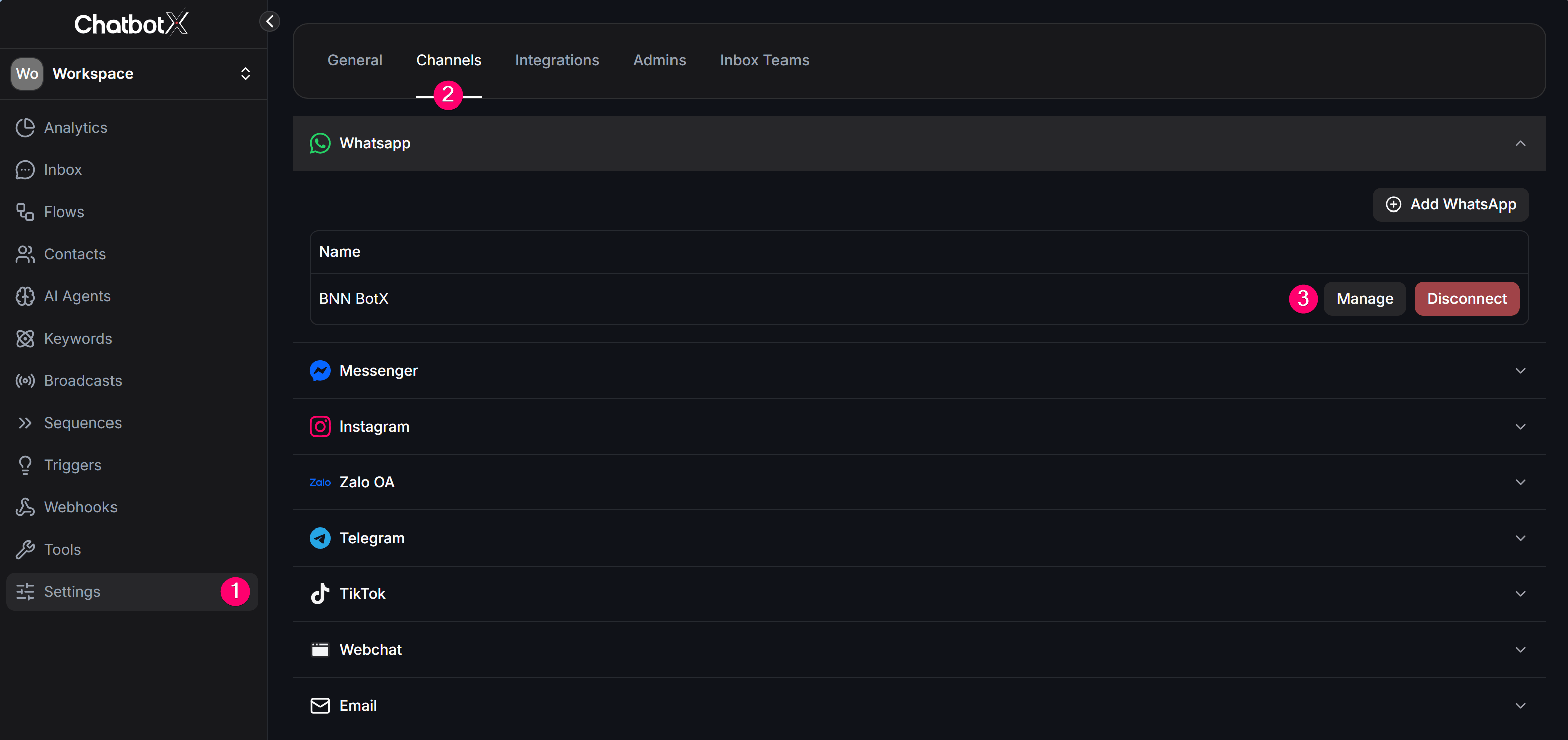 Select the **Message Templates** tab from the top horizontal menu. Here, click the **Synchronize** button to sync templates from Meta to ChatbotX, or click the **Manage** button on the right side to switch to the Meta management interface.
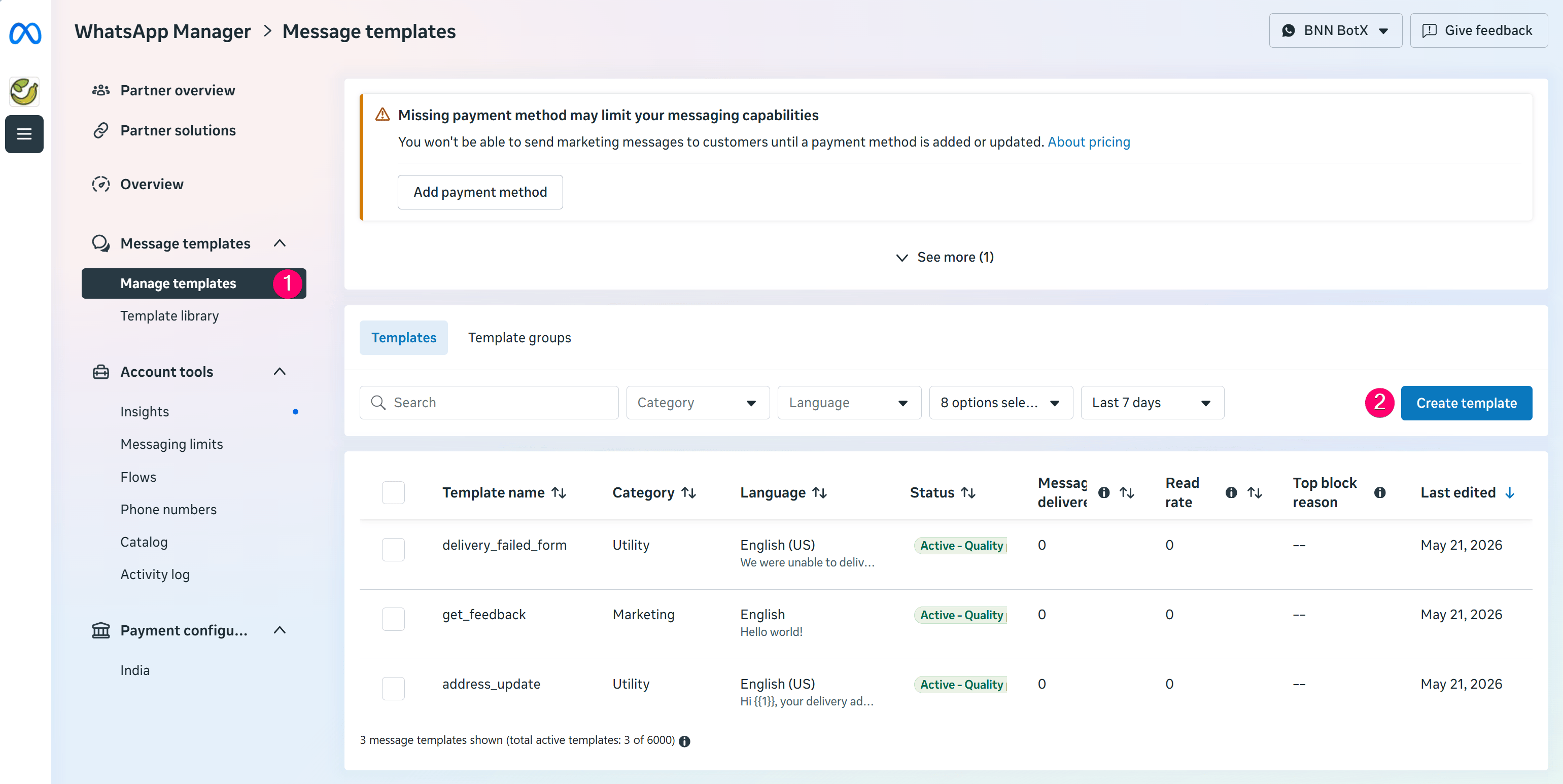
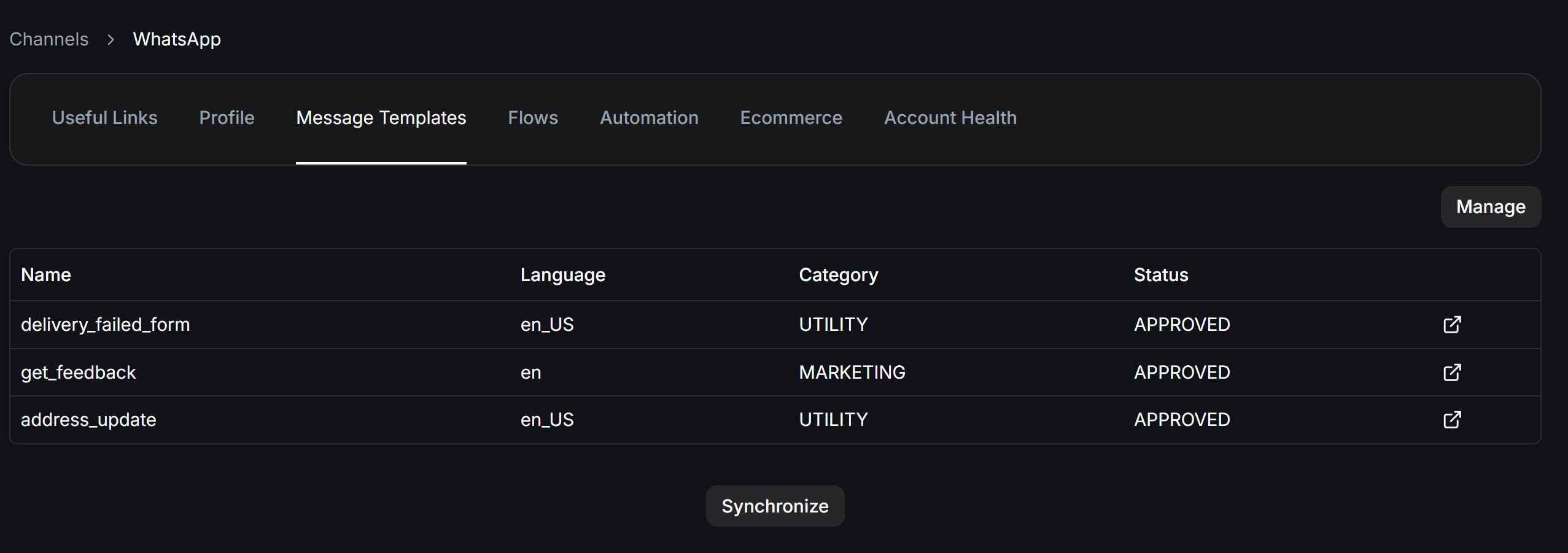 On Meta's management page, click **Create template** and fill in the details:
* **Category**: Select the appropriate category (Marketing, Utility, or Authentication).
* **Template name**: Only use lowercase letters without accents and underscores (e.g., `order_delivery_update`).
* **Content**: Draft the message body (up to 1024 characters). You can add variables `{{1}}`, `{{2}}`... and set up call-to-action buttons or quick replies.
After completing, click **Submit** for Meta to review. Once approved (template status changes to `APPROVED`), return to ChatbotX and click the **Synchronize** button from the previous step to sync the template for use.
On Meta's management page, click **Create template** and fill in the details:
* **Category**: Select the appropriate category (Marketing, Utility, or Authentication).
* **Template name**: Only use lowercase letters without accents and underscores (e.g., `order_delivery_update`).
* **Content**: Draft the message body (up to 1024 characters). You can add variables `{{1}}`, `{{2}}`... and set up call-to-action buttons or quick replies.
After completing, click **Submit** for Meta to review. Once approved (template status changes to `APPROVED`), return to ChatbotX and click the **Synchronize** button from the previous step to sync the template for use.
 ### Tips to Avoid Meta Rejecting Your Templates
* Do not place dynamic variables at the very beginning or very end of the message.
* Do not place two dynamic variables next to each other (e.g., incorrect: `{{1}}{{2}}`).
* Dynamic variables must be numbered sequentially starting from 1, using the correct double curly brace syntax (e.g., `{{1}}`, `{{2}}`).
* Call-to-action button URLs must not contain direct wa.me links.
* Template content must not completely duplicate the wording structure of a previously created template.
* Do not use overly vague, overly short, or unclear language.
* Avoid spelling or grammar errors.
## Safe WhatsApp Broadcast Operating Tips
* Name campaigns clearly with a consistent format for easy tracking in the Broadcasts list.
* Always **Synchronize** newly Meta-approved message templates to ChatbotX before creating a campaign.
* Follow Meta's category classification rules when creating templates (Utility, Marketing, Authentication). Sending promotional content through templates approved under the Utility category may cause Meta to disable the template or limit your WhatsApp number's sending quality.
* Monitor delivery metrics and negative response rates (customers blocking your number, spam reports) closely after each campaign to optimize sending frequency and content.
### Tips to Avoid Meta Rejecting Your Templates
* Do not place dynamic variables at the very beginning or very end of the message.
* Do not place two dynamic variables next to each other (e.g., incorrect: `{{1}}{{2}}`).
* Dynamic variables must be numbered sequentially starting from 1, using the correct double curly brace syntax (e.g., `{{1}}`, `{{2}}`).
* Call-to-action button URLs must not contain direct wa.me links.
* Template content must not completely duplicate the wording structure of a previously created template.
* Do not use overly vague, overly short, or unclear language.
* Avoid spelling or grammar errors.
## Safe WhatsApp Broadcast Operating Tips
* Name campaigns clearly with a consistent format for easy tracking in the Broadcasts list.
* Always **Synchronize** newly Meta-approved message templates to ChatbotX before creating a campaign.
* Follow Meta's category classification rules when creating templates (Utility, Marketing, Authentication). Sending promotional content through templates approved under the Utility category may cause Meta to disable the template or limit your WhatsApp number's sending quality.
* Monitor delivery metrics and negative response rates (customers blocking your number, spam reports) closely after each campaign to optimize sending frequency and content.