> ## Documentation Index
> Fetch the complete documentation index at: https://chatbotx.io/docs/llms.txt
> Use this file to discover all available pages before exploring further.
# Enterprise Edition
> Compare ChatbotX Community and Enterprise editions, activate a licensed Enterprise installation, and verify advanced administration features.
ChatbotX Self Hosting is available in two editions:
* **Community Edition** provides the core self-hosted platform under the open-source license.
* **Enterprise Edition** adds commercially licensed administration, security, and branding capabilities for larger organizations.
Enterprise Edition requires a valid commercial license from ChatbotX. Changing an environment variable does not grant a commercial license or permission to use Enterprise code without a valid agreement.
## Community and Enterprise comparison
| Capability | Community Edition | Enterprise Edition |
| ----------------------- | -------------------------------------------------------------------------------------------- | ------------------------------------------------------------------------------------------------------------------------- |
| **Workspaces** | Limited to 1 Workspace. | Supports [multiple Workspaces and usage monitoring](/docs/whitelabel/saas/workspaces-and-usage) within the licensed allowance. |
| **Administrator roles** | An invited administrator can only be assigned the **Super Admin** role. RBAC is unavailable. | Supports RBAC for more detailed administrator permissions. |
| **Audit log** | Audit log is unavailable. | Provides Audit log access for reviewing administrative activity. |
| **Branding** | Colors, logos, **Powered by**, and other branding settings cannot be changed. | Allows [Platform Branding customization](/docs/whitelabel/platform/branding-white-label) according to the licensed features. |
| **SSO/SAML** | SSO/SAML is unavailable. | Supports centralized authentication with SSO/SAML. |
| **Email templates** | Email templates cannot be edited. | Allows administrators to configure [SMTP and Email Templates](/docs/whitelabel/platform/smtp-and-email-templates). |
Enterprise Edition is not automatically unlimited. Workspace limits and other allowances can depend on your license or commercial agreement.
The linked White Label guides explain where to configure each capability after Enterprise Edition enables it for your installation. Feature availability still depends on your license.
## Activate Enterprise Edition
The official Compose file may define `NEXT_PUBLIC_EDITION: community` directly in `x-environment`. In that case, creating `.env` alone does not change the edition because values in the Compose `environment` block take precedence.
Use the directory that contains the active `docker-compose.yml`. The default path in the self-hosting package is:
```bash theme={null}
cd /root/chatbotx-docker-compose
```
Open the active Compose file:
```bash theme={null}
nano /root/chatbotx-docker-compose/docker-compose.yml
```
Find `x-environment: &common-vars`. Replace the fixed Community value and add the server-only license variable:
```yaml theme={null}
NEXT_PUBLIC_EDITION: ${NEXT_PUBLIC_EDITION:-community}
LICENSE_KEY: ${LICENSE_KEY:-}
```
Open `.env` in the same directory as `docker-compose.yml`:
```bash theme={null}
nano /root/chatbotx-docker-compose/.env
```
Add these values:
```dotenv theme={null}
NEXT_PUBLIC_EDITION=enterprise
LICENSE_KEY=your_signed_enterprise_license
```
Protect the file after saving it:
```bash theme={null}
chmod 600 .env
```
Verify that Compose resolves the Enterprise values. This command redacts the license before printing the result:
```bash theme={null}
docker compose -p chatbotx config --quiet
docker compose -p chatbotx config \
| sed -E 's/(LICENSE_KEY:).*/\1 [REDACTED]/' \
| grep -E 'NEXT_PUBLIC_EDITION|LICENSE_KEY'
```
Confirm that the result contains `NEXT_PUBLIC_EDITION: enterprise` and `LICENSE_KEY: [REDACTED]` before continuing.
Recreate Builder so it reads the new edition and license values:
```bash theme={null}
docker compose -p chatbotx up -d --no-deps --force-recreate builder
docker compose -p chatbotx ps
docker compose -p chatbotx logs --tail=150 builder
```
Recreate Worker or Realtime only if those services were already running and need the updated shared environment.
## Configure SMTP email delivery
SMTP lets ChatbotX send account verification, password reset, invitation, and other system emails from your own sender address. The current [environment template](https://github.com/ChatbotXIO/ChatbotX/blob/main/.env.example) uses `SMTP_SERVER` and `SMTP_FROM` for this connection.
The following example uses Gmail with implicit TLS on port `465`.
Open the active Compose file:
```bash theme={null}
nano /root/chatbotx-docker-compose/docker-compose.yml
```
In `x-environment: &common-vars`, replace the fixed SMTP values with variables read from `.env`:
```yaml theme={null}
SMTP_SERVER: ${SMTP_SERVER}
SMTP_FROM: ${SMTP_FROM}
```
Open the protected environment file:
```bash theme={null}
nano /root/chatbotx-docker-compose/.env
```
Add the SMTP connection and sender identity:
```dotenv theme={null}
SMTP_SERVER=smtps://your_email%40gmail.com:your_gmail_app_password@smtp.gmail.com:465
SMTP_FROM="Your Company "
```
Replace the example email, App Password, and company name with your own values. Keep `%40` in the username to represent the `@` character inside the connection URL. Use a Gmail App Password without spaces, not the normal password for the Google account.
Validate the resolved configuration, then recreate Builder:
```bash theme={null}
docker compose -p chatbotx config --quiet
docker compose -p chatbotx config \
| sed -E 's#(SMTP_SERVER:).*#\1 [CONFIGURED]#' \
| grep -E 'SMTP_SERVER|SMTP_FROM'
docker compose -p chatbotx up -d --no-deps --force-recreate builder
```
Request an account verification or password reset email. Confirm that the message arrives with the expected sender name and that its verification link uses your ChatbotX domain.
For platform-level sender settings and customized email content, see [SMTP and Email Templates](/docs/whitelabel/platform/smtp-and-email-templates).
## Verify Enterprise features
Sign out, then sign in with a Super Admin account after the services are healthy.
Open the Builder logs and confirm that they contain `License verified` with `tier` set to `enterprise`. Never share the complete log line if it contains customer information.
Open `/admin` with the account configured in `PLATFORM_ADMIN_EMAIL`. Confirm the capabilities included in the license, such as [Platform Branding](/docs/whitelabel/platform/branding-white-label), Audit log, or SSO.
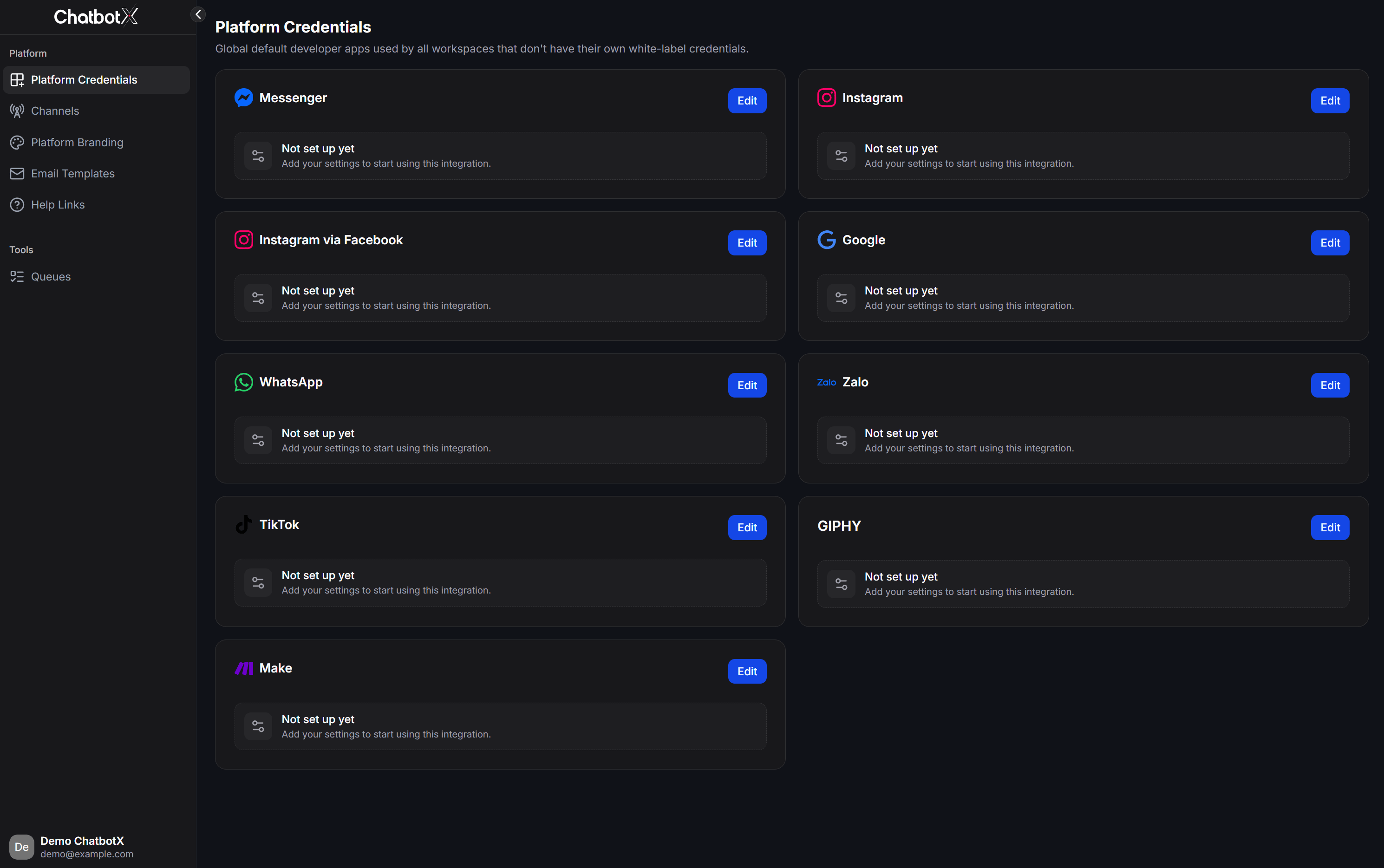 If the interface still displays old permissions after the services have restarted, sign in again or refresh the browser cache before testing.
## Manage and protect the license
* Store the license key in a secret manager or a protected `.env` file.
* Restrict access to the deployment environment and backups containing the key.
* Check the license state after upgrading ChatbotX or moving the installation.
* Contact ChatbotX before transferring a license to another server or installation.
* Do not reuse a license across installations unless your commercial agreement explicitly permits it.
## Troubleshooting
| Problem | Possible cause | Resolution |
| ------------------------------------------------------- | ---------------------------------------------------------------------------------------------------------------------- | -------------------------------------------------------------------------------------------------------------------- |
| The installation still shows Community Edition. | A fixed `NEXT_PUBLIC_EDITION: community` value in Compose overrides `.env`, or Builder still uses the old environment. | Run `docker compose config`, correct the Compose variable substitution, then force-recreate Builder. |
| Enterprise is selected but features remain unavailable. | The license is missing, invalid, expired, has an unknown signing key, or does not include the requested feature. | Search Builder logs for `license`, `invalid`, `expired`, or `unknown kid`. Redact customer data before sharing logs. |
| Builder and Worker behave differently. | The services received different shared environment values. | Check the rendered configuration with `docker compose config`, then recreate only the affected running services. |
| The interface still looks unchanged. | The browser session or cached interface is stale. | Sign out, clear the relevant browser cache, and sign in again. |
Keep `LICENSE_KEY` confidential. Never share it with anyone, including the ChatbotX support team.
If the interface still displays old permissions after the services have restarted, sign in again or refresh the browser cache before testing.
## Manage and protect the license
* Store the license key in a secret manager or a protected `.env` file.
* Restrict access to the deployment environment and backups containing the key.
* Check the license state after upgrading ChatbotX or moving the installation.
* Contact ChatbotX before transferring a license to another server or installation.
* Do not reuse a license across installations unless your commercial agreement explicitly permits it.
## Troubleshooting
| Problem | Possible cause | Resolution |
| ------------------------------------------------------- | ---------------------------------------------------------------------------------------------------------------------- | -------------------------------------------------------------------------------------------------------------------- |
| The installation still shows Community Edition. | A fixed `NEXT_PUBLIC_EDITION: community` value in Compose overrides `.env`, or Builder still uses the old environment. | Run `docker compose config`, correct the Compose variable substitution, then force-recreate Builder. |
| Enterprise is selected but features remain unavailable. | The license is missing, invalid, expired, has an unknown signing key, or does not include the requested feature. | Search Builder logs for `license`, `invalid`, `expired`, or `unknown kid`. Redact customer data before sharing logs. |
| Builder and Worker behave differently. | The services received different shared environment values. | Check the rendered configuration with `docker compose config`, then recreate only the affected running services. |
| The interface still looks unchanged. | The browser session or cached interface is stale. | Sign out, clear the relevant browser cache, and sign in again. |
Keep `LICENSE_KEY` confidential. Never share it with anyone, including the ChatbotX support team.