> ## Documentation Index
> Fetch the complete documentation index at: https://chatbotx.io/docs/llms.txt
> Use this file to discover all available pages before exploring further.
# Bot Simulator
> Learn how to use Bot Simulator in ChatbotX to generate live demo links featuring your Webchat widget on any customer website without installing code snippets.
**Bot Simulator** is an interactive presentation tool in the **Tools** section of ChatbotX that allows you to demonstrate your chatbot running live on virtually any website, without installing code snippets or touching the destination site's codebase.
It serves as a powerful asset for agencies, sales teams, and solution consultants:
* **Impress clients instantly:** Simply ask prospects for their website URL, and in seconds, generate a live demo link where they can see your customized chatbot greeting visitors and answering inquiries right on their own brand interface.
* **Accelerate sales cycles:** Clients can test conversation flows, click interactive buttons, and experience automated lead capture firsthand, removing friction and building trust before signing a contract.
* **Zero-risk UI and UX validation:** Test widget positioning, color harmonies, and welcome flows in a real-world browsing context before going live, with zero risk to the live website.
## Prerequisites: Configure Authorized Domains
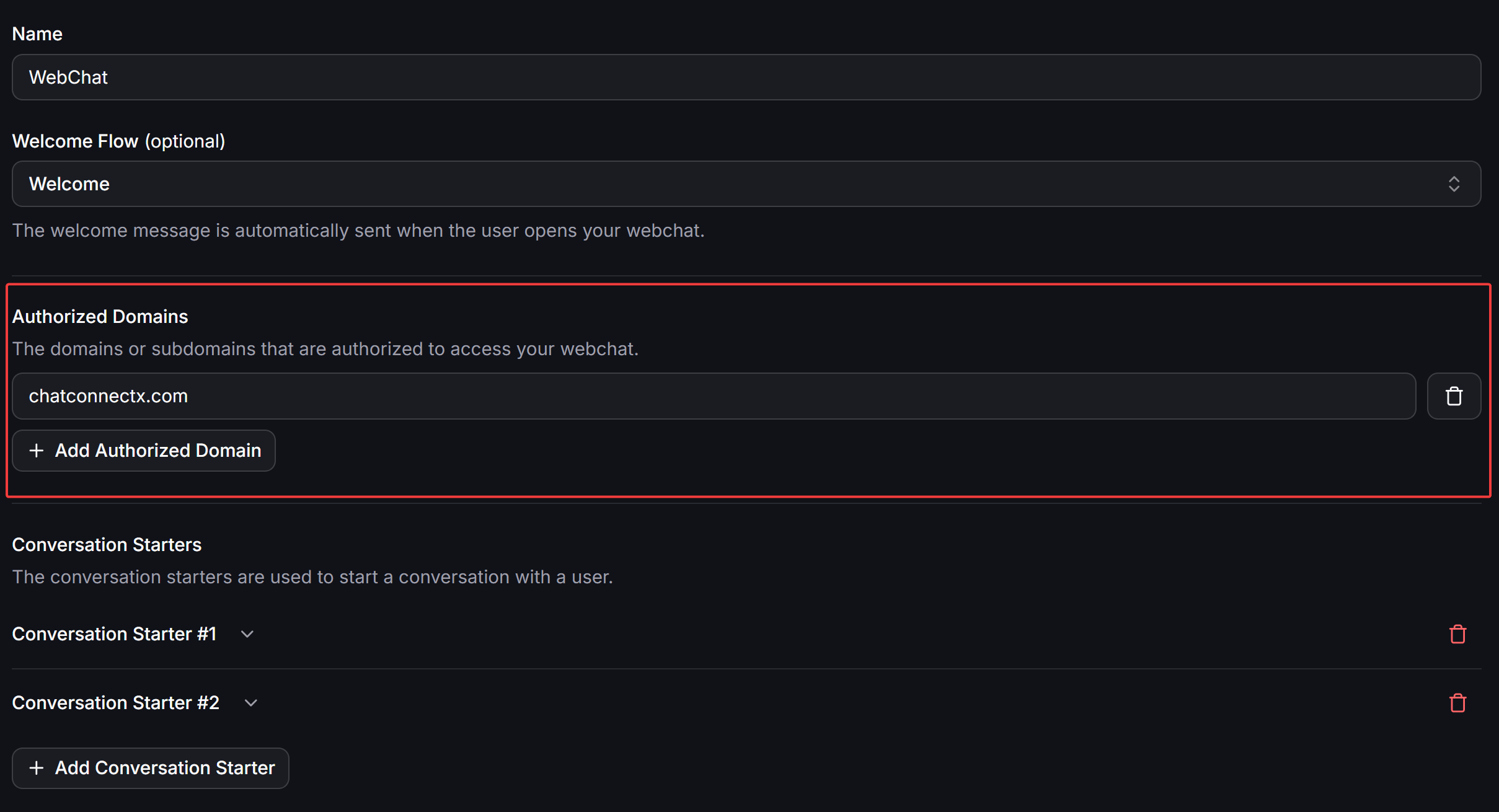
**Add domains before generating demo links:** The Webchat widget includes a domain whitelist security mechanism. To demo Webchat on a specific website (such as a client's site like `example.com`), you **must add that website's domain to the Authorized Domains list** in your Webchat channel settings. If the domain is not authorized, the Webchat widget will be blocked and will not display on the simulated page.
To authorize domains for your Webchat, follow these steps:
From the left sidebar, navigate to **Settings > Channels**, find **Webchat**, and click on the Webchat you plan to use for the demo. You can also open it directly from the channels list under **Channels > Webchat**.
In the Webchat configuration view, scroll down to the **Authorized Domains** section (the card managing domains and subdomains allowed to access the widget).
Click **+ Add Authorized Domain** and enter the domain of the website you want to simulate.
Verify the entered domain and click **Save** to apply your changes.
 ## How to generate a simulation link with Bot Simulator
Once you have authorized the target domain, you can generate your live demo link with these steps:
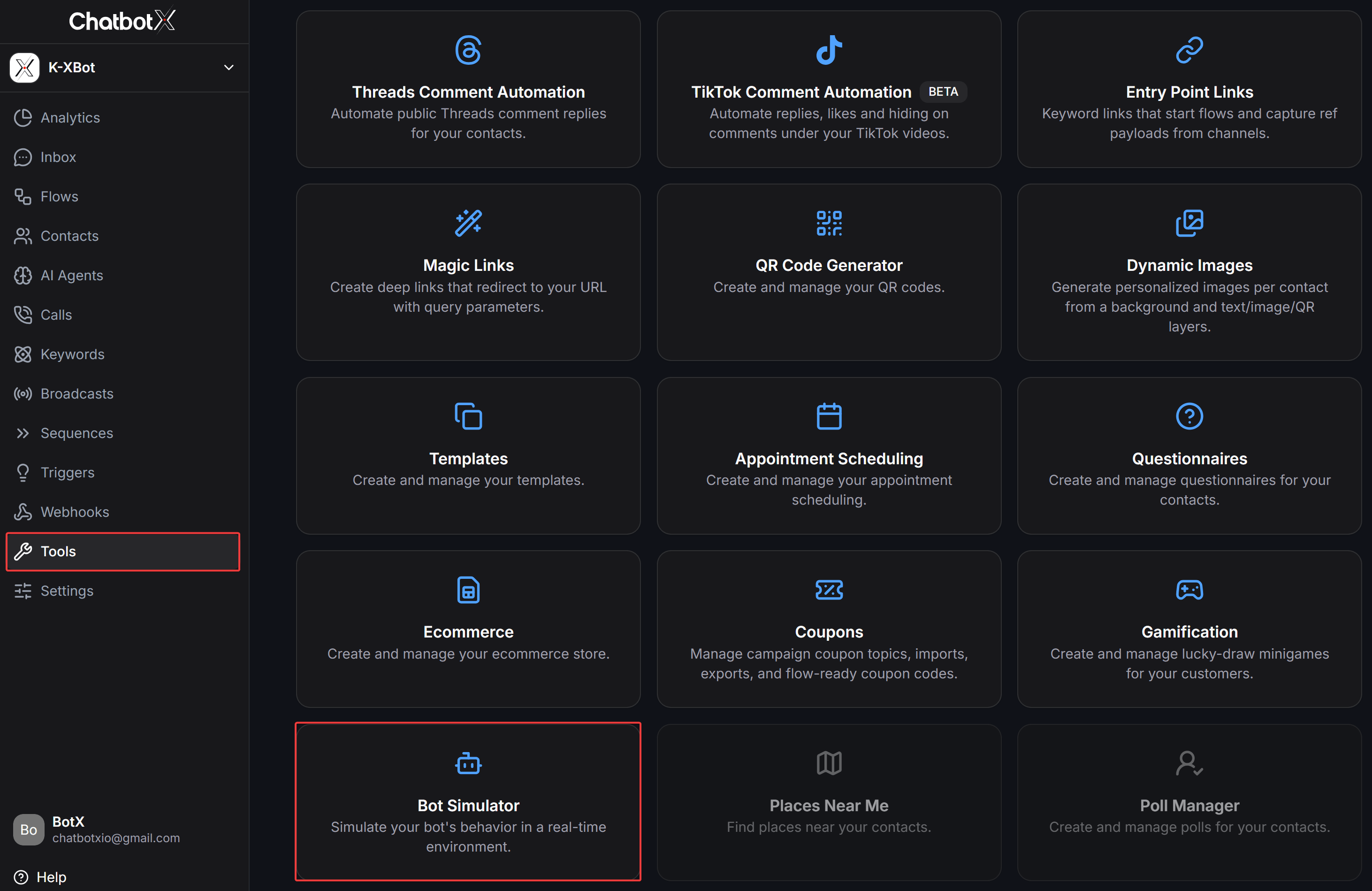
From the left sidebar, open **Tools** and click on the **Bot Simulator** card.
## How to generate a simulation link with Bot Simulator
Once you have authorized the target domain, you can generate your live demo link with these steps:
From the left sidebar, open **Tools** and click on the **Bot Simulator** card.
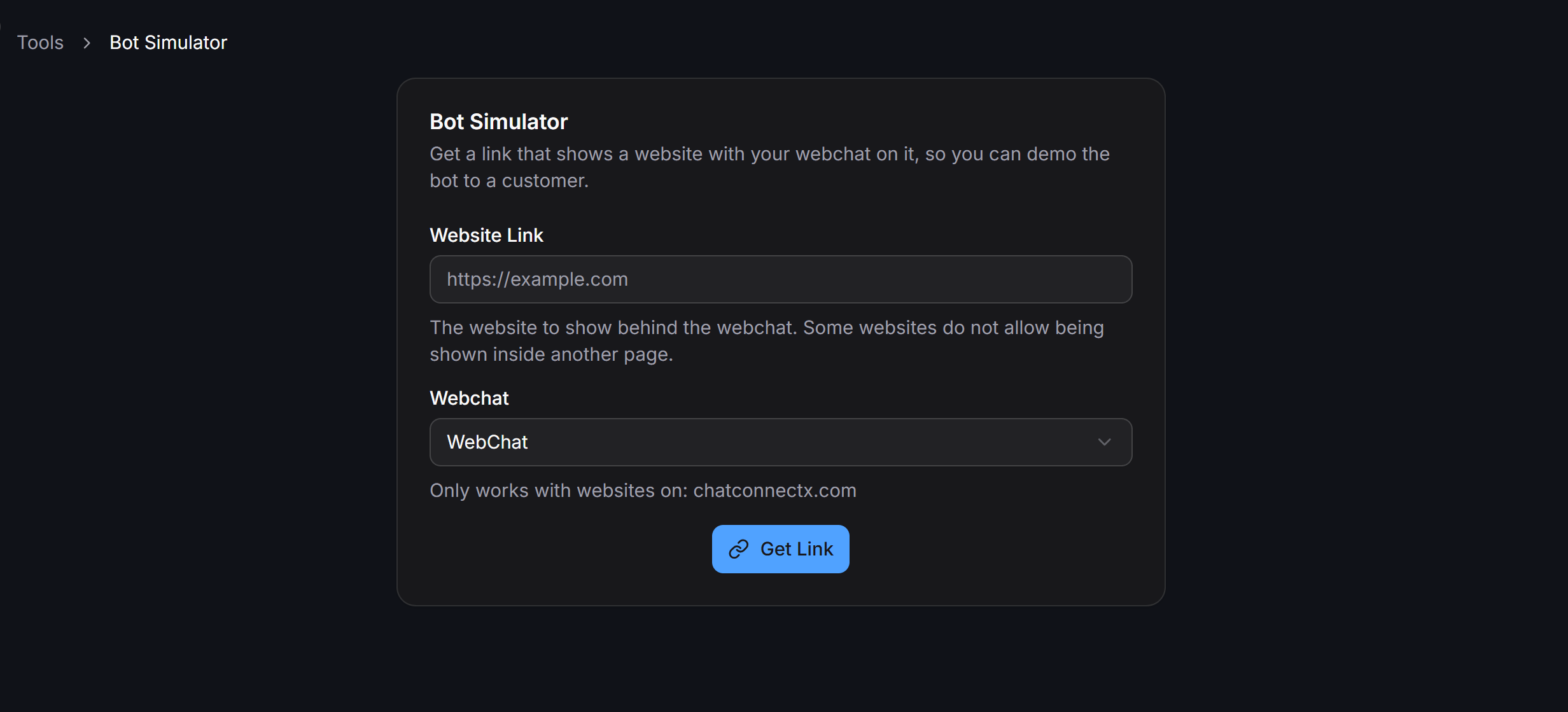
 In the **Website Link** field, paste the full URL of the website you want to display as the background behind the Webchat (e.g., `https://example.com` or your prospect's landing page).
In the **Webchat** dropdown, select the pre-configured Webchat widget you want to load.
Click the **Get Link** button. The system immediately generates an independent demo link that pairs the target website with your interactive Webchat widget.
In the **Website Link** field, paste the full URL of the website you want to display as the background behind the Webchat (e.g., `https://example.com` or your prospect's landing page).
In the **Webchat** dropdown, select the pre-configured Webchat widget you want to load.
Click the **Get Link** button. The system immediately generates an independent demo link that pairs the target website with your interactive Webchat widget.
 ## Experience and share the demo link
When opening the generated simulation link in any web browser:
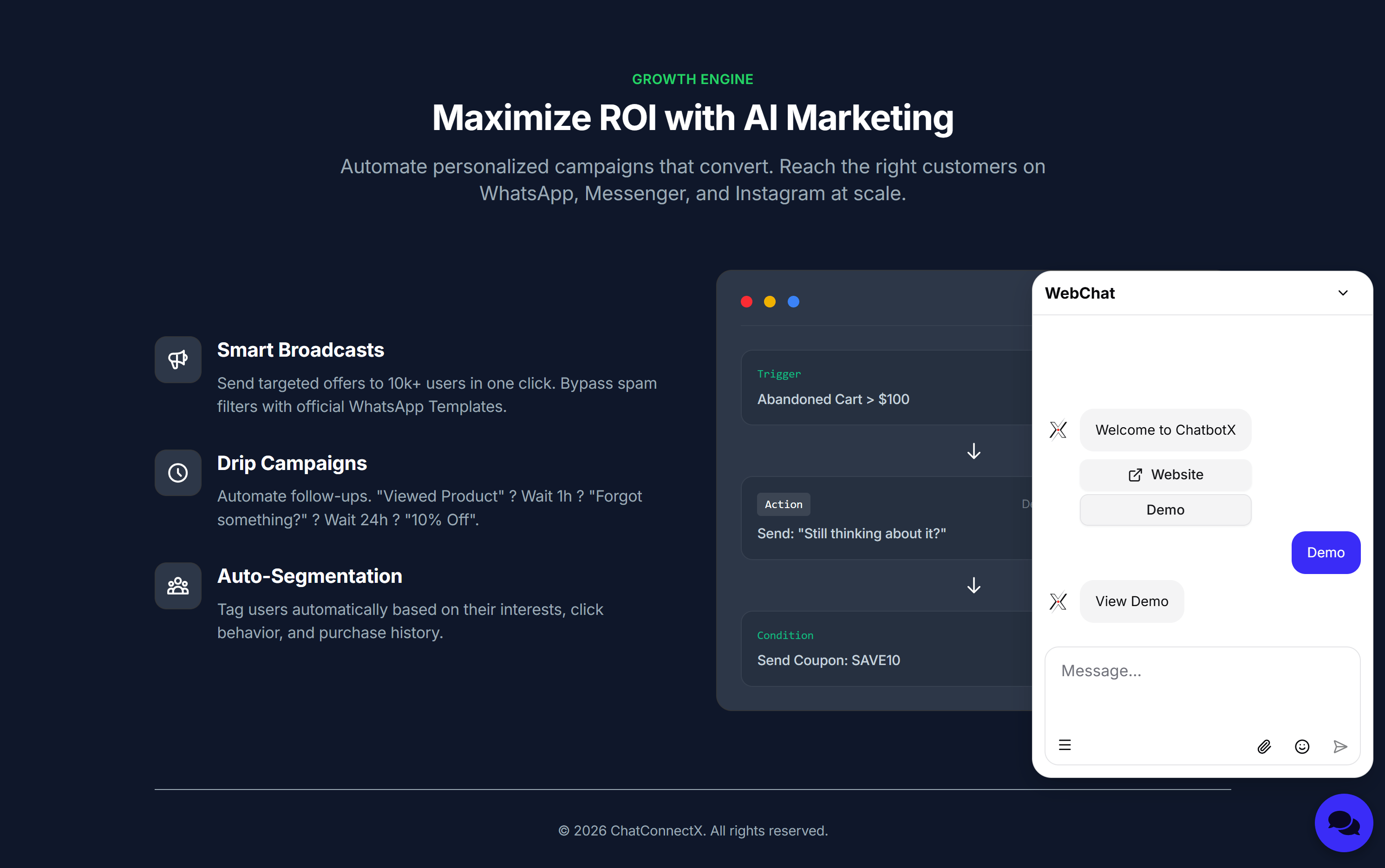
* The destination website renders fully in the background.
* Your customized Webchat widget floats prominently in the lower-right corner.
* Clicking the widget opens the chat window, instantly triggering your configured Welcome Flow or Conversation Starters.
* Users can click buttons, browse product carousels, trigger branching flows, and talk directly to human agents or AI Agents in real time as if the widget were natively installed on that site.
## Experience and share the demo link
When opening the generated simulation link in any web browser:
* The destination website renders fully in the background.
* Your customized Webchat widget floats prominently in the lower-right corner.
* Clicking the widget opens the chat window, instantly triggering your configured Welcome Flow or Conversation Starters.
* Users can click buttons, browse product carousels, trigger branching flows, and talk directly to human agents or AI Agents in real time as if the widget were natively installed on that site.
 You can copy this link and share it directly with prospects, clients, or stakeholders so they can experience the chatbot on desktop or mobile devices without installing any browser extensions or software.
## Important technical considerations
* **Iframe security policies on certain websites:** Bot Simulator loads the background website using an inline frame (iframe). Some websites and online banking or social media platforms enforce strict security headers (such as `X-Frame-Options: SAMEORIGIN` or Content Security Policy `frame-ancestors` directives) that prevent third-party pages from embedding them. If a target website blocks iframe rendering, the background may appear blank or display a connection refused message. In such cases, test with landing pages, blogs, or marketing websites that permit iframe embedding.
* **Completely isolated and safe:** Bot Simulator is a client-side visual overlay. It does not modify, track sensitive data from, or interfere with the live production site in any way.
This documentation is built and hosted on [Mintlify](https://mintlify.com), a developer documentation platform.
You can copy this link and share it directly with prospects, clients, or stakeholders so they can experience the chatbot on desktop or mobile devices without installing any browser extensions or software.
## Important technical considerations
* **Iframe security policies on certain websites:** Bot Simulator loads the background website using an inline frame (iframe). Some websites and online banking or social media platforms enforce strict security headers (such as `X-Frame-Options: SAMEORIGIN` or Content Security Policy `frame-ancestors` directives) that prevent third-party pages from embedding them. If a target website blocks iframe rendering, the background may appear blank or display a connection refused message. In such cases, test with landing pages, blogs, or marketing websites that permit iframe embedding.
* **Completely isolated and safe:** Bot Simulator is a client-side visual overlay. It does not modify, track sensitive data from, or interfere with the live production site in any way.
This documentation is built and hosted on [Mintlify](https://mintlify.com), a developer documentation platform.