> ## Documentation Index
> Fetch the complete documentation index at: https://chatbotx.io/docs/llms.txt
> Use this file to discover all available pages before exploring further.
# Instagram Comment Automation
> Set up Instagram Comment Automation in ChatbotX to reply to comments, send private messages, and filter responses by keywords.
**Instagram Comment Automation** helps you automatically handle comments on Instagram posts. When a customer comments, ChatbotX can post a public reply, send a private message, or start a prepared Flow.
Use this feature for promotions, quote requests, or moving interested customers from the comments into Inbox.
## How it works
Each automation has four main sections:
| Section | Function |
| --------------------- | -------------------------------------------------------------------------------------- |
| **Targeting & Reply** | Select the posts to track and choose how to reply to comments. |
| **Filters & Options** | Select which comments receive replies and limit how often replies are sent. |
| **Reply Timing** | Set when ChatbotX sends the reply. |
| **Hide Comments** | Automatically hide comments based on their content and choose when to show them again. |
For example, a customer comments `price` on a product post. ChatbotX posts a public confirmation and then starts a consultation Flow in Inbox.
## Create an Instagram Comment Automation
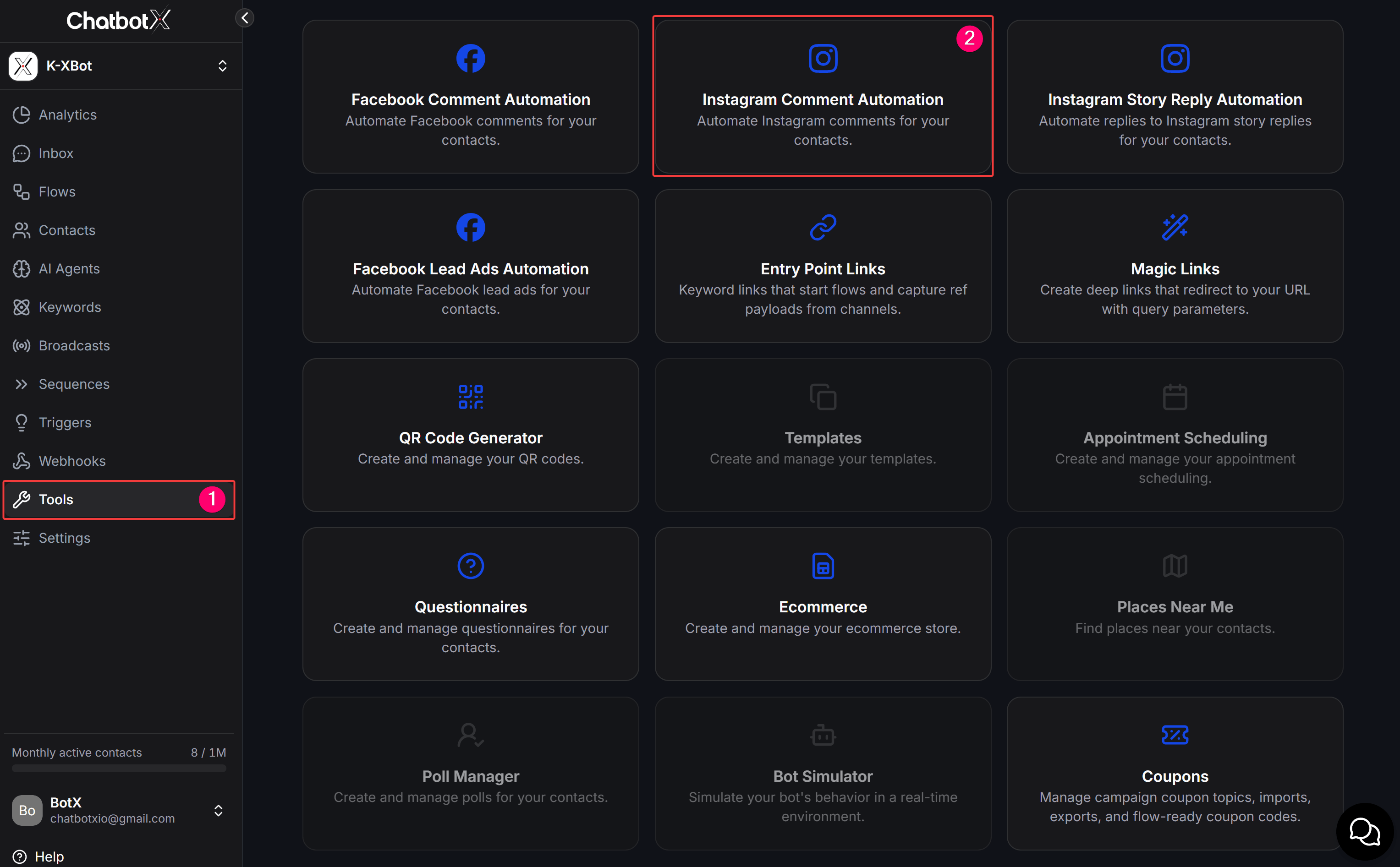
Select **Tools** from the left menu. Then click the **Instagram Comment Automation** card.
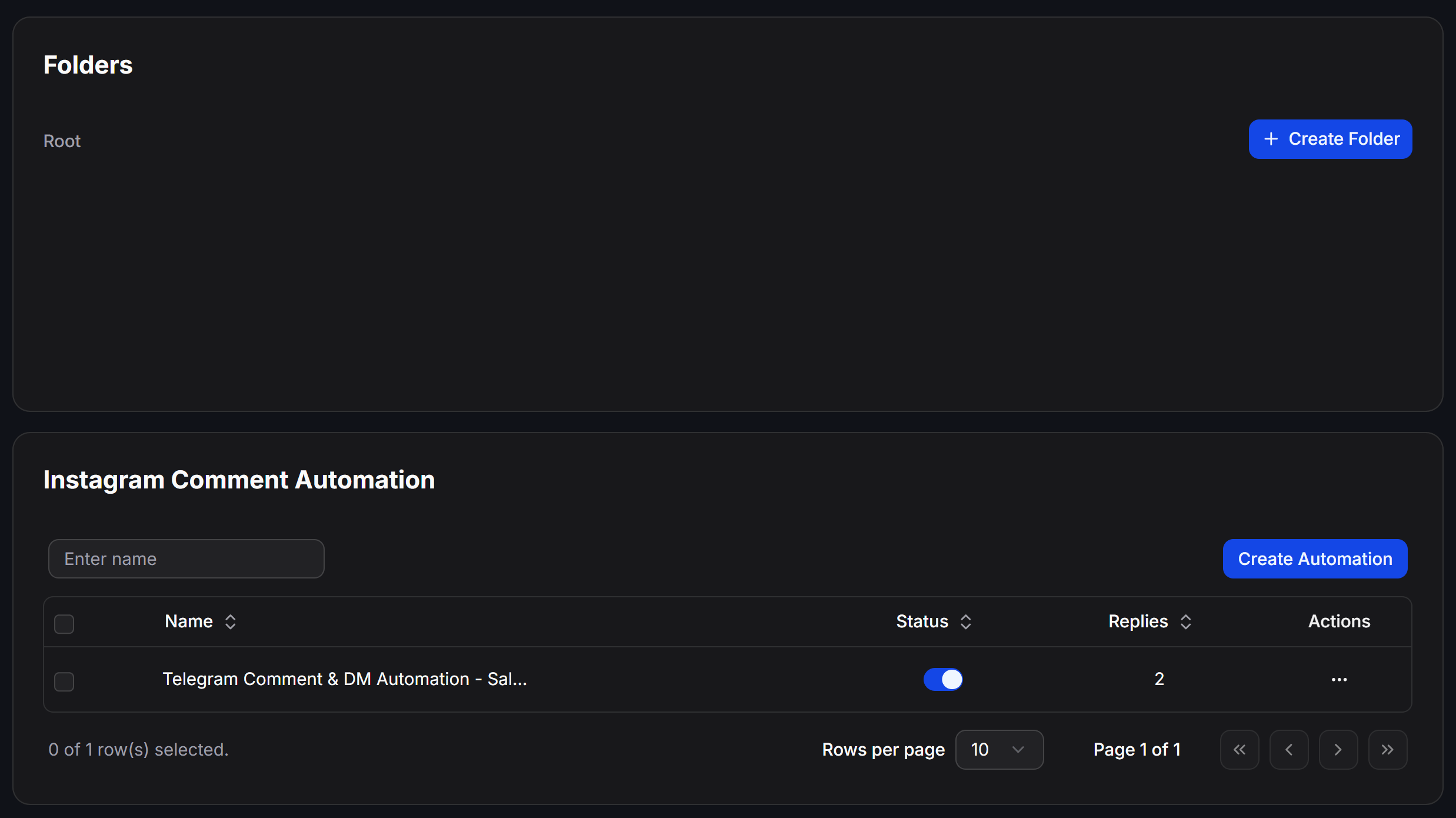
 Click **Create Automation**. Enter a clear name so you can find and manage the automation later.
 Under **Track comments on**, select the post scope:
* **All posts:** Track comments on every post.
* **Specific posts:** Track comments only on the posts you select.
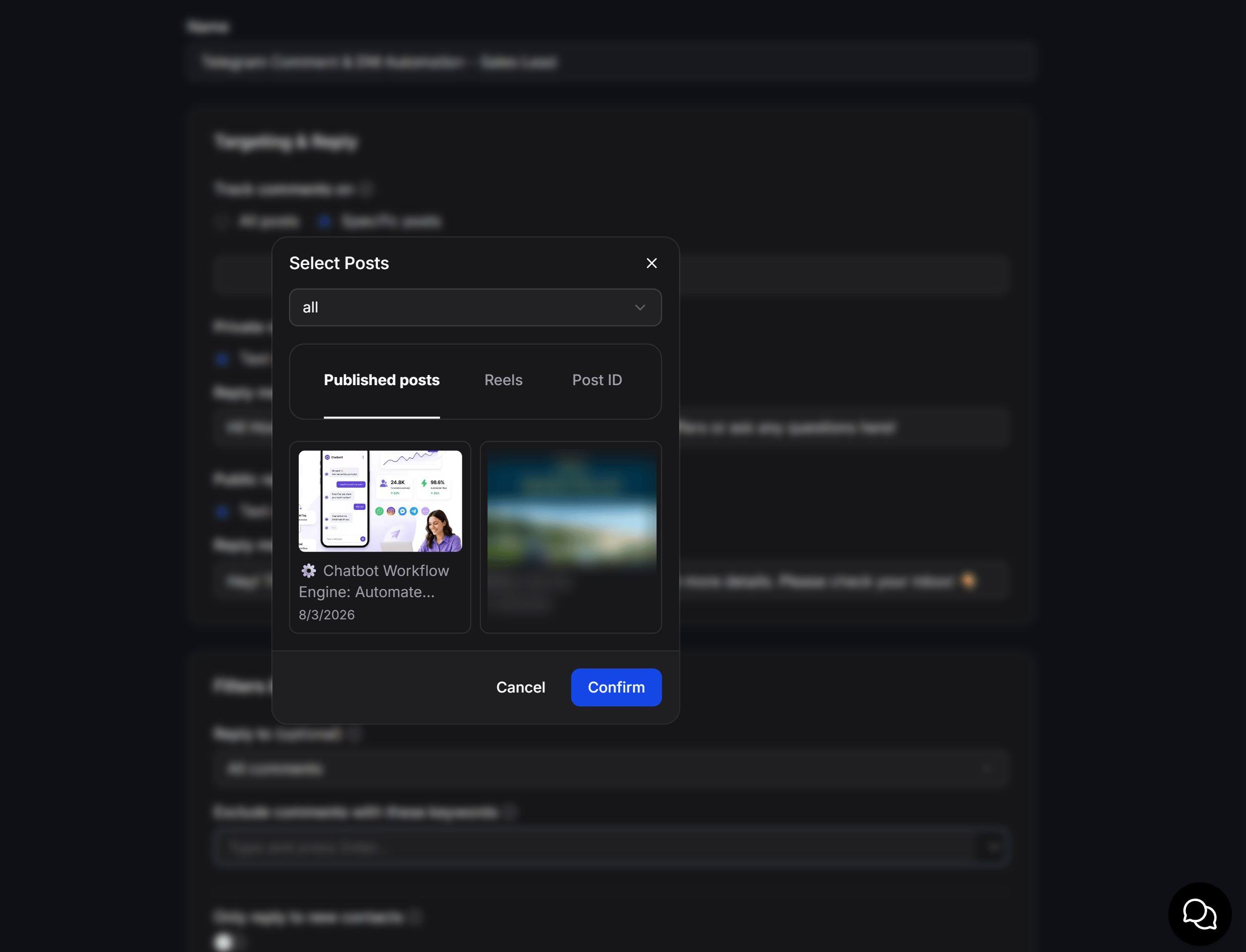
When you use **Specific posts**, click **Choose posts...** and select one of these three methods:
| Tab | When to use it |
| ------------------- | ----------------------------------------------------------- |
| **Published posts** | Select from your published posts. |
| **Reels** | Select a Reel from the Instagram account. |
| **Post ID** | Enter an ID when you know the exact post you want to track. |
Select the post, then click **Confirm**.
Under **Track comments on**, select the post scope:
* **All posts:** Track comments on every post.
* **Specific posts:** Track comments only on the posts you select.
When you use **Specific posts**, click **Choose posts...** and select one of these three methods:
| Tab | When to use it |
| ------------------- | ----------------------------------------------------------- |
| **Published posts** | Select from your published posts. |
| **Reels** | Select a Reel from the Instagram account. |
| **Post ID** | Enter an ID when you know the exact post you want to track. |
Select the post, then click **Confirm**.
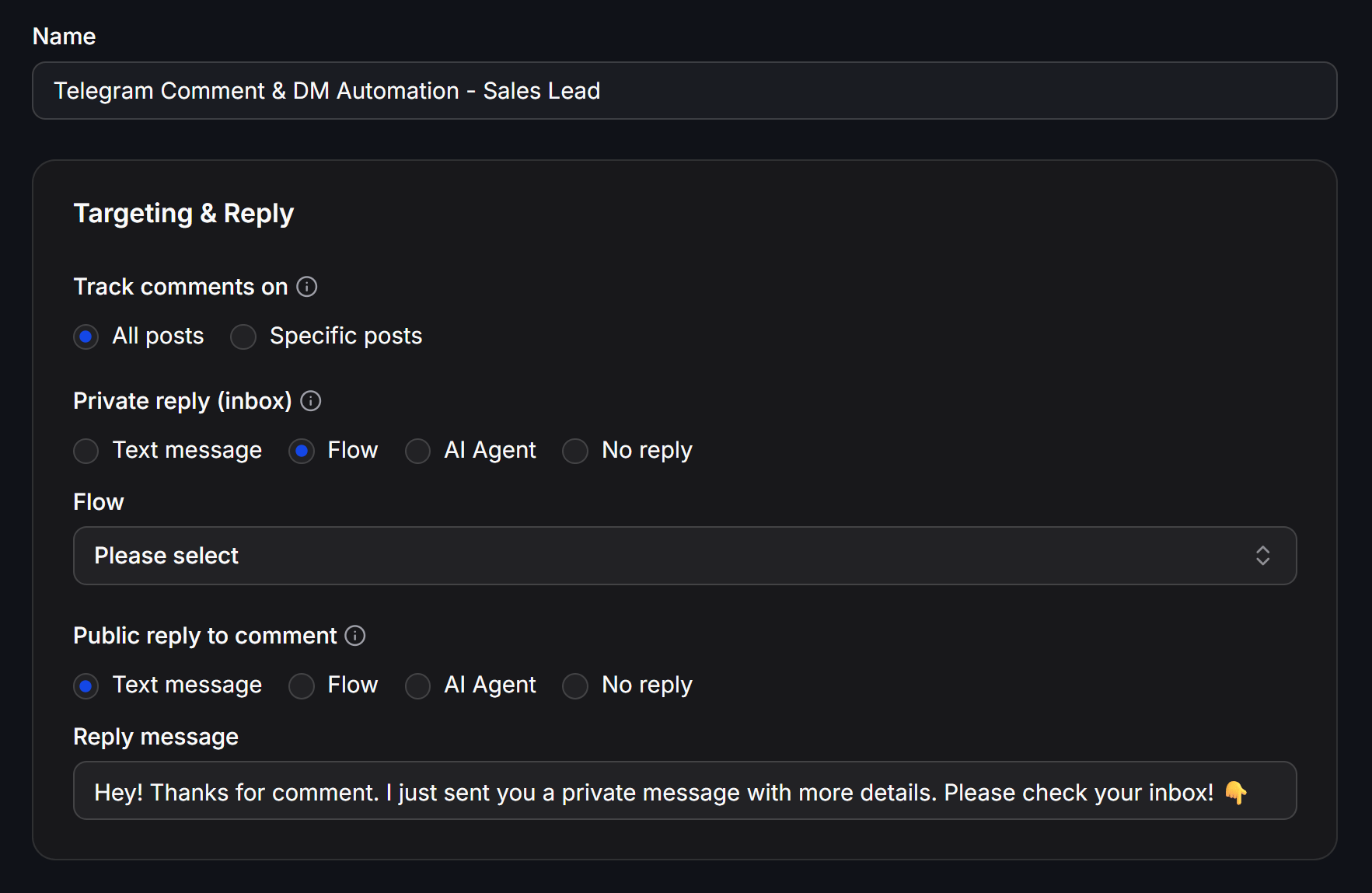
 Configure **Private reply (inbox)** and **Public reply to comment** separately. Each section provides four options:
| Option | Result |
| ---------------- | ------------------------------------------- |
| **Text message** | Send the text entered in **Reply message**. |
| **Flow** | Start a Flow created in ChatbotX. |
| **AI Agent** | Let a configured AI Agent handle the reply. |
| **No reply** | Do not send this type of reply. |
You can combine the two sections. For example, use **Text message** for the public reply and **Flow** to continue the conversation in Inbox.
Configure **Private reply (inbox)** and **Public reply to comment** separately. Each section provides four options:
| Option | Result |
| ---------------- | ------------------------------------------- |
| **Text message** | Send the text entered in **Reply message**. |
| **Flow** | Start a Flow created in ChatbotX. |
| **AI Agent** | Let a configured AI Agent handle the reply. |
| **No reply** | Do not send this type of reply. |
You can combine the two sections. For example, use **Text message** for the public reply and **Flow** to continue the conversation in Inbox.
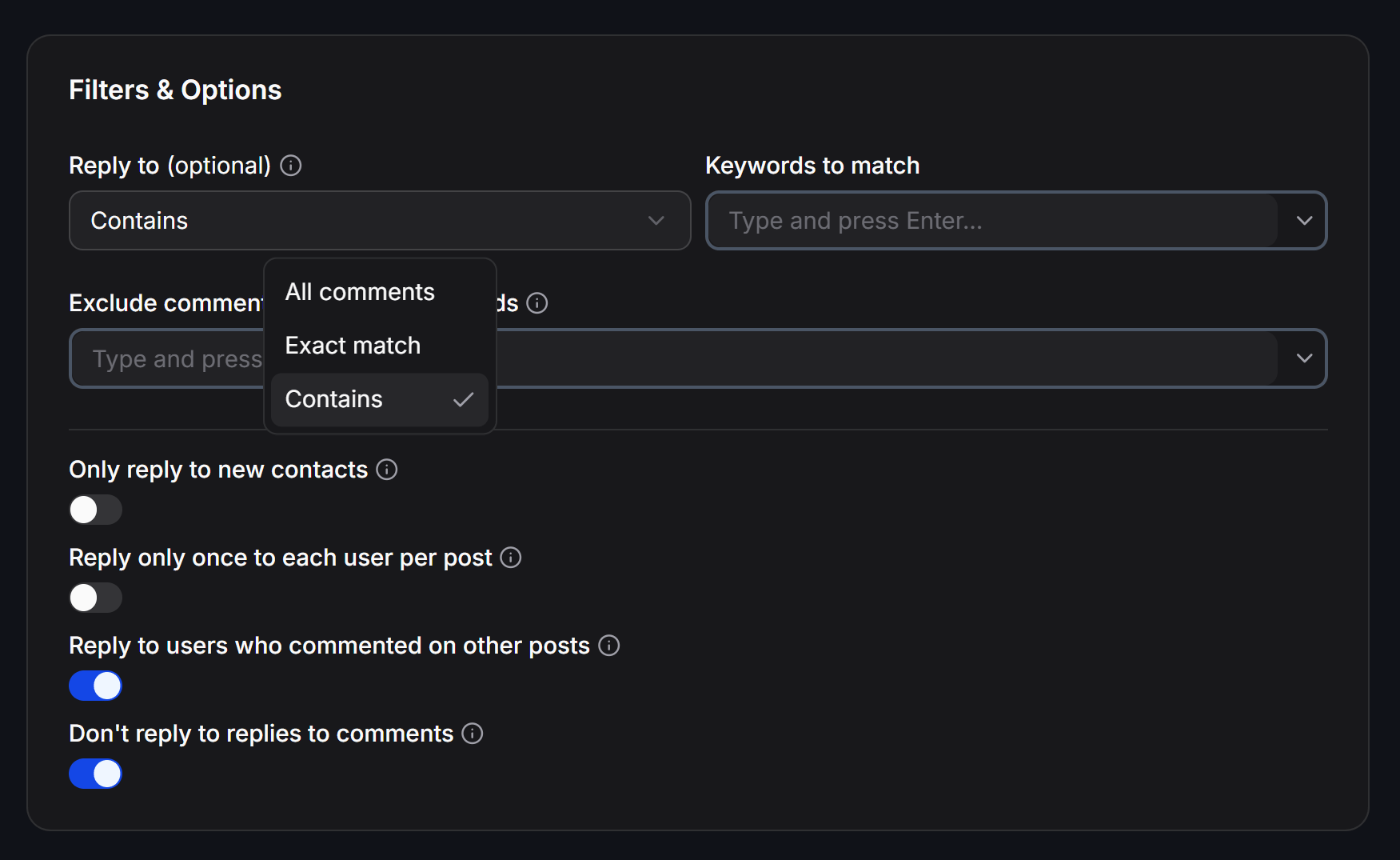
 In **Filters & Options**, select a condition under **Reply to (optional)**:
| Condition | How comments are matched |
| ---------------- | ------------------------------------------------------------- |
| **All comments** | Reply to every comment. |
| **Exact match** | Reply only when the entire comment exactly matches a keyword. |
| **Contains** | Reply when the comment contains at least one keyword. |
With **Exact match** or **Contains**, enter each keyword in **Keywords to match** and press Enter. Use **Exclude comments with these keywords** to skip comments containing unwanted words.
Additional options include:
* **Only reply to new contacts:** Reply only to people ChatbotX identifies as new contacts.
* **Reply only once to each user per post:** Send only one automated reply to each person on each post.
* **Reply to users who commented on other posts:** Continue replying to people who commented on another post.
* **Don't reply to replies to comments:** Ignore replies nested under another comment.
In **Filters & Options**, select a condition under **Reply to (optional)**:
| Condition | How comments are matched |
| ---------------- | ------------------------------------------------------------- |
| **All comments** | Reply to every comment. |
| **Exact match** | Reply only when the entire comment exactly matches a keyword. |
| **Contains** | Reply when the comment contains at least one keyword. |
With **Exact match** or **Contains**, enter each keyword in **Keywords to match** and press Enter. Use **Exclude comments with these keywords** to skip comments containing unwanted words.
Additional options include:
* **Only reply to new contacts:** Reply only to people ChatbotX identifies as new contacts.
* **Reply only once to each user per post:** Send only one automated reply to each person on each post.
* **Reply to users who commented on other posts:** Continue replying to people who commented on another post.
* **Don't reply to replies to comments:** Ignore replies nested under another comment.
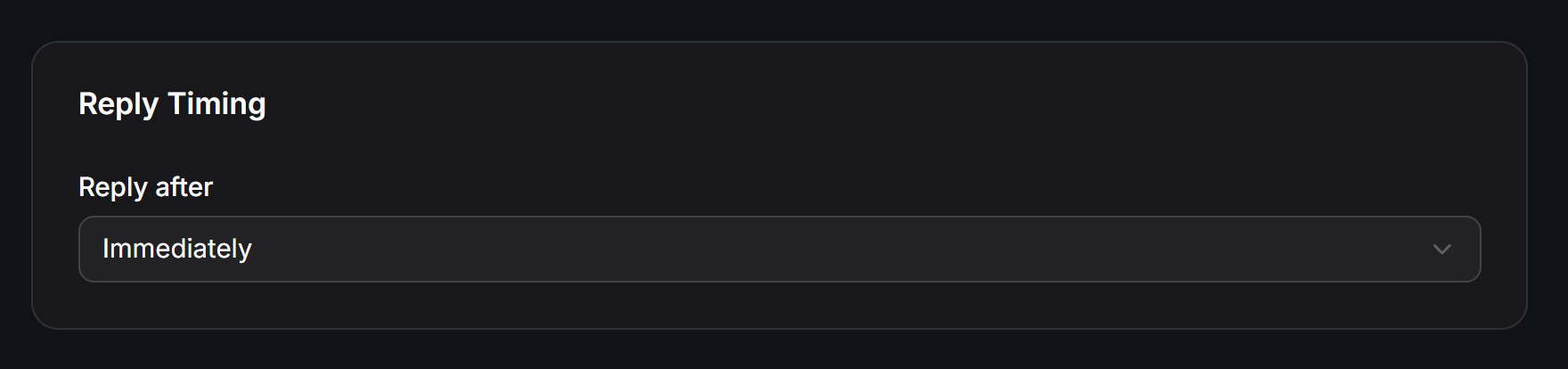
 Under **Reply Timing**, open **Reply after** and select when the reply should be sent:
* **Immediately:** Reply as soon as the comment is received.
* **After X seconds**, **After X minutes**, or **After X hours:** Reply after the delay you specify.
* **Random within 3 minutes** through **Random within 60 minutes:** Reply at a random time within the selected period.
Under **Reply Timing**, open **Reply after** and select when the reply should be sent:
* **Immediately:** Reply as soon as the comment is received.
* **After X seconds**, **After X minutes**, or **After X hours:** Reply after the delay you specify.
* **Random within 3 minutes** through **Random within 60 minutes:** Reply at a random time within the selected period.
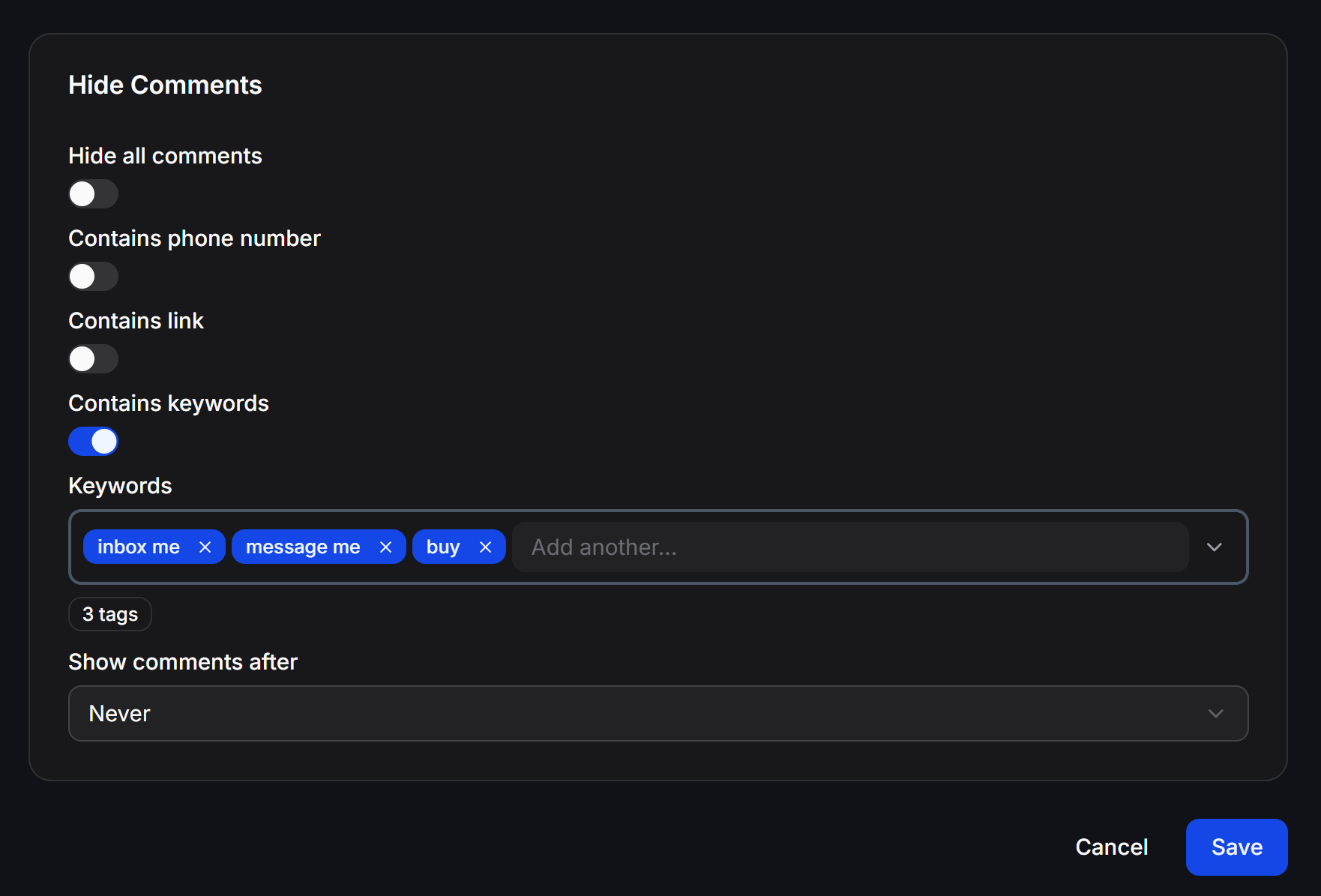
 Under **Hide Comments**, select the types of comments to hide:
* **Hide all comments:** Hide every comment handled by the automation.
* **Contains phone number:** Hide comments containing a phone number.
* **Contains link:** Hide comments containing a link.
* **Contains keywords:** Hide comments containing words entered in **Keywords**.
Under **Show comments after**, select **Never** to keep the comments hidden. You can also select **6h**, **12h**, or **1d** through **10d** to show them again after the corresponding period.
Review the settings, then click **Save**.
Under **Hide Comments**, select the types of comments to hide:
* **Hide all comments:** Hide every comment handled by the automation.
* **Contains phone number:** Hide comments containing a phone number.
* **Contains link:** Hide comments containing a link.
* **Contains keywords:** Hide comments containing words entered in **Keywords**.
Under **Show comments after**, select **Never** to keep the comments hidden. You can also select **6h**, **12h**, or **1d** through **10d** to show them again after the corresponding period.
Review the settings, then click **Save**.
 ## Example: collect quote requests
Suppose you want to handle price questions under a product post:
| Setting | Suggested value |
| ----------------------------------------- | -------------------------------------------------------------------------------------------------- |
| **Track comments on** | Select **Specific posts**, then choose the product post. |
| **Private reply (inbox)** | Select **Flow**, then choose a consultation Flow that collects the customer's phone number. |
| **Public reply to comment** | Select **Text message** and enter: `I sent the details to your Inbox. Please check your messages.` |
| **Reply to (optional)** | Select **Contains** and add `price`, `how much`, and `consultation`. |
| **Reply only once to each user per post** | Enable this option to avoid repeated messages when one person comments more than once. |
| **Reply after** | Select **Immediately**. |
| **Contains phone number** | Enable this option to protect contact information posted in the comments. |
When a customer comments `How much is this product?`, the automation posts a public reply and starts the consultation Flow in Inbox. If the customer comments again on the same post, ChatbotX does not send another reply while the one-reply option is enabled.
## Manage automations
Use the automation list to find and monitor the automations you created:
* **Folders:** Create folders to organize automations by campaign or purpose.
* **Enter name:** Find an automation by name.
* **Status:** Use the switch to activate or pause an automation.
* **Replies:** View the number of replies sent by the automation.
* **Actions:** Click the three-dot menu to open the available actions for an automation.
* **Rows per page:** Select how many automations appear on each page.
Test the automation on one specific post before enabling it for multiple posts. Check both the public reply and the Inbox message to prevent incorrect content from being sent.
## Example: collect quote requests
Suppose you want to handle price questions under a product post:
| Setting | Suggested value |
| ----------------------------------------- | -------------------------------------------------------------------------------------------------- |
| **Track comments on** | Select **Specific posts**, then choose the product post. |
| **Private reply (inbox)** | Select **Flow**, then choose a consultation Flow that collects the customer's phone number. |
| **Public reply to comment** | Select **Text message** and enter: `I sent the details to your Inbox. Please check your messages.` |
| **Reply to (optional)** | Select **Contains** and add `price`, `how much`, and `consultation`. |
| **Reply only once to each user per post** | Enable this option to avoid repeated messages when one person comments more than once. |
| **Reply after** | Select **Immediately**. |
| **Contains phone number** | Enable this option to protect contact information posted in the comments. |
When a customer comments `How much is this product?`, the automation posts a public reply and starts the consultation Flow in Inbox. If the customer comments again on the same post, ChatbotX does not send another reply while the one-reply option is enabled.
## Manage automations
Use the automation list to find and monitor the automations you created:
* **Folders:** Create folders to organize automations by campaign or purpose.
* **Enter name:** Find an automation by name.
* **Status:** Use the switch to activate or pause an automation.
* **Replies:** View the number of replies sent by the automation.
* **Actions:** Click the three-dot menu to open the available actions for an automation.
* **Rows per page:** Select how many automations appear on each page.
Test the automation on one specific post before enabling it for multiple posts. Check both the public reply and the Inbox message to prevent incorrect content from being sent.