> ## Documentation Index
> Fetch the complete documentation index at: https://chatbotx.io/docs/llms.txt
> Use this file to discover all available pages before exploring further.
# Instagram Story Reply Automation
> Set up Instagram Story Reply Automation in ChatbotX to automatically reply to Story responses with a message, Flow, or AI Agent.
**Instagram Story Reply Automation** helps you automatically respond when customers reply to an Instagram Story. ChatbotX can send a message, start a Flow, or route the request to an AI Agent in Inbox.
Use this feature to send offers, provide product consultations, or capture requests from people interested in your Story content.
## How it works
Each automation has three main parts:
| Section | Function |
| ------------------------ | -------------------------------------------------- |
| **Track Story reply on** | Select all Stories or specific Stories to monitor. |
| **Reply** | Choose how ChatbotX responds in Inbox. |
| **Reply to (optional)** | Filter responses by keyword. |
For example, a customer replies `consultation` to a product Story. ChatbotX detects the keyword and immediately sends guidance in Inbox.
## Create an Instagram Story Reply Automation
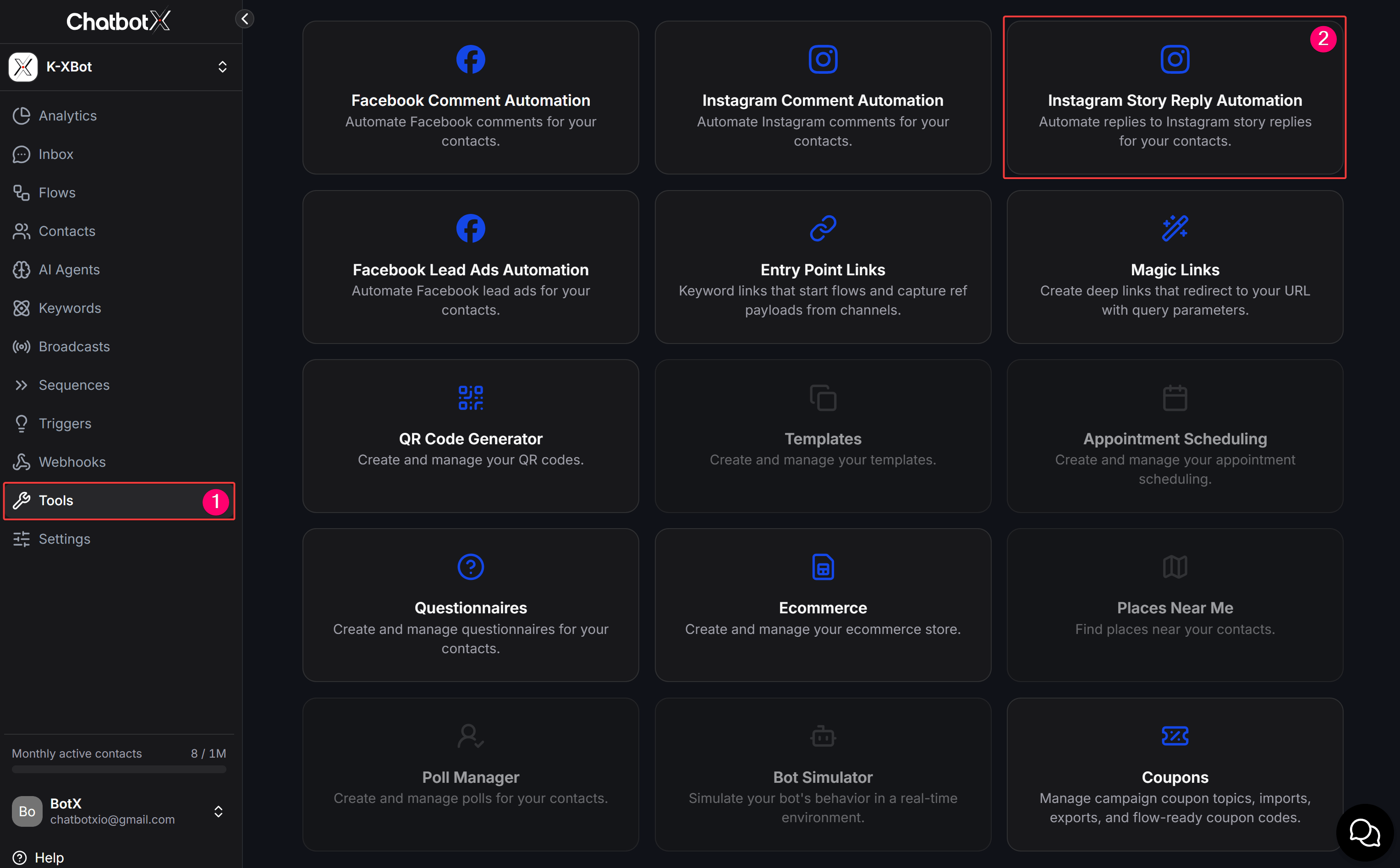
Select **Tools** from the left menu. Then click the **Instagram Story Reply Automation** card.
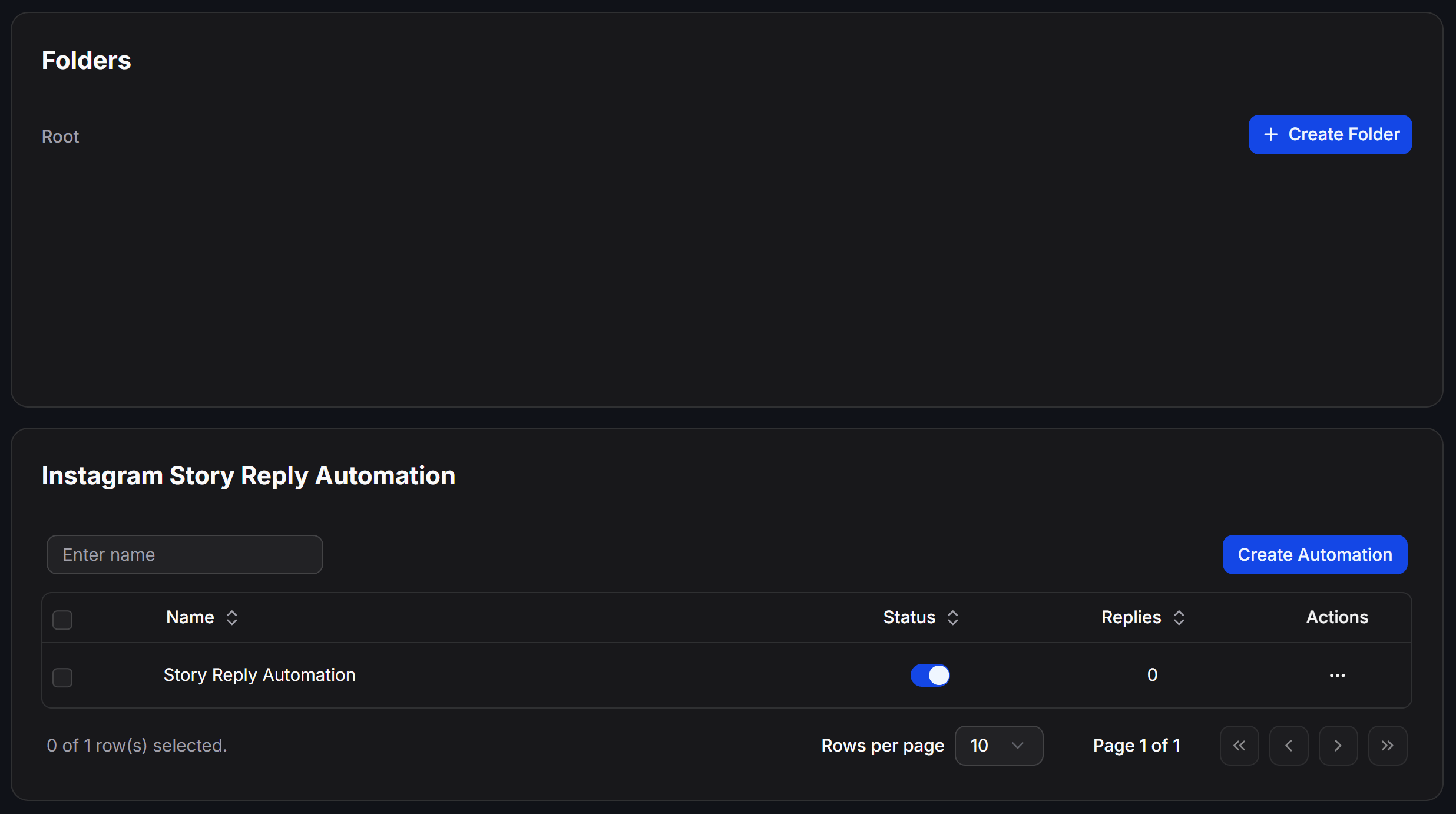
 Enter a name in **Enter name**, then click **Create Automation**. You can also click **Create Folder** to organize automations by campaign.
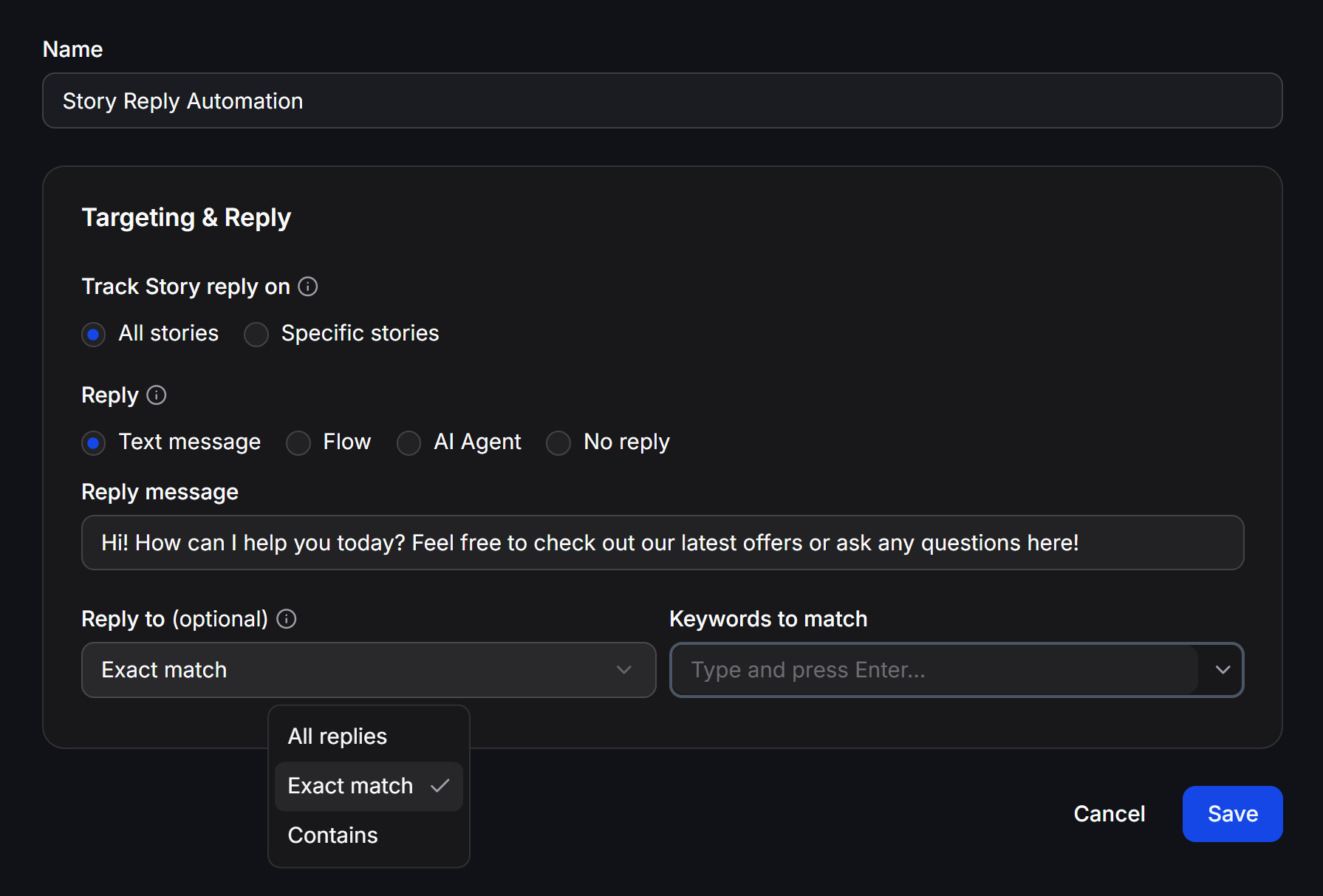
 Review the name under **Name**. Under **Track Story reply on**, choose a scope:
* **All stories:** Monitor responses to every Story.
* **Specific stories:** Monitor responses only to the Stories you select.
Review the name under **Name**. Under **Track Story reply on**, choose a scope:
* **All stories:** Monitor responses to every Story.
* **Specific stories:** Monitor responses only to the Stories you select.
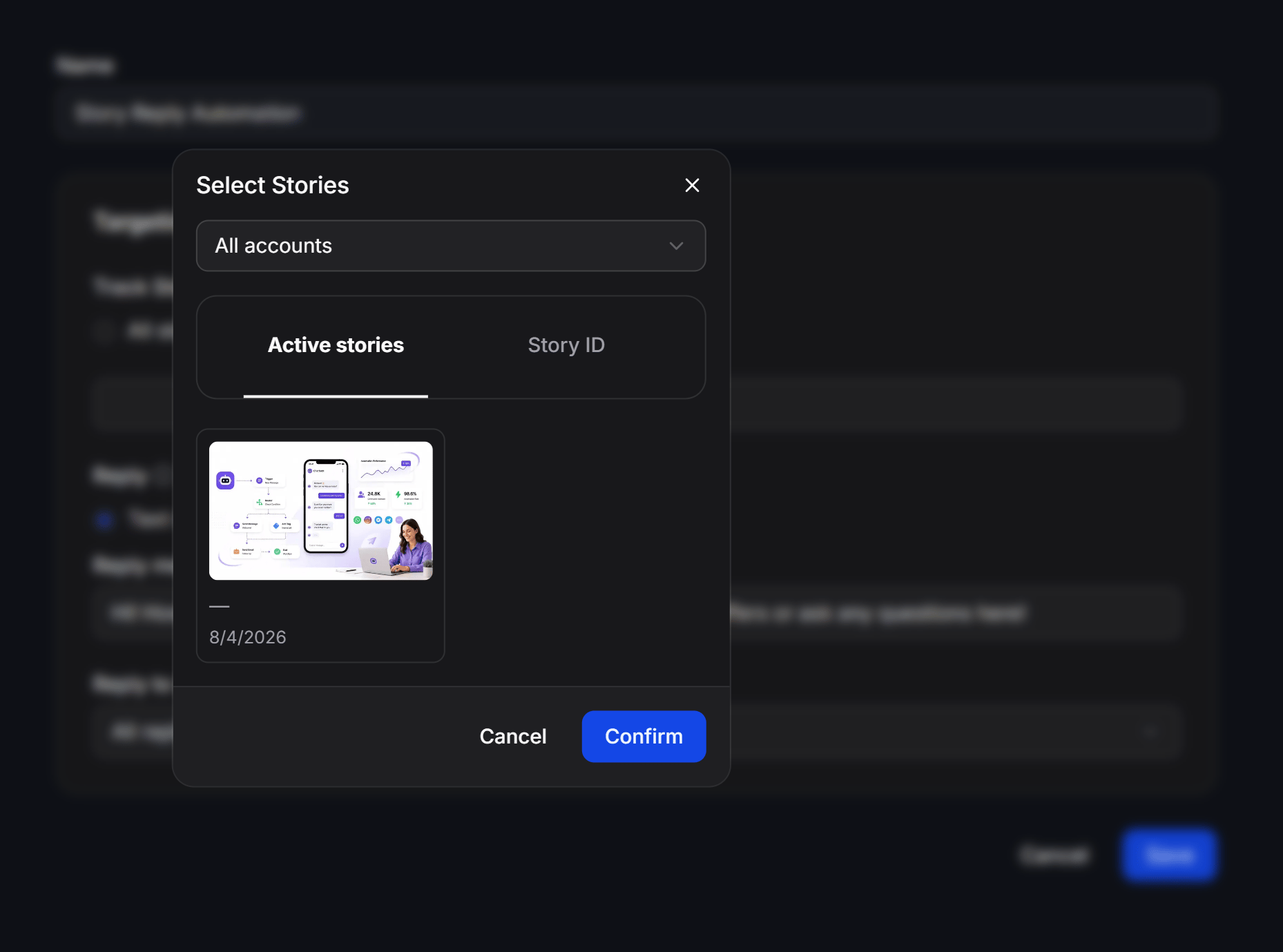
 When using **Specific stories**, open **Select Stories** and select an account under **All accounts**.
Select a Story from **Active stories**. If you know its ID, open the **Story ID** tab to identify the Story to monitor. Then click **Confirm**.
When using **Specific stories**, open **Select Stories** and select an account under **All accounts**.
Select a Story from **Active stories**. If you know its ID, open the **Story ID** tab to identify the Story to monitor. Then click **Confirm**.
 Under **Reply**, choose how ChatbotX responds to the person who replied to the Story:
| Option | Result |
| ---------------- | --------------------------------------------------------------------------------- |
| **Text message** | Send the content entered in **Reply message**. Message templates support spintax. |
| **Flow** | Start a Flow created in ChatbotX. |
| **AI Agent** | Route the request to a configured AI Agent. |
| **No reply** | Do not send an automated response. |
The reply is sent to the Story replier's Inbox.
Under **Reply to (optional)**, select the appropriate condition:
| Condition | How responses are matched |
| --------------- | ----------------------------------------------------------- |
| **All replies** | Reply to every message from the customer. |
| **Exact match** | Reply only when the full message exactly matches a keyword. |
| **Contains** | Reply when the message contains at least one keyword. |
With **Exact match** or **Contains**, enter each keyword in **Keywords to match** and press Enter. Review the settings, then click **Save**.
## Example: product consultation
Suppose you publish a Story about a new product and want to automatically collect consultation requests:
| Setting | Suggested value |
| ------------------------ | -------------------------------------------------------------------------------------- |
| **Name** | `Story Product Consultation` |
| **Track Story reply on** | **Specific stories**, then select the product Story. |
| **Reply** | **Flow**, then select a Flow that provides consultation and collects customer details. |
| **Reply to (optional)** | **Contains**. |
| **Keywords to match** | `price`, `consultation`, `buy`. |
When a customer replies `Can I get the price?`, ChatbotX starts the consultation Flow in Inbox. Responses without the configured keywords do not trigger this automation.
## Manage automations
Use the automation list to organize and monitor the automations you create:
* **Folders:** Create folders to group automations by campaign or purpose.
* **Status:** Use the switch to activate or pause an automation.
* **Replies:** View the number of responses handled by the automation.
* **Actions:** Open the three-dot menu to use **Edit**, **Rename**, **Move**, or **Delete**.
* **Rows per page:** Select how many automations appear on each page.
Test an automation with **Specific stories** before enabling it for **All stories**. Send a test response and check the message received in Inbox.
Under **Reply**, choose how ChatbotX responds to the person who replied to the Story:
| Option | Result |
| ---------------- | --------------------------------------------------------------------------------- |
| **Text message** | Send the content entered in **Reply message**. Message templates support spintax. |
| **Flow** | Start a Flow created in ChatbotX. |
| **AI Agent** | Route the request to a configured AI Agent. |
| **No reply** | Do not send an automated response. |
The reply is sent to the Story replier's Inbox.
Under **Reply to (optional)**, select the appropriate condition:
| Condition | How responses are matched |
| --------------- | ----------------------------------------------------------- |
| **All replies** | Reply to every message from the customer. |
| **Exact match** | Reply only when the full message exactly matches a keyword. |
| **Contains** | Reply when the message contains at least one keyword. |
With **Exact match** or **Contains**, enter each keyword in **Keywords to match** and press Enter. Review the settings, then click **Save**.
## Example: product consultation
Suppose you publish a Story about a new product and want to automatically collect consultation requests:
| Setting | Suggested value |
| ------------------------ | -------------------------------------------------------------------------------------- |
| **Name** | `Story Product Consultation` |
| **Track Story reply on** | **Specific stories**, then select the product Story. |
| **Reply** | **Flow**, then select a Flow that provides consultation and collects customer details. |
| **Reply to (optional)** | **Contains**. |
| **Keywords to match** | `price`, `consultation`, `buy`. |
When a customer replies `Can I get the price?`, ChatbotX starts the consultation Flow in Inbox. Responses without the configured keywords do not trigger this automation.
## Manage automations
Use the automation list to organize and monitor the automations you create:
* **Folders:** Create folders to group automations by campaign or purpose.
* **Status:** Use the switch to activate or pause an automation.
* **Replies:** View the number of responses handled by the automation.
* **Actions:** Open the three-dot menu to use **Edit**, **Rename**, **Move**, or **Delete**.
* **Rows per page:** Select how many automations appear on each page.
Test an automation with **Specific stories** before enabling it for **All stories**. Send a test response and check the message received in Inbox.