> ## Documentation Index
> Fetch the complete documentation index at: https://chatbotx.io/docs/llms.txt
> Use this file to discover all available pages before exploring further.
# Threads Comment Automation
> Set up Threads Comment Automation in ChatbotX to automate public replies, support Spintax rotation, filter comments, and auto-hide unwanted replies.
**Threads Comment Automation** enables you to automate public engagement on your Threads posts. When users leave comments on your posts, ChatbotX can automatically publish public replies, trigger automated flows, or hand over replies to an AI Agent tailored to your knowledge base.
This tool helps you:
* **Boost engagement speed:** Respond immediately to users, driving post engagement signals and organic visibility in the Threads algorithm.
* **Maintain natural response variation:** Combine built-in Spintax with multiple reply message variations so every reply reads naturally, preventing repetitive patterns and avoiding platform spam flags.
* **Run viral tagging campaigns:** Automatically trigger responses when users mention enough friends, perfect for giveaways and interactive minigames.
* **Protect your post conversations:** Automatically hide comments containing phone numbers, external links, GIFs, emojis, or prohibited keywords.
**Threads Platform Requirements:**
Under current official Meta API policies for Threads:
* **Public replies only:** ChatbotX can only publish public replies directly under the user comment. Threads does not currently support private direct messaging (Comment-to-DM) via API like Facebook or Instagram.
* **Top-level comment hiding:** The automated comment hiding feature on Threads only applies to top-level comments directly on your post. Nested replies within sub-threads cannot be automatically hidden.
## How It Works
Each Threads automation campaign consists of four primary configuration sections:
| Configuration Section | Core Function |
| - | - |
| **Targeting & Reply** | Select target post scope and configure the public reply method. |
| **Filters & Options** | Set comment trigger criteria, keyword exclusions, and frequency limits. |
| **Reply Timing** | Set when ChatbotX sends the reply (immediately or after a delay). |
| **Hide Comments** | Automatically hide comments based on safety rules and set reappearance timing. |
## Setting Up Threads Comment Automation
Follow these steps to create and configure an automated Threads comment campaign:
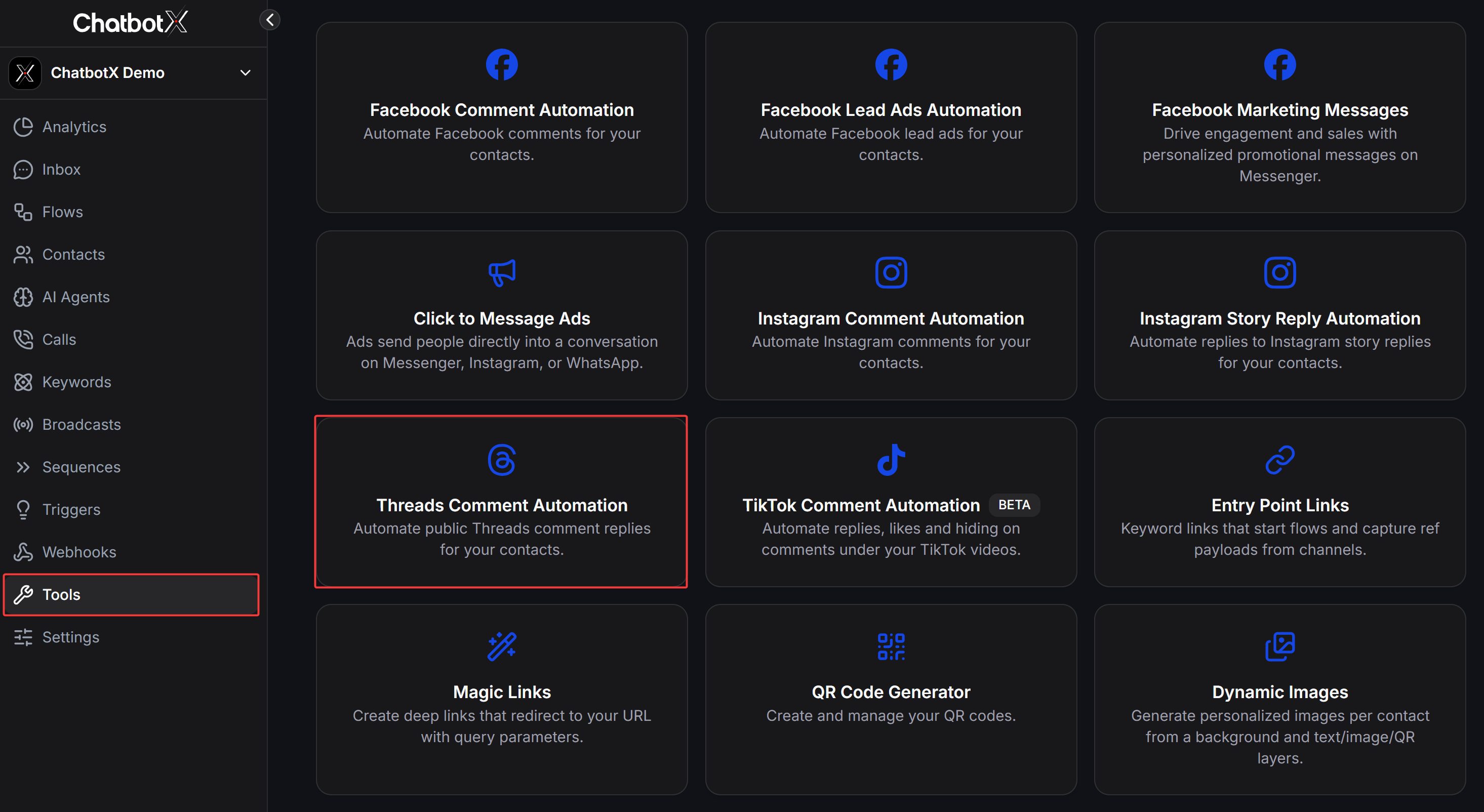
From the left navigation menu in ChatbotX, select **Tools**. Then click the **Threads Comment Automation** card.
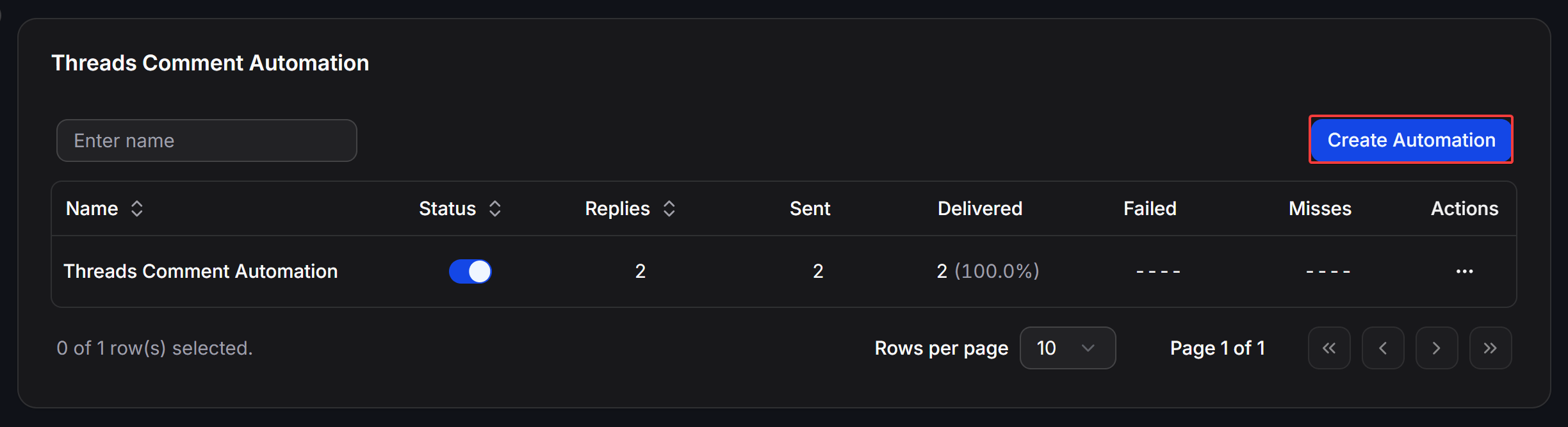
 On the Threads Comment Automation dashboard, click the **Create Automation** button in the upper-right corner.
 In the **Targeting & Reply** section, set up your campaign parameters:
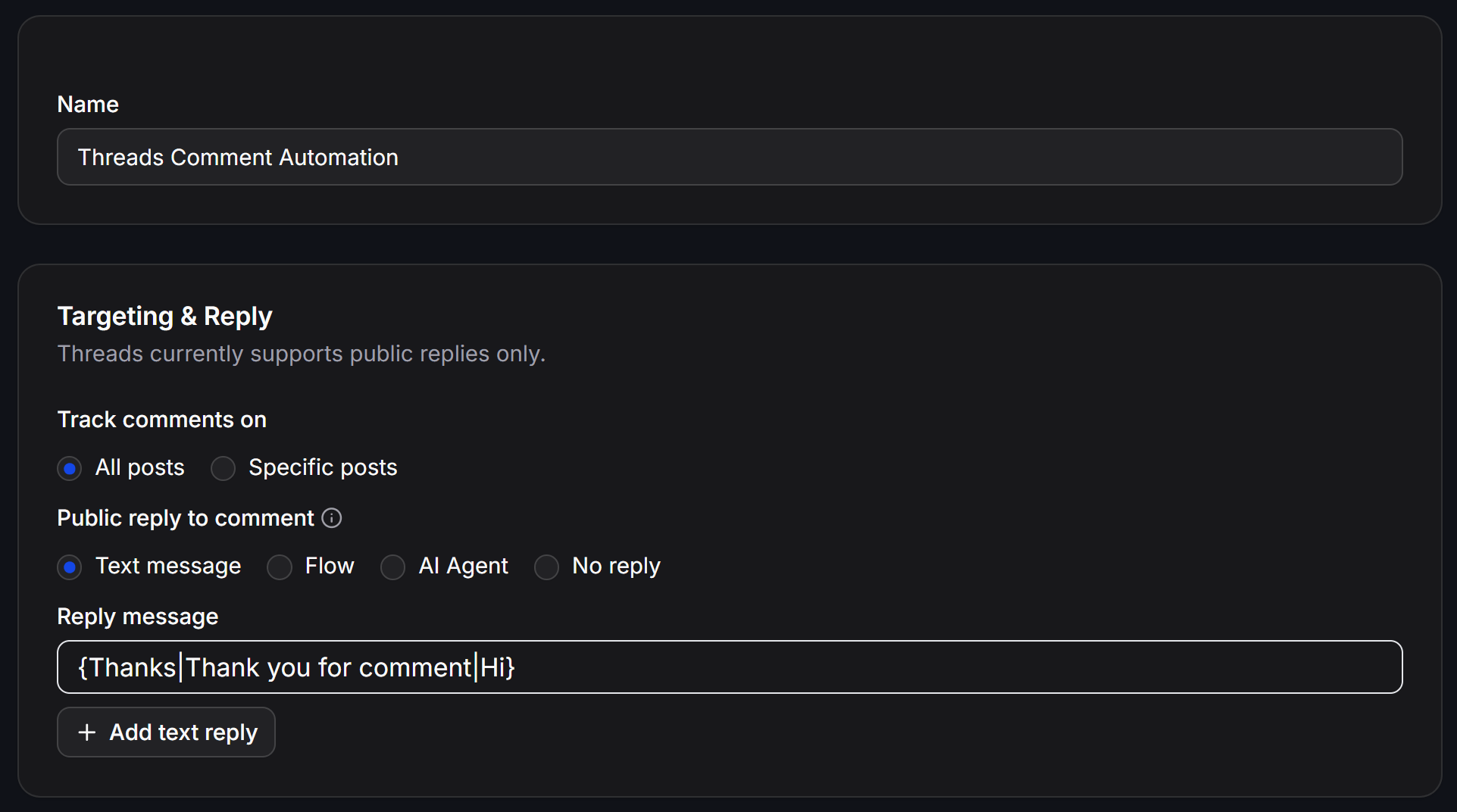 * **Name:** Enter a descriptive campaign name for easy reference.
* **Track comments on:**
* **All posts:** Automatically apply the automation to all current and future posts on your connected Threads account.
* **Specific posts:** Limit tracking to selected posts only.
* **Public reply to comment:** Choose how the bot responds publicly under the user comment:
* **Text message:** Post a text reply. You can leverage Spintax syntax to rotate phrases and click **+ Add text reply** to add multiple distinct response variations.
* **Flow:** Trigger a pre-built interactive Flow to post a reply.
* **AI Agent:** Delegate the response to an AI Agent that reads the comment context and crafts an intelligent answer based on your knowledge base.
* **No reply:** Do not post a public comment reply (useful when you only want to use comment moderation and hiding rules).
In the **Filters & Options** section, define rules to refine which comments trigger an automated response:
* **Name:** Enter a descriptive campaign name for easy reference.
* **Track comments on:**
* **All posts:** Automatically apply the automation to all current and future posts on your connected Threads account.
* **Specific posts:** Limit tracking to selected posts only.
* **Public reply to comment:** Choose how the bot responds publicly under the user comment:
* **Text message:** Post a text reply. You can leverage Spintax syntax to rotate phrases and click **+ Add text reply** to add multiple distinct response variations.
* **Flow:** Trigger a pre-built interactive Flow to post a reply.
* **AI Agent:** Delegate the response to an AI Agent that reads the comment context and crafts an intelligent answer based on your knowledge base.
* **No reply:** Do not post a public comment reply (useful when you only want to use comment moderation and hiding rules).
In the **Filters & Options** section, define rules to refine which comments trigger an automated response:
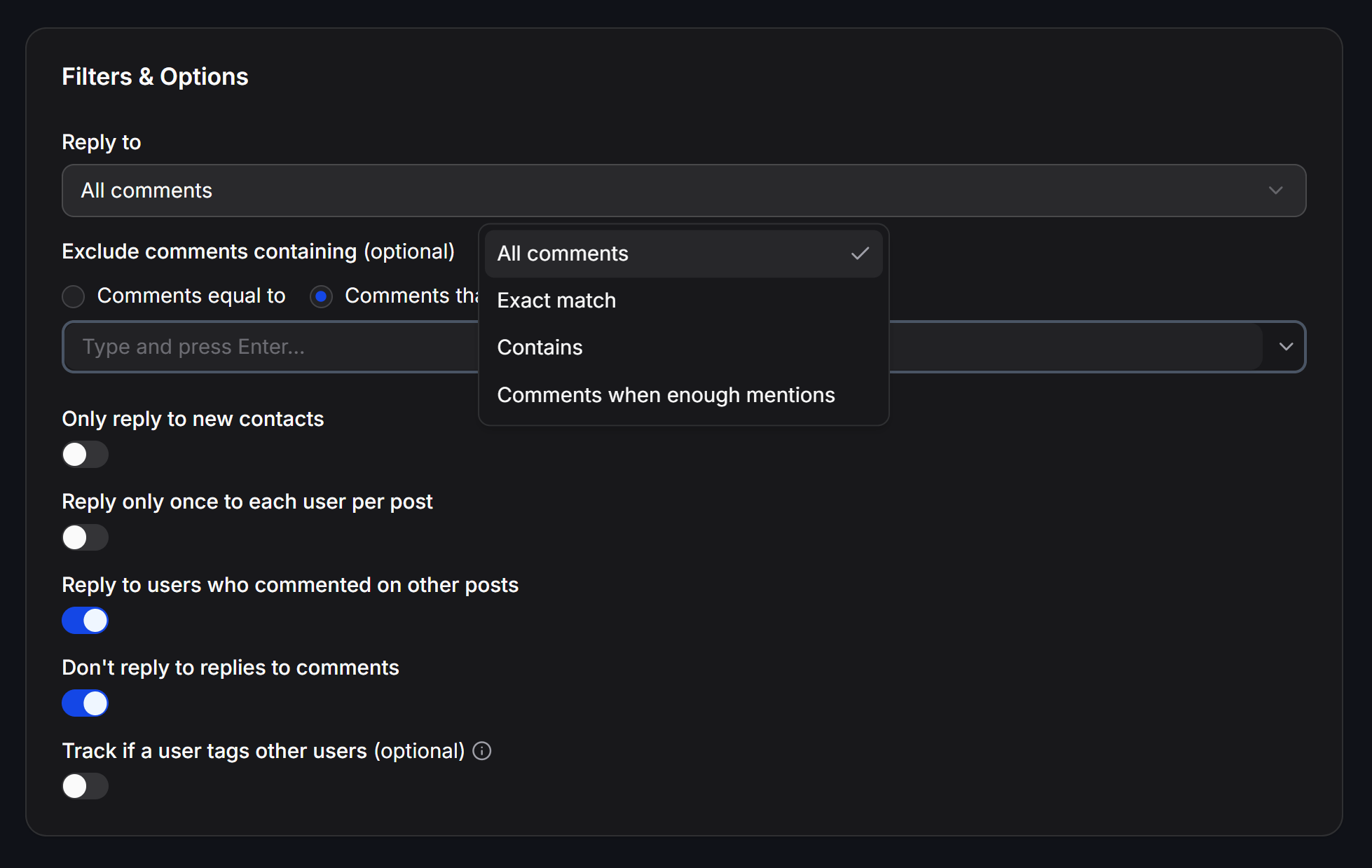 * **Reply to:** Select the condition required to trigger a reply:
* **All comments:** Reply to every eligible comment.
* **Exact match:** Reply only when the comment matches specified keywords exactly.
* **Contains:** Reply when the comment contains designated keywords.
* **Comments when enough mentions:** Reply only when the user mentions at least the specified minimum count of other users.
* **Exclude comments containing (optional):** Filter out unwanted comments using two flexible modes:
* **Comments equal to:** Skip comments that match the specified phrase exactly.
* **Comments that contain:** Skip comments containing specific keywords. Type each keyword and press Enter.
* **Only reply to new contacts:** When enabled, the system only replies to contacts interacting for the first time.
* **Reply only once to each user per post:** Prevent duplicate replies if the same user comments multiple times on the same post.
* **Reply to users who commented on other posts:** Keep replying to users even if they previously commented on other posts.
* **Don't reply to replies to comments:** Skip nested sub-replies to prevent the bot from interrupting conversations between users.
* **Track if a user tags other users (optional):** Enable tracking to record and analyze data on user mentions.
Under **Reply Timing**, control when the response is delivered:
* **Reply after:** Choose the timing delay:
* **Immediately:** Publish the response right after the comment event is received from Threads.
* Select a custom delay to make automated replies appear more conversational and organic.
In the **Hide Comments** section, establish automated moderation rules to keep your post discussions clean and secure:
* **Reply to:** Select the condition required to trigger a reply:
* **All comments:** Reply to every eligible comment.
* **Exact match:** Reply only when the comment matches specified keywords exactly.
* **Contains:** Reply when the comment contains designated keywords.
* **Comments when enough mentions:** Reply only when the user mentions at least the specified minimum count of other users.
* **Exclude comments containing (optional):** Filter out unwanted comments using two flexible modes:
* **Comments equal to:** Skip comments that match the specified phrase exactly.
* **Comments that contain:** Skip comments containing specific keywords. Type each keyword and press Enter.
* **Only reply to new contacts:** When enabled, the system only replies to contacts interacting for the first time.
* **Reply only once to each user per post:** Prevent duplicate replies if the same user comments multiple times on the same post.
* **Reply to users who commented on other posts:** Keep replying to users even if they previously commented on other posts.
* **Don't reply to replies to comments:** Skip nested sub-replies to prevent the bot from interrupting conversations between users.
* **Track if a user tags other users (optional):** Enable tracking to record and analyze data on user mentions.
Under **Reply Timing**, control when the response is delivered:
* **Reply after:** Choose the timing delay:
* **Immediately:** Publish the response right after the comment event is received from Threads.
* Select a custom delay to make automated replies appear more conversational and organic.
In the **Hide Comments** section, establish automated moderation rules to keep your post discussions clean and secure:
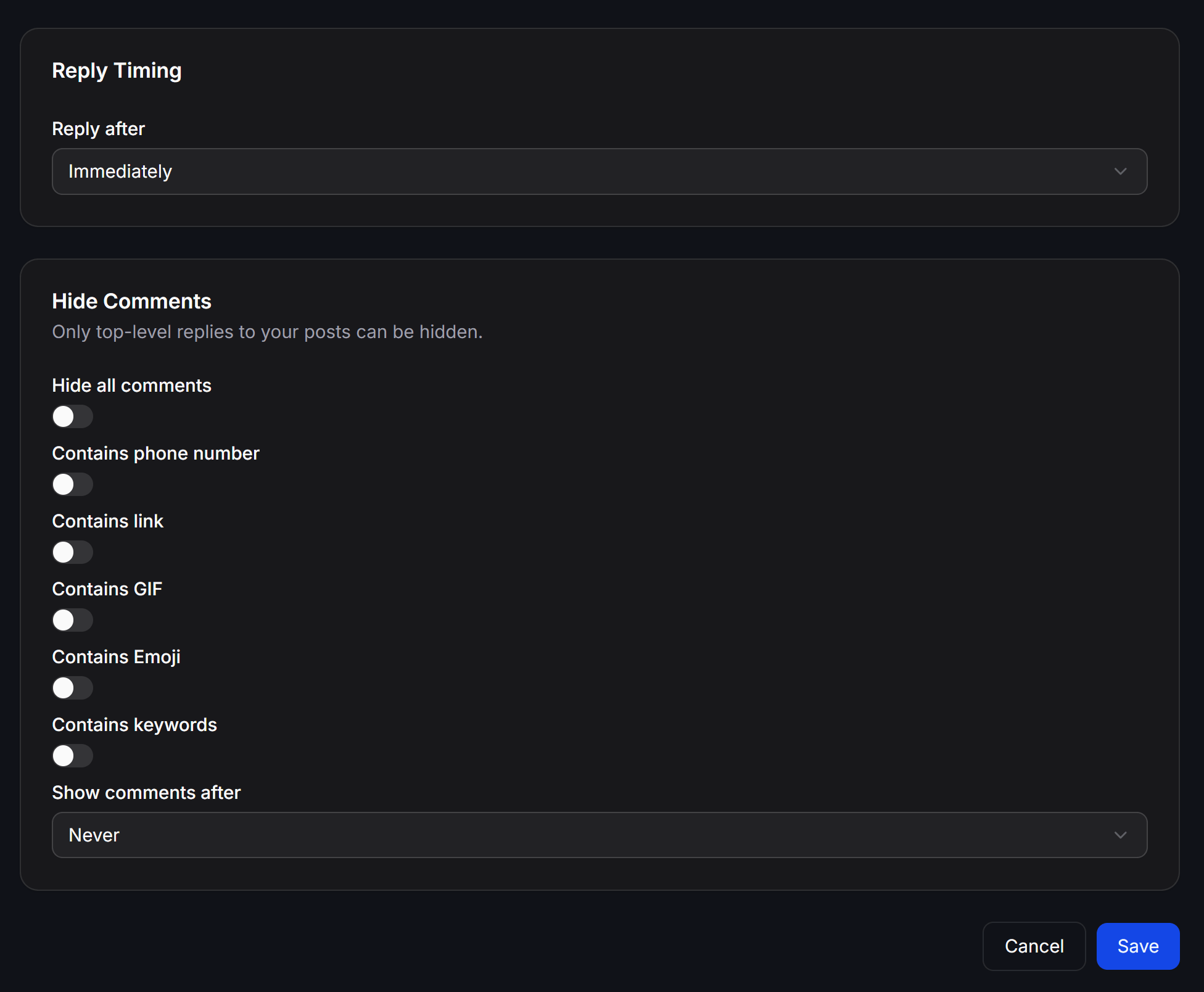 * **Hide all comments:** Automatically hide every comment on the post.
* **Contains phone number:** Automatically hide comments with phone numbers to protect customer privacy and prevent competitors from capturing leads.
* **Contains link:** Automatically hide comments with URLs to eliminate external spam links.
* **Contains GIF:** Automatically hide comments that include animated GIF media.
* **Contains Emoji:** Automatically hide comments containing emoji characters.
* **Contains keywords:** Automatically hide comments containing flagged moderation terms.
* **Show comments after:** Choose whether to unhide comments automatically after a set duration, or select **Never** to keep them permanently hidden.
Review your settings and click the **Save** button in the bottom-right corner to activate your campaign.
## Managing Your Automations
The **Threads Comment Automation** dashboard provides status toggles and funnel metrics for every campaign:
* **Enter name:** Search your automations by campaign name.
* **Status:** Toggle the switch to activate or pause any campaign instantly.
* **Funnel Performance Metrics:**
* **Replies:** Total number of public comment replies published.
* **Sent:** Total number of reply requests dispatched by the system.
* **Delivered:** Number and percentage rate of successfully published replies.
* **Failed:** Number of failed attempts due to connection issues or platform policy blocks.
* **Misses:** Number of comments skipped because they matched exclusion rules, were sub-comments, or did not meet filter conditions.
* **Action Menu (`...`):** Click the three-dot menu icon in the **Actions** column to:
* **Edit:** Adjust campaign triggers, messages, filters, or timing rules.
* **View Analytics:** Access detailed reports showing interaction trends, comment activity, and event logs.
This documentation is built and hosted on [Mintlify](https://mintlify.com), a developer documentation platform.
* **Hide all comments:** Automatically hide every comment on the post.
* **Contains phone number:** Automatically hide comments with phone numbers to protect customer privacy and prevent competitors from capturing leads.
* **Contains link:** Automatically hide comments with URLs to eliminate external spam links.
* **Contains GIF:** Automatically hide comments that include animated GIF media.
* **Contains Emoji:** Automatically hide comments containing emoji characters.
* **Contains keywords:** Automatically hide comments containing flagged moderation terms.
* **Show comments after:** Choose whether to unhide comments automatically after a set duration, or select **Never** to keep them permanently hidden.
Review your settings and click the **Save** button in the bottom-right corner to activate your campaign.
## Managing Your Automations
The **Threads Comment Automation** dashboard provides status toggles and funnel metrics for every campaign:
* **Enter name:** Search your automations by campaign name.
* **Status:** Toggle the switch to activate or pause any campaign instantly.
* **Funnel Performance Metrics:**
* **Replies:** Total number of public comment replies published.
* **Sent:** Total number of reply requests dispatched by the system.
* **Delivered:** Number and percentage rate of successfully published replies.
* **Failed:** Number of failed attempts due to connection issues or platform policy blocks.
* **Misses:** Number of comments skipped because they matched exclusion rules, were sub-comments, or did not meet filter conditions.
* **Action Menu (`...`):** Click the three-dot menu icon in the **Actions** column to:
* **Edit:** Adjust campaign triggers, messages, filters, or timing rules.
* **View Analytics:** Access detailed reports showing interaction trends, comment activity, and event logs.
This documentation is built and hosted on [Mintlify](https://mintlify.com), a developer documentation platform.