> ## Documentation Index
> Fetch the complete documentation index at: https://chatbotx.io/docs/llms.txt
> Use this file to discover all available pages before exploring further.
# Triggers and Actions
> Learn how to set up Triggers and Actions in ChatbotX to automate responses when events happen to your contacts.
**Triggers & Actions** helps you build automation rules like: *"When X happens -> the system automatically does Y"*, without needing someone to monitor or handle the task manually.
For example:
* When a customer gets the Tag "VIP" -> automatically transfer the chat to a human agent
* When a customer subscribes to a Sequence -> automatically add the Tag "Being nurtured"
* When a new contact comes in through an Entry Point Link -> automatically start a welcome Flow
Open **Triggers** from the menu to get started.
## How to create a Rule
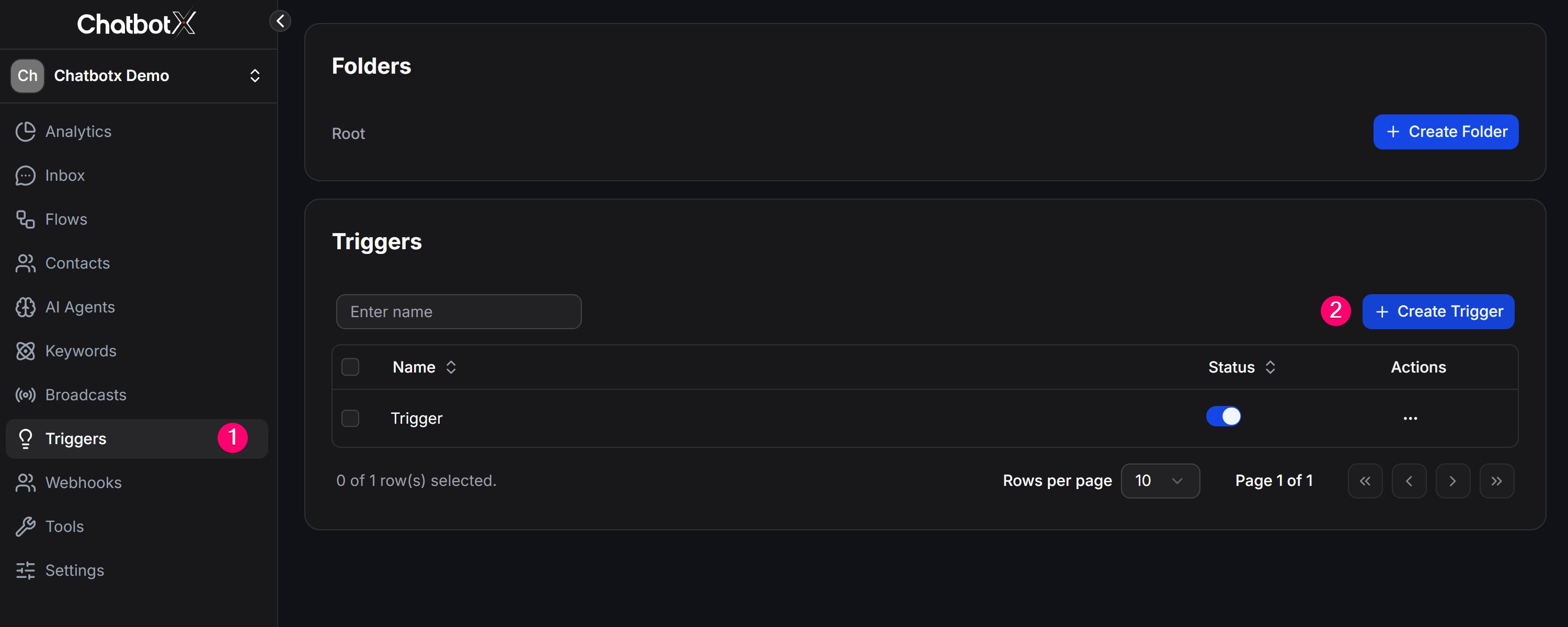
1. In the left menu, open **Triggers**.
2. Click **+ Create Rule** to create a new rule.
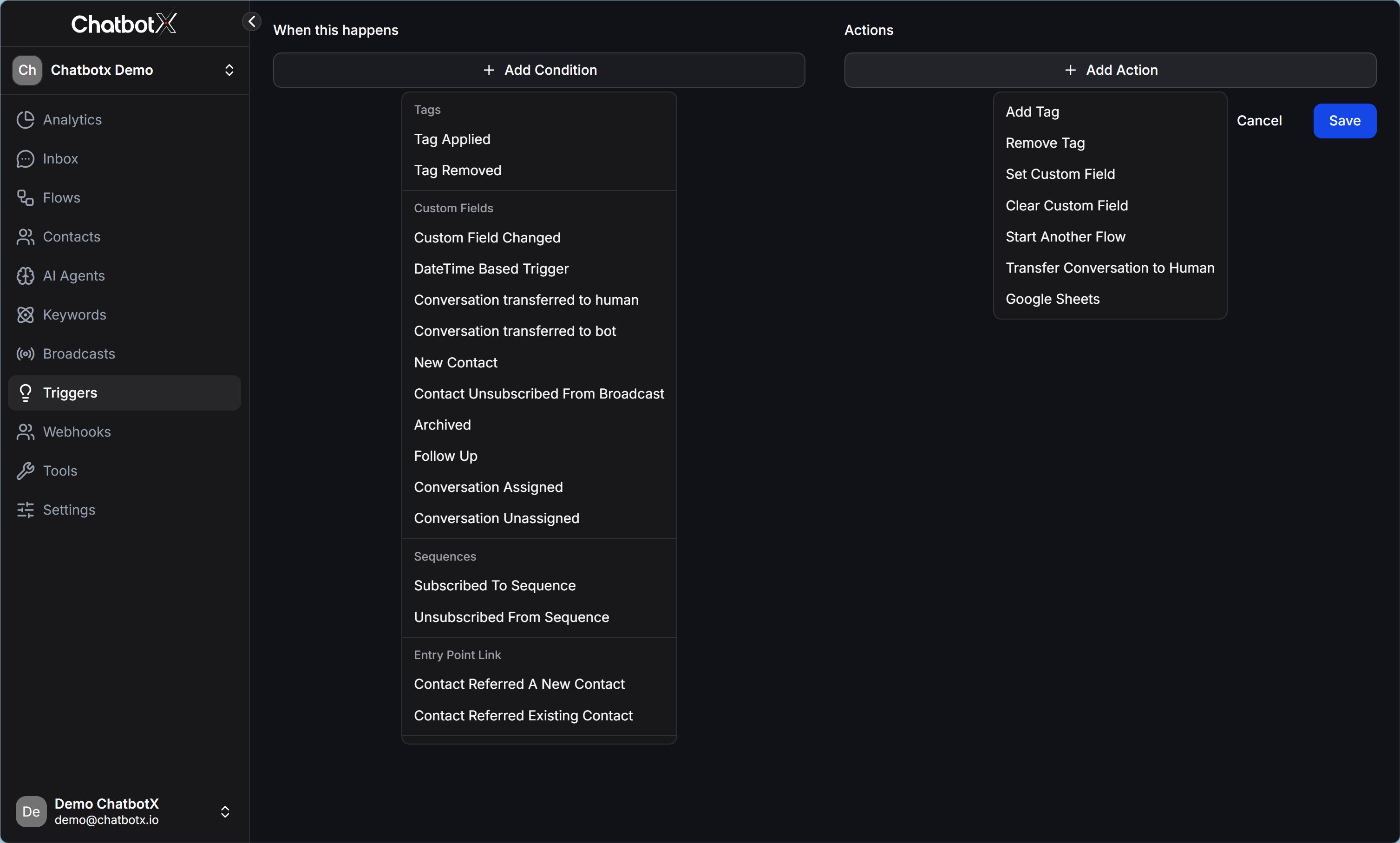
 3. You will see an interface split into 2 columns:
* **When this happens**
* **Actions**
3. You will see an interface split into 2 columns:
* **When this happens**
* **Actions**
 ## Left column: When this happens
Click **+ Add Condition**, then choose the event you want to monitor. Conditions are grouped by topic:
### Tags
| Condition | Meaning |
| --------------- | ------------------------------------ |
| **Tag Applied** | When a Tag is applied to a contact |
| **Tag Removed** | When a Tag is removed from a contact |
### Custom Fields
| Condition | Meaning |
| --------------------------------------- | ------------------------------------------------------------------------------------ |
| **Custom Field Changed** | When the value of a Custom Field changes |
| **DateTime Based Trigger** | Trigger at a specific date or time, such as sending a reminder before an appointment |
| **Conversation transferred to human** | When a chat is transferred to a team member |
| **Conversation transferred to bot** | When a chat is handed back to the Bot |
| **New Contact** | When a new contact is created |
| **Contact Unsubscribed From Broadcast** | When a customer unsubscribes from Broadcasts |
| **Archived** | When a conversation is archived |
| **Follow Up** | When a conversation is marked for follow-up |
| **Conversation Assigned** | When a conversation is assigned to a person or team |
| **Conversation Unassigned** | When a conversation is unassigned |
### Sequences
| Condition | Meaning |
| ------------------------------ | -------------------------------------------- |
| **Subscribed To Sequence** | When a customer subscribes to a Sequence |
| **Unsubscribed From Sequence** | When a customer unsubscribes from a Sequence |
### Entry Point Link
| Condition | Meaning |
| ------------------------------------- | -------------------------------------------------------------- |
| **Contact Referred A New Contact** | When a contact refers a completely new contact |
| **Contact Referred Existing Contact** | When a contact refers someone who already exists in the system |
## Right column: Actions
Click **+ Add Action**, then choose what the system should do automatically when the conditions are met:
| Action | What the system does |
| ---------------------------------- | ----------------------------------- |
| **Add Tag** | Apply a Tag to the contact |
| **Remove Tag** | Remove a Tag from the contact |
| **Set Custom Field** | Write a value into a Custom Field |
| **Clear Custom Field** | Clear the value from a Custom Field |
| **Start Another Flow** | Start any Flow you choose |
| **Transfer Conversation to Human** | Transfer the chat to a team member |
| **Google Sheets** | Write contact data to Google Sheets |
## Real example
**Scenario:** You want to automatically save a new contact's name into Google Sheets when the contact comes in from an ad.
| Step | Setup |
| --------- | ------------------------------------------------------ |
| Condition | New Contact |
| Action | Google Sheets -> choose the sheet and matching columns |
Result: every time a new customer messages you from an ad link, the name and other details are added to the sheet automatically, with no manual copy and paste.
> **Note:** A Rule can combine multiple Conditions and multiple Actions at the same time. The system only triggers the Rule when **all** conditions are met together.
## Left column: When this happens
Click **+ Add Condition**, then choose the event you want to monitor. Conditions are grouped by topic:
### Tags
| Condition | Meaning |
| --------------- | ------------------------------------ |
| **Tag Applied** | When a Tag is applied to a contact |
| **Tag Removed** | When a Tag is removed from a contact |
### Custom Fields
| Condition | Meaning |
| --------------------------------------- | ------------------------------------------------------------------------------------ |
| **Custom Field Changed** | When the value of a Custom Field changes |
| **DateTime Based Trigger** | Trigger at a specific date or time, such as sending a reminder before an appointment |
| **Conversation transferred to human** | When a chat is transferred to a team member |
| **Conversation transferred to bot** | When a chat is handed back to the Bot |
| **New Contact** | When a new contact is created |
| **Contact Unsubscribed From Broadcast** | When a customer unsubscribes from Broadcasts |
| **Archived** | When a conversation is archived |
| **Follow Up** | When a conversation is marked for follow-up |
| **Conversation Assigned** | When a conversation is assigned to a person or team |
| **Conversation Unassigned** | When a conversation is unassigned |
### Sequences
| Condition | Meaning |
| ------------------------------ | -------------------------------------------- |
| **Subscribed To Sequence** | When a customer subscribes to a Sequence |
| **Unsubscribed From Sequence** | When a customer unsubscribes from a Sequence |
### Entry Point Link
| Condition | Meaning |
| ------------------------------------- | -------------------------------------------------------------- |
| **Contact Referred A New Contact** | When a contact refers a completely new contact |
| **Contact Referred Existing Contact** | When a contact refers someone who already exists in the system |
## Right column: Actions
Click **+ Add Action**, then choose what the system should do automatically when the conditions are met:
| Action | What the system does |
| ---------------------------------- | ----------------------------------- |
| **Add Tag** | Apply a Tag to the contact |
| **Remove Tag** | Remove a Tag from the contact |
| **Set Custom Field** | Write a value into a Custom Field |
| **Clear Custom Field** | Clear the value from a Custom Field |
| **Start Another Flow** | Start any Flow you choose |
| **Transfer Conversation to Human** | Transfer the chat to a team member |
| **Google Sheets** | Write contact data to Google Sheets |
## Real example
**Scenario:** You want to automatically save a new contact's name into Google Sheets when the contact comes in from an ad.
| Step | Setup |
| --------- | ------------------------------------------------------ |
| Condition | New Contact |
| Action | Google Sheets -> choose the sheet and matching columns |
Result: every time a new customer messages you from an ad link, the name and other details are added to the sheet automatically, with no manual copy and paste.
> **Note:** A Rule can combine multiple Conditions and multiple Actions at the same time. The system only triggers the Rule when **all** conditions are met together.