> ## Documentation Index
> Fetch the complete documentation index at: https://chatbotx.io/docs/llms.txt
> Use this file to discover all available pages before exploring further.
# Export and Import Flows
> Hướng dẫn xuất Flow ChatbotX thành file, nhập Flow vào workspace và theo dõi kết quả trong Import history.
Tính năng **Export** và **Import Flow** giúp bạn sao lưu một Flow, chuyển Flow sang workspace khác hoặc tái sử dụng một kịch bản đã có mà không cần tạo lại từ đầu.
Tải Flow hiện tại xuống dưới dạng file `.chatbotx-flow.json`.
Nhập file Flow vào danh sách Flows của workspace.
Theo dõi trạng thái và kết quả của từng lần nhập.
## Xuất một Flow
Vào **Flows**, sau đó mở Flow bạn muốn sao lưu hoặc chuyển sang workspace khác.
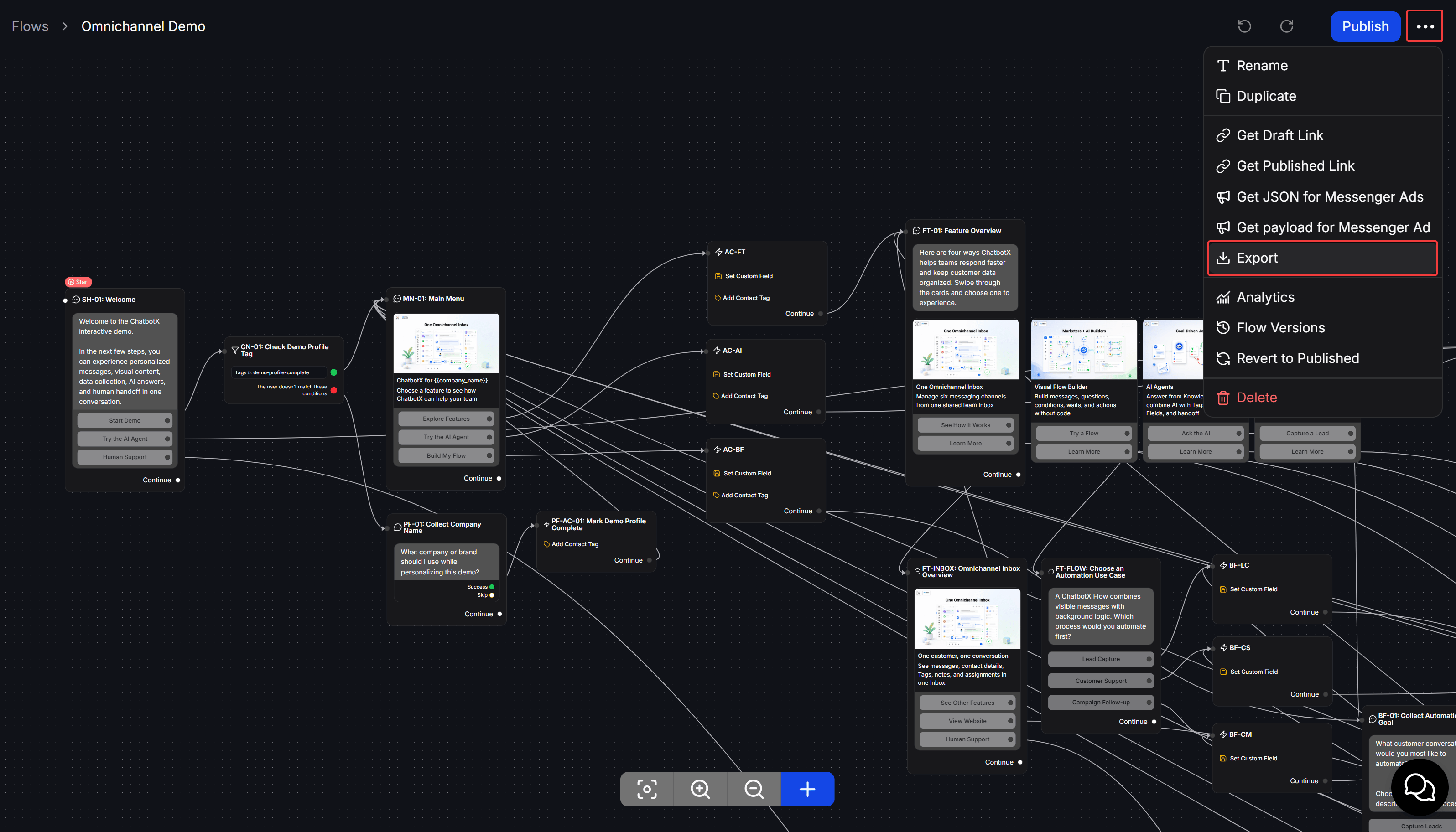
Trong Flow Builder, nhấn biểu tượng **ba chấm** ở góc trên bên phải.
Chọn **Export** để tải Flow xuống thiết bị. Tên file xuất có phần mở rộng `.chatbotx-flow.json`.
 ## Nhập một Flow
Vào **Flows** trong workspace nhận Flow.
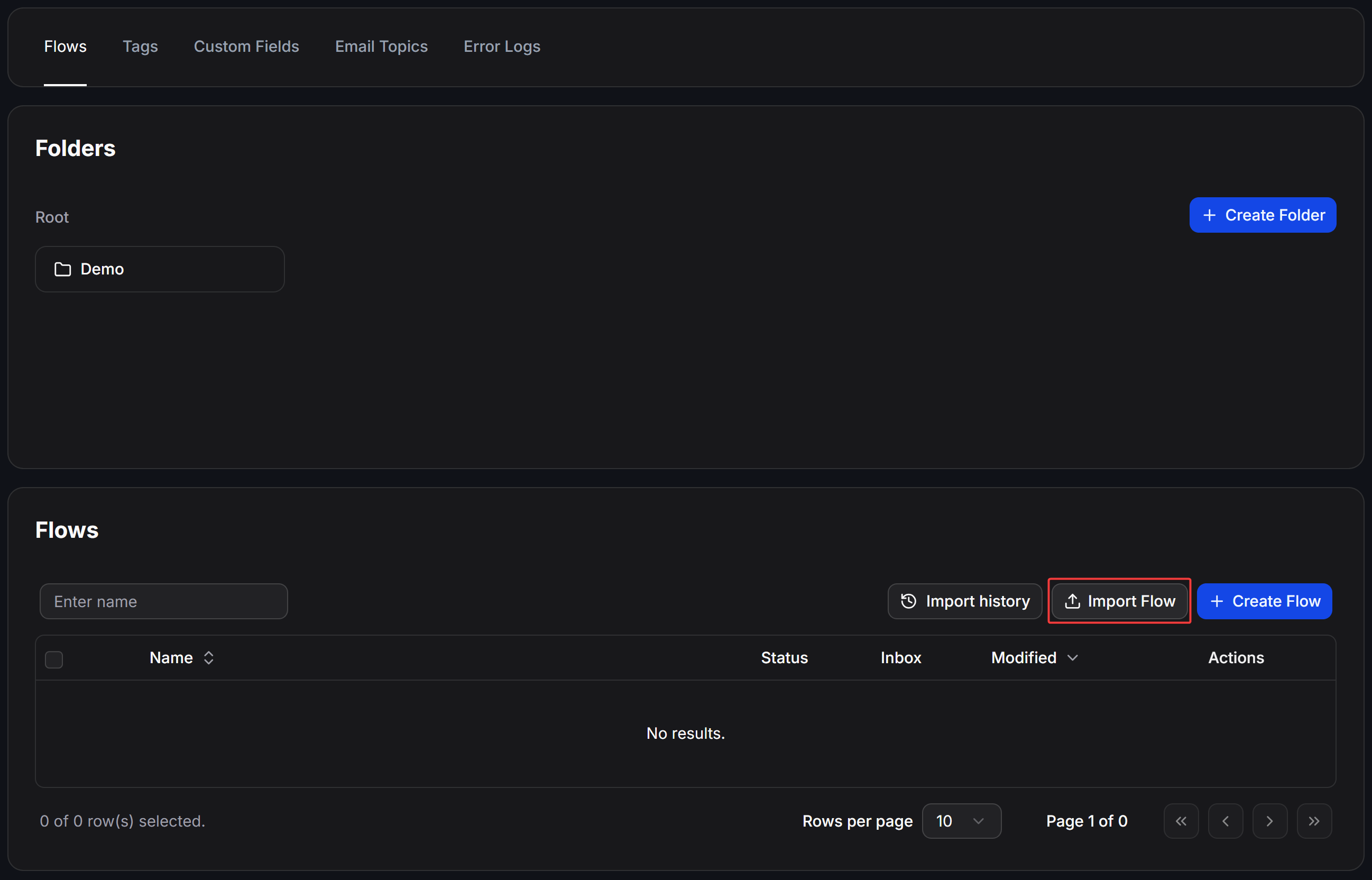
Nhấn **Import Flow**, sau đó chọn file `.chatbotx-flow.json` đã xuất từ ChatbotX.
ChatbotX xử lý file và thêm Flow vào workspace. Nhấn **Import history** để kiểm tra kết quả.
Mở Flow mới, kiểm tra nội dung và kết nối giữa các block, sau đó nhấn **Publish** khi Flow đã sẵn sàng sử dụng.
## Nhập một Flow
Vào **Flows** trong workspace nhận Flow.
Nhấn **Import Flow**, sau đó chọn file `.chatbotx-flow.json` đã xuất từ ChatbotX.
ChatbotX xử lý file và thêm Flow vào workspace. Nhấn **Import history** để kiểm tra kết quả.
Mở Flow mới, kiểm tra nội dung và kết nối giữa các block, sau đó nhấn **Publish** khi Flow đã sẵn sàng sử dụng.
 ## Xem Import history
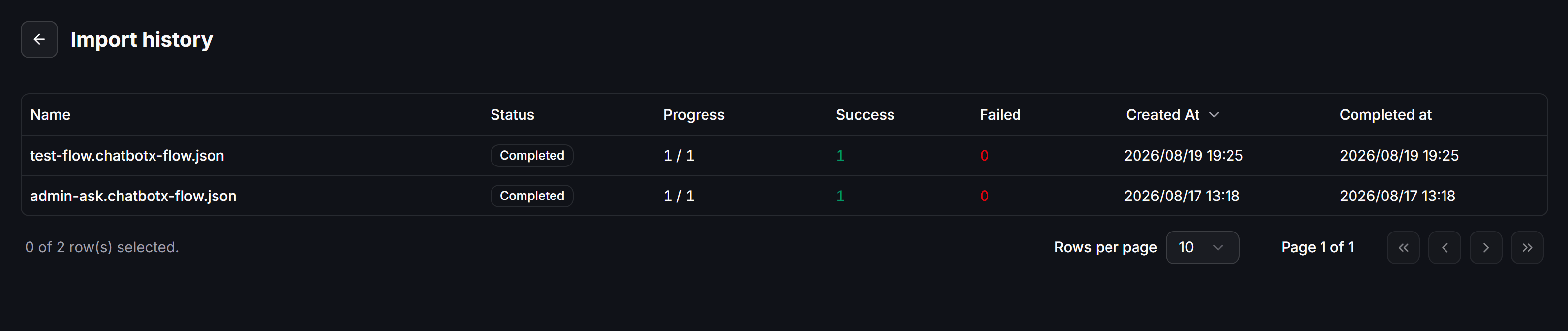
Trang **Import history** hiển thị kết quả của từng file đã nhập:
* **Name**: Tên file Flow.
* **Status**: Trạng thái xử lý hiện tại.
* **Progress**: Số Flow đã xử lý trên tổng số Flow trong lần nhập.
* **Success**: Số Flow được nhập thành công.
* **Failed**: Số Flow nhập không thành công.
* **Created At**: Thời điểm bắt đầu nhập.
* **Completed at**: Thời điểm hoàn tất.
Ví dụ, **Status** là **Completed**, **Success** là `1` và **Failed** là `0` nghĩa là một Flow đã được nhập thành công.
## Xem Import history
Trang **Import history** hiển thị kết quả của từng file đã nhập:
* **Name**: Tên file Flow.
* **Status**: Trạng thái xử lý hiện tại.
* **Progress**: Số Flow đã xử lý trên tổng số Flow trong lần nhập.
* **Success**: Số Flow được nhập thành công.
* **Failed**: Số Flow nhập không thành công.
* **Created At**: Thời điểm bắt đầu nhập.
* **Completed at**: Thời điểm hoàn tất.
Ví dụ, **Status** là **Completed**, **Success** là `1` và **Failed** là `0` nghĩa là một Flow đã được nhập thành công.
 ## Ví dụ sử dụng
Bạn đã tạo một Flow thu thập thông tin khách hàng trong workspace chính và muốn dùng lại trong workspace mới:
1. Mở Flow gốc và chọn **Export**.
2. Chuyển sang workspace mới, vào **Flows** và chọn **Import Flow**.
3. Mở **Import history** để xác nhận file đã được xử lý thành công.
4. Mở Flow vừa nhập, điều chỉnh nội dung cho workspace mới và nhấn **Publish**.
Hãy giữ lại file `.chatbotx-flow.json` nếu bạn muốn dùng làm bản sao lưu hoặc nhập lại Flow vào một workspace khác.
## Ví dụ sử dụng
Bạn đã tạo một Flow thu thập thông tin khách hàng trong workspace chính và muốn dùng lại trong workspace mới:
1. Mở Flow gốc và chọn **Export**.
2. Chuyển sang workspace mới, vào **Flows** và chọn **Import Flow**.
3. Mở **Import history** để xác nhận file đã được xử lý thành công.
4. Mở Flow vừa nhập, điều chỉnh nội dung cho workspace mới và nhấn **Publish**.
Hãy giữ lại file `.chatbotx-flow.json` nếu bạn muốn dùng làm bản sao lưu hoặc nhập lại Flow vào một workspace khác.