> ## Documentation Index
> Fetch the complete documentation index at: https://chatbotx.io/docs/llms.txt
> Use this file to discover all available pages before exploring further.
# Automate White Label Billing with Stripe in ChatbotX
> Guide to connect Stripe with ChatbotX White Label to create SaaS packages, automate recurring billing, and manage client subscriptions.
Billing automation allows you to use Stripe to automatically charge clients for using your portal. This guide is for ChatbotX White Label SaaS plan partners who want to connect their own Stripe account to automate payments and renewals. You can configure flat-rate plans or flexible billing based on the resource usage of each client workspace.
## How to Retrieve the Secret Key and Connect Stripe
To enable automated billing, you need to connect your Stripe account to your portal using a secret API key.
To obtain your API key, perform the following steps:
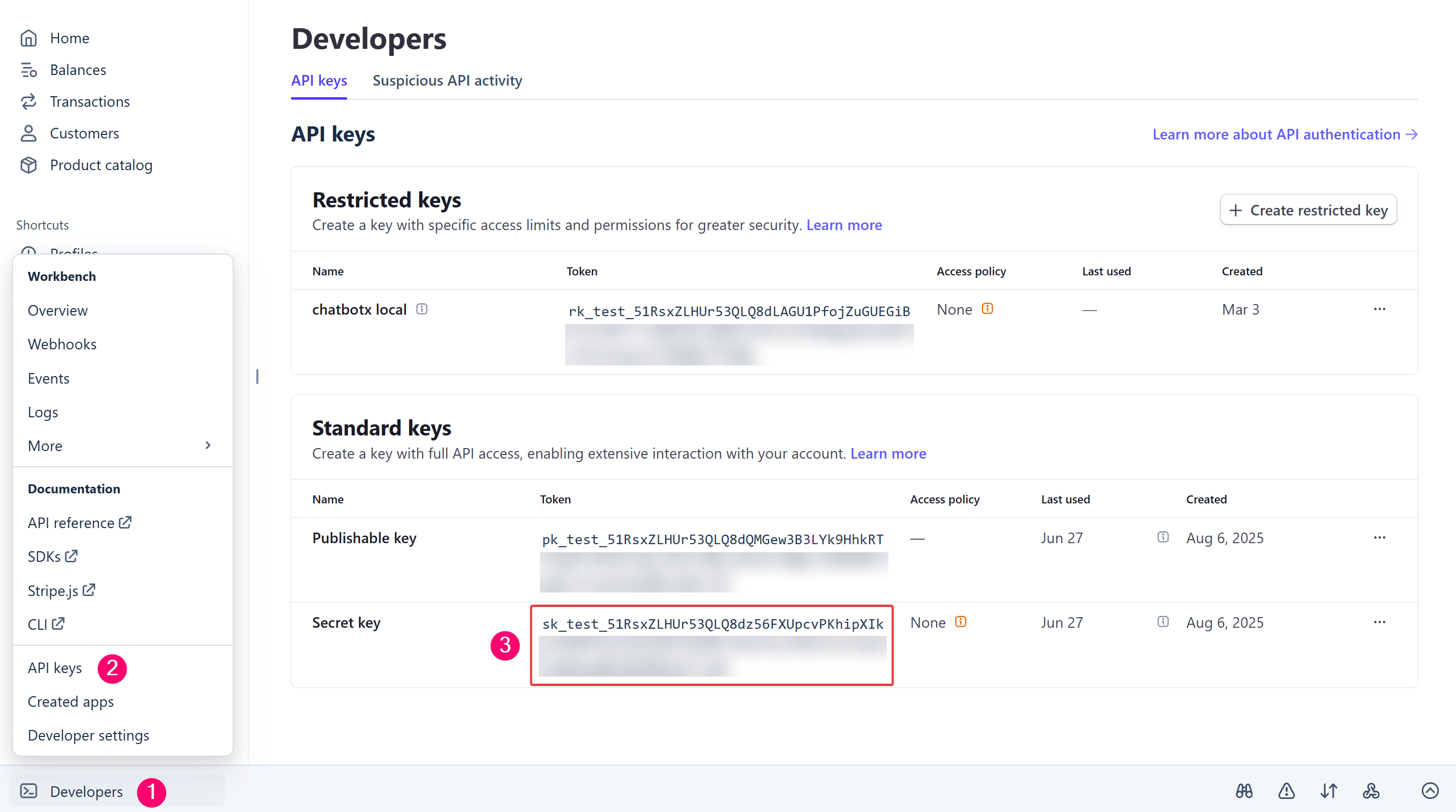
* Log in to your Stripe dashboard.
* Click the **Developers** menu in the top-right corner, then select the **API keys** tab.
* Under the **Standard keys** section, locate the key named **Secret key**.
* Click the button to reveal the key and copy the entire string (the string starts with the prefix `sk_live_` for live environments or `sk_test_` for test environments).
 Log in to your Portal admin dashboard, locate the **SaaS** section on the left navigation menu, and select **Payment Processor**.
* Paste the copied secret key into the **Secret key** field on the **Payment Processor** page.
* Click **Save configuration** to complete the connection.
Log in to your Portal admin dashboard, locate the **SaaS** section on the left navigation menu, and select **Payment Processor**.
* Paste the copied secret key into the **Secret key** field on the **Payment Processor** page.
* Click **Save configuration** to complete the connection.
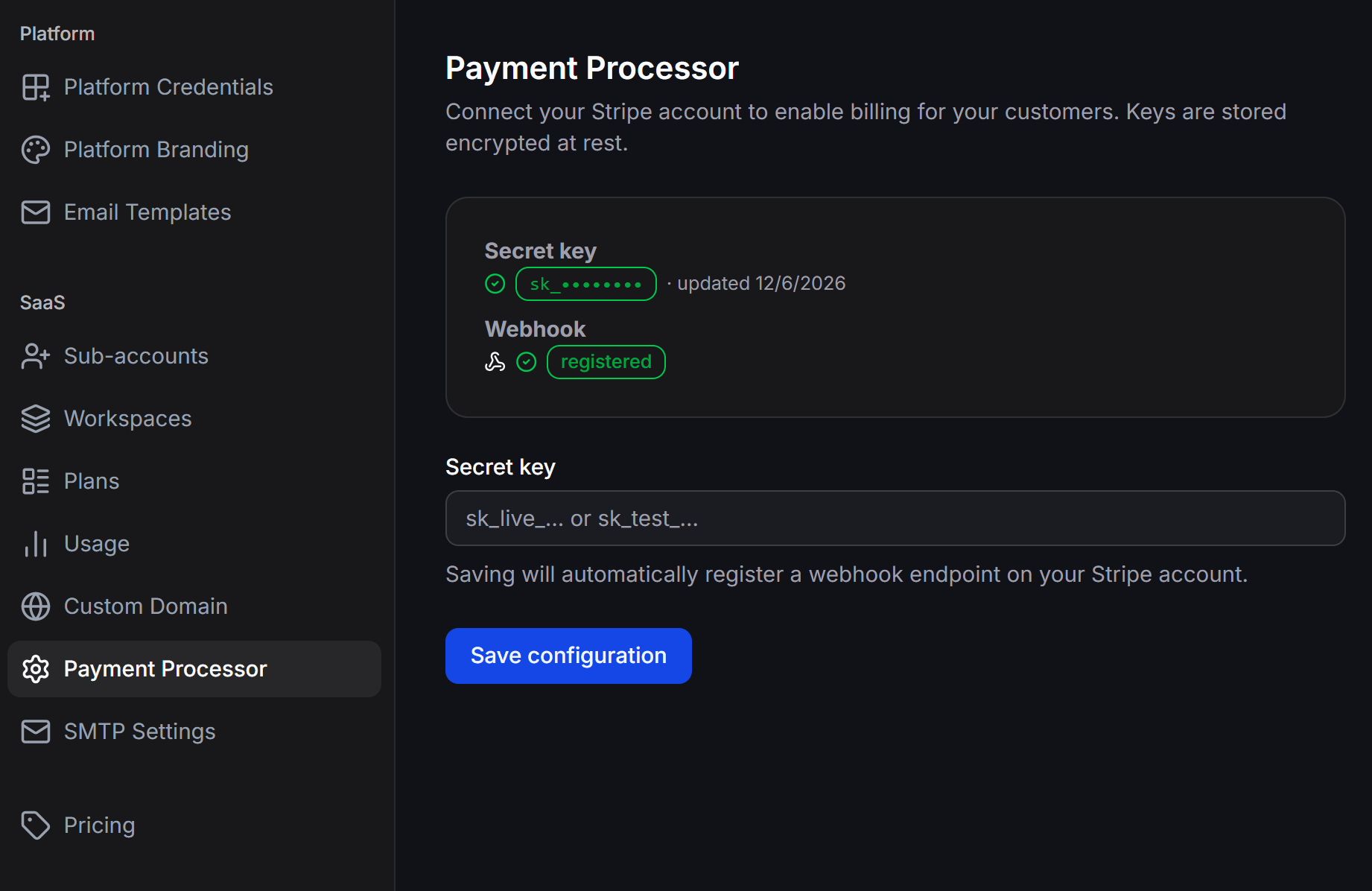 Once you save the configuration, the system automatically registers a webhook endpoint on your Stripe account. The interface will display a green checkmark next to the **Secret key** field and a **registered** label on the **Webhook** line to confirm the connection is active.
Your Stripe Secret Key is highly sensitive and is stored fully encrypted. Never share this key in public documents, frontend source code, or video tutorials to prevent unauthorized account access.
## Create Products and Recurring Pricing in Stripe
To sell subscription plans, you must create products and configure pricing on your Stripe account:
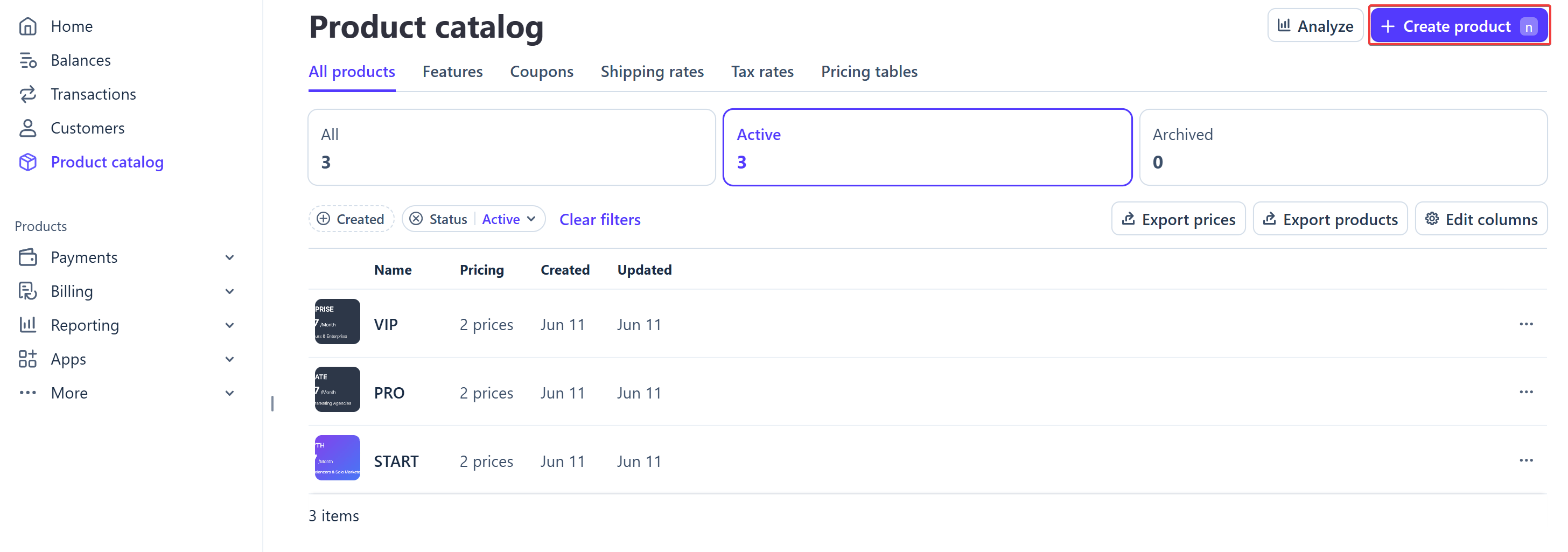
In the Stripe dashboard, open the **Product catalog** menu on the left sidebar and click the **+ Create product** button in the top-right corner.
Once you save the configuration, the system automatically registers a webhook endpoint on your Stripe account. The interface will display a green checkmark next to the **Secret key** field and a **registered** label on the **Webhook** line to confirm the connection is active.
Your Stripe Secret Key is highly sensitive and is stored fully encrypted. Never share this key in public documents, frontend source code, or video tutorials to prevent unauthorized account access.
## Create Products and Recurring Pricing in Stripe
To sell subscription plans, you must create products and configure pricing on your Stripe account:
In the Stripe dashboard, open the **Product catalog** menu on the left sidebar and click the **+ Create product** button in the top-right corner.
 In the **Add a product** form, fill in the following details:
* **Name (required)**: The subscription plan name.
* **Description**: A short description of the plan.
* **Pricing**: Select **Recurring** to configure subscription pricing. Enter the cost in the **Amount** field and select your currency.
In the **Add a product** form, fill in the following details:
* **Name (required)**: The subscription plan name.
* **Description**: A short description of the plan.
* **Pricing**: Select **Recurring** to configure subscription pricing. Enter the cost in the **Amount** field and select your currency.
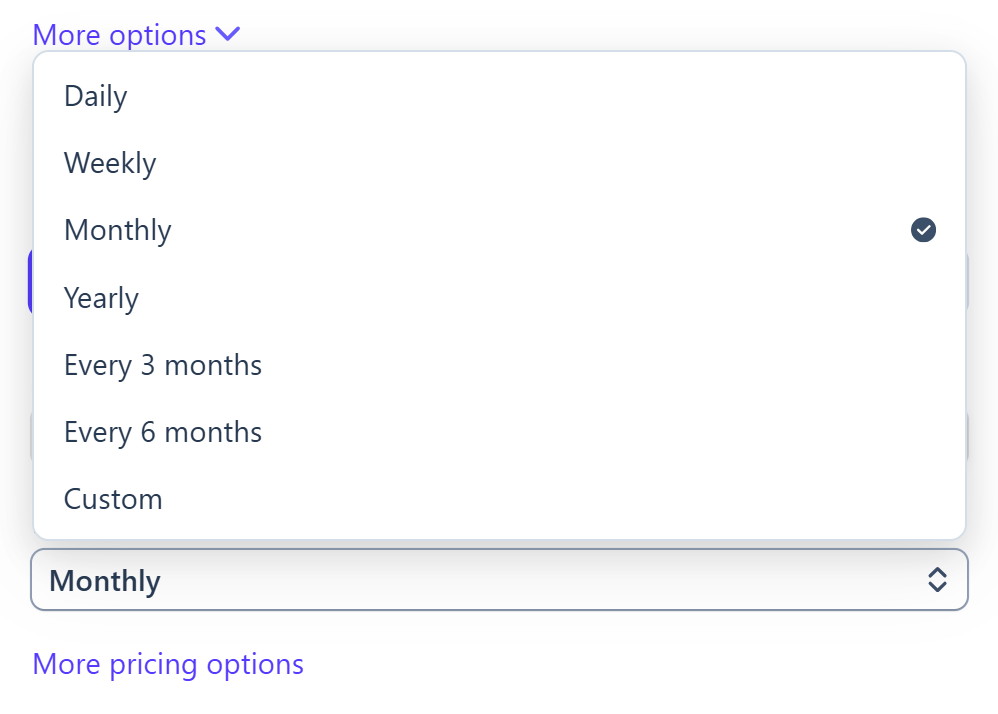
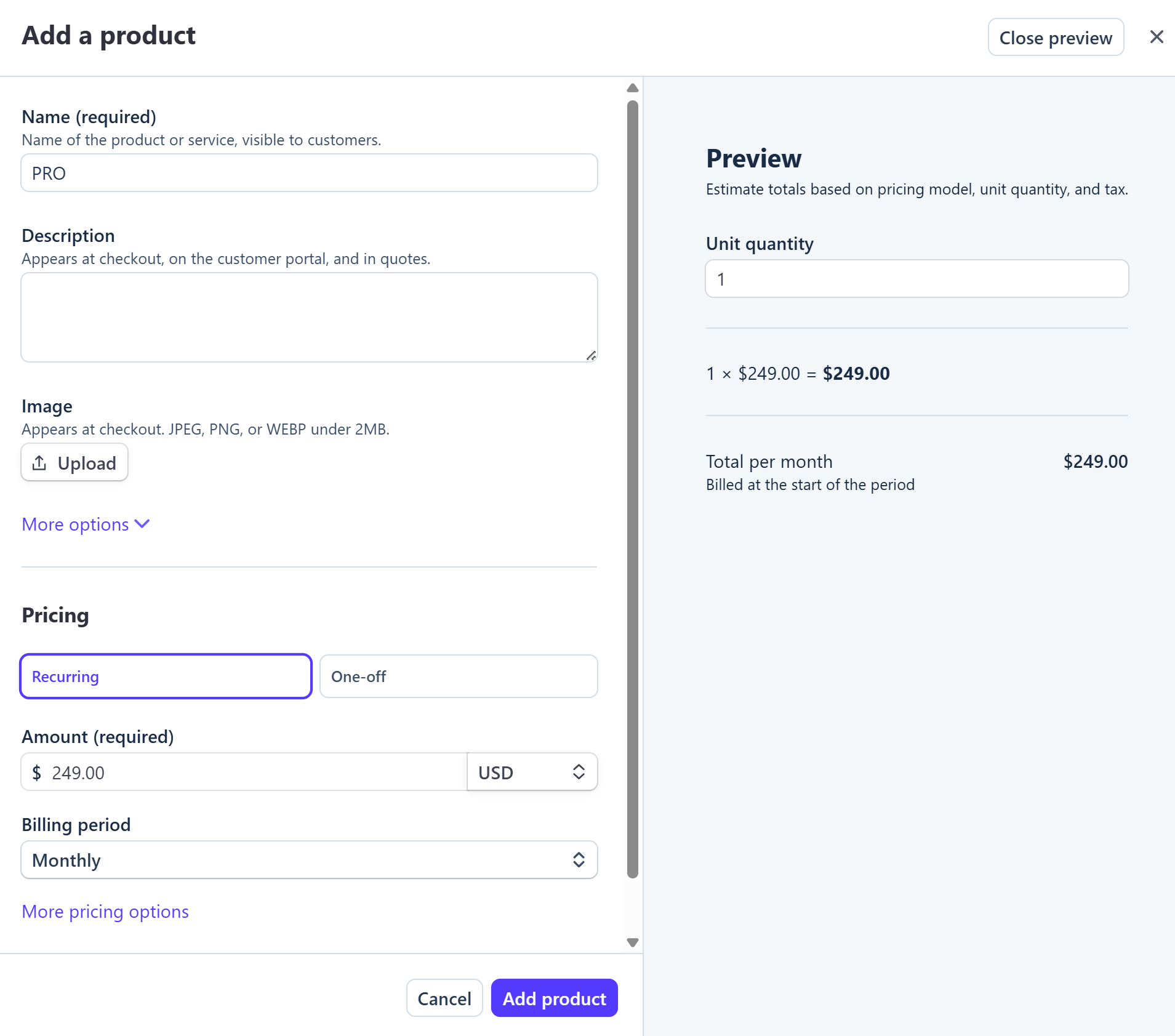 In the **Billing period** field, select your desired billing cycle (such as Monthly to charge users every month or Yearly to charge annually).
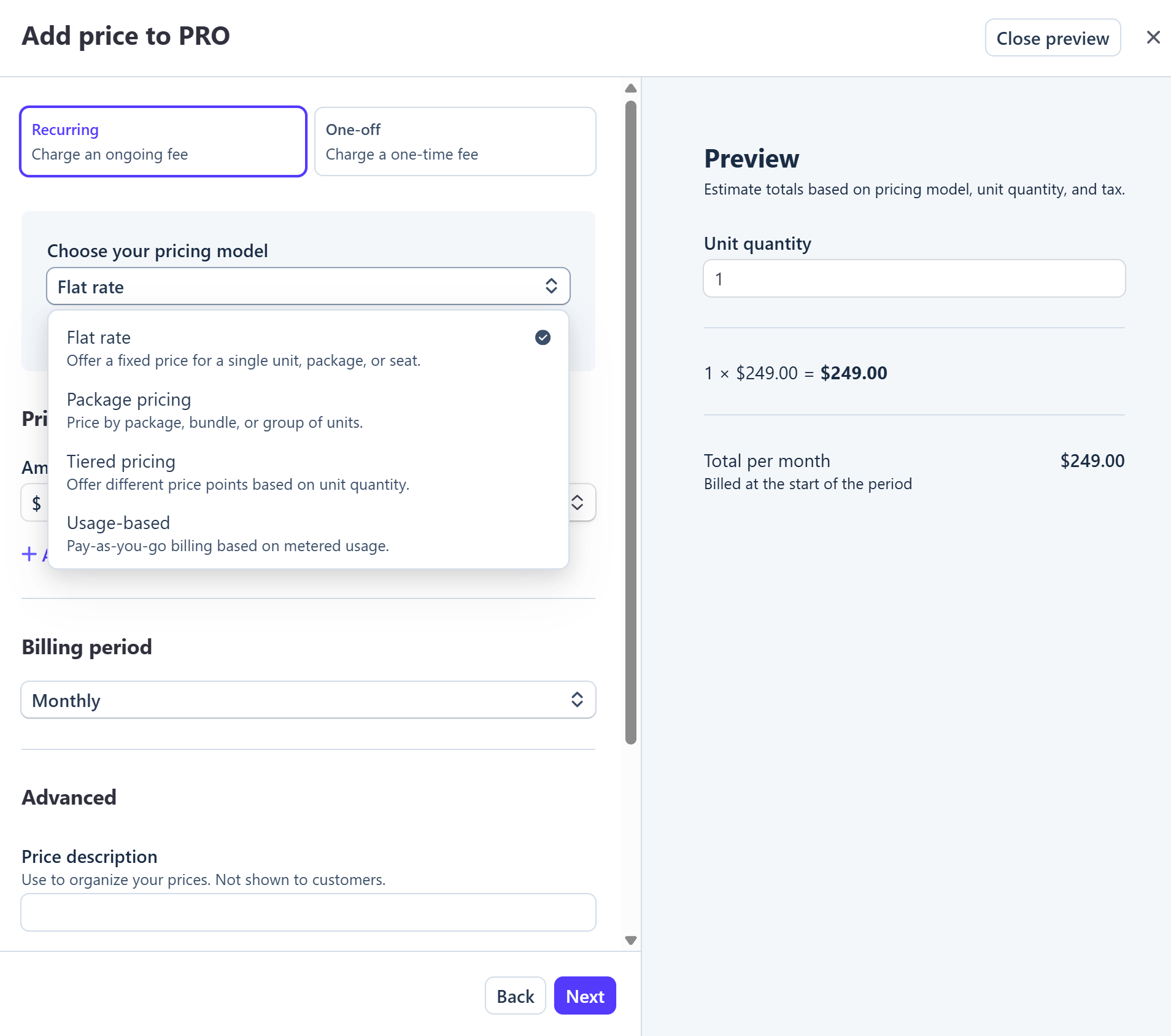
 Under the advanced pricing options, locate the **Choose your pricing model** section:
* **Flat rate**: Apply a fixed price for the entire plan.
* **Tiered pricing**: Price based on resource quantity thresholds.
* **Usage-based**: Bill based on the actual resource consumption of the client.
Under the advanced pricing options, locate the **Choose your pricing model** section:
* **Flat rate**: Apply a fixed price for the entire plan.
* **Tiered pricing**: Price based on resource quantity thresholds.
* **Usage-based**: Bill based on the actual resource consumption of the client.
 * If you selected **Tiered pricing**, choose the tiering method:
* **Volume**: The price of all units is calculated based on the final tier reached (corresponding to the Volume pricing model supported by the portal).
* **Graduated**: The price is calculated progressively across each quantity threshold.
* If you selected **Usage-based**, choose the measurement unit:
* **Per unit**: Bill per user or unit used.
* **Per package**: Bill per package unit.
* **Per tier**: Bill based on quantity thresholds.
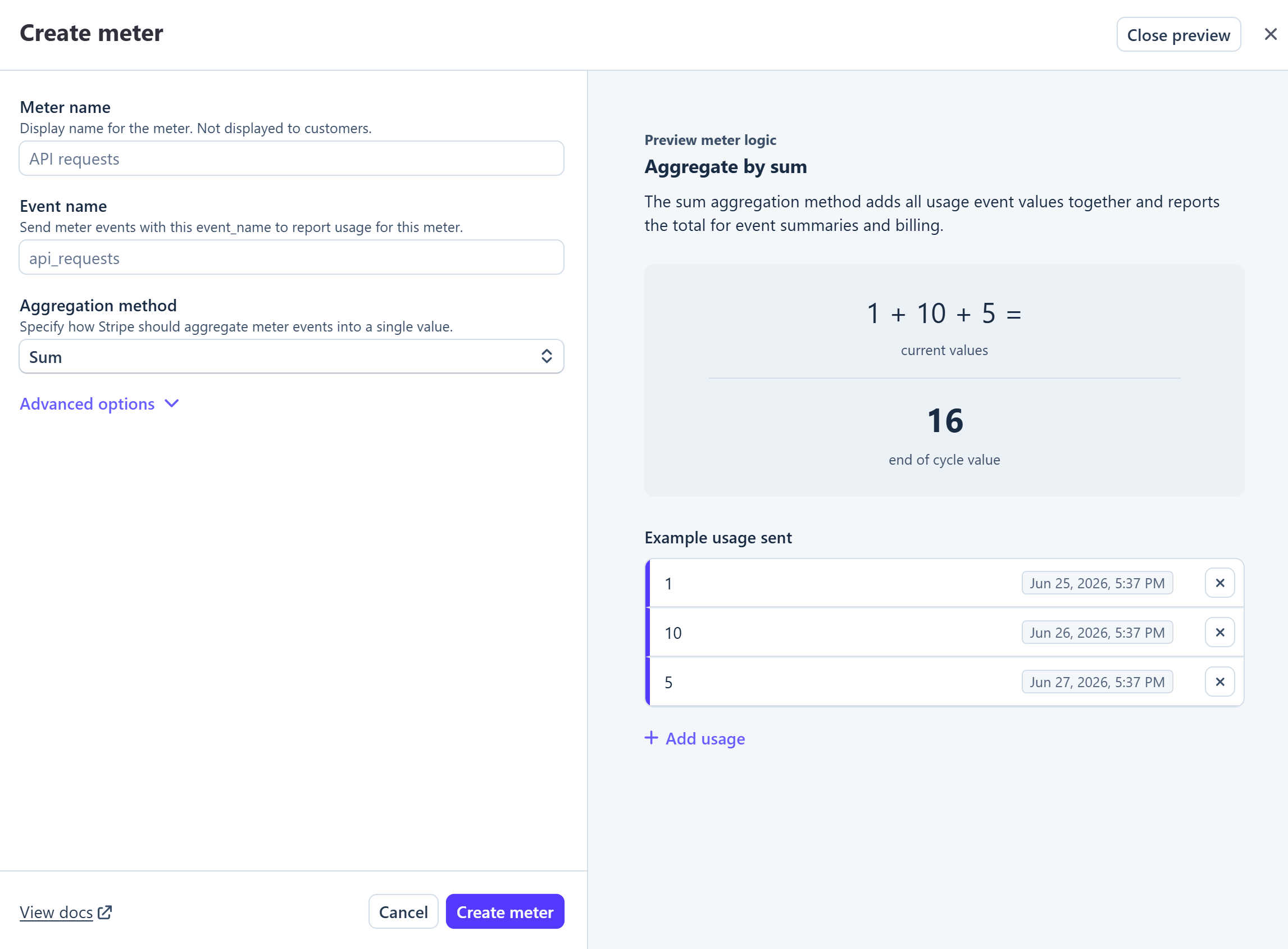
For the **Usage-based** model, declare your usage meter:
* **Meter**: Select a meter under **Choose a meter** or click **+ Create meter** to track client usage data.
* **Billing period**: Select the billing cycle (typically Monthly).
* **Lookup key**: Enter a unique lookup key in the **Advanced** section (e.g., `standard_monthly`) to easily manage the pricing via the API.
* If you selected **Tiered pricing**, choose the tiering method:
* **Volume**: The price of all units is calculated based on the final tier reached (corresponding to the Volume pricing model supported by the portal).
* **Graduated**: The price is calculated progressively across each quantity threshold.
* If you selected **Usage-based**, choose the measurement unit:
* **Per unit**: Bill per user or unit used.
* **Per package**: Bill per package unit.
* **Per tier**: Bill based on quantity thresholds.
For the **Usage-based** model, declare your usage meter:
* **Meter**: Select a meter under **Choose a meter** or click **+ Create meter** to track client usage data.
* **Billing period**: Select the billing cycle (typically Monthly).
* **Lookup key**: Enter a unique lookup key in the **Advanced** section (e.g., `standard_monthly`) to easily manage the pricing via the API.
 Once you have configured the pricing, click the **Add product** button to create the product on Stripe.
## Retrieve the Price ID from Stripe
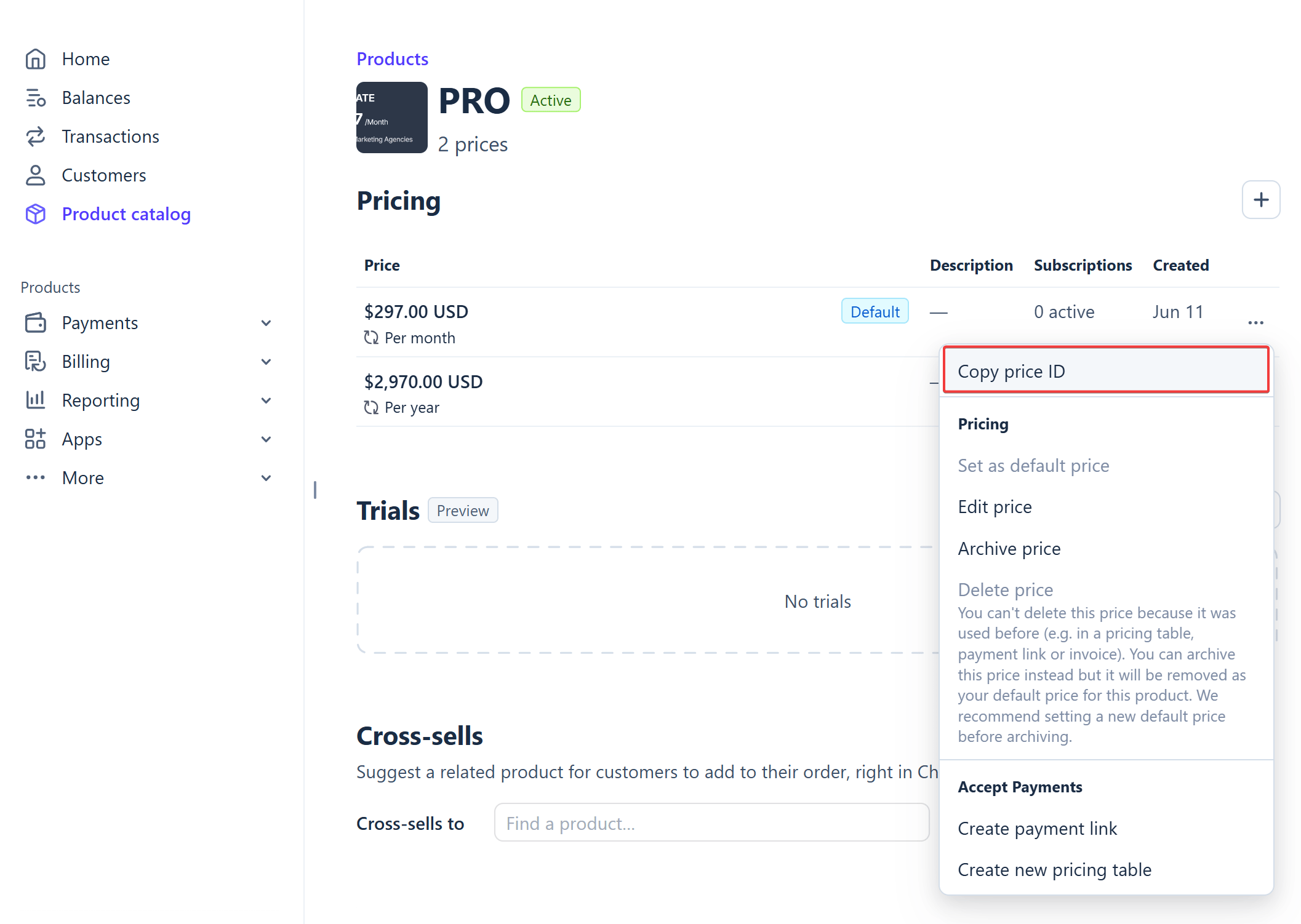
After creating the product on Stripe, locate and copy the Price ID to link it to your portal.
Click the product action menu and select **Copy price ID**. The ID starts with the prefix `price_`.
Once you have configured the pricing, click the **Add product** button to create the product on Stripe.
## Retrieve the Price ID from Stripe
After creating the product on Stripe, locate and copy the Price ID to link it to your portal.
Click the product action menu and select **Copy price ID**. The ID starts with the prefix `price_`.
 ## Next Steps
After copying the **Price ID** from Stripe, return to your Portal admin dashboard to configure resource quotas and link this Price ID to the corresponding plan.
Follow the instructions in the [Configure and Manage Plans](/whitelabel/plans) guide to complete setting up plans for your clients.
Before launching payments live, perform tests using trial cards in Stripe's Test Mode to verify that invoices and resource quotas are applied correctly.
## Next Steps
After copying the **Price ID** from Stripe, return to your Portal admin dashboard to configure resource quotas and link this Price ID to the corresponding plan.
Follow the instructions in the [Configure and Manage Plans](/whitelabel/plans) guide to complete setting up plans for your clients.
Before launching payments live, perform tests using trial cards in Stripe's Test Mode to verify that invoices and resource quotas are applied correctly.