> ## Documentation Index
> Fetch the complete documentation index at: https://chatbotx.io/docs/llms.txt
> Use this file to discover all available pages before exploring further.
# Configure Custom Domain for Portal
> Guide to point custom domain to White Label portal and configure DNS records to verify and enable SSL.
**Custom Domain** allows you to point your own business domain or subdomain to the portal workspace. This setup ensures that your clients access and use the portal completely under your custom domain instead of the platform's default URL.
You can configure your custom domain under the **SaaS > Custom Domain** section on the left menu.
 ## Custom Domain Setup Process
To activate your custom domain, follow these steps:
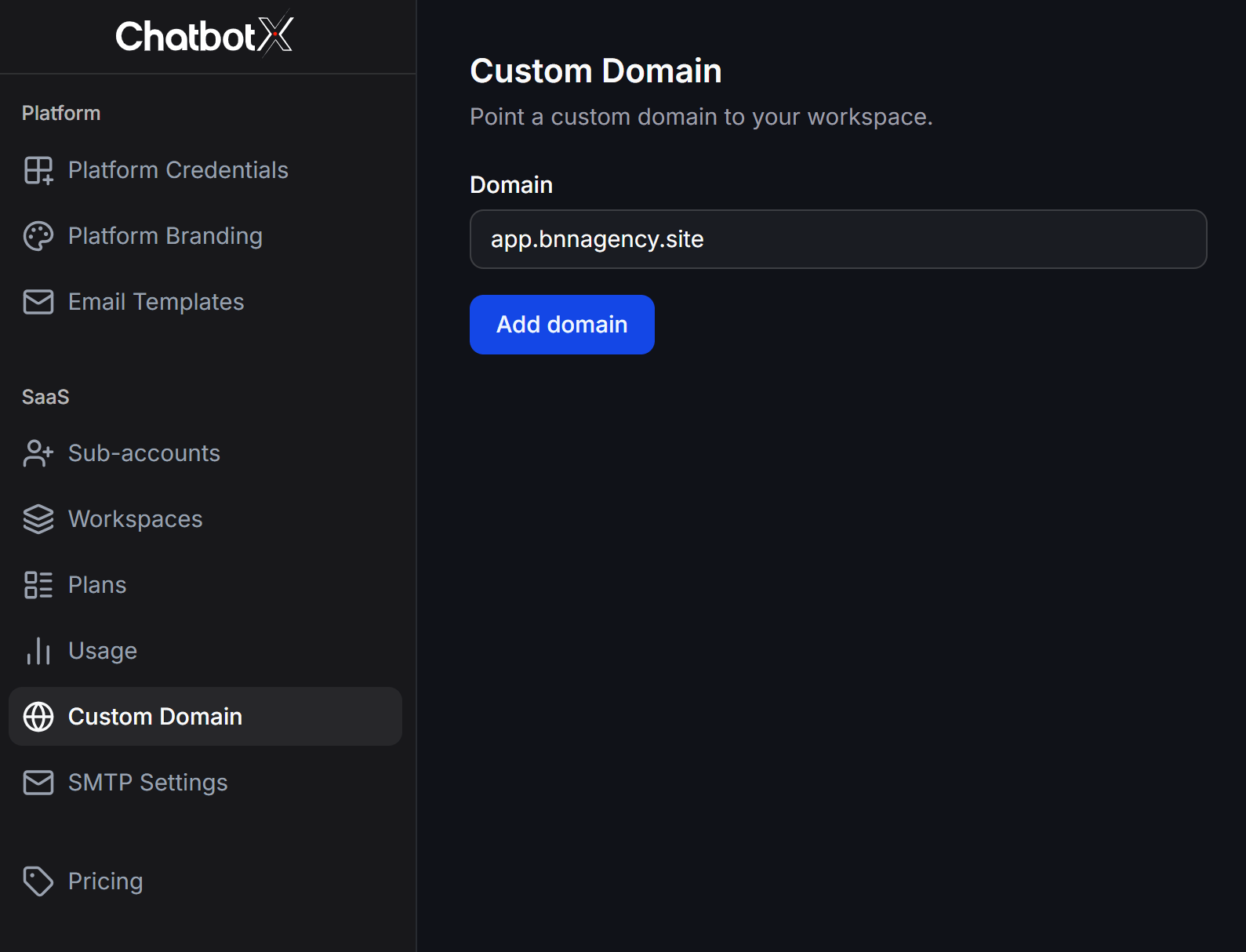
In the **Domain** field, enter your domain or subdomain name and click the **Add domain** button.
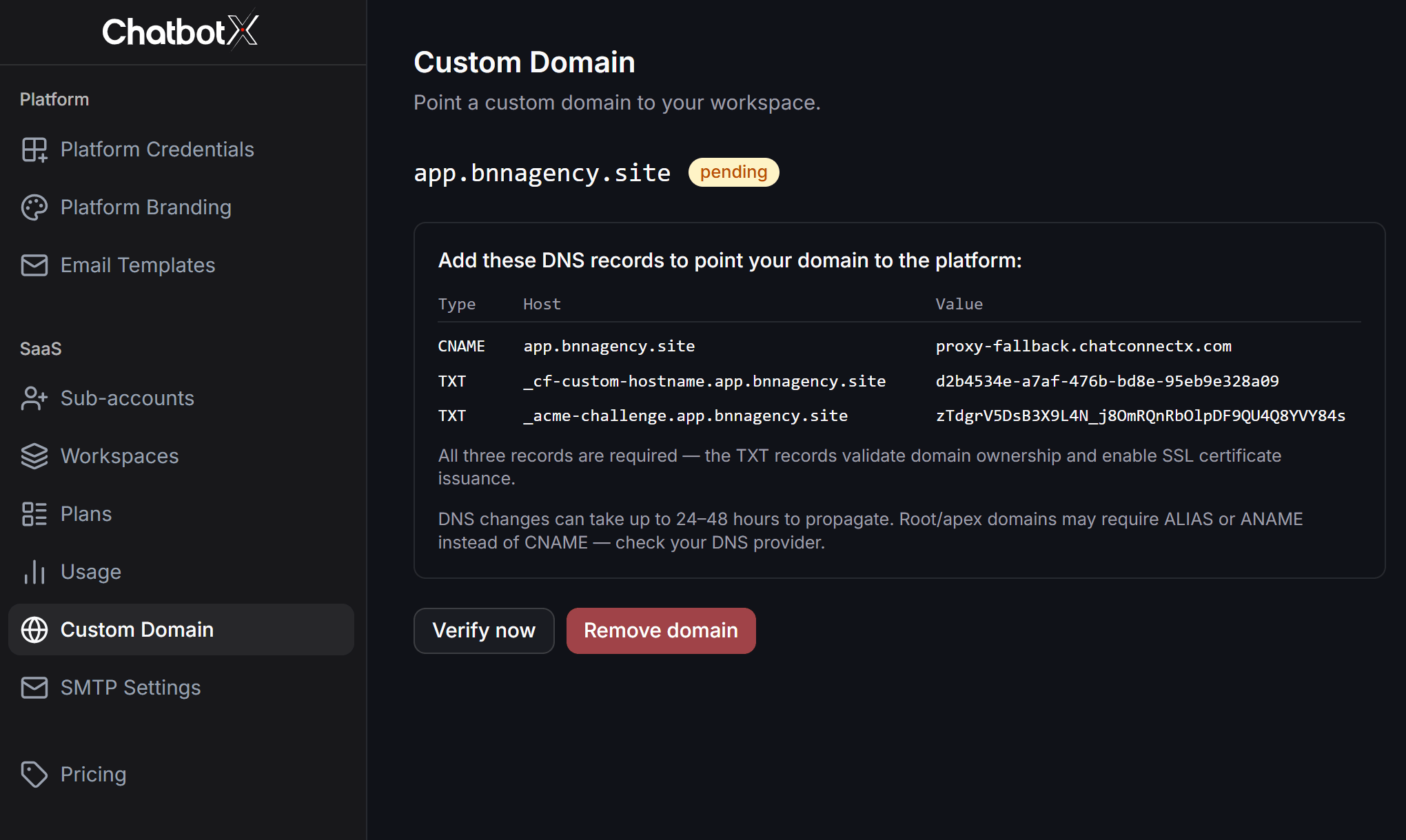
Once added, the domain status will show as **pending**. The system will generate three DNS records that you need to configure.
## Custom Domain Setup Process
To activate your custom domain, follow these steps:
In the **Domain** field, enter your domain or subdomain name and click the **Add domain** button.
Once added, the domain status will show as **pending**. The system will generate three DNS records that you need to configure.
 Log in to your domain registrar or DNS management portal and add the following three records:
* **CNAME Record**: Point your domain to `proxy-fallback.chatconnectx.com`. For root domains, your DNS provider might require you to use an ALIAS or ANAME record instead of CNAME.
* **First TXT Record**: Input the Host name and value provided to verify your domain ownership.
* **Second TXT Record**: Used to verify and provision your SSL security certificate (the value displays as `Creating...` during initialization).
All three records are mandatory for the system to verify the domain and issue a secure SSL certificate.
After adding the records, return to your Portal admin page and click **Verify now**.
DNS propagation typically takes a few minutes, but can take up to 24 to 48 hours depending on your domain registrar.
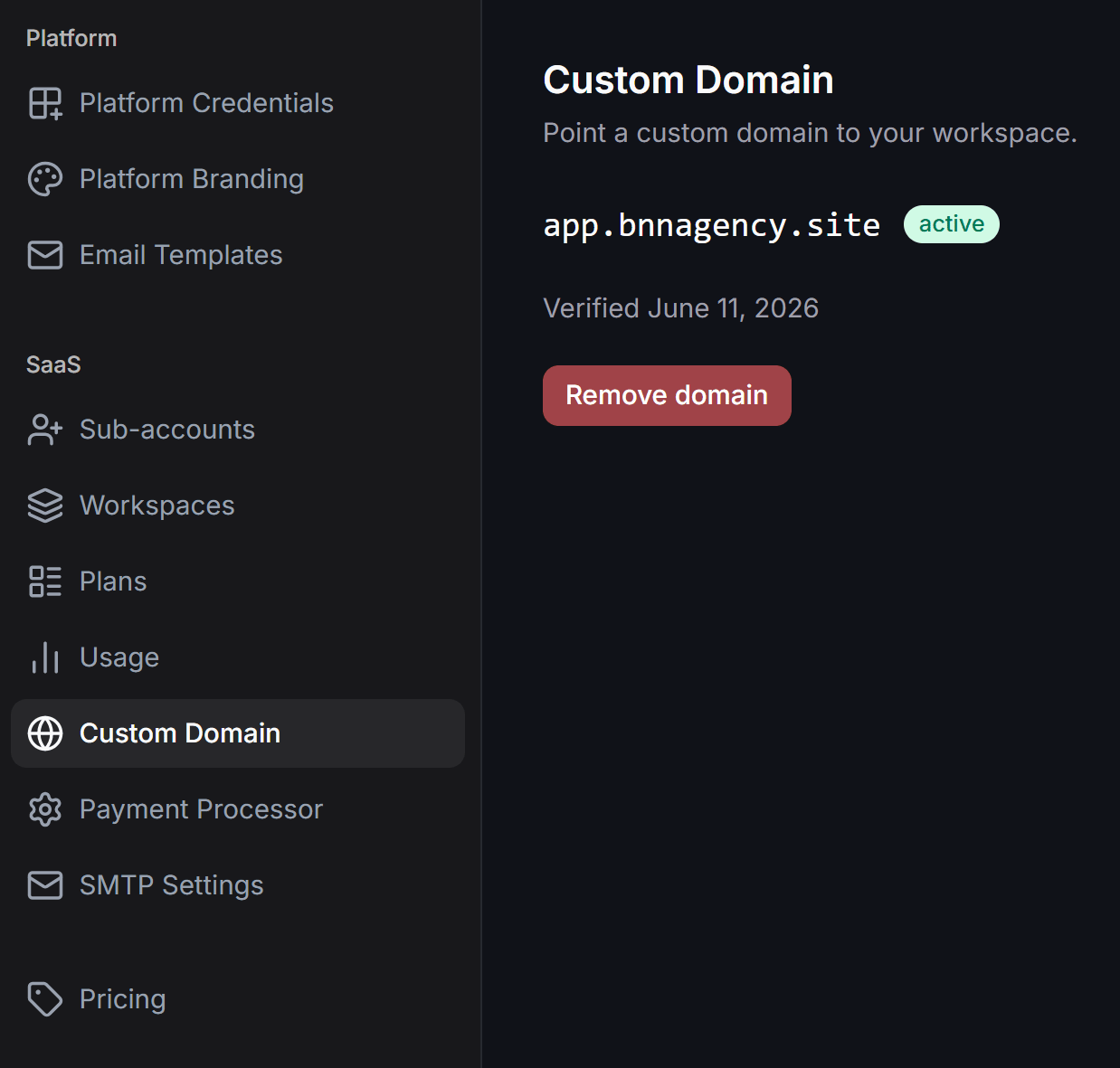
Once DNS records are successfully verified, the domain status badge changes to a green **active** label with the verification date. Clients can now access the portal using this new domain.
Log in to your domain registrar or DNS management portal and add the following three records:
* **CNAME Record**: Point your domain to `proxy-fallback.chatconnectx.com`. For root domains, your DNS provider might require you to use an ALIAS or ANAME record instead of CNAME.
* **First TXT Record**: Input the Host name and value provided to verify your domain ownership.
* **Second TXT Record**: Used to verify and provision your SSL security certificate (the value displays as `Creating...` during initialization).
All three records are mandatory for the system to verify the domain and issue a secure SSL certificate.
After adding the records, return to your Portal admin page and click **Verify now**.
DNS propagation typically takes a few minutes, but can take up to 24 to 48 hours depending on your domain registrar.
Once DNS records are successfully verified, the domain status badge changes to a green **active** label with the verification date. Clients can now access the portal using this new domain.
 ## Changing or Removing a Domain
If you need to change your domain, simply click the red **Remove domain** button. This action removes the current domain immediately and allows you to configure a new one.
## Changing or Removing a Domain
If you need to change your domain, simply click the red **Remove domain** button. This action removes the current domain immediately and allows you to configure a new one.