> ## Documentation Index
> Fetch the complete documentation index at: https://chatbotx.io/docs/llms.txt
> Use this file to discover all available pages before exploring further.
# Activate White Label version
> Learn how to check your subscription plan, activate White Label, and access custom branding modules on ChatbotX.
**White Label** is a solution that allows you to run the entire ChatbotX system under your own business brand. When this feature is activated, your clients will see the brand name, custom domain, logo, favicon, and brand colors configured by you instead of the original platform's information.
This solution is suitable for agencies (Agencies) or teams that want to provide chatbot, Inbox, and AI Agents services to clients with a professional and unified brand experience.
## Instructions to check and activate White Label
To begin configuring your custom branded portal, you need to ensure your account has been granted the White Label permission from ChatbotX.
Log in to your admin Portal at `https://yourdomain.com/portal/usage`
In the **Usage** interface, find the **Features** card and check the **White Label** line. If the status is displayed as **Active**, your account is ready for branding configuration.
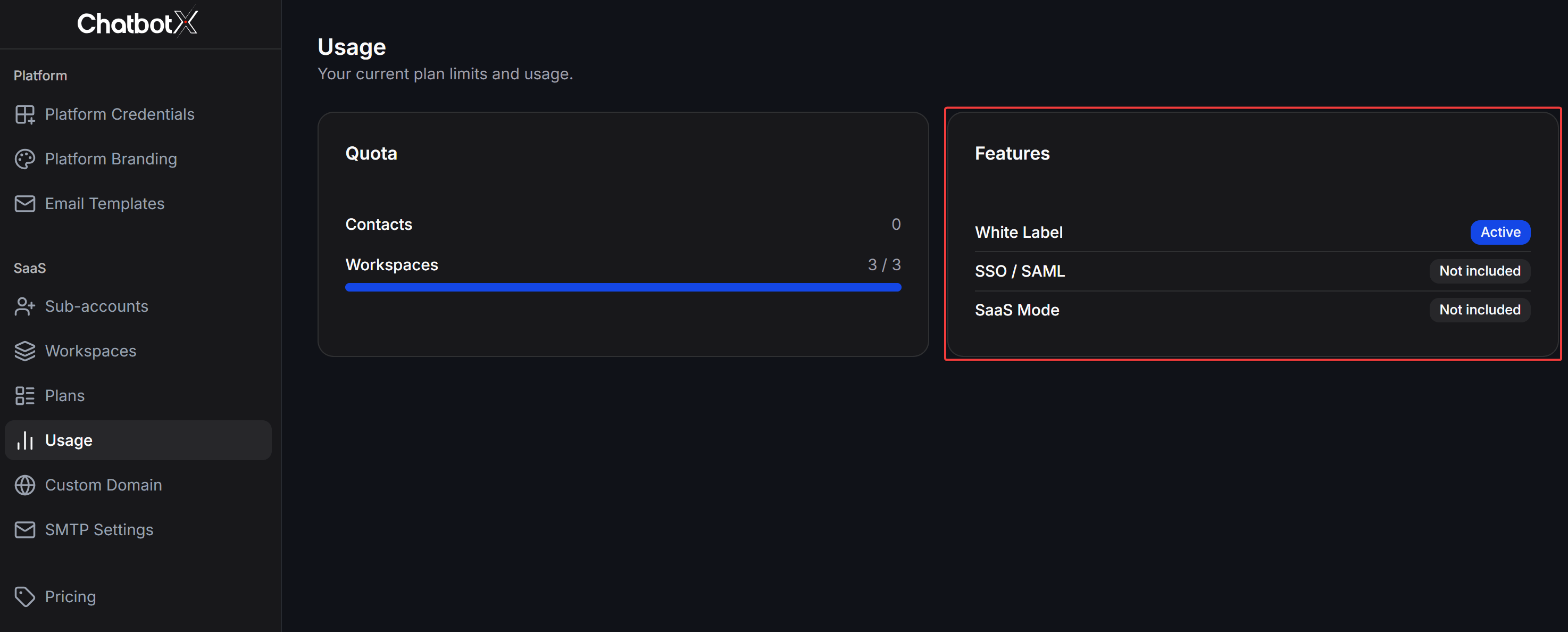 See more information in the **Quota** card to check the maximum limit of **Contacts** (contacts) and **Workspaces** (workspaces) that your current plan is allowed to run.
## System configuration modules
Below are the configuration modules to build a complete custom branded portal. Select each subcategory below to view detailed instructions:
### Branding & Identity Setup
Configure the core identity of the portal, helping clients recognize your own brand when accessing it.
Update brand name, upload light and dark logo versions, favicon, and primary UI theme color.
Point your custom domain to the platform and configure DNS records to activate SSL security.
Configure your custom SMTP email server and customize the styling of automated system notifications.
### Business & Quota Management
Configure pricing plans, create accounts, and manage resource limits for end users.
Manage client accounts, configure access permissions, and handle manual or automated registrations.
Create pricing plans, configure resource quotas, and specify the features included for each plan.
Manage your clients' workspaces and monitor real-time resource consumption.
Connect Stripe to automate subscription management, upgrades, and recurring payments.
### App Credentials & Advanced Configuration
Configure developer apps for shared logins and advanced API integrations.
Configure Meta, Google, TikTok, Zalo apps for clients to connect channels under your brand.
Learn how to create a Google App to enable Google Login, Google Sheets, and Google Calendar.
Resource quotas and features can vary depending on the White Label package you registered with the parent provider. All limits are updated in real-time on the **SaaS > Usage** page.
See more information in the **Quota** card to check the maximum limit of **Contacts** (contacts) and **Workspaces** (workspaces) that your current plan is allowed to run.
## System configuration modules
Below are the configuration modules to build a complete custom branded portal. Select each subcategory below to view detailed instructions:
### Branding & Identity Setup
Configure the core identity of the portal, helping clients recognize your own brand when accessing it.
Update brand name, upload light and dark logo versions, favicon, and primary UI theme color.
Point your custom domain to the platform and configure DNS records to activate SSL security.
Configure your custom SMTP email server and customize the styling of automated system notifications.
### Business & Quota Management
Configure pricing plans, create accounts, and manage resource limits for end users.
Manage client accounts, configure access permissions, and handle manual or automated registrations.
Create pricing plans, configure resource quotas, and specify the features included for each plan.
Manage your clients' workspaces and monitor real-time resource consumption.
Connect Stripe to automate subscription management, upgrades, and recurring payments.
### App Credentials & Advanced Configuration
Configure developer apps for shared logins and advanced API integrations.
Configure Meta, Google, TikTok, Zalo apps for clients to connect channels under your brand.
Learn how to create a Google App to enable Google Login, Google Sheets, and Google Calendar.
Resource quotas and features can vary depending on the White Label package you registered with the parent provider. All limits are updated in real-time on the **SaaS > Usage** page.