> ## Documentation Index
> Fetch the complete documentation index at: https://chatbotx.io/docs/llms.txt
> Use this file to discover all available pages before exploring further.
# Configure App Credentials
> Guide to manage Platform Credentials: understand default system status and how to configure custom developer apps for branded client logins and channel connections.
**Platform Credentials** is where you configure API connection credentials for third-party platforms and developer applications (such as Meta, Google, TikTok, Zalo, GIPHY) to integrate into your White Label portal.
The goal of Platform Credentials is to customize the login and channel authorization flows for your clients. Instead of showing ChatbotX branding, clients will see your own business name and logo during authorization.
 ## Default status and core mechanism
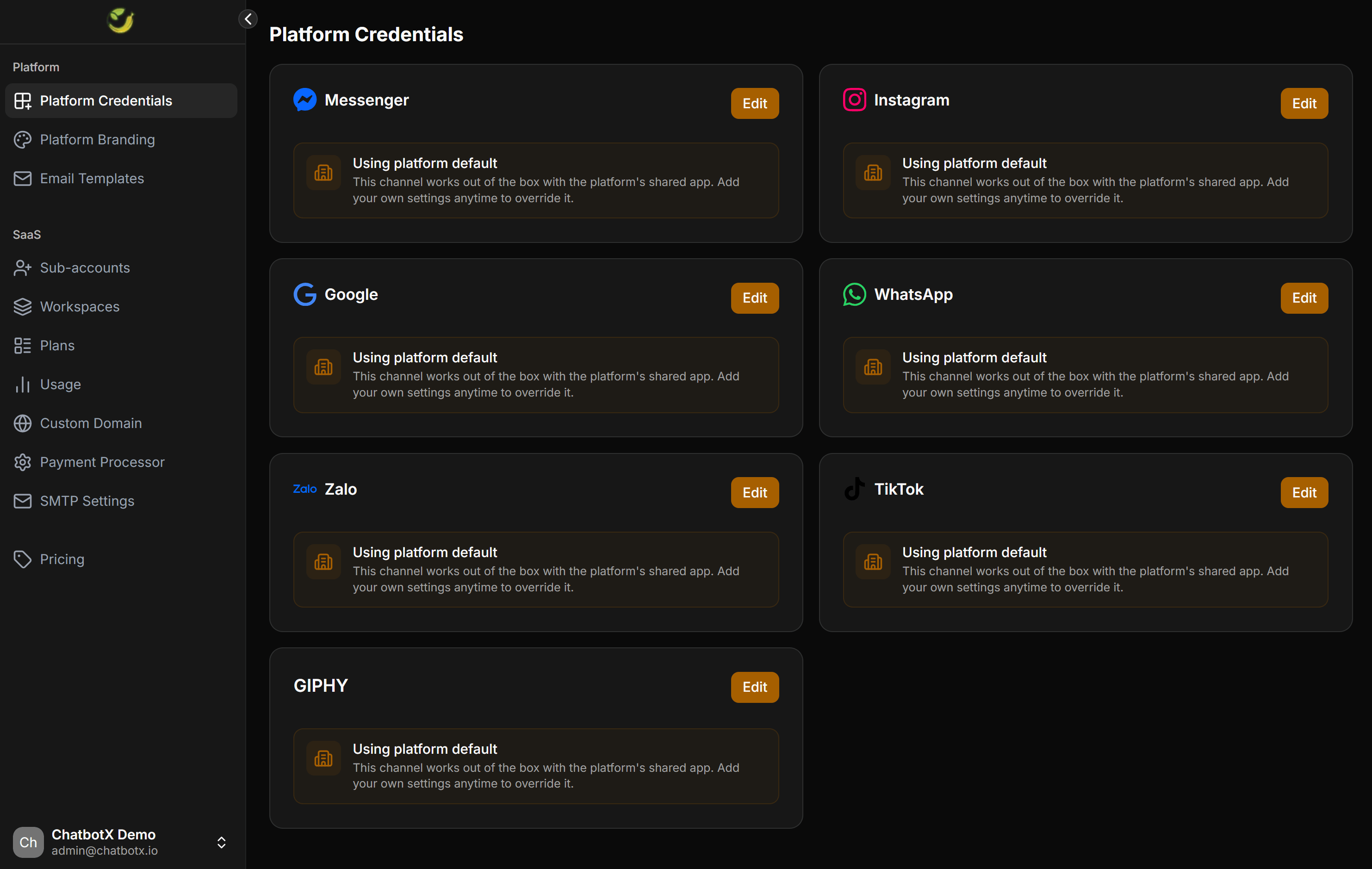
The **Platform Credentials** interface displays a list of supported platforms. By default, every channel is set to **Using platform default** (Sử dụng mặc định hệ thống).
### Using platform default
This status means the channel uses pre-configured developer applications shared from the parent ChatbotX system:
* **Advantages**: Your clients can connect channels immediately without you needing to perform any complex developer setups.
* **Limitations**: When a client authorizes a connection (e.g., logging into Facebook to connect a Messenger page), the Meta authorization dialog will display ChatbotX's name and logo, not your brand.
### Override mechanism
At any time, you can click the **Edit** button next to any platform to input your own Client ID, Client Secret, or API Key. Once saved, the system automatically overrides the default settings and routes authorizations through your custom developer app.
## When to configure custom developer apps
You do not have to configure all apps in the list. Refer to the table below to decide when to override the default system settings:
| Platform | Core Functionality | When to configure a custom app? |
| ------------- | --------------------------------------------- | --------------------------------------------------------------------------------------------------------------------------------- |
| **Messenger** | Connect Facebook Fanpage | When you want the Facebook authorization dialog to display your brand name and logo instead of ChatbotX. |
| **Instagram** | Connect Instagram Business | When you want your clients to authorize Instagram connections through your custom Meta App. |
| **Google** | Google Login, sync Sheets & Calendar | When you want the Google OAuth consent screen to display your branding, or when you want your own Google Sheets API quota limits. |
| **WhatsApp** | Connect WhatsApp Business via Embedded Signup | Mandatory if you want to provide a WhatsApp registration flow embedded directly on your portal under your brand. |
| **Zalo** | Connect Zalo OA | When you want Zalo OA authorization flows to display your own Zalo Developer App details. |
| **TikTok** | Connect TikTok account | When you want your clients to authorize TikTok page connections through your custom TikTok developer app. |
| **GIPHY** | Search and send GIFs in messages | When you want to use your own GIPHY API key to monitor and control search query traffic. |
## Detailed integration guides for each platform
When you decide to configure custom developer applications to override default settings, follow these detailed setup guides:
Connect and manage client Facebook Fanpages using your custom Meta developer application.
Configure your Meta app to integrate Instagram Business Messaging for your portal clients.
Set up Client ID, Client Secret, and Webhook Verify Token for Google Login, Sheets, and Calendar.
Configure WhatsApp Business integration via the Embedded Signup flow branded under your agency.
Link your Zalo Developer app so clients can authorize and connect Zalo OA accounts directly.
Integrate your TikTok Developer app to synchronize and manage incoming messages from TikTok.
Before configuring any custom developer applications, ensure you have updated your brand's legal policies on the **Platform > Platform Branding** page (including Privacy Policy URL and Terms of Service URL). These links are mandatory when registering developer apps on Facebook, Google, or TikTok.
## Default status and core mechanism
The **Platform Credentials** interface displays a list of supported platforms. By default, every channel is set to **Using platform default** (Sử dụng mặc định hệ thống).
### Using platform default
This status means the channel uses pre-configured developer applications shared from the parent ChatbotX system:
* **Advantages**: Your clients can connect channels immediately without you needing to perform any complex developer setups.
* **Limitations**: When a client authorizes a connection (e.g., logging into Facebook to connect a Messenger page), the Meta authorization dialog will display ChatbotX's name and logo, not your brand.
### Override mechanism
At any time, you can click the **Edit** button next to any platform to input your own Client ID, Client Secret, or API Key. Once saved, the system automatically overrides the default settings and routes authorizations through your custom developer app.
## When to configure custom developer apps
You do not have to configure all apps in the list. Refer to the table below to decide when to override the default system settings:
| Platform | Core Functionality | When to configure a custom app? |
| ------------- | --------------------------------------------- | --------------------------------------------------------------------------------------------------------------------------------- |
| **Messenger** | Connect Facebook Fanpage | When you want the Facebook authorization dialog to display your brand name and logo instead of ChatbotX. |
| **Instagram** | Connect Instagram Business | When you want your clients to authorize Instagram connections through your custom Meta App. |
| **Google** | Google Login, sync Sheets & Calendar | When you want the Google OAuth consent screen to display your branding, or when you want your own Google Sheets API quota limits. |
| **WhatsApp** | Connect WhatsApp Business via Embedded Signup | Mandatory if you want to provide a WhatsApp registration flow embedded directly on your portal under your brand. |
| **Zalo** | Connect Zalo OA | When you want Zalo OA authorization flows to display your own Zalo Developer App details. |
| **TikTok** | Connect TikTok account | When you want your clients to authorize TikTok page connections through your custom TikTok developer app. |
| **GIPHY** | Search and send GIFs in messages | When you want to use your own GIPHY API key to monitor and control search query traffic. |
## Detailed integration guides for each platform
When you decide to configure custom developer applications to override default settings, follow these detailed setup guides:
Connect and manage client Facebook Fanpages using your custom Meta developer application.
Configure your Meta app to integrate Instagram Business Messaging for your portal clients.
Set up Client ID, Client Secret, and Webhook Verify Token for Google Login, Sheets, and Calendar.
Configure WhatsApp Business integration via the Embedded Signup flow branded under your agency.
Link your Zalo Developer app so clients can authorize and connect Zalo OA accounts directly.
Integrate your TikTok Developer app to synchronize and manage incoming messages from TikTok.
Before configuring any custom developer applications, ensure you have updated your brand's legal policies on the **Platform > Platform Branding** page (including Privacy Policy URL and Terms of Service URL). These links are mandatory when registering developer apps on Facebook, Google, or TikTok.