> ## Documentation Index
> Fetch the complete documentation index at: https://chatbotx.io/docs/llms.txt
> Use this file to discover all available pages before exploring further.
# Configure App Credentials
> Manage custom app credentials and control which channels workspaces can create on your White Label platform.
**Platform Credentials** is where you configure API connection credentials for third-party platforms and developer applications (such as Meta, Google, TikTok, Zalo, GIPHY) to integrate into your White Label portal.
The goal of Platform Credentials is to customize the login and channel authorization flows for your clients. Instead of showing ChatbotX branding, clients will see your own business name and logo during authorization.
 ## Control which channels workspaces can create
Use **Platform > Channels** to control which channels are available to workspaces on your White Label platform. The **Hidden Channels** setting applies across the entire platform and prevents workspaces from creating the selected channel types.
From the White Label admin menu, go to **Platform > Channels**.
Under **Hidden Channels**, check every channel that workspaces should not be able to create. Available options include Instagram, Messenger, Telegram, TikTok, Webchat, WhatsApp, and Zalo OA.
Click **Save** to apply the channel availability settings across your White Label platform.
## Control which channels workspaces can create
Use **Platform > Channels** to control which channels are available to workspaces on your White Label platform. The **Hidden Channels** setting applies across the entire platform and prevents workspaces from creating the selected channel types.
From the White Label admin menu, go to **Platform > Channels**.
Under **Hidden Channels**, check every channel that workspaces should not be able to create. Available options include Instagram, Messenger, Telegram, TikTok, Webchat, WhatsApp, and Zalo OA.
Click **Save** to apply the channel availability settings across your White Label platform.
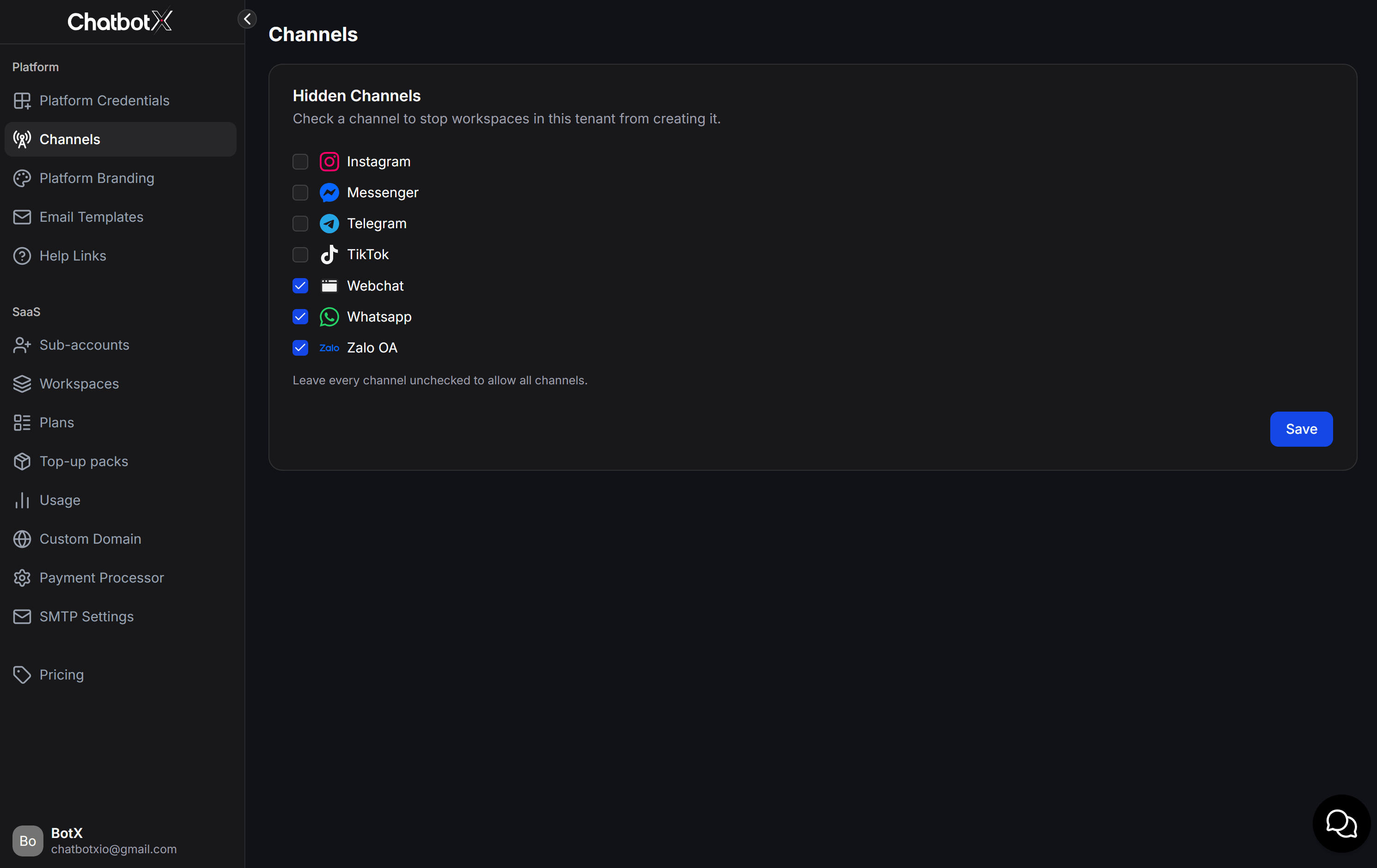 A checked channel is hidden and cannot be created by workspaces on your White Label platform. Leave a channel unchecked to allow workspaces to create it. Leave every channel unchecked to allow all channels.
## Default status and core mechanism
The **Platform Credentials** interface displays a list of supported platforms. By default, every channel is set to **Using platform default** (Sử dụng mặc định hệ thống).
### Using platform default
This status means the channel uses the pre-configured **ChatConnectX** developer app provided by ChatbotX:
* **Use it immediately**: Your clients can connect channels without you performing complex developer setup.
* **Independent branding**: Authorization screens display the ChatConnectX app name and logo. They do not display ChatbotX branding, so you can use the default app without this limitation.
### Override mechanism
At any time, you can click the **Edit** button next to any platform to input your own Client ID, Client Secret, or API Key. Once saved, the system automatically overrides the default settings and routes authorizations through your custom developer app.
## When to configure custom developer apps
You do not have to configure all apps in the list. Refer to the table below to decide when to override the default system settings:
| Platform | Core Functionality | When to configure a custom app? |
| ------------- | --------------------------------------------- | --------------------------------------------------------------------------------------------------------------------------------- |
| **Messenger** | Connect Facebook Fanpage | When you want the Facebook authorization dialog to display your brand name and logo instead of ChatbotX. |
| **Instagram** | Connect Instagram Business | When you want your clients to authorize Instagram connections through your custom Meta App. |
| **Google** | Google Login, sync Sheets & Calendar | When you want the Google OAuth consent screen to display your branding, or when you want your own Google Sheets API quota limits. |
| **WhatsApp** | Connect WhatsApp Business via Embedded Signup | Mandatory if you want to provide a WhatsApp registration flow embedded directly on your portal under your brand. |
| **Zalo** | Connect Zalo OA | When you want Zalo OA authorization flows to display your own Zalo Developer App details. |
| **TikTok** | Connect TikTok account | When you want your clients to authorize TikTok page connections through your custom TikTok developer app. |
| **GIPHY** | Search and send GIFs in messages | When you want to use your own GIPHY API key to monitor and control search query traffic. |
## Detailed integration guides for each platform
When you decide to configure custom developer applications to override default settings, follow these detailed setup guides:
Connect and manage client Facebook Fanpages using your custom Meta developer application.
Configure your Meta app to integrate Instagram Business Messaging for your portal clients.
Set up Client ID, Client Secret, and Webhook Verify Token for Google Login, Sheets, and Calendar.
Configure WhatsApp Business integration via the Embedded Signup flow branded under your agency.
Link your Zalo Developer app so clients can authorize and connect Zalo OA accounts directly.
Integrate your TikTok Developer app to synchronize and manage incoming messages from TikTok.
Before configuring any custom developer applications, ensure you have updated your brand's legal policies on the **Platform > Platform Branding** page (including Privacy Policy URL and Terms of Service URL). These links are mandatory when registering developer apps on Facebook, Google, or TikTok.
A checked channel is hidden and cannot be created by workspaces on your White Label platform. Leave a channel unchecked to allow workspaces to create it. Leave every channel unchecked to allow all channels.
## Default status and core mechanism
The **Platform Credentials** interface displays a list of supported platforms. By default, every channel is set to **Using platform default** (Sử dụng mặc định hệ thống).
### Using platform default
This status means the channel uses the pre-configured **ChatConnectX** developer app provided by ChatbotX:
* **Use it immediately**: Your clients can connect channels without you performing complex developer setup.
* **Independent branding**: Authorization screens display the ChatConnectX app name and logo. They do not display ChatbotX branding, so you can use the default app without this limitation.
### Override mechanism
At any time, you can click the **Edit** button next to any platform to input your own Client ID, Client Secret, or API Key. Once saved, the system automatically overrides the default settings and routes authorizations through your custom developer app.
## When to configure custom developer apps
You do not have to configure all apps in the list. Refer to the table below to decide when to override the default system settings:
| Platform | Core Functionality | When to configure a custom app? |
| ------------- | --------------------------------------------- | --------------------------------------------------------------------------------------------------------------------------------- |
| **Messenger** | Connect Facebook Fanpage | When you want the Facebook authorization dialog to display your brand name and logo instead of ChatbotX. |
| **Instagram** | Connect Instagram Business | When you want your clients to authorize Instagram connections through your custom Meta App. |
| **Google** | Google Login, sync Sheets & Calendar | When you want the Google OAuth consent screen to display your branding, or when you want your own Google Sheets API quota limits. |
| **WhatsApp** | Connect WhatsApp Business via Embedded Signup | Mandatory if you want to provide a WhatsApp registration flow embedded directly on your portal under your brand. |
| **Zalo** | Connect Zalo OA | When you want Zalo OA authorization flows to display your own Zalo Developer App details. |
| **TikTok** | Connect TikTok account | When you want your clients to authorize TikTok page connections through your custom TikTok developer app. |
| **GIPHY** | Search and send GIFs in messages | When you want to use your own GIPHY API key to monitor and control search query traffic. |
## Detailed integration guides for each platform
When you decide to configure custom developer applications to override default settings, follow these detailed setup guides:
Connect and manage client Facebook Fanpages using your custom Meta developer application.
Configure your Meta app to integrate Instagram Business Messaging for your portal clients.
Set up Client ID, Client Secret, and Webhook Verify Token for Google Login, Sheets, and Calendar.
Configure WhatsApp Business integration via the Embedded Signup flow branded under your agency.
Link your Zalo Developer app so clients can authorize and connect Zalo OA accounts directly.
Integrate your TikTok Developer app to synchronize and manage incoming messages from TikTok.
Before configuring any custom developer applications, ensure you have updated your brand's legal policies on the **Platform > Platform Branding** page (including Privacy Policy URL and Terms of Service URL). These links are mandatory when registering developer apps on Facebook, Google, or TikTok.