> ## Documentation Index
> Fetch the complete documentation index at: https://chatbotx.io/docs/llms.txt
> Use this file to discover all available pages before exploring further.
# Manage Sub-accounts in ChatbotX White Label
> Guide to create and manage end-user sub-accounts on ChatbotX White Label portal.
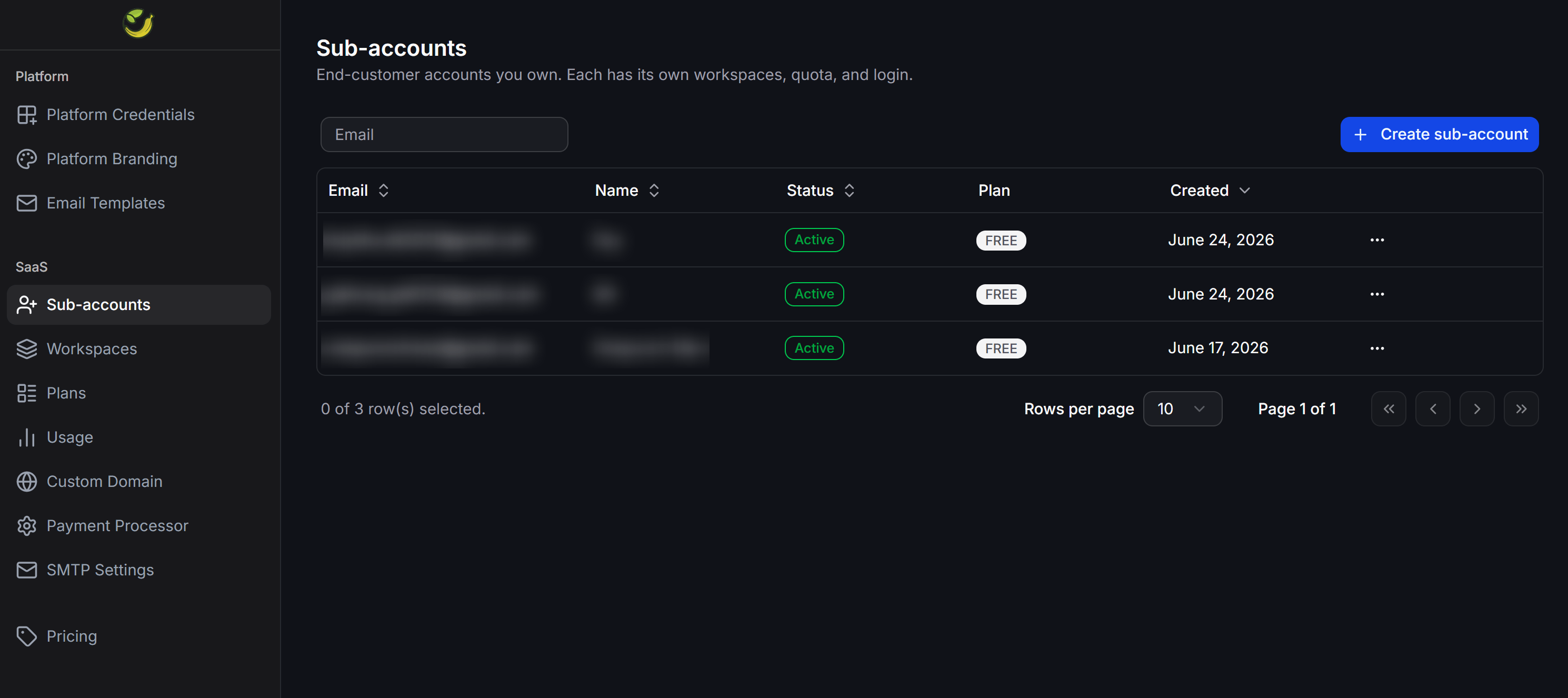
**Sub-accounts** is where you manage the list of end-user accounts on your white-labeled portal. These accounts are created from two sources: users registering on their own through your portal signup page, or created manually by you (the Administrator). Each sub-account operates independently with its own login credentials, workspaces, and resource quotas.
You can manage this list under the **SaaS > Sub-accounts** section on the left navigation menu.
 ## Account Creation Methods
The system supports two methods to add new sub-accounts to your portal:
### Method 1: Client self-registration
Clients access the registration page directly on your custom white-labeled domain to create their own accounts.
* **Mechanism**: Once a client completes the signup form, the system automatically generates a new sub-account in your admin dashboard.
* **Applied Limits**: Self-registered accounts are automatically assigned to the default service plan (Default Plan) that you have pre-configured.
### Method 2: Manual administrator creation
Use this method when you want to proactively provision accounts for your clients without requiring them to complete the online signup form.
In the **SaaS > Sub-accounts** interface, click the **+ Create sub-account** button in the top-right corner.
Fill in the required fields in the creation form:
* **Email**: The client's login email address.
* **Name**: The client's display name or business name.
* **Password**: The initial login password (minimum of 8 characters).
## Account Creation Methods
The system supports two methods to add new sub-accounts to your portal:
### Method 1: Client self-registration
Clients access the registration page directly on your custom white-labeled domain to create their own accounts.
* **Mechanism**: Once a client completes the signup form, the system automatically generates a new sub-account in your admin dashboard.
* **Applied Limits**: Self-registered accounts are automatically assigned to the default service plan (Default Plan) that you have pre-configured.
### Method 2: Manual administrator creation
Use this method when you want to proactively provision accounts for your clients without requiring them to complete the online signup form.
In the **SaaS > Sub-accounts** interface, click the **+ Create sub-account** button in the top-right corner.
Fill in the required fields in the creation form:
* **Email**: The client's login email address.
* **Name**: The client's display name or business name.
* **Password**: The initial login password (minimum of 8 characters).
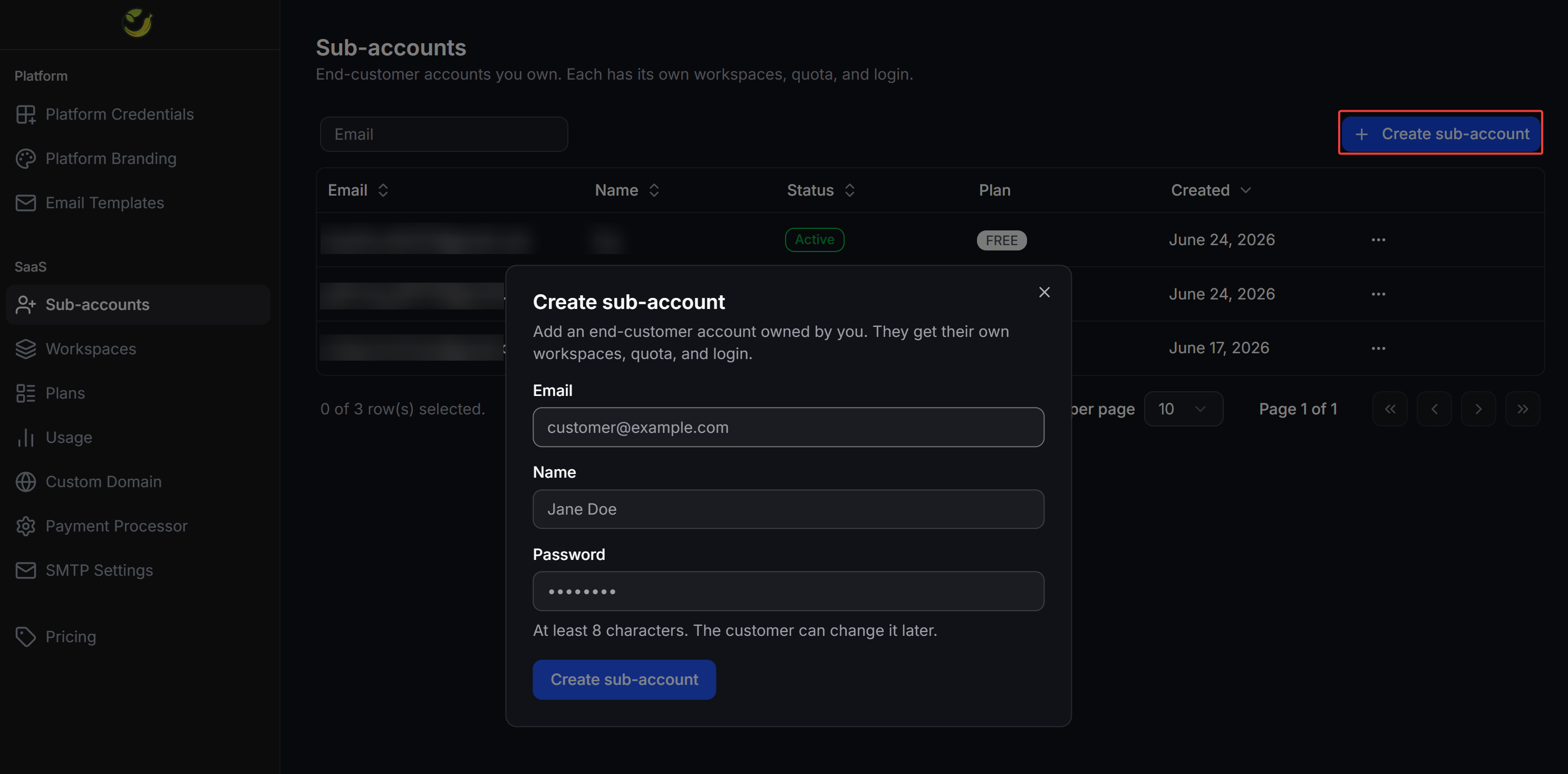 Click the **Create sub-account** button at the bottom of the form. The new account will appear in the management list with an **Active** status and will be assigned to the default plan.
## Sub-account Administration Actions
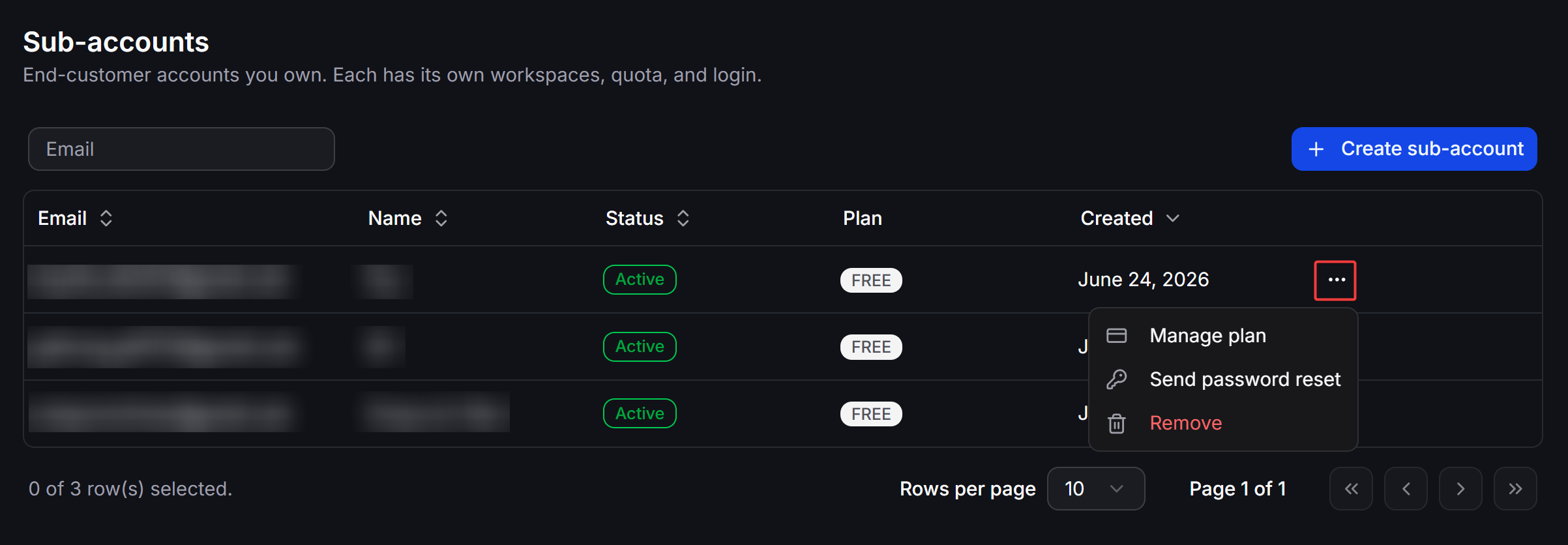
By clicking the three-dot `...` action icon on the right side of any sub-account row, you can perform quick administrative tasks:
Click the **Create sub-account** button at the bottom of the form. The new account will appear in the management list with an **Active** status and will be assigned to the default plan.
## Sub-account Administration Actions
By clicking the three-dot `...` action icon on the right side of any sub-account row, you can perform quick administrative tasks:
 ### Manage pricing plan
This feature allows you to manually assign a different pricing plan to a client or customize their resource limits individually without affecting other accounts.
### Send password reset request
If a client forgets their password and requests assistance, click this action. The system will automatically send a password reset link to their email address (the email content will follow the template configured under your **Forgot Password Email** settings).
### Delete sub-account
This action permanently deletes the client's sub-account, including all login credentials, created workspaces, and associated data.
Deleting a sub-account is permanent and cannot be undone. Ensure your client has backed up any important data before performing this action.
### Manage pricing plan
This feature allows you to manually assign a different pricing plan to a client or customize their resource limits individually without affecting other accounts.
### Send password reset request
If a client forgets their password and requests assistance, click this action. The system will automatically send a password reset link to their email address (the email content will follow the template configured under your **Forgot Password Email** settings).
### Delete sub-account
This action permanently deletes the client's sub-account, including all login credentials, created workspaces, and associated data.
Deleting a sub-account is permanent and cannot be undone. Ensure your client has backed up any important data before performing this action.