> ## Documentation Index
> Fetch the complete documentation index at: https://chatbotx.io/docs/llms.txt
> Use this file to discover all available pages before exploring further.
# Configure Zalo Official Account
> Learn how to register a Zalo Developer application, verify your domain, configure webhooks, and set up Zalo OA credentials on your portal.
Integrating the Zalo Official Account (Zalo OA) portal connection allows your customers to manage conversations, track follows, and automate responses on Zalo right from the unified customer support inbox.
## Prerequisites
Before you begin, make sure you have:
* Super Admin access to your portal to input credentials.
* A Zalo OA (Official Account) with admin privileges.
* A Zalo Developer account with admin privileges at [Zalo Developers](https://developers.zalo.me/).
* A valid Vietnamese mobile phone number.
Zalo OA is a popular messaging channel in Vietnam. A Vietnamese mobile phone number is required to register on the Zalo Developer platform.
## Step 1: Create a Zalo Application
If you do not have a Zalo application yet, create one on the Zalo Developer platform before connecting to your portal.
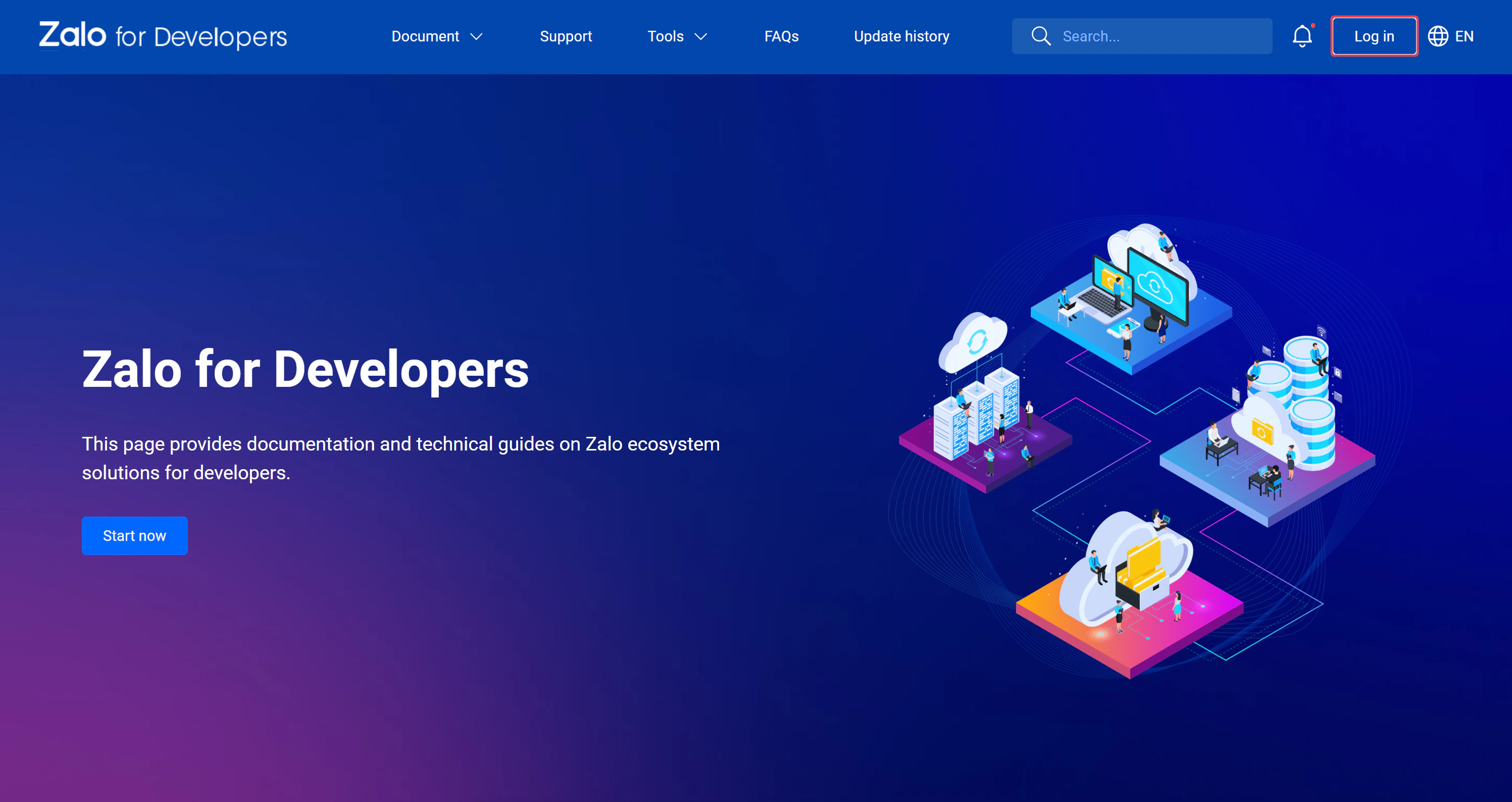
Go to [Zalo Developers](https://developers.zalo.me/) and sign in with your Zalo account. If you don't have a developer account, register one using your Vietnamese phone number.
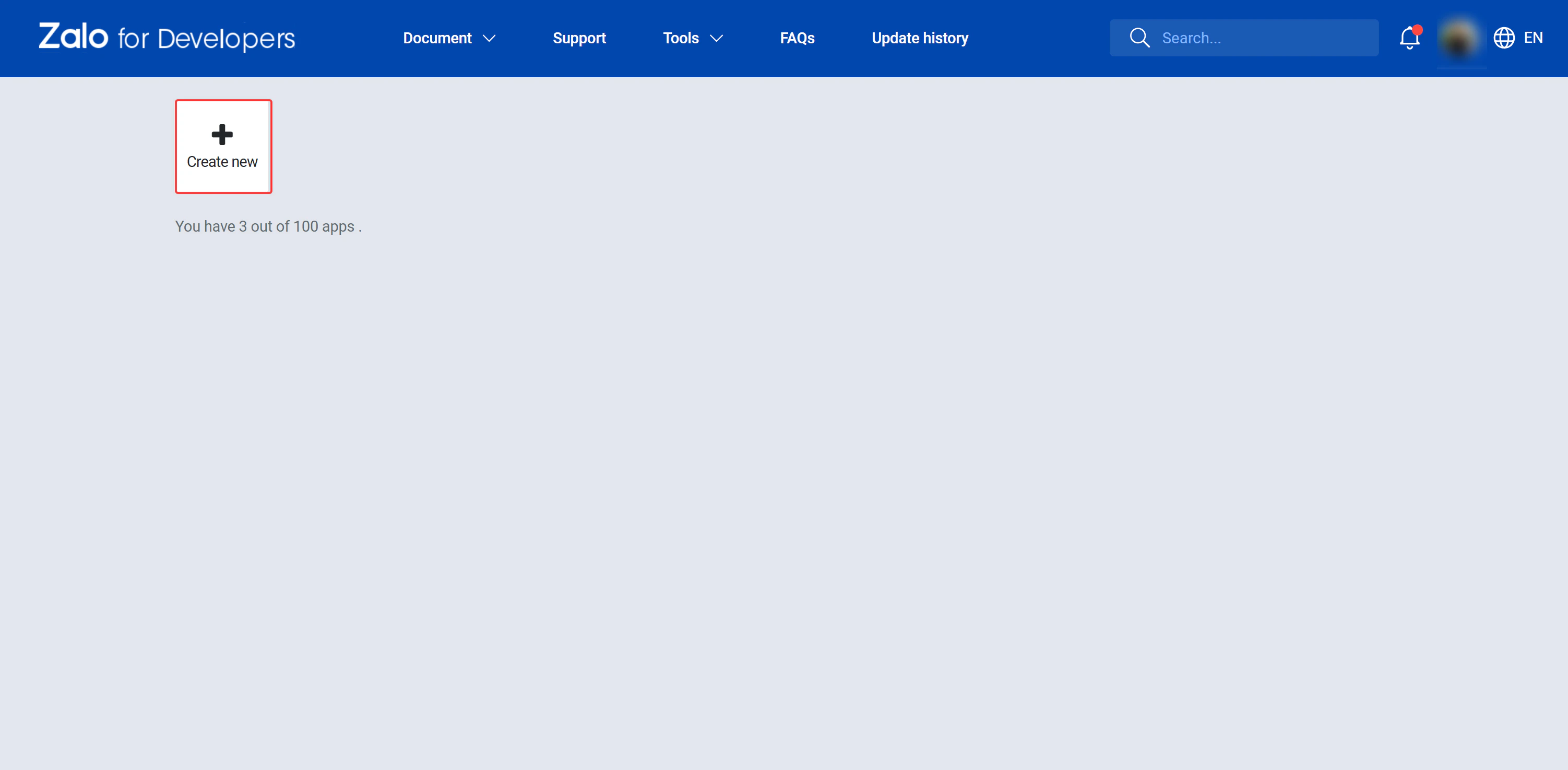
 Follow the official Zalo documentation to create a new application. Provide your application name and description.
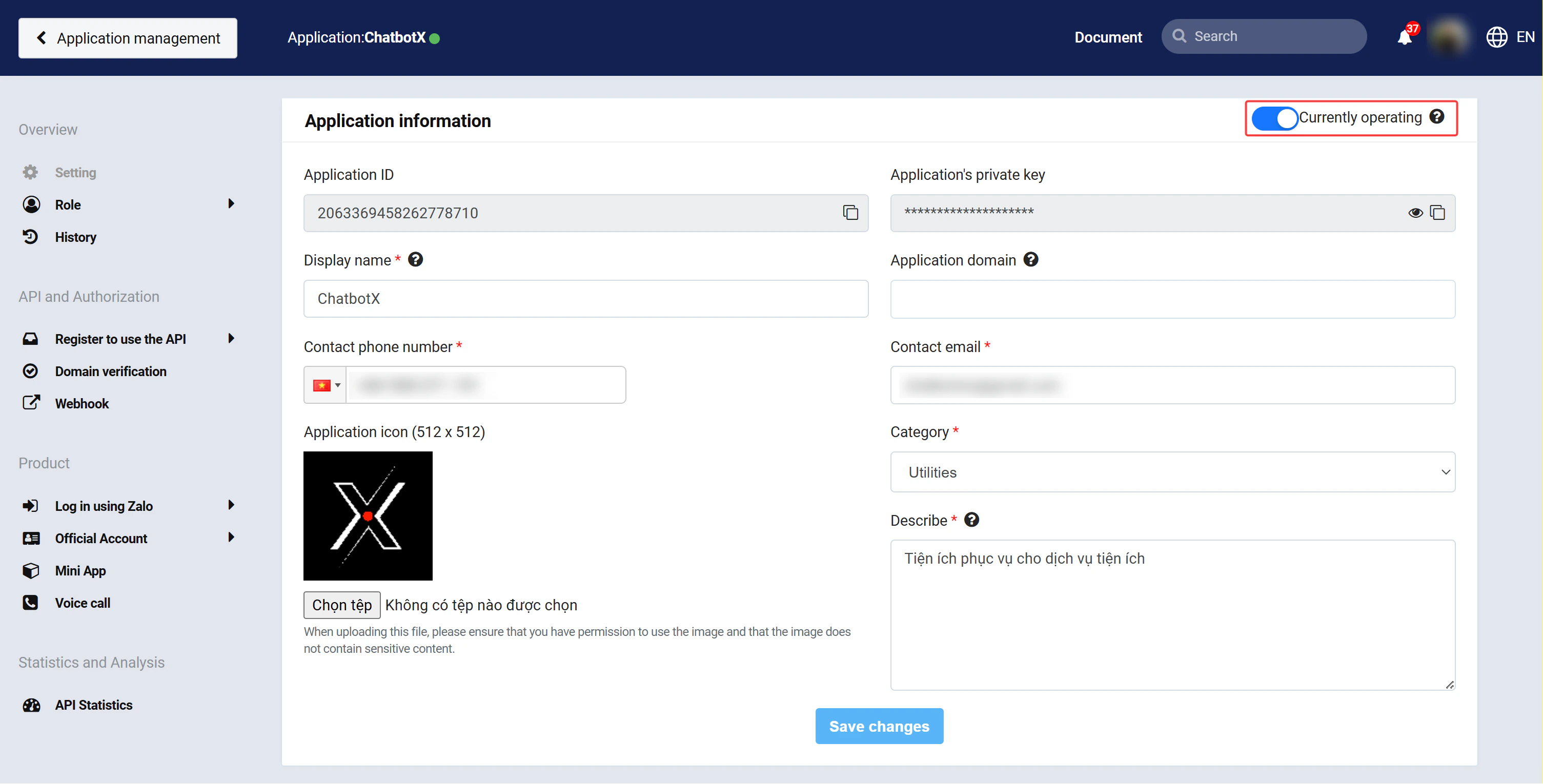
 After the application is created, set its status to **Active** in the application dashboard.
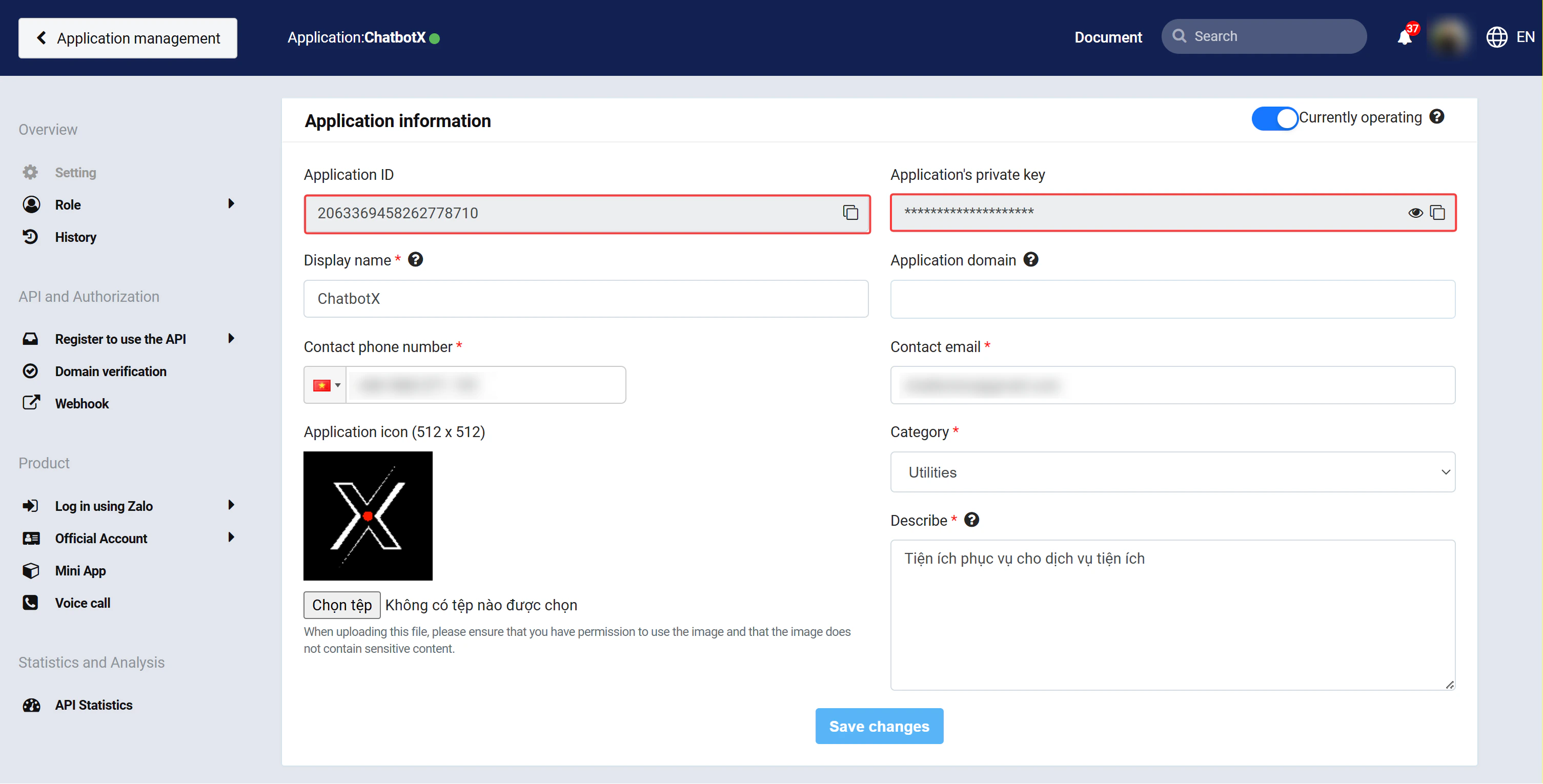
 In your Zalo application dashboard, locate the **Application ID** and **Application's Private Key**. Copy these values, you will need them in the next step.
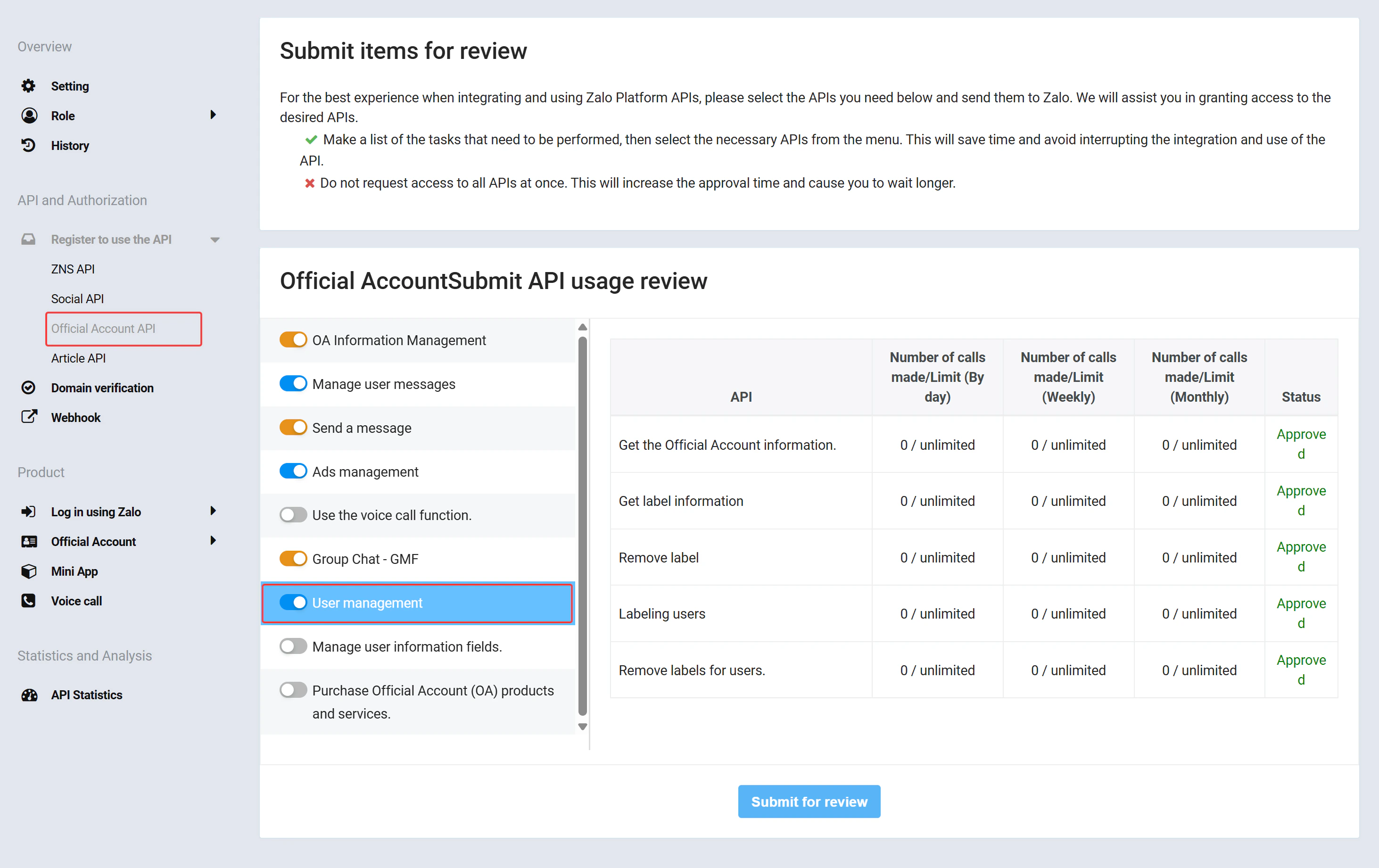
 Navigate to the API settings in your Zalo application and enable the required APIs.
 ## Step 2: Configure Credentials in the Admin Portal
A Super Admin must enter the Zalo credentials in the Admin Portal before the integration can work.
Log in to your Admin Portal, navigate to:
```text theme={null}
https://app.chatconnectx.com/manage/integrations
```
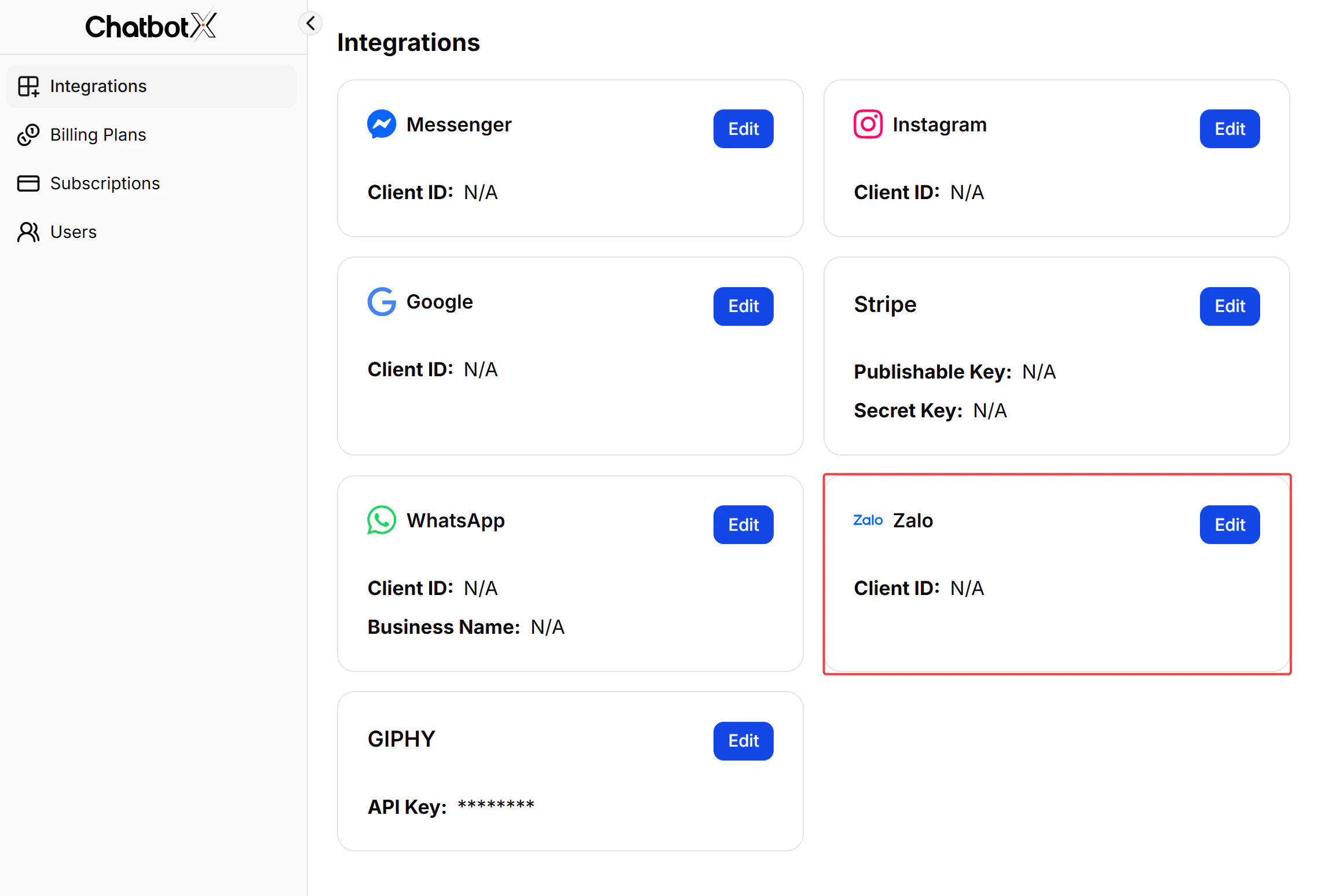
Then find the **Zalo** card.
Click the **Edit** button on the Zalo card to open the configuration modal.
## Step 2: Configure Credentials in the Admin Portal
A Super Admin must enter the Zalo credentials in the Admin Portal before the integration can work.
Log in to your Admin Portal, navigate to:
```text theme={null}
https://app.chatconnectx.com/manage/integrations
```
Then find the **Zalo** card.
Click the **Edit** button on the Zalo card to open the configuration modal.
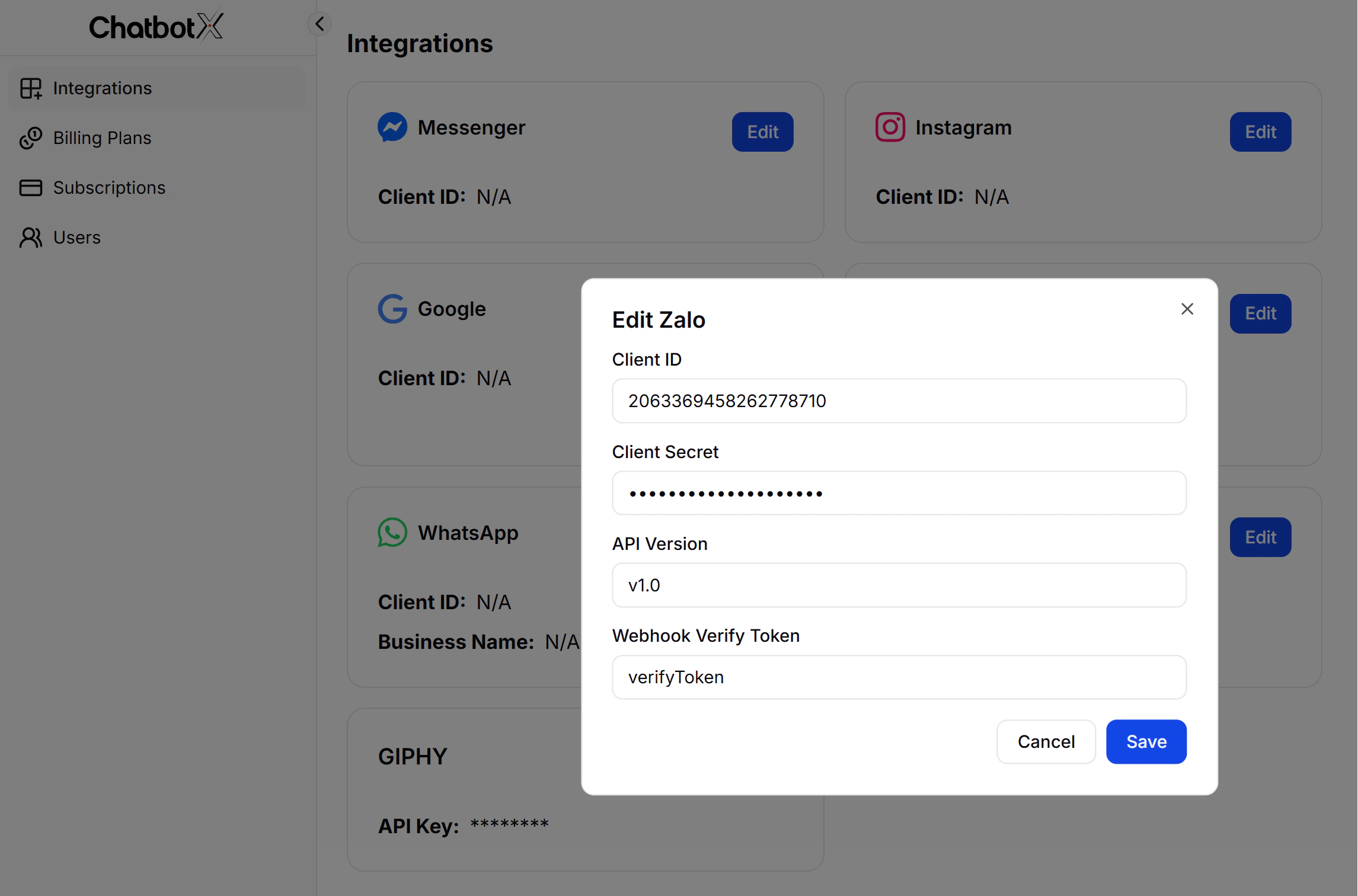
 In the **Edit Zalo** modal, fill in the following fields:
| Field | Description | Where to find |
| ------------------------ | ---------------------------------- | ------------------------------- |
| **Client ID** | Zalo **Application ID** | Zalo Developers → App Dashboard |
| **Client Secret** | Zalo **Application's Private Key** | Zalo Developers → App Dashboard |
| **API Version** | API version to use | e.g., `v1.0` |
| **Webhook Verify Token** | Any string you create yourself | Self-generated |
The **Webhook Verify Token** is a unique string you generate yourself. Zalo uses this token to verify webhook requests from your server.
In the **Edit Zalo** modal, fill in the following fields:
| Field | Description | Where to find |
| ------------------------ | ---------------------------------- | ------------------------------- |
| **Client ID** | Zalo **Application ID** | Zalo Developers → App Dashboard |
| **Client Secret** | Zalo **Application's Private Key** | Zalo Developers → App Dashboard |
| **API Version** | API version to use | e.g., `v1.0` |
| **Webhook Verify Token** | Any string you create yourself | Self-generated |
The **Webhook Verify Token** is a unique string you generate yourself. Zalo uses this token to verify webhook requests from your server.
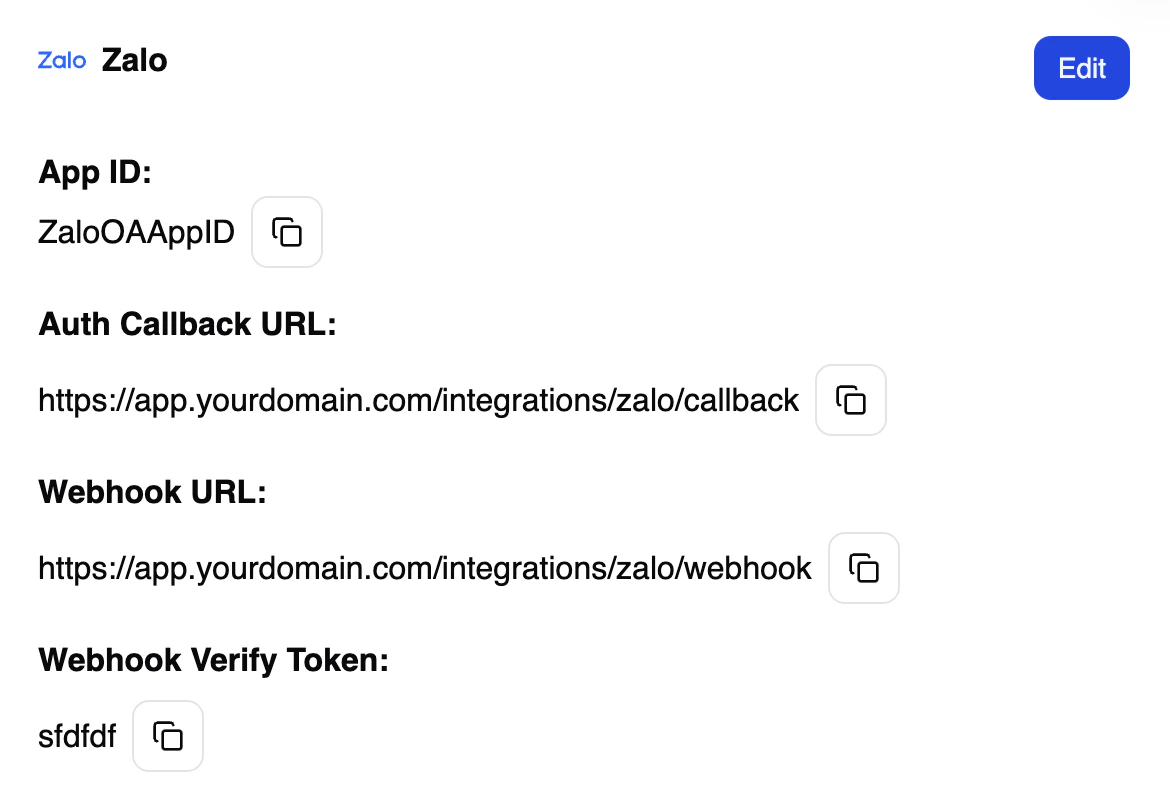
 Click **Save** to apply the settings. The Zalo card will now display your **Client ID**.
After saving, the system will display the **Auth Callback URL** and **Webhook URL**. Copy these URLs, you will need them in the following steps.
Click **Save** to apply the settings. The Zalo card will now display your **Client ID**.
After saving, the system will display the **Auth Callback URL** and **Webhook URL**. Copy these URLs, you will need them in the following steps.
 ## Step 3: Verify Your Domain
Zalo requires domain verification before your application can receive webhook events. This step confirms that you own the domain where your portal is hosted.
Copy the domain of your portal where the application is hosted:
```text theme={null}
app.chatconnectx.com
```
Go to your Zalo application settings and follow the Zalo domain verification guide. Add the meta tag obtained from Zalo to your portal domain's HTML or DNS settings.
## Step 3: Verify Your Domain
Zalo requires domain verification before your application can receive webhook events. This step confirms that you own the domain where your portal is hosted.
Copy the domain of your portal where the application is hosted:
```text theme={null}
app.chatconnectx.com
```
Go to your Zalo application settings and follow the Zalo domain verification guide. Add the meta tag obtained from Zalo to your portal domain's HTML or DNS settings.
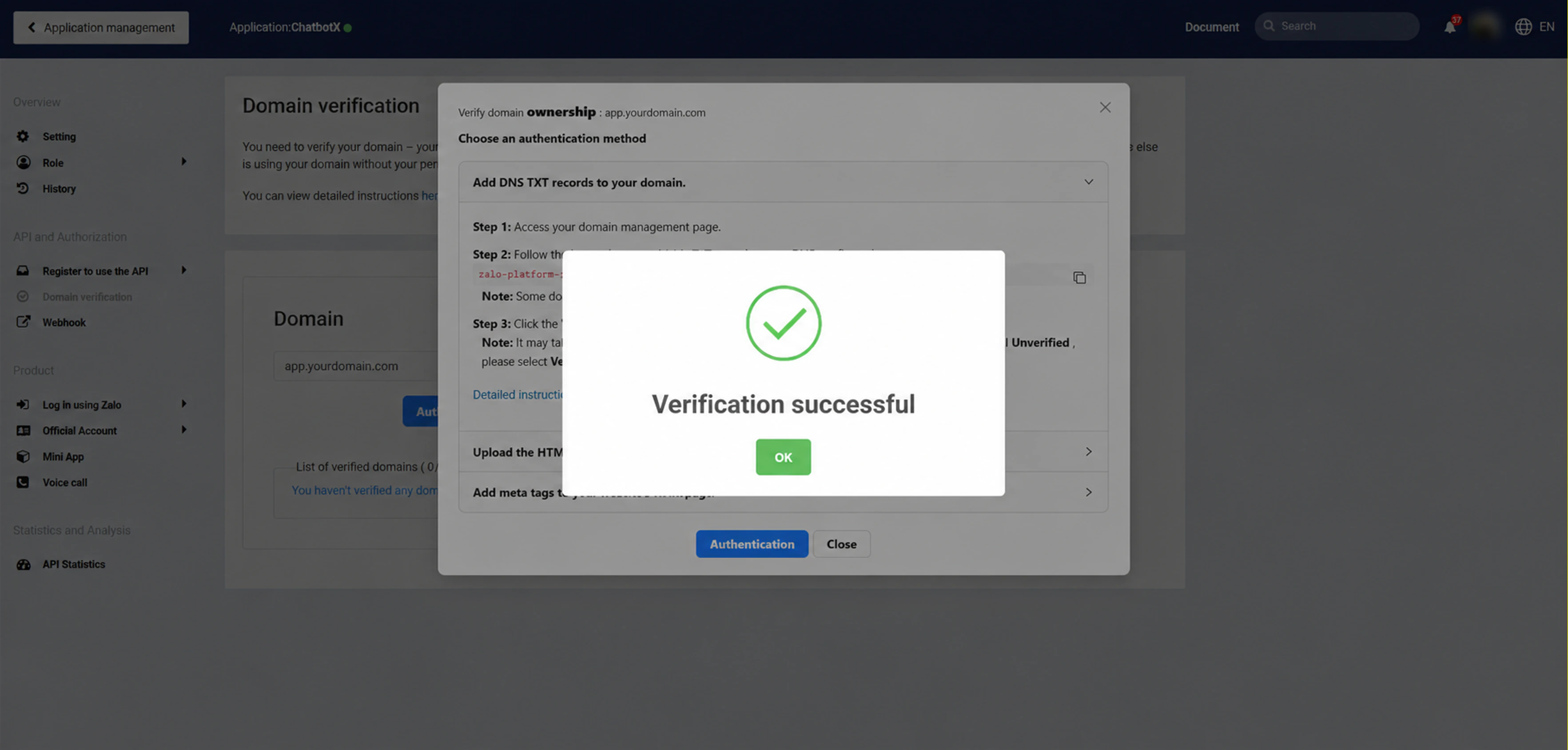
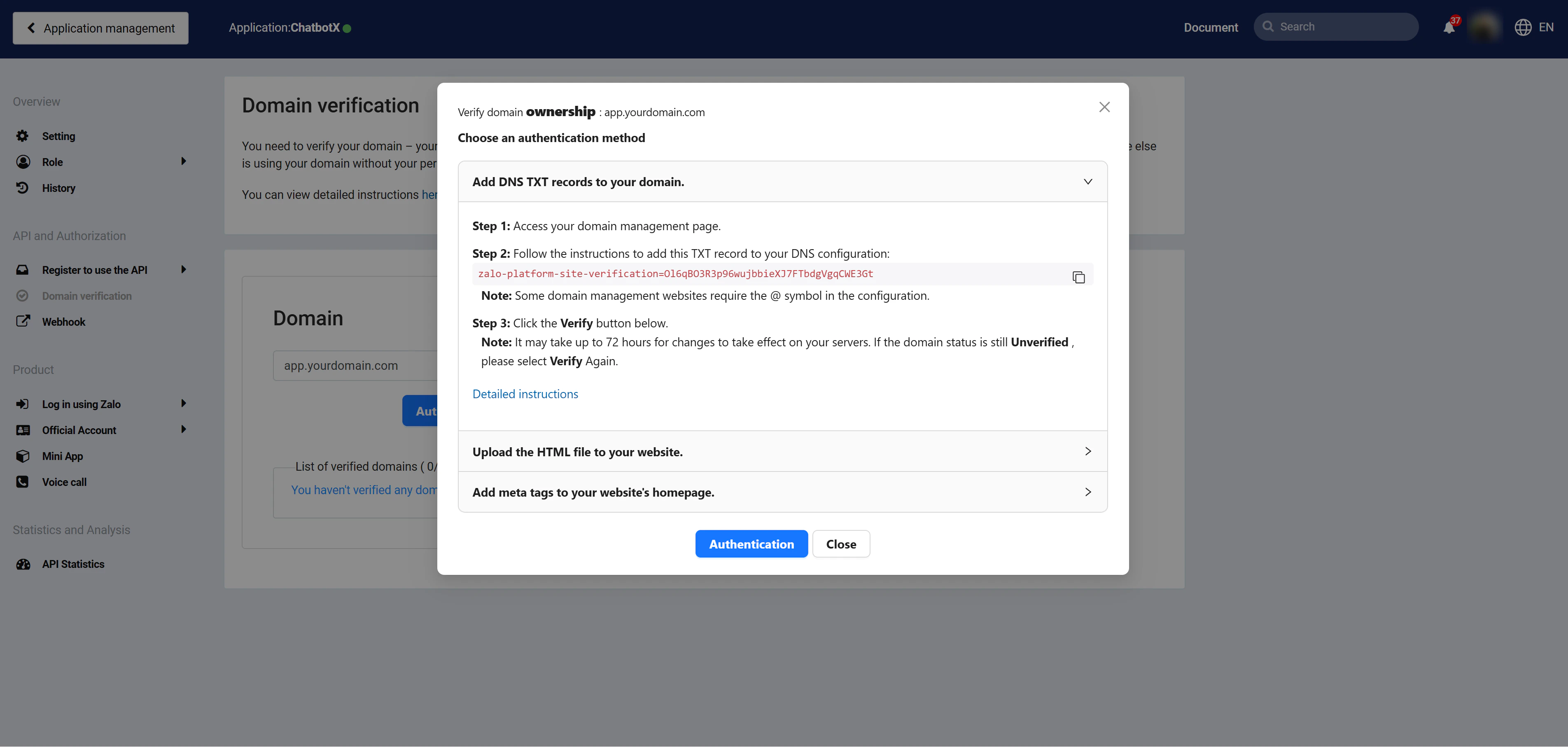 Domain verification may take a few seconds to propagate. Check the verification status in your Zalo application dashboard after 3–5 seconds. You may need to check 2–3 times before the status updates.
 ## Step 4: Configure Callback and Webhook URLs
You need to configure two URLs in your Zalo application to receive messages and events on the portal.
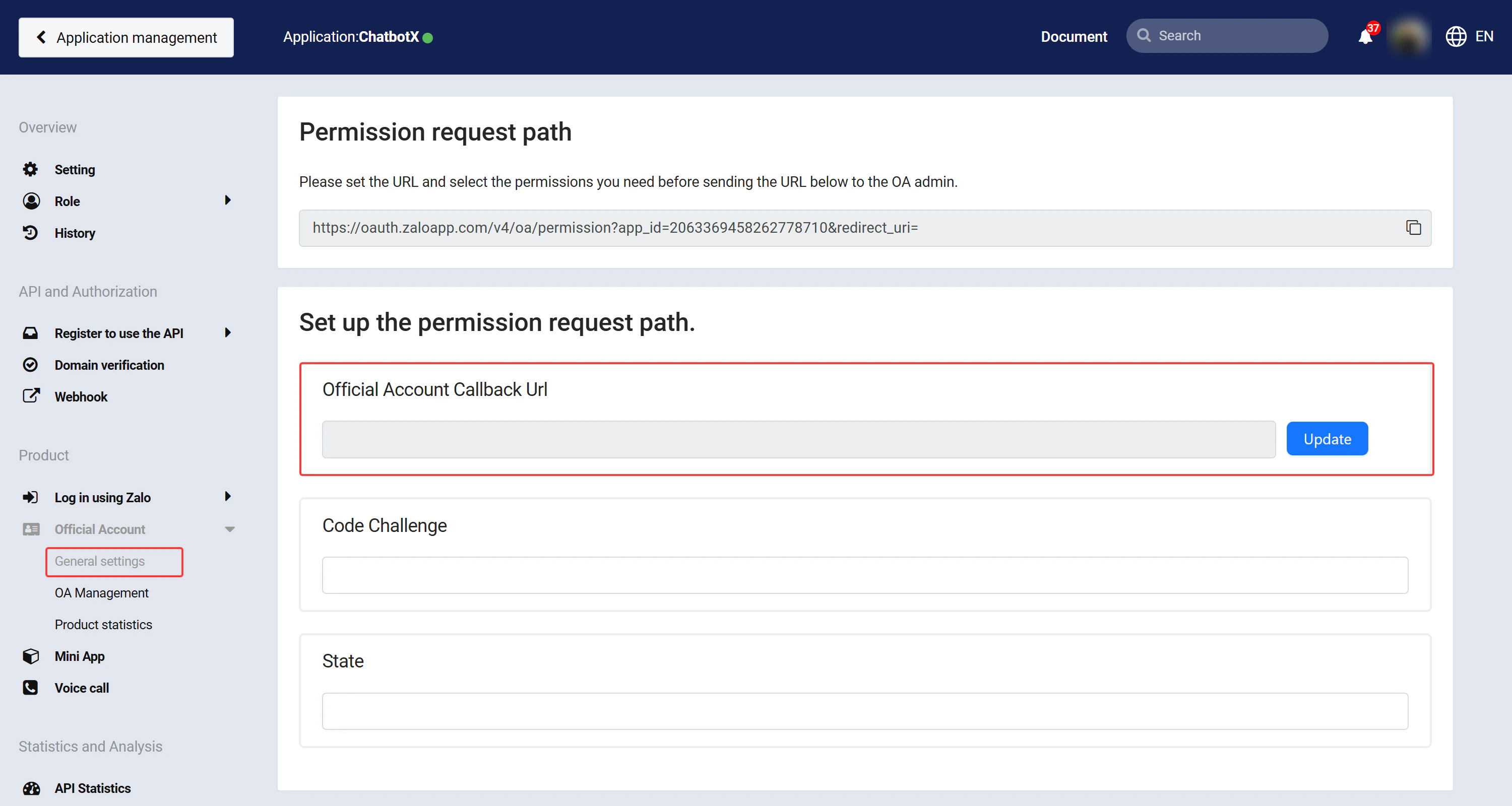
Copy the **Auth Callback URL** from the Admin Portal Zalo configuration settings, then paste it into your Zalo application settings and select the required permissions for OAuth authorization.
## Step 4: Configure Callback and Webhook URLs
You need to configure two URLs in your Zalo application to receive messages and events on the portal.
Copy the **Auth Callback URL** from the Admin Portal Zalo configuration settings, then paste it into your Zalo application settings and select the required permissions for OAuth authorization.
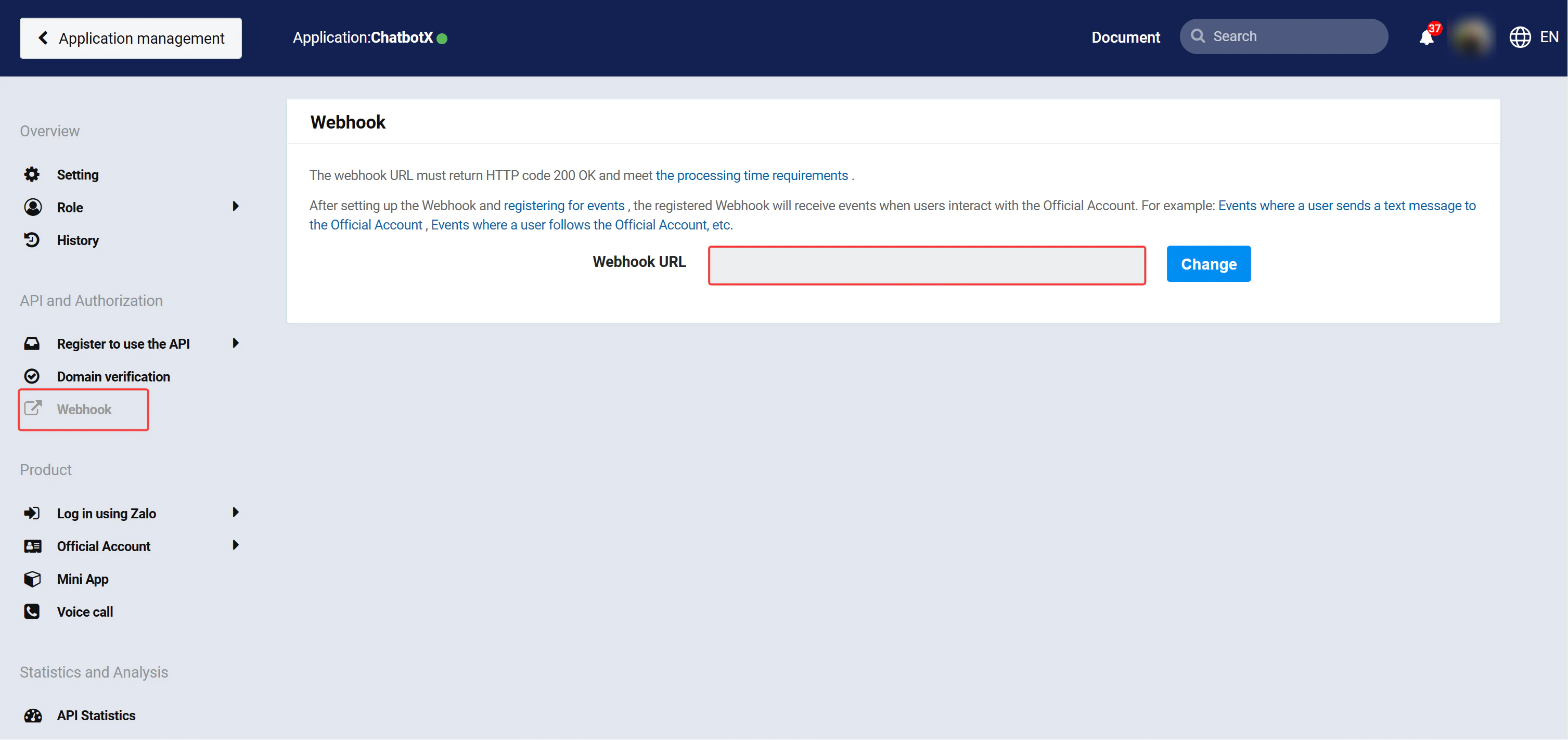
 Copy the **Webhook URL** from the Admin Portal Zalo configuration settings, then paste it into your Zalo application's webhook configuration. Subscribe to the following events:
```text theme={null}
send_msg
get_msg
follow
unfollow
```
Copy the **Webhook URL** from the Admin Portal Zalo configuration settings, then paste it into your Zalo application's webhook configuration. Subscribe to the following events:
```text theme={null}
send_msg
get_msg
follow
unfollow
```
 ## User Connection Guide
After completing the app configuration on Zalo Developers and entering the Credentials in the Admin Portal, your customers can connect their Zalo OA.
For step-by-step instructions, see the [Zalo OA Connection Guide](/channels/zalo/connect-zalo-oa).
## Troubleshooting
* Verify that the Webhook URL is correctly configured in your Zalo application
* Check that all required webhook events are subscribed (`send_msg`, `get_msg`, `follow`, `unfollow`)
* Confirm the **Webhook Verify Token** matches between the portal and Zalo
* Ensure your portal server is accessible via HTTPS
* Wait 3–5 seconds between verification attempts
* Try an alternative verification method (DNS TXT record vs meta tag)
* Make sure you are logged into the correct Zalo account with admin access to the OA
* Check that the Callback URL is correctly set in your Zalo application
* Verify the **Client ID** and **Client Secret** match the App ID and Secret Key in Zalo
1. Check the server logs for error messages
2. Verify all credentials in the Org Settings panel are correctly configured
3. Ensure your Zalo OA and developer accounts meet the prerequisites
4. Contact Community support with specific error messages if the issue persists
## User Connection Guide
After completing the app configuration on Zalo Developers and entering the Credentials in the Admin Portal, your customers can connect their Zalo OA.
For step-by-step instructions, see the [Zalo OA Connection Guide](/channels/zalo/connect-zalo-oa).
## Troubleshooting
* Verify that the Webhook URL is correctly configured in your Zalo application
* Check that all required webhook events are subscribed (`send_msg`, `get_msg`, `follow`, `unfollow`)
* Confirm the **Webhook Verify Token** matches between the portal and Zalo
* Ensure your portal server is accessible via HTTPS
* Wait 3–5 seconds between verification attempts
* Try an alternative verification method (DNS TXT record vs meta tag)
* Make sure you are logged into the correct Zalo account with admin access to the OA
* Check that the Callback URL is correctly set in your Zalo application
* Verify the **Client ID** and **Client Secret** match the App ID and Secret Key in Zalo
1. Check the server logs for error messages
2. Verify all credentials in the Org Settings panel are correctly configured
3. Ensure your Zalo OA and developer accounts meet the prerequisites
4. Contact Community support with specific error messages if the issue persists