

Overview of Templates in White Label
For White Label partners and resellers, Templates provide turnkey automation packages tailored to your brand and distribute them automatically across all sub-accounts:- Default Template: Automatically provisions complete conversational flows, Triggers, AI Agents, and custom fields whenever a client creates a new workspace under your tenant. New users get an out-of-the-box working chatbot immediately upon registration.
- Template Store: Curates an in-platform store catalog featuring ready-made templates categorized by business vertical (Education, Courses, Retail, etc.). Sub-account users can browse the store and install templates into their workspaces with one click.
To learn how to package chatbot assets, configure view-only permissions, and generate sharing credentials, refer to the Templates Guide.
Configuring the Default Template
The default template is automatically installed into every new workspace provisioned under your White Label platform. Workspaces created prior to this setup remain unchanged. To set up a default template, navigate to Platform > Default Template in your reseller management portal (Manage).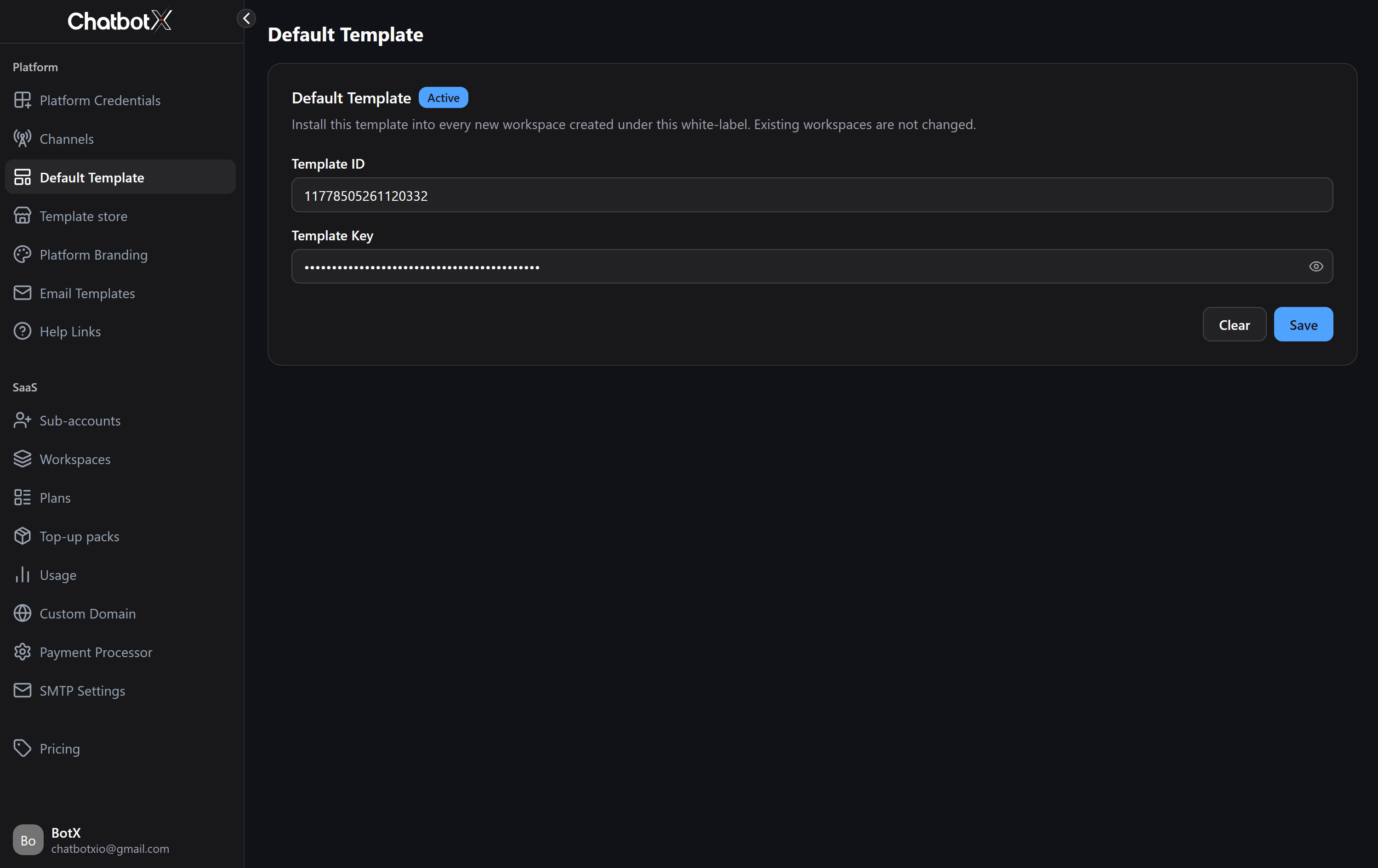
Setup Steps
1
Retrieve Template Credentials
Before configuring, ensure you have published a template and enabled public sharing.From the template sharing dialog (located under Tools > Templates), copy two credentials:
- Template ID: The unique numerical identifier of the template (for example:
11778505261120332). - Template Key: The secret access token of the template.
2
Enter Identification Credentials
Return to the Platform > Default Template page:
- Template ID: Paste the copied template identifier.
- Template Key: Paste the secret token into the key field. Click the eye icon to verify the input string.
3
Save Configuration
Click the blue Save button on the right.Once validated, the badge indicates Active. From this moment forward, every new workspace created under your custom domain automatically receives the packaged assets from this template.
Managing the Template Store
The Template Store allows you to curate ready-to-use chatbot solutions and categorize them by industry, giving your customers access to verified turnkey workflows. To manage your store catalog, navigate to Platform > Template store from the portal sidebar.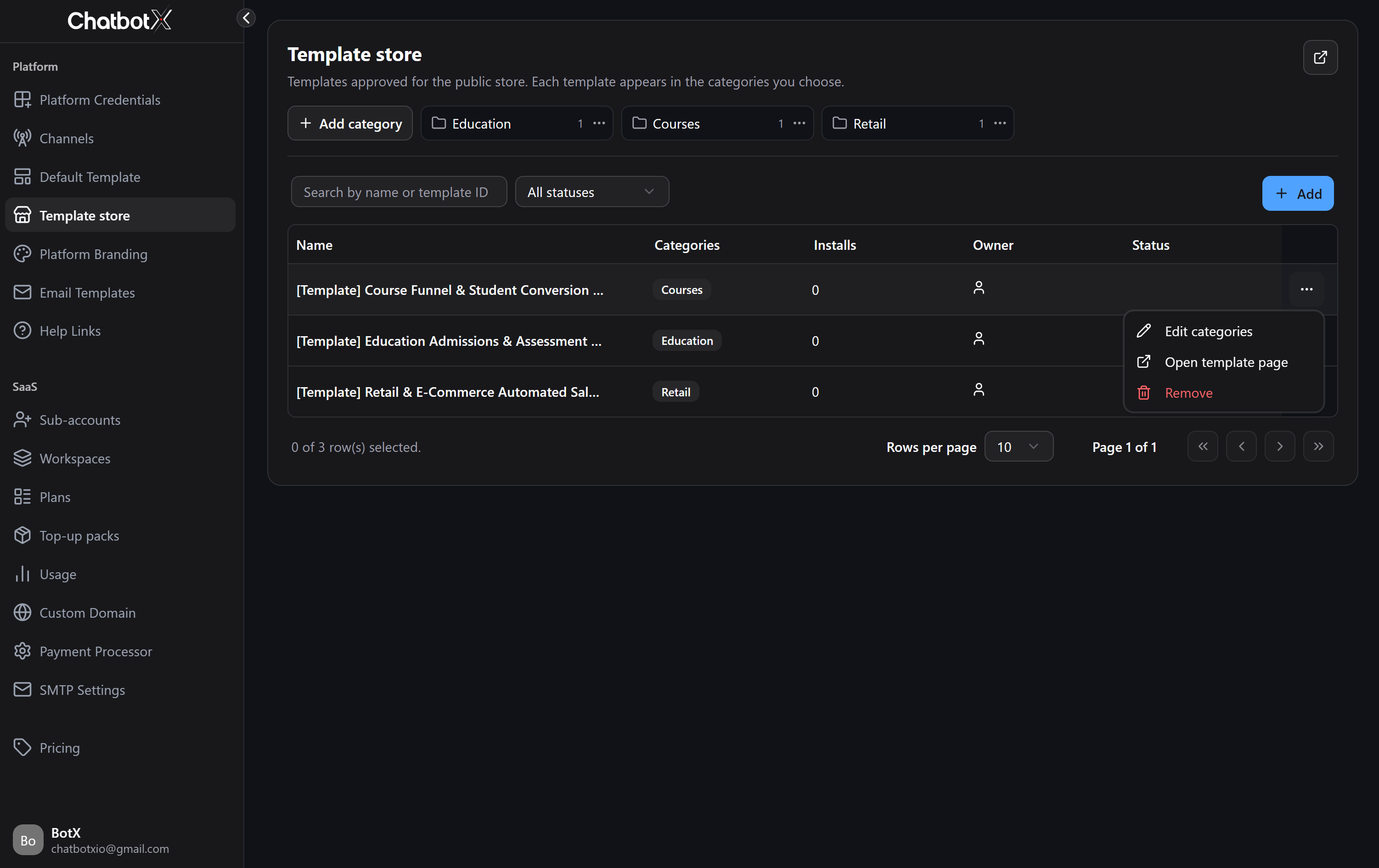
1. Organizing Store Categories
Categories help sub-accounts filter and locate workflows relevant to their business model:- Adding a Category: Click + Add category on the top toolbar, type a name (such as
Education,Courses,Retail), and confirm. - Category Options Menu (
...):- Rename: Update the category display label.
- Move up / Move down: Reorder category chips on the public storefront.
- Delete: Remove the category. Associated templates remain in the store under the All filter.
2. Publishing Templates to the Store
To feature a template in your store catalog, click the blue + Add button in the table toolbar: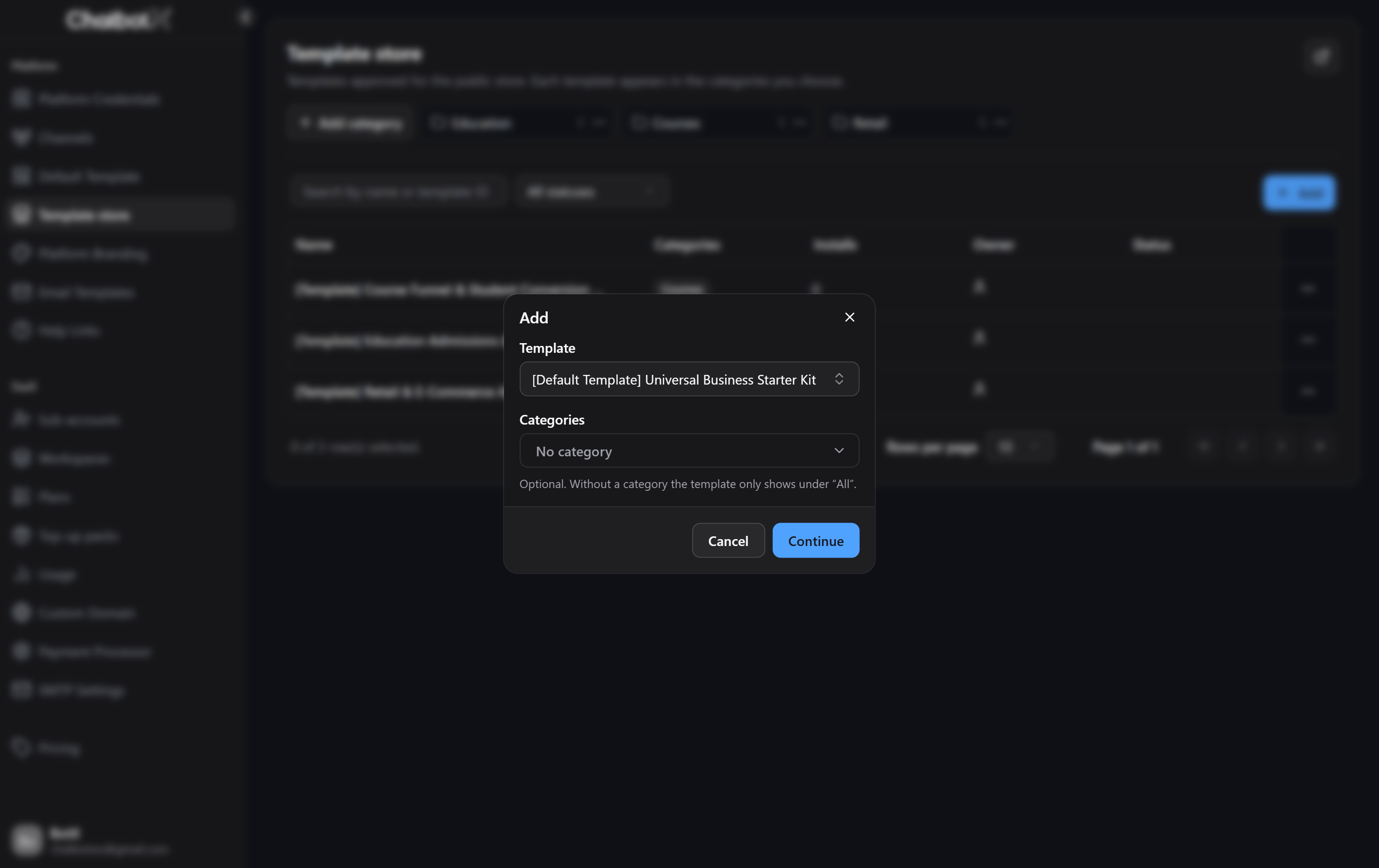
- Template: Select an active template owned by your workspace or search by template name/ID.
- Categories: Assign one or multiple relevant categories. If left empty, the template displays exclusively under All.
- Click Continue to publish the listing.
3. Managing Approved Listings
The Template store table provides real-time oversight of all published listings:- Name: The template title with a direct preview link.
- Categories: Assigned taxonomy badges.
- Installs: Total installation count from store visitors.
- Owner: User icon indicating the publishing workspace.
- Status: Display health (Published or warning if the source share link was disabled).
- Row Options Menu (
...):- Edit categories: Reassign or update store categories.
- Open template page: Launch the public preview page in a new tab.
- Remove: Unpublish the listing from the store. Existing installations and the source template remain untouched.
End-User Store Experience
When sub-account users log in to your white-label platform, they can access the storefront via the Templates tab situated directly on their welcome dashboard: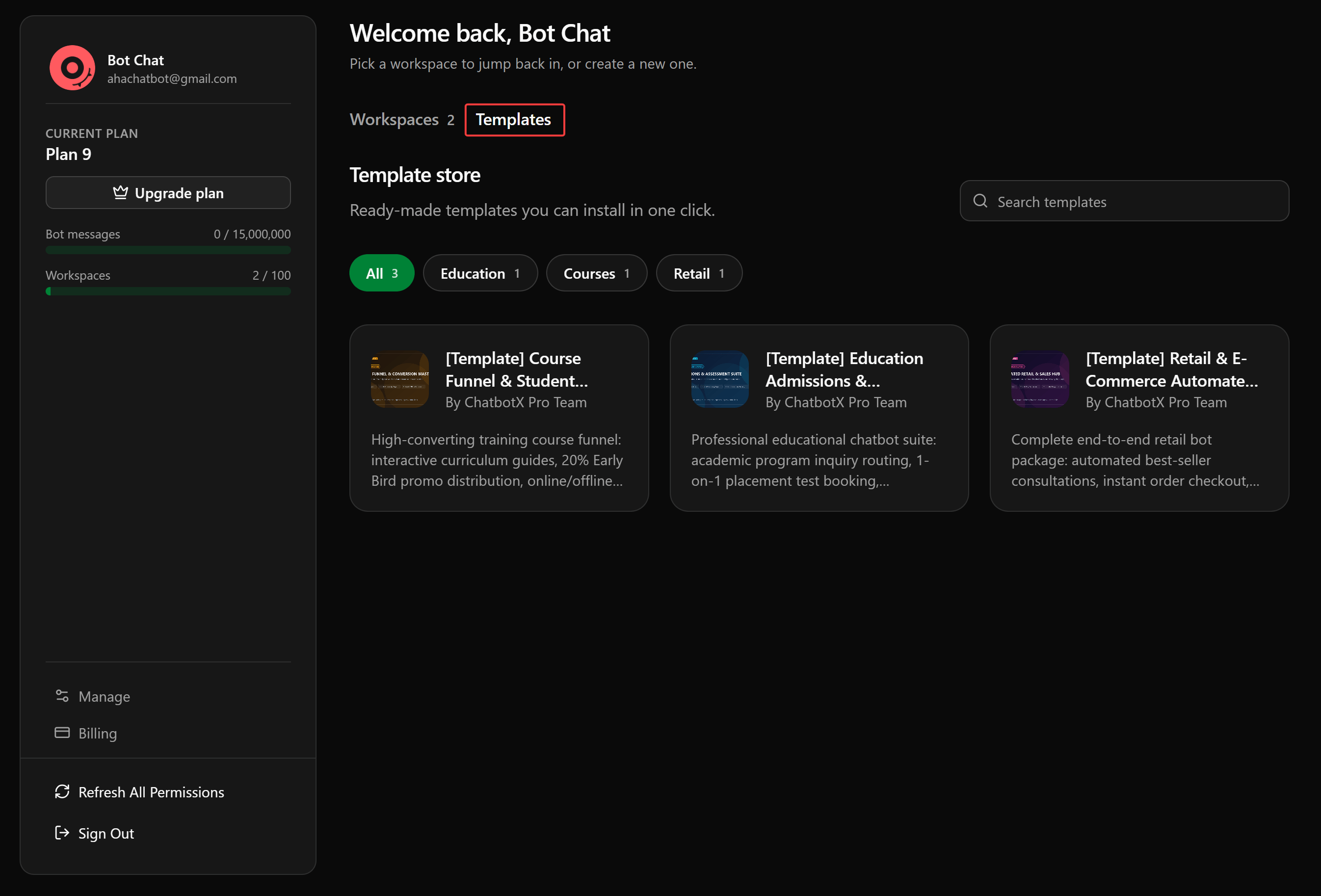
- Search Bar (Search templates): Filter ready-made workflows instantly by keyword.
- Category Chips: Browse templates by vertical (All, Education, Courses, Retail) with real-time template counters.
- Template Cards: Displays the thumbnail image, title, publisher brand, and a concise feature summary.
- One-Click Installation: Clicking a card allows users to preview the visual diagram and install the entire solution into their chosen workspace immediately.