

Step 1: Get SMTP credentials from your provider
Depending on the Email service provider you are using, you will need the following basic information to connect with ChatbotX:- SMTP Host/Server
- SMTP Port (Usually
465for SSL or587for TLS) - SMTP Username (Usually your email address)
- SMTP Password (App Password or API Key, not your main account login password)
1. Gmail / Google Workspace
1. Gmail / Google Workspace
Enable 2-Step Verification
Create an App Password
Get the password
ChatbotX SMTP) and click Create. Google will provide you with a 16-letter string. This is your SMTP Password.Connection parameters
- Host:
smtp.gmail.com - Port:
465(SSL) or587(TLS) - Username: Your Gmail address.
2. Outlook / Office 365
2. Outlook / Office 365
Access security settings
Create an App Password
Get the password
Connection parameters
- Host:
smtp-mail.outlook.com(orsmtp.office365.comfor business accounts) - Port:
587(TLS) - Username: Your Outlook/Office 365 email address.
3. SendGrid (Twilio)
3. SendGrid (Twilio)
Create an API Key
Assign permissions
Get the information
SG.. This will be your SMTP Password.Connection parameters
- Host:
smtp.sendgrid.net - Port:
465(SSL) or587(TLS) - Username:
apikey(Write exactly “apikey”, not your email).
4. Amazon SES
4. Amazon SES
Access SMTP Settings
Create SMTP credentials
Get Username and Password
Connection parameters
- Host: (Depends on your Region, e.g.,
email-smtp.us-east-1.amazonaws.com) - Port:
465or587 - Username: The newly created SMTP Username string.
- Password: The newly created SMTP Password string.
5. Brevo (Sendinblue)
5. Brevo (Sendinblue)
Access SMTP & API
Generate a new SMTP key
Get the password
Connection parameters
- Host:
smtp-relay.brevo.com - Port:
587 - Username: Your Brevo login email.
- Password: The newly created SMTP key string.
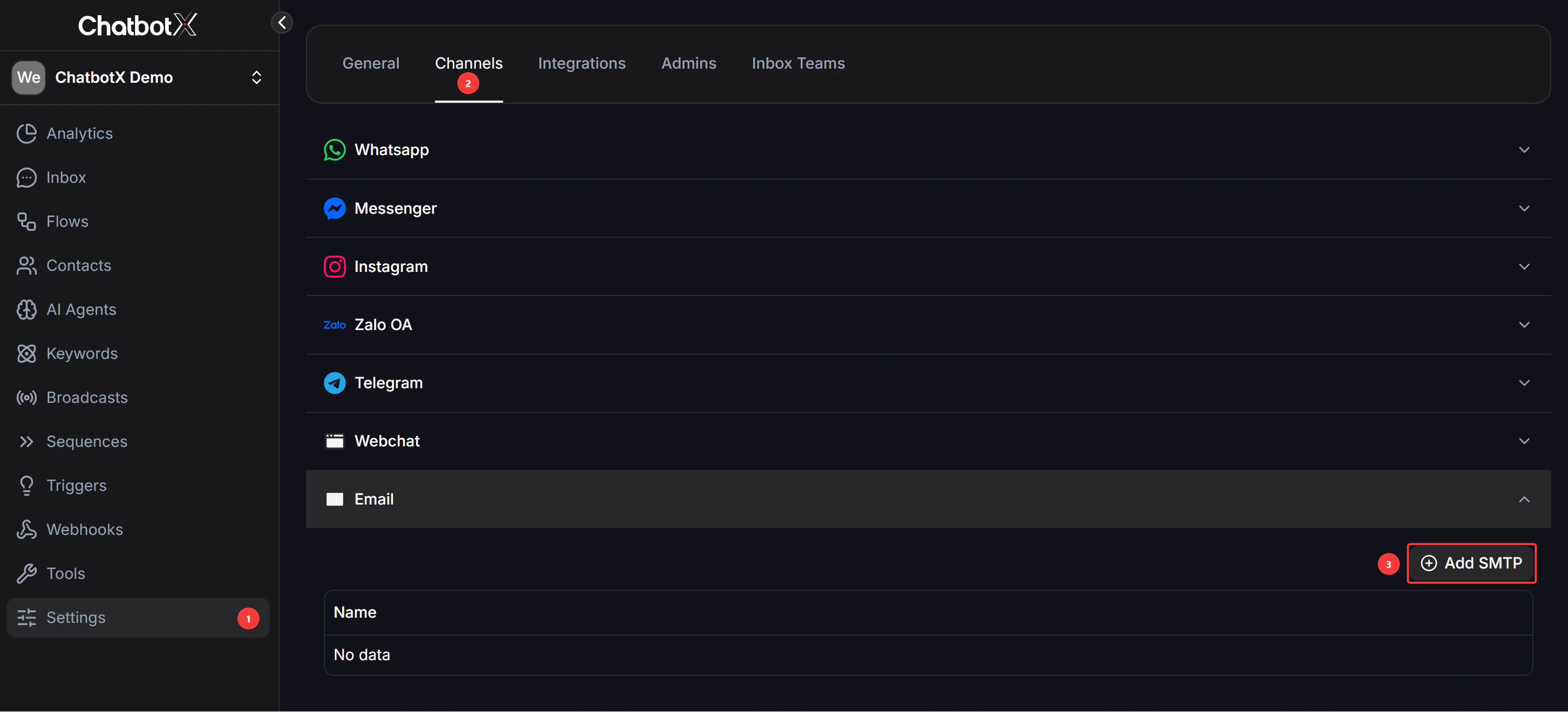
Step 2: Create an Email Channel
Add a new Email channel
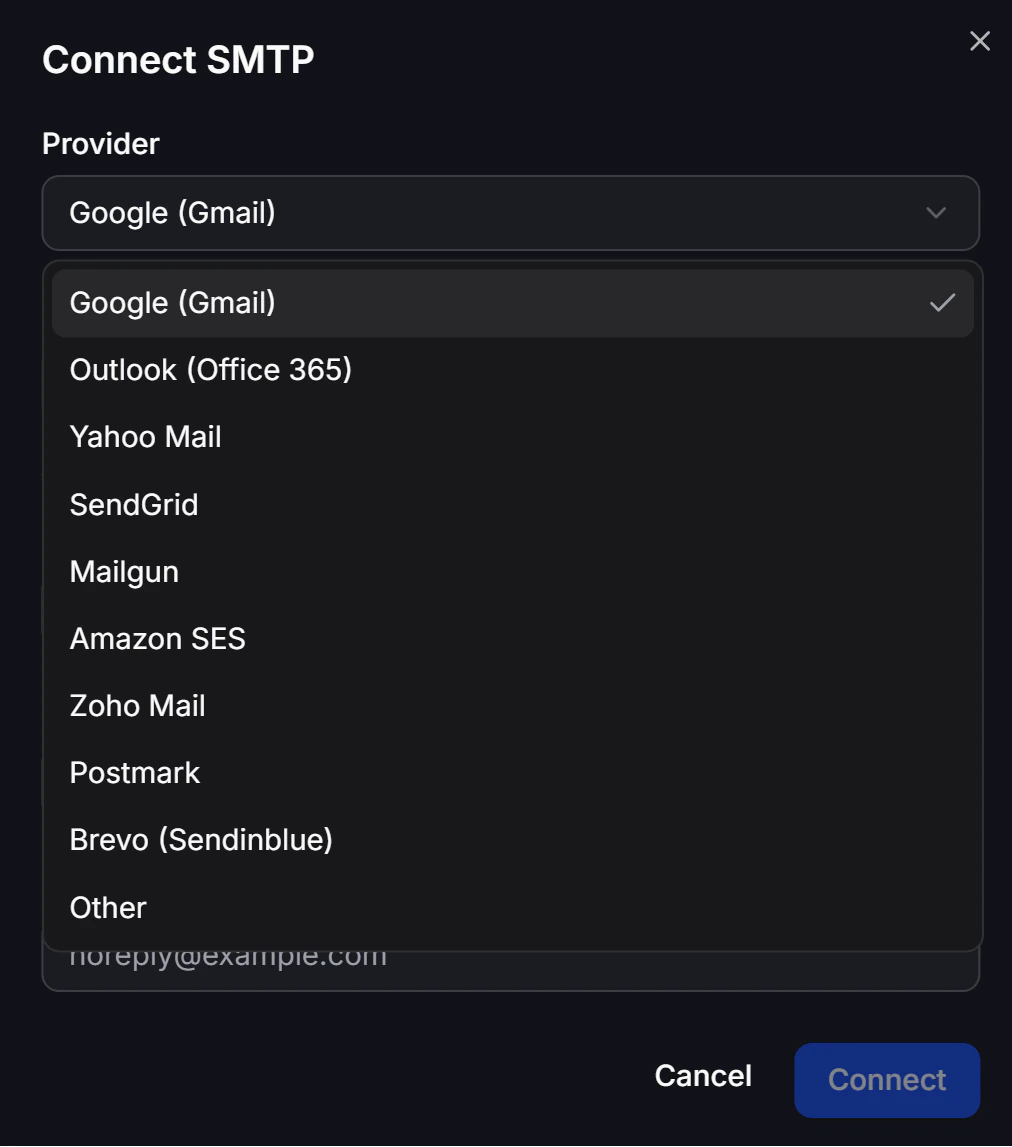
Choose a Provider
Enter SMTP connection details
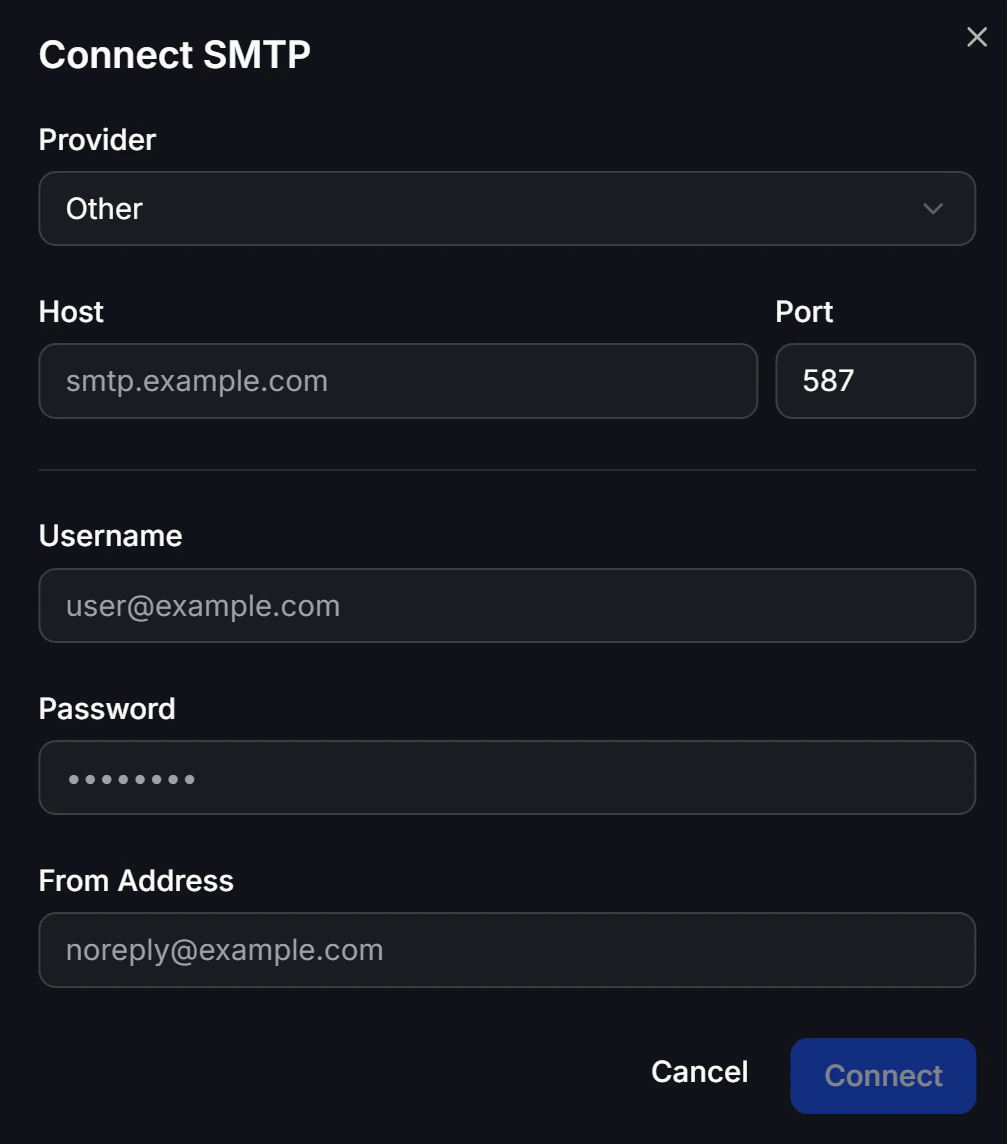
Connect
Step 3: Request permission (Opt-In) and Collect Customer Email
Before you can send Emails to customers via ChatbotX Flow, you must have two elements: Storing their Email address and the Customer has agreed to receive emails (Email Opt-In).Collect Email using Get User Data
email field).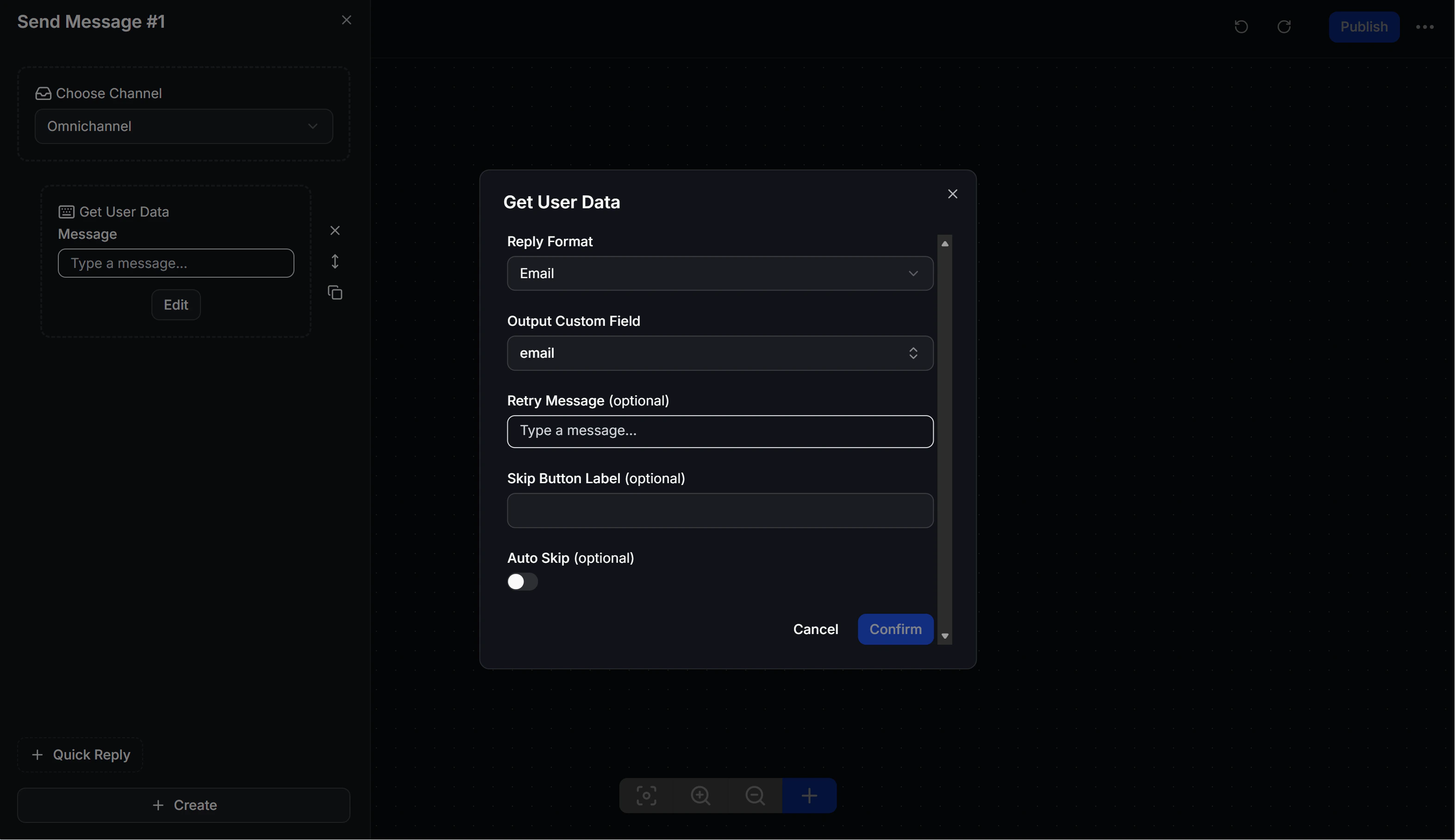
Mark Email Opt-in
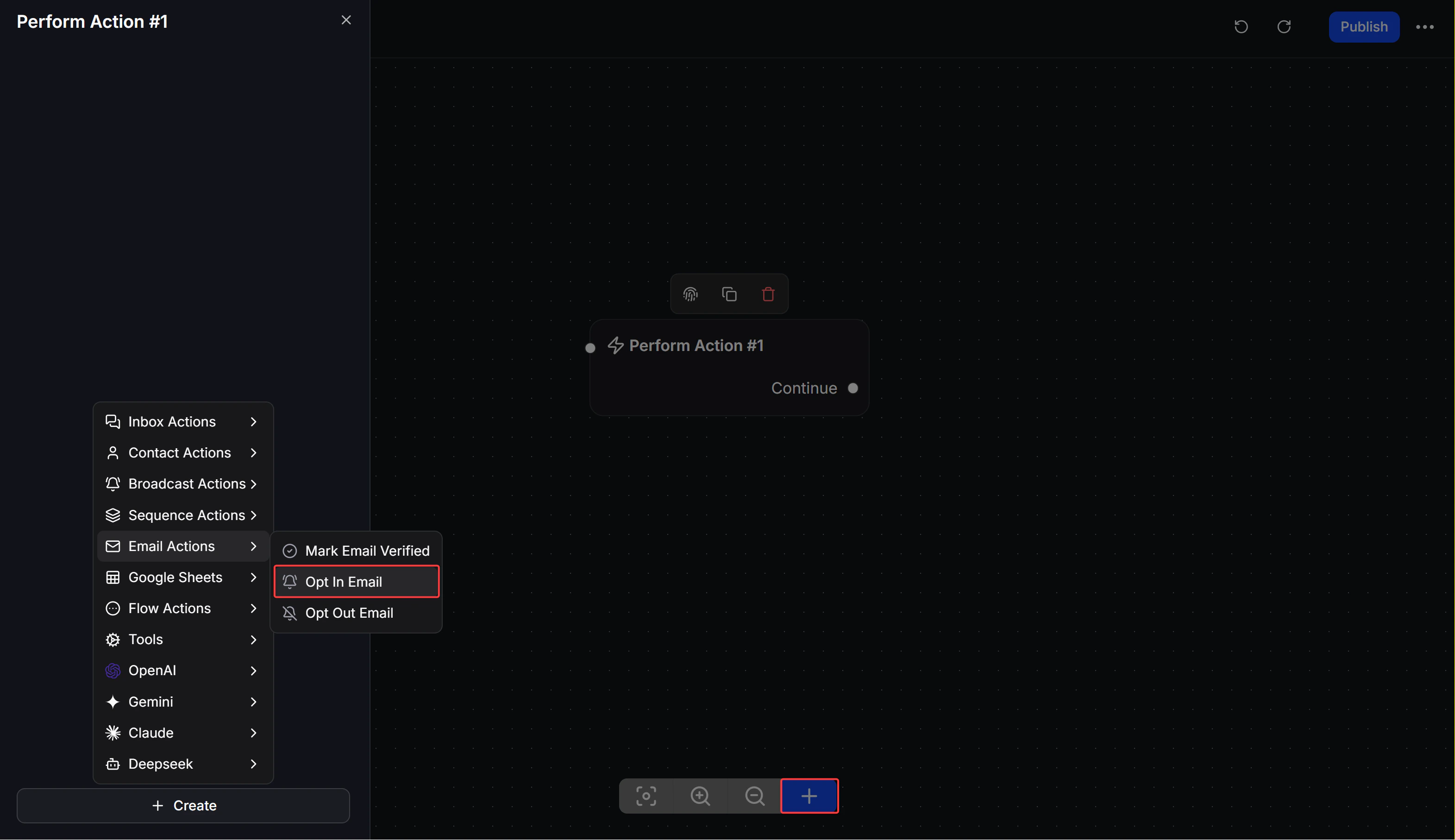
- Click the + sign and select Perform Action.
- Click the newly created Action block, select Email Actions.
- Select Opt In Email. This status is mandatory for the system to allow sending emails later.
Step 4: Set up automated Email sending in Flow
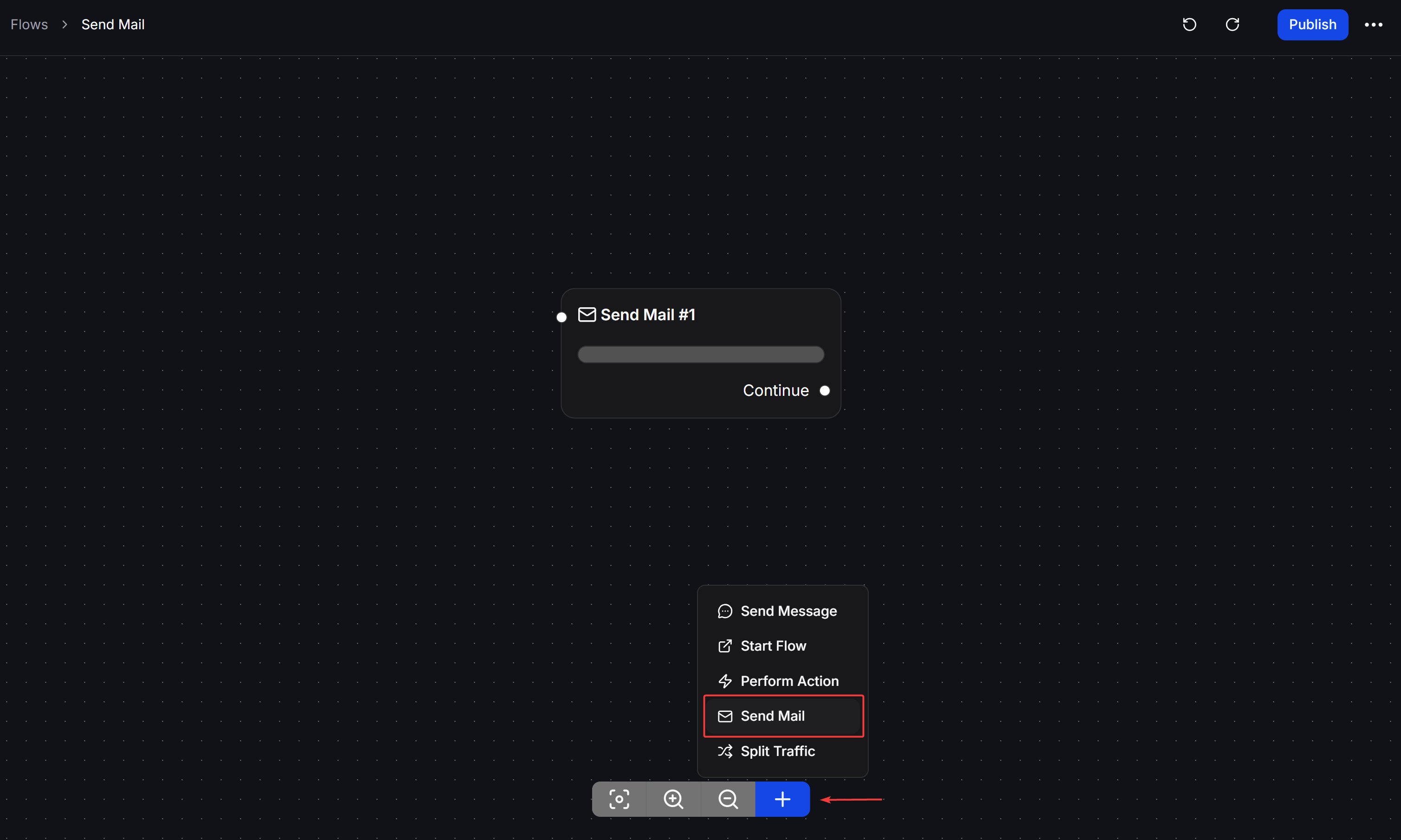
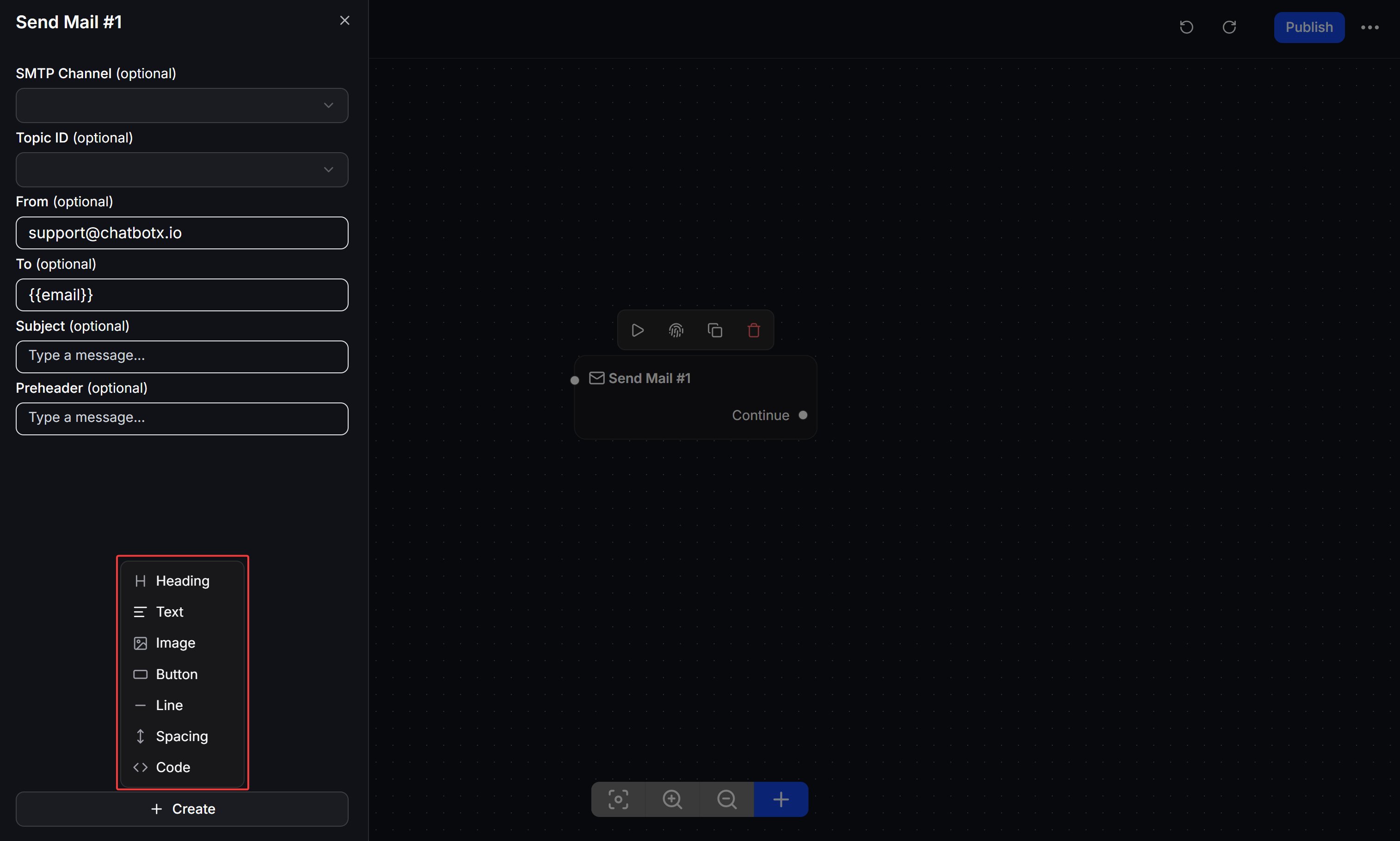
Once customers have agreed to receive emails, you can automatically send emails anywhere in the Flow.Add the Send Mail node
Choose the sending channel and topic
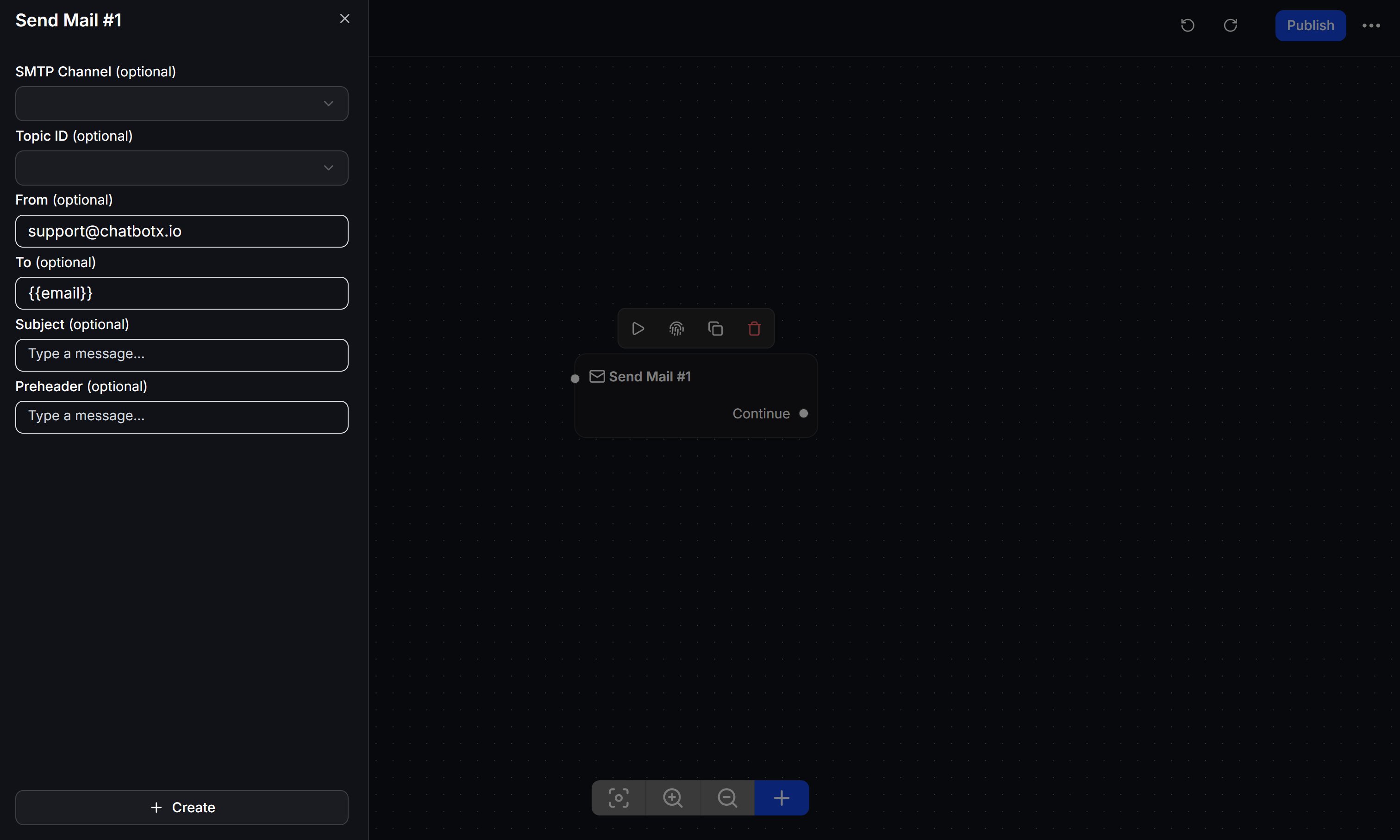
Fill in the email details
- From: The sender email address. You can use a fixed address or a variable such as
{{email}}if your Flow needs a dynamic sender. - To: By default, the system will send to the current user’s email (if provided). You can also set it to send internal notification emails to your team.
- Subject: The subject of the email. You can use variables (e.g.,
{{first_name}}) to personalize the subject. - Preheader: The short preview text that appears in many inboxes under the subject line.
Compose the email content
Test and Publish
Manage Email Topics in Flows
Email Topics help you group emails sent from Flows and track how contacts interact with them. Use topics when you want to compare email performance across campaigns, order updates, onboarding messages, or internal notifications. You can manage Email Topics from the Flows menu.
Open Flows
Open Email Topics
Add a topic
Name the topic
Order confirmation, Welcome email, or Monthly promotion.Create the topic
Email Topic statistics
The Email Topics page includes a statistics table for each topic.
Create a topic from Send Mail
When you configure a Send Mail node, you can select an existing topic in Topic ID. If the topic does not exist yet, click Add New next to the field to create it quickly without leaving the Flow editor.
Troubleshooting
If the system cannot send the email successfully, please check some of the following common cases:Error: 'Authentication Failed' or 'Invalid Login'
Error: 'Authentication Failed' or 'Invalid Login'
- Cause: Incorrect SMTP Username or Password.
- Solution: Do not use your main login password. Ensure you have created and used a separate App Password or API Key/SMTP Key as instructed in Step 1.
Timeout or Connection Refused Error
Timeout or Connection Refused Error
- Cause: Incorrect SMTP Port or blocked by a firewall.
- Solution: Make sure the Port matches the correct encryption standard. For example, Port
465must use SSL, Port587must use TLS. If using Google Workspace, ensure IMAP/SMTP access is not disabled by the administrator.
Flow passes the Send Mail node but the email does not arrive
Flow passes the Send Mail node but the email does not arrive
- Cause: The customer has not been granted permission (Email Opt-in) in the system.
- Solution: Check the Audience data to see if the user has an Email and the Opted-in status. Ensure your Flow has a step passing through the
Set Email Opt-InAction before reachingSend Mail.
Sent emails land in Spam folder
Sent emails land in Spam folder
- Solution: As recommended at the beginning, configure DNS records (
SPF,DKIM) for the domain displayed on the sending email (From Email). Avoid sending emails that contain too many images without text, or using “spammy” words.