

Prerequisites
Before you begin, make sure you have:- A Meta Developer account
- A Meta Business Portfolio
- A valid phone number that can receive SMS or voice verification
- Admin access to the Meta Business Portfolio that owns the WhatsApp Business Account
- Admin access to your ChatbotX installation
- A publicly accessible ChatbotX URL for webhook delivery
Step 1: Set up your Business Profile
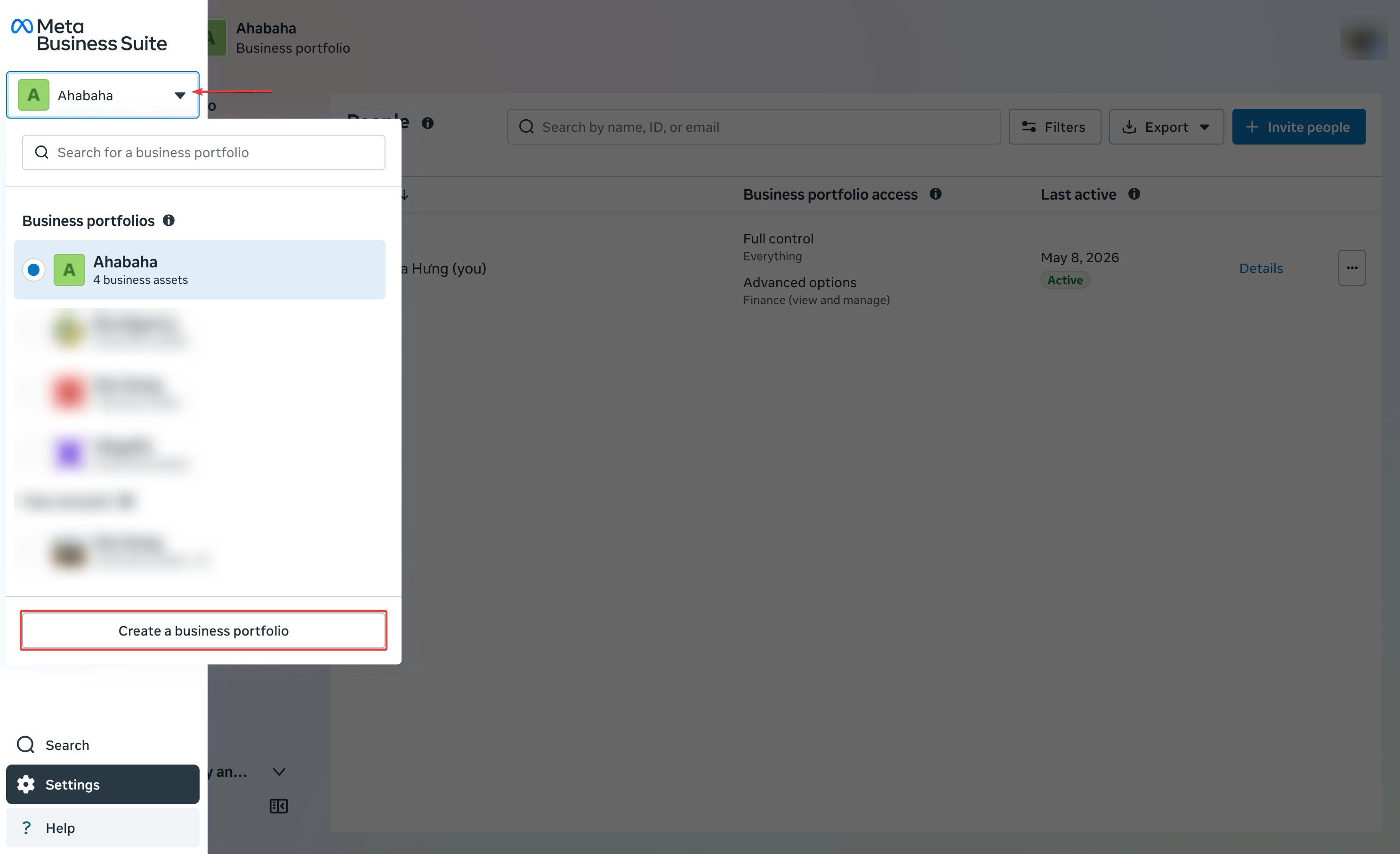
Create or choose the Meta Business Portfolio that will own your WhatsApp Business Account. This portfolio stores your business details, WhatsApp assets, phone numbers, and system users.Create or select a Business Portfolio
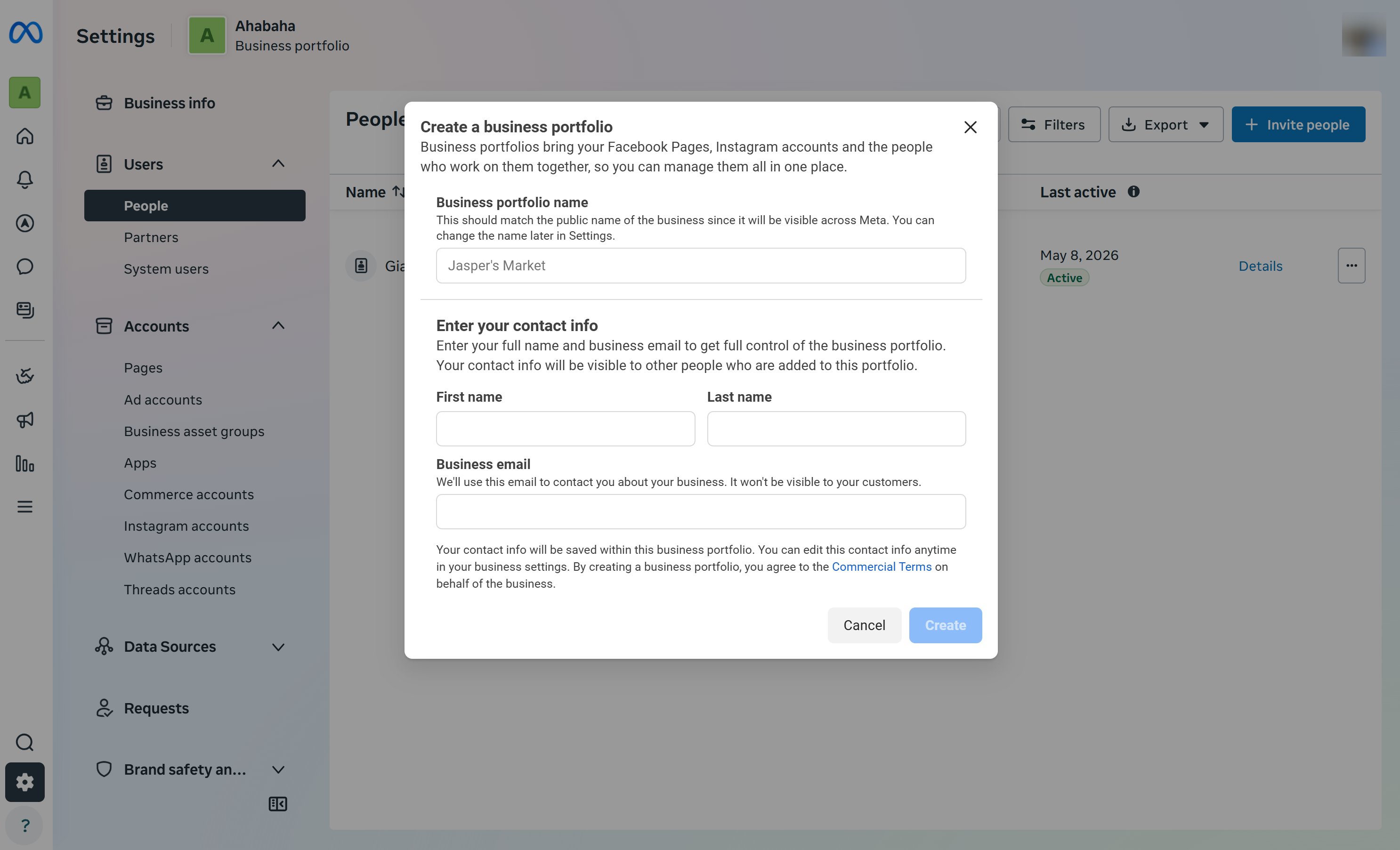
Complete the business details
Step 2: Setup your Facebook App
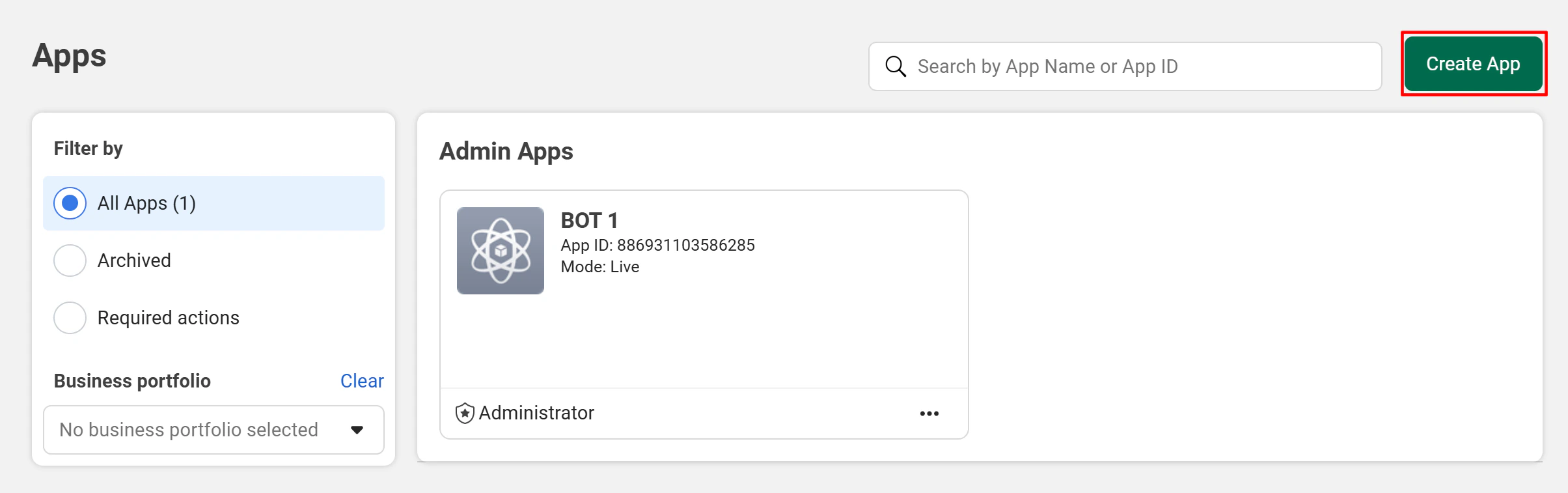
If you already have a Facebook App (for example, from your Messenger channel setup), you can reuse it and skip directly to Step 3.Create a new app
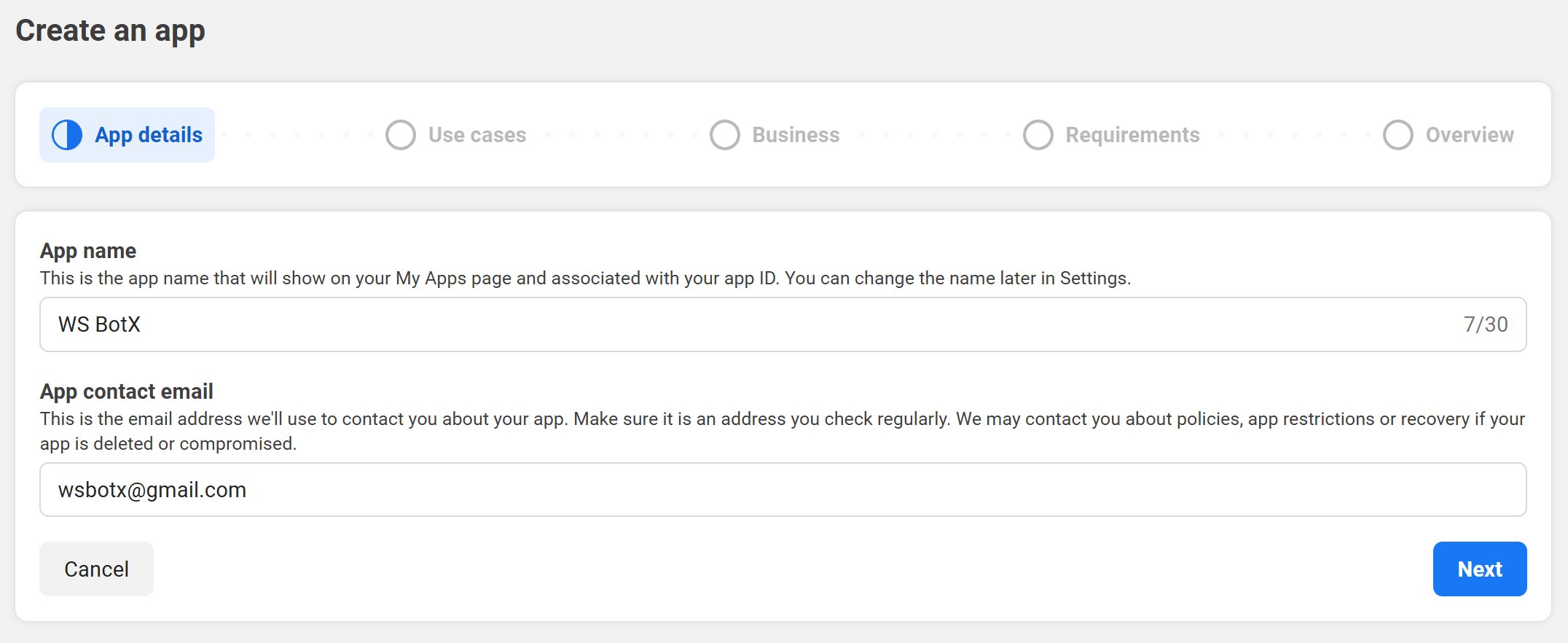
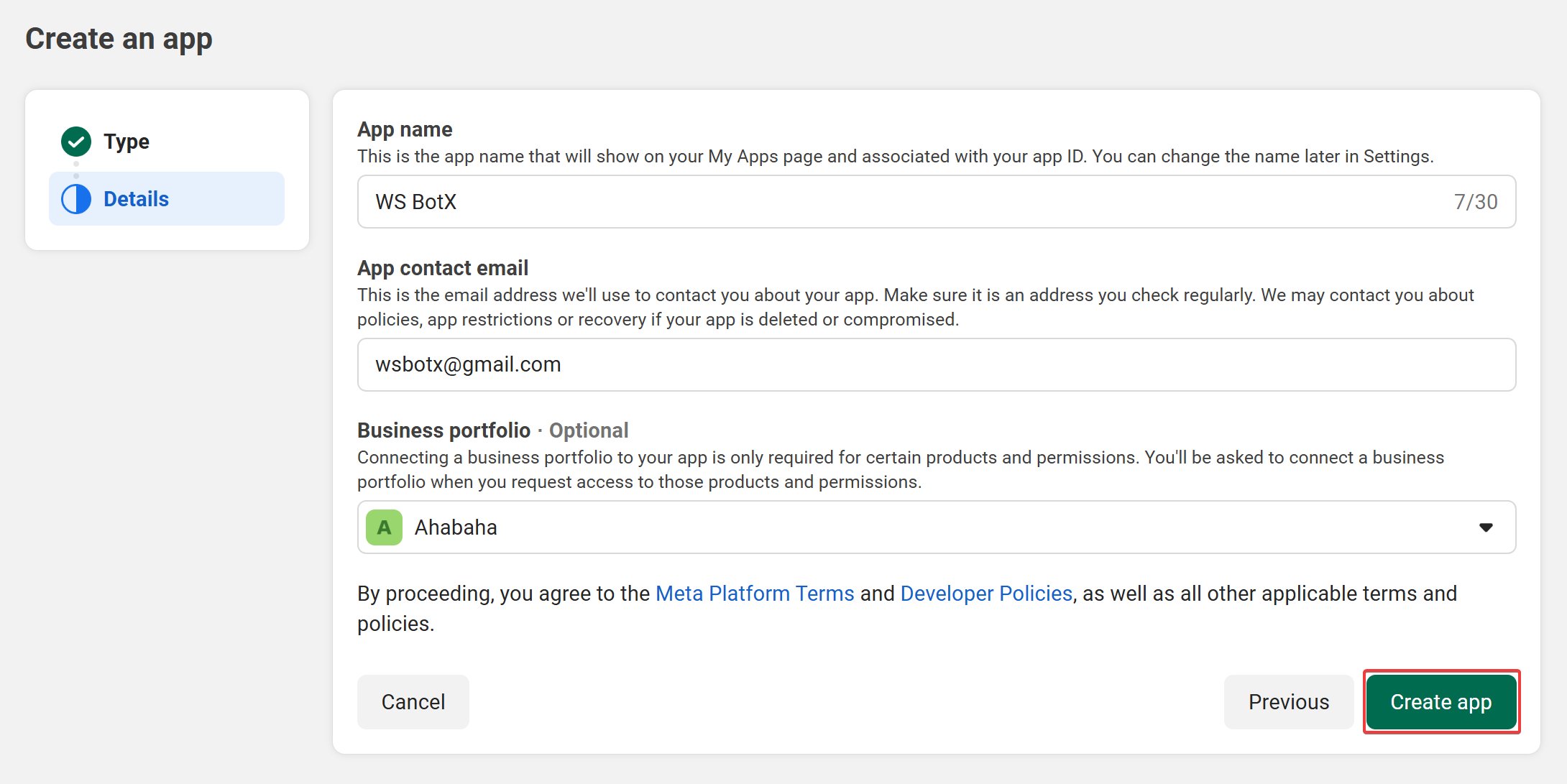
Enter app details
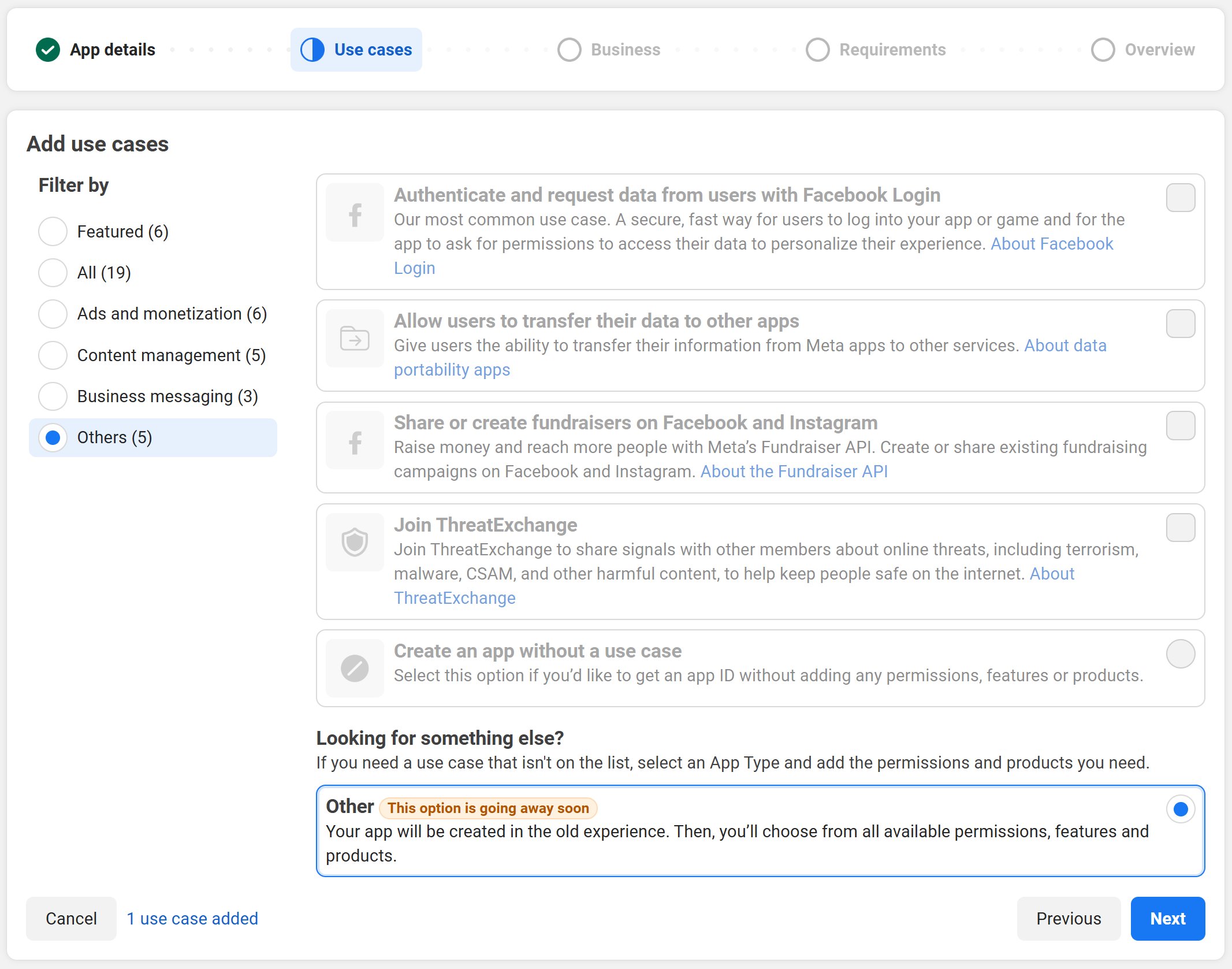
Select a use case
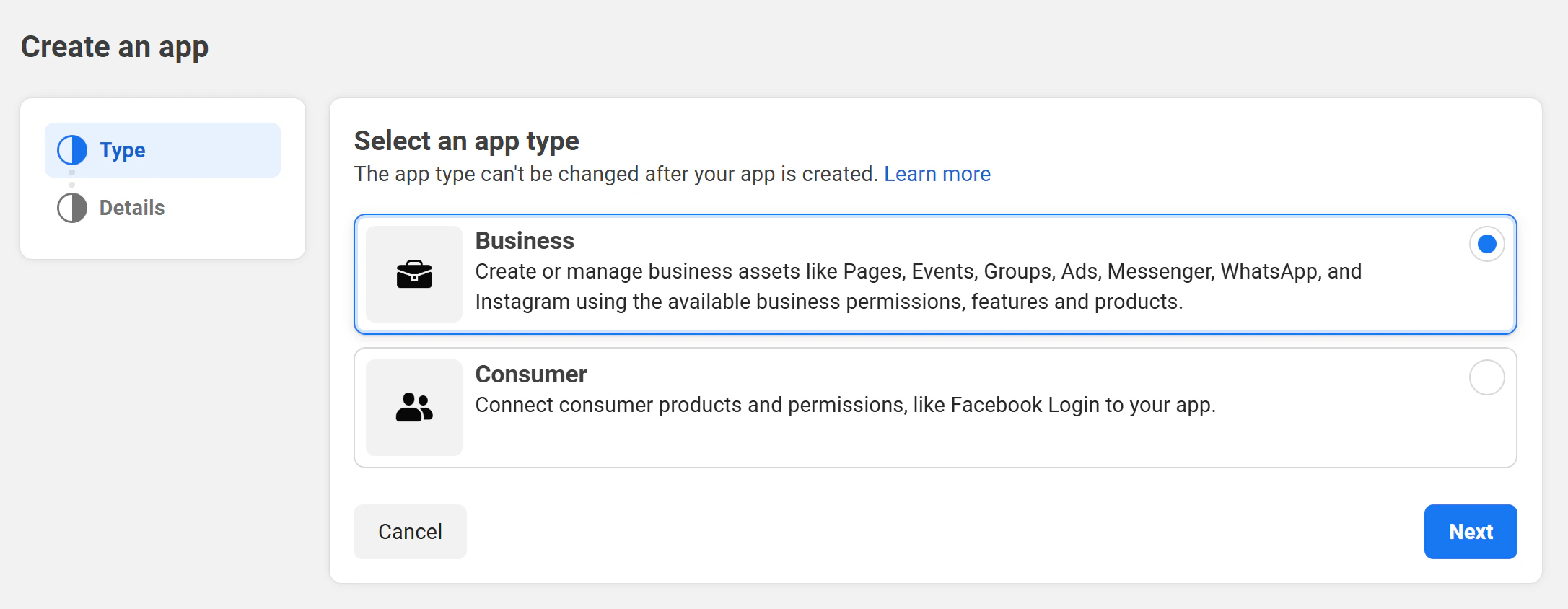
Choose app type
Finish creation
Step 3: Add WhatsApp to your app
Add the WhatsApp product to your Facebook App so Meta can create or connect a WhatsApp Business Account and phone number.Open the app dashboard
Add the WhatsApp product
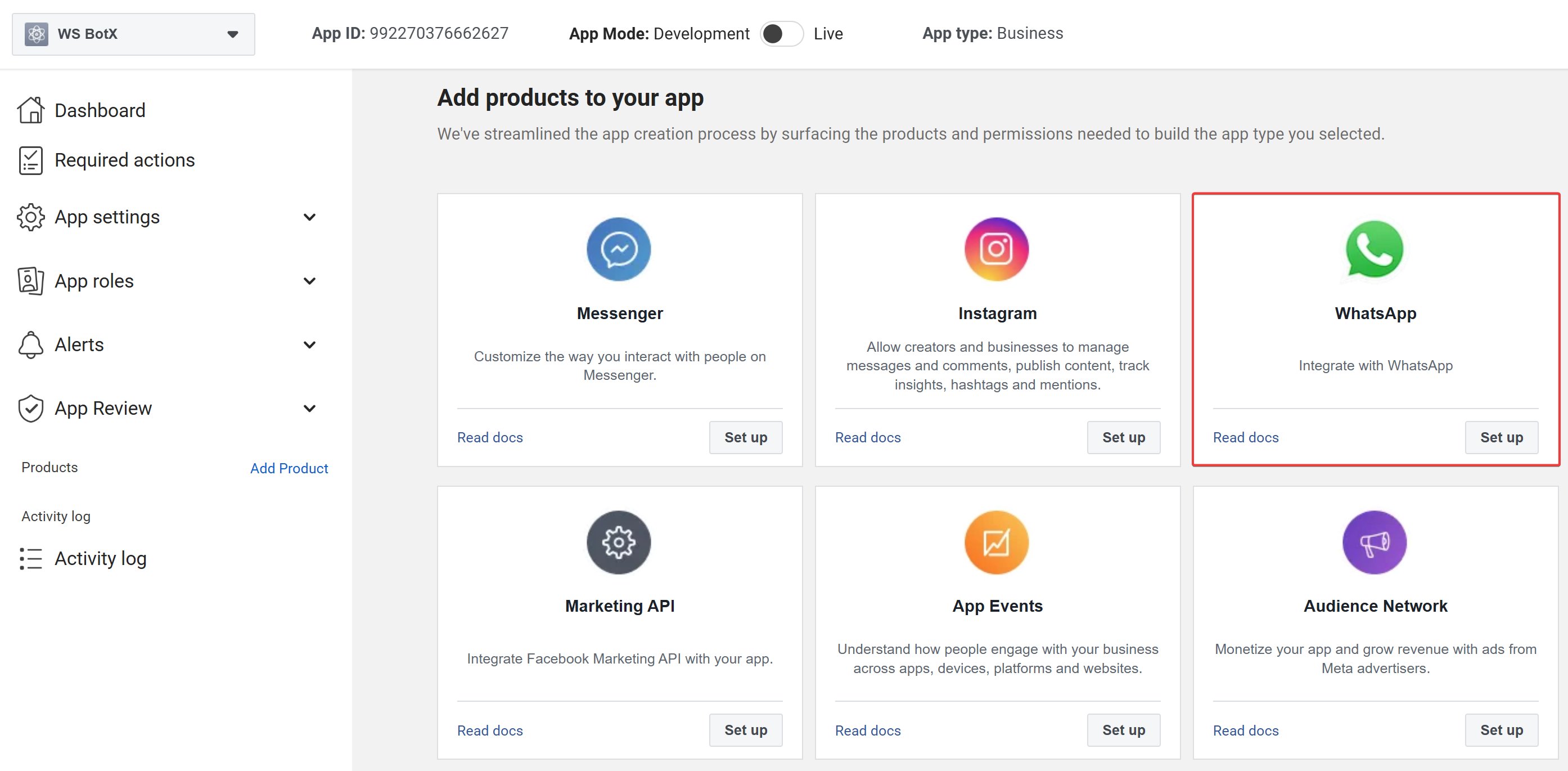
Confirm the WhatsApp dashboard
Step 4: Set up a permanent WhatsApp Cloud API access token
ChatbotX needs a permanent token so it can send and receive WhatsApp messages without reconnecting every few hours. Create the token from a Meta System User with access to your app and WhatsApp assets.Open System Users
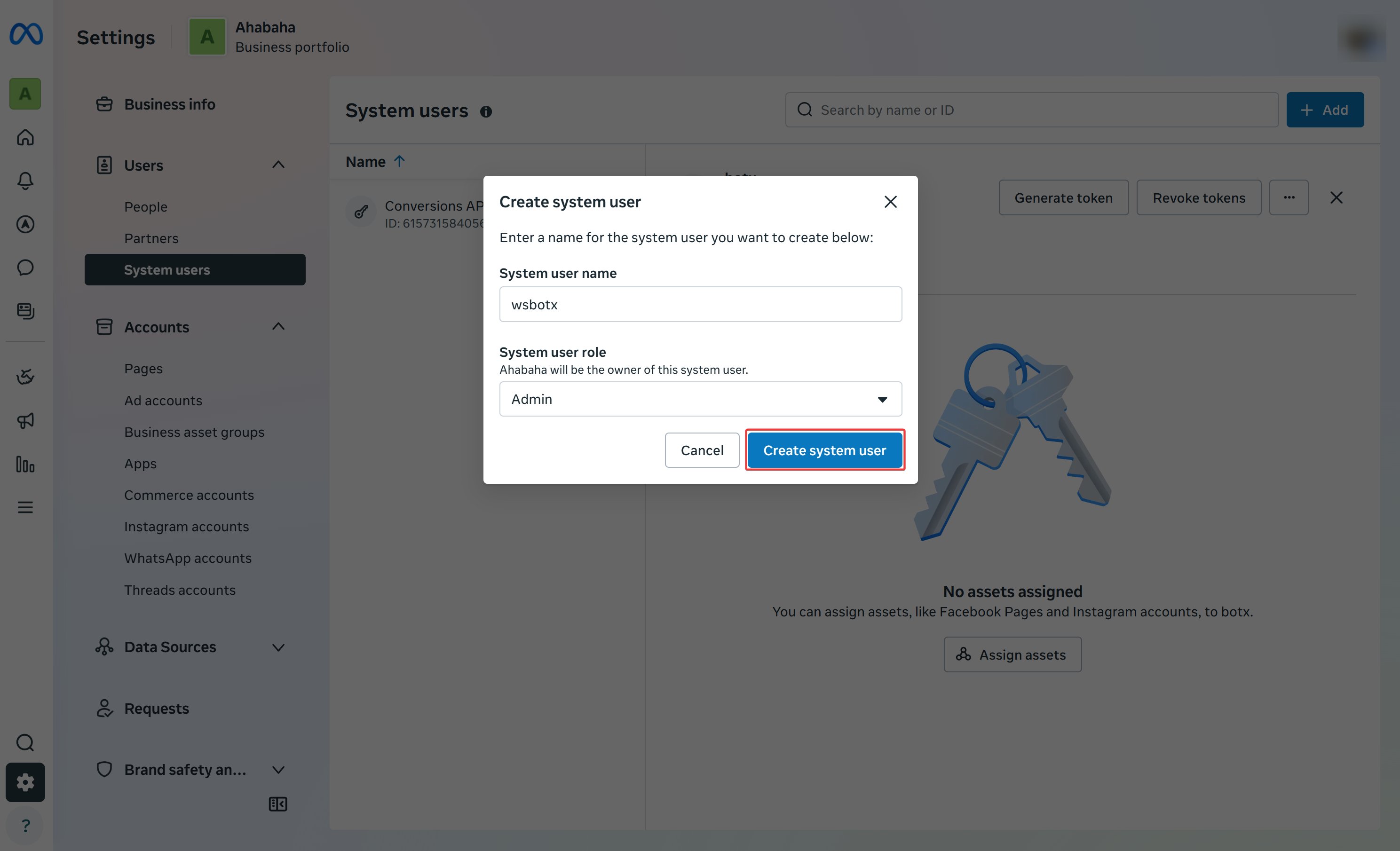
Create an Admin system user
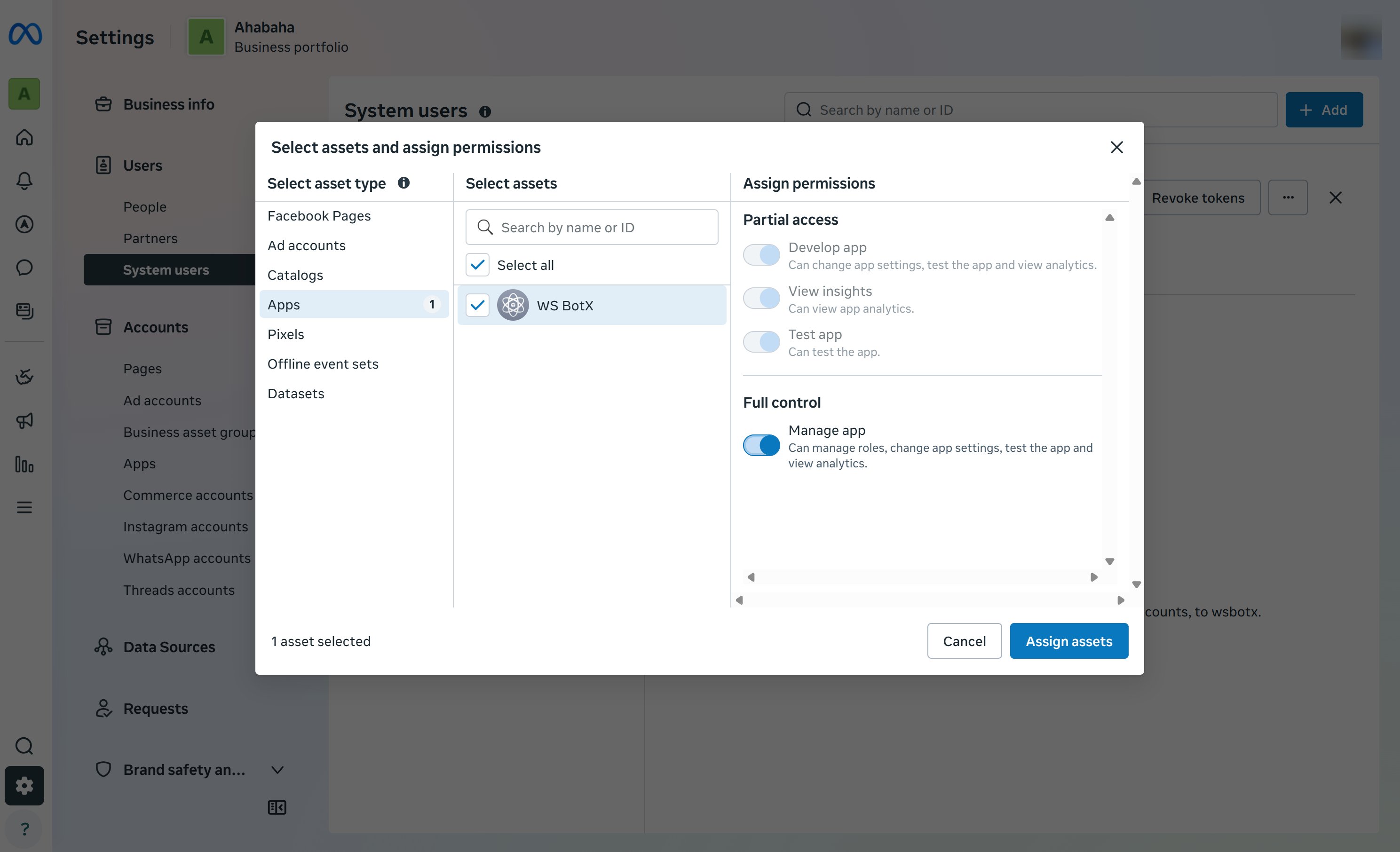
Assign assets
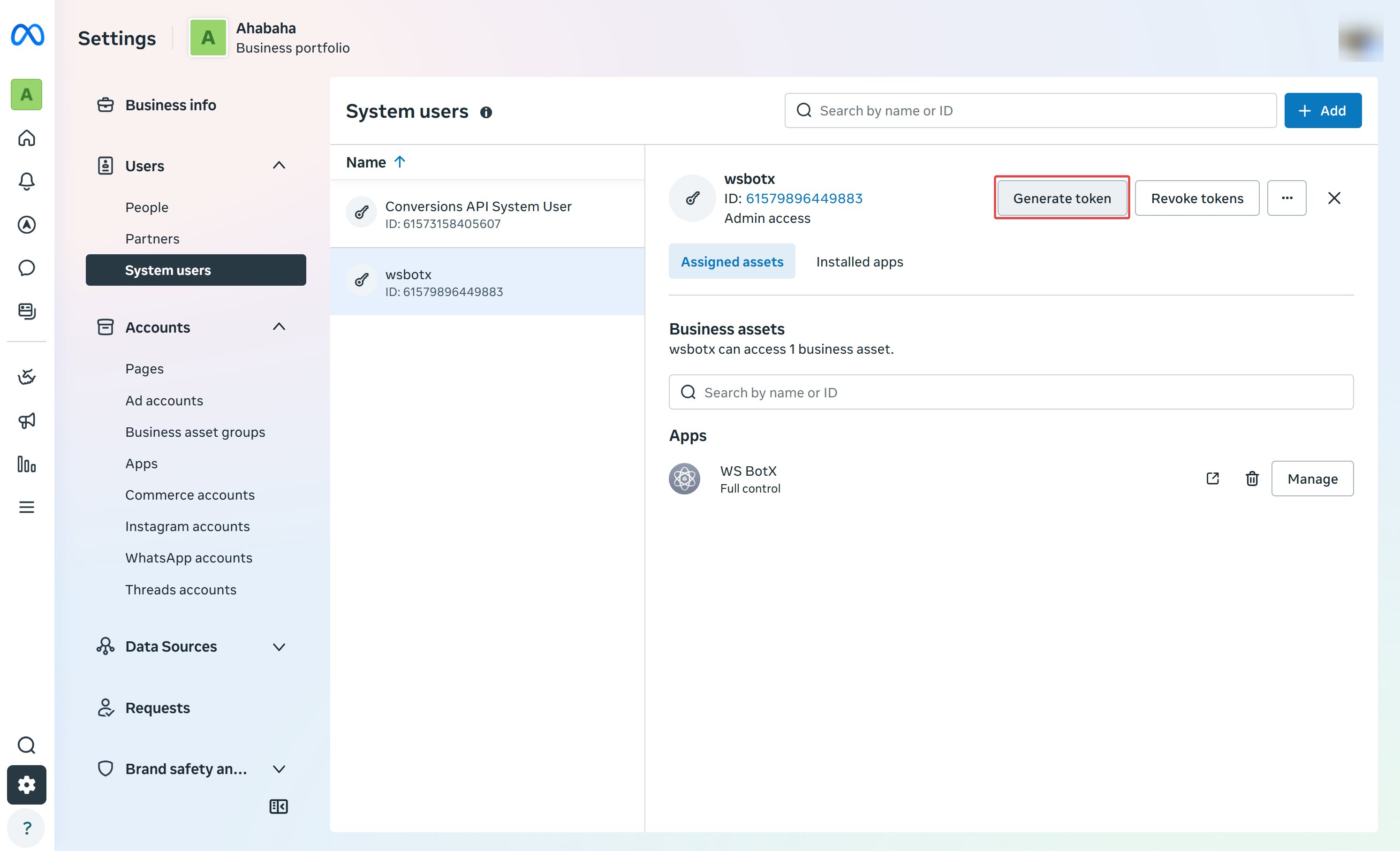
Generate a new token
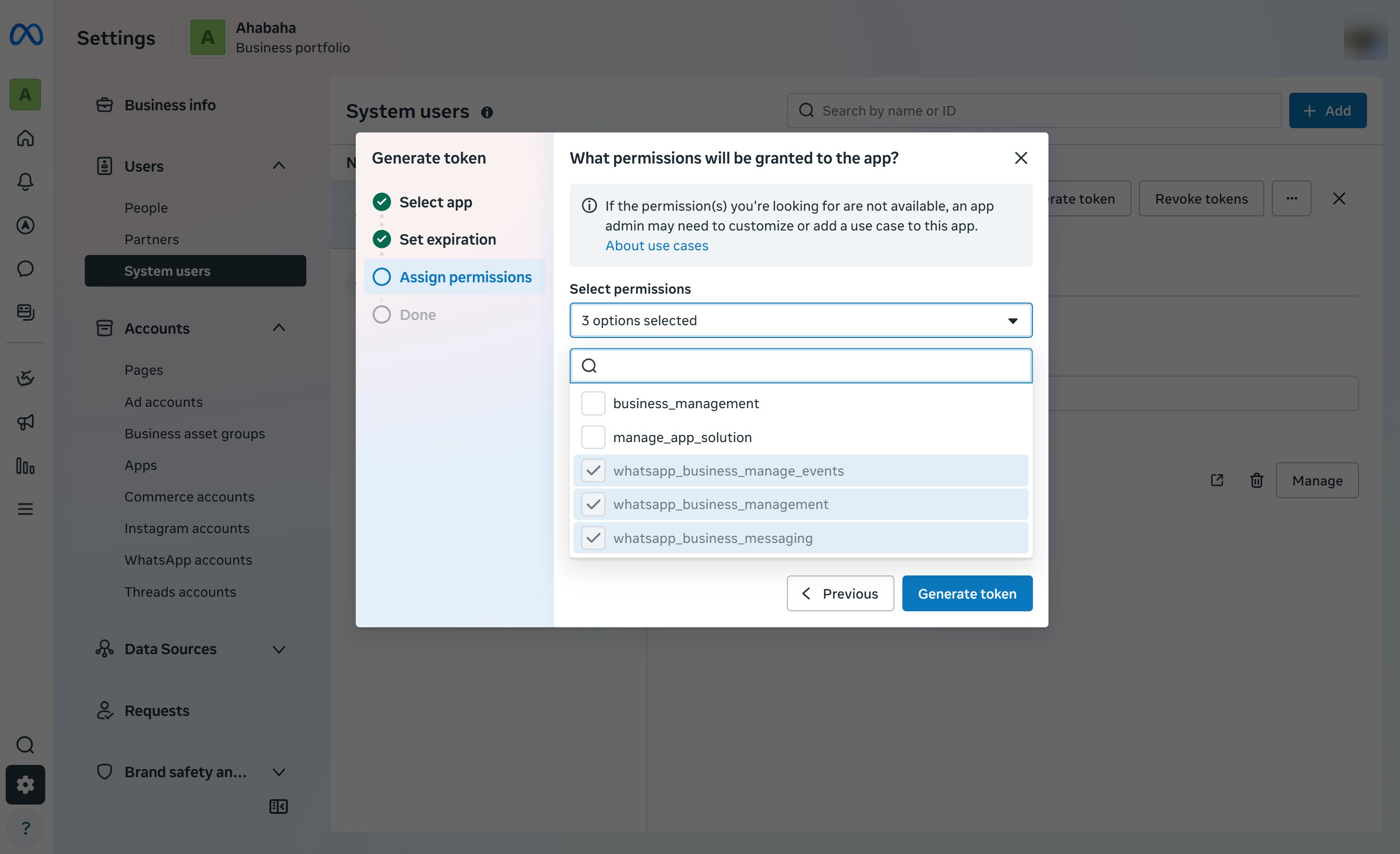
Select token permissions
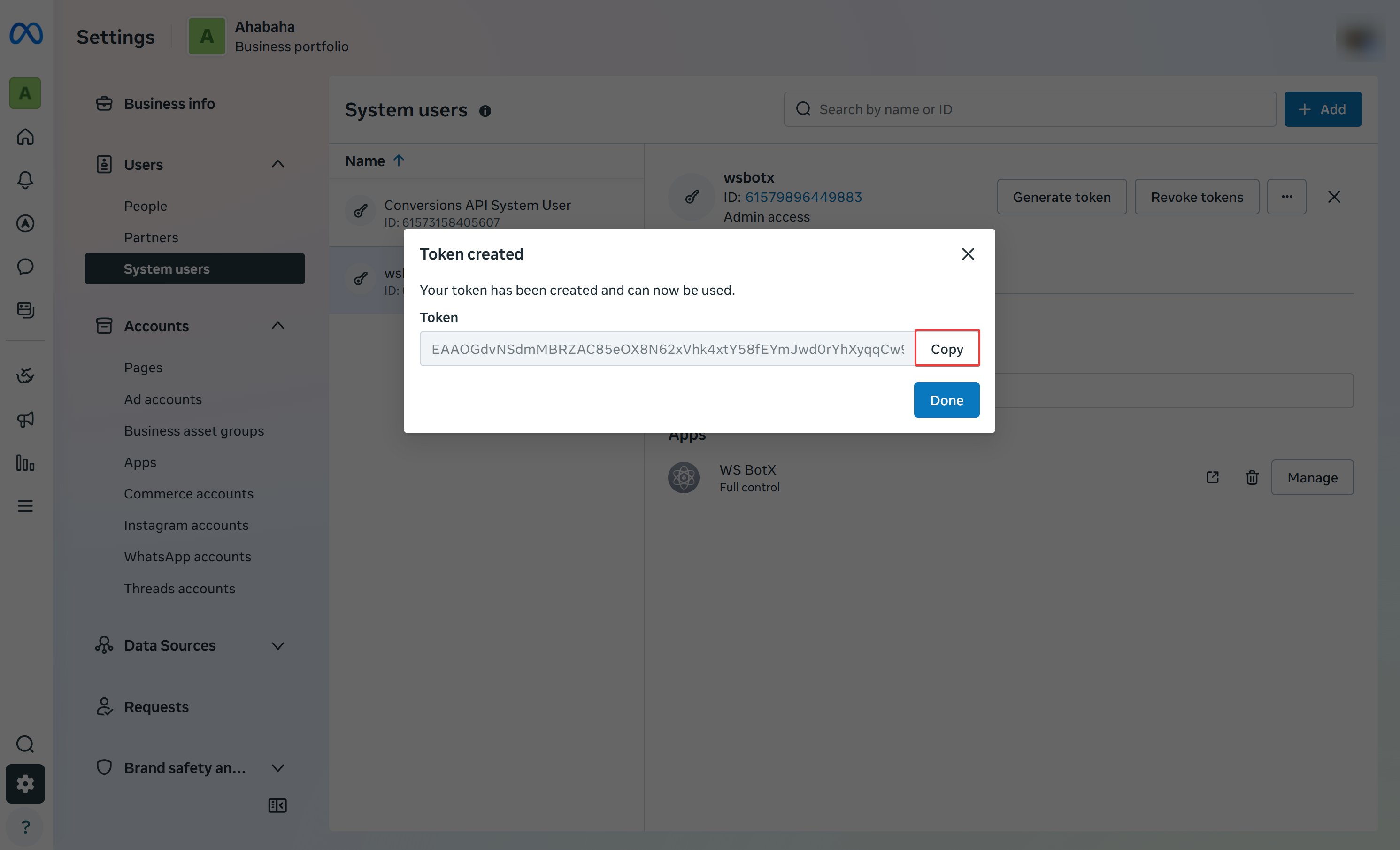
Copy the token
Step 5: Set up WhatsApp Cloud API
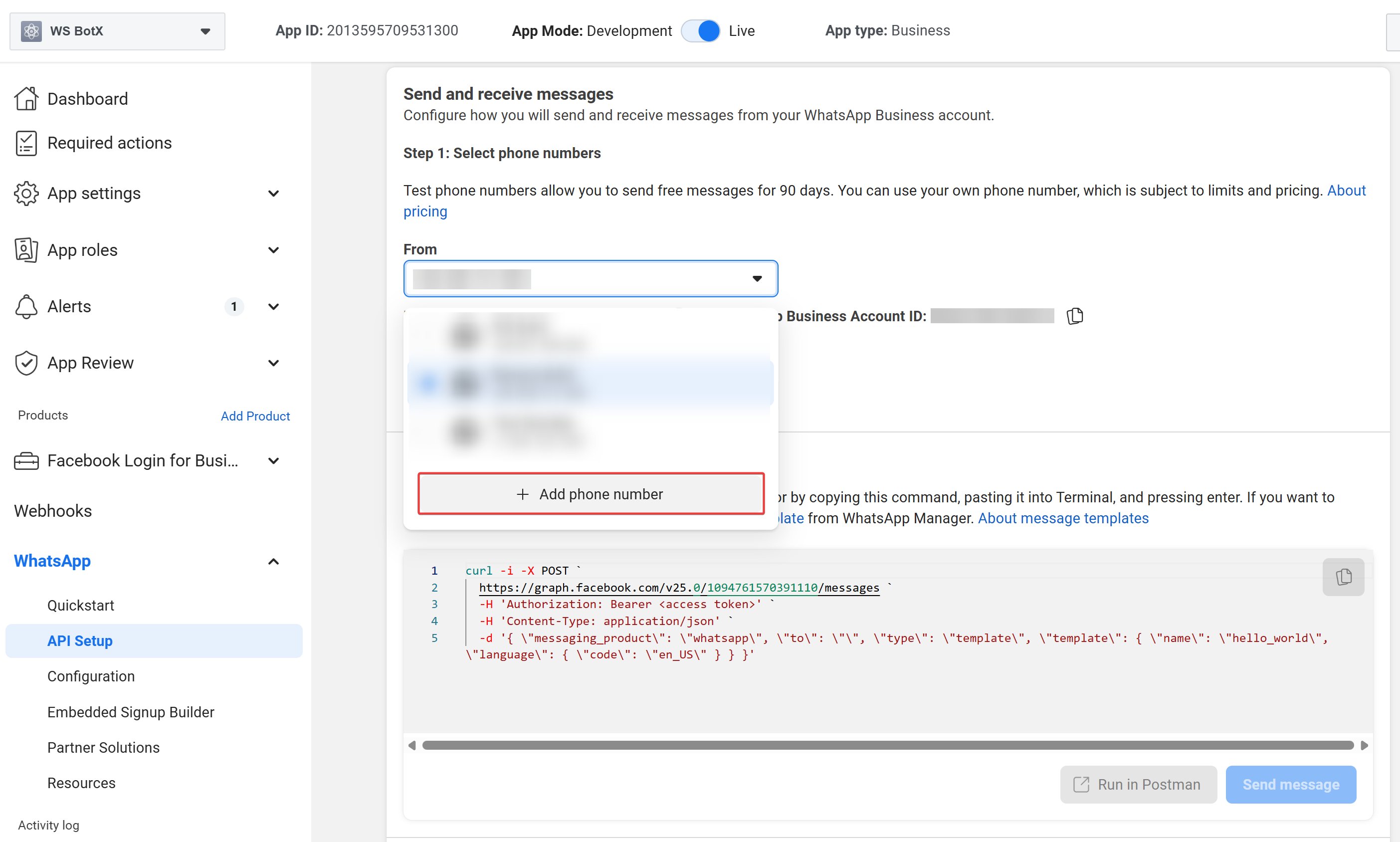
Set up the WhatsApp Business Account and production phone number in Meta. You will need the WhatsApp Business Account ID for ChatbotX.Open API setup and Add your production phone number
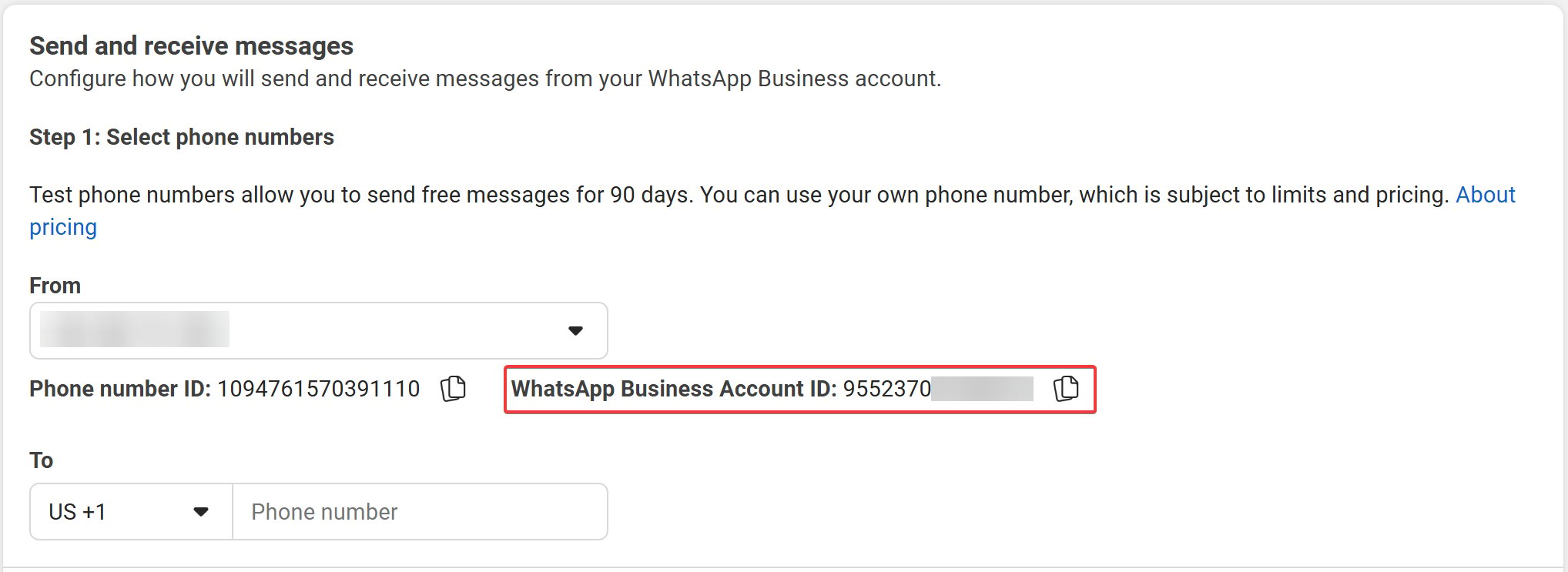
Copy your WhatsApp IDs
Step 6: Connect your ChatbotX account
Create the WhatsApp channel in ChatbotX and enter the values you collected from Meta.Open channel settings
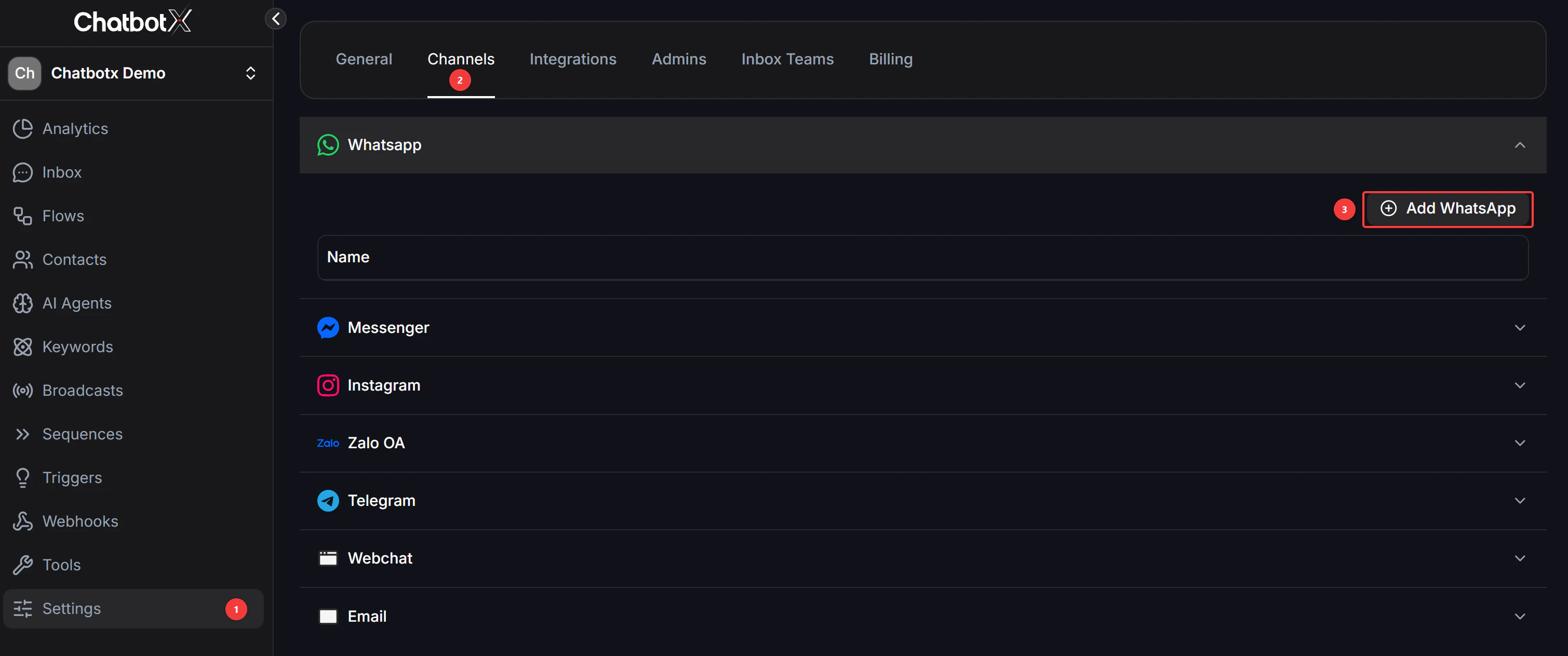
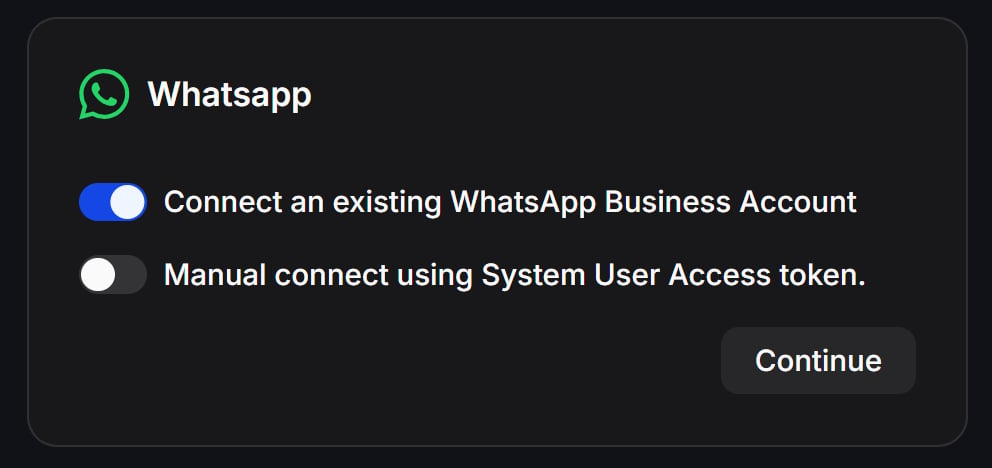
Choose manual setup
- Switch on “Connect an existing WhatsApp Business Account”: Once this is enabled, the option for manual connection will appear below it.
- Then, the “Manual connect using System User Access token” option will become visible.
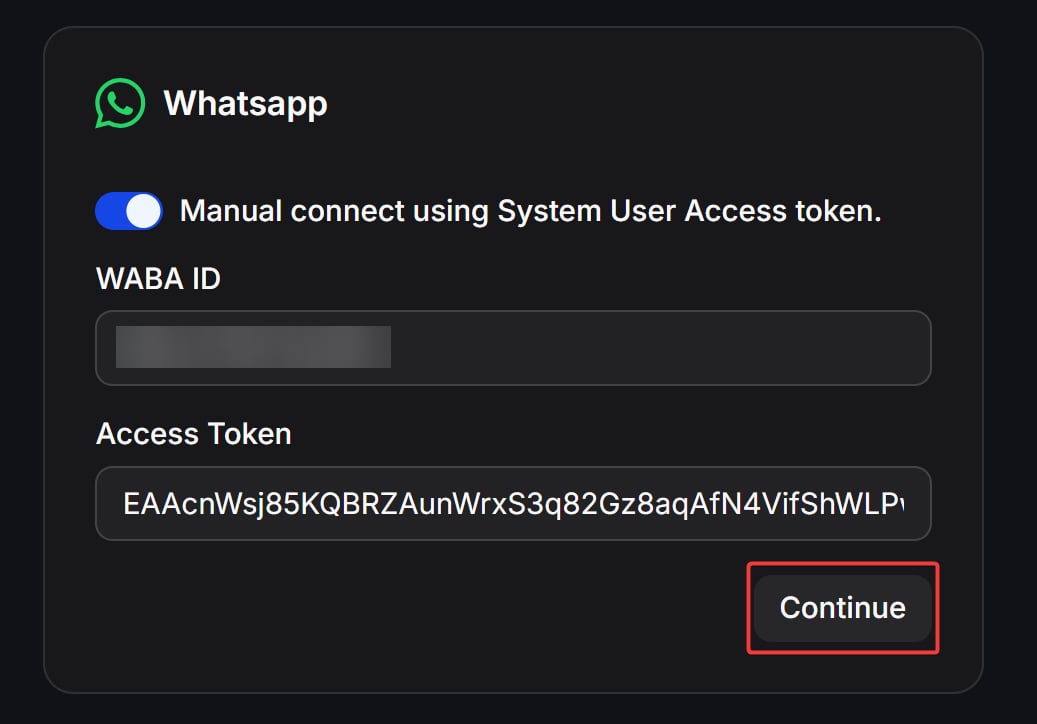
Enter your WhatsApp credentials
- Enable “Manual connect using System User Access token”: Switching this on will reveal the input fields for your specific account data.
- WABA ID: Paste your WhatsApp Business Account ID into this field.
- Access Token: Paste your permanent System User Access Token here.
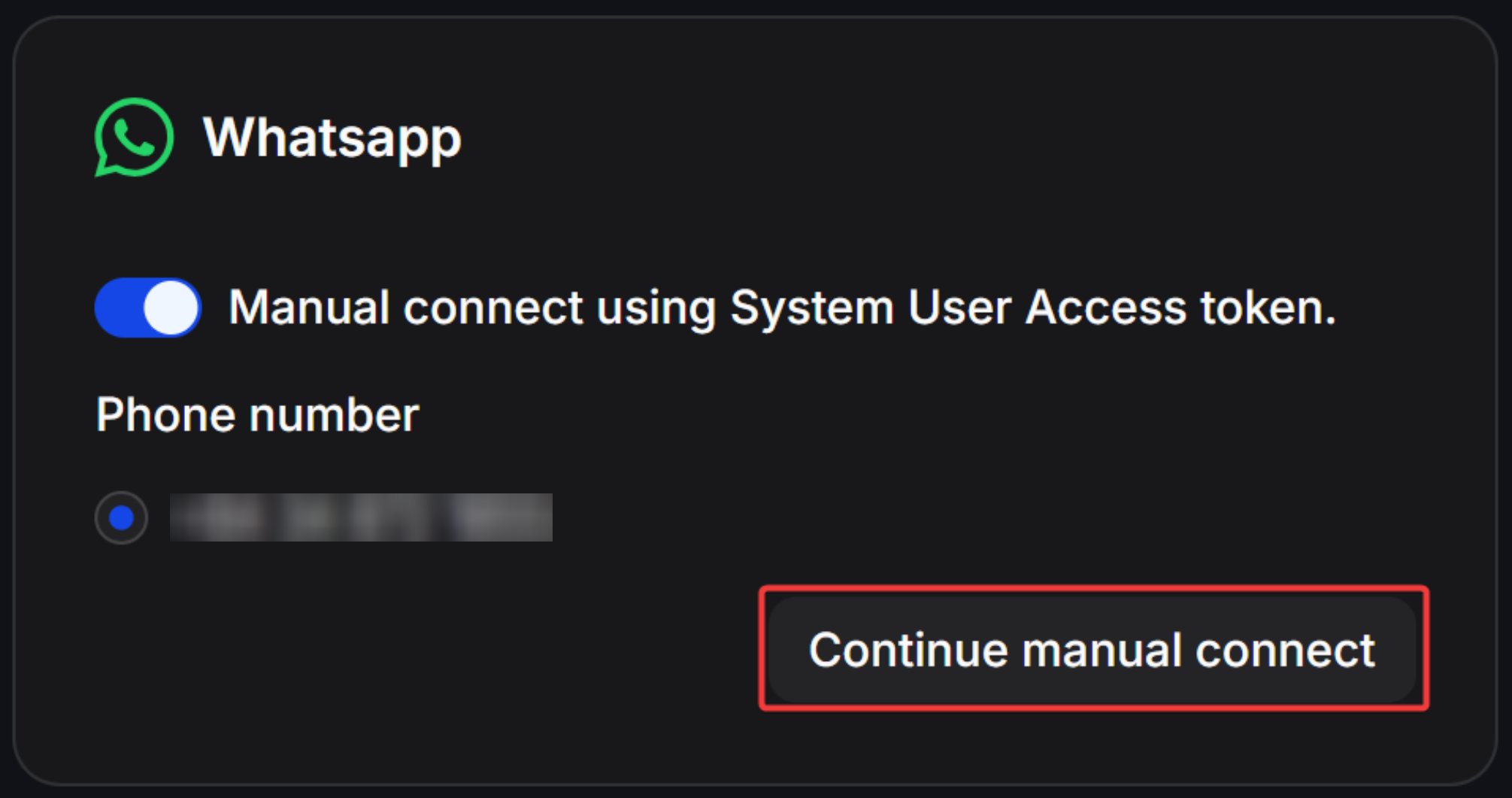
Copy webhook details
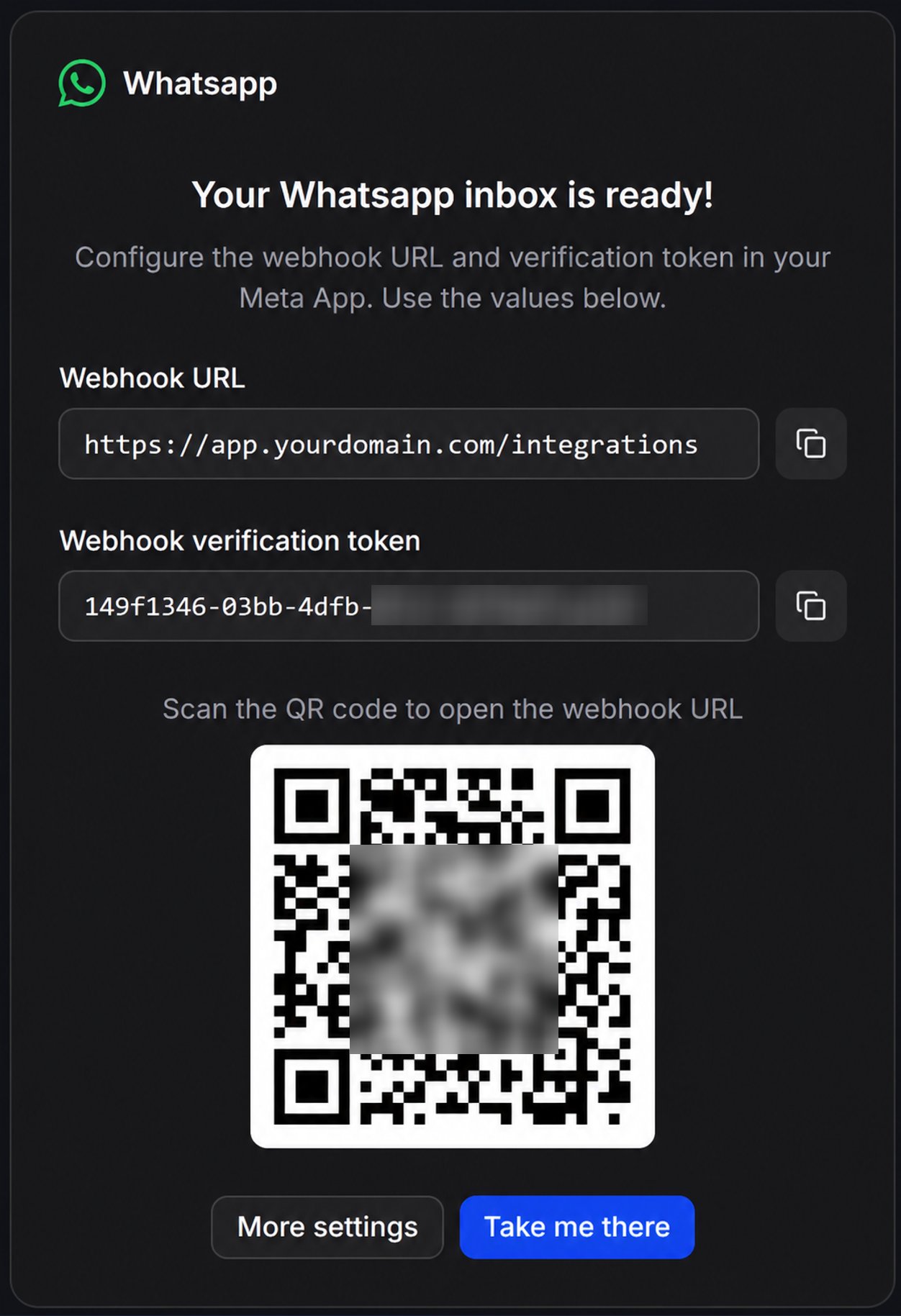
Step 7: Set up your webhook
The webhook lets Meta send inbound WhatsApp messages and delivery events to ChatbotX.Open WhatsApp configuration
Paste the callback URL and verify token
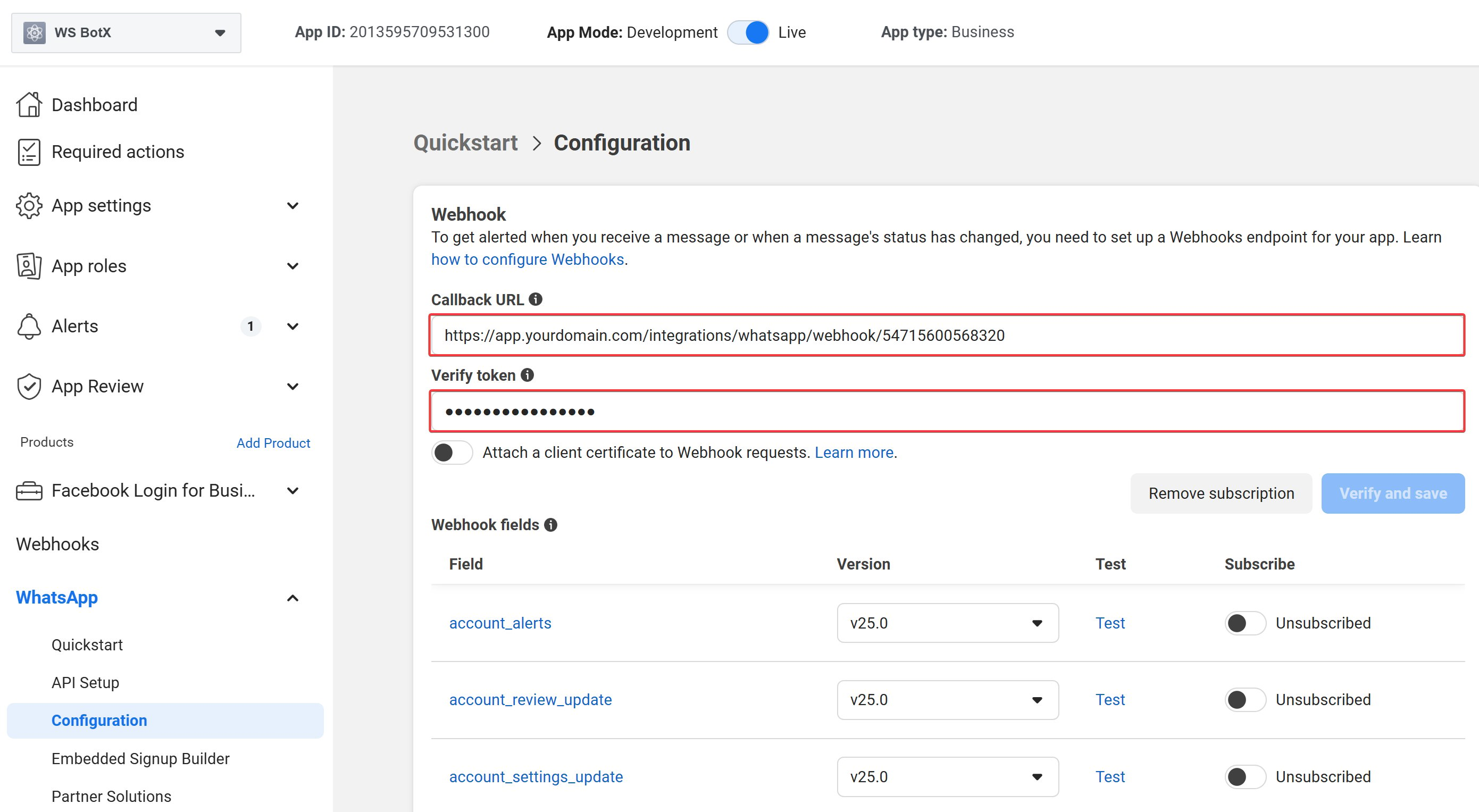
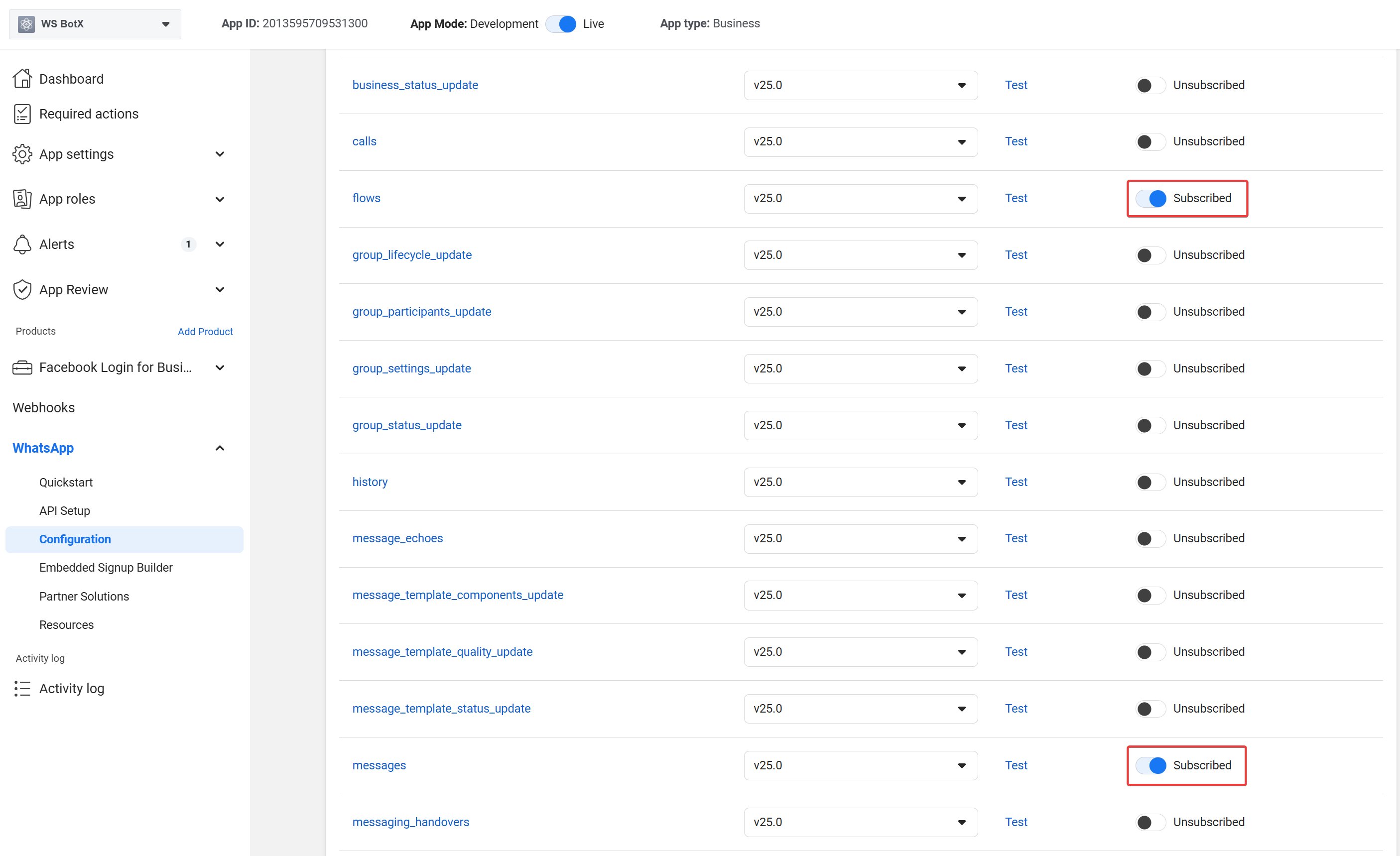
Subscribe to messages
Test the channel
FAQ and troubleshooting
Can I configure multiple WhatsApp numbers under one Facebook App?
Can I configure multiple WhatsApp numbers under one Facebook App?
Messages do not appear in ChatbotX
Messages do not appear in ChatbotX
Outbound messages fail
Outbound messages fail
whatsapp_business_messaging, the system user has access to the WhatsApp Business Account, and the phone number has completed Meta verification.Webhook verification fails
Webhook verification fails
The token stopped working
The token stopped working