

Prerequisites
Before you begin, make sure you have:- A ChatbotX installation
- A website where you can paste the embed code
Unlike Facebook or Zalo, Webchat does not require any credential configuration in ChatbotX. You can create and configure a widget directly from the channel settings.
Step 1 : Create a Webchat
You can create a Webchat in either of these two ways:- Method 1: From the Create Inbox flow
- Method 2: From the Channels management area
1
Open Analytics
From the left menu, choose Analytics.
2
Start the inbox creation flow
Click Create Inbox to begin adding a new channel.
3
Choose Webchat
Select Webchat from the channel list.
4
Continue
Click Continue to open the Webchat creation screen.
5
Name and create the Webchat
Enter the Webchat name, then click Create Webchat.
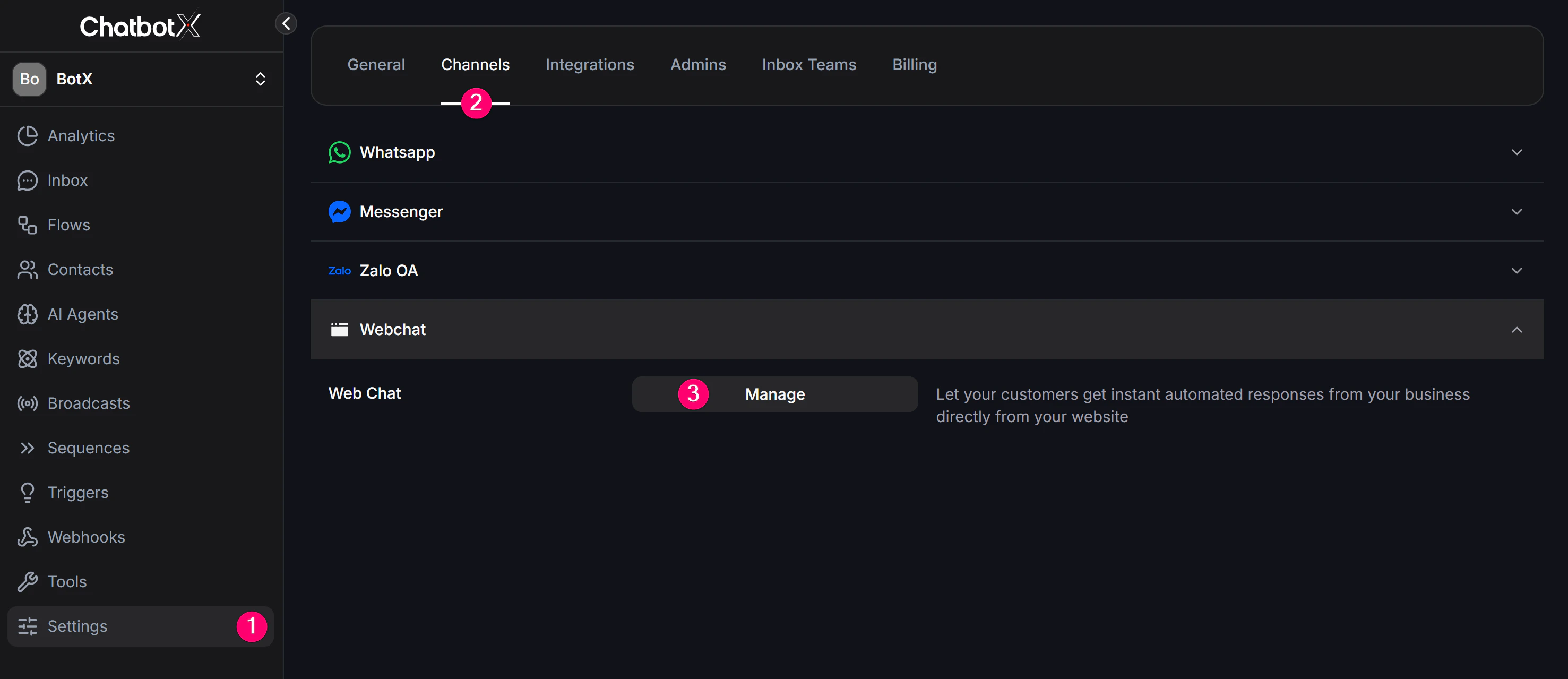
Step 2: Configure the Webchat
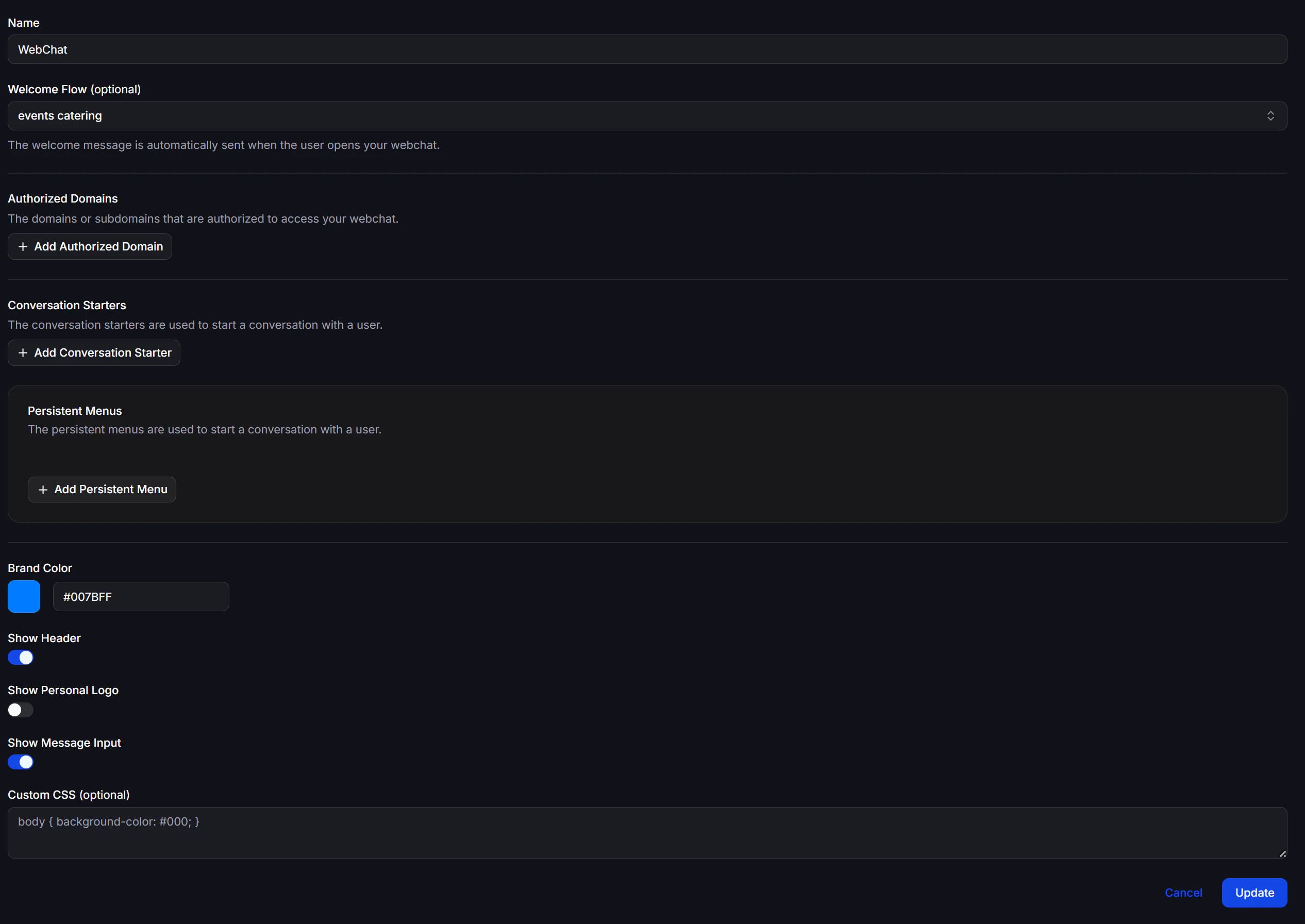
Basic settings
Engagement features
Appearance
For example, to change the page background:
Step 3: Get the Embed Code
After the Webchat is created, go to Channels → Webchat.1
Open the Embed Code window
For each Webchat row, click the embed code icon to open the Embed Code window.
2
Copy the embed code
Copy the code from the Embed Code field and paste it into your website’s HTML.
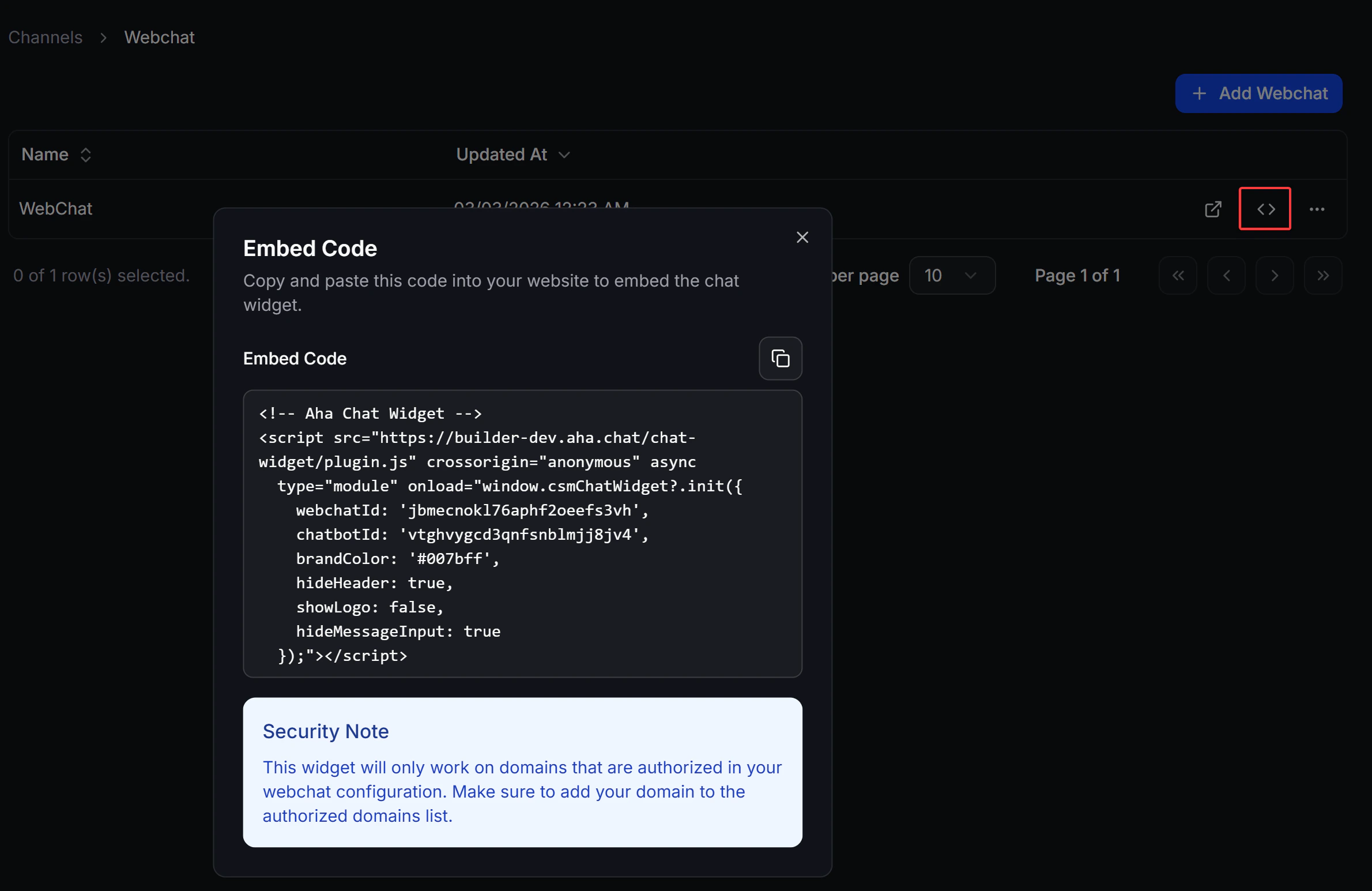
The embed code only works on domains listed under Authorized Domains. If Webchat does not work after embedding, check your Authorized Domains configuration first.
Step 4: Test the Webchat
From the Channels → Webchat list, click the Text now to open a live preview of the widget. Use this to confirm:- That the Welcome Flow runs as expected
- That visitors can see Conversation Starters, Persistent Menus, or the message input based on the options you enabled