

Prerequisites
Before you begin, make sure you have:- Admin access to your ChatbotX installation
- A Zalo OA (Official Account) with admin privileges
- A Zalo Developer account with admin privileges at Zalo Developers
- A valid Vietnamese mobile phone number
Zalo OA is a popular messaging channel in Vietnam. A Vietnamese mobile phone number is required to register on the Zalo Developer platform.
Step 1: Create a Zalo Application
If you do not have a Zalo application yet, create one on the Zalo Developer platform before connecting to ChatbotX.1
Register on Zalo Developers
Go to Zalo Developers and sign in with your Zalo account. If you don’t have a developer account, register one using your Vietnamese phone number.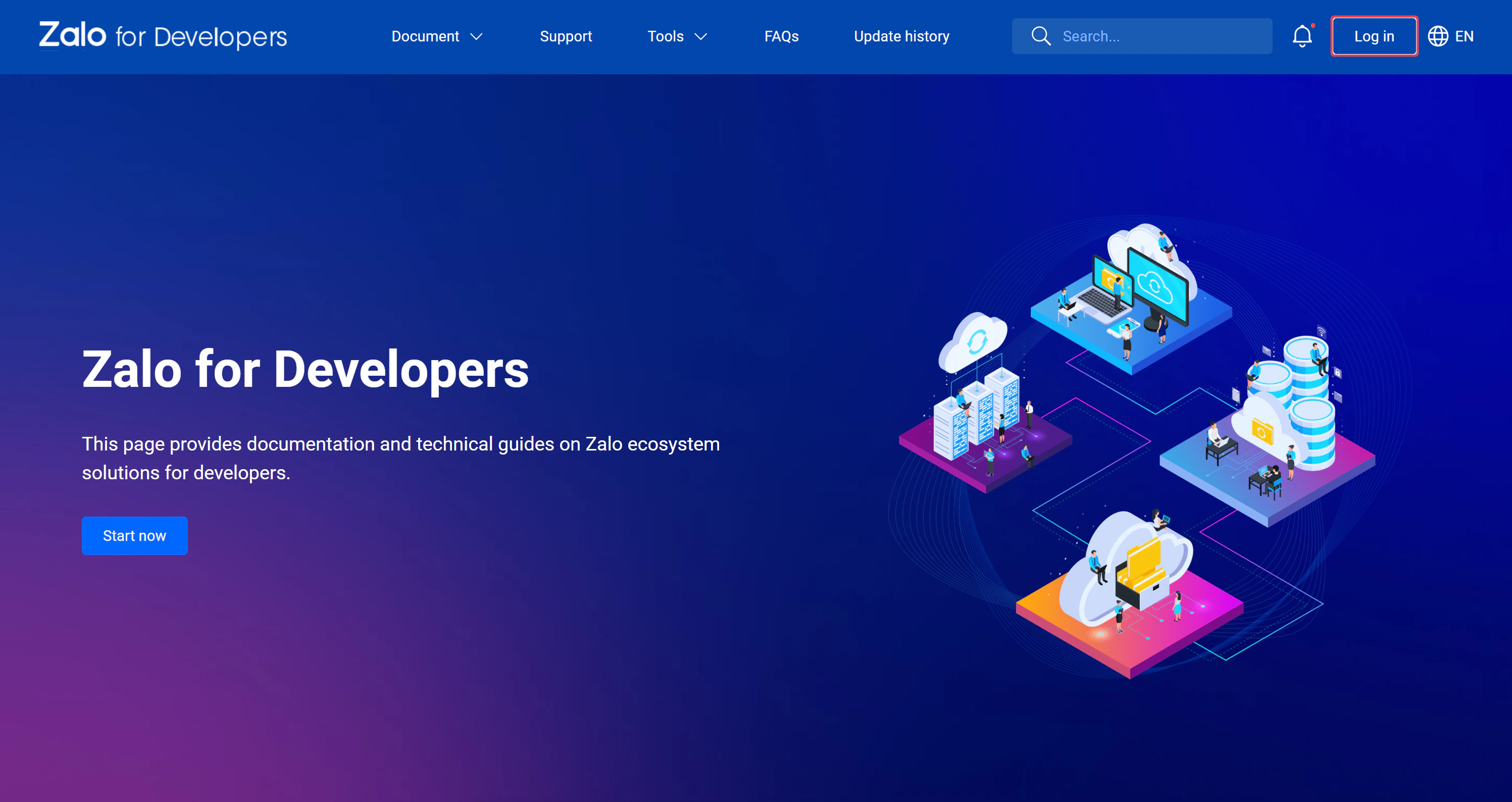
2
Create a new application
Follow the official Zalo documentation to create a new application. Provide your application name and description.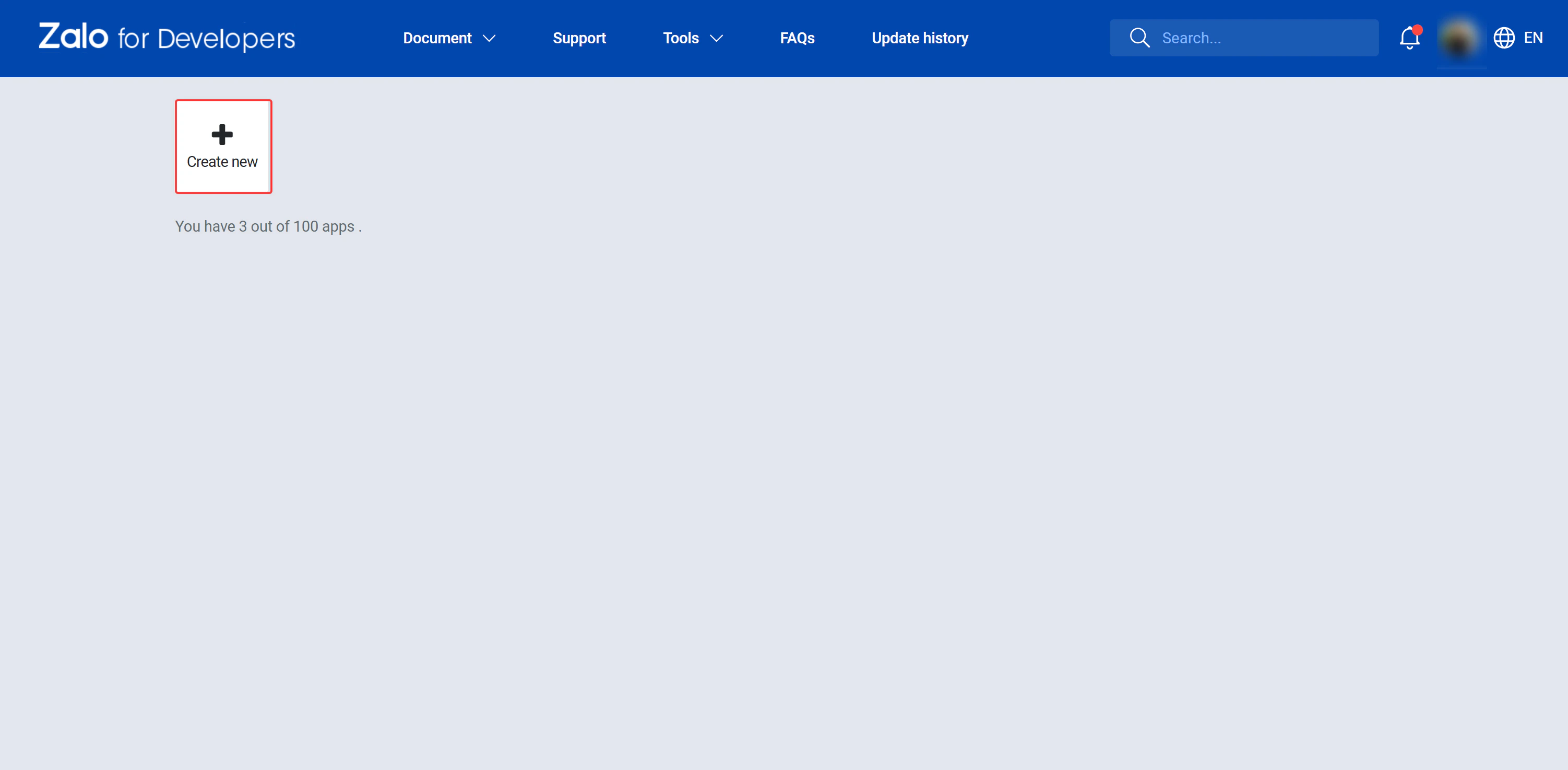
3
Activate the application
After the application is created, set its status to Active in the application dashboard.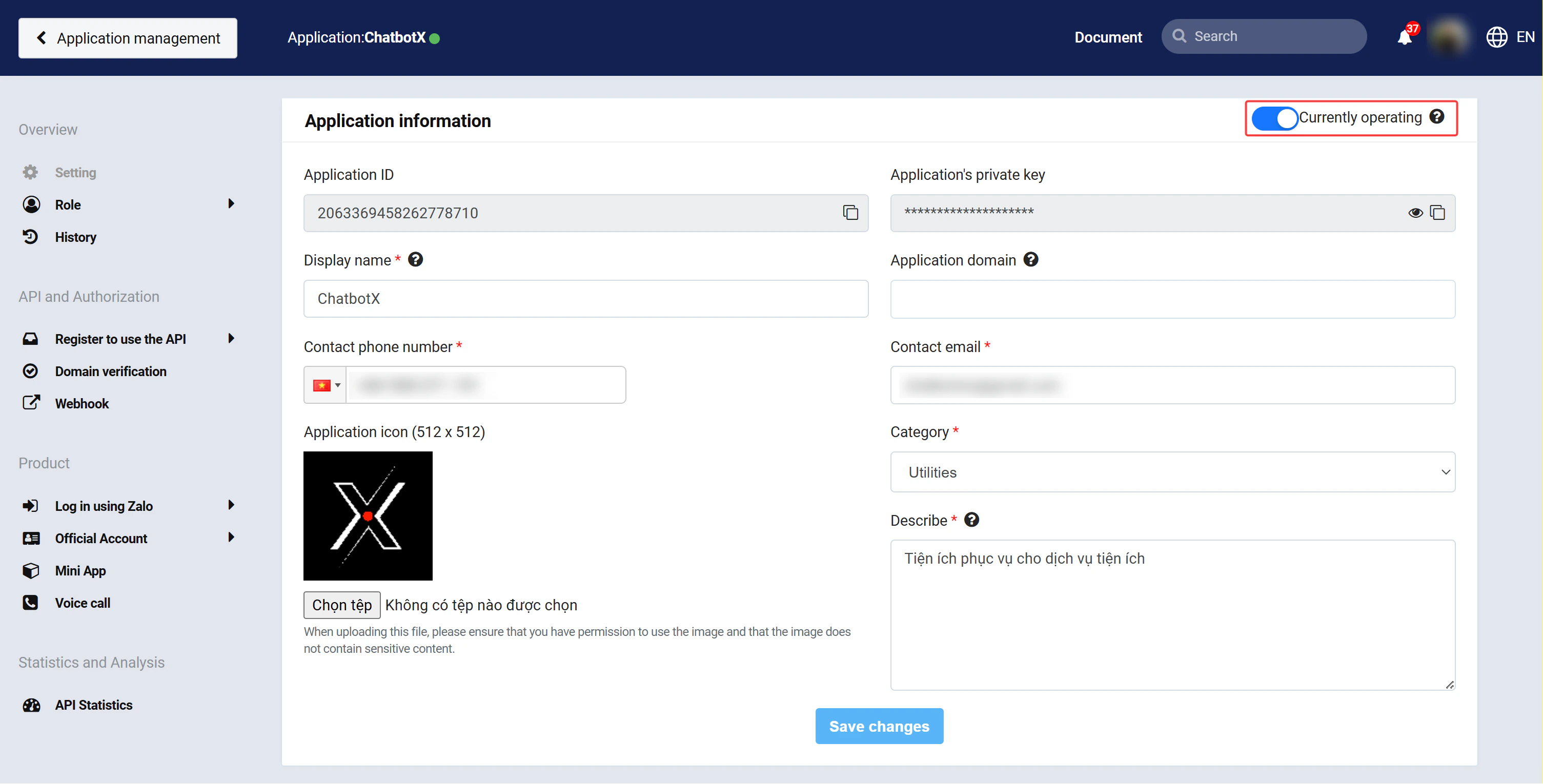
4
Copy App ID and Secret Key
In your Zalo application dashboard, locate the Application ID and Application’s Private Key. Copy these values, you will need them in the next step.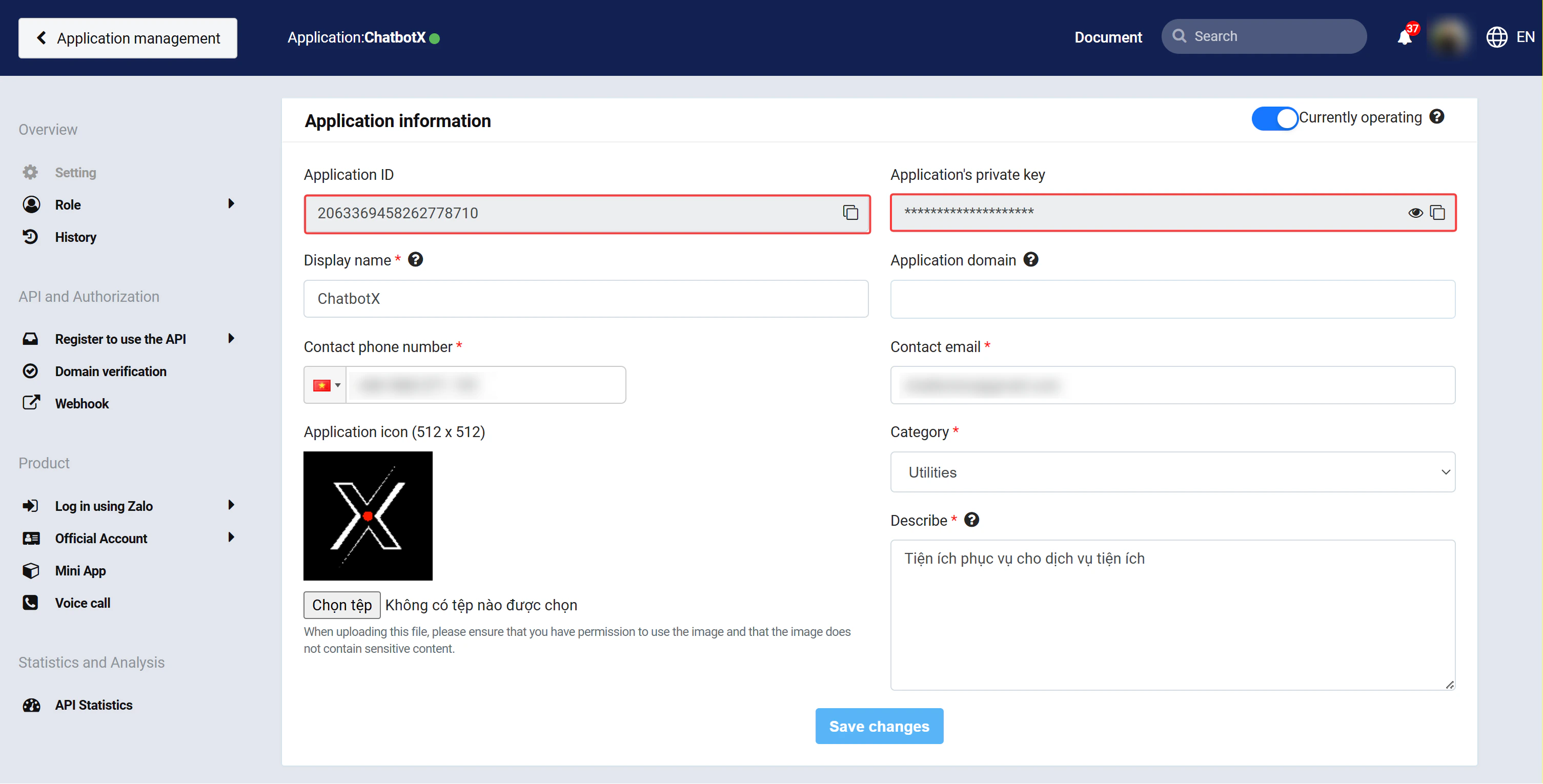
5
Enable required APIs
Navigate to the API settings in your Zalo application and enable the required APIs.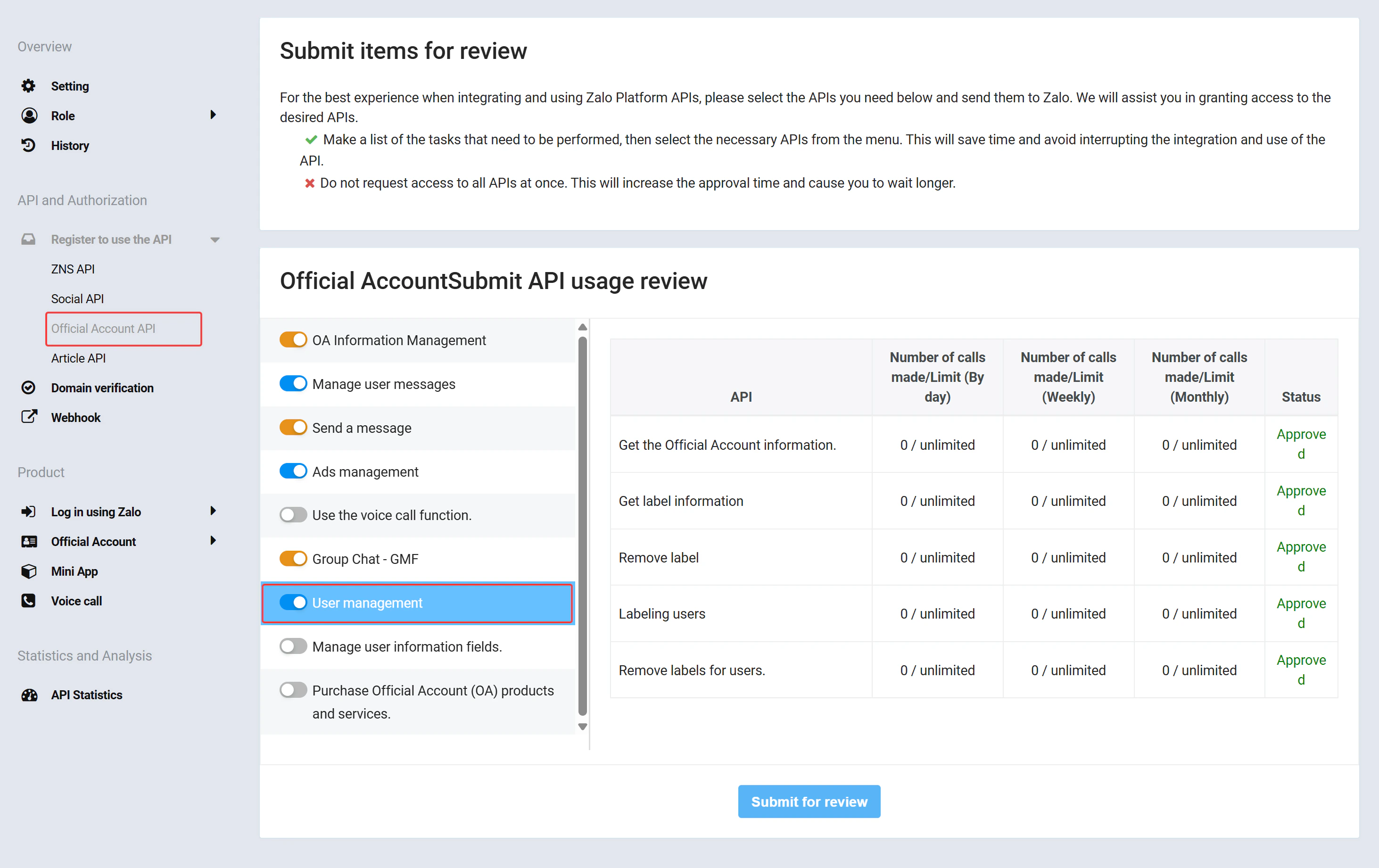
Step 2: Configure Credentials in ChatbotX
A Super Admin must enter the Zalo credentials in ChatbotX before the integration can work. Complete this step immediately after obtaining your App ID and Secret Key.1
Open Integrations
In your ChatbotX installation, navigate to:Then find the Zalo card.
2
Open Integrations
In your ChatbotX installation, navigate to:Then find the Zalo card.
3
Open the Zalo configuration
Click the Edit button on the Zalo card to open the configuration modal.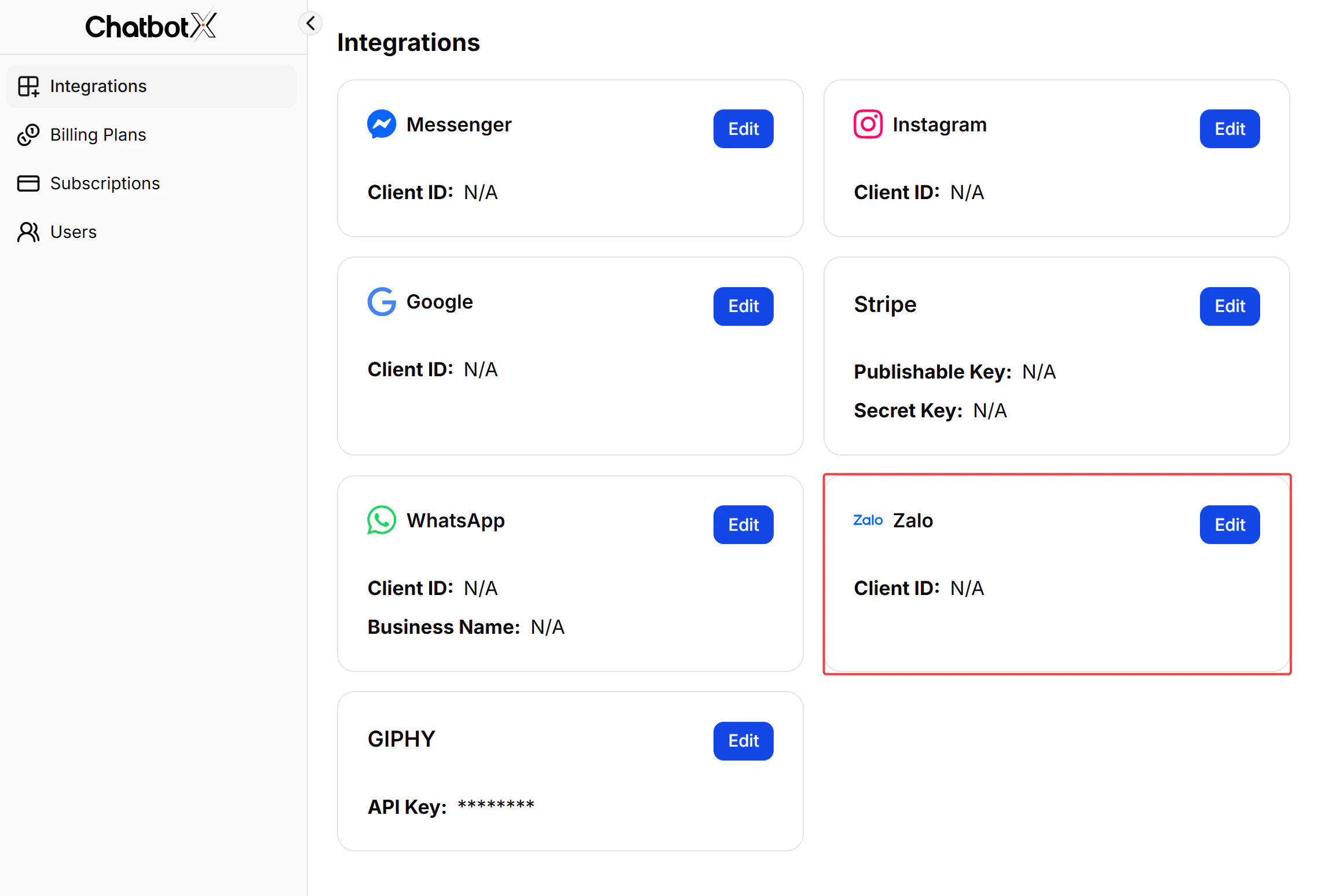
4
Fill in the Zalo credentials
In the Edit Zalo modal, fill in the following fields: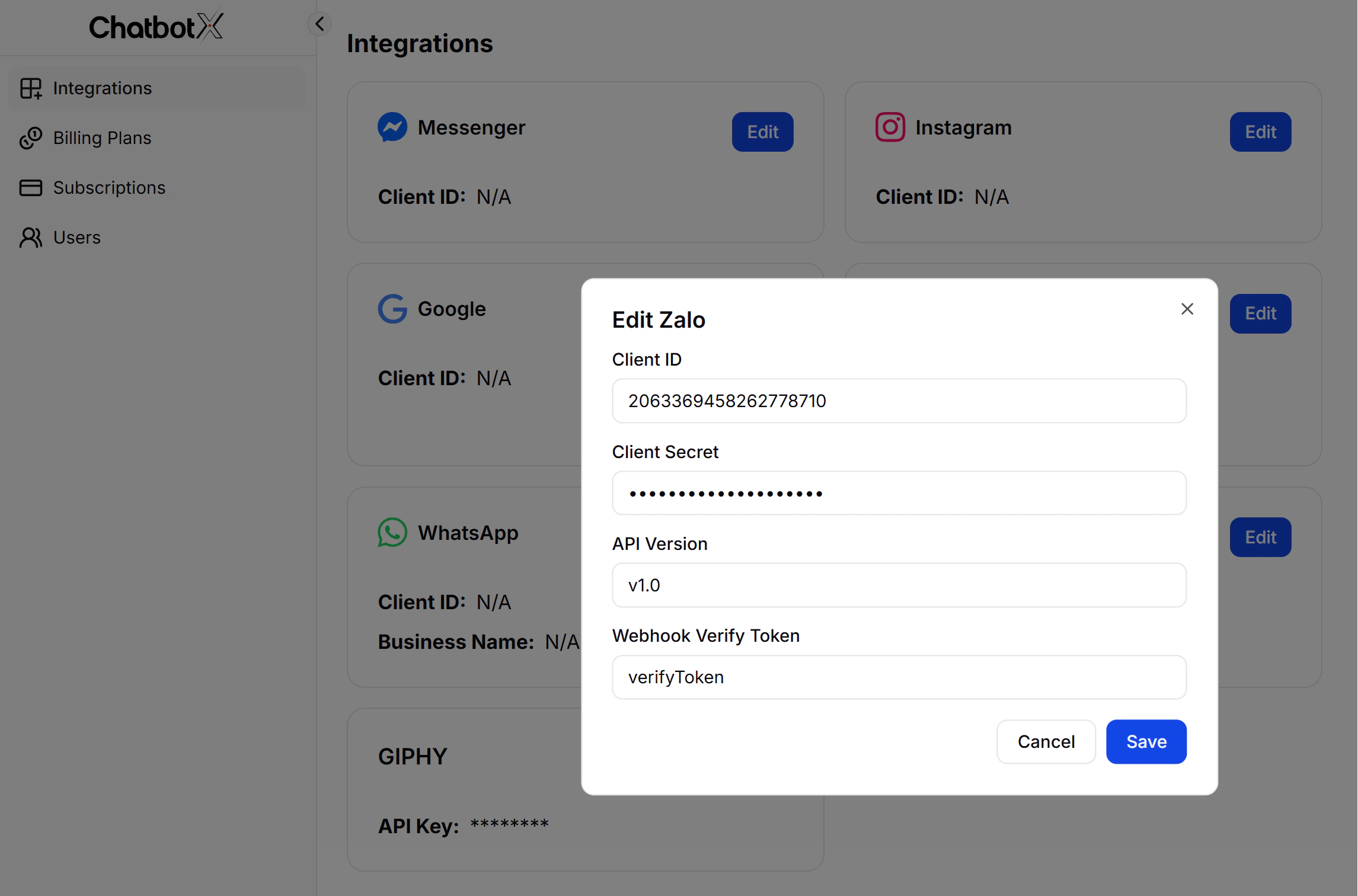
The Webhook Verify Token is a unique string you generate yourself. Zalo uses this token to verify webhook requests from your server.
5
Save
Click Save to apply the settings. The Zalo card will now display your Client ID.After saving, ChatbotX will display the Auth Callback URL and Webhook URL. Copy and keep these URLs, you will need them in the following steps.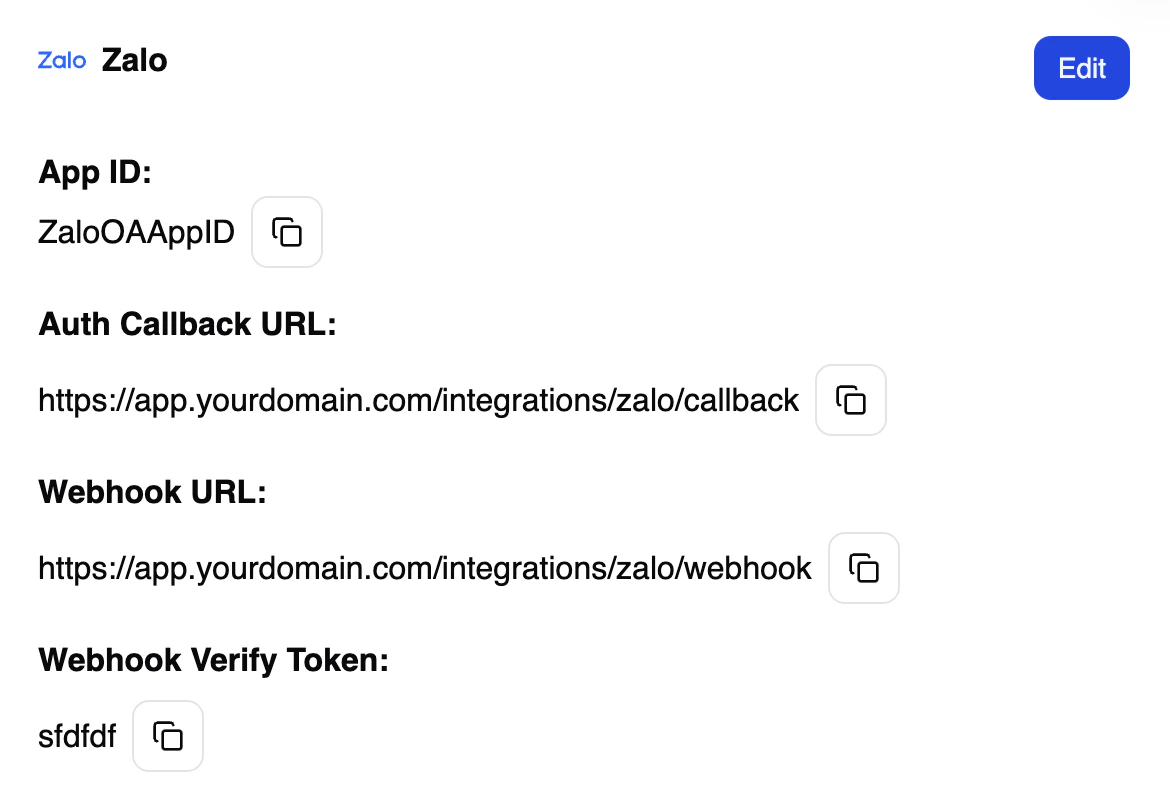
Step 3: Verify Your Domain
Zalo requires domain verification before your application can receive webhook events. This step confirms that you own the domain where ChatbotX is hosted.1
Get the verification URL from ChatbotX
Copy the domain that directs to your ChatbotX Org Settings panel. This is the domain where your ChatbotX application is hosted and will be used for domain verification:
2
Complete domain verification in Zalo
Go to your Zalo application settings and follow the Zalo domain verification guide. Add the meta tag obtained from Zalo to your ChatbotX domain’s HTML or DNS settings.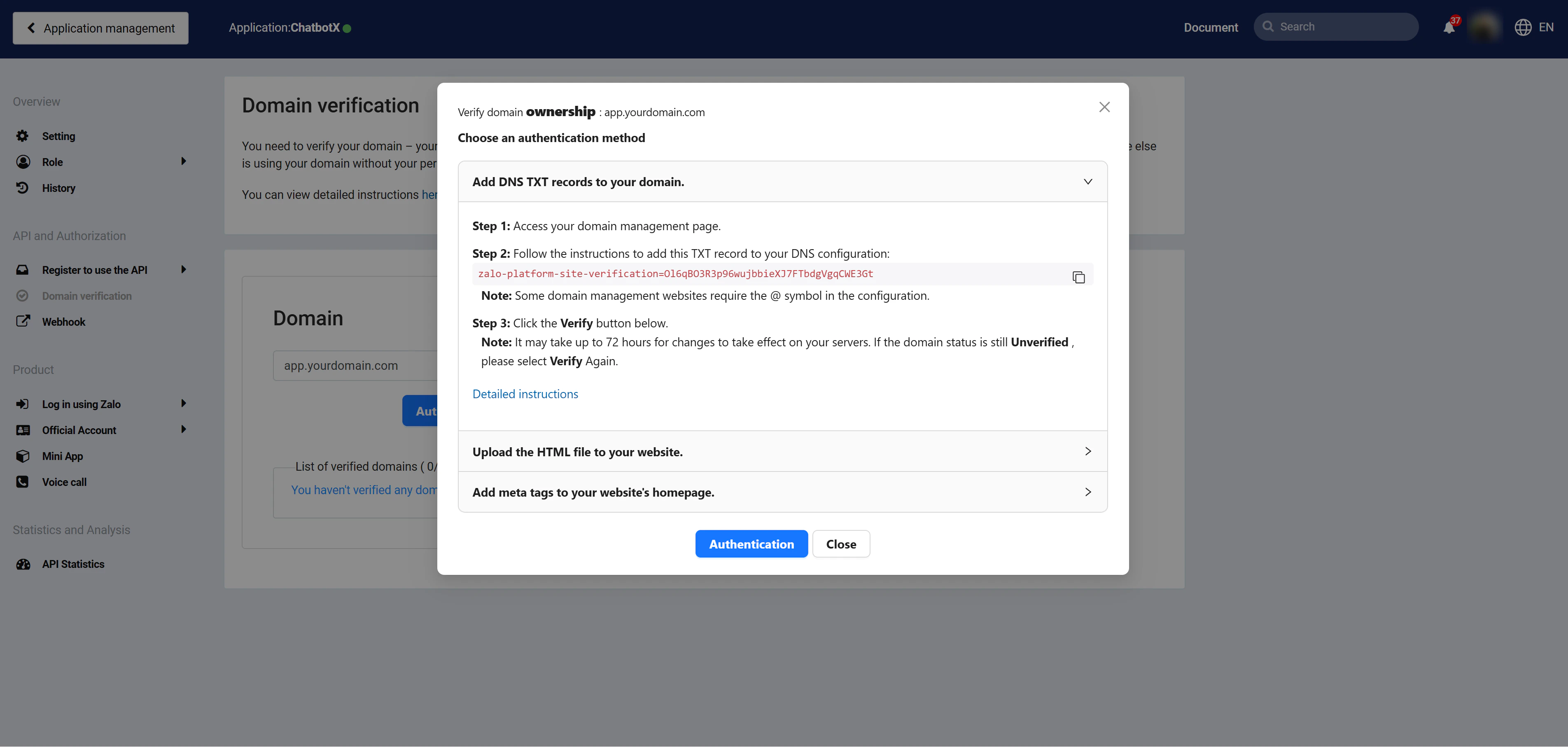
3
Confirm verification status
Domain verification may take a few seconds to propagate. Check the verification status in your Zalo application dashboard after 3–5 seconds. You may need to check 2–3 times before the status updates.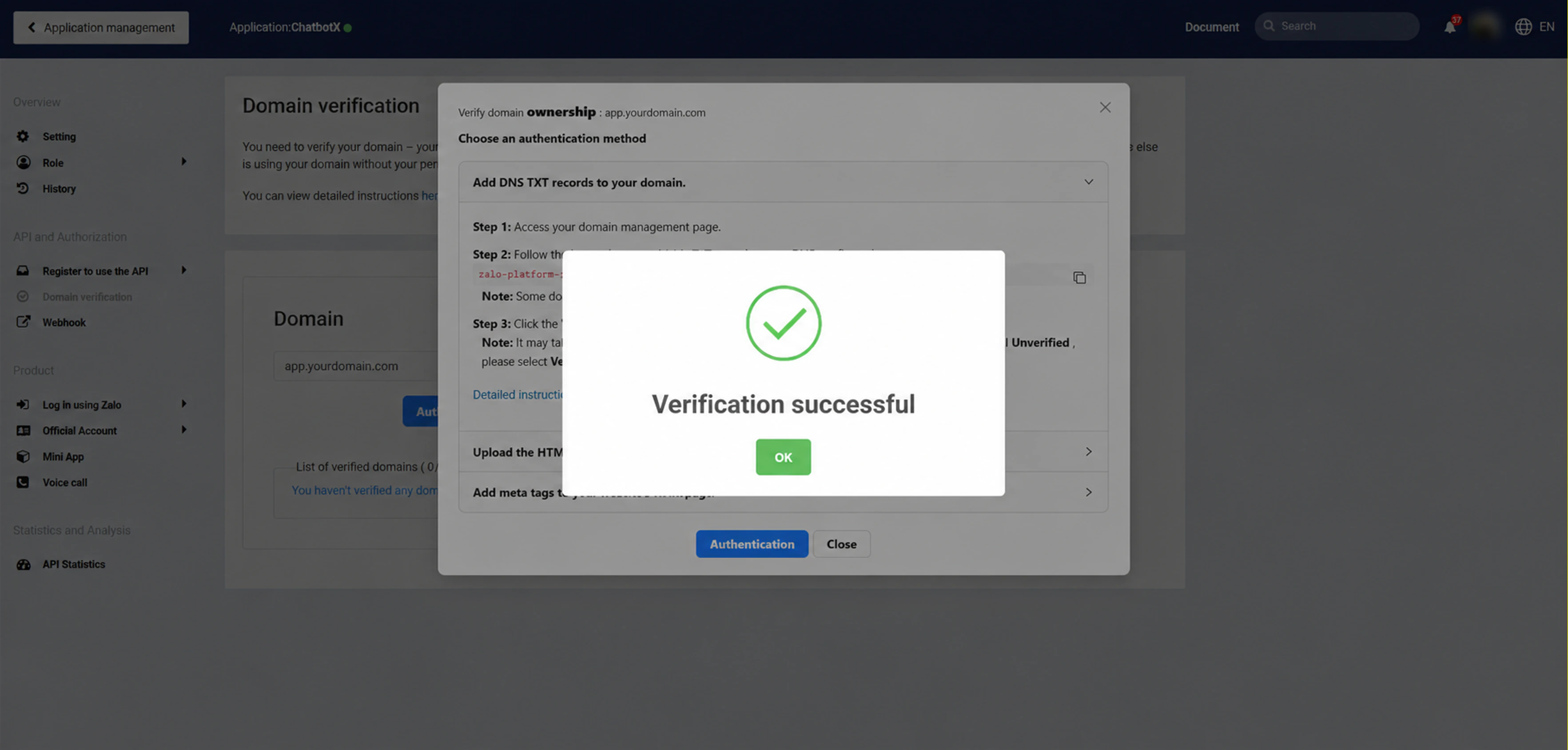
Step 4: Configure Callback and Webhook URLs
ChatbotX needs two URLs configured in your Zalo application to receive messages and events.1
Set the Callback URL in Zalo
Copy the Auth Callback URL from your ChatbotX Zalo integration settings, then paste it into your Zalo application settings and select the required permissions for OAuth authorization.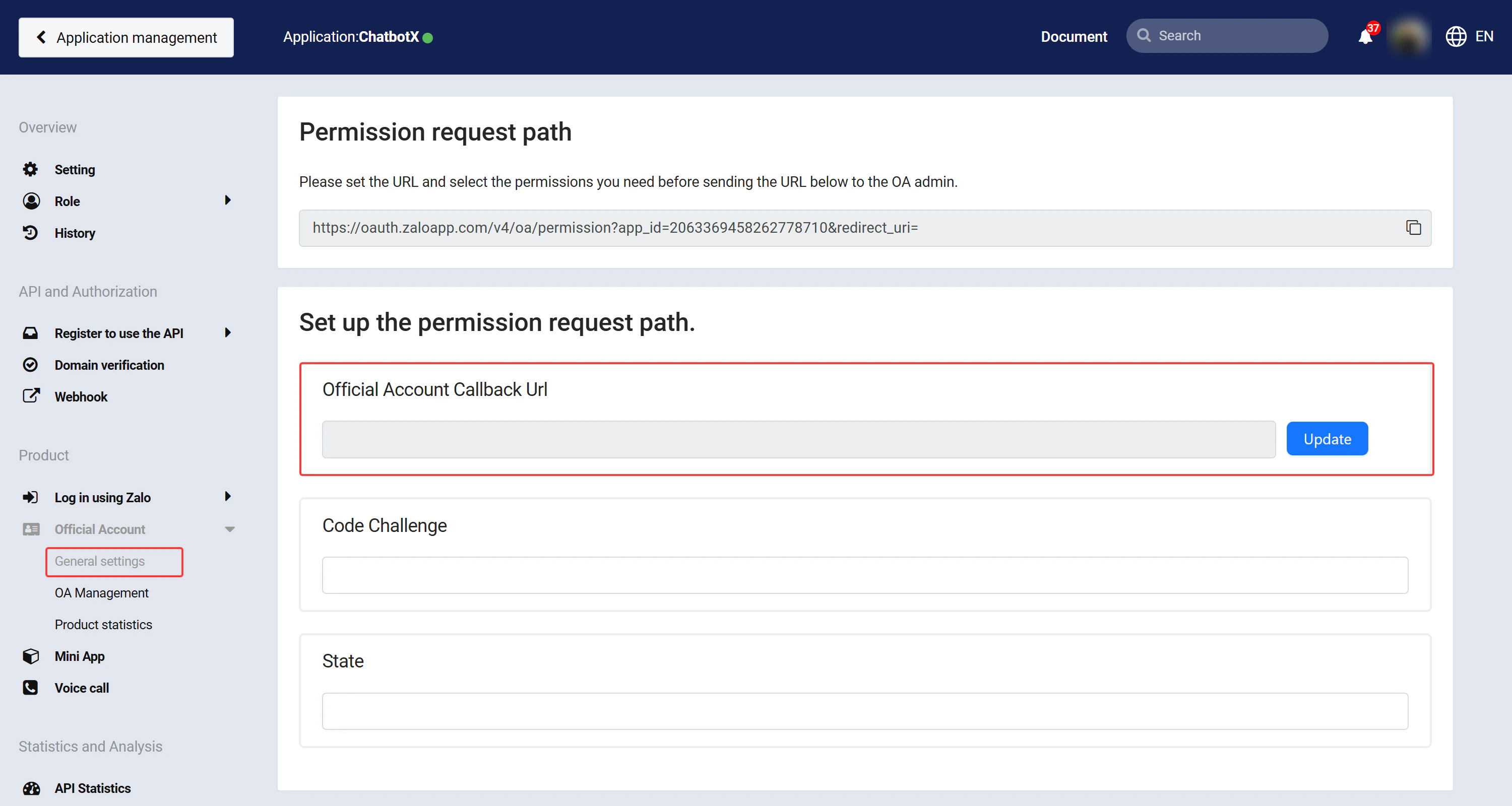
2
Set the Webhook URL in Zalo
Copy the Webhook URL from your ChatbotX Zalo integration settings, then paste it into your Zalo application’s webhook configuration. Subscribe to the following events: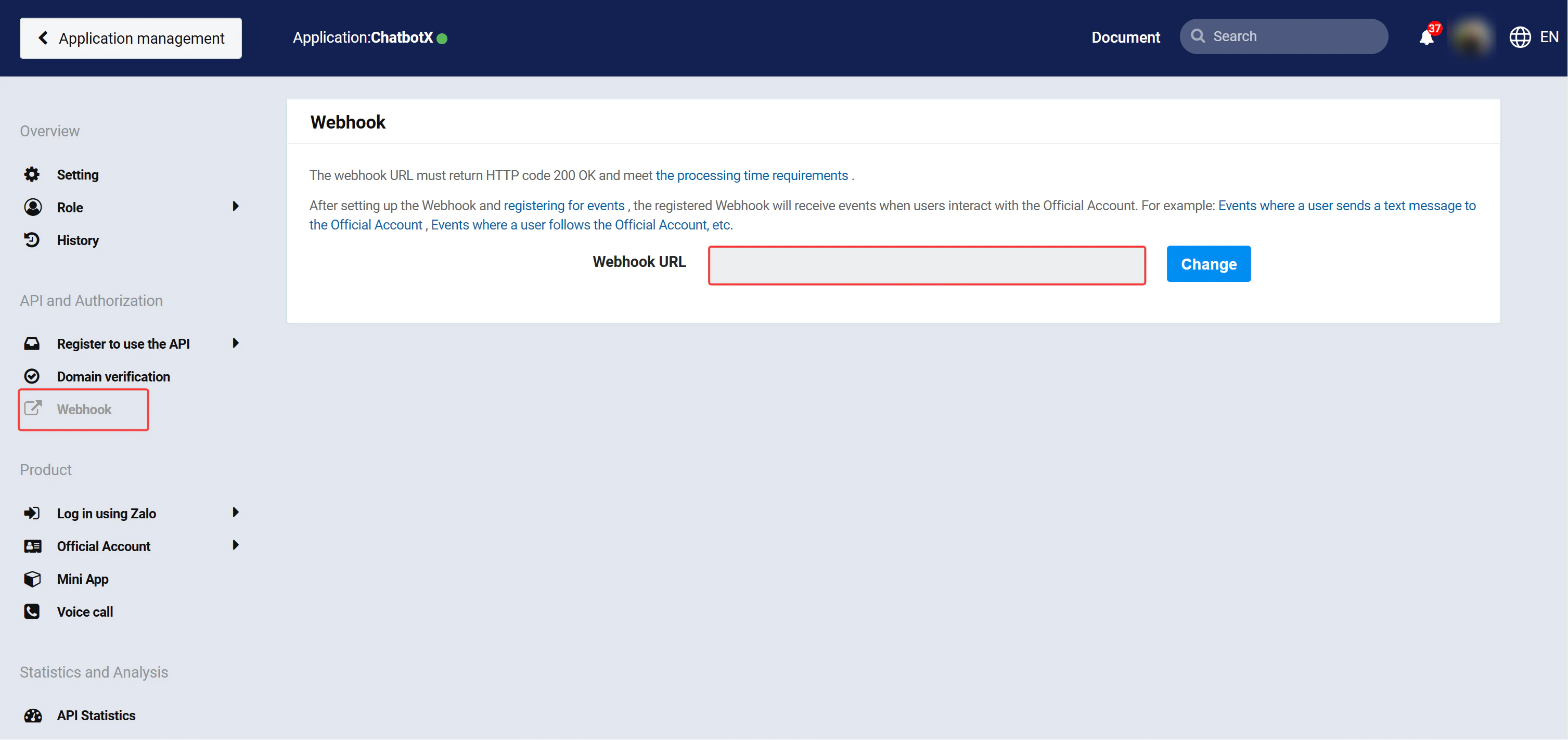
Step 5: Connect Zalo OA to ChatbotX
1
Add your Zalo OA
In the ChatbotX Zalo integration settings, click Add Zalo OA.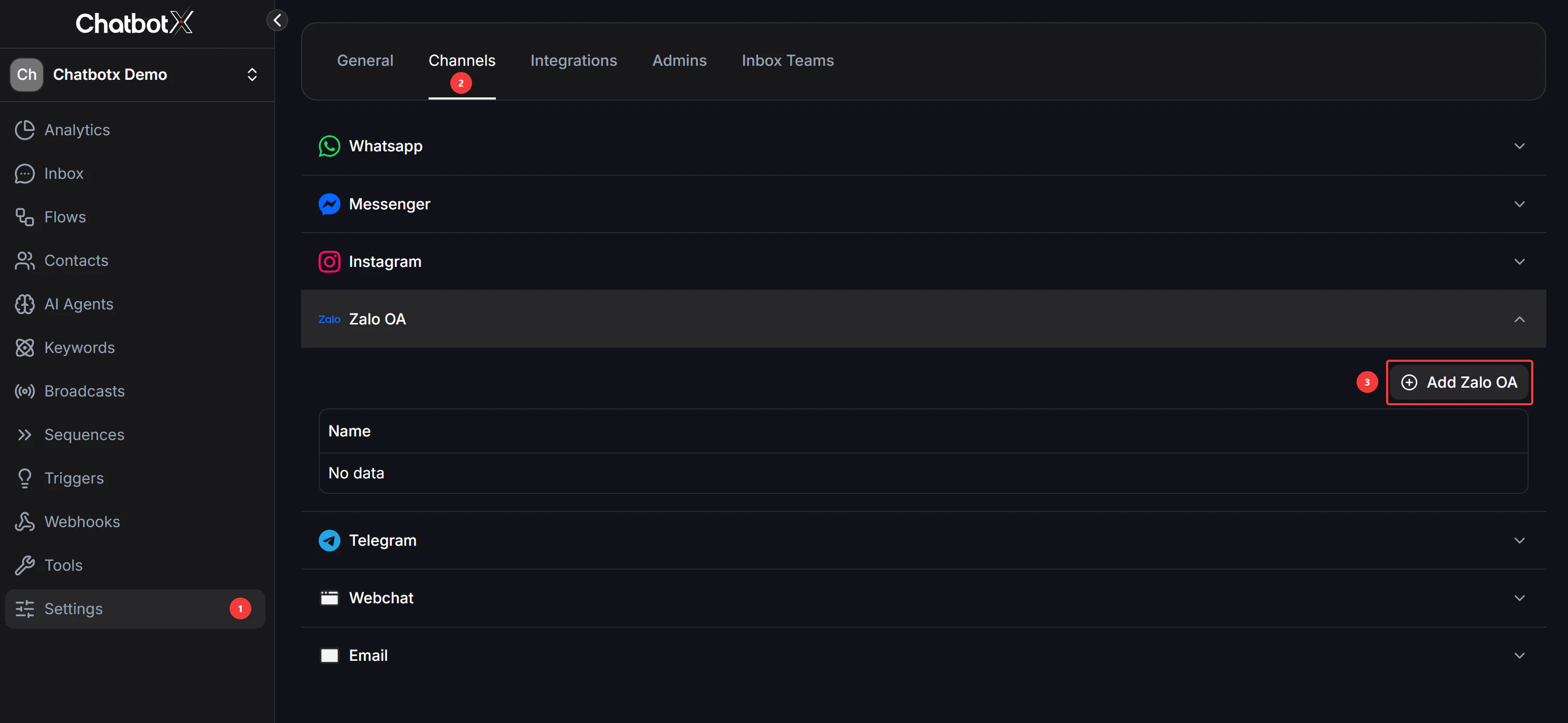
2
Authorize the connection
You will be redirected to Zalo’s authorization page. Confirm the permissions and authorize ChatbotX to access your Zalo OA.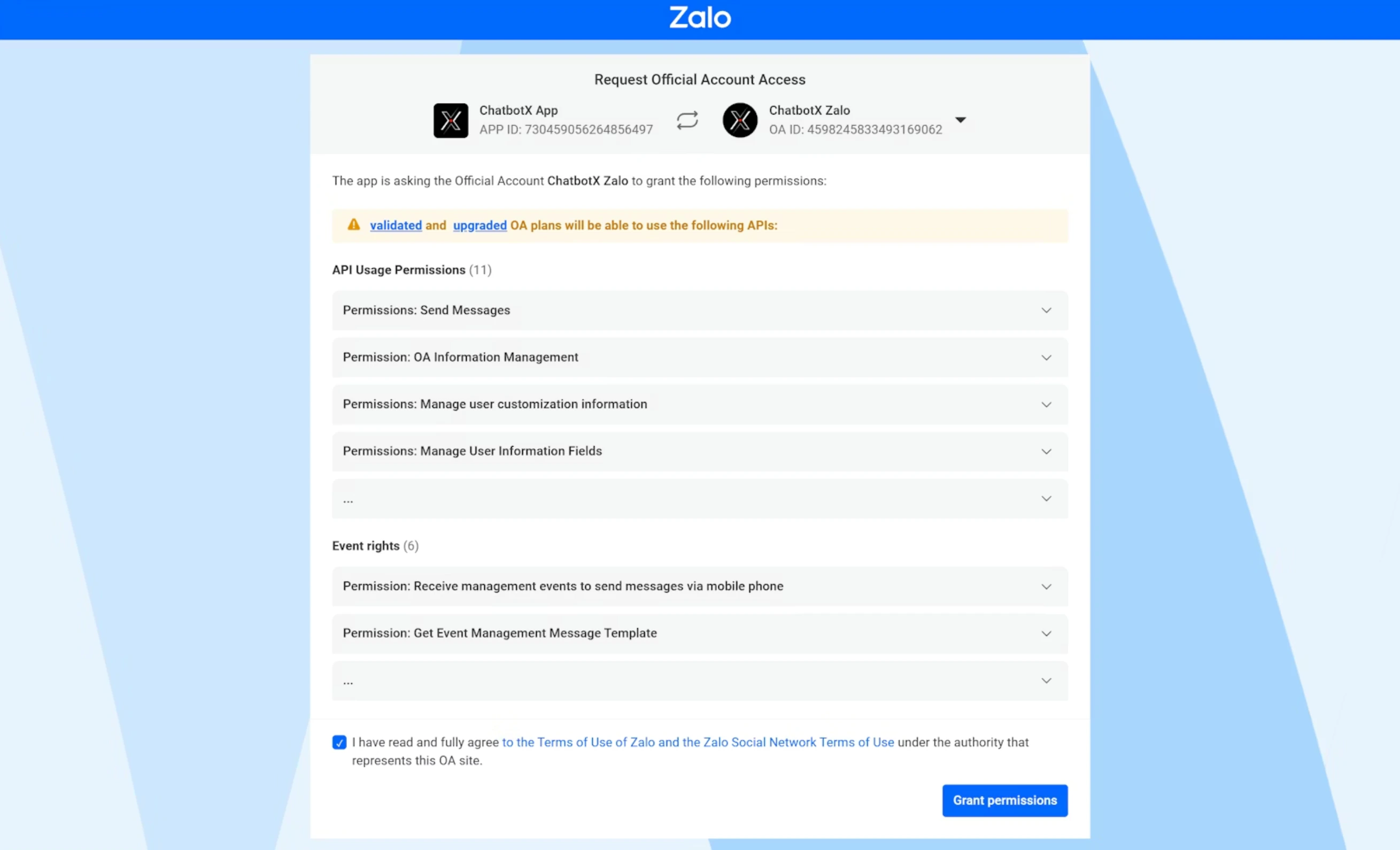
3
Verify the connection
After authorization, return to ChatbotX. Your Zalo OA should be listed as a connected channel in the dashboard.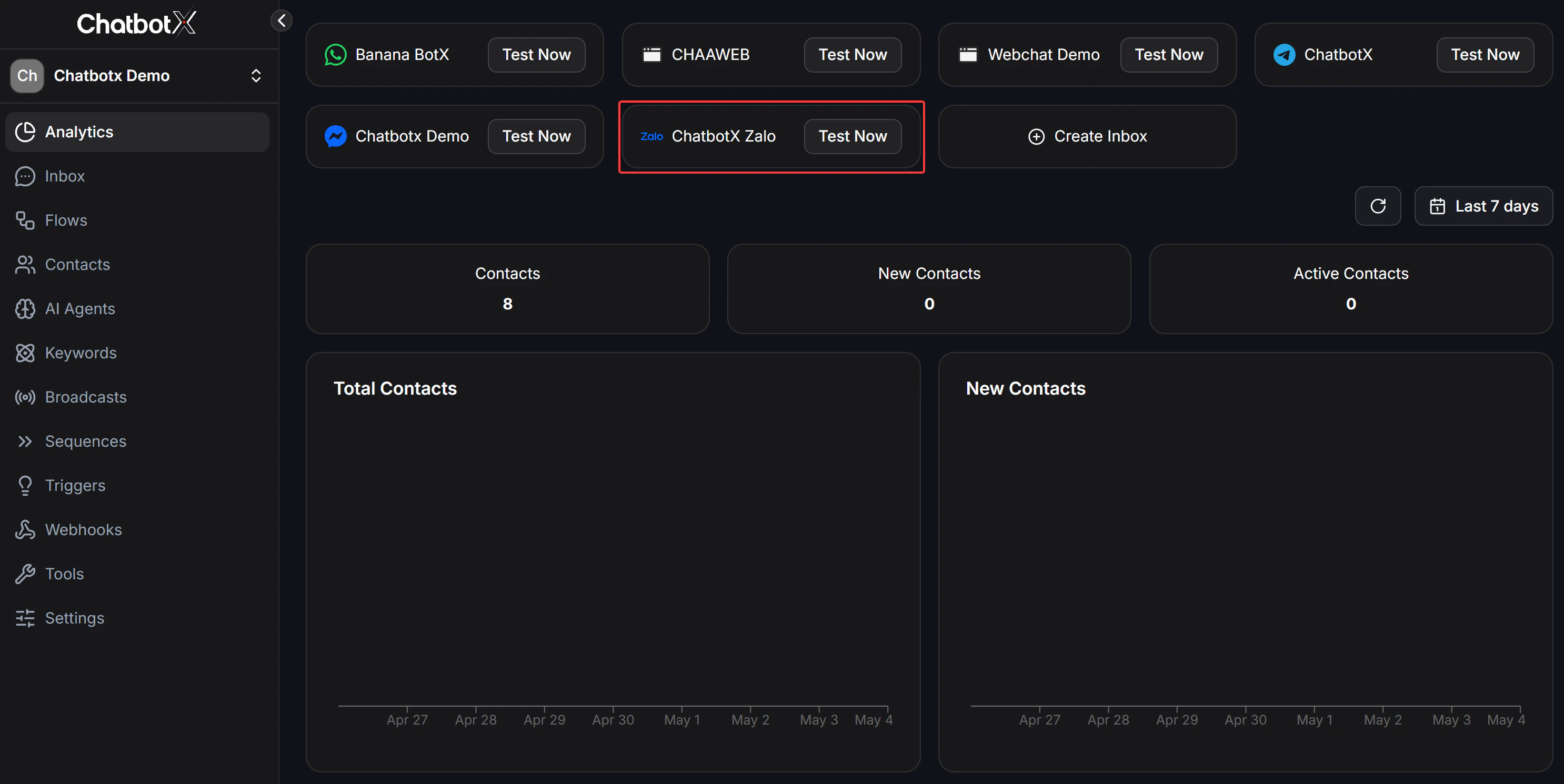
Troubleshooting
Messages not appearing in ChatbotX
Messages not appearing in ChatbotX
- Verify that the Webhook URL is correctly configured in your Zalo application
- Check that all required webhook events are subscribed (
send_msg,get_msg,follow,unfollow) - Confirm the Webhook Verify Token matches between ChatbotX and Zalo
Domain verification failing
Domain verification failing
- Ensure your ChatbotX server is accessible via HTTPS
- Wait 3–5 seconds between verification attempts
- Try an alternative verification method (DNS TXT record vs meta tag)
How do I get help if the issue persists?
How do I get help if the issue persists?
- Check the ChatbotX server logs for error messages
- Verify all credentials in the Org Settings panel are correctly configured
- Ensure your Zalo OA and developer accounts meet the prerequisites
- Contact Community support with specific error messages if the issue persists