

Channel Inboxes and Date Filtering
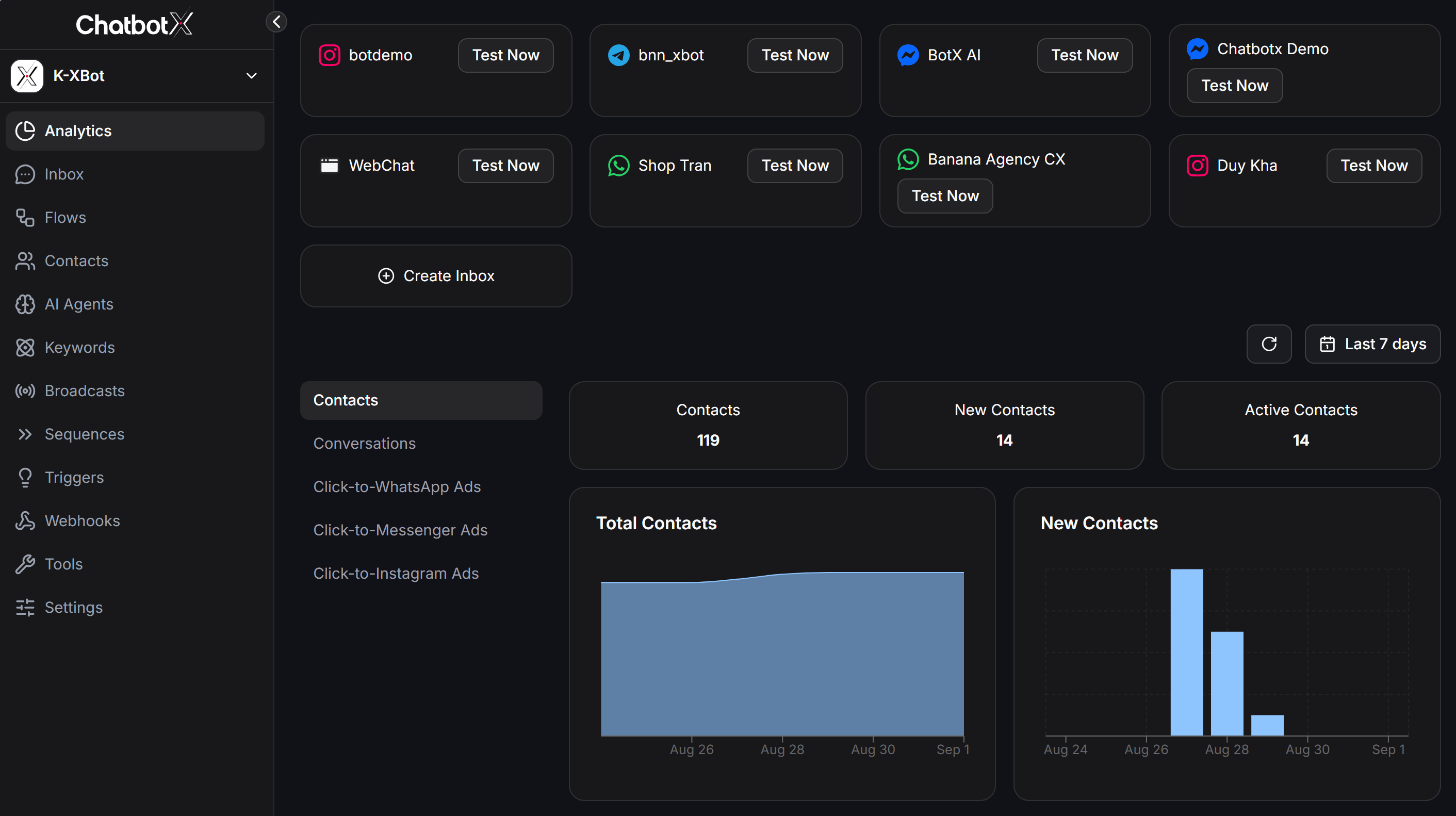
The top section of the Analytics page centralizes channel management tools and time frame settings:Connected Inboxes
All active communication channels in your Workspace (such as Telegram, WhatsApp, Webchat, Messenger, Instagram…) are displayed as interactive cards:- Channel icon and name: Quickly identify connected Facebook Pages, Instagram accounts, or WhatsApp phone numbers.
- Test Now button: Allows you to perform an instant messaging check without leaving the reporting dashboard.
- + Create Inbox button: Opens the connection modal to integrate a new messaging channel into your Workspace.
Refresh and Date Range Picker
- Refresh button (↻): Instantly reloads all metrics with real-time data.
- Date Range Picker: Click the date dropdown in the top-right corner to select preset or custom reporting periods:
Today / Yesterday
Monitor real-time data for today or analyze performance from yesterday.
Last 7 / 30 days
Review short-term 7-day trends or complete 30-day operational cycles.
This / Last month
Evaluate monthly summaries for the current or previous calendar month.
Lifetime / Custom
Inspect historical performance from day one or select custom start and end dates.
Tab Contacts: Customer Analytics and Growth
The Contacts tab provides complete visibility into the size, source, and velocity of your customer database.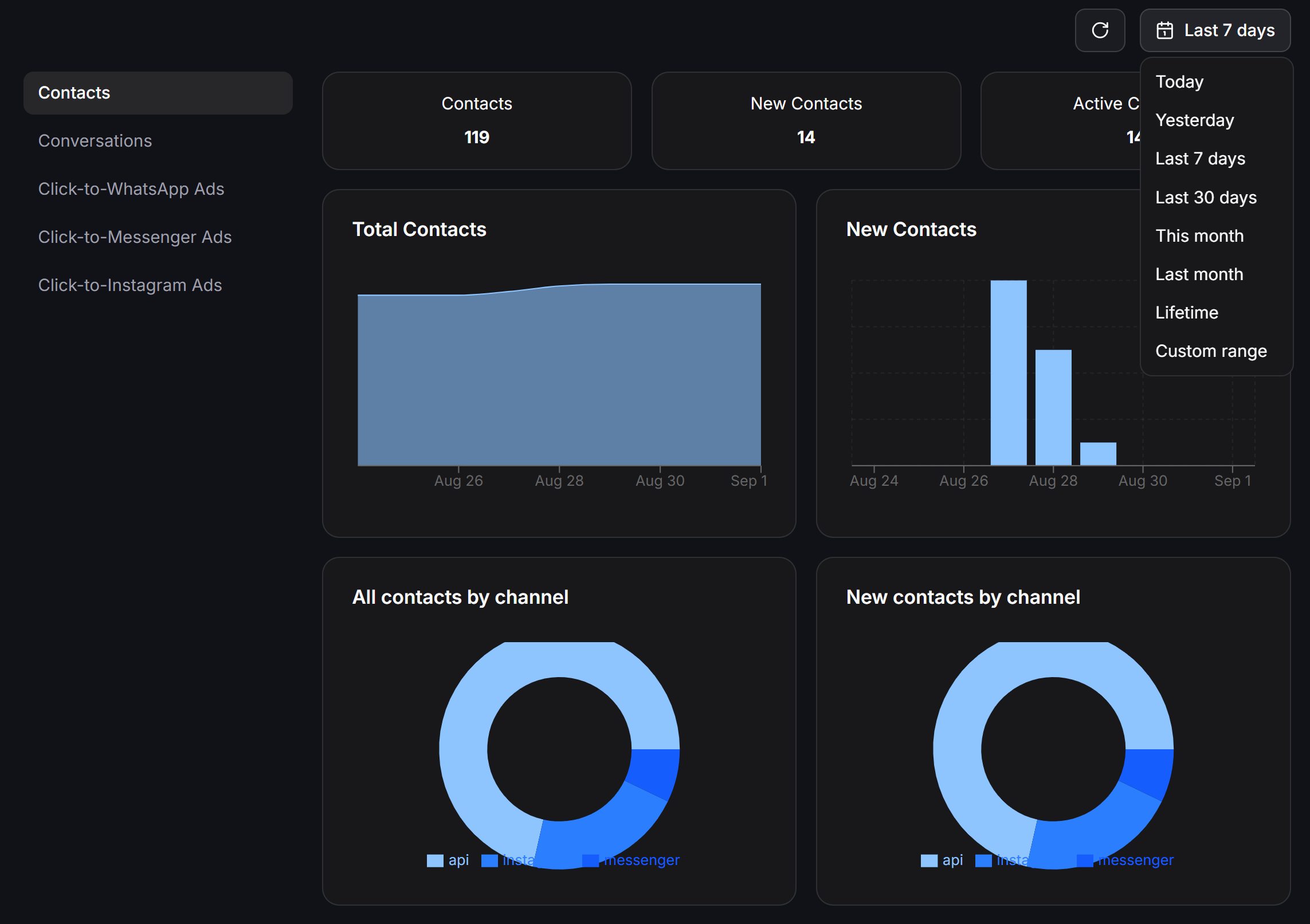
Core Contact Metrics
Contacts
Total number of active and stored contacts in your Workspace to date.
New Contacts
Number of new contacts acquired within the selected date range.
Active Contacts
Number of contacts who interacted (sent or received messages) during the selected period.
Trend Charts and Distribution
- Total Contacts (Area Chart): Displays the cumulative growth of your contact database over time.
- New Contacts (Bar Chart): Visualizes daily new contact spikes, making it easy to correlate results with marketing promotions.
- All contacts by channel (Donut Chart): Percentage breakdown of all contacts across channels (API, Instagram, Messenger, WhatsApp…).
- New contacts by channel (Donut Chart): Channel distribution of new contacts, highlighting your most effective acquisition channels.
- New contacts by source (Donut Chart): Acquisition sources breakdown, such as
botLink(Entry Point Links) or directmessage. - New contacts by country: Demographic breakdown of new contacts by geographic country/region.
- Blocked contacts (Line Chart): Tracks the number of contacts who blocked your page or were restricted over time.
Tab Conversations: Bot Performance and Team Productivity
The Conversations tab assesses automated conversation quality and individual human agent productivity.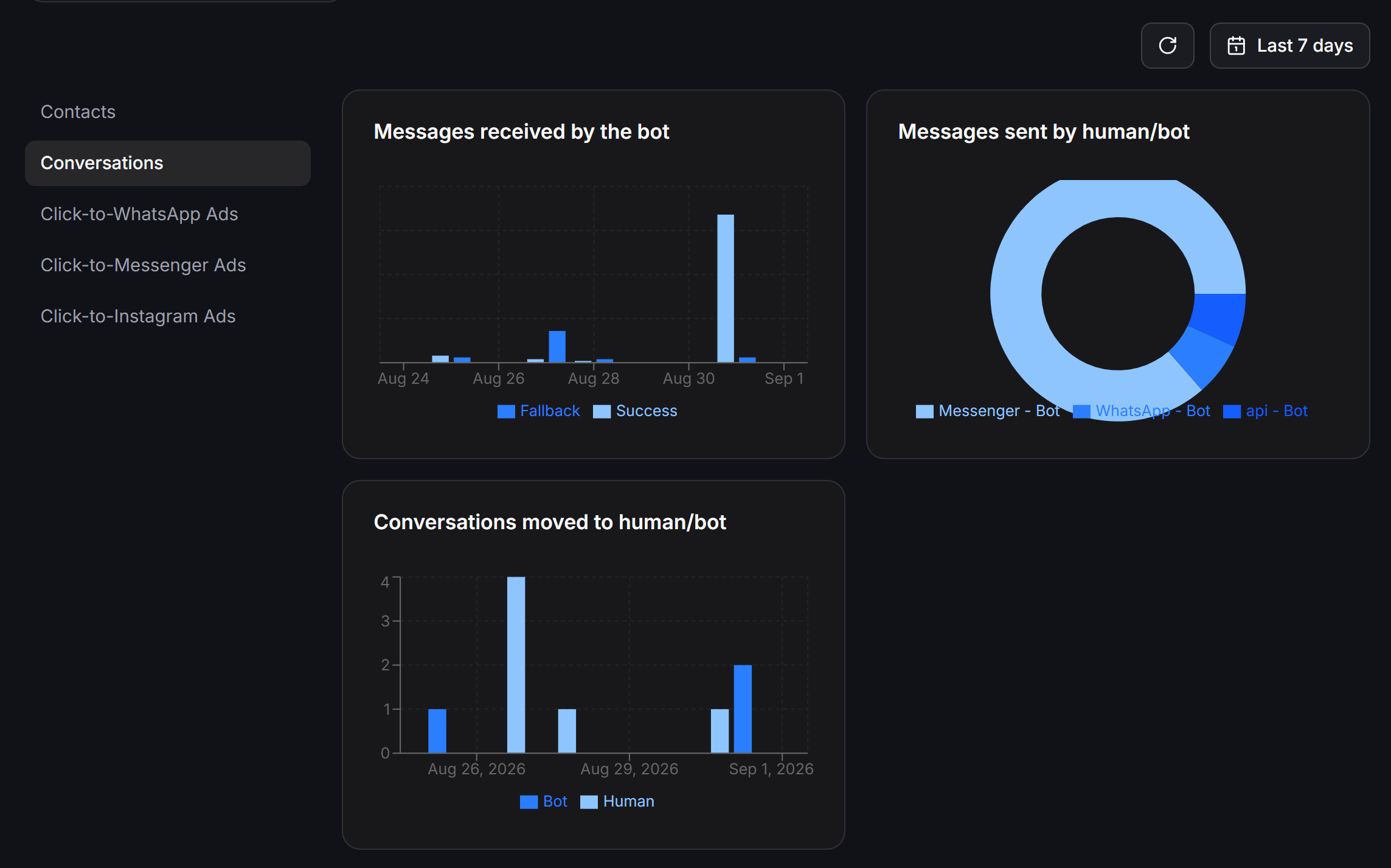
Bot Processing Accuracy
- Messages received by the bot: Compares two distinct resolution states:
- Success: Messages successfully recognized and handled by your configured flows or AI.
- Fallback: Messages where intent was unmapped, triggering the Default Reply fallback flow.
- Messages sent by human/bot (Donut Chart): Distribution of outbound messages handled by automated bots versus live human agents per channel.
- Conversations moved to human/bot: Tracks the volume of conversation handovers between automated bots and live staff over time.
Human Agents Performance Table
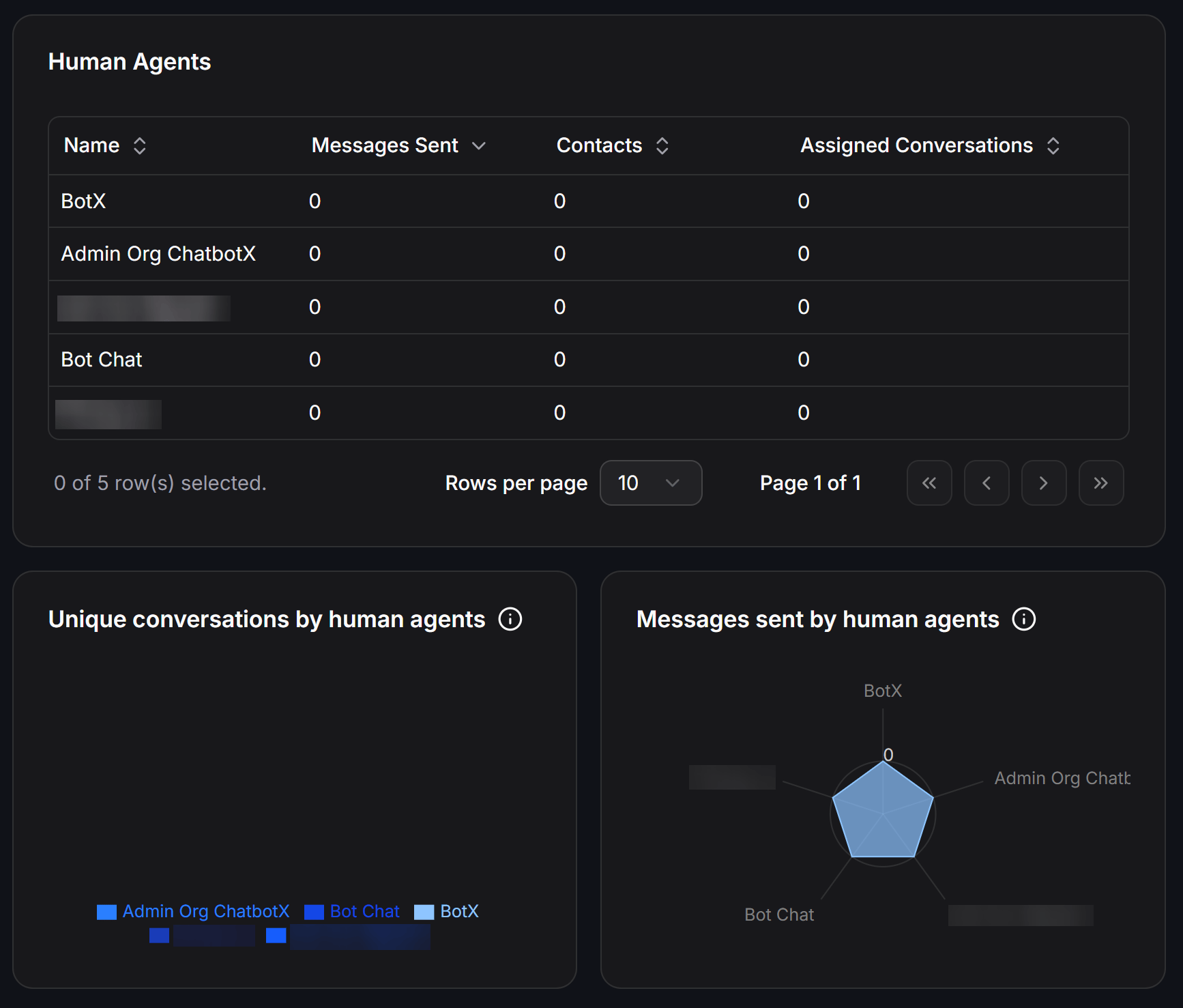
Detailed performance metrics for each team member:
Click any column header to sort ascending or descending, and adjust the Rows per page selector to change the table display.
Visual Agent Workload Analytics
- Unique conversations by human agents (Donut Chart): Comparison of unique conversations handled across agents.
- Messages sent by human agents (Radar Chart): A multi-axis radar chart showing message volume balance among team members.
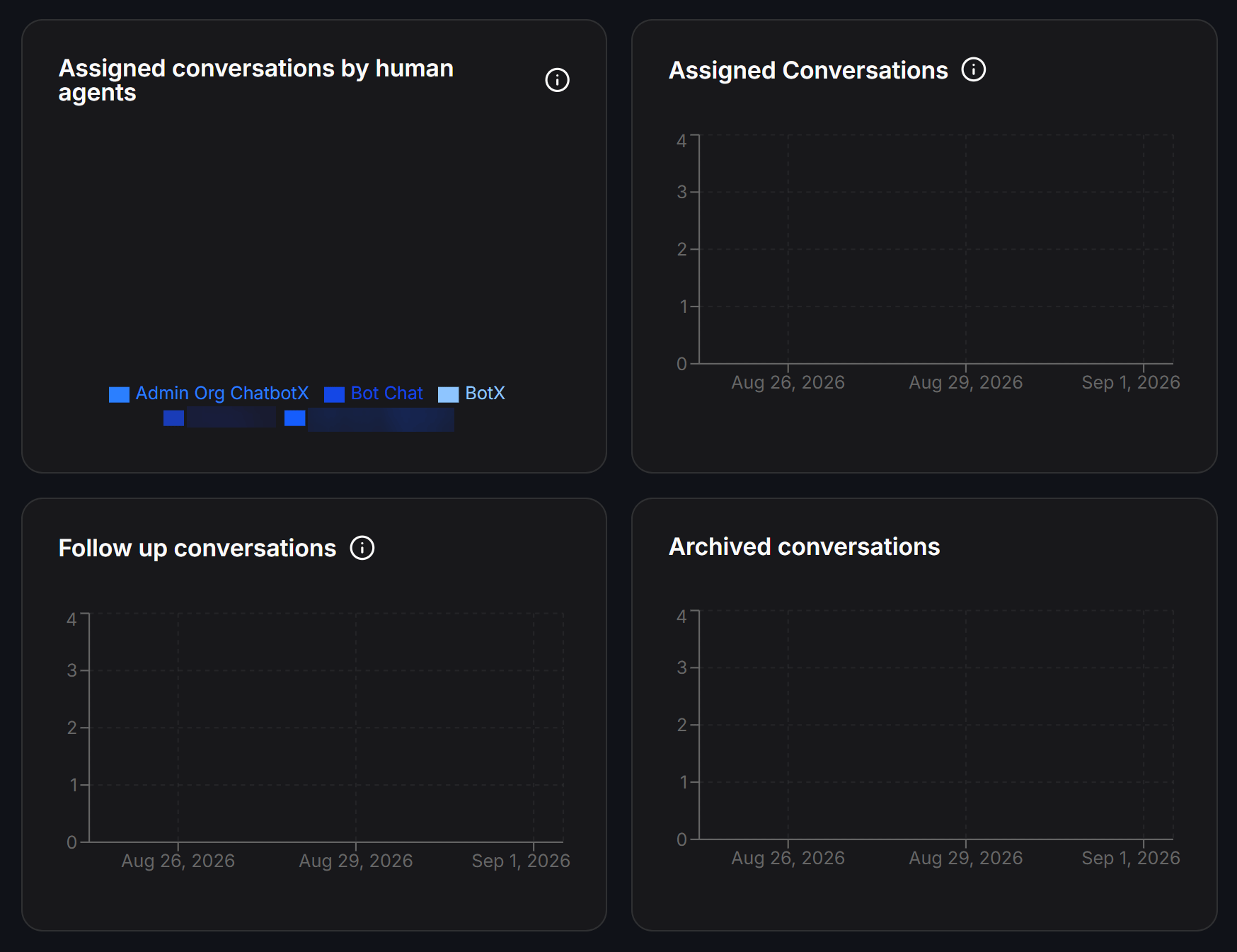
- Assigned conversations by human agents (Donut Chart): Assignment distribution ratios across your support team.
Conversation Lifecycle Tracking
- Assigned Conversations (Line Chart): Assignment volume trends over time.
- Follow up conversations (Line Chart): Active conversations marked for follow-up nurturing.
- Archived conversations (Line Chart): Resolved conversations moved to archive.
Ads Tabs: Click-to-Chat Ad Performance
ChatbotX provides 3 dedicated tabs for direct-response messaging campaigns:- Click-to-Messenger Ads
- Click-to-WhatsApp Ads
- Click-to-Instagram Ads
Ad Account Filter and Funnel Overview
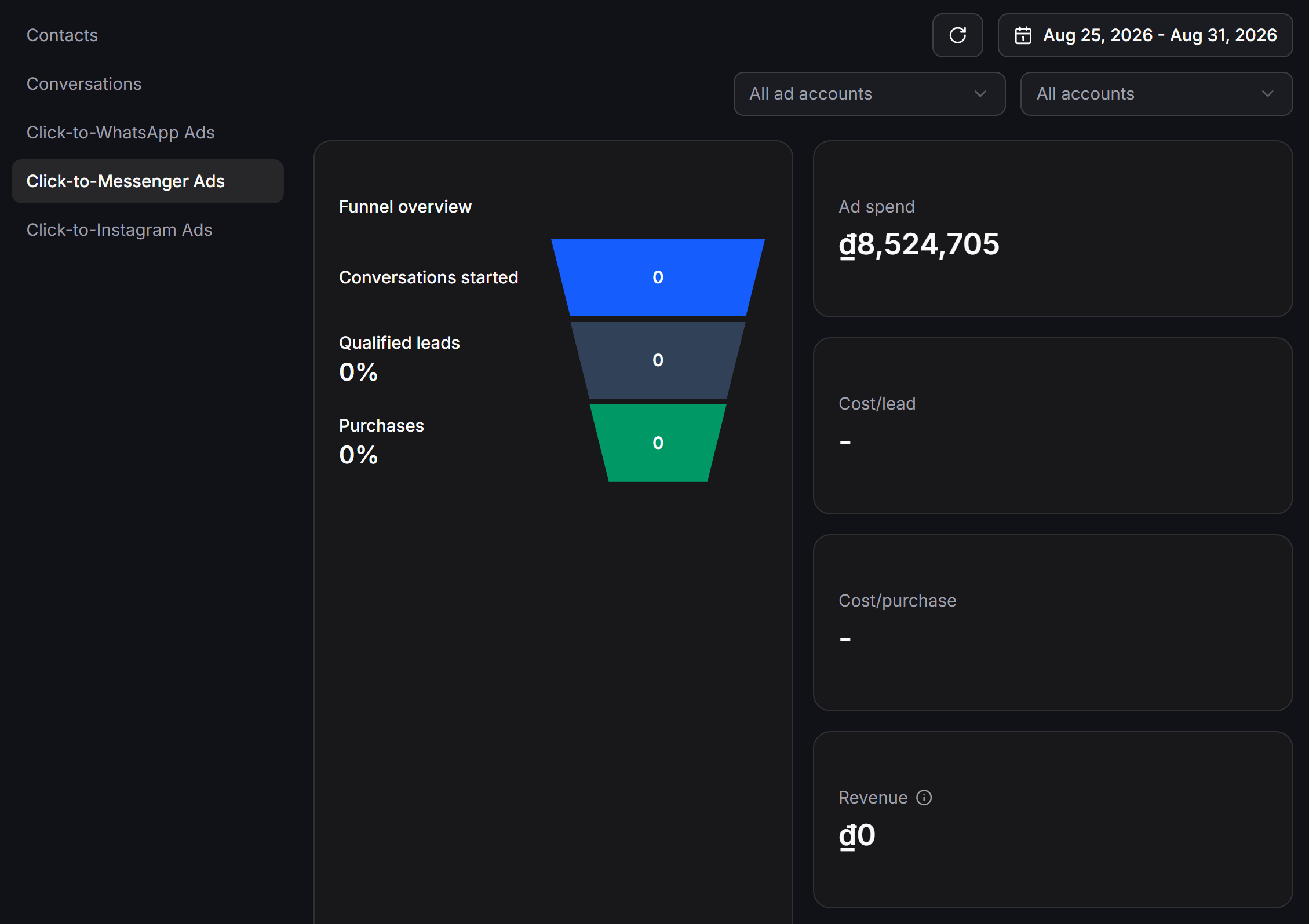
Use the account dropdowns (All ad accounts, All accounts) and date picker to filter campaign data. The Funnel overview visualizes customer progression through 3 distinct stages:- Conversations started (Top blue stage): Total new conversation threads initiated from ad clicks.
- Qualified leads (Middle grey stage): Number and conversion percentage of verified leads (who provided contact info or completed qualification flows).
- Purchases (Bottom green stage): Number and percentage of completed orders closed directly through chatbot automations.
Financial and ROI Metrics
Key commercial indicators displayed alongside the funnel:Ad spend
Total advertising budget spent within the selected period.
Revenue
Total commercial revenue attributed to chatbot order closures.
Cost/lead
Average cost incurred to acquire one verified qualified lead.
Cost/purchase
Average cost incurred to generate one completed purchase.
Ad Traffic Metrics and Trend Analysis
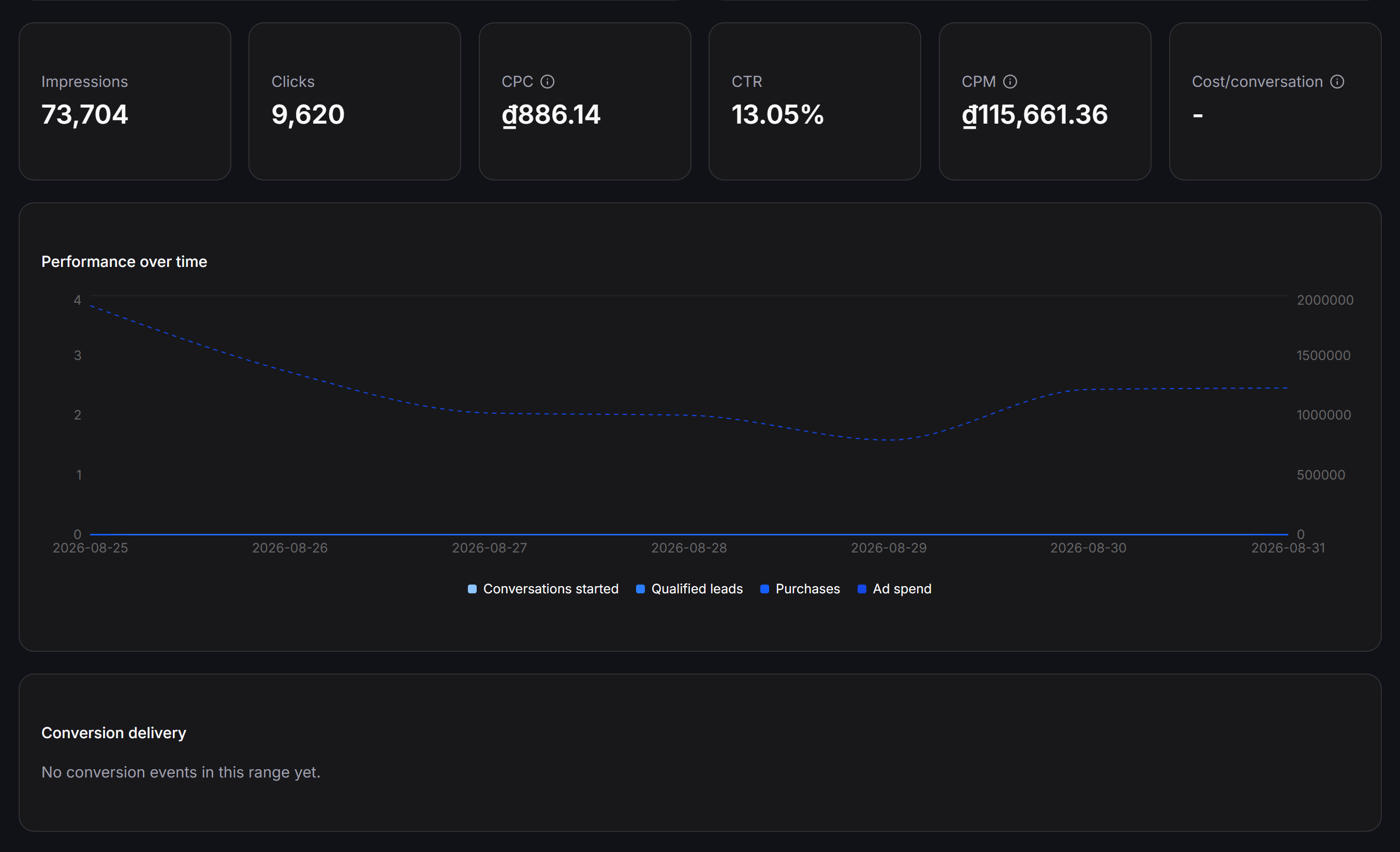
Detailed traffic delivery indicators:- Impressions: Total ad impressions delivered.
- Clicks: Total clicks generated by the ads.
- CPC (Cost Per Click): Average cost per click.
- CTR (Click-Through Rate): Ratio of clicks to impressions.
- CPM (Cost Per Mille): Average cost per 1,000 ad impressions.
- Cost/conversation: Average advertising cost per newly initiated conversation.
Conversations started, Qualified leads, Purchases, and Ad spend over the same timeline.
Campaign Performance Table and Data Export
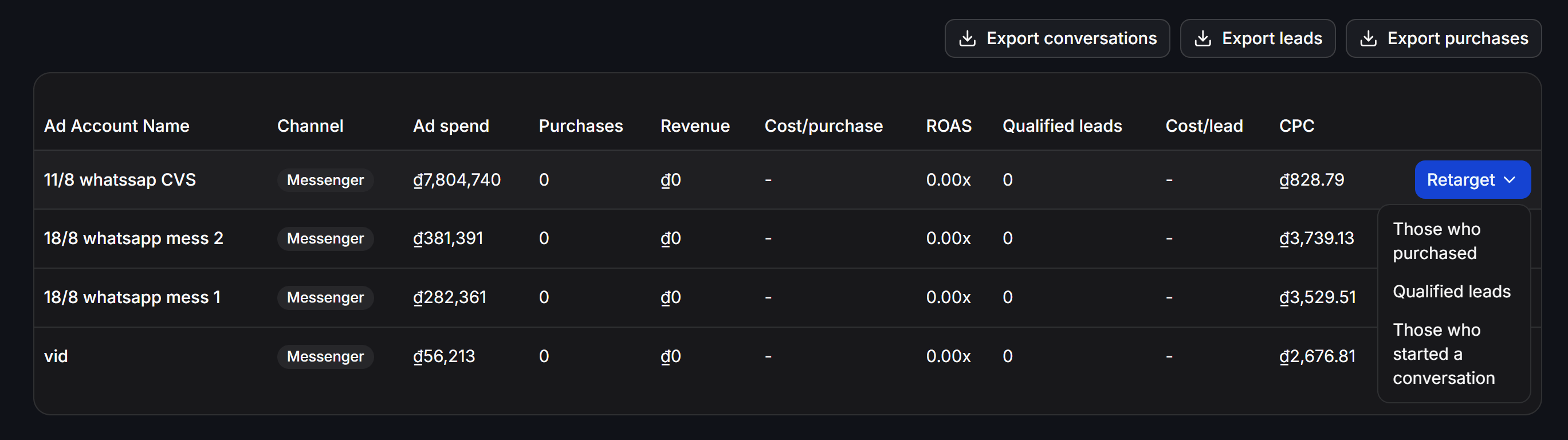
The campaign breakdown table includes:Ad Account Name, Channel, Ad spend, Purchases, Revenue, Cost/purchase, ROAS (Return on Ad Spend), Qualified leads, Cost/lead, and CPC.
Top action buttons provide instant CSV/Excel export tools:
- 📥 Export conversations: Download full conversation logs generated from ads.
- 📥 Export leads: Download verified contact lists of qualified leads.
- 📥 Export purchases: Download order records.
Audience Retargeting
Click the Retarget ∨ dropdown in any table row to create targeted messaging broadcasts across 3 specific segments:Those who purchased
Deliver post-purchase follow-ups, loyalty rewards, or cross-sell recommendations.
Qualified leads
Send discount codes or cart-recovery reminders to contacts who qualified but have not yet purchased.
Those who started a conversation
Re-engage all contacts who initiated a chat from your ads but dropped off before completing qualification.
Actionable Best Practices
Reduce Fallback Rates
If the Fallback bar in Conversations spikes, review Error Logs, expand your Keywords list, or add relevant articles into AI Knowledge.
Balance Team Workloads
Use the Radar Chart in Conversations to spot overloaded agents and adjust automated conversation assignment rules accordingly in your Inbox.
Optimize Cost per Conversation
Compare CPC and Cost/conversation across Messenger, WhatsApp, and Instagram to concentrate your ad spend on the highest-converting channel.
Re-engage Qualified Leads
Run weekly retargeting campaigns for
Qualified leads to recover lost sales opportunities without additional ad spend.To ensure ad metrics populate accurately, connect your Meta ad account under Settings > Integrations in your Workspace.