

Prerequisites
Before you begin, make sure you have:- A Telegram account
- A ChatbotX installation
Unlike Facebook or Zalo, Telegram does not require complex app reviews or any credential configuration in ChatbotX. You only need to create a Bot and paste the Bot Token.
Step 1: Get your Bot Token
You can connect a new Telegram bot or reuse an existing one. Either way, you need the bot’s API Token.- Create a new bot
- Use an existing bot
1
Open BotFather
Open the Telegram app and search for @BotFather, or visit https://t.me/BotFather. Click Start to begin the conversation.
2
Create a new bot
Send the
/newbot command. BotFather will ask for two pieces of information:- Name: the display name of your bot (for example,
ChatbotX Customer Support) - Username: the unique username, which must end with
bot(for example,chatbotx_support_bot)
3
Copy the Bot Token
Once created, BotFather will send you a message containing the API Token (for example,
123456789:ABCDEF1234ghIkl-zyx57W2v1u123ew11). Copy the entire token.The Bot Token is the key to your bot. Never share it publicly. If you suspect it has been compromised, send
/revoke to BotFather to generate a new one.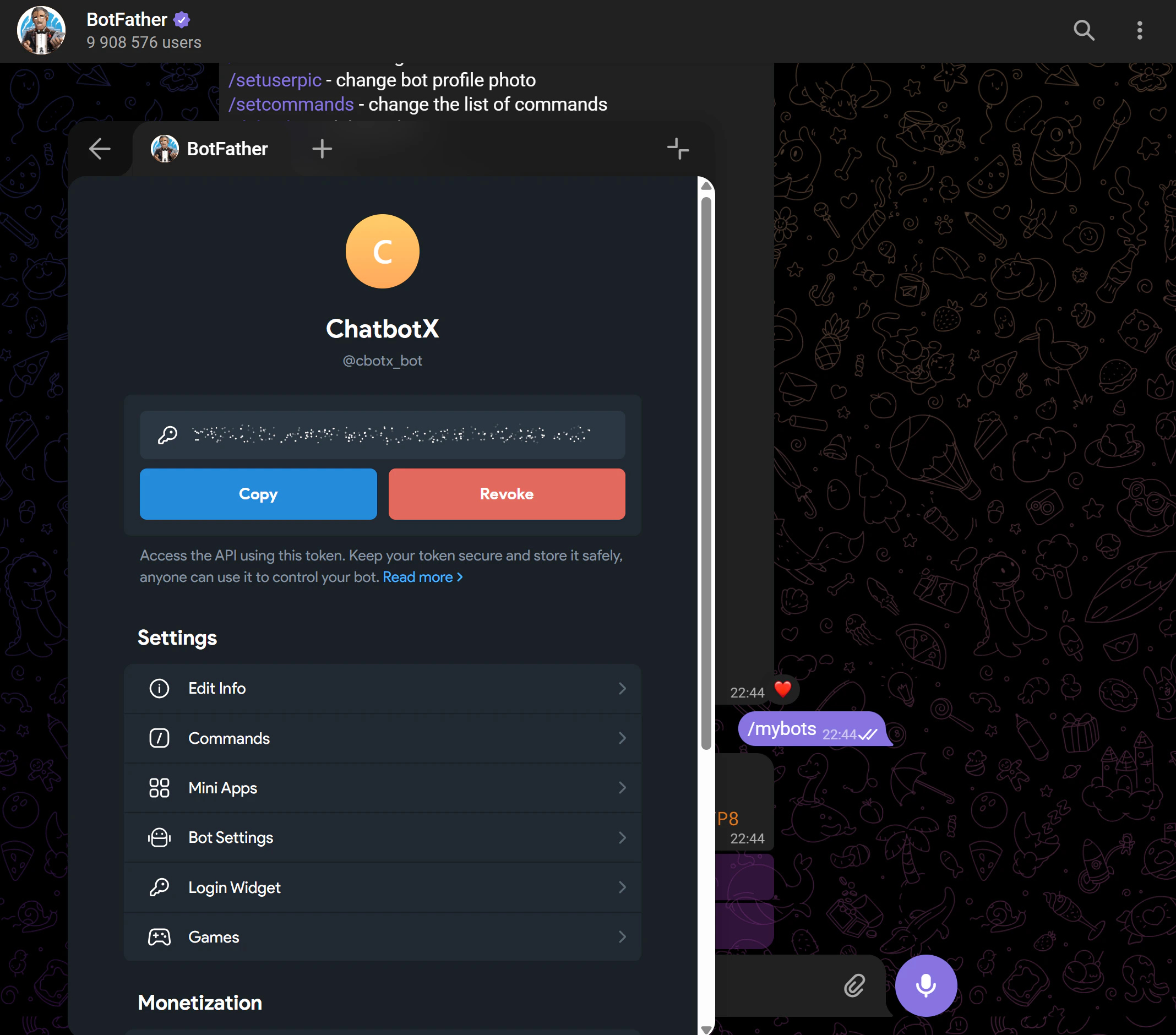
Step 2: Connect to ChatbotX
1
Open Channel settings
In ChatbotX, go to Settings → Channels.
2
Open the Telegram section
Click the Telegram row in the channel list, then click Add Telegram.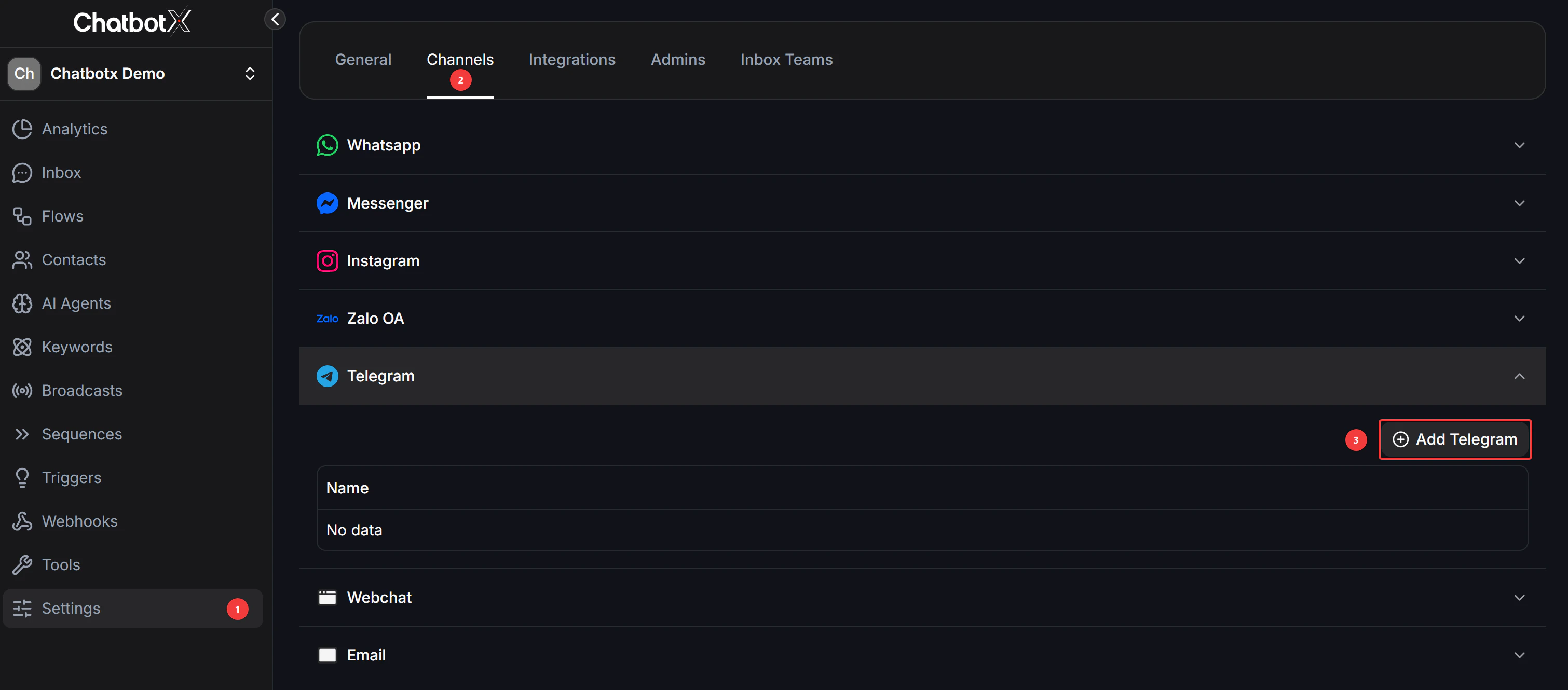
3
Enter the Bot Token
Paste the Bot Token you copied from BotFather into the input field.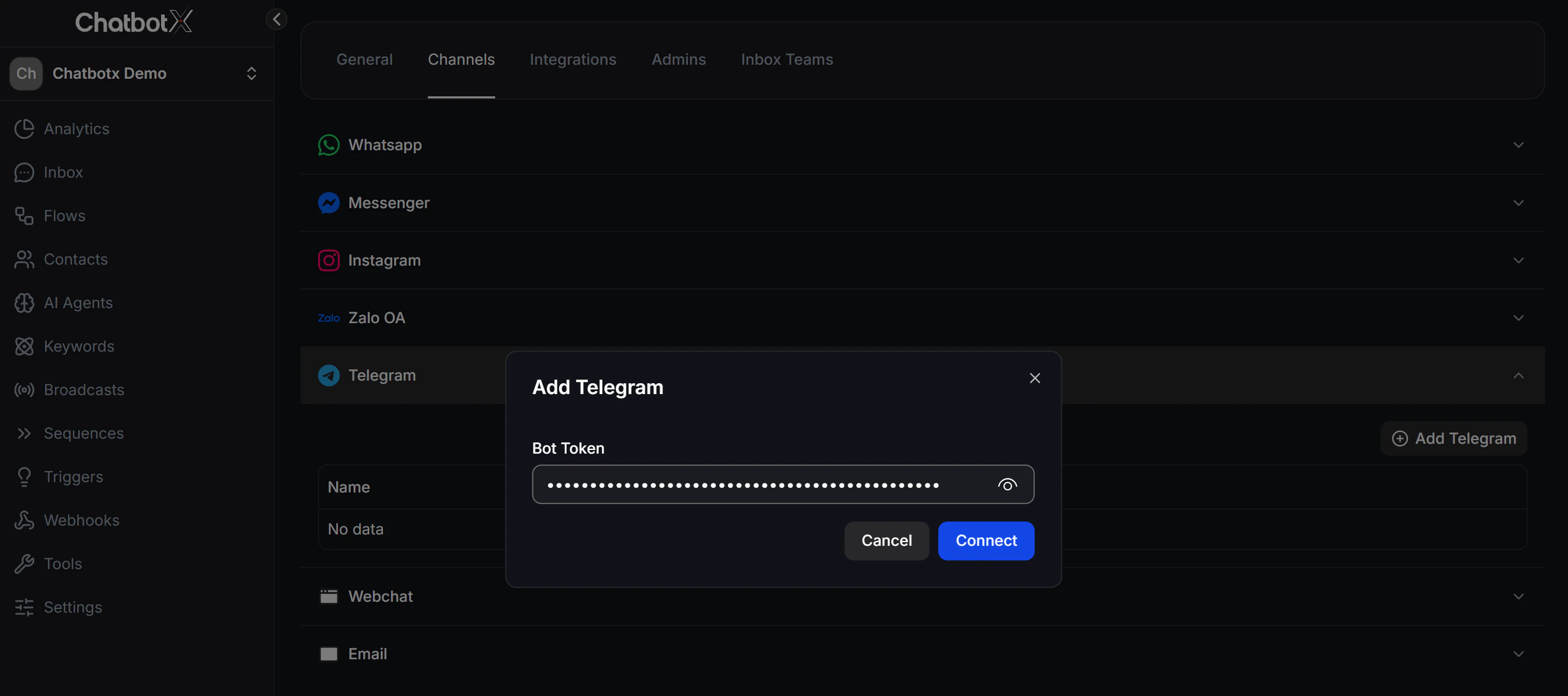
4
Connect
Click Connect. ChatbotX will automatically set up the webhook connection with Telegram to start receiving and sending messages.
Step 3: Test the Connection
After connecting, run a quick test to confirm everything is working:- Send a message: Open the Telegram app, search for your bot’s username, and send any message (for example,
Hello). It should appear in the ChatbotX Inbox shortly after. - Test an automated Flow: Create a Flow or configure an AI Agent in ChatbotX, then send another message to your bot to verify it responds automatically as configured.