

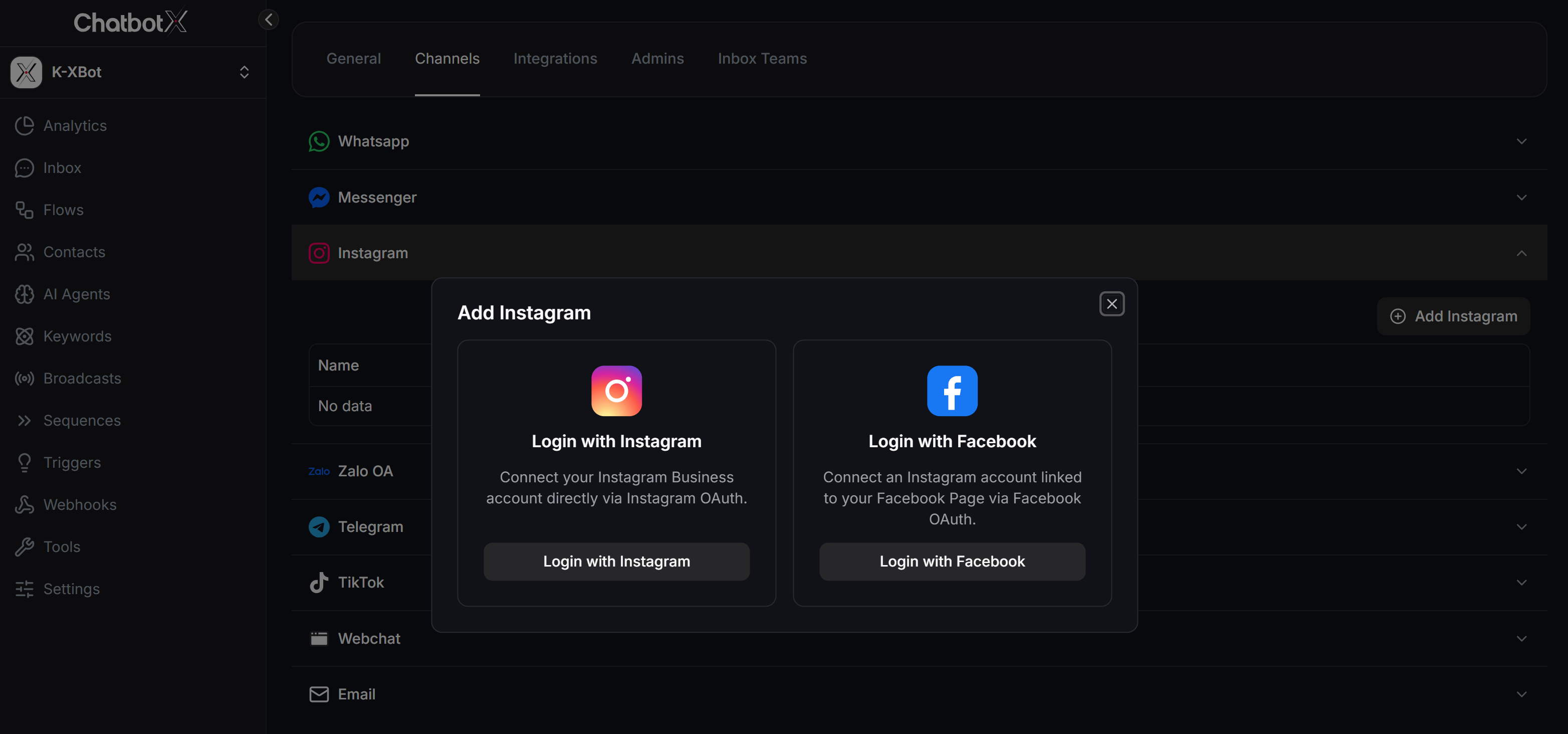
- Login with Instagram - Connect directly via Instagram OAuth authentication. Simple process, no Facebook Page linking required.
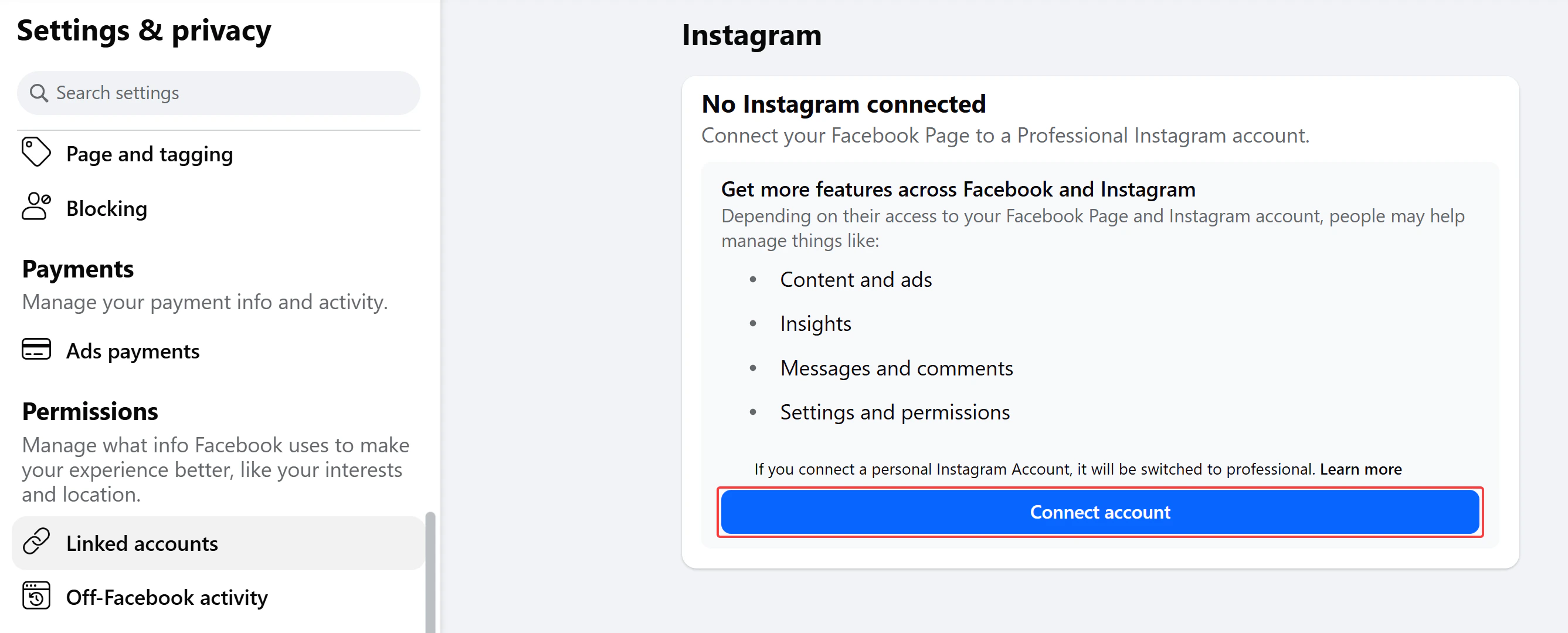
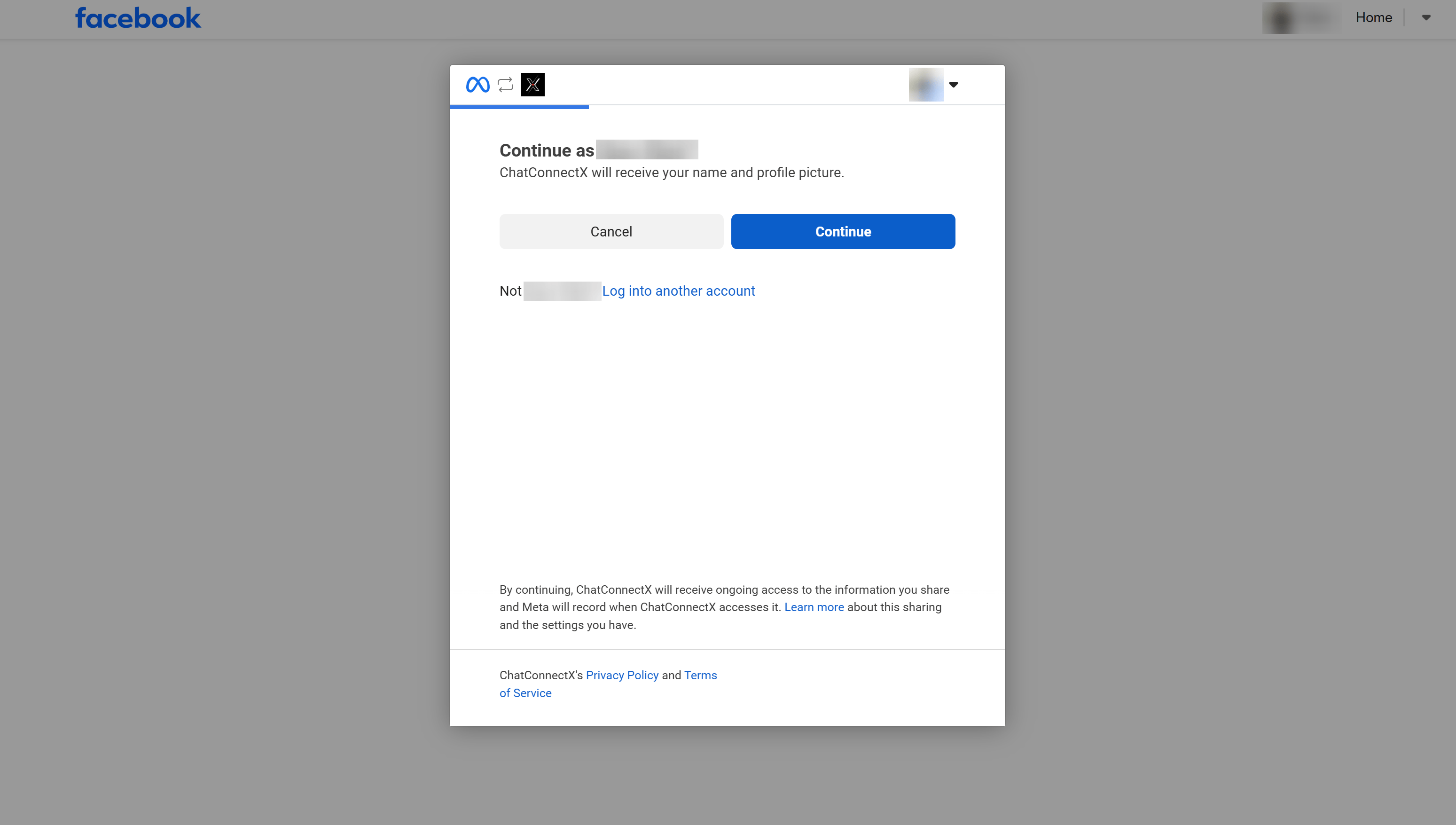
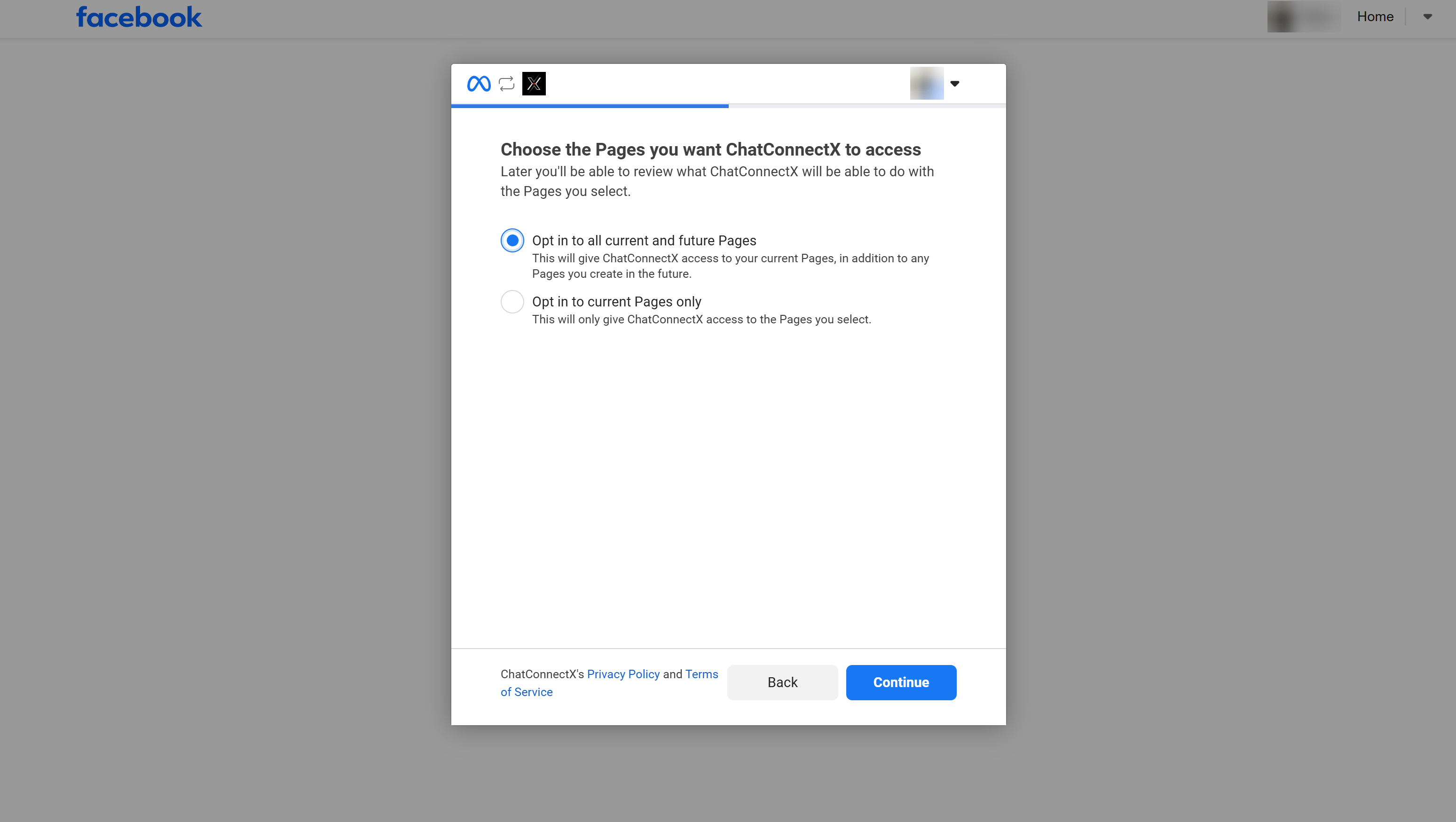
- Login with Facebook - Connect via Facebook OAuth authentication. Requires linking a Facebook Page to your Instagram account before getting started. Best when you want to manage multiple Facebook Pages and Instagram accounts at once.
Prerequisites
Common requirements (both methods):- Instagram Professional account: Your Instagram account must be set as a Business or Creator profile. If you are using a personal account, follow this official guide to switch.
- Linked Facebook Page: Your Instagram account must be linked to a Facebook Page where you have Admin access.
- Admin access: You need “Full Control” or Admin permissions on the linked Facebook Page.
- Personal Facebook account: You must be logged in on your browser with the Facebook account that manages that Page.
Step 1: Open the Channel Configuration in ChatbotX
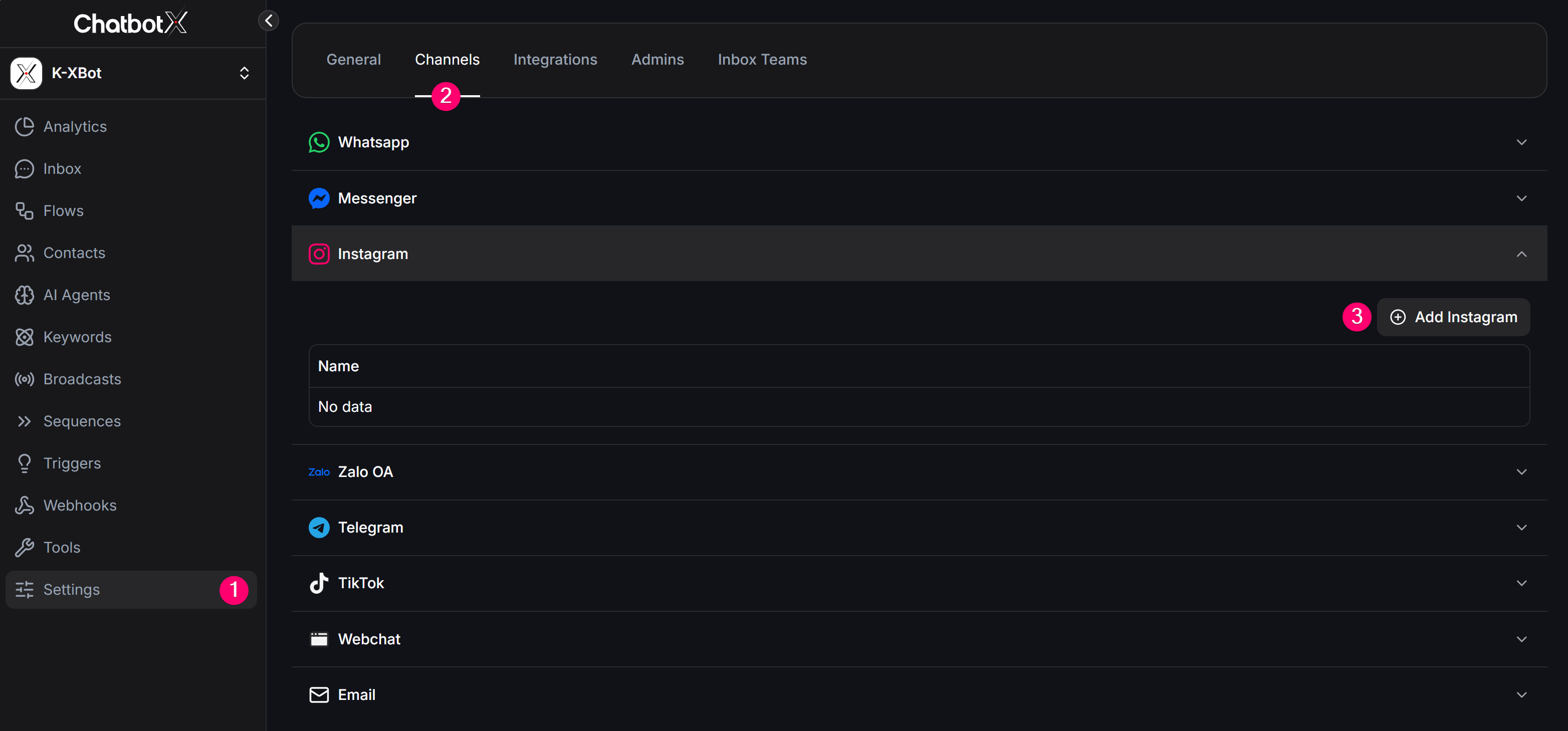
- Log in to your ChatbotX dashboard.
- Go to Settings → Channels.
- Find the Instagram icon and click the “Add Instagram” button.
- The Add Instagram window will pop up showing 2 connection methods. Choose the method that suits you:
Step 2: Authenticate and Complete Connection
- Login with Instagram
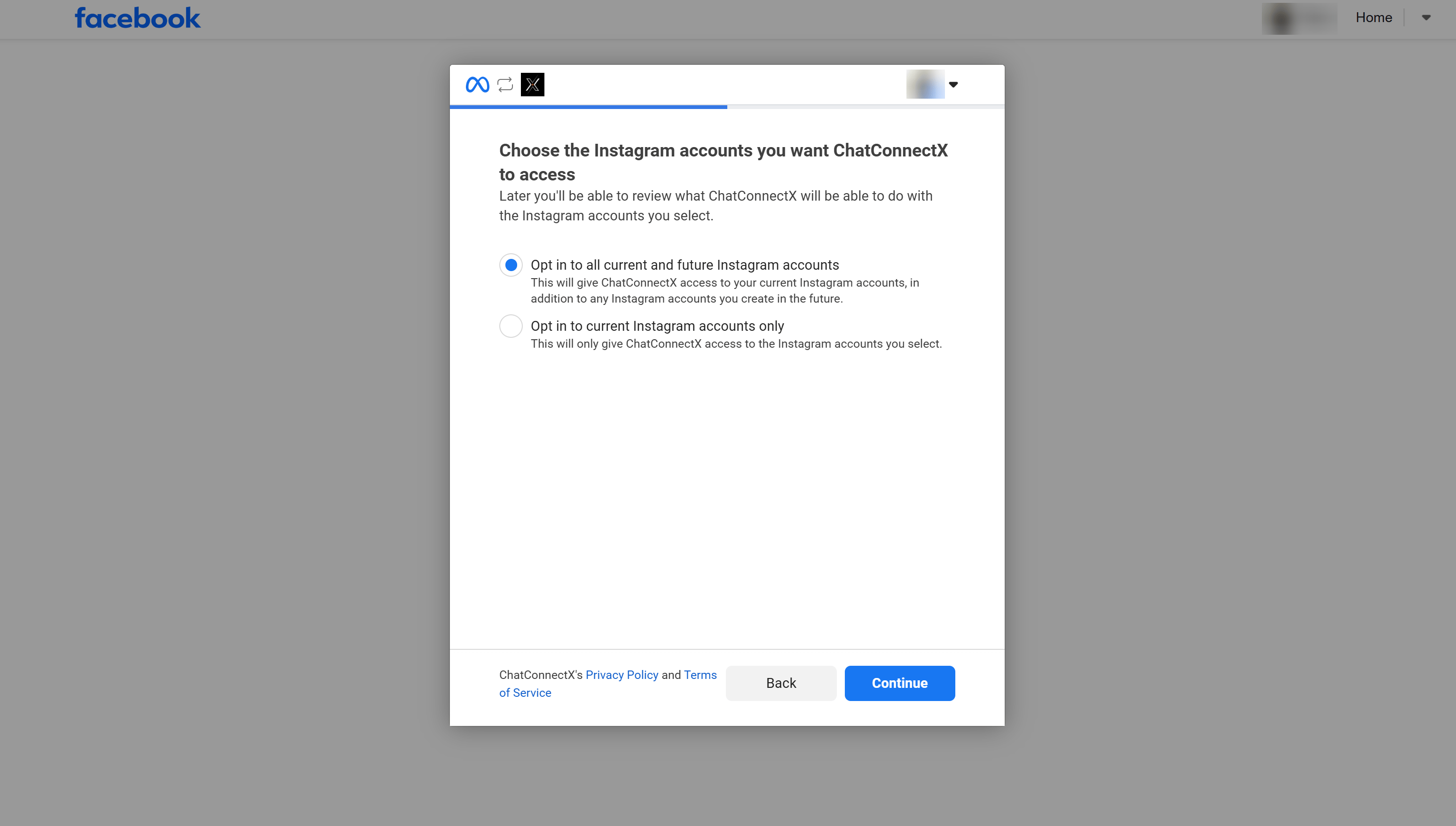
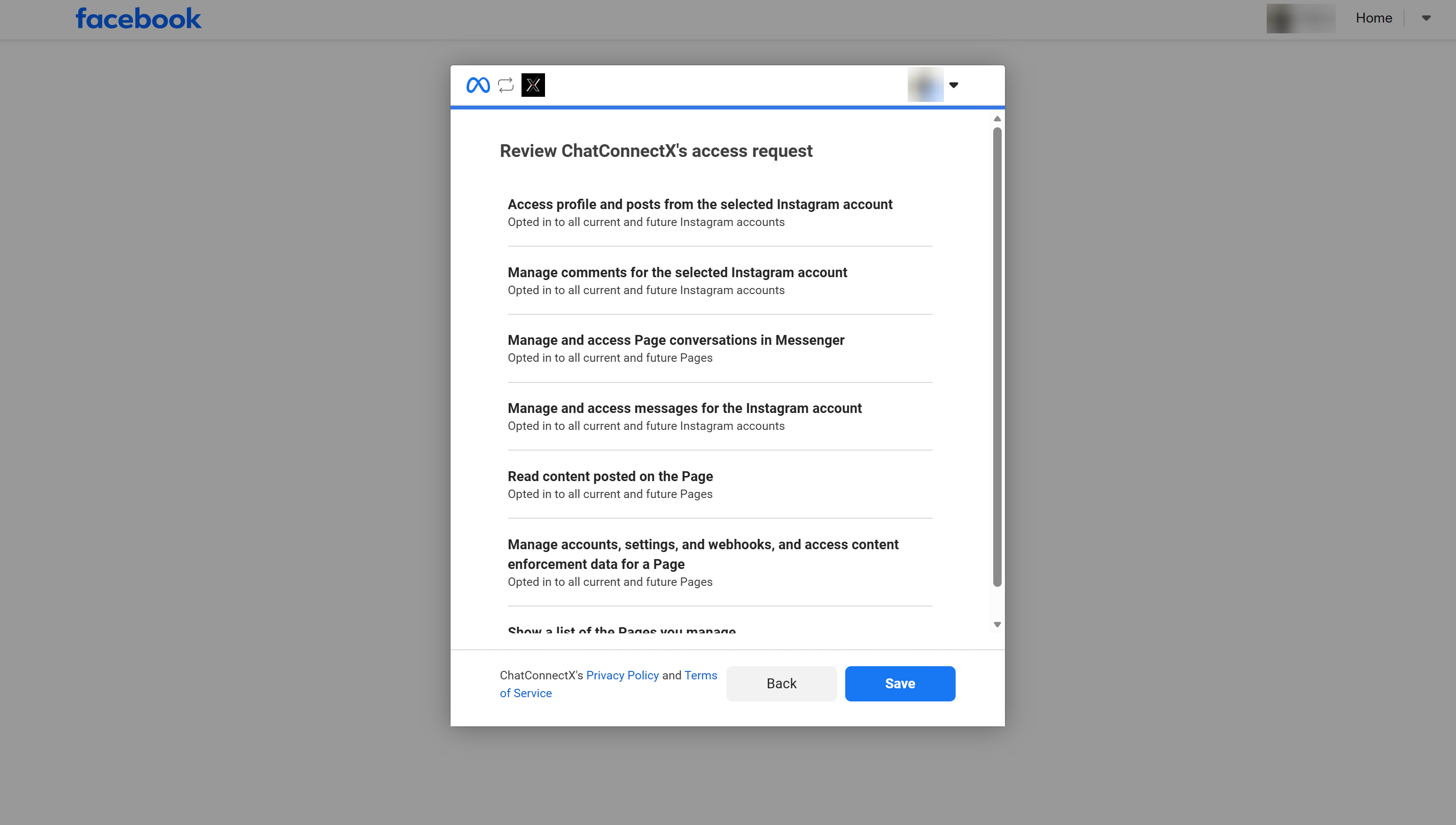
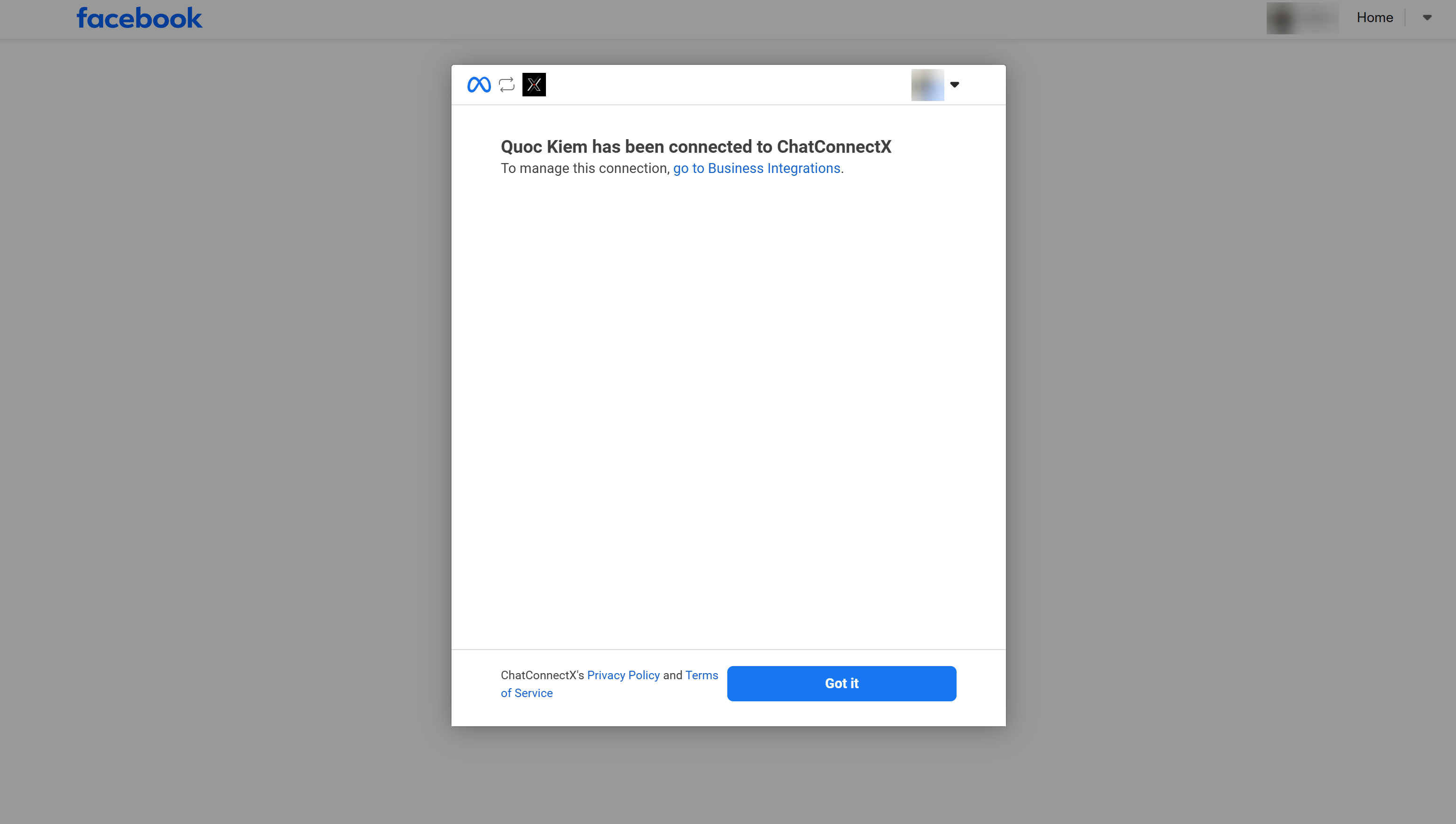
- Login with Facebook
This method connects directly via Instagram OAuth. You do not need to link a Facebook Page first.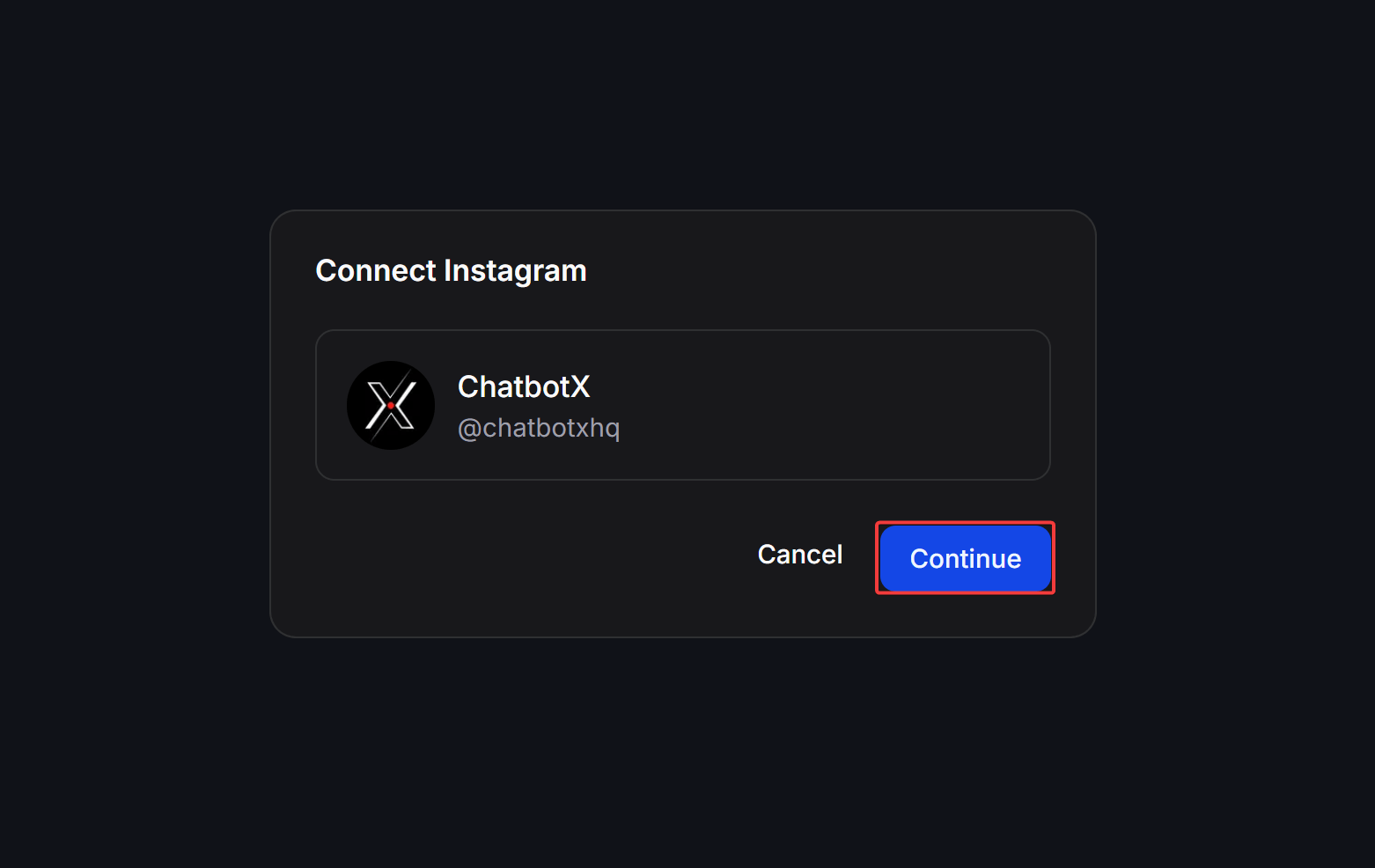
2.1: Grant access permissions on Instagram
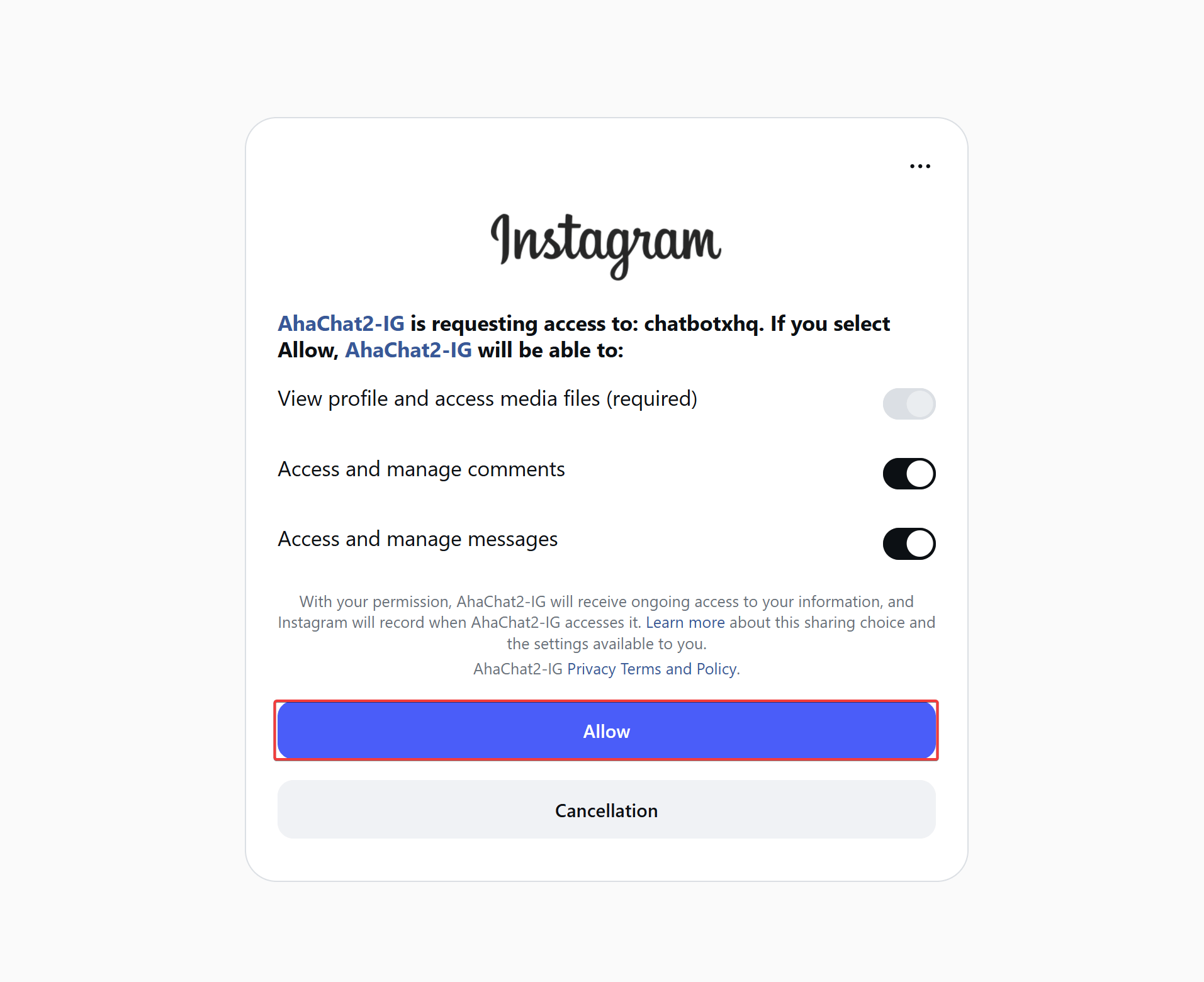
The browser will display an access request window from Instagram:- Check and ensure the following permission options are toggled ON (toggle switch turned to black/enabled):
- Access and manage comments
- Access and manage messages
- Click the Allow button at the bottom to authorize the application access.
2.2: Complete connection
The system redirects you back to the ChatbotX dashboard and displays the Connect Instagram notification. Click the Continue button to finish.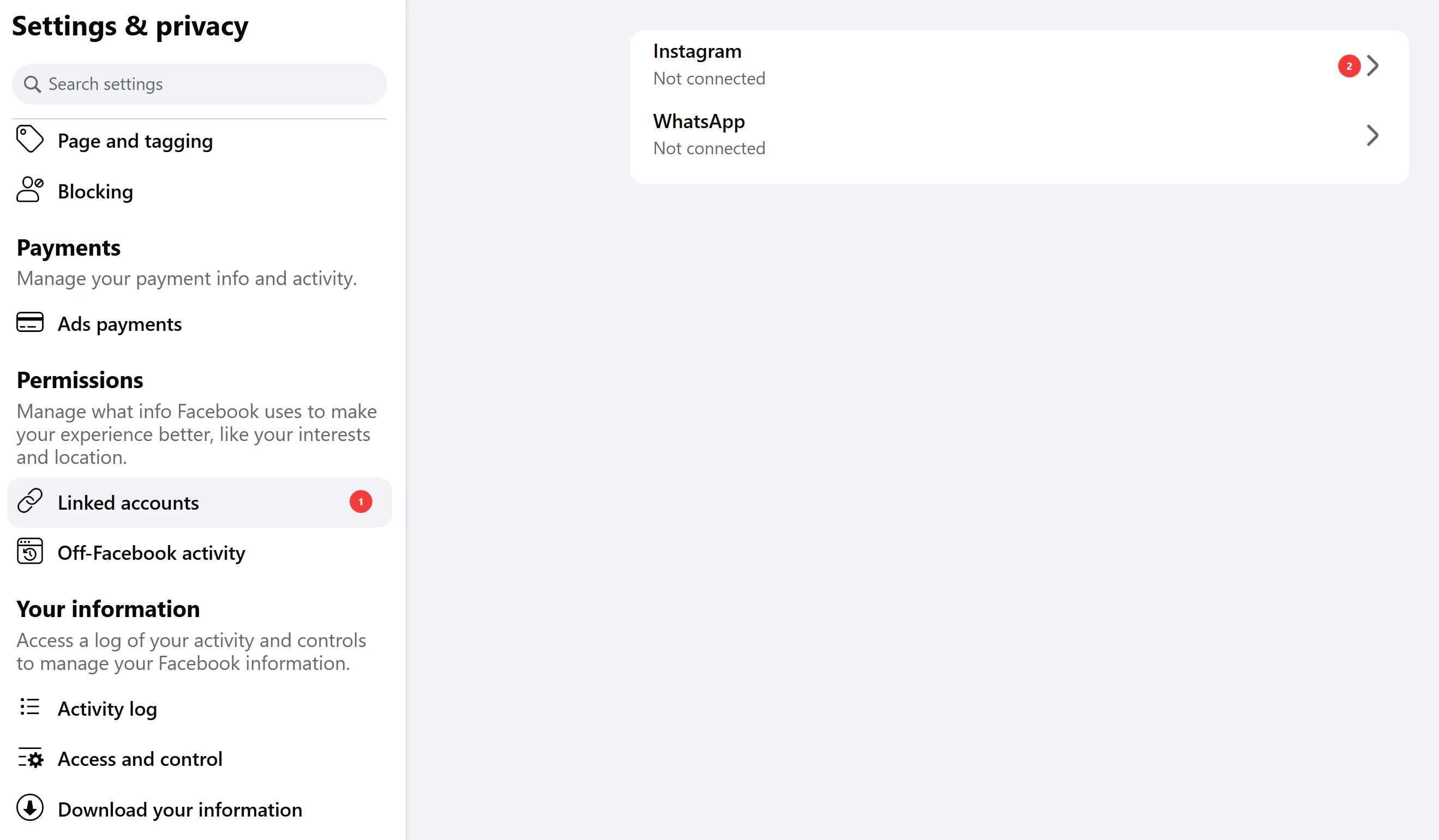
Step 3: Configure Contact, History Sync, and AI Context
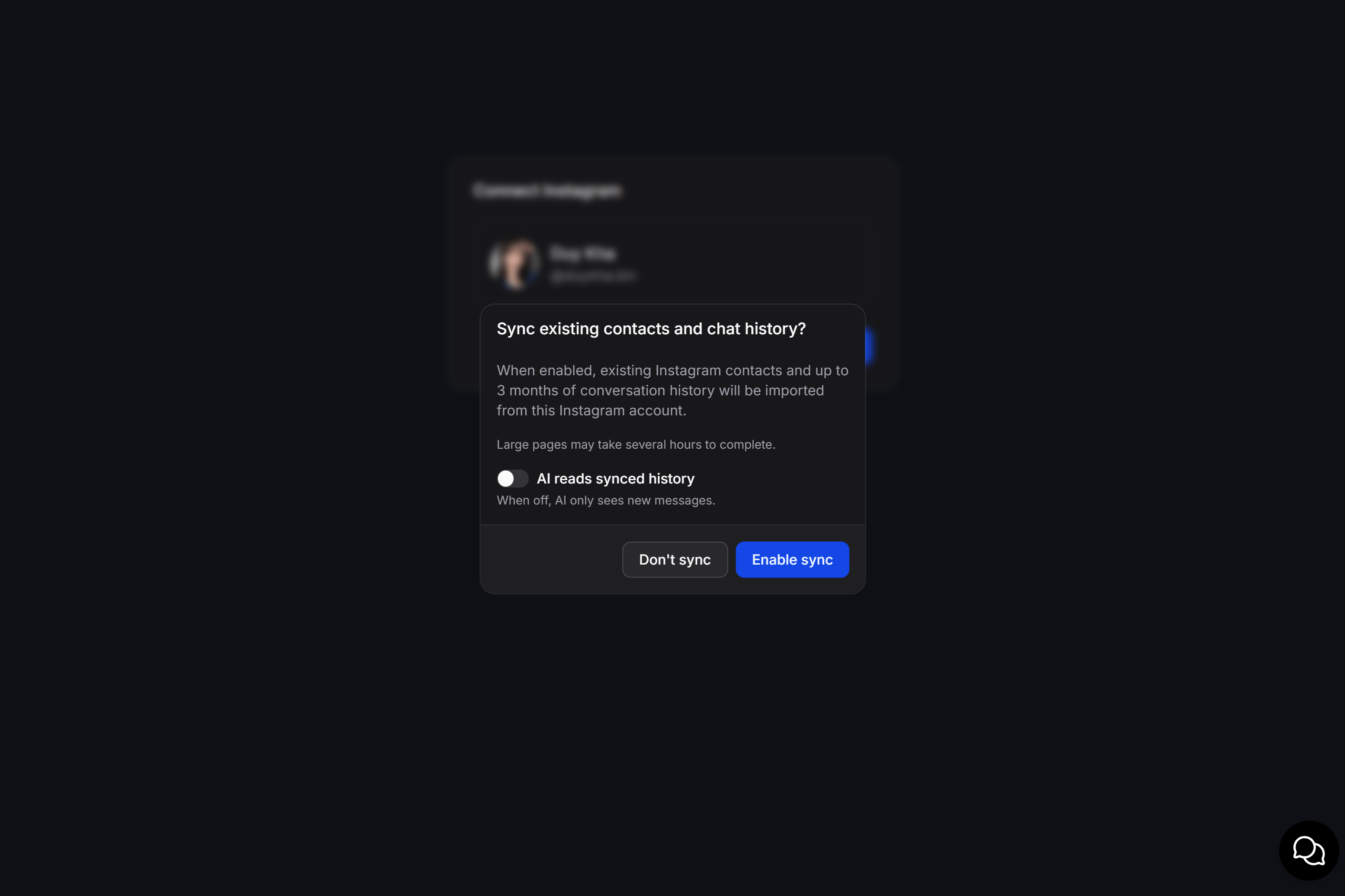
After completing the connection, the “Sync existing contacts and chat history?” dialog will appear:- AI Context Configuration:
AI reads synced historytoggle (Default: OFF):- When OFF (Default & Recommended): AI Agents will only process and respond to newly incoming messages after connection, without reading past chat history.
- When ON: All imported historical messages will be supplied into the conversation context for AI Agents.
- Sync Options:
- Enable sync: Allow ChatbotX to import existing Instagram contacts and up to 3 months of conversation history from this account.
- Note: This sync process for accounts with many conversations may take several hours to complete.
- Don’t sync: Skip importing old data and start fresh with new customer interactions.
- Enable sync: Allow ChatbotX to import existing Instagram contacts and up to 3 months of conversation history from this account.
Step 4: Finalize and Verify
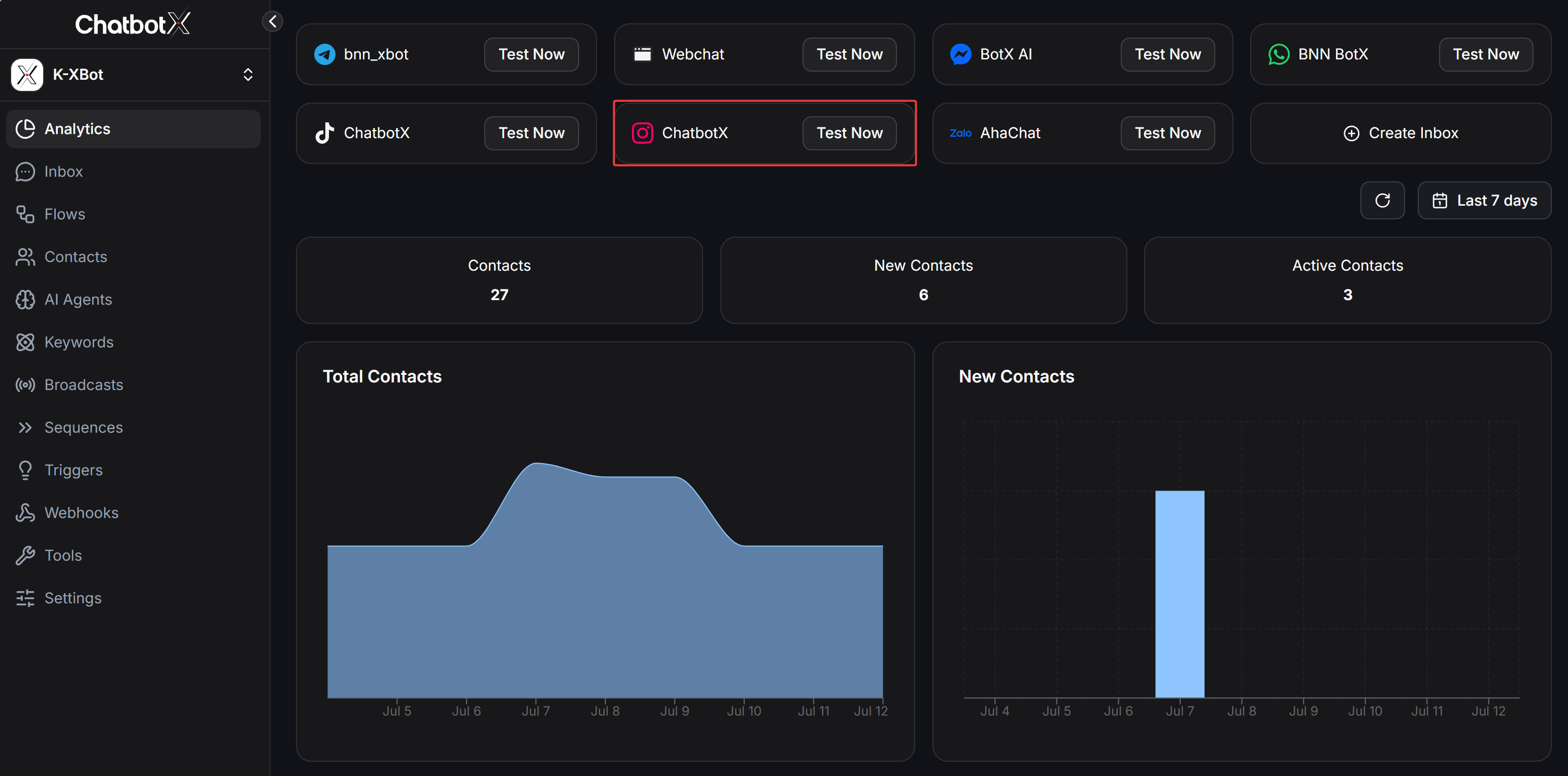
After being redirected back to the system, your Instagram account will appear on the ChatbotX dashboard.- Confirm connection: Make sure the correct Instagram account is displayed with the Instagram icon.
- Check integration: Click Test Now to send a test message and confirm the AI Agent is working.
Step 5: Test Automation
Your Instagram account is now connected. You can test it using one of the following methods:- Option 1: Create a Flow
- Go to the Flows section in the sidebar.
- Create a simple welcome message or an interactive menu.
- Send a DM to the Instagram account to verify the response.
- Option 2: Set up an AI Agent
- Go to the AI Agent tab to configure your agent’s personality.
- After saving, send a DM to the Instagram account from another account to test the AI response.
Enable “Allow Access to Messages”: In the Instagram mobile app, go to Settings and privacy → Messages and story replies → Message controls, and make sure “Allow Access to Messages” is turned ON. This is required for third-party tools to receive your Direct Messages.
FAQ
Why doesn't my Instagram account appear in the connection list?
Why doesn't my Instagram account appear in the connection list?
This is the most common issue during setup. It is usually because your account does not meet Meta’s requirements.Check account type: Make sure your Instagram account is set as Business or Creator. Personal accounts are not supported by the Meta API for third-party integrations.Admin permissions: You must have Admin access on the Facebook Page linked to that Instagram account. If it is already linked but still not showing, go to Facebook Page Settings → Linked Accounts, disconnect and then reconnect the Instagram account to refresh the access token.How to fix: Go to your personal Facebook profile → Settings & Privacy → Settings → Business Integrations. Find ChatbotX, click Remove, then go back to Step 1 to start over.
I connected successfully but I'm not receiving messages in ChatbotX?
I connected successfully but I'm not receiving messages in ChatbotX?
If the status shows “Connected” but messages are not appearing, check the following:Enable ‘Allow Access to Messages’
- Open the Instagram app on your phone.
- Go to Settings and privacy → Messages and story replies → Message controls.
- Scroll down to the Connected tools section and toggle ‘Allow Access to Messages’ to ON.
Can ChatbotX automatically respond to Instagram Stories and Mentions?
Can ChatbotX automatically respond to Instagram Stories and Mentions?
Absolutely. ChatbotX fully supports interactive features to boost customer engagement.Story & Mentions responses: Your AI Agent can be configured to automatically send thank-you messages or provide information when someone replies to your Story or mentions your account.24-Hour Rule: Like Messenger, AI can only respond within a 24-hour window from the user’s last interaction.
Can I use 'Comment-to-DM' automation on Instagram posts?
Can I use 'Comment-to-DM' automation on Instagram posts?
Yes, this is a powerful feature for converting followers.Auto-reply to comments: You can set up your AI Agent to automatically reply to comments on your posts and simultaneously send a DM to that user (e.g., sending a discount code when a user comments “Interested”). This increases conversion rates without manual effort.
How does Facebook's 24-hour rule affect the bot?
How does Facebook's 24-hour rule affect the bot?
According to Meta’s policy, bots are only allowed to respond to customers within 24 hours of the customer’s most recent message.After 24 hours, you must use:
- Message Tags, or
- Marketing Messages
How do I update permissions when I add a new Instagram account?
How do I update permissions when I add a new Instagram account?
You do not need to disconnect the existing connection.Simply repeat the Add Instagram process. When the Meta window appears, click Edit Settings and check the new Instagram account.The system will automatically update the list without affecting previously connected channels.