

- Login with Google (Google Login).
- Spreadsheet synchronization (Google Sheets).
- Calendar event synchronization and management (Google Calendar).
Configuration Steps on Google Cloud Console
Perform the application registration following the latest Google Cloud Console workflow:Create a new Google Cloud Project
- Log in to the Google Cloud Console.
- Click the project dropdown in the top-left corner and select New Project.
- Enter a project name corresponding to your portal brand and click Create to initialize.
Enable required APIs
Navigate to the APIs & Services > Library section using the search bar or side menu, search for and enable the following two API libraries:
- Google Sheets API: Used to read and write data to client spreadsheets.
- Google Calendar API: Used to schedule and synchronize events.
Configure the OAuth consent screen
Navigate to the APIs & Services > OAuth consent screen section:
- Select the user type as External and click Create.
- Fill in the basic app details: App name, User support email, App logo, and Developer contact information.
- In the App domain section, enter the links to your portal homepage, Privacy Policy page, and Terms of Service page using your custom portal domain.
- In the Authorized domains section, add your main portal domain (e.g.,
bananaagency.site). - Save settings and proceed to Scopes configuration.
Configure Scopes
Click Add or remove scopes to specify the access permissions your application will request from clients:
- Add basic scopes for login information:
.../auth/userinfo.emailand.../auth/userinfo.profile. - Add the scope for Google Sheets:
.../auth/spreadsheets. - Add the scope for Google Calendar:
.../auth/calendar.events. - Click Save and Continue to proceed.
Publish the application
On the OAuth consent screen summary page, scroll to the bottom and click Publish App to transition the application status from Testing to Production.
Verify Webhook Domain (Domain Verification)
To allow Google Calendar to deliver event notifications (webhooks) to your portal domain, Google requires you to verify your custom domain ownership:
- Go to APIs & Services > Domain Verification in the left menu.
- Click Add domain.
- Enter your portal domain (e.g.,
botx.bananaagency.site). - If the domain has not been verified, you will be prompted to verify ownership in Google Search Console (by adding a DNS TXT record or uploading an HTML verification file).
- Once verified in Google Search Console, return to the Google Cloud Console and click Add domain again to complete the link.
Create OAuth 2.0 Client ID credentials
Navigate to the APIs & Services > Credentials section:
- Click + Create Credentials at the top of the page and select OAuth client ID.
- Select Web application as the Application type.
- Enter a descriptive name for your credentials.
- In the Authorized JavaScript origins section, enter your portal domain URL (e.g.,
https://botx.bananaagency.site). - In the Authorized redirect URIs section, paste the Redirect URI provided in your Portal admin dashboard.
- Click Create. The system will display a modal containing your Client ID and Client Secret for you to copy.
Configure Webhook Verify Token and Synchronize to Portal
To complete the Google App connection to your admin portal, prepare your webhook verification details:What is the Webhook Verify Token?
The Webhook Verify Token is a custom security token that you define (choose a random alphanumeric string with a length between 16 and 32 characters). This token is used as a shared secret to verify incoming webhook notifications sent from the Google Calendar API (Google Calendar Push Notifications). When a calendar event is modified, Google sends a notification request containing this token in the HTTP header (X-Goog-Channel-Token). This allows your portal to verify that the request originates from Google and not from a malicious third party.
Enter Credentials in the Admin Portal
Open the Google connection modal
Log in to your admin portal, navigate to SaaS > Platform Credentials, find Google, and click Edit.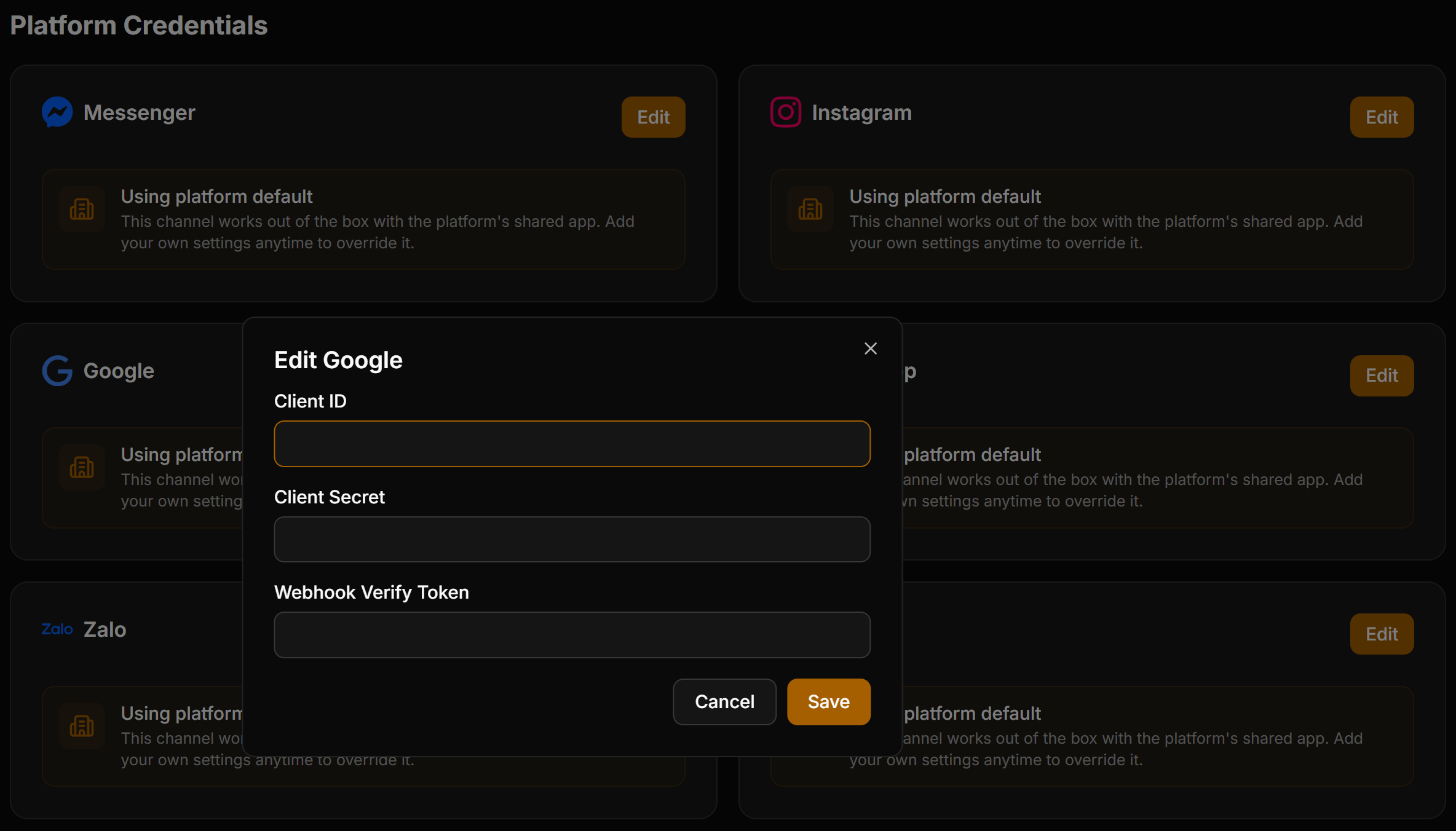
Enter integration parameters
Enter the three parameters you prepared:
- Client ID: Paste the Client ID obtained from Google Cloud Console.
- Client Secret: Paste the Client Secret obtained from Google Cloud Console.
- Webhook Verify Token: Enter the custom security string you generated.
Once configured, create a test client account on your portal to test logging in with Google and connecting Google Sheets and Google Calendar to verify that credentials and webhooks propagate correctly.