Plans is where you configure subscription plans and pricing for your clients. Each plan defines the limits on system resources (contacts, workspaces, channels, team members) and can be linked to a payment processor to automate billing.
You can manage your pricing plans under the SaaS > Plans section on the left navigation menu.
Public Pricing Page
The White Label system automatically generates a public pricing page based on the subscription plans you have created and set to active.
The pricing page URL is displayed at the top of the Plans management interface: https://[your_domain]/portal/pricing. You can use the two quick-action buttons next to the URL:
- Copy URL: Copy the pricing page link to share with clients or embed on your main website.
- View pricing page: Open a new tab to preview the public pricing page interface as seen by your clients.
How Clients Access the Pricing Page
In addition to sharing the link directly, clients can access the pricing page from their own workspace account interface.
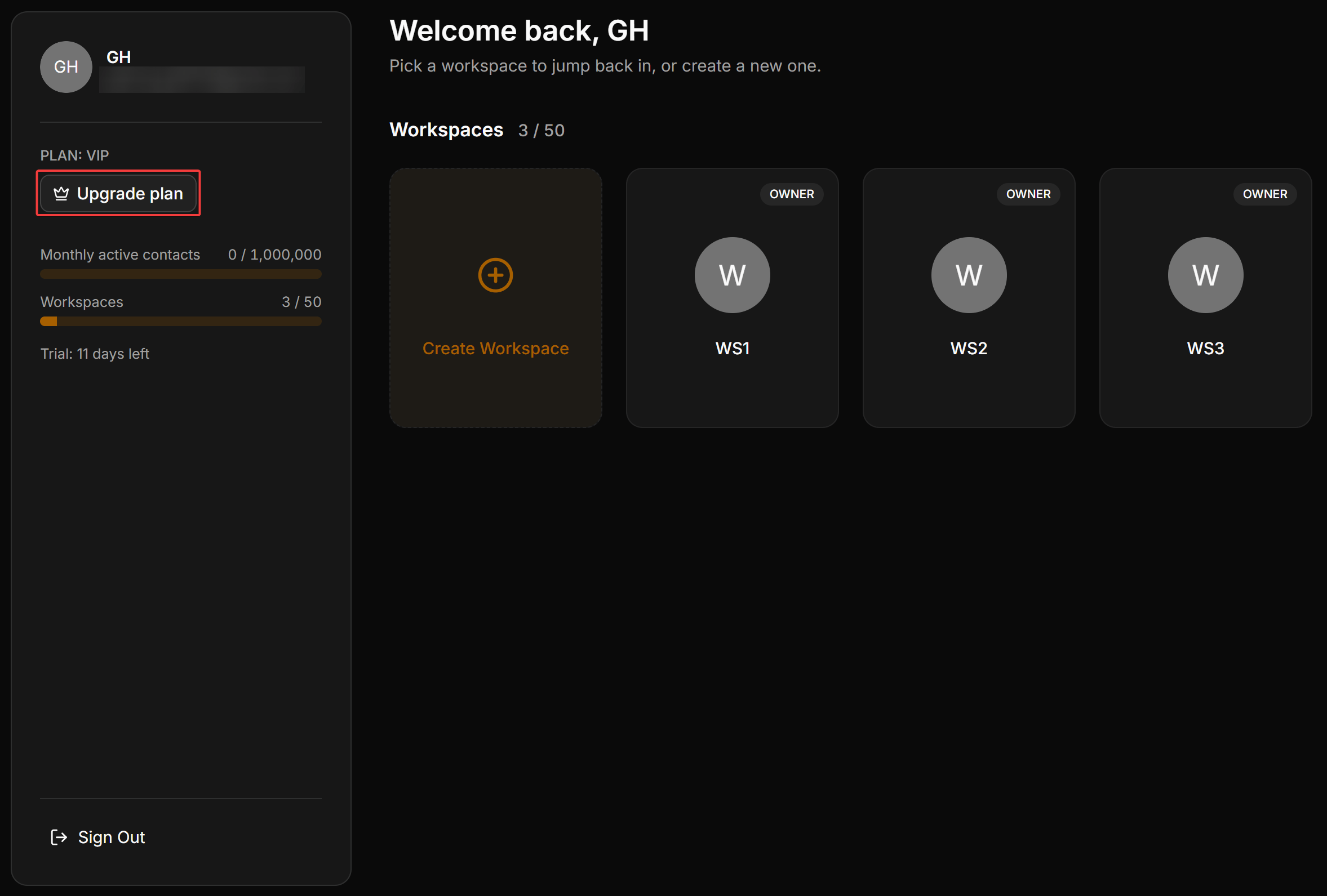
In the client’s workspace dashboard, the sidebar displays their current plan details along with an Upgrade plan button. Clicking this button redirects the user to your public pricing page to select a plan upgrade.
Quick Actions on Pricing Plans
In the Plans list table, each row represents a plan, featuring labels such as Default (the default plan assigned to new users upon registration) or Featured (the recommended plan featured on the pricing page).
By clicking the three-dot ... action menu on the right of any plan row, you can perform the following actions:
- Clone: Duplicate the plan to quickly create a new plan with similar settings without starting from scratch.
- Set as featured: Set the plan as recommended. Branded with an orange Featured badge in the admin view, this plan will show a Most Popular badge and a highlighted registration button on the public pricing page to attract clients.
- Set as default: Set as the default plan. New users who sign up on your portal will automatically be assigned this plan.
- Delete: Delete the plan. Existing clients on this plan will not be affected, but new users will no longer be able to view or subscribe to it.
Pricing Page Public View
When clients visit your public pricing page URL, the system automatically displays a comparison grid of all plans set to public:
- Billing Cycle Filter: Clients can toggle tabs to view rates for different billing frequencies.
- Featured Plan (Most Popular): The plan set as featured automatically displays a Most Popular tag on top of the plan card and uses a highlighted action button.
- Trial Period Label: Displays the configured number of free trial days.
- Description and Features: Displays the main plan description and the list of feature comparisons you configured.
Standard Workflow: First create the subscription plan (Plan) to configure resource limits, and then add pricing tiers (Price) after the plan has been initialized successfully.
Step 1: Create the subscription plan
Click the + New plan button in the Plans dashboard to open the creation form. In this form, configure the basic details and resource limits:
- Name: The display name of the plan.
- Description (optional): A brief description specifying who this plan is suitable for.
Operations Configuration
- Free trial (days): The number of free trial days. Enter
0 for no trial. Enter N days to allow full access for N days without requiring immediate payment.
- Sort order: The display order of the plan card on the public pricing page.
- Public (Toggle switch): When enabled, the plan is displayed on the public pricing page. When disabled, the plan is hidden and can only be manually assigned to clients via the Sub-accounts management page.
- Active (Toggle switch): Enable or disable the plan. Inactive plans cannot be purchased or upgraded to by users.
Resource Limits
Configure the maximum resource quotas allowed for each client workspace under this plan:
- Monthly active contacts: The maximum number of monthly active contacts in the chatbot system.
- Workspaces: The maximum number of workspaces the client is allowed to create.
- Channels: The maximum number of connected messaging channels. Check the Unlimited box if you do not want to set a limit.
- Team members: The maximum number of team members or collaborators that can be invited to manage workspaces. Check Unlimited to allow unlimited invitations.
Feature List
Click the + Add feature button to add bullet points describing plan features on the comparison list.
Click Create plan to initialize the new plan.
Once the plan is created, click the plan name in the list to open the detailed editing page. The Linked prices section will appear at the bottom of the page.
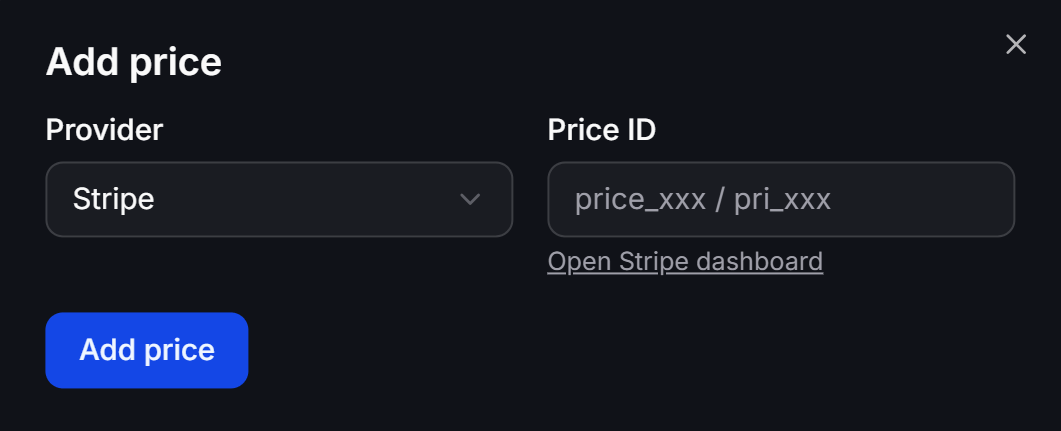
Click the + Add price button to configure pricing. Choose one of two payment methods under Provider:
Method 1: Stripe automated billing
Use this method to automate subscription billing, renewals, and upgrades through Stripe.
- Provider: Select Stripe.
- Price ID: Enter the Price ID from your Stripe account. You can click the Open Stripe dashboard link below to open Stripe and locate the ID.
- The system will automatically synchronize billing states from Stripe to activate or suspend client sub-accounts.
Method 2: Manual offline payments
Use this method when you want to receive payments manually or provide custom negotiation plans.
- Provider: Select Manual / Offline.
- Amount (cents): The payment amount in cents (100 cents = 1 currency unit).
- Billing interval (optional): The billing frequency. Choose:
One-time (one-off payment), Monthly, Yearly, or select ---- for no interval.
- Currency (optional): The transaction currency in ISO 4217 standard format.
Once you have configured the pricing tiers, click the Save changes button to finalize your subscription plan configuration.