
AI Agents built to
Scale
B2C Sales
Scale revenue with multilingual AI Agents that handle enquiries, filter spam, close deals, book appointments and more. Built for stability and reliability under high chat volumes.
AI Agent capabilities for real-world performance
Skip messy AI Agent builders, outdated tech and platforms that buckle under pressure. Scale customer conversations with ChatbotX multimodal intelligence and enterprise-grade reliability.
Multimedia processing
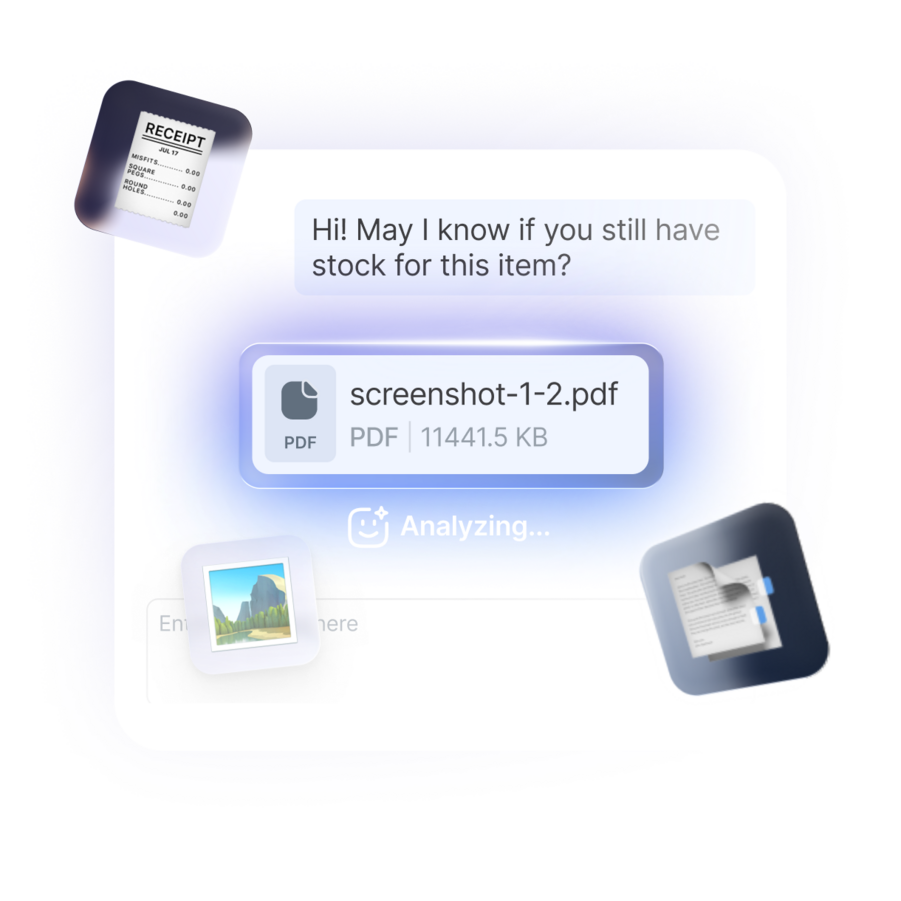
Customers don’t just text; they send screenshots, documents and voice notes. ChatbotX AI Agents process text, images, audio and files for full context and appropriate responses.
Intelligent sales and support
AI Agents collect data, update lifecycle stages, recommend products, share links, resolve support issues, trigger workflows based on keywords, and escalate to humans.
Agent specialization for precision
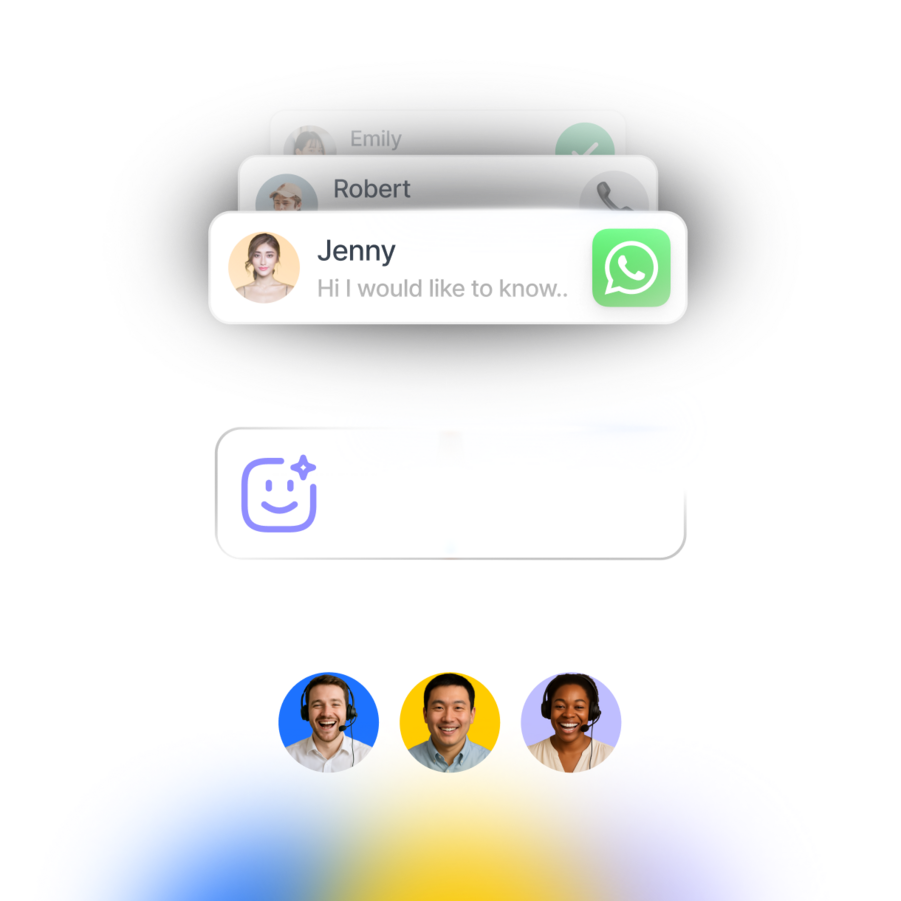
Using a single AI Agent for too many roles leads to errors. ChatbotX’s AI Orchestrator coordinates a team of micro-agents specialized in tasks like retrieval and routing.
Guardrails and human takeovers
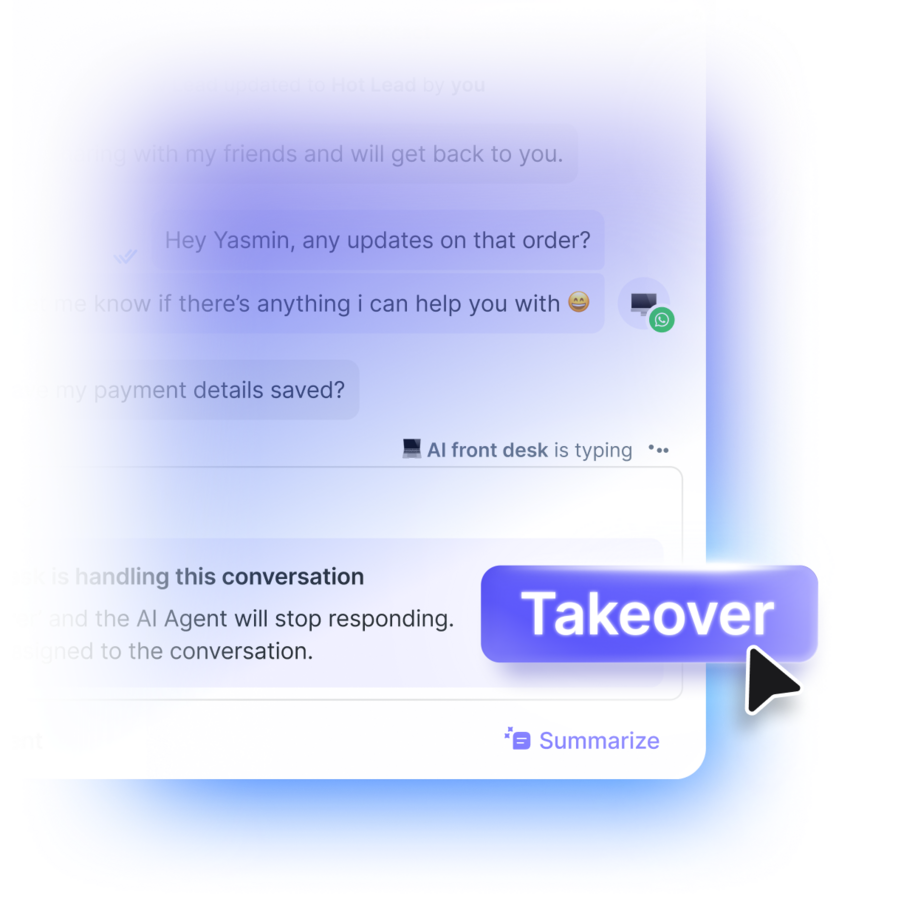
Set strict guardrails that define what AI Agents say and do to stay on-brand. Humans can take over active conversations instantly without customers knowing.
Up-to-date knowledge
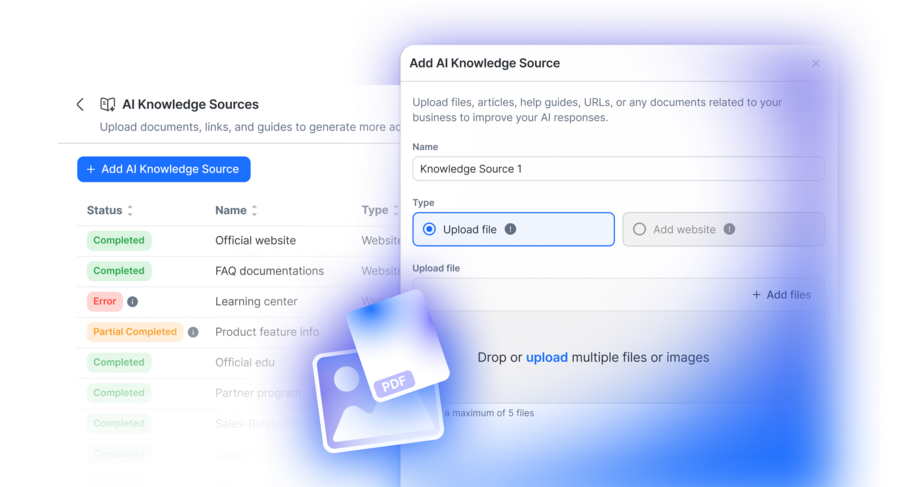
AI Agents pull verified answers from knowledge sources like PDFs, .docx files, catalogs, images and websites. This continuously updated layer guarantees accuracy.
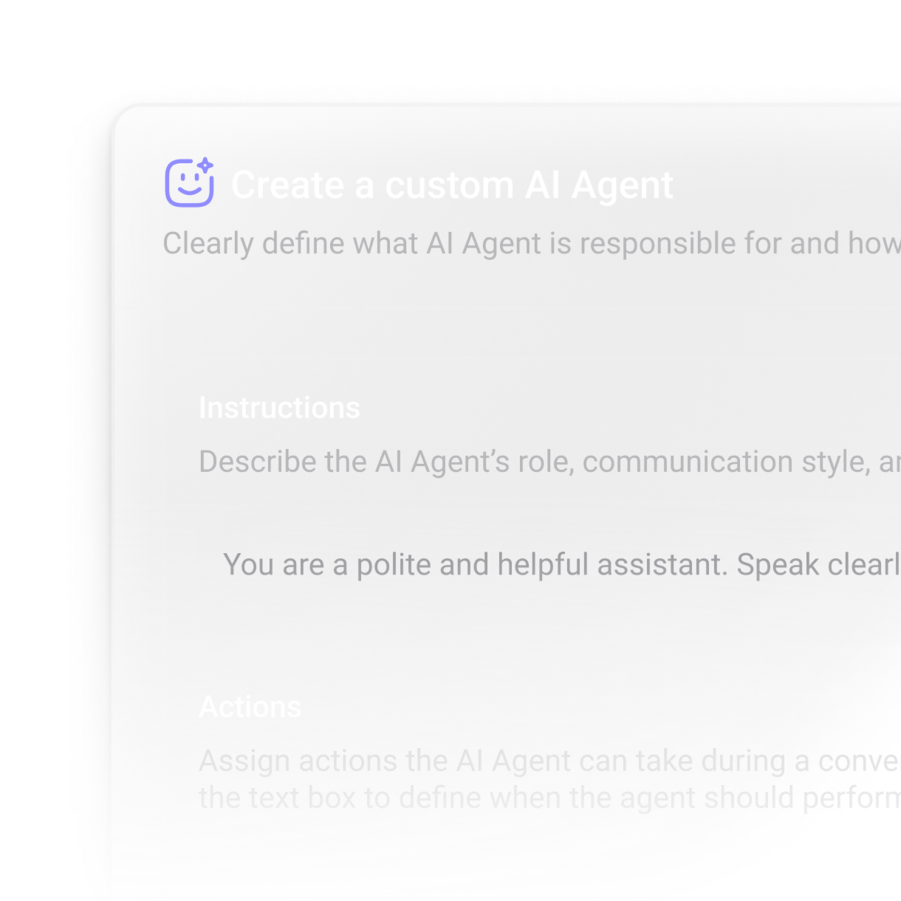
Use template or custom AI Agents
Create a specialised AI Agent or start quickly with a ready-made receptionist, sales or support agent. Set custom instructions and test in a safe environment.
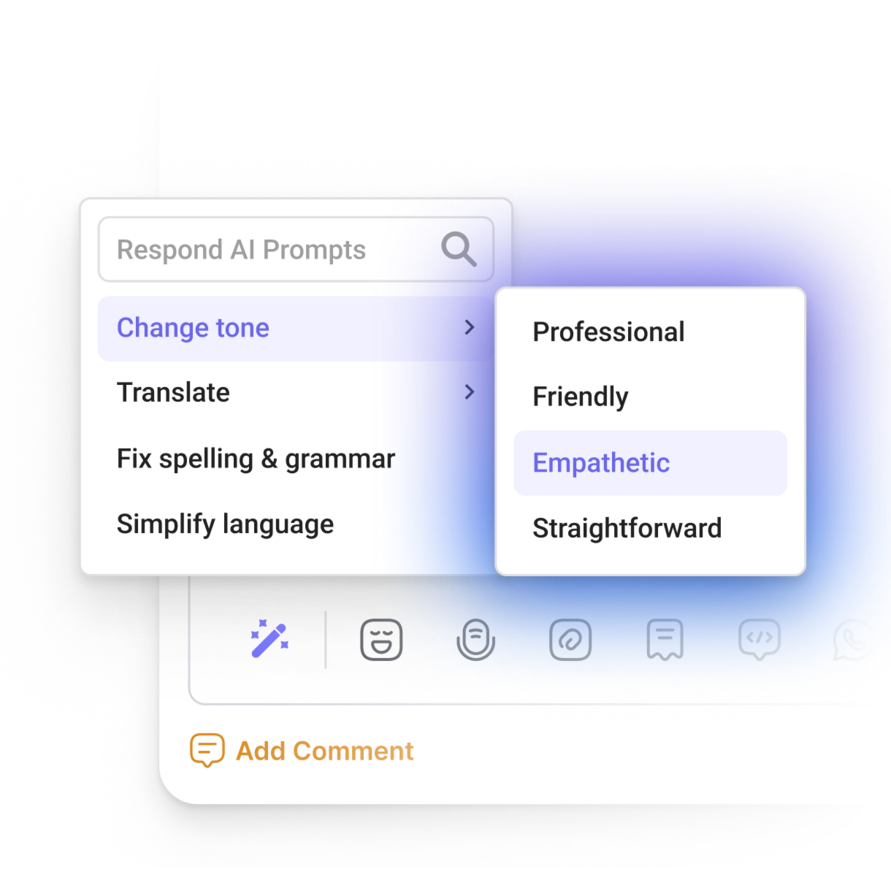
AI in your inbox
Let ChatbotX handle the heavy lifting. Use it to draft responses, adjust tone, translate messages, fix grammar, and generate chat summaries automatically.
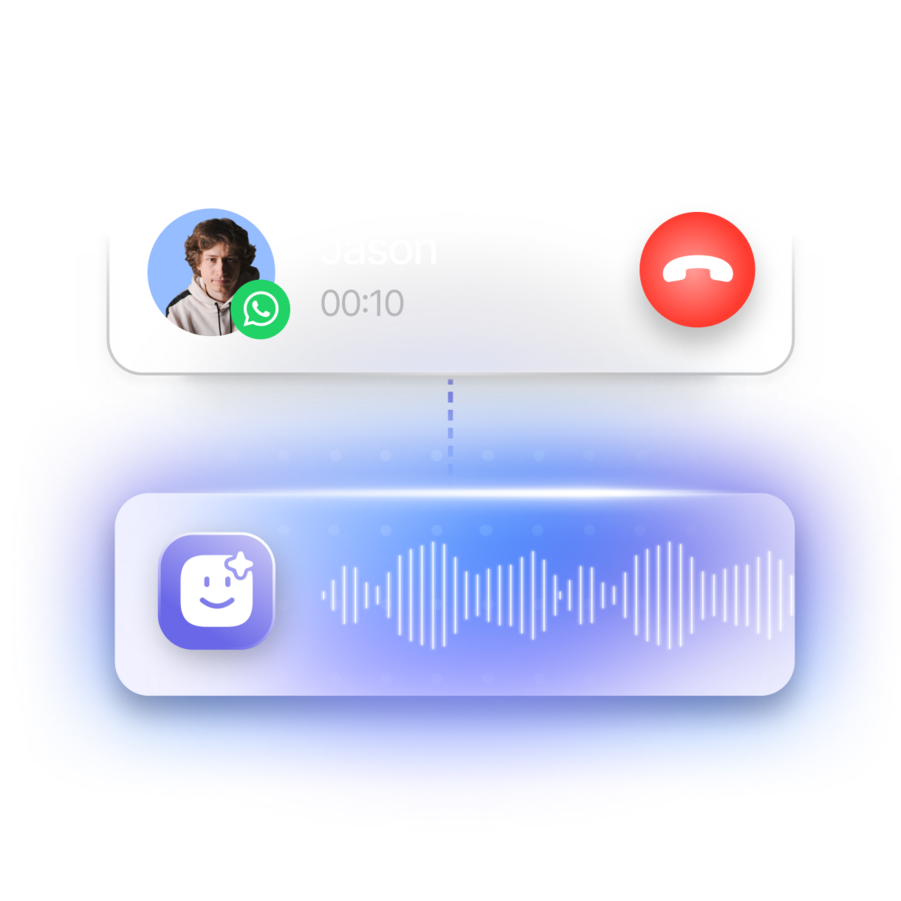
Answer calls with voice
AI Agents answer incoming calls with a natural voice, understanding spoken questions, and collecting information in real time for your team.
Launch AI agents you can trust
Scale your business with professional-grade AI tools.
High accuracy
Designed to minimise errors and prevent hallucinations, with seamless human escalation when needed.
Custom controls
Define rules and compliance criteria to shape how your AI Agents operate, and test before going live.
Enterprise-grade security
GDPR compliant and ISO 27001 certified, with role-based access controls for customer data privacy.
99.999% uptime
Proven reliability that keeps your AI Agents running smoothly, even at scale and during peak demand.
Omnichannel team inbox
Unify contacts and conversations from voice calls, email, WhatsApp, TikTok, Messenger, Instagram and more.
Automate and integrate
Connect to tools like HubSpot, Salesforce, Google Sheets, Zapier, Make, and more while you chat.
Data-driven insights
Track response times, Meta ad and broadcast performance, and conversions to turn insights into revenue.
Customer lifecycle management
Prioritize high-intent leads, design customer journeys or identify common drop-off points with analytics.
Frequently
asked
questions